Toast Payroll: Make an Employee Status Change
Last updated: Apr 28, 2026, 4:23 PM
Question
- How can I make an employee status change, such as terminating or rehiring an employee, in Toast Payroll?
- How do I change a seasonal or temporary employee into an active employee again once they return to work?
Answer
- Navigate to the employee's profile using the Team tab or the Search employees search bar.
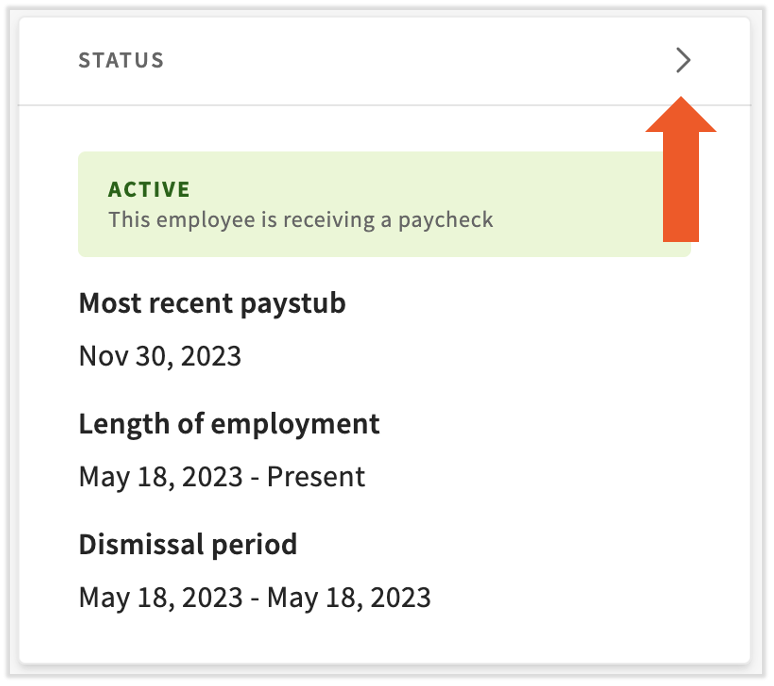
- In the Status tile at the top of the page, select the > carat icon.
- If this status says Seasonal, rather than selecting the > caret icon, scroll down and select Profile Settings instead. Update the Employment status drop-down menu to Active and select Save changes. This step cannot be used for termination or leave of absence (LOA).
- If this status says Seasonal, rather than selecting the > caret icon, scroll down and select Profile Settings instead. Update the Employment status drop-down menu to Active and select Save changes. This step cannot be used for termination or leave of absence (LOA).
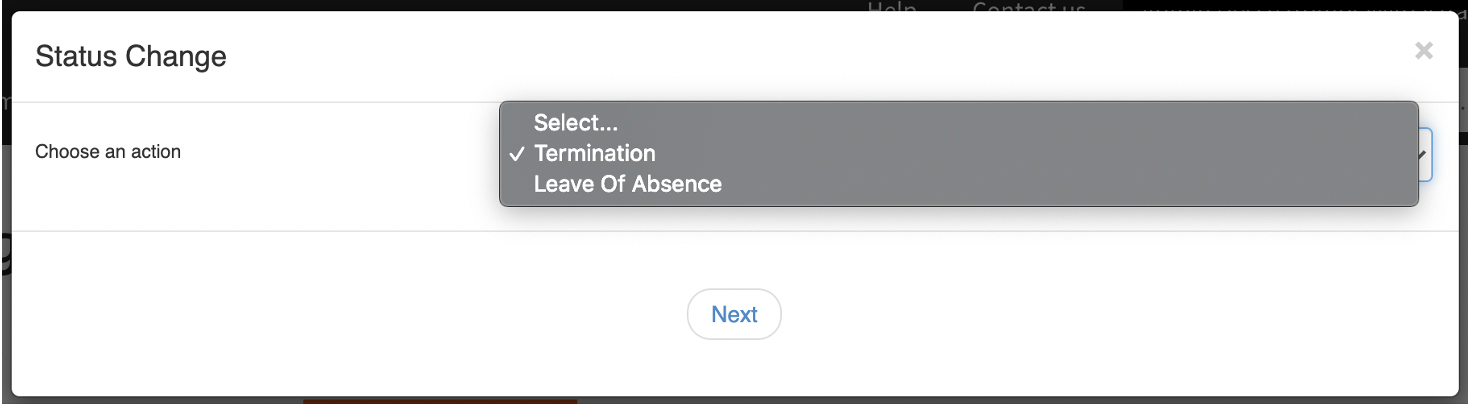
- On the pop-up, choose the specific status change you'd like to make for this employee. This is where you would want to designate LOA versus Termination. Rehire will instead appear if the employee is already terminated. Select Next to continue.
- Employees in the LOA status will still appear on payroll. Their earnings will not populate, but if they have any recurring deductions (i.e. benefit costs), these will appear so they may continue to be recorded. According to a per-employee-per-month invoice model, LOA employees will not be counted as active and will not be invoiced.
- Employees in the LOA status will still appear on payroll. Their earnings will not populate, but if they have any recurring deductions (i.e. benefit costs), these will appear so they may continue to be recorded. According to a per-employee-per-month invoice model, LOA employees will not be counted as active and will not be invoiced.
- The system will then direct you to additional steps regarding the status change. These steps are determined by your company's setup.
- If you are rehiring an employee, Forms W-4 and I-9 information will need to be updated, and employees will need to e-sign via the employee onboarding process. View this page for more details.
This content is for informational purposes and is not intended as legal, tax, HR, or any other professional advice. Please contact an attorney or other professional for advice.