Toast Payroll: Rehire Guide
Last updated: Jun 23, 2026, 2:25 PM
Want to rehire a former employee? Learn how to rehire an employee in the Toast Payroll system.
Rehire In Toast Payroll: Employer Steps
When rehiring an employee, you do not need to unarchive their profile in Toast Web. After completing these steps, the employee's Toast Web profile will be automatically unarchived by Toast. Follow these steps to rehire a former employee in the system:
- In Toast Payroll, enter the employee's name in the Search employees bar.
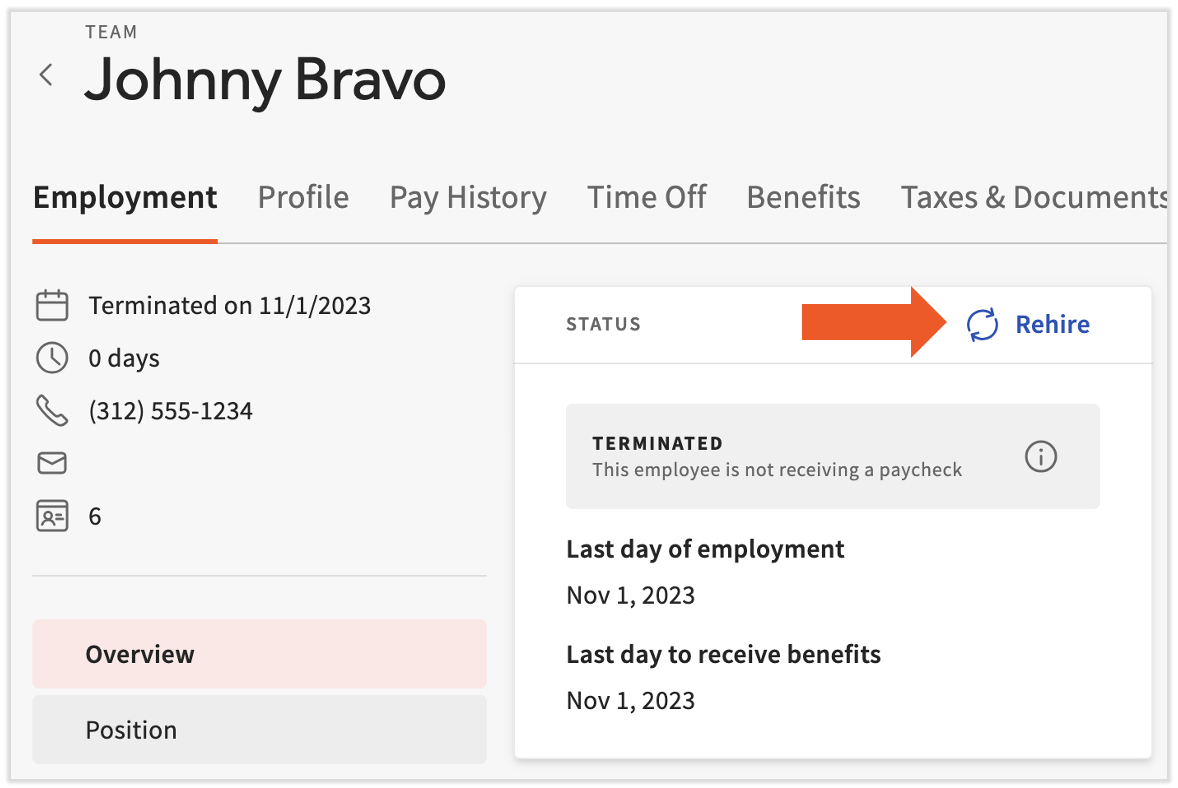
- Select Rehire in the Status tile at the top.
- Note: If this employee was terminated and marked as Never Employed, they will not be able to be rehired until their Employment status is changed from Never Employed to Dormant. Do this by selecting the Profile Settings button in the bottom-left corner and edit the Employment status field. Once complete, return to the main profile page and select Rehire button as described above.
- Note: If this employee was terminated and marked as Never Employed, they will not be able to be rehired until their Employment status is changed from Never Employed to Dormant. Do this by selecting the Profile Settings button in the bottom-left corner and edit the Employment status field. Once complete, return to the main profile page and select Rehire button as described above.
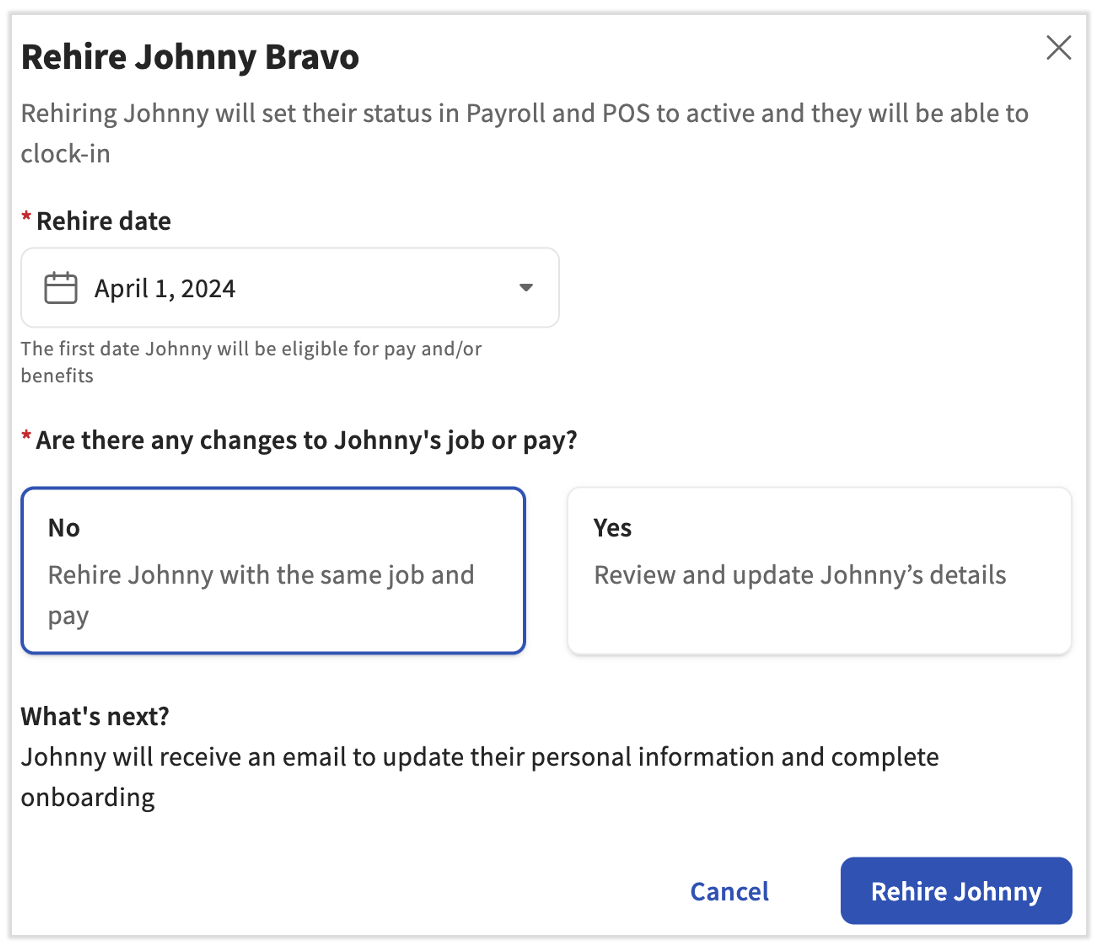
- From the Status Change pop-up, choose Rehire.
- Enter the Rehire date.
- Toast Payroll will ask you if any changes should be made before rehiring this individual.
- If you select No, the employee will be immediately rehired into the same job(s) and pay rate(s). Select Rehire [employee name] to complete the employer steps and you're all set.
- The employee will not need to complete their own onboarding steps, but they may wish to verify their Form W-4 and personal information. Toast Payroll: Get Help With Employee Resources can assist employees with their options in Toast Payroll.
- If you select Yes, it will return you to the new hire onboarding workflow, but all selections will be pre-populated with previously entered information. Select the Rehire [employee name] and continue with all steps below.
- You will not see the No option if this employee is missing a valid email address or a social security number (when you require it).
- If you select No, the employee will be immediately rehired into the same job(s) and pay rate(s). Select Rehire [employee name] to complete the employer steps and you're all set.
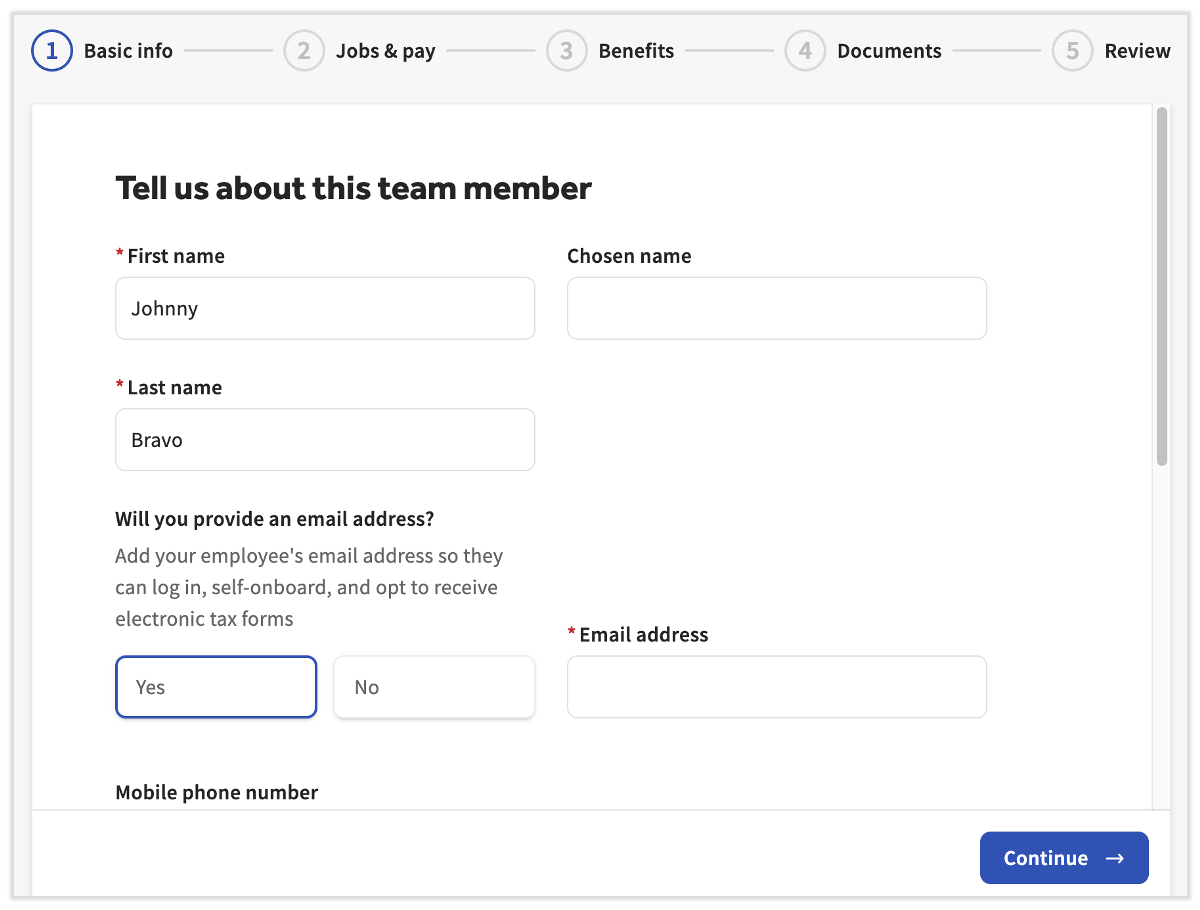
- If you selected Yes above, you will now be brought back to the Employer New Hire steps. Employee information that was entered upon original hire will populate; however, you will want to review the information and proceed through each step using the Continue button for the employee to be fully rehired in Toast Payroll.
- On the Basic info step, it's vital to enter the employee's valid email address and social security number (SSN).
- Email addresses are required for an employee to log into Toast Payroll to retrieve a paystub or a Form W-2, among other actions.
- You may not see the SSN field if your company has chosen not to require it.
- Upon completing the final review step, your employee will be sent a "welcome email" and asked to complete their own steps (in the section below). Its important that the employee follows through with these steps that include verifying their personal information, Form W-4 settings, and direct deposit information, among other things. Direct deposit accounts from previous employment will remain on an employee's profile, but they are no longer validated, so rehired employees will need to take action to be paid via direct deposit.
- If an employee loses or misplaces the automatic "welcome" email, follow the instructions outlined in the Send/Resend Invite Emails to Employees section of Toast Payroll: Team Page to re-invite them to log into Toast Payroll.
Rehire in Toast Payroll: Employee Steps
These are the steps a rehired employee can take to complete rehire onboarding:
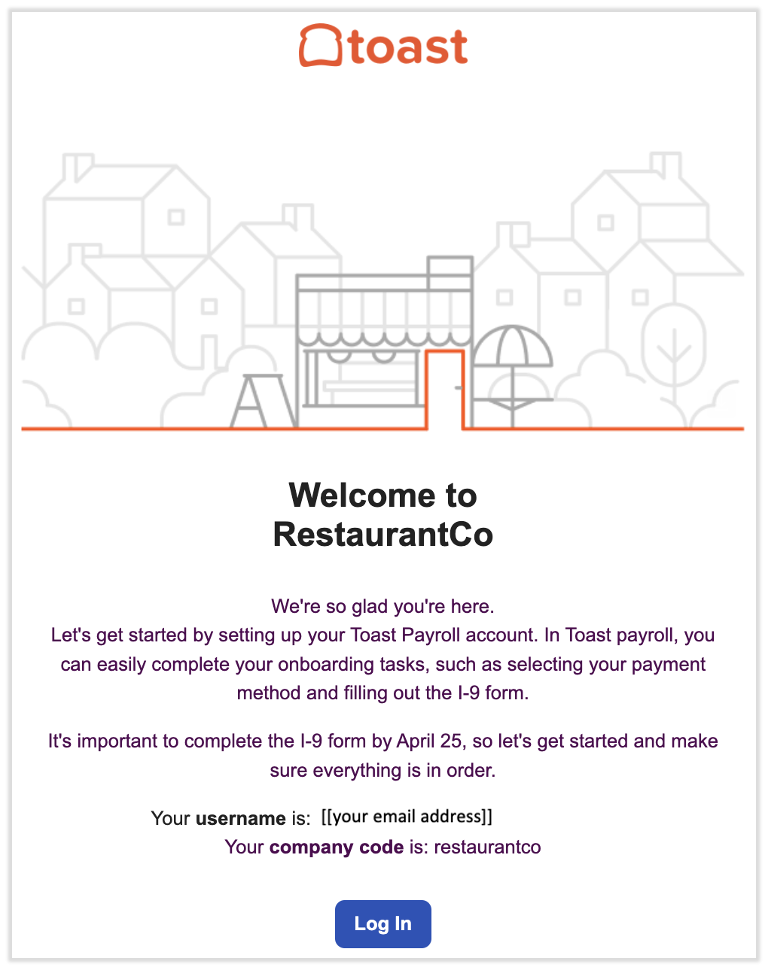
- Select the Log in button included in the Welcome email from noreply@toasttab.com. You will be prompted to enter and confirm a new password. For more information on logging in, visit Log in to a Toast Product or Device.
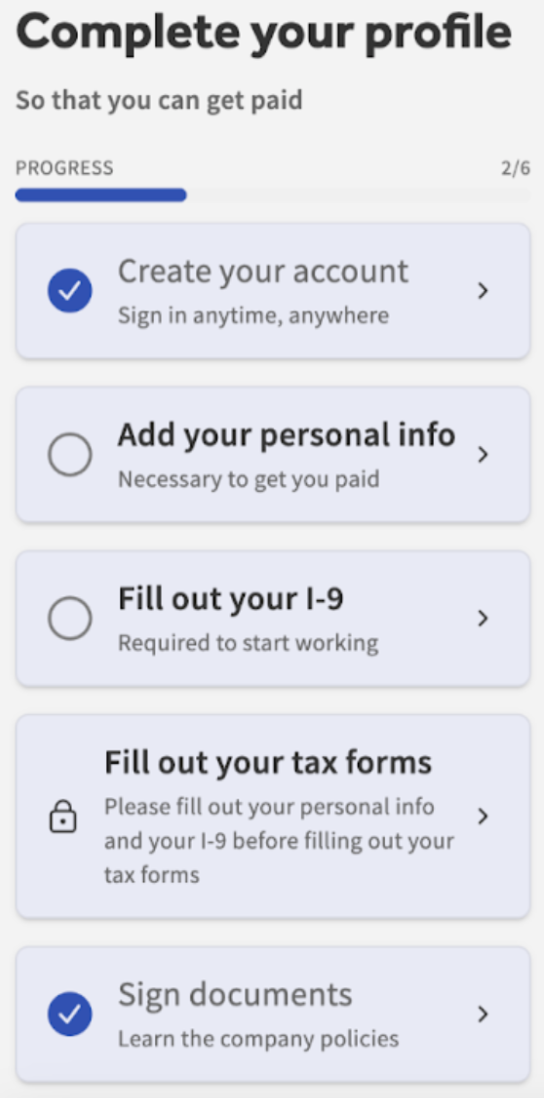
- You will then be directed to your onboarding checklist. Some information from your original employee onboarding will populate, but things like a home address and direct deposit information will need to be re-confirmed. It is important that you verify all your information and fill out any incomplete items in order to be taxed and paid properly. Learn more about the Employee Onboarding Checklist.
- Each employee must:
- Verify and/or update personal information such as address and SSN (this is very important for accurate taxation).
- Complete Form I-9 re-verification or, in some cases, fill out a new Form I-9.
- Verify and/or update Form W-4 information.
- Update direct deposit information.
- Select Verify when you're asked to confirm your identity. A six-digit code will then be texted to the phone number on-file with your Toast account. Enter this six-digit code into the pop-up in Toast Payroll. Note: Toast representatives will never ask you for this code, so do not provide this code to anyone.
- If you do not see the pop-up, you may need to disable your ad blocker and retry this action. You can re-enable it once you're done with these instructions.
- If you did not have a direct deposit account during your previous employment, follow the steps in the Add a Direct Deposit Account With Plaid section of Toast Payroll: Get Help With Direct Deposit Accounts.
- If you did use direct deposit during your previous employment, your account needs to be validated again. Important: If you see a direct deposit account from a previous employment on your Payment Method page, select the trash can icon to remove it. Then follow the steps in the Add a Direct Deposit Account With Plaid section of Toast Payroll: Get Help With Direct Deposit Accounts. Without deleting and re-adding a direct deposit account, you will be paid via a paper check.
- Select Verify when you're asked to confirm your identity. A six-digit code will then be texted to the phone number on-file with your Toast account. Enter this six-digit code into the pop-up in Toast Payroll. Note: Toast representatives will never ask you for this code, so do not provide this code to anyone.
This content is for informational purposes and is not intended as legal, tax, HR, or any other professional advice. Please contact an attorney or other professional for advice.