Toast Payroll: Get Help With Employee Resources
Last updated: Oct 8, 2026, 2:56 PM
The hub for Toast Payroll employees. Find your paystub, get your W-2, set up direct deposit, update info, request time off, and enroll in benefits.
Toast Payroll employees and managers — find your paystub, get your Form W-2, set up direct deposit through Plaid, update personal information, request time off, and enroll in benefits, all from this page. Use the short link toast.help/employees to share it. For Spanish-speaking employees, see toast.help/empleados.
- Are You an Employee or a Manager?
- What You'll Find Here
- Log In to Toast Payroll
- Get Your Form W-2
- Get Your Paystub
- The MyToast App (Employee App)
- Set Up or Update Your Direct Deposit
- Update Your Form W-4
- Update Your Personal Information
- View Timesheets
- Request Time Away From Work (TAFW)
- Enroll in Benefits Through SimplyInsured
- For Managers and Payroll Administrators
- Frequently Asked Questions
- Related Articles
Note: 2025 Form W-2s will be available on or after Monday, January 19th, 2026.
Are You an Employee or a Manager?
- I am a current employee — getting your own paystub, W-2, direct deposit, time off, or personal info. Most steps below are for you. Use the MyToast app for the fastest path to a paystub or W-2.
- I am a manager or payroll administrator — looking up another employee's paystub, W-2, or direct deposit, or fixing a missing paycheck. Most of those tasks are not done from this page. Skip to For Managers and Payroll Administrators for the right destination.
- I am a former employee — your login still works with limited access. You must use the Toast Payroll W-2 path (not the MyToast app). Toast cannot help former employees update login information; contact your former employer.
What You'll Find Here
This page is the employee hub for Toast Payroll. It gives a short answer or a quick path for the most common employee tasks, and links to a more detailed companion article when you need depth.
| What you need | Where to go |
| My paystub | Get Your Paystub — MyToast app or Toast Payroll |
| My Form W-2 (2025 or earlier) | Get Your Form W-2 — MyToast app or Toast Payroll |
| Set up or change direct deposit | Set Up or Update Your Direct Deposit |
| Plaid is not working / my bank is not supported | Toast Payroll: Get Help With Direct Deposit Accounts |
| Update Form W-4 (tax withholding) | Update Your Form W-4 |
| Update phone, address, or emergency contact | Update Your Personal Information |
| Request time off | Request Time Away From Work (TAFW) |
| Sign up for health benefits | Enroll in Benefits Through SimplyInsured |
| Forgot password / cannot log in | Log in to Toast: Troubleshoot Login |
| First-time MyToast app login | Get Started With the MyToast App |
| New hire — what do I do first? | Toast Payroll: Employee Onboarding (Employee Guide) |
Log In to Toast Payroll
You can log in to Toast Payroll at payroll.toasttab.com using the email and password tied to your Toast account.
- Navigate to payroll.toasttab.com.
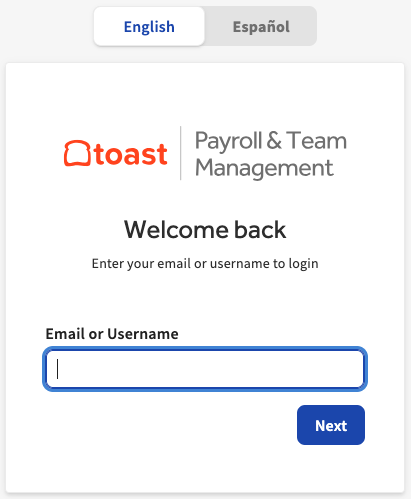
- Enter the Email associated with your Toast Payroll account, then select Next. If you have forgotten or misplaced this information, your manager or payroll administrator can provide it.
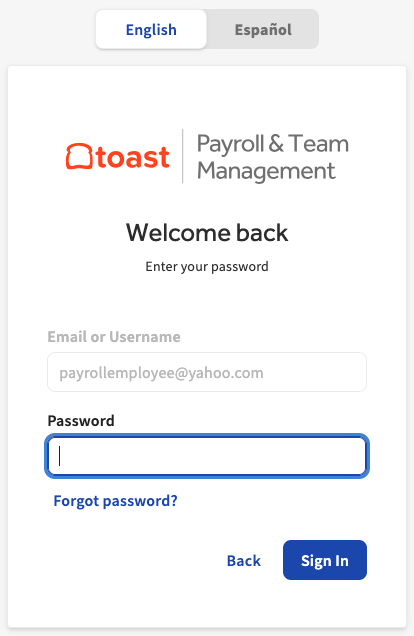
- Enter your Password and select Next. If you have forgotten your password, select Don't remember your password? and an email will be sent to help reset it. No one — including managers or anyone at Toast — can see your current password.
- Before you reach the Toast Payroll dashboard, you may see a notice asking you to verify your email address, add your social security number (SSN), or confirm your Form W-2 election. Follow the on-screen steps.
Expected outcome: the Toast Payroll dashboard appears.
For login errors, lockouts, expired invite links, MFA, or POS access codes, see Log in to Toast: Troubleshoot Login.
To update the email or password you use for all Toast products, see Log in to Toast: Update Your Account.
Get Your Form W-2
Your Form W-2 is available on or after January 19th, 2026 (for 2025) in two places: the MyToast app (current employees only) and Toast Payroll at payroll.toasttab.com (current and former employees). Due to security reasons (social security numbers appear on Form W-2s), Toast Payroll cannot send a Form W-2 to an employee's email or home address.
| If you are… | Use this path | Why |
| A current employee with the MyToast app | MyToast app: Pay > Tax forms (W-2s) | Fastest path; you receive a notification when your form is ready |
| A current employee who prefers desktop | Toast Payroll: My Profile > Taxes & Documents > Year-End Documents | The only way to download and print |
| A former employee | Toast Payroll only: My Profile > Taxes & Documents > Year-End Documents | MyToast app access is disabled for former employees |
| A manager pulling another employee's W-2 | This page does not cover that. See Toast Payroll: Manage the Form W-2 Experience | Employer-side workflow |
Get Your W-2 in the MyToast App
For security purposes, former employees cannot use the MyToast app. Use the Toast Payroll path below instead.
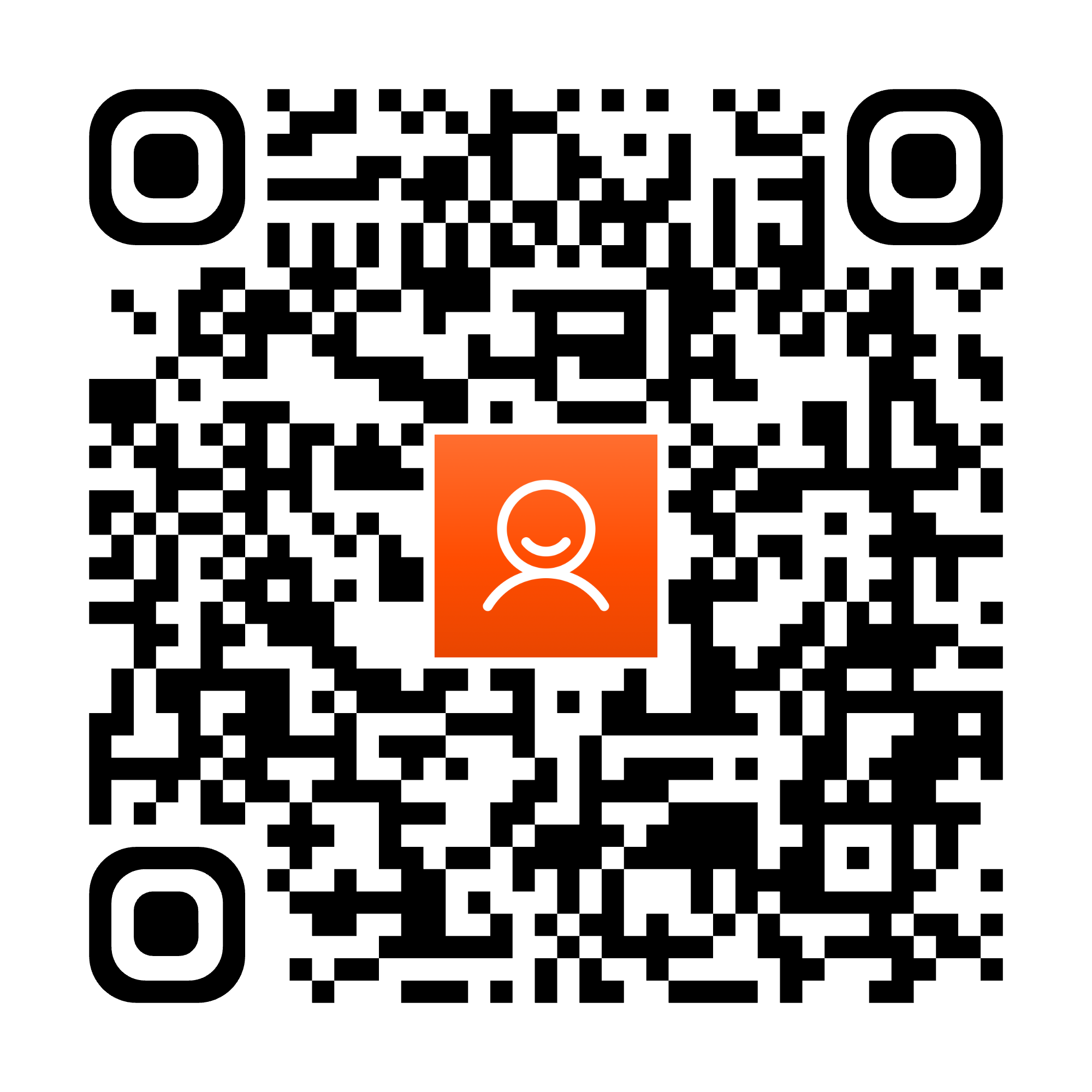
- If you do not have the MyToast app, scan the QR code with your Apple or Android mobile device. Apple devices need iOS 16.0 or later; Android devices need Android 11 or later.
- Open the app and log in with your email and password. For more assistance, see Get Started With the MyToast App.
- On the Home tab, you may see a notification. If not, navigate to Pay > Tax forms (W-2s).
- Select a Form W-2 to open or download it. To print, the Toast Payroll path below is easier.
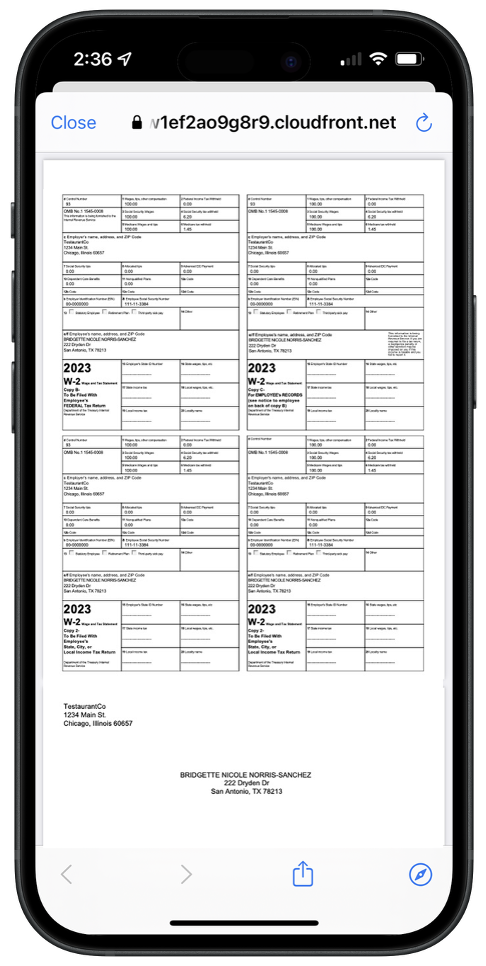
Expected outcome: the W-2 opens or downloads to your device.
Note: The One Big Beautiful Bill allows individual tax deductions on tip and overtime premium amounts for eligible employees. Read Toast Payroll: No Taxes on Tips and/or Overtime and Notice 797 for federal tax benefits.
If you have questions this section does not answer, see Toast Payroll: Manage the Form W-2 Experience.
Get Your W-2 in Toast Payroll
Former employees must use this path. Their login still works but with limited system access. To recover login information, contact your former employer — Toast cannot help former employees update their login information.
- Log in to payroll.toasttab.com.
- Navigate to My Profile > Taxes & Documents. If you do not see My Profile on the left side of the screen, select Payroll from the Toast Web navigation rail on the left to make the Toast Payroll navigation rail appear.
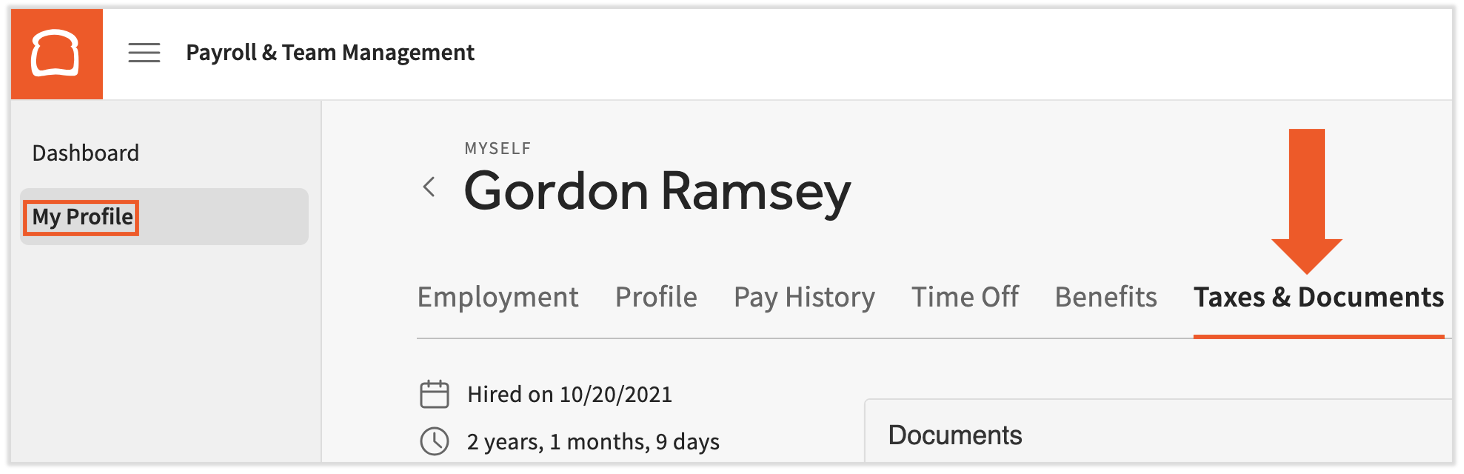
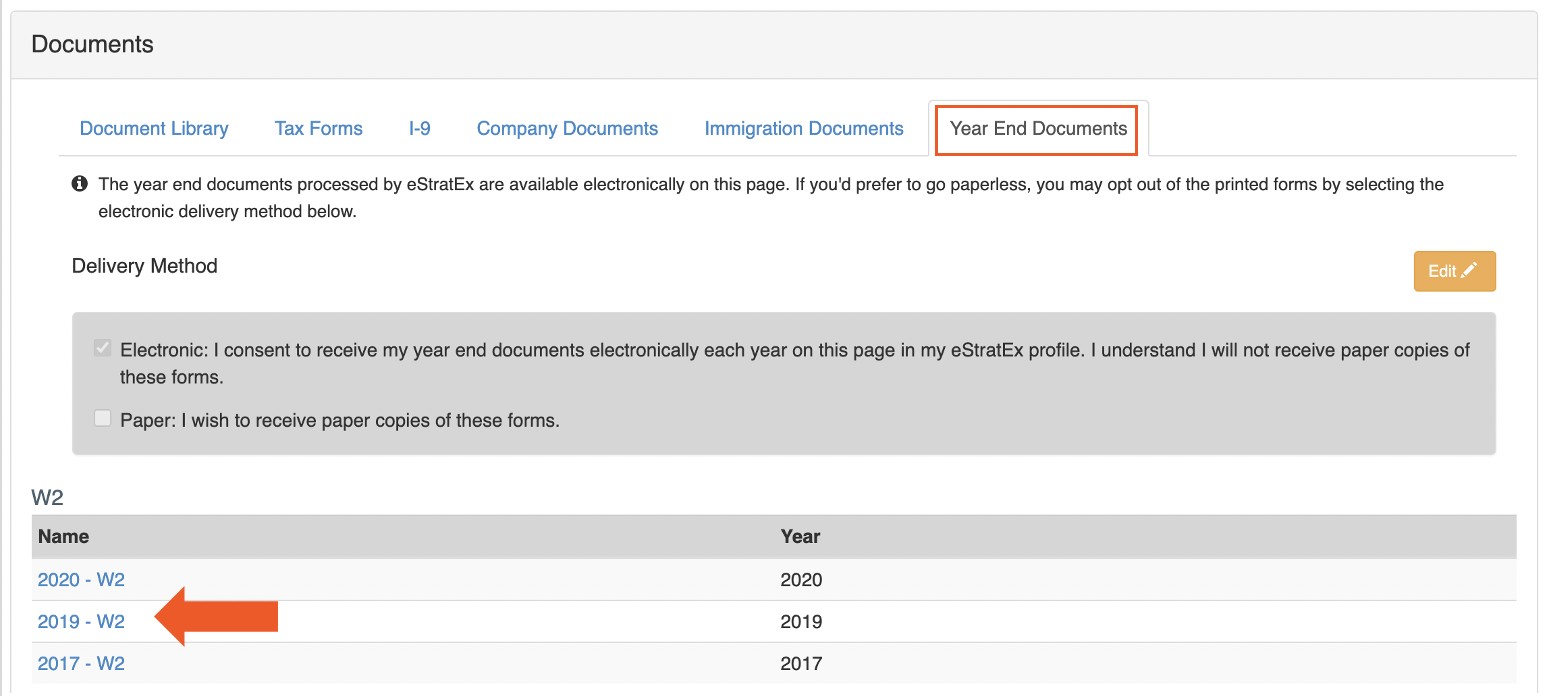
- Select the Year-End Documents tab. Scroll to the W-2 section, then select the hyperlink for the appropriate year. A PDF downloads automatically for printing or emailing.
- For an explanation of each section on your Form W-2, see Toast Payroll: Understand Your Form W-2.
Expected outcome: the W-2 PDF downloads to your computer.
Change Between Paper and Electronic Form W-2
You must make this selection before the last payroll of the year. Either way, an electronic Form W-2 is available to every eligible employee — you can print it from the Toast Payroll path above.
- Log in to payroll.toasttab.com.
- Navigate to My Profile > Taxes & Documents. If you do not see My Profile on the left side of the screen, select Payroll from the Toast Web navigation rail on the left to make the Toast Payroll navigation rail appear.
- Select the Year-End Documents tab.
- At the top of the page, select Edit.
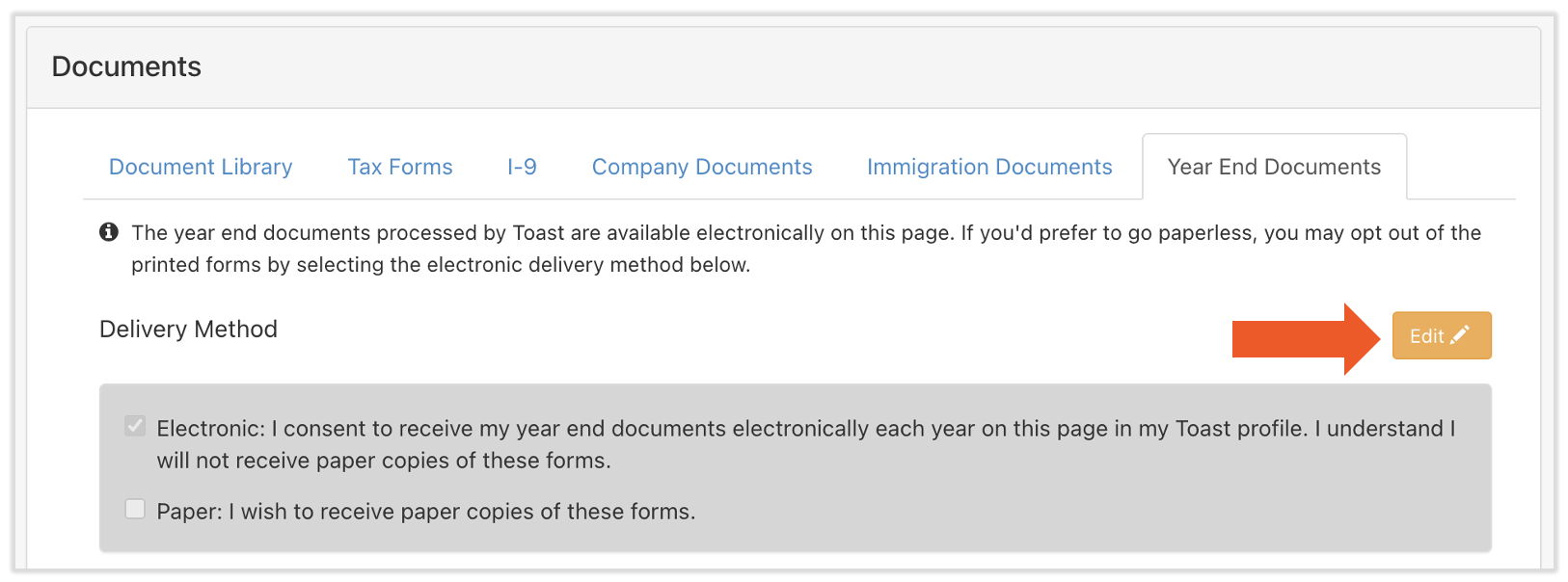
- Check either Electronic or Paper.
- Paper: your employer is responsible for distributing your Form W-2 to you.
- Electronic: you are responsible for retrieving your Form W-2 from the MyToast app or Toast Payroll on or after January 19th, 2026.
- An e-signature is optional but helps for auditing purposes. Select Save to finish.
Expected outcome: your election is saved on the Year-End Documents tab.
Get Your Paystub
You can find your paystub in two places: the MyToast app (mobile) and Toast Payroll at payroll.toasttab.com (desktop).
| If you want… | Use this path |
| The fastest path on mobile | MyToast app: Pay tab |
| To download a single paystub PDF | Toast Payroll: My Profile > Pay History |
| Multiple paystubs in one report | Toast Payroll: My Profile > Pay History > Run report (Detail or Summary) |
| Paystubs for an employee you manage | This page does not cover that. See Toast Payroll: View Your Paystub or Timesheet |
| Former employee, no MyToast app access | Toast Payroll only — login still works |
Find Paystubs in the MyToast App
- If you do not have the MyToast app, scan the QR code with your Apple or Android mobile device. Apple devices need iOS 16.0 or later; Android devices need Android 11 or later.
- Open the app and log in with your email and password. For login trouble, see Log in to Toast: Troubleshoot Login.
- Navigate to the Pay tab. Your most recent paystub is at the top. Select the caret icon to expand a paystub or Show more to load older paystubs.
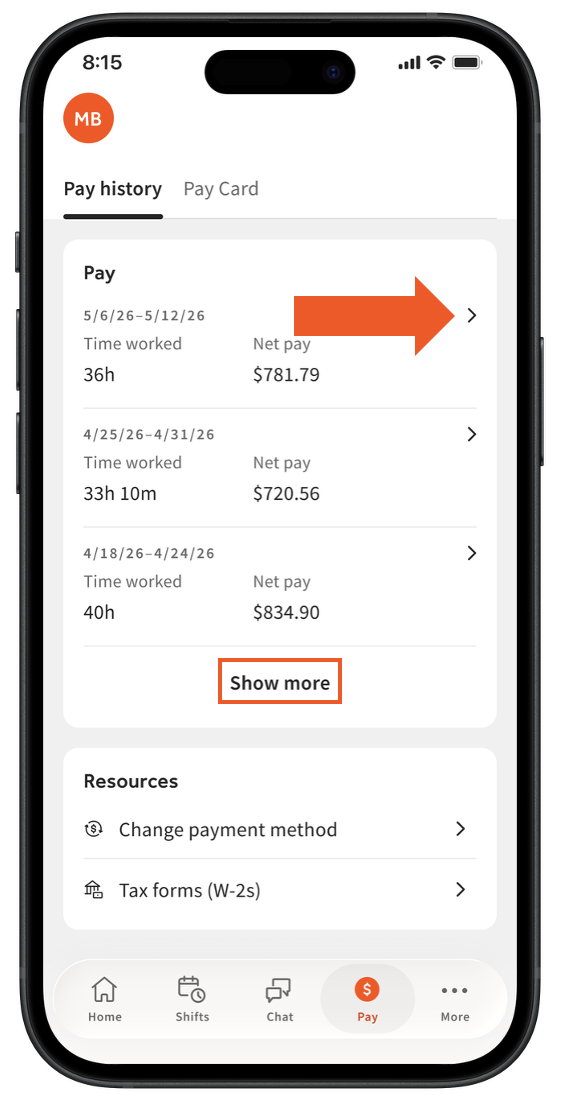
Expected outcome: the paystub expands or downloads.
Note: If you do not see the Pay tab in the MyToast app, your restaurant may not be on Toast Payroll. See the FAQ below.
Find Paystubs in Toast Payroll
- Log in to payroll.toasttab.com.
- Navigate to My Profile > Pay History. If you do not see My Profile on the left side of the screen, select Payroll from the Toast Web navigation rail on the left to make the Toast Payroll navigation rail appear.
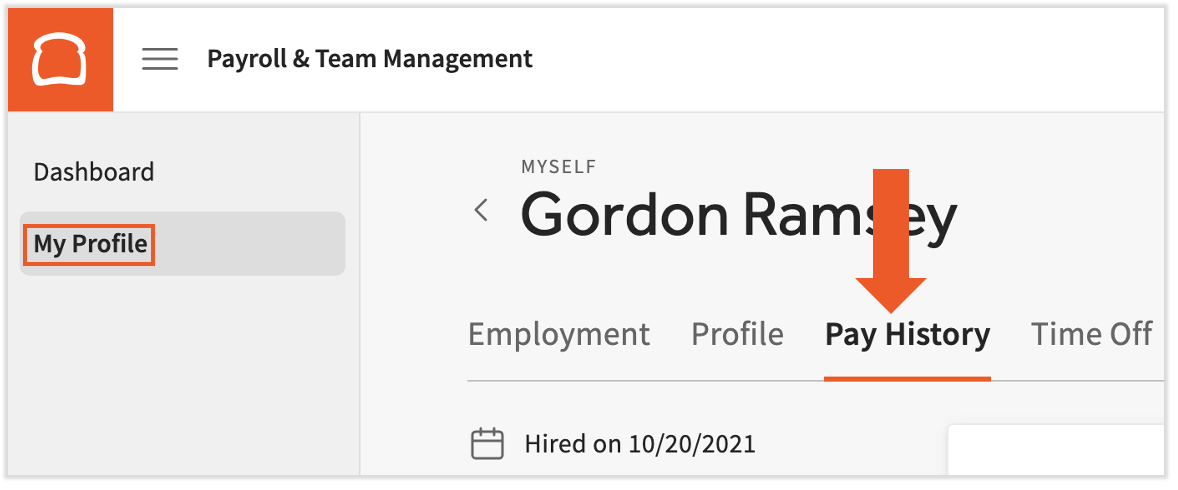
- The bar at the top shows highlights of your most recent paystub. The > icon on the right downloads it.

- In the Paystubs section, select the download arrow or the > icon to produce a paystub for that check date. Select Run report to combine multiple paystubs into one report. The Detail report breaks out each paystub individually; the Summary report combines all paystubs in your selected date range.
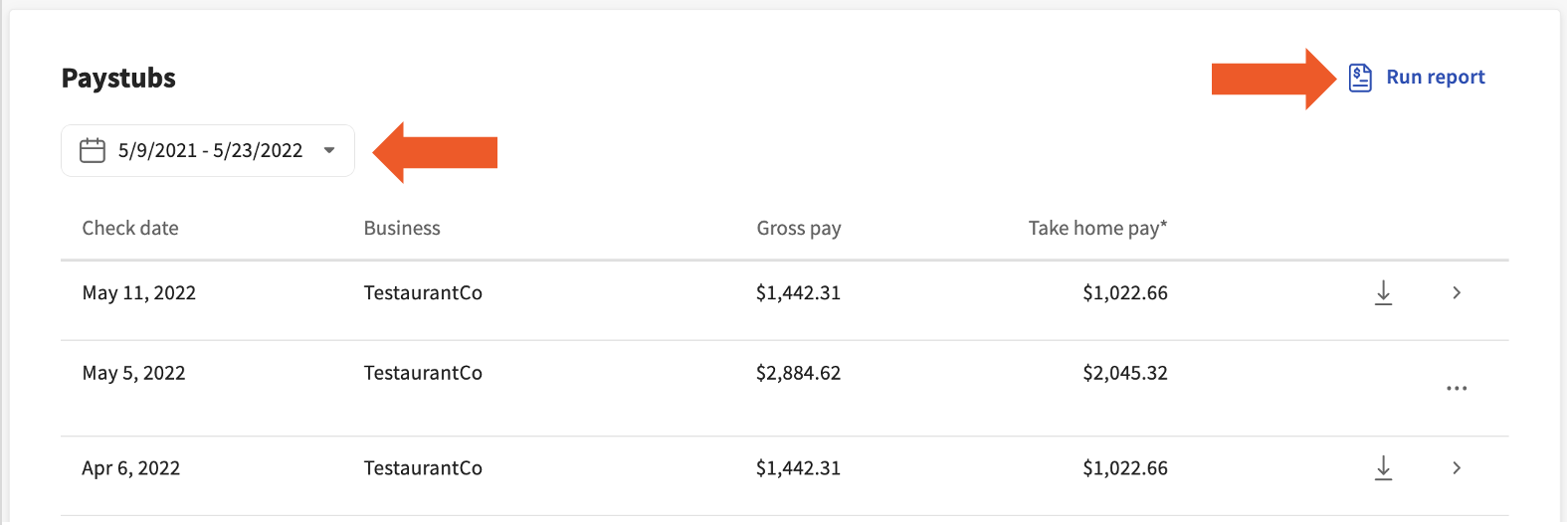
Expected outcome: the paystub or report downloads as a PDF.
The MyToast App (Employee App)
The MyToast app is for all employees of Toast restaurants. Depending on which Toast products your restaurant uses, the MyToast app lets you view declared tips and clock-in/out times, manage your Toast Pay Card, take Toast PayOuts, download your Form W-2, view your schedule, swap shifts, view your tip receipt (tip pool breakdown), view paystubs, chat with other employees at your restaurant, and more. Your manager can confirm which features you have access to.
Each MyToast article covers a tab in the app. If you do not have the app yet — or have not logged in for the first time — start with The MyToast App: Account.
- Get Started With the MyToast App (start here to gain access)
- The MyToast App: Shifts
- The MyToast App: Pay
- The MyToast App: Chat
- The MyToast App: Home
- The MyToast App: More
Set Up or Update Your Direct Deposit
New direct deposits are validated through Plaid, an industry leader in validating employee bank accounts. Before you start, ask your manager or payroll administrator if the next payroll has begun — if so, the funds may be sent to the original direct deposit account (if one existed), or you may receive a paper check.
Important: If Plaid does not support your bank — or you cannot complete the Plaid flow — see Toast Payroll: Get Help With Direct Deposit Accounts. For security purposes, employees and managers cannot enter direct deposit bank accounts manually; an HR+ user at your business can add direct deposit information manually for any user besides themselves.
- Log in to payroll.toasttab.com.
- Navigate to My Profile and select Payment Method. If you do not see My Profile on the left side of the screen, select Payroll from the Toast Web navigation rail on the left to make the Toast Payroll navigation rail appear.
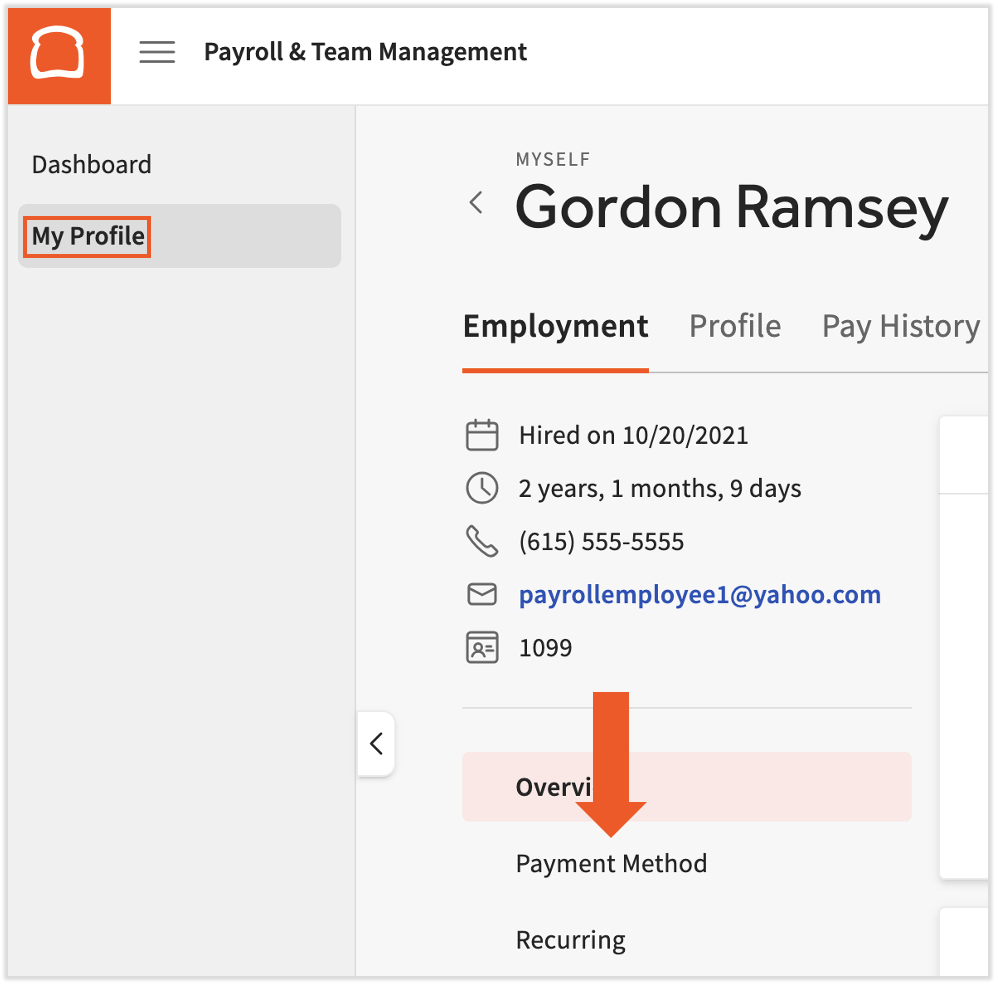
- Choose what you want to do:
- Add a direct deposit account: select the Direct deposit tile, then + Add bank account.
- Add a second account: select Add split deposit.
- Remove a direct deposit account: select the trashcan icon next to it.
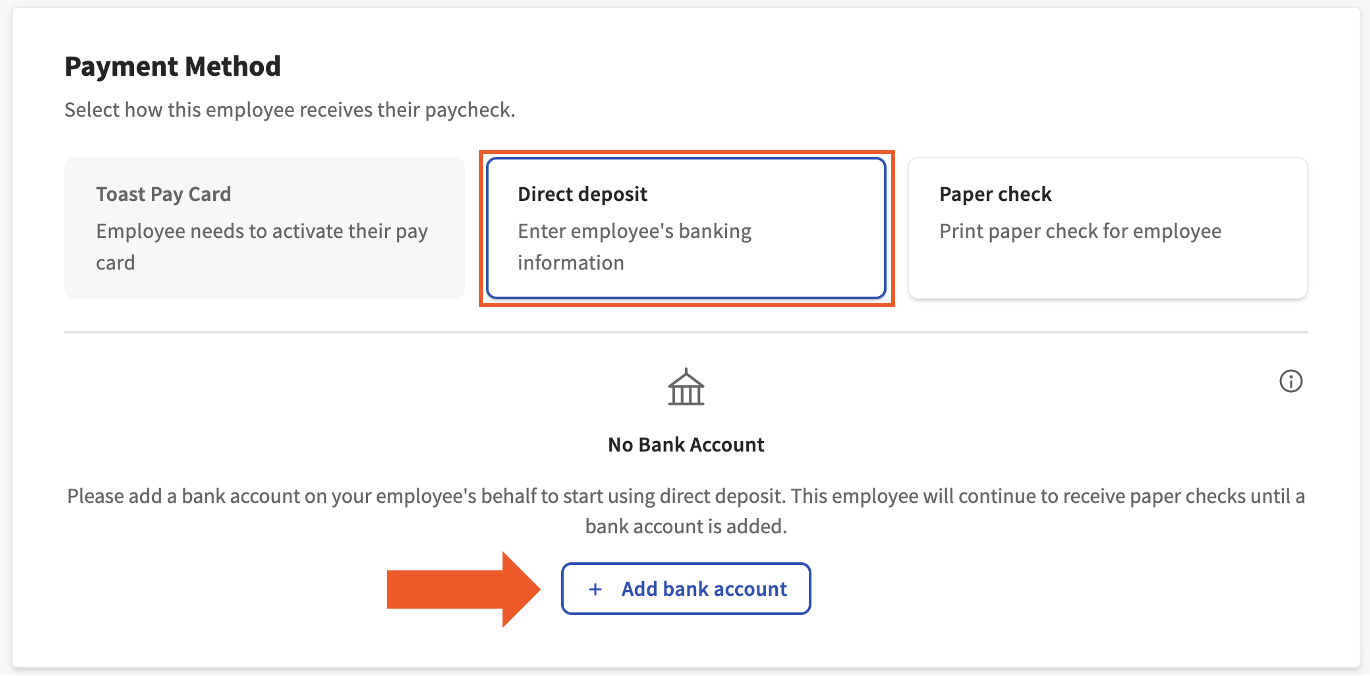
- After selecting any of those, you are asked to verify your identity. A six-digit code is texted to the phone number on file. Enter it into the pop-up.
- Toast representatives will never ask you for this code. Do not share it with anyone.
- If the pop-up does not appear, disable your ad blocker and retry. You can re-enable the ad blocker once you finish.
- The Plaid modal opens. Enter your phone number and select Continue.
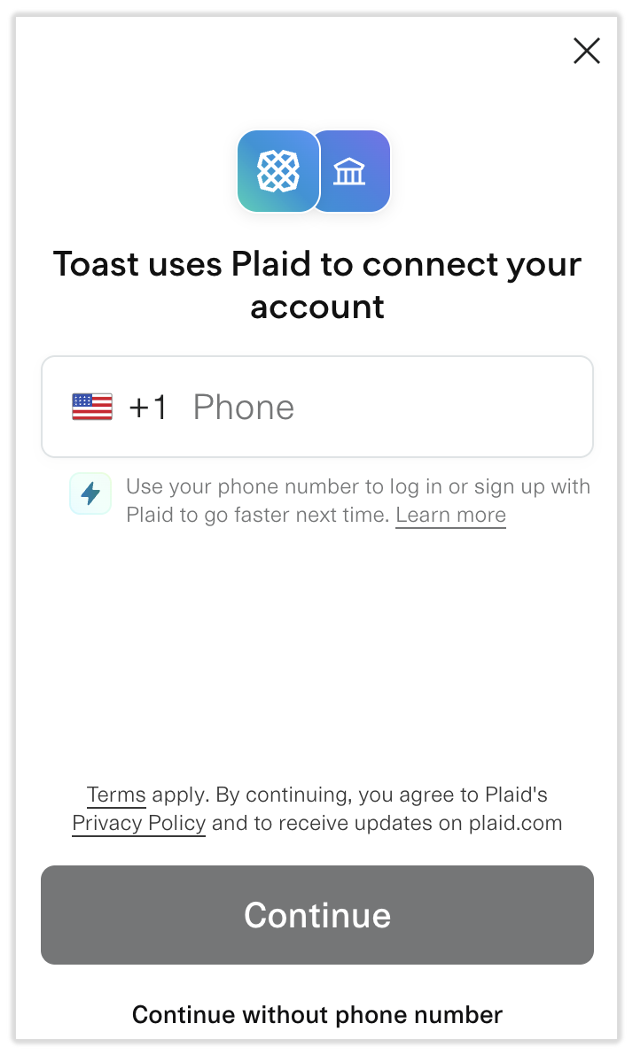
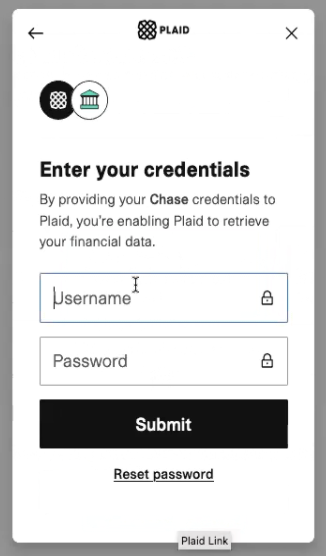
- Locate and select your banking institution. Use the search bar if needed. Plaid asks for the username and password for your online banking account.
- If your bank does not appear, the Plaid flow fails, or you receive an error, see the Troubleshoot Plaid section of Toast Payroll: Get Help With Direct Deposit Accounts.
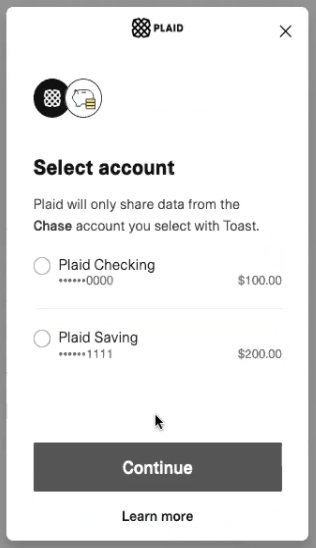
- Plaid lists the accounts associated with your login. Select the account to be your primary direct deposit account, then choose Continue.
- The Success message confirms the account is linked.
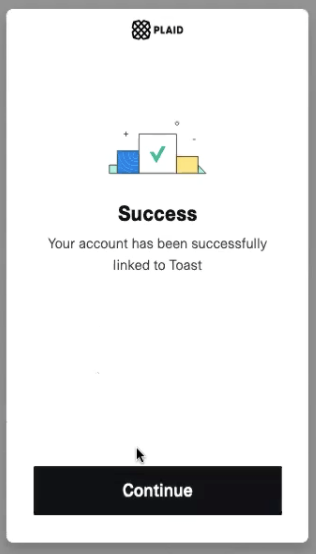
Expected outcome: the new direct deposit account appears on the Payment Method page.
Why Routing or Account Numbers May Not Match (Substitute Account Numbers)
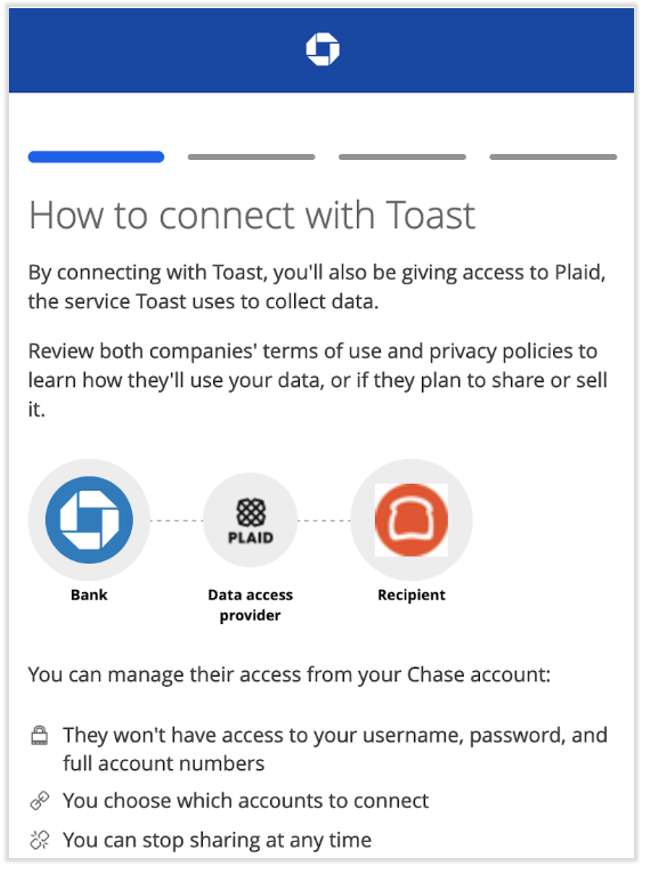
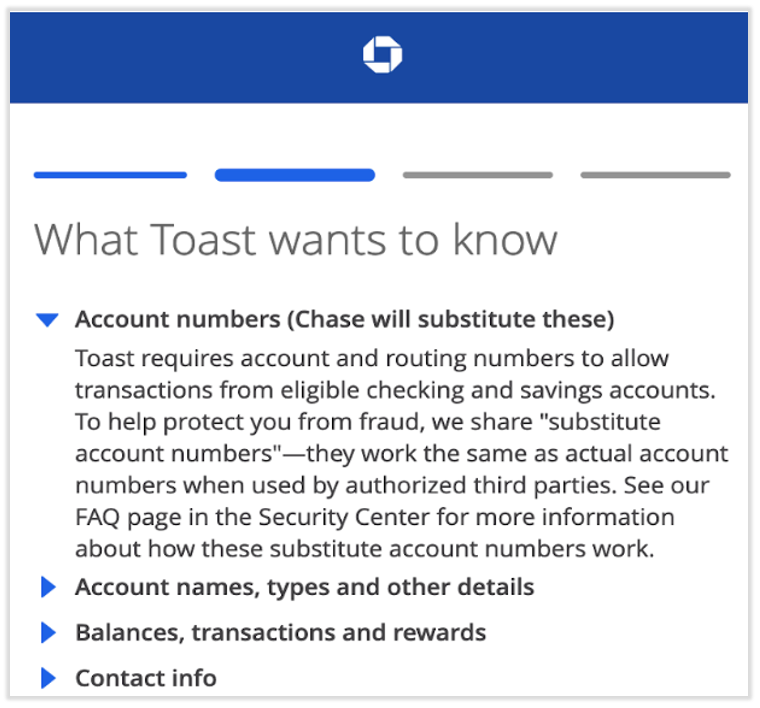
To protect members from fraud, some financial institutions (including but not limited to Chase Bank, US Bank, and PNC Bank) use substitute account numbers when providing your bank account information to authorized third parties such as Plaid. These substitute account numbers only work with the single designated third party.
When linking through Plaid, these banks return tokenized or encrypted routing and account numbers that can be used for ACH transactions but are not your actual numbers. The mask in Plaid stays based on the actual account number. Your routing and/or account numbers on the Payment Method page may not match what you have on record — this is expected.
Update Your Form W-4
Update your Form W-4 (federal and state tax withholding) in Toast Payroll under My Profile > Taxes & Documents.
- Log in to payroll.toasttab.com.
- Navigate to My Profile > Taxes & Documents. If you do not see My Profile on the left side of the screen, select Payroll from the Toast Web navigation rail on the left to make the Toast Payroll navigation rail appear.
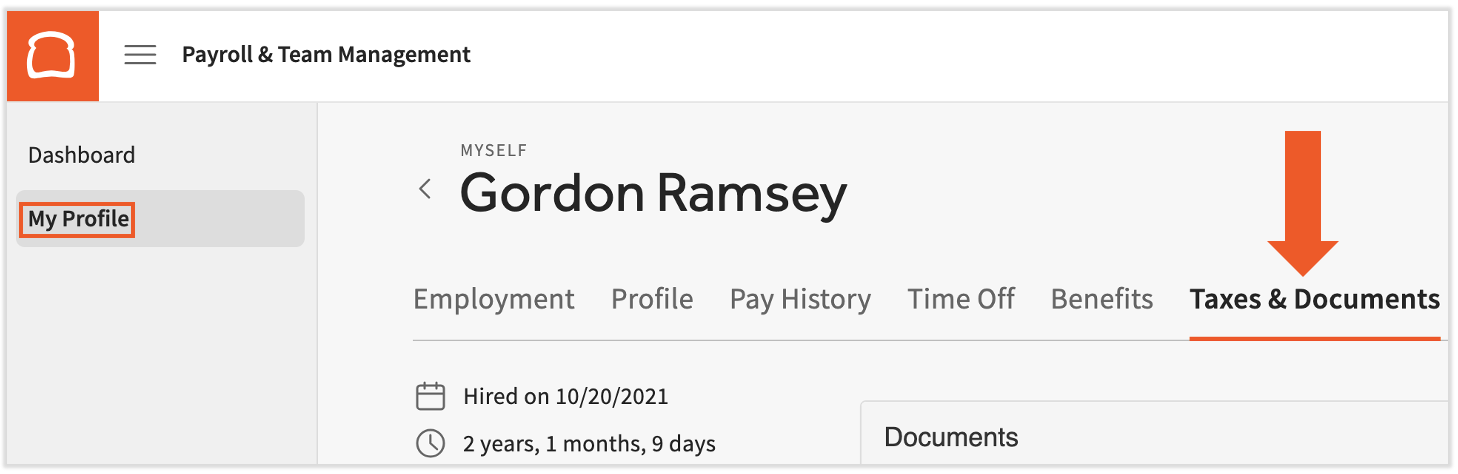
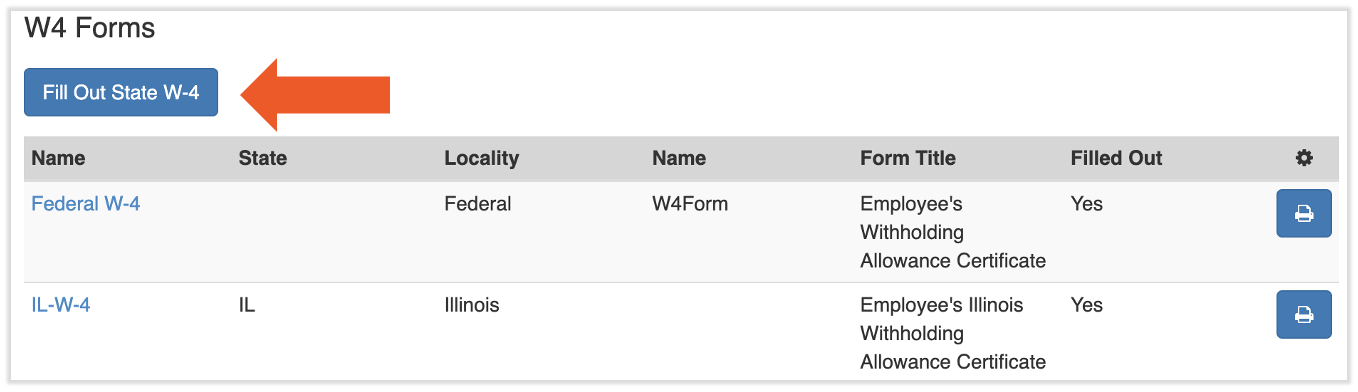
- Select the Tax Forms tab. Scroll to the W4 Forms section.
- To update your state Form W-4 (if your state collects income tax), select Fill Out State W-4.
- To update your federal Form W-4, select the Federal W-4 hyperlink.
- Make your changes, then select Submit.
Expected outcome: your updated Form W-4 is saved.
For information about Form W-4, see the federal IRS Form W-4 page or your state's Department of Revenue website. Toast Payroll cannot advise on how to fill out this form. You may wish to contact a tax advisor or CPA.
Update Your Personal Information
Update your personal information, contact information, addresses, and emergency contacts in Toast Payroll.
- Log in to payroll.toasttab.com.
- Navigate to My Profile > Profile. If you do not see My Profile on the left side of the screen, select Payroll from the Toast Web navigation rail on the left to make the Toast Payroll navigation rail appear.
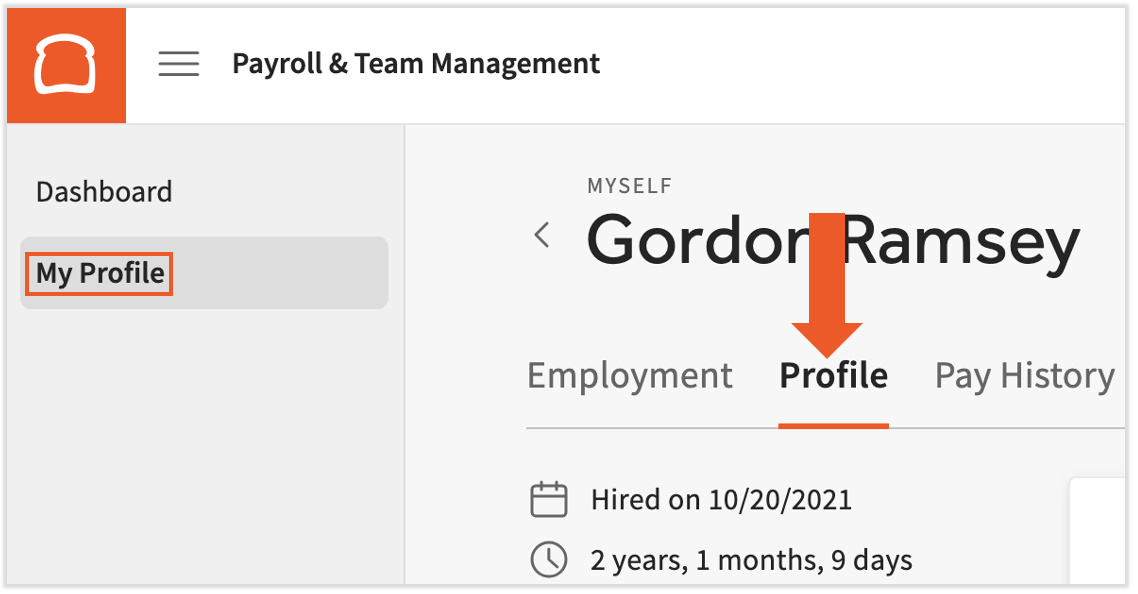
- The page has four sections. Select Edit to the right of the section header you want to update, make changes, then select Save changes.
- Personal Information: primary personal information
- Contact Information: phone number — edit your email through Log in to Toast: Update Your Account
- Addresses: home and mailing addresses
- Emergency Contacts: people to contact in case of emergency
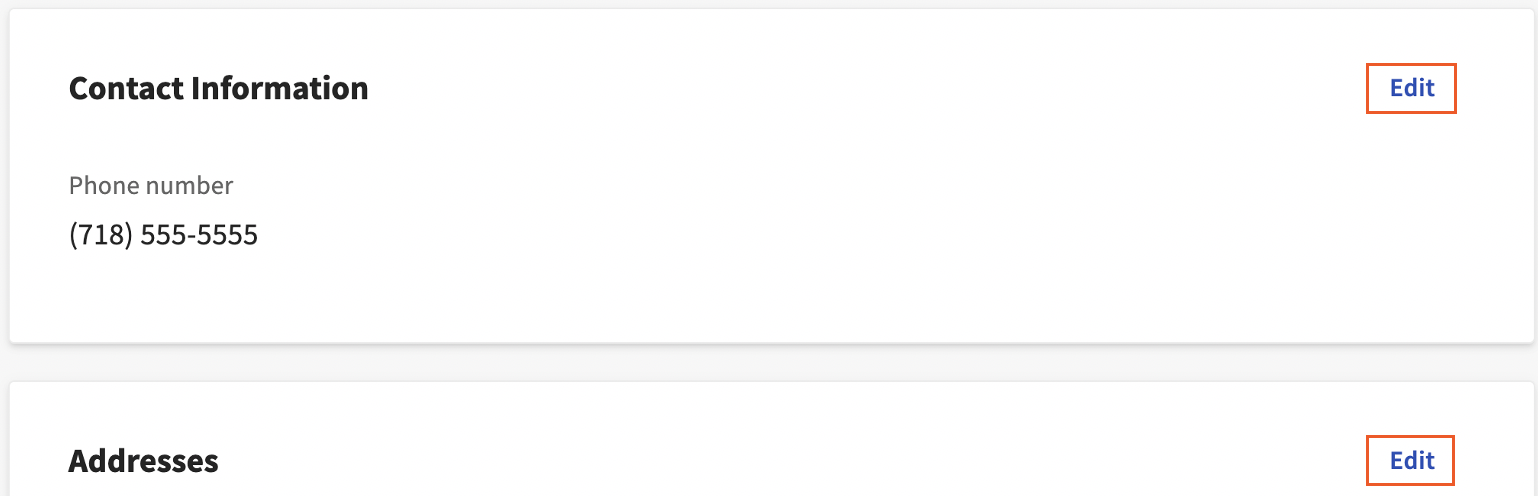
Expected outcome: the section refreshes with your updated information.
View Timesheets
View your hours over time in Toast Payroll.
- Log in to payroll.toasttab.com.
- Navigate to My Profile > Pay History > Timesheets. If you do not see My Profile on the left side of the screen, select Payroll from the Toast Web navigation rail on the left to make the Toast Payroll navigation rail appear.
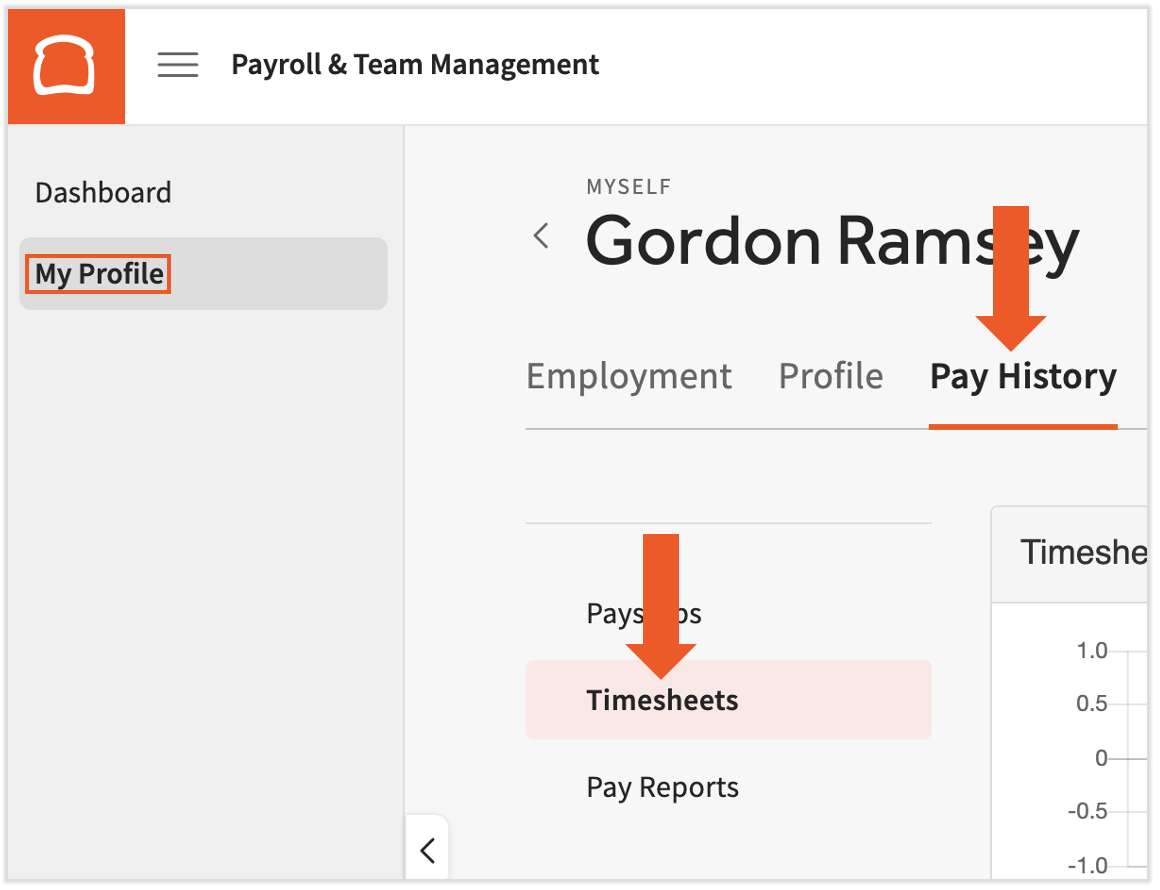
- The graph and table show your hours over time. Underneath the graph, select any pay period for more information.
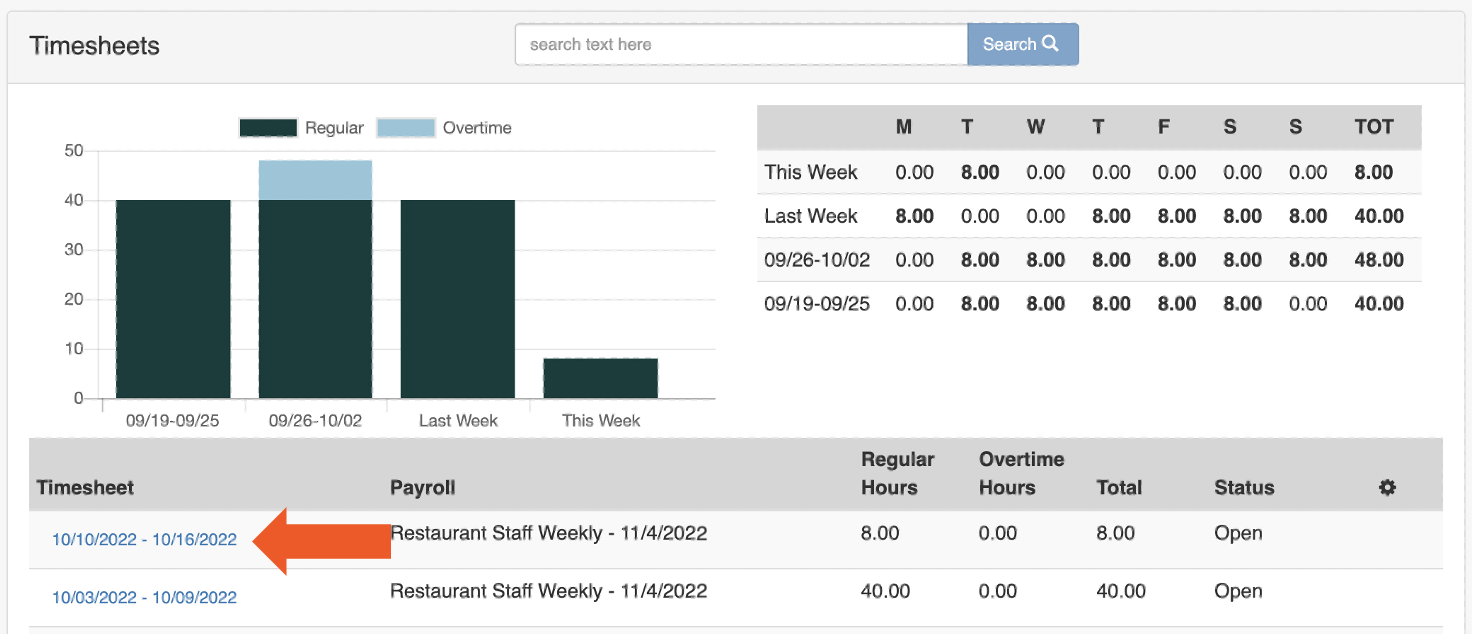
- The table shows the days and hours you worked in that pay period. Total hours appear in the bottom-right corner.
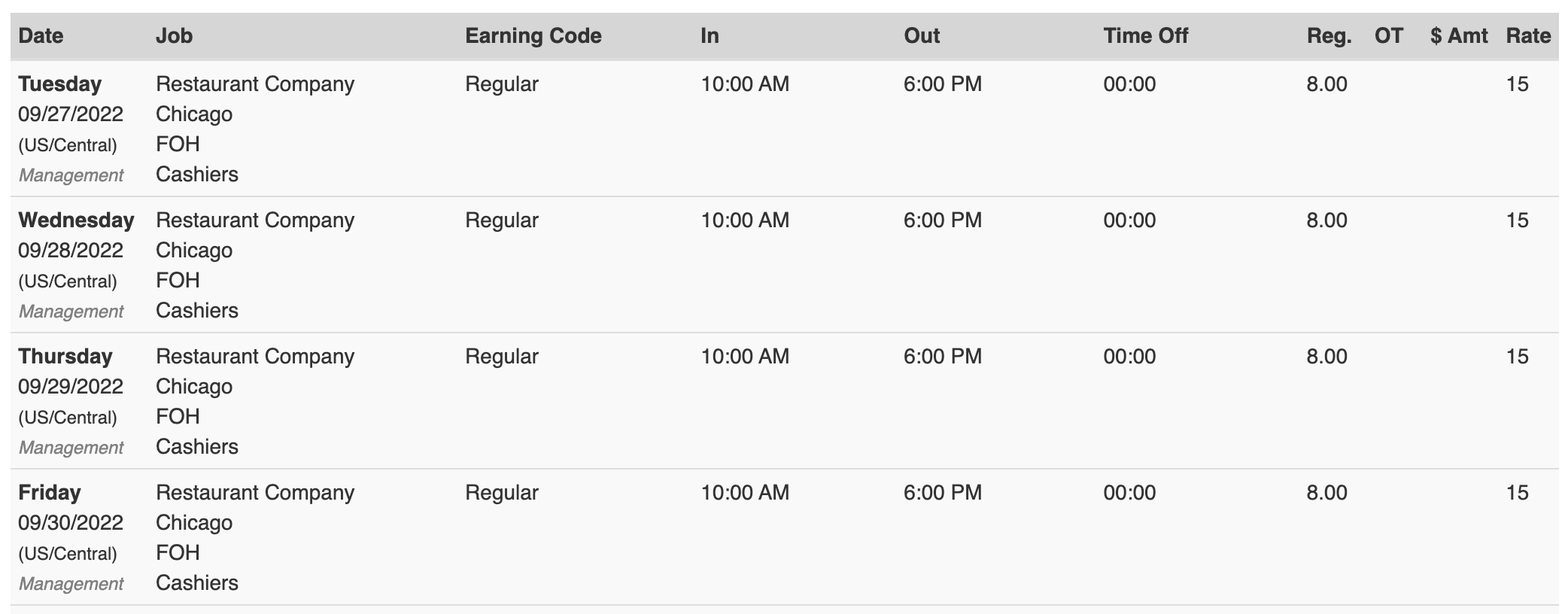
Expected outcome: the timesheet for the selected pay period opens.
Request Time Away From Work (TAFW)
If your company uses the Toast Payroll TAFW package, you can request and manage time away from work — sick time, vacation, and PTO. Time away from work is based on company policy and requires manager approval.
Note: If the TAFW type you need (for example, Unpaid Time Off) does not appear on the drop-down menu, that type is not enabled for your account. Only your manager or payroll administrator can request a new TAFW tier from Toast Customer Care.
- Log in to payroll.toasttab.com.
- Navigate to My Profile > Time Off. If you do not see My Profile on the left side of the screen, select Payroll from the Toast Web navigation rail on the left to make the Toast Payroll navigation rail appear.
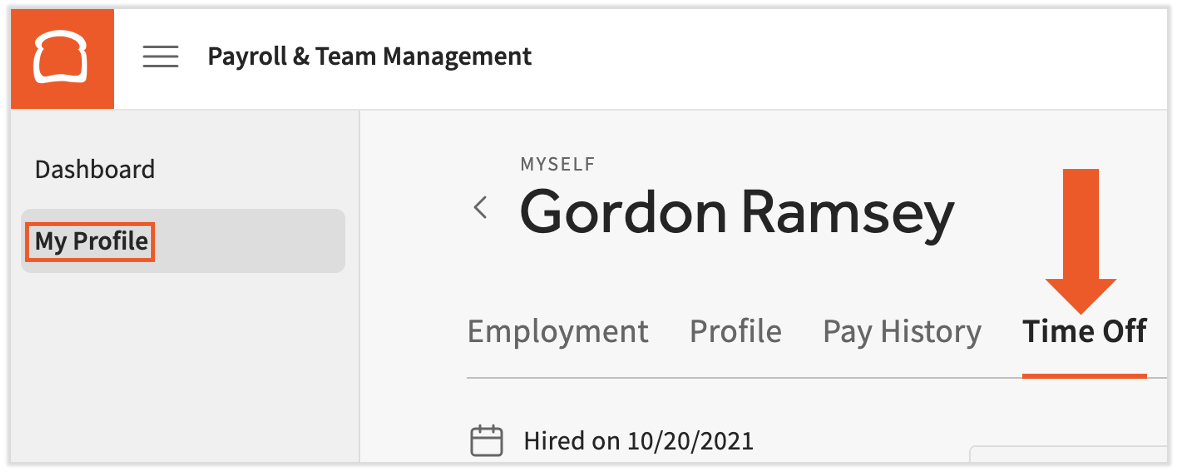
- Select Request in the upper-right corner.
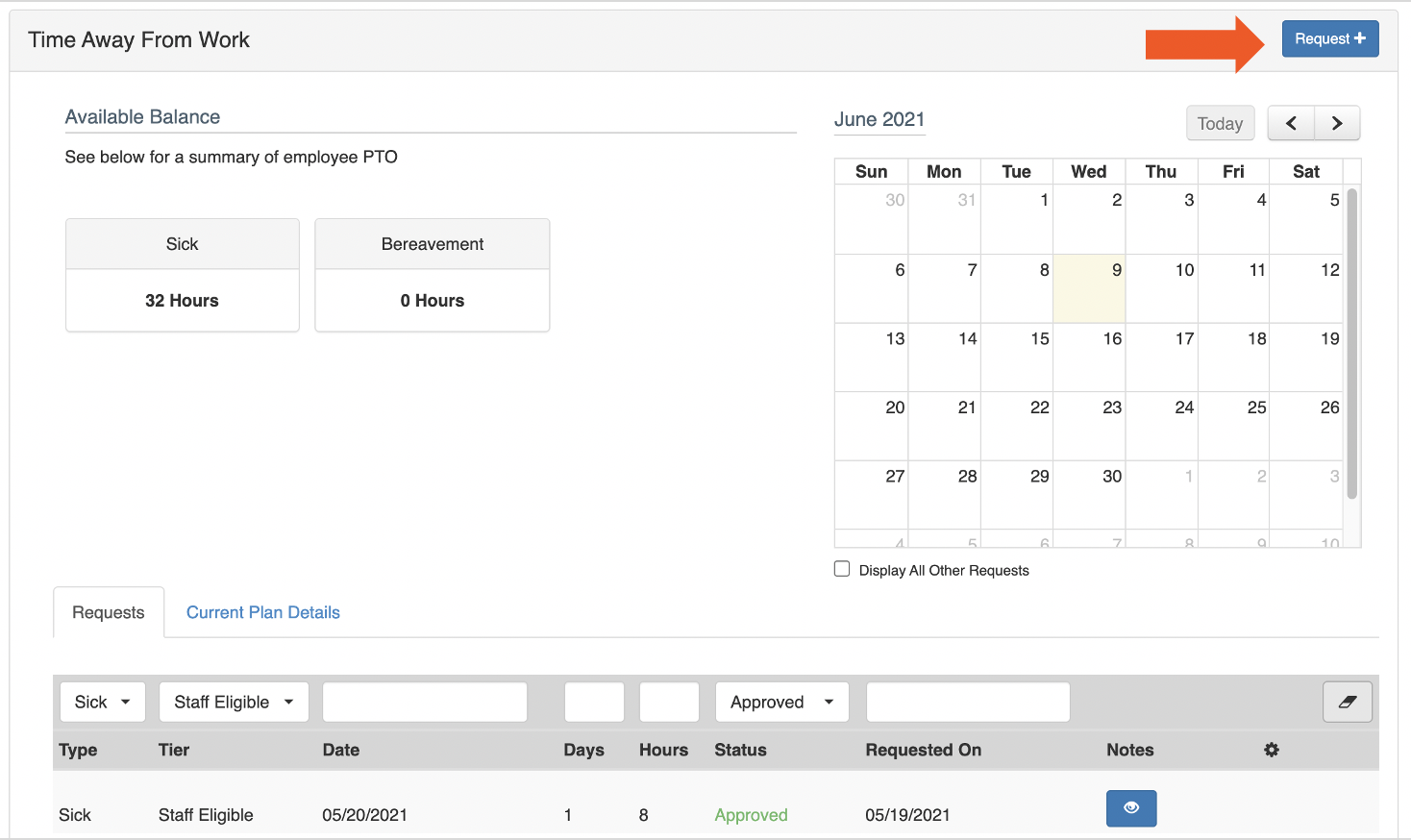
- Choose the date(s) and the TAFW type you are requesting, then select Next.
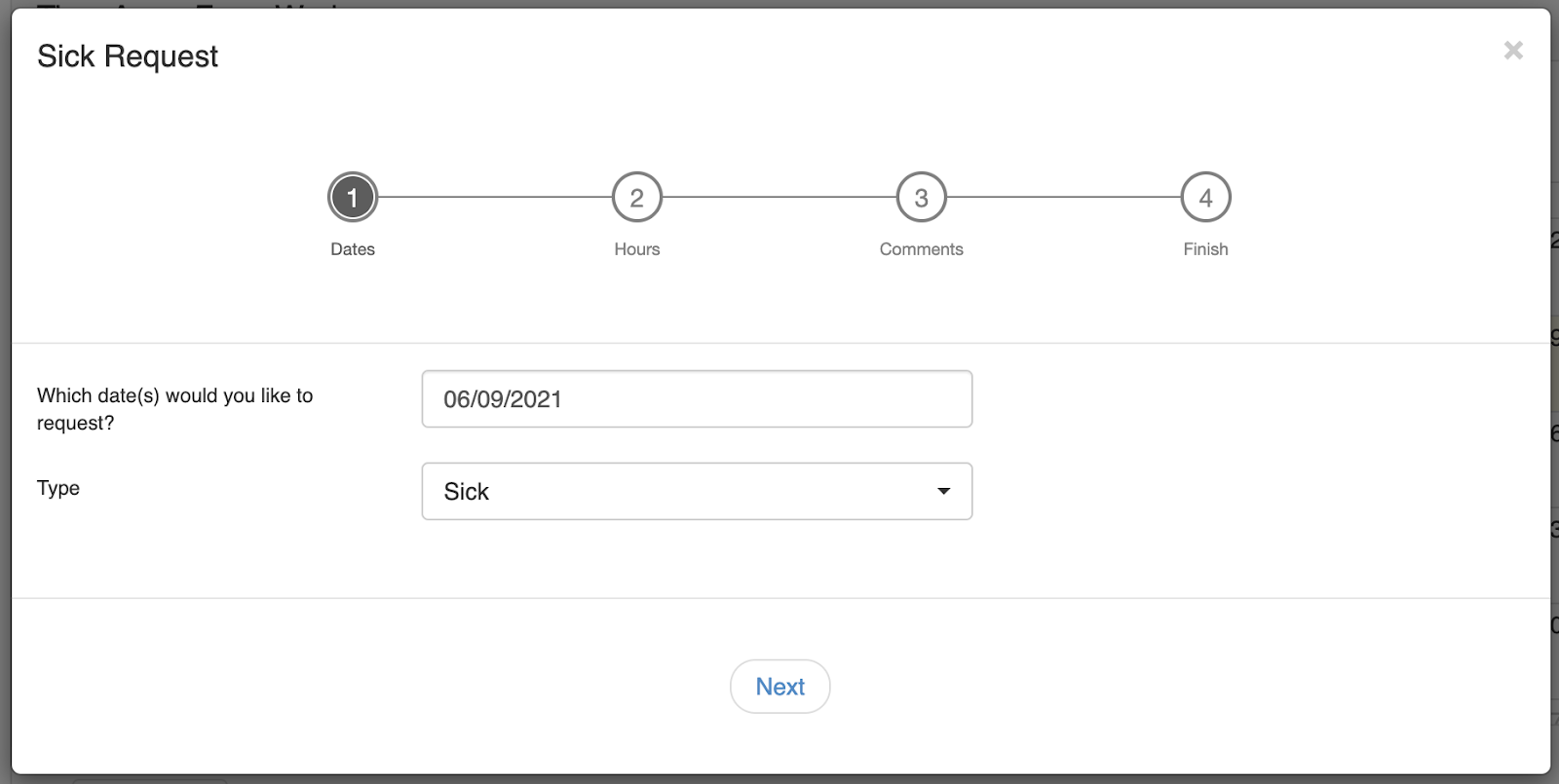
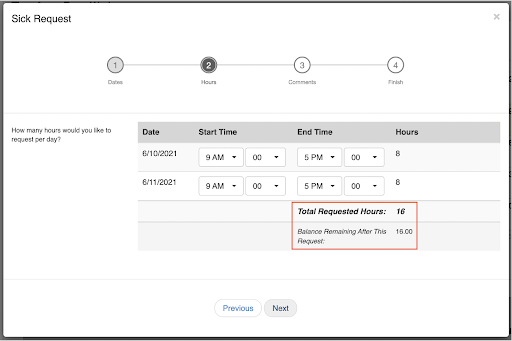
- Set the range of hours you are requesting TAFW for. The total hours of your request and the remaining hours in the TAFW category are displayed. Select Next.
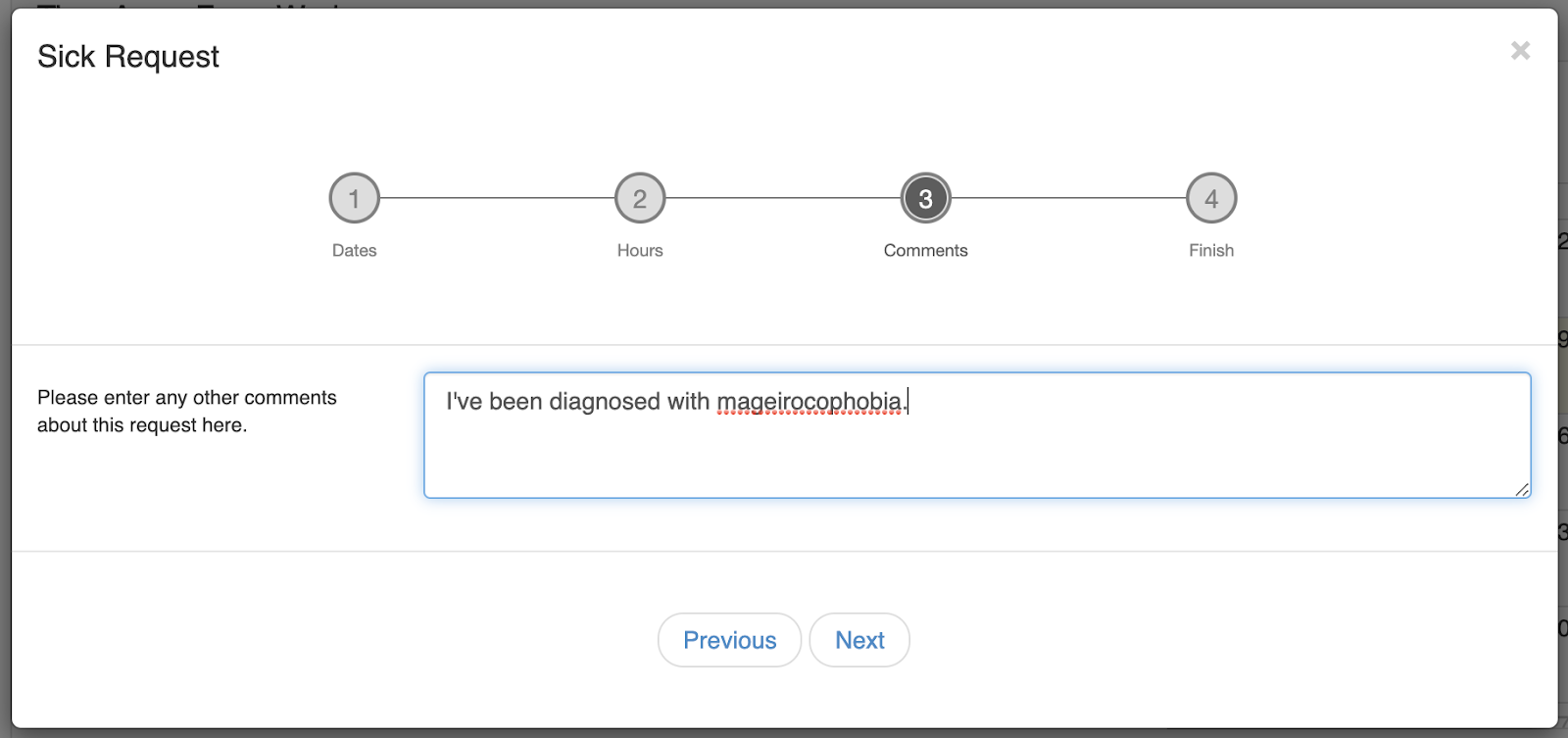
- Add an optional comment to help explain your request. Select Next.
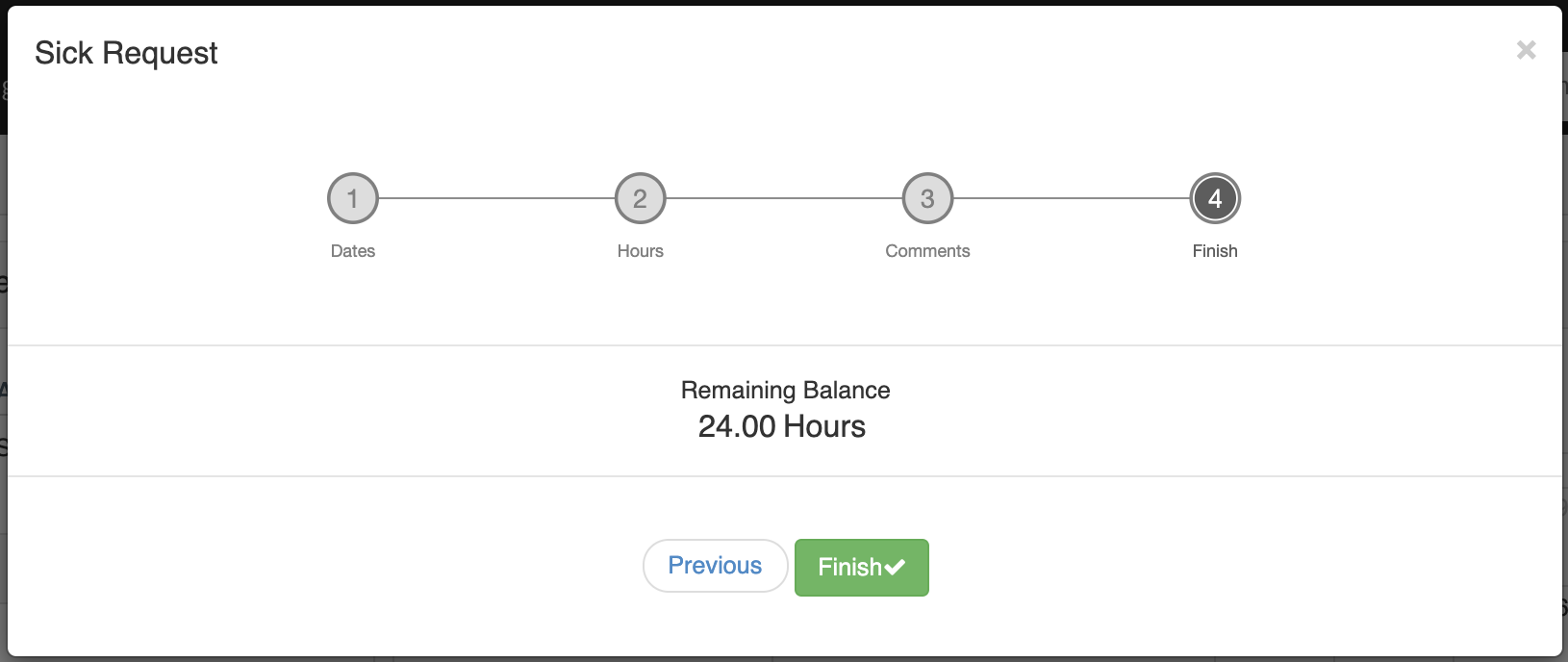
- The last step shows the remaining hours of the selected TAFW type. Select Finish to send the request out for approval.
Expected outcome: the request is sent to your manager. You receive an email notification once it is approved or denied.
For more information on TAFW, see Toast Payroll: Get Started With Time Away from Work (TAFW).
Enroll in Benefits Through SimplyInsured
If your company uses SimplyInsured for benefits, the following happens when your employer hires you into Toast Payroll:
- You are checked against eligibility requirements set by your employer.
- If you are eligible, you receive an email from SimplyInsured at your email on file in Toast Payroll.
- Open that email and select the link to log into SimplyInsured.
- Use your Toast Payroll email address and create a password to begin and select your plan.
For details, see Toast Payroll: Employee Enrollment in SimplyInsured Benefits. For Open Enrollment in the Classic Benefits module, see Toast Payroll: Open Enrollment Guide for the Classic Benefits Module.
For Managers and Payroll Administrators
This page is employee-facing. If you are managing payroll for someone else, the right destination depends on the job:
| Manager job | Where to go |
| Look up another employee's paystub or timesheet | Toast Payroll: View Your Paystub or Timesheet |
| Pull another employee's W-2, including former or archived employees | Toast Payroll: Manage the Form W-2 Experience |
| Investigate a missing paycheck for an employee | Toast Payroll: Get Help With When Employees Are Paid |
| Manually enter a direct deposit (HR+ users only) | Toast Payroll: Get Help With Direct Deposit Accounts |
| Create or edit a TAFW tier or policy | Toast Payroll: Get Started With Time Away from Work (TAFW). Tier creation requires Toast Customer Care. |
| Update an employee's email or fix a duplicate-email error | Log in to Toast: Update Your Account |
| Onboard a new employee end-to-end | Toast Payroll: Employee Onboarding (Employee Guide) |
Frequently Asked Questions
I have not received my paycheck or direct deposit. How do I receive it?
If you have not received your paycheck or direct deposit, reach out to your manager or payroll administrator first. They may be able to research where it is, or they can contact Toast Payroll Customer Care for assistance.
Also asked as:
-
- Hi where's my paycheck?
- I haven't received my paycheck?
- I never got my paycheck?
The Taxes on My Paycheck Seem Incorrect. Why Am I Being Withheld So Much or So Little?
The taxes on your paycheck seem incorrect because they are determined by the selections on your Form W-4 and standard IRS tax tables. Modifying your Form W-4 changes how your taxes are calculated. The IRS tax withholding estimator can help. If you still have questions, contact your tax professional. Toast Payroll cannot advise on why taxes are calculated in a specific way.
What Should I Enter on My Form W-4?
What you enter on your Form W-4 depends on your personal tax situation. Toast Payroll cannot help you decide which options are right for you. Contact your tax advisor or accountant.
Why Do I Not See the Pay Tab in the MyToast App?
If you do not see the Pay tab in the MyToast app, it usually means your restaurant is not set up with Toast Payroll. The Pay tab only appears for employees at restaurants that use Toast Payroll (and in some cases, only for restaurants that use Toast Tips Manager). If your restaurant uses Toast Payroll but you still do not see Pay, check with your manager that you are mapped to the right Toast Payroll profile, then log out and log back in to the MyToast app.
Also asked as:
-
- I can't see pay on my current tab?
Plaid Does Not Support My Bank — What Do I Do?
If Plaid does not support your bank — or the Plaid flow keeps failing — you cannot enter your account and routing numbers manually yourself. For security reasons, employees and managers cannot manually enter direct deposit information. Your employer's HR+ user can add your direct deposit information manually for you. For Plaid troubleshooting, see Toast Payroll: Get Help With Direct Deposit Accounts.
Also asked as:
-
- Plaid is not working for me to add my bank account?
- I want to change my direct deposit to a different bank that doesn't connect with Plaid?
- How can I link my direct deposit without Plaid?
Why Do My Routing or Account Numbers Look Different After Linking Through Plaid?
Some banks (including Chase, US Bank, and PNC) return substitute account numbers to Plaid for fraud protection. Your routing and account numbers on the Payment Method page may not match what you have on record. The substitute numbers still process direct deposit correctly. See Substitute Account Numbers above for details.
How Do I Get a Prior-Year Form W-2 for an Archived Employee?
To pull a prior-year Form W-2 for an archived or former employee, a manager or payroll administrator must use the employer-side W-2 download in Toast Payroll. This page is employee-facing — see Toast Payroll: Manage the Form W-2 Experience for the manager workflow, including bulk download for paper-electing employees.
Also asked as:
-
- How do I pull up a W2 for an archived employee?
- I need to access an employees w2 from 2024 but the form not showing under her profile?
- Is there a way to print off all W2's in one file?
Can a Former Employee Still Get Their W-2 From Toast Payroll?
Yes, a former employee can still get their W-2 from Toast Payroll. Their login still works, but with limited system access. They must use the Get Your W-2 in Toast Payroll path — the MyToast app is disabled for former employees. Toast cannot help former employees update their login information. If they no longer remember their email or password, they should contact their former employer.
Related Articles
- Toast Payroll: View Your Paystub or Timesheet
- The MyToast App: Pay
- Toast Payroll: Find Your Form W-2 (For Employees)
- Toast Payroll: Manage the Form W-2 Experience
- Toast Payroll: Get Help With Direct Deposit Accounts
This content is for informational purposes and is not intended as legal, tax, HR, or any other professional advice. Please contact an attorney or other professional for advice.