Toast Payroll: Upload Documents for New Hires
Last updated: Oct 9, 2026, 11:35 AM
| This article will guide you through the task of adding documents that you'd like new hires to read through during the employee onboarding process of Toast Payroll. If you'd like to upload and deliver a document to employees who have already been onboarded, see Toast Payroll: Get Started with Employee To Do's. |
- Company Documents
- Upload Company Documents
- Create Your Own Documents
- Require an E-Signature on Documents
- Make These Documents Visible to Employees
- Remove Company Documents for Individual Employees
- Additional Resources
Company Documents
Company documents are any documents that you may want your employees and/or new hires to review. These documents are not provided by Toast nor required by Toast to process payroll or hire an individual, but may be required by your organization or local state laws to ensure compliance. Examples of company documents are employee handbooks, business policies, and state specific forms (i.e. New York Labor Wages).
In Toast Payroll, there are two types of documents you may want new hires to sign during their onboarding process: a non-editable PDF (one you upload) or a configurable document (one you create directly in Toast Payroll). Both of these may be assigned to new hires grouped by specific locations, positions, or security roles.
Watch how to upload a PDF or create your own required documentation with this walkthrough video.
Upload Company Documents
Note: Documents must be in PDF format in order to upload. However, you may choose to convert your file into a PDF.
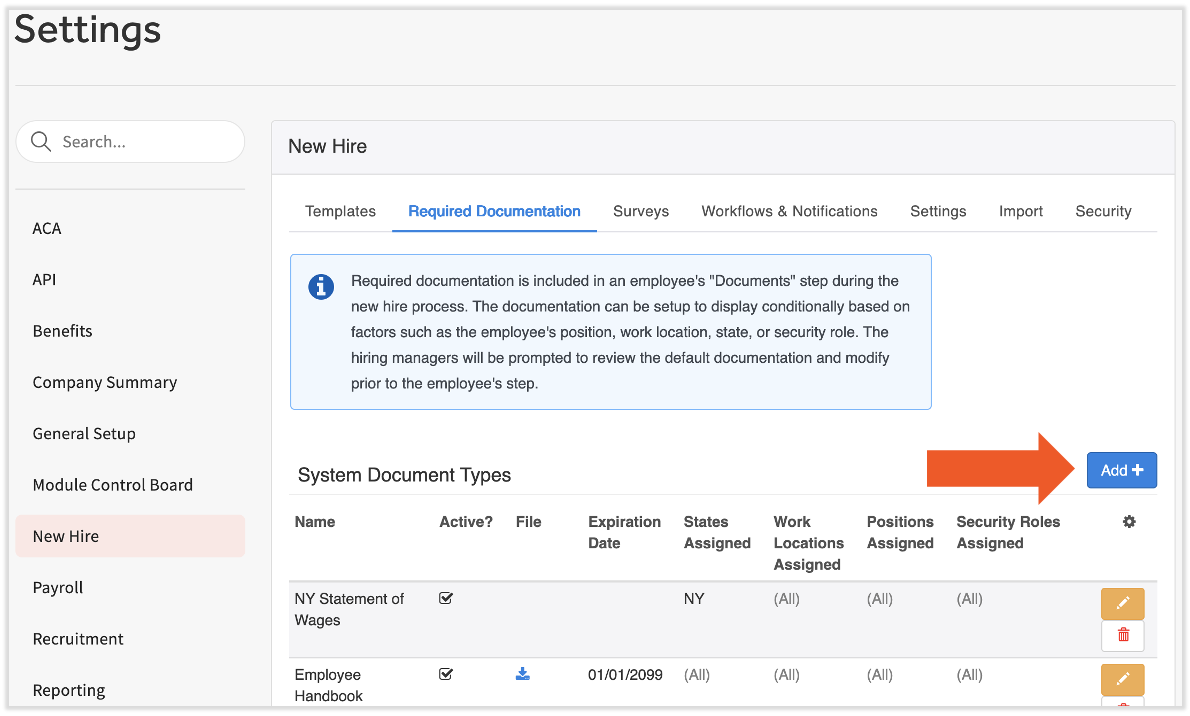
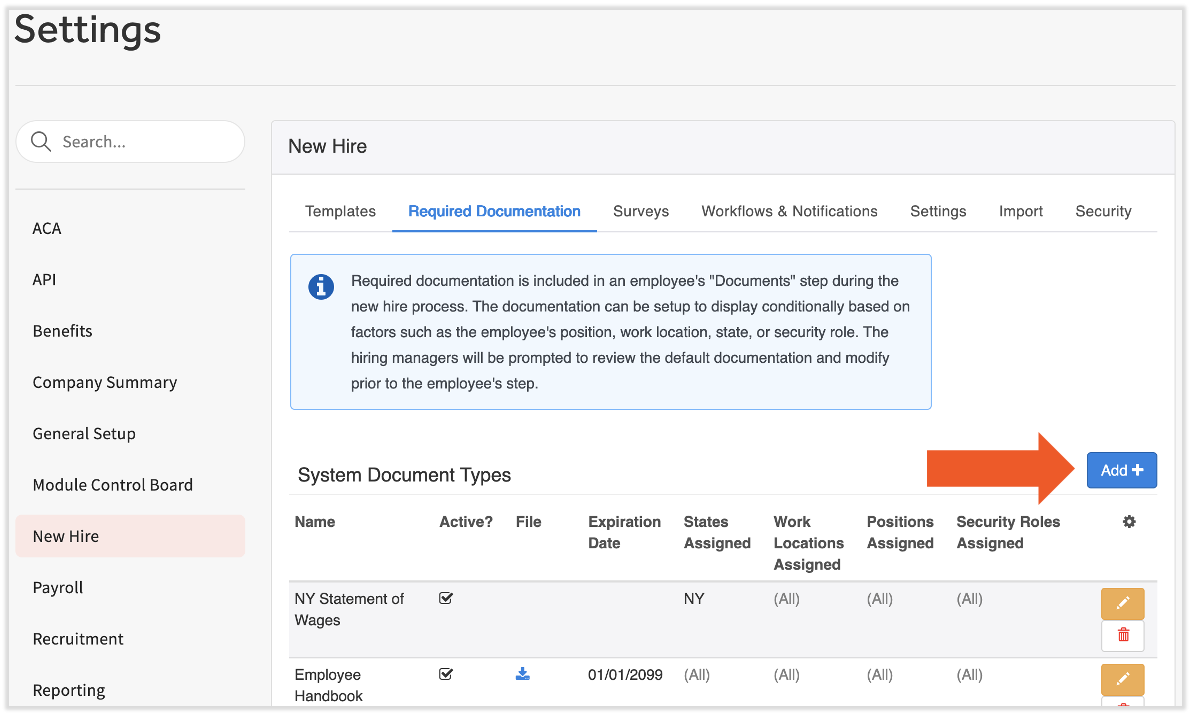
- In Toast Payroll, navigate to Settings > New Hire > Required Documentation.
- If you do not see Settings on the left side of the screen, select Payroll from the Toast Web navigation rail on the left to make the Toast Payroll navigation rail appear.
- Select Add+ on the right to begin.
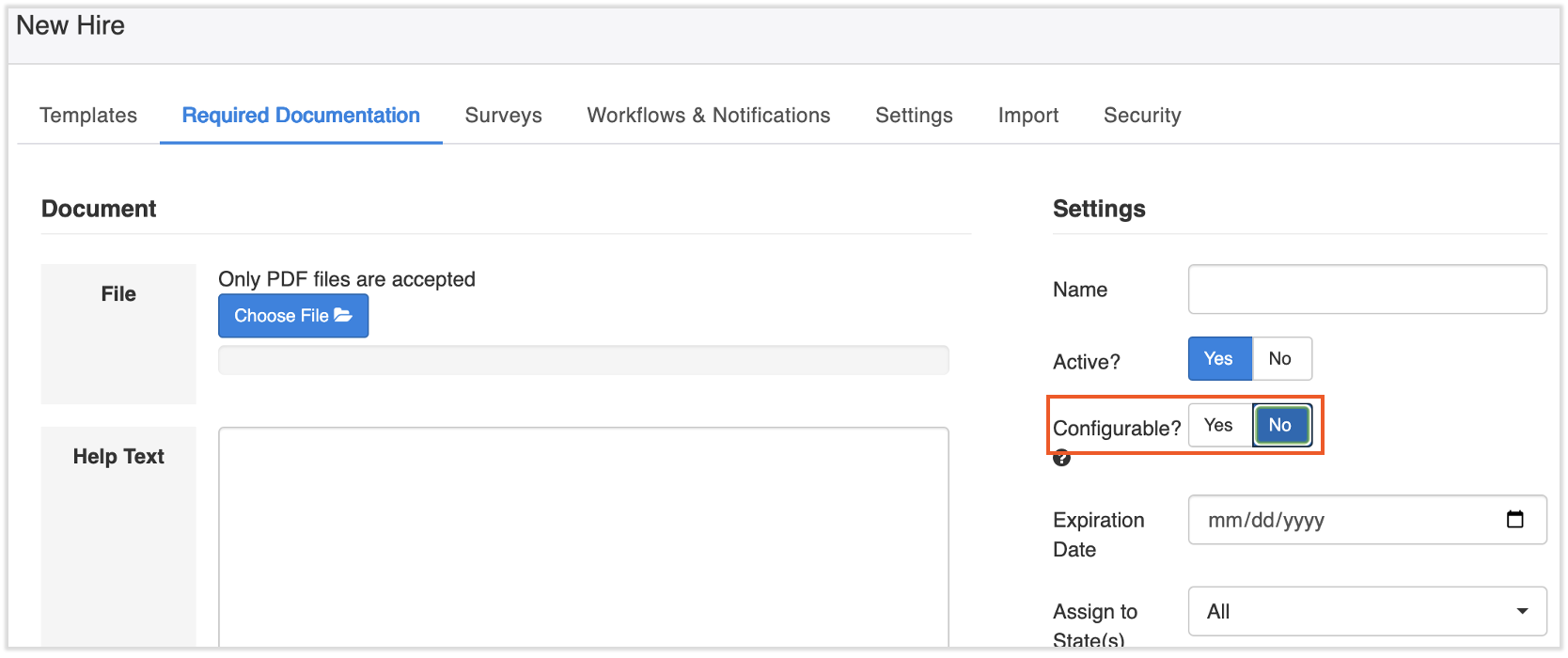
- In order to upload a PDF file for new hires in the onboarding process, set the Configurable? field to No.
- Select Choose File and locate your PDF. Add Help Text if you wish to display a note to the new hires reading this document.
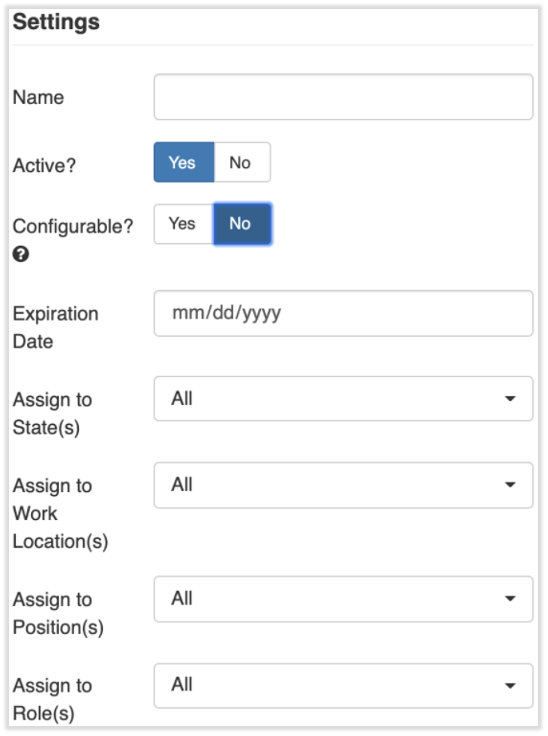
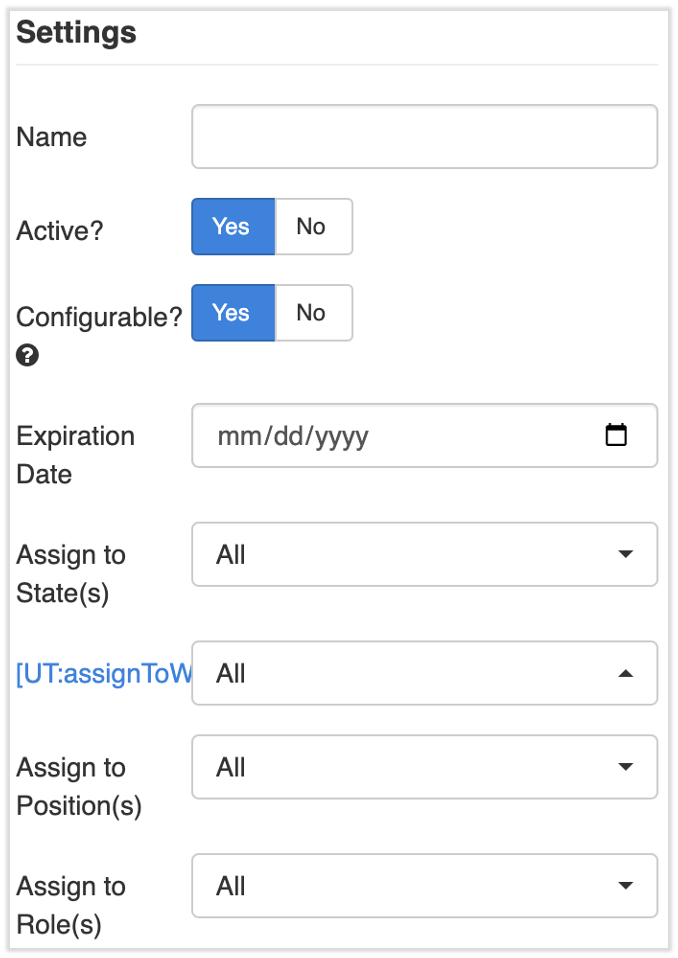
- Once uploaded, pick the Settings you'd like to use for this document.
- Name: Name the file.
- Active?: Leave as Yes
- Configurable?: Set to No
- Expiration Date: Do not enter anything unless the document is intended to expire.
- The four Assign fields may be set when this document should only display to a specific group of new hires. For example, an employee handbook may differ between location or position.
- Once the document is uploaded and the settings have been configured, select Save at the bottom of the page to finish the upload and apply it to all future new hires. An e-signature requirement will automatically be added to this document. This will be required by the new hire during the onboarding process
- If an employee is unable to complete the Documents step in their new hire workflow because the documents are grayed out, this means the employee's login credentials are not being used to complete these steps. Only the employee can sign off on their own onboarding documents. If a Manager or HR+ security role is looking at the new hire workflow, it will appear grayed out and they will be unable to proceed.
Upload One-Time Company Documents (PDFs) for Individual Employees
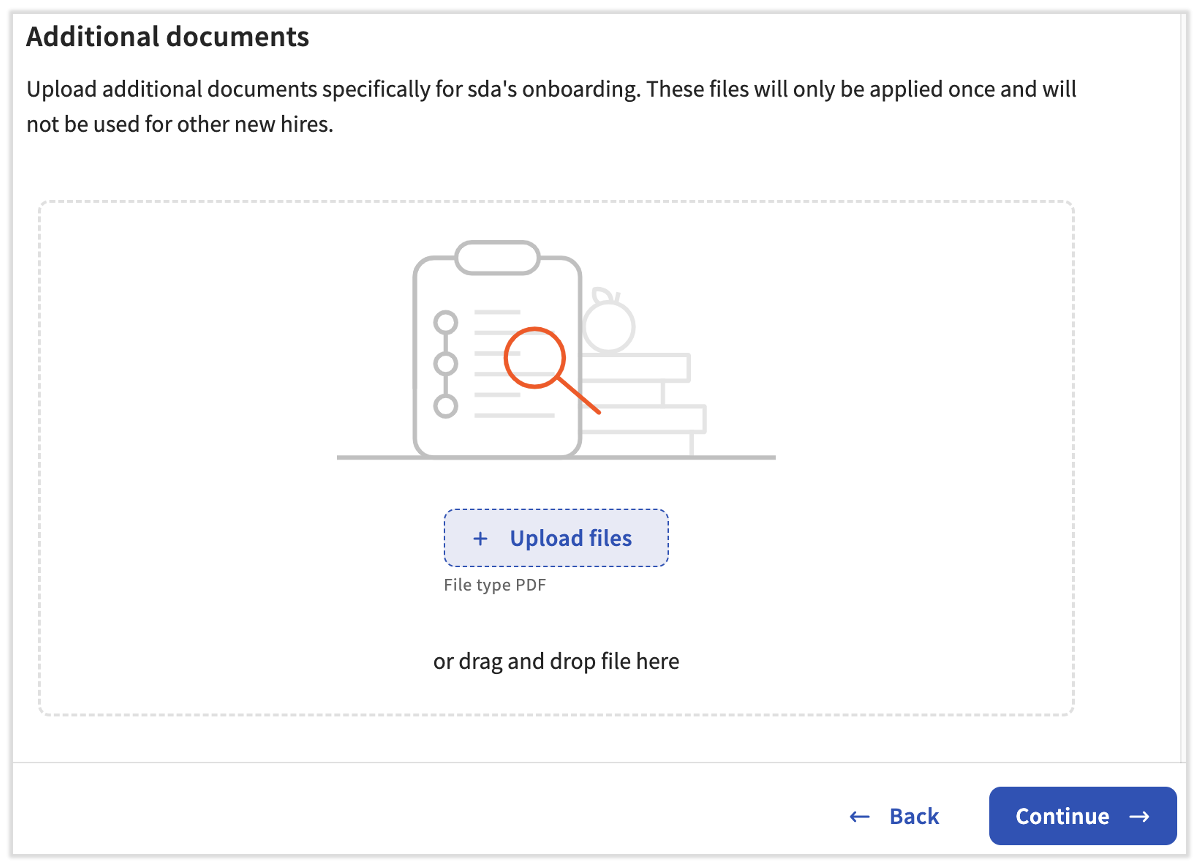
Toast Payroll also has a feature to upload company documents during an individual employee's onboarding. These documents will only be seen by the employee currently being hired, so consider uploading any common documents to the system as described above.
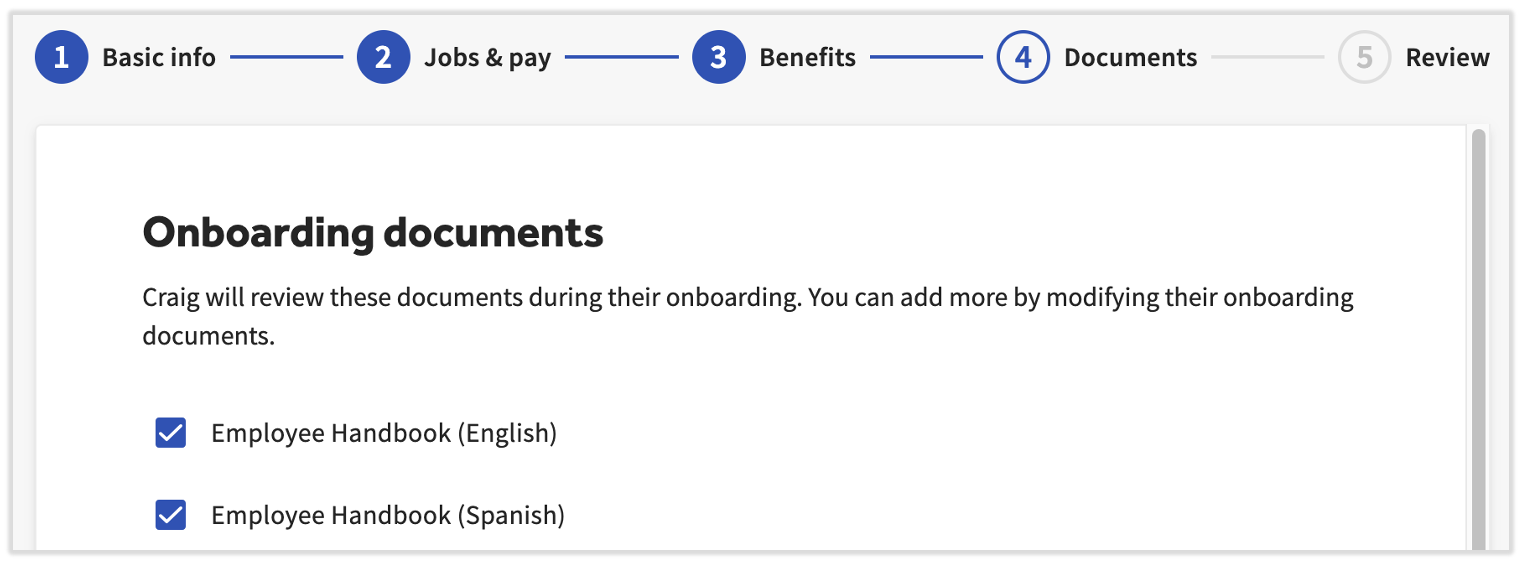
- On the Documents step (step 4) of the employer new hire steps, scroll down to a section called Additional documents. You have two options:
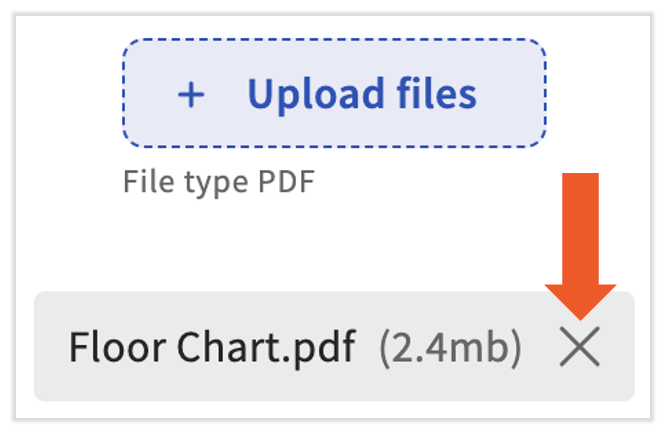
- Select the + Upload files button to open your device's file explorer and select a PDF manually.
- Drag and drop a PDF into the box on-screen.
- Note: PDFs are the only file type that may be added this way. To use non-PDF files, create configurable documents. You may also choose to convert your file into a PDF.
- Uploaded documents can be removed before continuing. Select the X in the document's tile.
Documents in Different Languages
If you'd like to upload a document, but you have it in more than one language, Toast Payroll doesn't have an Assign field for different languages. However, there is a clever workaround:
- Follow the steps above to upload a new document.
- In the Name field, type the name of your document followed by the language: (English).
- Complete all the steps to upload this document and Save your work
- Now repeat these steps, making sure to enter the language in the title and upload the document in that language. This will help you keep track of which is which.
- You're ready for your next new hire. Once you get to the Documents step of the employer new hire process, make sure only the document in the appropriate language is checked. For instance, if you want to send the Spanish Employee Handbook to a new hire who prefers Spanish, deselect the English version.
Create Your Own Documents
The same module described above to upload documents can also be used to create custom documents. New hire employees will see and sign off on these documents during their onboarding into Toast Payroll.
- In Toast Payroll, navigate to Settings > New Hire > Required Documentation.
- If you do not see Settings on the left side of the screen, select Payroll from the Toast Web navigation rail on the left to make the Toast Payroll navigation rail appear.
- Select Add+ on the right to begin.
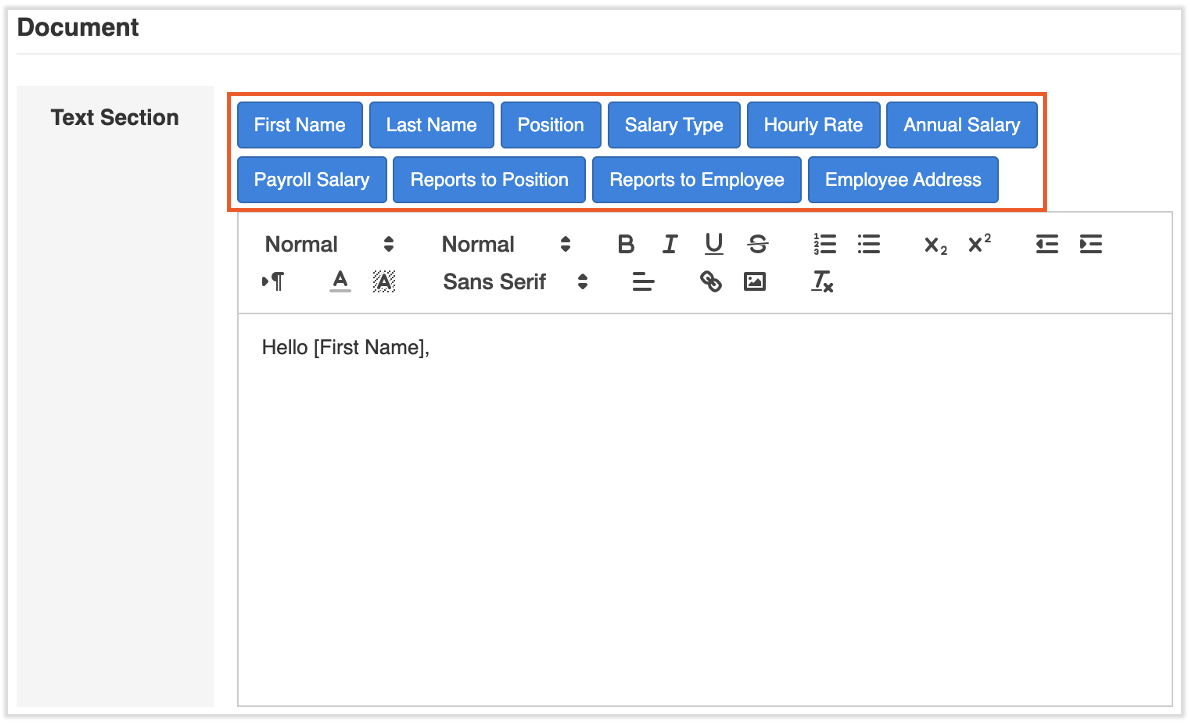
- You'll use the text editor to customize a document from scratch. The blue buttons at the top can be used as placeholders which Toast will automatically fill in based on specific employee information. For instance, if you started the document with "Hello" and selected the First Name button, the document would appear as "Hello Bridget" if a new hire named Bridget was viewing it. New or custom fields cannot be added at this time.
- Once you've finished creating your document, pick the Settings you'd like to use for this document.
- Name: Name the file.
- Active?: Set this to Yes if it should be a part of the new hire onboarding experience.
- Configurable?: Leave as Yes.
- Expiration Date: Do not enter anything unless the document is intended to expire.
- The four Assign fields may be set when this document should only display to a specific group of new hires. For example, the employee handbook may differ between location or position.
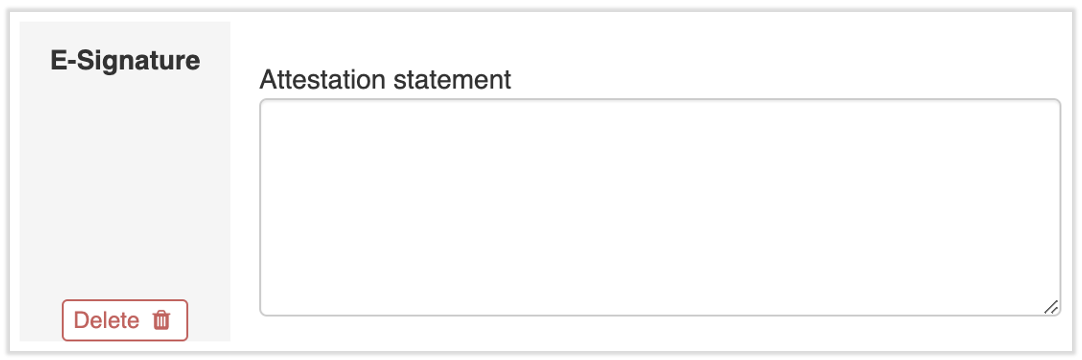
- Lastly, you may wish to add a requirement for an e-signature from the new hire. If so, select Add+ below the text editor section and select E-Signature. Adding an attestation statement is optional.
- Once everything is complete, select Save from the bottom-right corner of the page.
Require an E-Signature on Documents
| All non-configurable documents (PDF files) require an electronic signature by default. No additional steps are necessary. |
- In Toast Payroll, navigate to Settings > New Hire > Required Documentation.
- If you do not see Settings on the left side of the screen, select Payroll from the Toast Web navigation rail on the left to make the Toast Payroll navigation rail appear.
- Select the yellow edit pencil for the intended document.
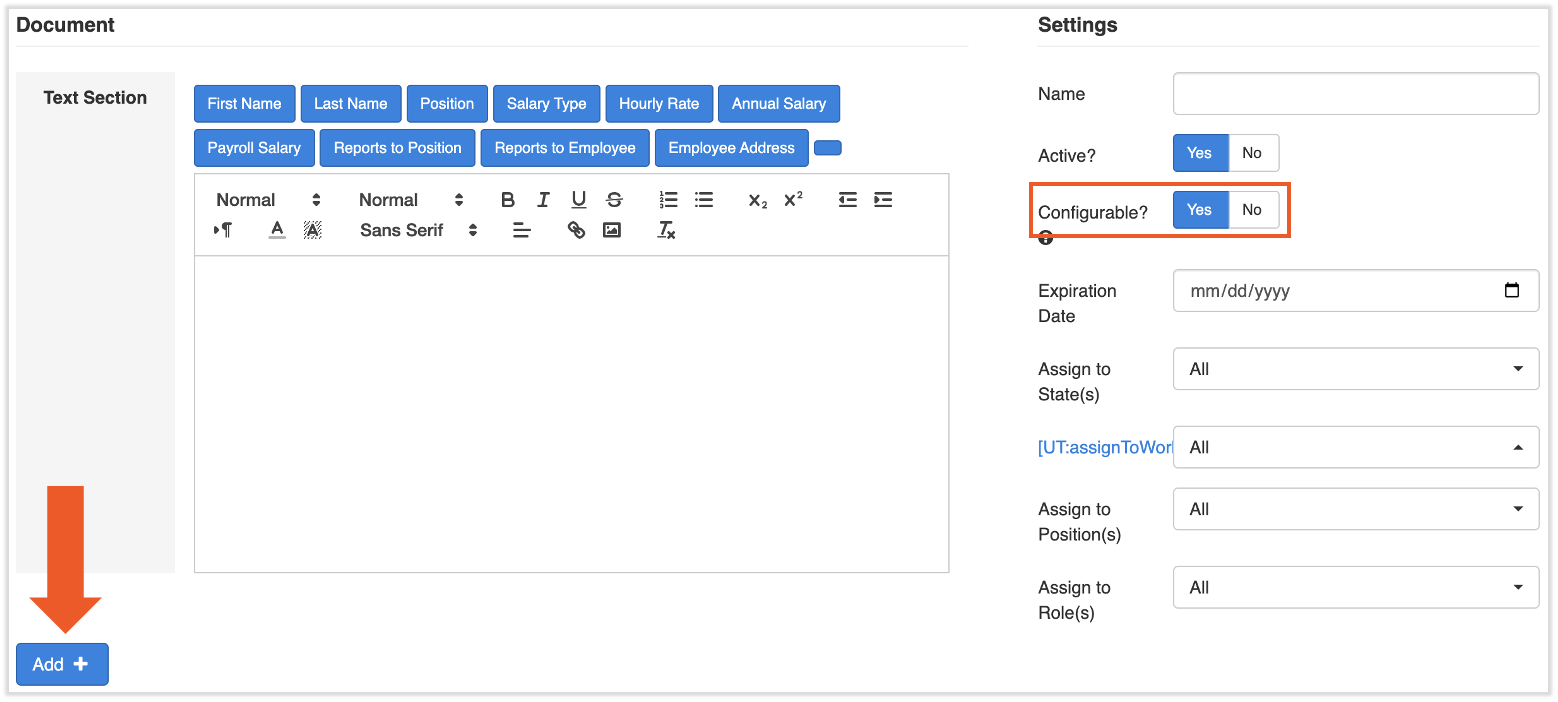
- Confirm this is a Configurable document by checking the setting in the orange box below. Non-configurable documents (marked No here) require a signature by default.
- Select Add+ on the left below the Text Section.
- Choose E-Signature from the drop-down menu and then select Add +.
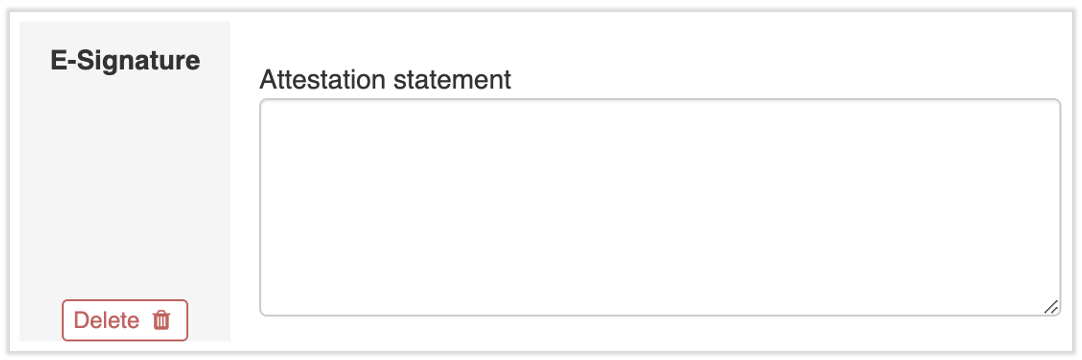
- The E-Signature feature is now visible and attached to this document. You may wish to enter a note in the Attestation statement text box, but this is optional.
- Select Save at the bottom of the page to finish.
Make These Documents Visible to Employees
In order to allow your employees to open and reference company documents for later use, an HR+ user should toggle this setting. This is a company-wide setting and it applies retroactively.
- In Toast Payroll, navigate to Settings > Security > Document Types.
- If you do not see Settings on the left side of the screen, select Payroll from the Toast Web navigation rail on the left to make the Toast Payroll navigation rail appear.
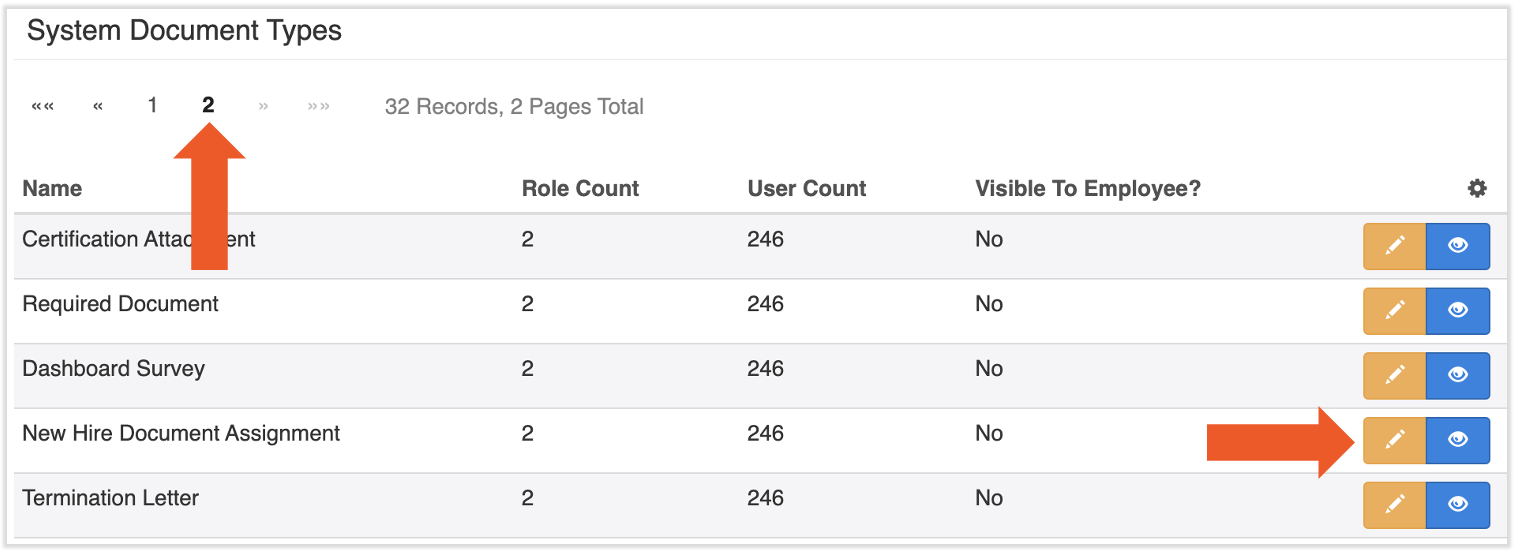
- Select the second page under System Document Types.
- Under System Document Types and next to New Hire Document Assignment, select the yellow edit pencil.
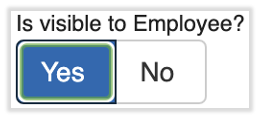
- Change the Is visible to Employee setting to Yes. Select Save to finish. All documents that any employee received in new hire onboarding will now be accessible in the employee's profile under Taxes & Documents > Document Library.
Remove Company Documents for Individual Employees
You may remove a document for an individual employee during the Documents step of the employer portion of the new hire process. Select the trash can icon next to the appropriate document to remove it (see the linked article). This individual new hire will not see that document during their employee portion of the new hire onboarding. If you would like to permanently inactivate a company document from the system, navigate to Settings > New Hire > Required Documentation. (Learn how the new Toast Payroll navigation works by visiting Navigate Toast Payroll Within Toast Web.) Select the trash can icon next to the appropriate document. Keep in mind that a document cannot be fully deleted in order to keep historical records. Toast recommends renaming any inactive documents to reflect this state, such as "INACTIVE - Company Handbook 2021."
Additional Resources
This content is for informational purposes and is not intended as legal, tax, HR, or any other professional advice. Please contact an attorney or other professional for advice.