Toast Payroll: Imported New Hire Guide
Last updated: Jun 23, 2026, 11:07 AM
When an employee is imported into Toast Payroll, they'll have items to address, such as direct deposit details and critical tax information before they are paid.
- Log In
- Add and Verify Personal Information
- Add or Verify Social Security Number
- Change or Update Email Address or Password
- Change or Update Password
- Payment Method
- Enter Form W-4 Information
- Additional Resources
Log In
Welcome to Toast Payroll! When you first log in, you'll have preset login credentials, but you can update these after logging in. Note: Follow all the steps on this page to ensure Toast Payroll has every necessary detail, such as your Social Security number (SSN), Form W-4 information, and direct deposit account numbers.
- Navigate to payroll.toasttab.com.
- Enter your email address in the Email or Username field. If you do not have an email address, ask your manager or HR team what you should enter. Select Next.
- As an imported employee, your Password will be automatically set to your first initial capitalized, your last name in all lowercase, the last 4 digits of your social security number, and then the dollar sign, no spaces.
- As an example, if Will Smith's social security number was 123-45-6789, his password would be Wsmith6789$. Select Next once more.
- If you have trouble logging in with these credentials, contact your manager. Toast Payroll cannot see your password and cannot help employees in this situation.
Add and Verify Personal Information
Your demographic, contact, and emergency contact information are all maintained on your profile.
- From the Toast Payroll homepage, select My Profile in the upper-left corner.
- Select Profile from the top.
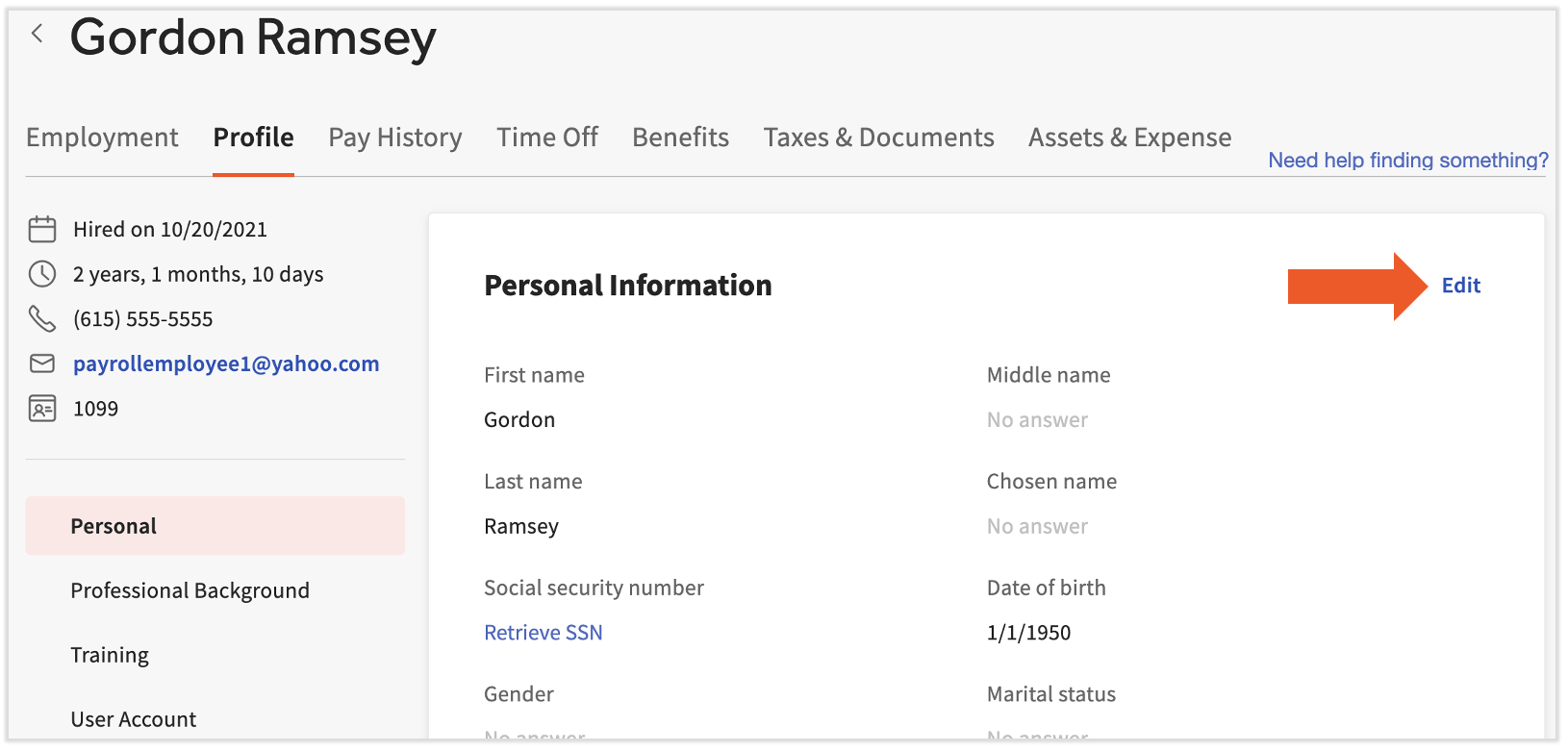
- There are four tiles on this page; scroll down to see more. Beginning with Personal Information, select Edit in each tile and fill out the requested information.
- It's vital to add your correct home address. It delegates which state tax form(s) you may need to fill out.
- Save your changes as you go down the page
Add or Verify Social Security Number (SSN)
During the employee import process, your social security number was not required. However, this is another critical piece of information that Toast Payroll needs in order to successfully file taxes for you. Inaccurate or missing SSNs may result in inaccurate tax filings, tax filings not accepted by agencies, and/or financial penalties.
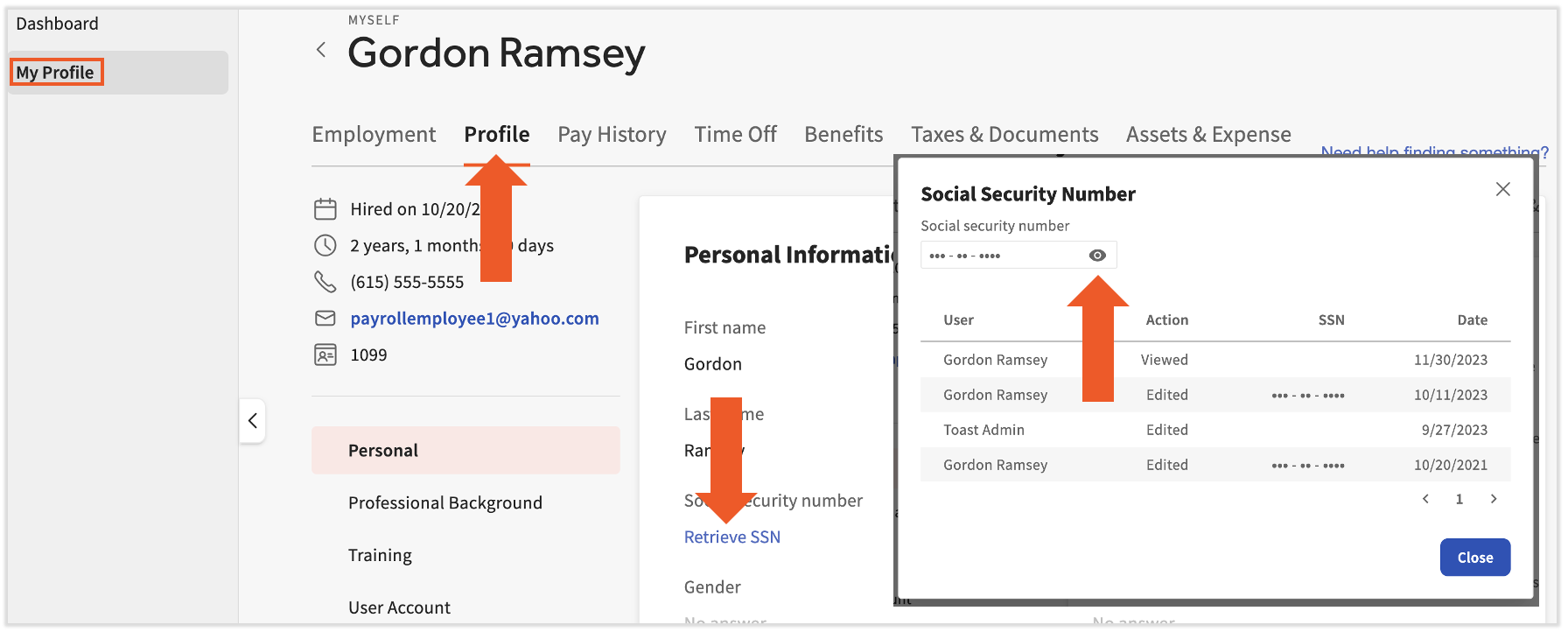
- You may have already filled out your social security number, but we encourage you to verify it by selecting Retrieve SSN. Select Yes on the pop-up.
- Select the eyeball icon to view the social security number Toast Payroll has for you.
- If it's accurate, select Close; you're all set. But if it's not accurate or it's blank, continue with these steps.
- If it's accurate, select Close; you're all set. But if it's not accurate or it's blank, continue with these steps.
- Select Close, then select Edit in the Personal Information tile.
- Locate the Social Security number field and enter an accurate Social Security number here.
- Select Save changes at the bottom to finalize your social security number before moving on.
Change or Update Email Address or Password
Your email address is used to log in, receive Toast Payroll communications, and confirm your identity (more on that in the Payment Method section). If you need to change or update it, follow these steps (otherwise, you can skip ahead to update your password):
- While logged in to Toast Web or Toast Payroll, select the avatar icon in the upper-right corner of the page and then select Profile.
- If you're having trouble logging in, check out the Log In section above. If that doesn't fix your issue, visit Log in to Toast: Troubleshoot Login.
- In the Personal information section, you can update your first name, last name, or chosen name.
- In the Login and security section, you can update the email address or password for your account as needed. You can also make updates to multi-factor authentication.
- If you need more assistance with updating your email or password, Log in to Toast: Update Your Account has more details.
- In the Enhanced access section, you can update the verified phone number where you will receive the one-time passcode to enable elevated permissions and gain access to certain restricted pages, if you are permitted.
- Select Save any time you make changes.
Payment Method
If you'd like to be paid via direct deposit, follow these steps. If you'd like to receive a paper check, you may skip this section since a paper check is the default payment method.
- Select the Employment tab at the top.
- Choose the Payment Method tab on the left and then select the Direct Deposit tile.
- Select + Add bank account.
- Select Verify when you're asked to confirm your identity. A six-digit code will then be texted to your phone number on-file with your Toast account. Enter this six-digit code into the pop-up in Toast Payroll. Note: Toast representatives will never ask you for this code, so do not share or provide this code to anyone.
- If you do not see the pop-up, you may need to disable your ad blocker and retry this action. You can re-enable it once you're done with these instructions.
- Toast Payroll: Get Help With Direct Deposit Accounts can assist you with the steps of setting up direct deposit with Plaid. Don't forget to come back to this page once you're done; there's one important step left.
Enter Form W-4 Information
This is the last step, but it's very important to fill these documents out to properly withhold state and federal taxes from your wages.
- Select Taxes & Documents from the top of the screen.
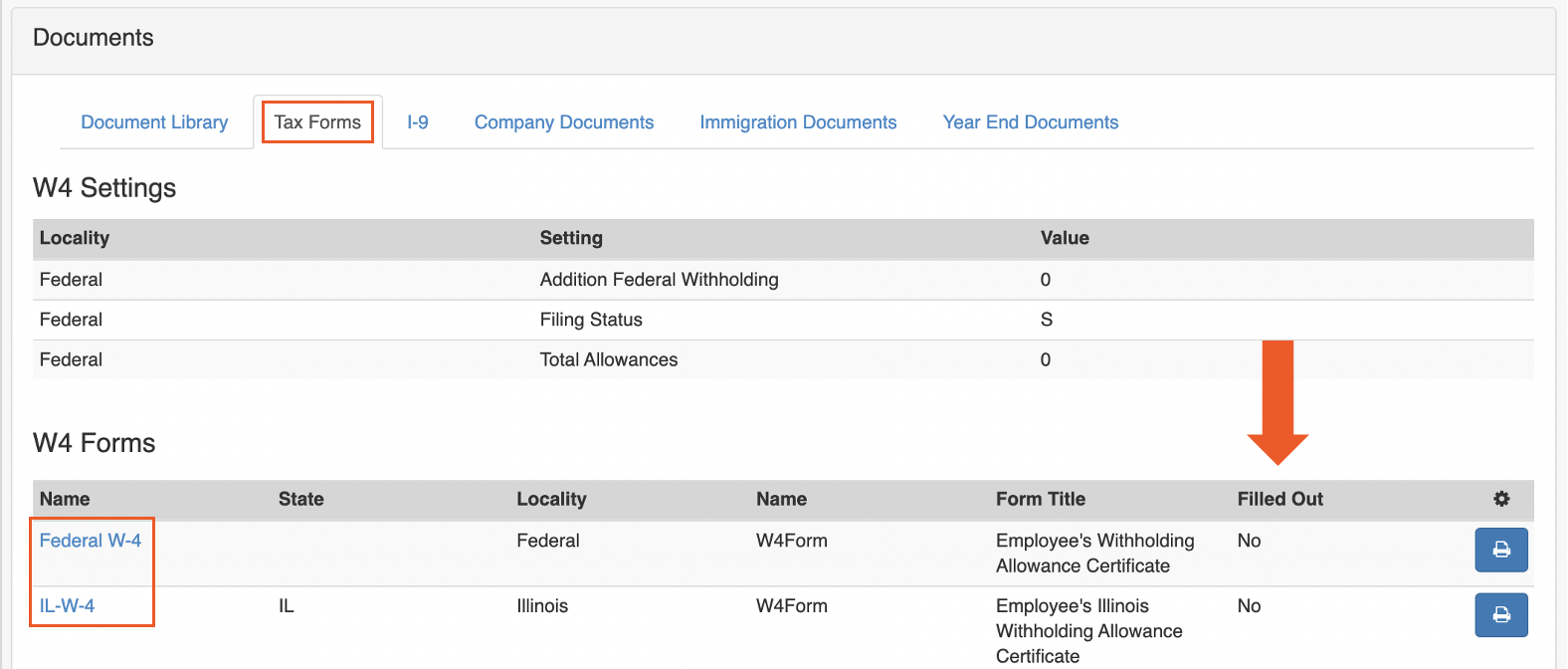
- Select the Tax Forms tab toward the top.
- Scroll down to see the hyperlinked federal, state, and (sometimes) local Form W-4s you can fill out. Select each hyperlink to begin the Form W-4 wizard which will guide you through filling out each form.
- All forms present are required to correctly tax your wages. The forms are based on the addresses Toast Payroll has on file for you and your company. It may be best to consult an accountant or tax professional with any questions you have. Toast Payroll is unable to offer advice on what to enter.
- Once all documents are complete, the Filled Out column will say Yes for each form.
You're all finished! Below are some more Support Center articles that may be helpful for using this system.
Additional Resources
- Toast Payroll: Get Help With Employee Resources
- Toast Payroll: Get Help With Direct Deposits
- Toast Payroll: Update Form W-4 Information
This content is for informational purposes and is not intended as legal, tax, HR, or any other professional advice. Please contact an attorney or other professional for advice.