Set Up One-Time Password Verification for Enhanced Access
Last updated: Sep 17, 2026, 4:16 PM
One-time password (OTP), also known as enhanced access, is a security process that prompts a user for a six-digit code sent to a verified phone number. This happens after a user is already logged in to Toast Web, and is visiting a page that contains sensitive information.
- One-Time Password and Account Security
- Verify Mobile Phone Number for Enhanced Access
- Opt Out of One-Time Password Verification
- Add a Mobile Phone Number to My Account
- "Invalid" Phone Number
- If You're a Manager Seeing This for Your Staff
One-Time Password and Account Security
As part of Toast's ongoing efforts to improve security for our customers, we ask that all users add and verify mobile phone numbers for their accounts. When accessing pages in Toast Web with sensitive information (referred to as "enhanced access"), you may be prompted to enter a one-time password sent via SMS to your mobile phone before you can view the information. This adds a layer of protection for sensitive operations.
Note that this enhanced access security measure is not the same thing as multi-factor authentication (MFA). MFA is a security method that prompts you for a second verification method when you are logging in to Toast Web with your email address and password. To learn more about MFA, see these Support Center articles:
You will typically be prompted for a one-time password when you open a page that contains sensitive business or financial information, including:
- Bank account and payout pages, such as adding or changing the bank account linked to your restaurant
- Pages covered by the 8.1 Financial Accounts and 8.7 Instant Deposits permissions
- Employee pages where you add a new employee or send an account invite link
If you reach one of these pages and cannot get past the phone verification step, see "Invalid" Phone Number below. You will not be able to view or download the information on these pages until a mobile number is verified on your account, or until you regain access through Customer Care.
Verify Mobile Phone Number for Enhanced Access
Once a user sets up and activates their account, they will be prompted to sign in to Toast Web with their newly created login credentials and verify their mobile phone number.
- The user will enter their mobile phone number and select Verify. At this time, only phone numbers with U.S., Canada, Ireland, U.K., New Zealand, Australia, and India country codes are supported for enhanced access setup.
- The user will receive an SMS text message with a 6-digit verification code.
- If the mobile number needs to be updated, select Update my phone number.
- If the 6-digit verification code needs to be resent, select Resend code.
- Once the 6-digit code is entered successfully, a confirmation message will appear stating the phone number has been verified.
It's important to note that the verified phone number must be unique per user. That means if you've used your number on an older Toast Web account, it needs to be removed there first. Note that if you have more than one Toast Web account, these can be consolidated so that you can access everything from a single login. Sometimes, entering a phone number that has already been linked to an account can result in an invalid format error. For more information on how to consolidate Toast Web accounts or remove a phone number from a previous account, check out this Support Center article: Consolidate Toast Web Login Credentials.
Opt Out of One-Time Password Verification
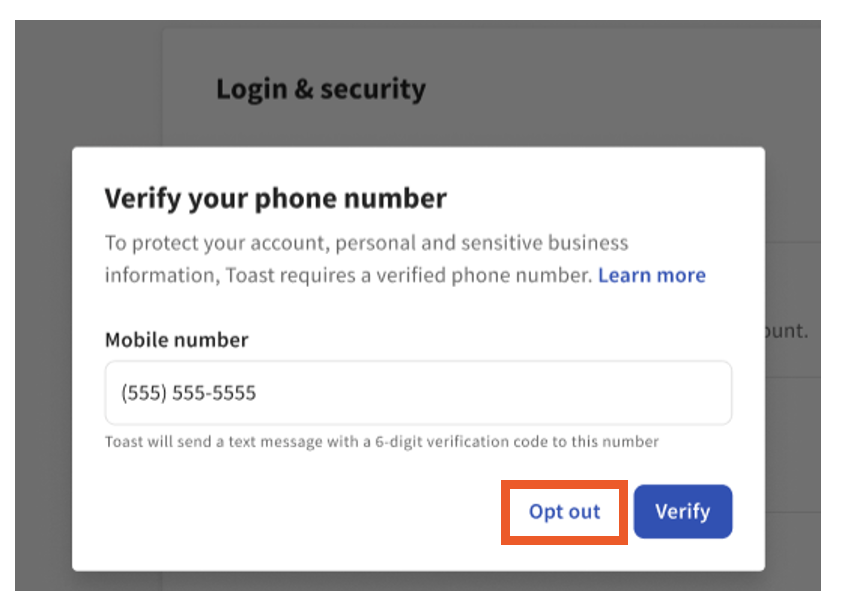
After user activation and logging into Toast Web for the first time, the option to opt out of enhanced access via one-time password verification will appear.
Note: If you opt out of one-time password verification, you won't be able to view or edit data on secured pages.
Add a Mobile Phone Number to My Account
If you choose to add a mobile phone number at a later date, the phone number can be added by selecting their name in the top-right corner of the page, and then navigating to My account.
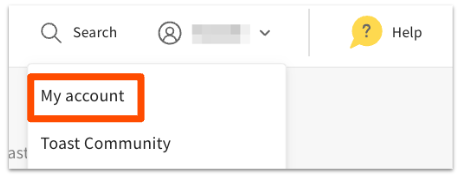
Here, in the Enhanced access section, you can add and verify your mobile phone number.
"Invalid" Phone Number
If you've entered your number and see an error message claiming the number is invalid, double-check to make sure you've entered the phone number correctly. If you've entered your number and see an error message claiming the number is invalid, double-check to make sure you've entered the phone number correctly. If you have, start a chat with Customer Support and mention that your issue is with one-time password (OTP) phone verification so your case routes to the right team.
Did you use Toast at an old job? A phone number can only be verified on one Toast Web account at a time. If your mobile number was already verified on an account tied to a previous employer, you'll see this same "invalid" error until the number is removed from that old account.
- If you still have login access to the previous account, log in, go to My Account > Enhanced access, and remove the number yourself. You can then verify it on your new account.
- If you no longer have access to that account — for example, because you've left that employer — start a chat with Customer Support. They can verify your identity and remove the number from the old account on your behalf.
Other reasons why you may get this error:
- Your number cannot receive text messages. Toast sends you a 6-digit code by text. If your number cannot get text messages, the check will fail. This often happens with landlines and some internet-based phone numbers.
- Your number is from a country Toast does not support yet. This security step only works with phone numbers from certain countries (U.S., Canada, Ireland, U.K., New Zealand, Australia, and India). If your number is from a country that is not supported, it will not be accepted.
- There is a typo. Sometimes it really is a simple mistake. Double-check your number before you try again.
If You're a Manager Seeing This for Your Staff
Managers commonly hit this error while adding new employees or sending invite links, and often for several employees in a row. The cause is the same: each employee's mobile number is still verified on a Toast Web account from a previous employer or another location, and a number can only be verified on one Toast Web account at a time.
- Ask the employee whether they have used this number with Toast at a previous job or another location.
- If so, the employee should log in to that older account and remove the phone number there, then verify it on their new account.
- If the employee cannot access the old account, they should start a live chat with Customer Care and ask to have the number removed from the previous account. You cannot remove it on their behalf.
- An employee cannot use a colleague's or a shared restaurant phone number instead — the verified number must be unique to each user.