Toast Retail: Adjust Inventory to Optimize COGS Calculations
Last updated: Oct 18, 2026, 1:02 PM
Learn some best practices for using inventory adjustment types to optimize COGS calculations in Toast Retail.
- Inventory Management & COGS Overview
- Adjust an Item's Inventory Count
- Inventory Adjustment Types
- Additional Resources
Inventory Management & COGS Overview for Toast Retail
Accurate inventory management is crucial for retail operators like grocery stores, convenience stores, and bottle shops. Tracking inventory accurately helps reduce waste, prevent stockouts, and enhance profitability analysis by providing an accurate view of product costs relative to revenue. With accurate cost of goods (COGS) data, operators can identify their most profitable products, spot inefficiencies, and make strategic decisions that boost their bottom line. Below, we break down each inventory adjustment type available in Toast Retail’s inventory system, when to use it, and how it affects your COGS.
Toast Retail: Adjust an Item's Inventory Count
To increase or decrease an item’s inventory count, you must have the 5.2 Inventory & Quantity permission. Follow these steps:
- In Toast Web, navigate to Retail > Item management > Item Catalog.
- Select the item that you wish to update.
- Scroll down to the Inventory section and select the Adjust field.
- From the Adjust quantity pop-up window, select a reason for adjusting an item’s inventory count and fill out the required fields accordingly. To learn more about the different inventory adjustment types, check out the Inventory Adjustment Types for Toast Retail section of this article.
- Save and publish your changes.
Historical Inventory Adjustments
By default, an inventory adjustment will be logged on the date and time that you adjust the inventory in Toast Web. If you'd like to enter an inventory adjustment that happened in the past (e.g. you enter all of last week's inventory adjustments in one batch on Monday mornings), you can open the Adjustment time drop-down to change the date and time to the moment the inventory change actually occurred
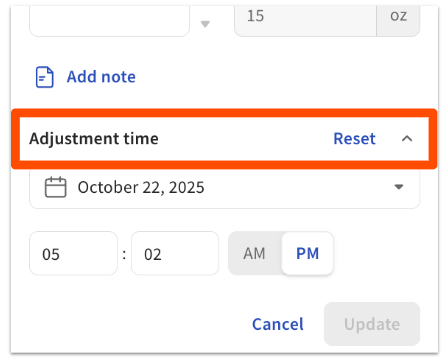
Historical inventory adjustments will be reflected on your COGS and Inventory Snapshot reports when they refresh overnight.
In addition to the 5.6 Inventory & Quantity permission, the 4.5 Edit Full Menu permission is required to change the date and time of an inventory adjustment.
Note: The date/time of a Count adjustment cannot be edited.
Inventory Adjustment Types for Toast Retail
In general, adjustments like Receive and Restock support standard stock management, while adjustments for Damage, Expire, Loss, Sample, Theft, and Waste typically increase COGS by reducing sellable inventory. Using the correct adjustment type helps operators maintain accurate COGS calculations, minimize waste, and identify cost-saving opportunities.
Note:
- Inventory adjustments (Loss, Waste, Count, etc.) with reason codes are entered one item at a time from the item's detail page in Retail > Item Management > Item Catalog, under the 5.2 Inventory & Quantity permission.
- A Count adjustment after a physical count is the standard faster route for reconciling a whole category, vs. doing individual Loss/Waste adjustments — this is a common recommendation from the retail team, e.g. in tips on optimizing COGS via inventory adjustments.
- If you take an item from your Toast Retail shelf and use it elsewhere in your business — for example, pouring a bottle of retail wine at the bar — use the Sample adjustment type to remove it from your sellable inventory count. This keeps your COGS calculations accurate by accounting for the item as consumed rather than sold. If your use case doesn't fit Sample, Loss also removes items from inventory and has a similar effect on COGS. Contact Toast Support if you're unsure which adjustment type best matches a specific in-house use case.
| Adjustment Type | Purpose | Example | COGS Impact |
| Receive | Record the addition of new stock from suppliers. | A grocery store receives a pallet of dairy products. You can either manually receive these items, or receive against a purchase order or invoice to increase the on-hand inventory count of your product. | Received inventory will later flow into the COGS report as items are sold.
Note: Adding cost at the point of receiving is optional, and can be added retroactively through Inventory history on the item details page. Doing so would allow inventory to be depleted using first-in-first-out (FIFO) methodology, assigning the cost of previous inventory lots as items are sold. |
| Restock | Return items previously removed from inventory. | A bottle shop sets aside a case of wine for a tasting event that was later canceled. Use Restock to put the case back into inventory. | Restock adjustments do not directly affect COGS, as they simply move previously accounted inventory back into available stock. |
| Count | Adjust inventory levels after a physical stock count. | A convenience store performs a count on its tobacco products and finds fewer packs than expected. Use Count to update inventory. | Discrepancies adjusted through a count can affect COGS by reconciling counted items against your system records, leading to adjustments in total inventory value.
|
| Damage | Remove items from inventory that are damaged and unsellable. | A grocery store employee accidentally drops a glass jar of pasta sauce, making it unsellable. Use Damage to adjust inventory. | This adjustment indirectly impacts COGS by increasing the cost of remaining goods in stock as the damaged product reduces sellable inventory. |
| Expire | Account for items that have expired. | A convenience store finds that a batch of yogurt is past its expiration date. Remove these items using the Expire adjustment. | Removing expired products impacts COGS by increasing the per-unit cost of remaining sellable goods, as expired stock can no longer generate revenue. |
| Loss | Remove items from inventory due to unaccounted-for losses. | A bottle shop notices a shortage of a specific wine and cannot account for it through sales or inventory movements. Use Loss to adjust the inventory. | Similar to Expire and Damage, loss adjustments impact COGS by raising the average cost per item in the remaining inventory. |
| Sample | Record items used as samples for customers or staff training. | A grocery store samples a new cheese brand at the deli counter. Use Sample to adjust the inventory. | Sampling can increase COGS by depleting stock without generating revenue, helping you track costs related to in-store promotions. |
| Theft | Account for items missing due to theft. | A convenience store detects that a quantity of energy drinks is missing from the cooler due to shoplifting. Adjust inventory using Theft. | Theft increases COGS by decreasing available sellable inventory, impacting profitability as fewer goods remain for sale. |
| Waste | Record waste, such as food or packaging that was discarded. | In a grocery store, a fresh fish fillet accidentally dropped on the floor should be logged as Waste. | Waste adjustments increase COGS as unsellable items are removed, raising the per-unit cost of remaining goods. |
Additional Resources for Toast Retail
- Toast Retail: Manage Your Inventory
- Toast Retail: Generate Purchase Orders & Receive Inventory
- Toast Retail Reporting Overview