Manage Uber Eats Third-Party Ordering Configuration
Last updated: Sep 25, 2026, 11:24 AM
Learn how to configure menus and more for Uber Eats directly in Toast Web.
| Please note that the Uber Eats configuration page is currently in limited release with select customers. If you don't see this feature yet, stay tuned for a future update. |
- Access the Uber Eats Configuration Page
- Configure Your Uber Eats Integration
- Review Uber Eats Menu Incompatibilities
- Frequently Asked Questions
Access the Uber Eats Configuration Page
If you're setting up the Uber Eats integration for the first time, see Get Started With the Uber Eats Integration.
After your integration is up and running, you may need to occasionally make changes to your configuration to update your menu availability or Uber Eats ordering hours. To access the Uber Eats configuration page and make updates to your available menus and settings, follow these steps:
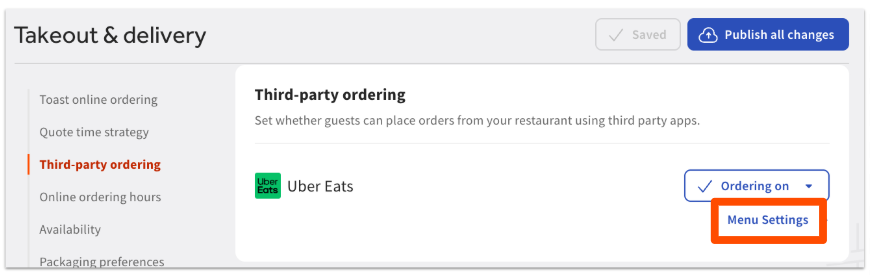
- In Toast Web, navigate to Takeout & delivery > Third-party ordering.
- Select Menu Settings next to the Uber Eats integration.
Note: Above the Menu Settings button, you'll see the availability toggle for Uber Eats, which allows you to turn this channel on, off, or snooze temporarily. For more information on the toggles, see Manage Third-Party Availability Through the Snooze Feature and the On/Off Function.
- This will take you to the Third party ordering configuration page for Uber Eats, where you can save and publish changes as needed.
Configure Your Uber Eats Integration
To configure Uber Eats for your selected location, follow these steps:
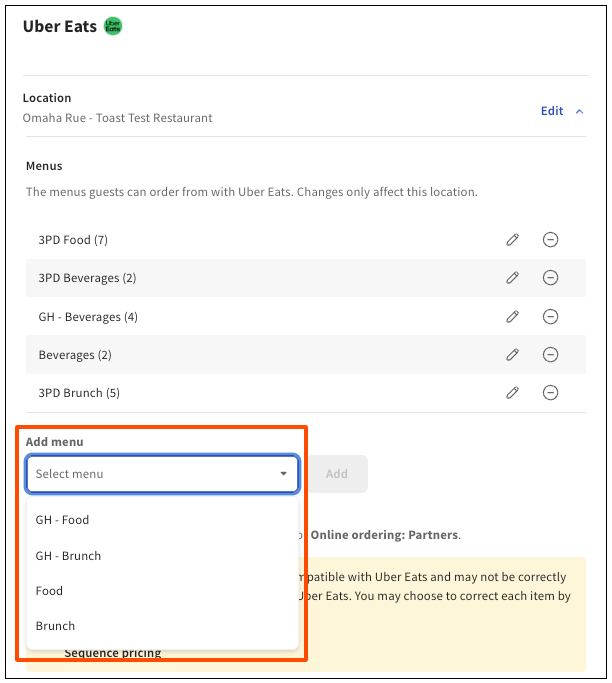
- On the Third party ordering configuration page, select Edit next to Uber Eats to display all available settings.
- The page will expand to show the following:
- Name and Location of the restaurant being accessed.
- Menus - The list of currently selected menus that guests can see and order from on the Uber Eats platform. You can have different menus shown on each partner by selecting them on each partner’s individual configuration page.
- Add menu - A drop-down list where you can add/select additional menus to surface to guests on Uber Eats. Note: Only menus with visibility set to Online ordering partners will be selectable in this drop-down.
- To set menus to be visible to Partners, see Manage your Menu Visibility Settings for steps.
- To set menus to be visible to Partners, see Manage your Menu Visibility Settings for steps.
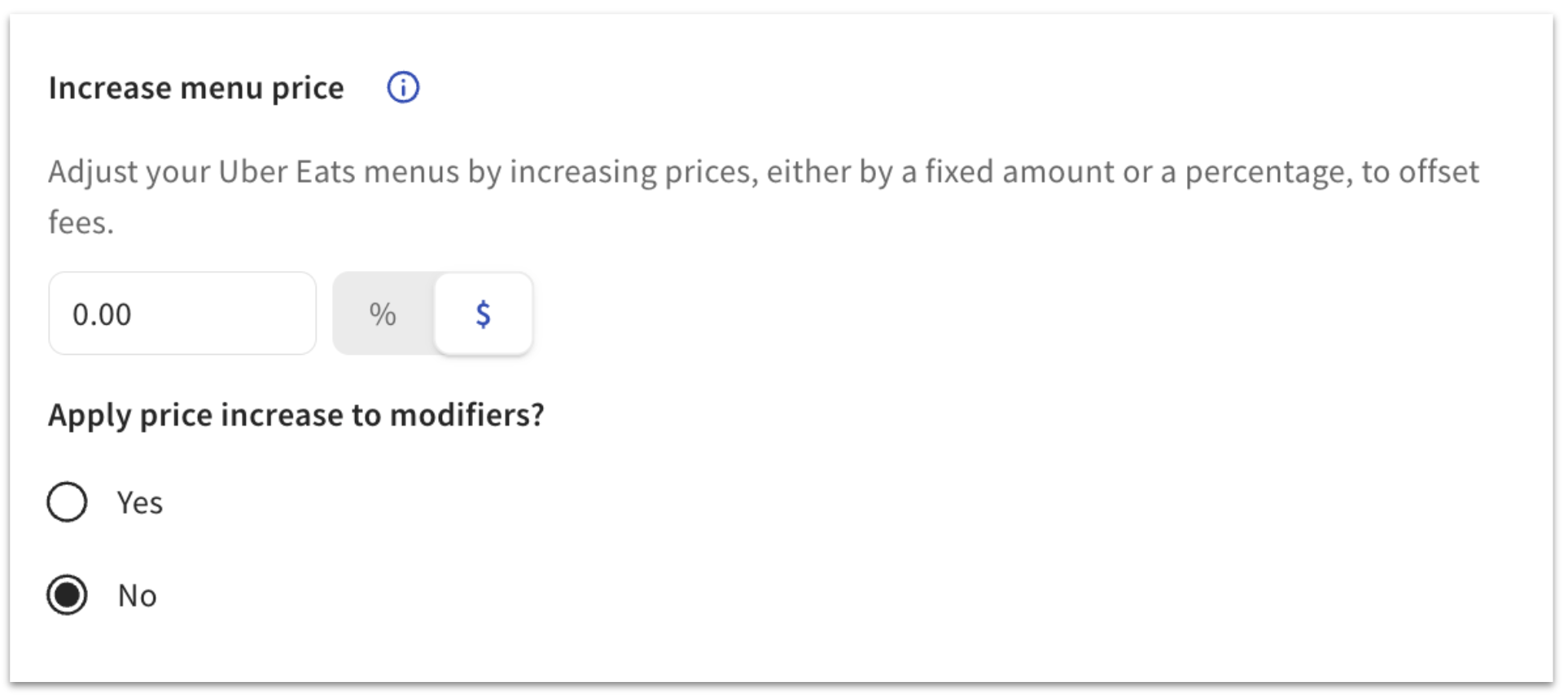
- Increase menu price - Apply a price increase as a fixed amount or percentage on top of the base price to menu items and/or modifiers. You will see the regular price when editing your menu, but Uber Eats will show the increased price. This will apply an increase to all menu item prices on your Uber Eats menus.
Note: applying a flat fee to low-cost modifiers can result in unexpectedly high prices for customers. It is suggested to apply percentage increase to modifiers to avoid this.
-
- Hours - The hours when guests can order with Uber Eats. For more information on setting online ordering hours, see this video.
- Save and publish any changes you make to apply them to your Uber Eats integration.
Review Uber Eats Menu Incompatibilities
Menu incompatibilities can interfere with proper display and functionality for your menus on your location’s Uber Eats site. If you have any menu incompatibilities with the Uber Eats integration, they'll be shown on the Third party ordering configuration page below the Add menu drop-down:

When you navigate into the relevant links, you'll see a pop-up with links that will take you to the item incompatibilities in question if you’d like to see them yourself.
Note: If you're still onboarding, no action is required of you — these incompatibility notices are simply informational, and your Onboarding Consultant will fix these for you.
Frequently Asked Questions About the Uber Eats Configuration Page
How do I remove a menu from Uber Eats?
To remove a menu from Uber Eats, follow these steps:
-
- In Toast Web, navigate to Takeout & delivery > Third-party ordering.
- Select Menu Settings next to the Uber Eats integration.
- Select Edit next to Uber Eats to display all available settings.
- Select the (-) button to the right of the menu you want to remove from Uber Eats.
- Select Remove on the pop-up to confirm your choice.
- Save and publish your changes.
Note: This will only remove the menu from guest ordering on Uber Eats. The menu visibility on the menu itself will still be set to Online ordering partners, which means the menu will still be available on the other third-party ordering partners where it has been selected.