Unified Login Experience for Toast Web and Toast Payroll
Last updated: Sep 22, 2026, 9:54 AM
Users of Toast Web and Toast Payroll can securely link their accounts to navigate between the two products and maintain their personal information in one spot.
| This article should only be used by individuals without a unified/linked account who were hired before May 2025. If you were hired in Toast Payroll during or after May 2025, you will create a unified/linked account automatically by setting a password during your onboarding steps. See Toast Payroll: Employee Onboarding (Employee Guide) for more details. |
Key Points of the Unified Login Experience
A single login across Toast, Toast Payroll, and Sling by Toast is now available to all customers. By connecting a Toast Payroll account to your Toast Web account, you and your staff will:
- Use one login to easily navigate between Toast products
- Manage personal information in one place
- Know your personal information is more secure
Connect Your Toast Payroll and Toast Web Accounts
- The initial steps begin with you logging into Toast Payroll. Navigate to payroll.toasttab.com.
- If you've misplaced or forgotten your password, select Forgot password? and follow the steps in Log in to a Toast Product or Device.
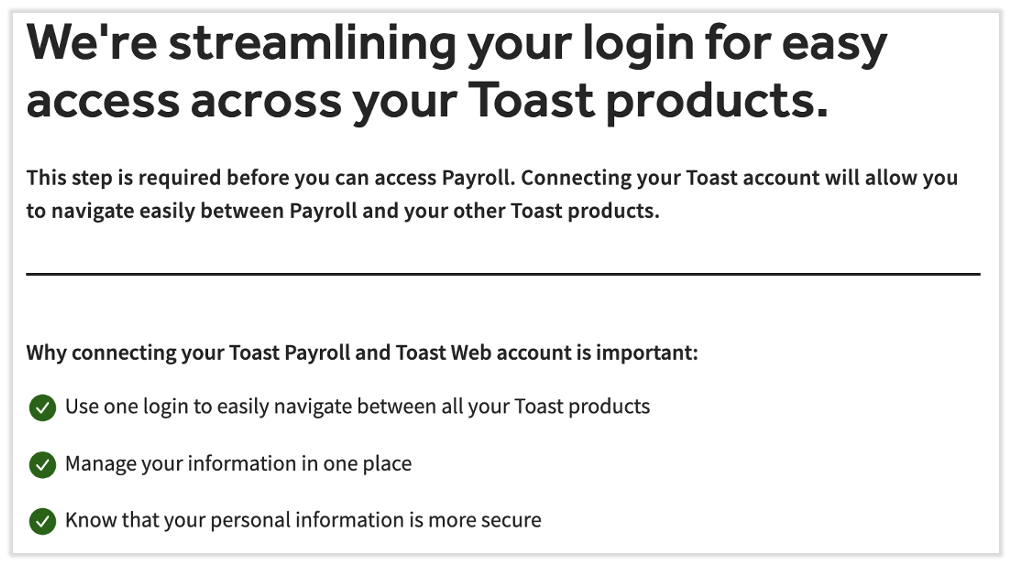
- You'll see a screen asking you to connect Toast Payroll and other Toast products (Toast Web, the MyToast app, and more). Select Continue to proceed.
- At this point, the experience will differ depending on if you have a verified email in Toast Web or not.
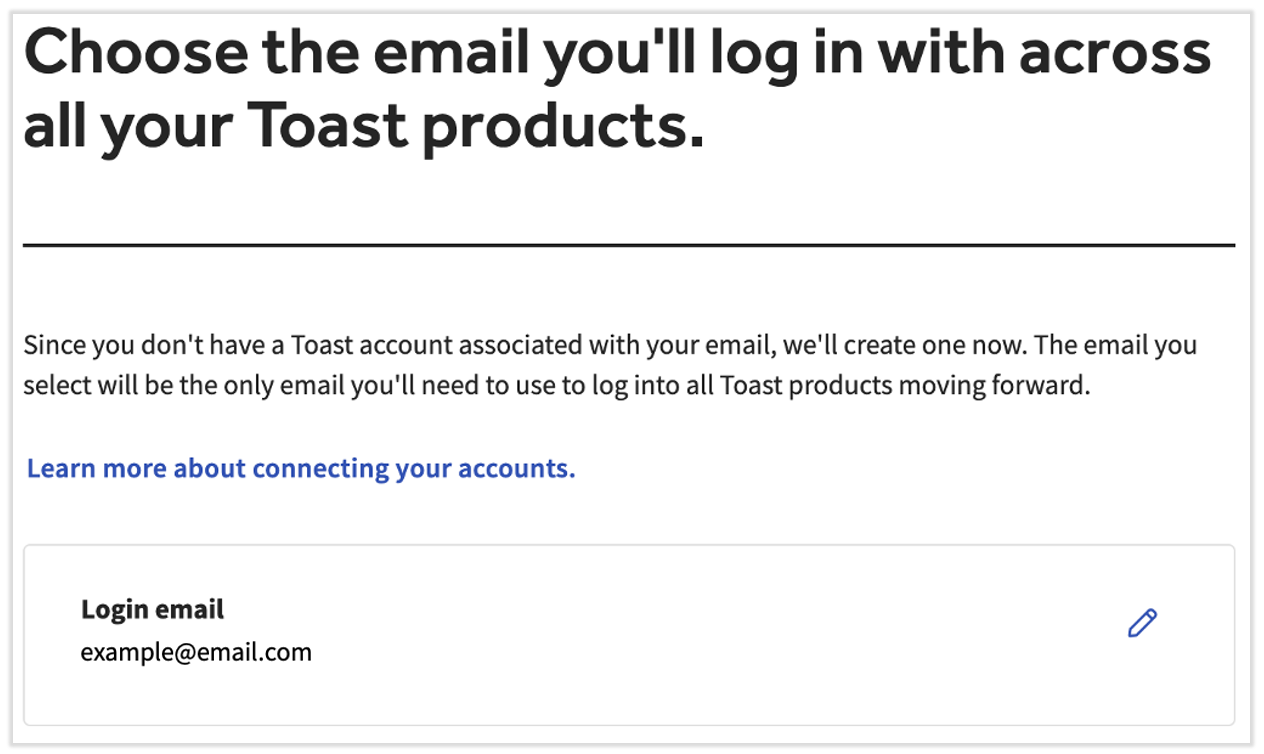
- Users with a verified email will have the option to use it or update it. This is the screen most users will see. Select the edit pencil if you'd like to update this email address. Select Continue when you're ready.
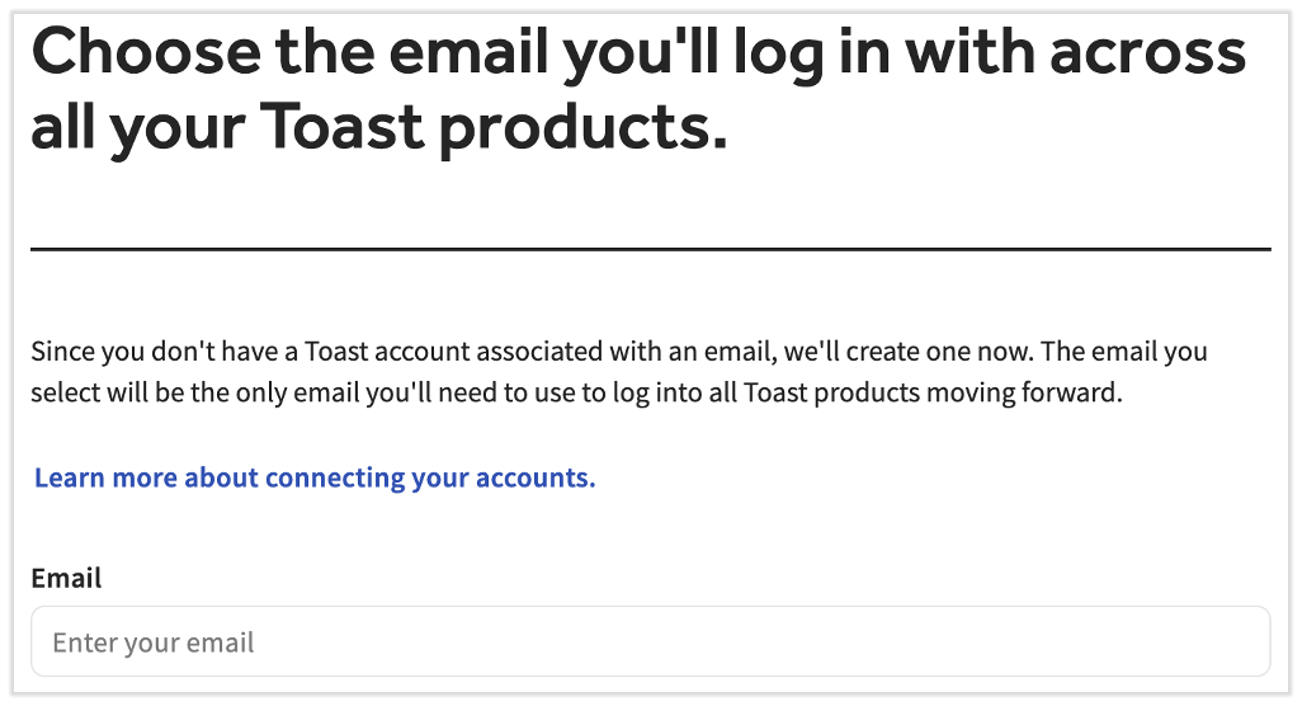
- Users without a verified email will need to enter one here and select Continue.
- Users with a verified email will have the option to use it or update it. This is the screen most users will see. Select the edit pencil if you'd like to update this email address. Select Continue when you're ready.
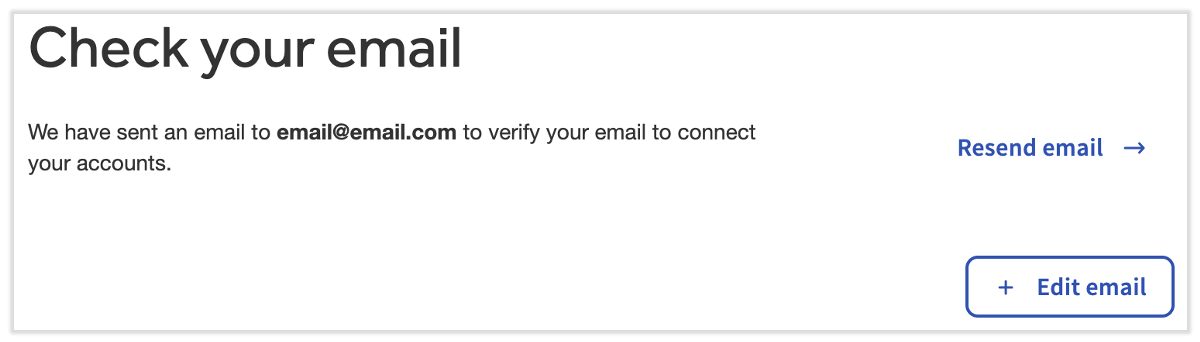
- The following screen will ask you to check your email. You can also select Resend Email or Edit Email to perform either of these actions.
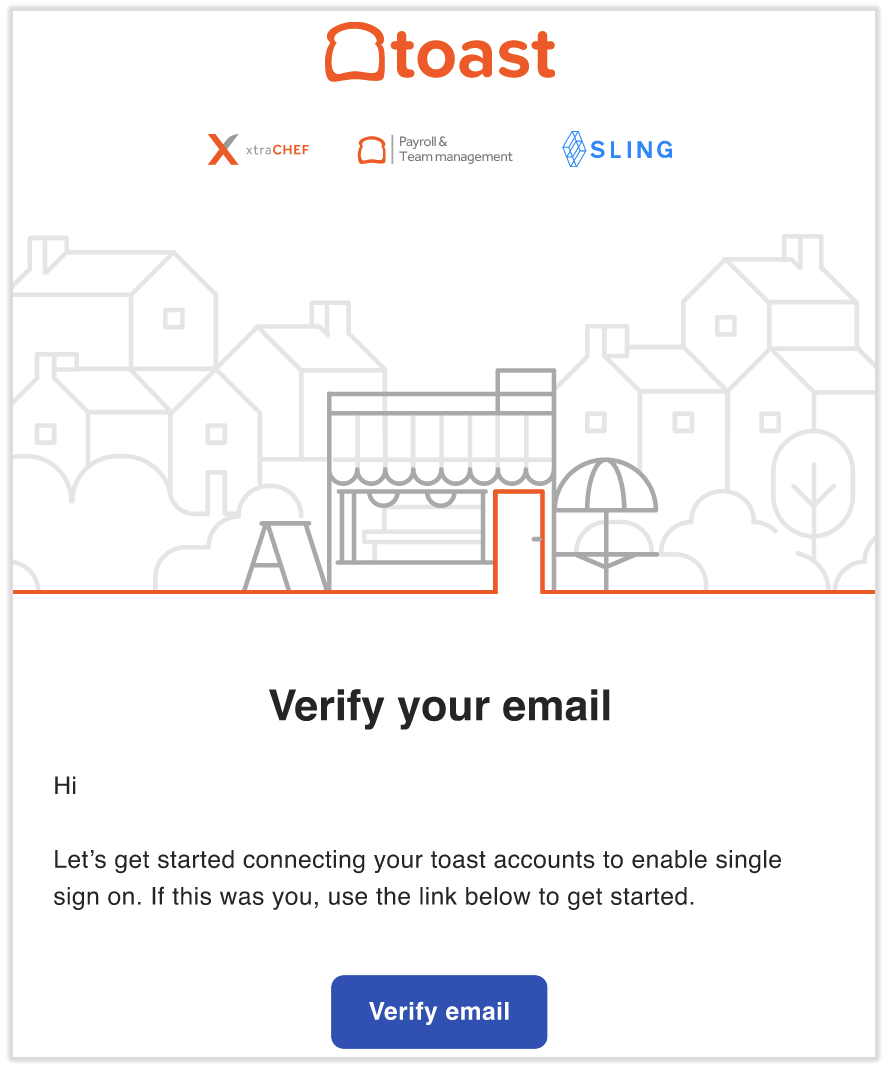
- Navigate to your email inbox and locate the email labeled Verify your email to connect your accounts. Select the Verify email button at the bottom to continue.
- If you don't see this email within 30 seconds, check your Spam and Junk folders in case it landed there.
- If you don't see this email within 30 seconds, check your Spam and Junk folders in case it landed there.
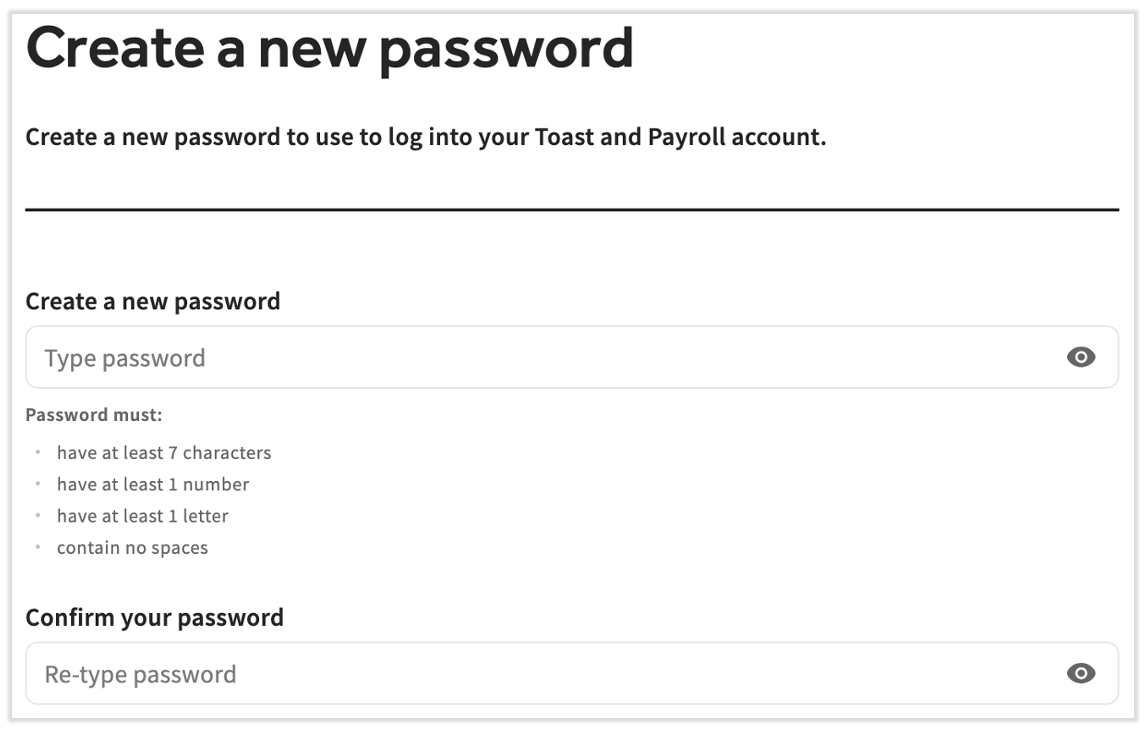
- Next, create a secure password. If you've already set a password in Toast Web, Toast Payroll, or the MyToast app, this will overwrite each of them, but you are allowed to enter a password you already use if you wish. Don't forget to store your email and password in a secure place for later use. Select Continue once your password is set.
- You're done! You can now use this email address and password to log into both Toast Payroll and Toast Web. Select Continue.
- Log in with your new email and password.
- If you wish to update your email address or password, select the avatar icon in the upper-right corner and select Profile. This can be done in both Toast Web and Toast Payroll.
This content is for informational purposes and is not intended as legal, tax, HR, or any other professional advice. Please contact an attorney or other professional for advice.