Get Started With Gift Card and Loyalty Partner Integrations
Last updated: Sep 18, 2026, 1:44 PM
How third-party gift card and loyalty (rewards) partner integrations work on Toast — setup, switching providers, disable, re-enable, and troubleshooting.
Note: If you want Toast's own first-party gift card or loyalty program — not a third-party partner — see Get Started With Toast Gift Cards or Get Started With Toast Loyalty instead.
- TL;DR About Gift Card and Loyalty Partner Integrations
- Who Can Use Gift Card and Loyalty Partner Integrations
- Required Modules, Permissions, and Hardware
- How It Works
- Known Limitations
- Frequently Asked Questions
- Your Gift Card or Loyalty Button Isn't on the POS
- Can I Run Two Gift Card Providers at Once?
- What Does the POS Workflow for Loyalty Look Like?
- Gift Cards Can Be Keyed In but Not Swiped Successfully
- The Loyalty Program Keeps Randomly Disabling
- How Can I Determine if a Gift Card Has Been Used Before?
- Can I Import Partner Loyalty Data Back Into Toast Loyalty?
- Related Articles
TL;DR About Gift Card and Loyalty Partner Integrations
Toast partners with several third-party gift card and loyalty (rewards) providers — Paytronix, Punchh, Como, Hang, Curate, Tacit, Peoplevine, Voucher Connect, Fishbowl, Incentivio, WineView, and others — that you can run through Toast instead of (or alongside) Toast's first-party programs. Each restaurant group can have one active gift card provider and one active loyalty provider at a time. Setup is initiated by you with your partner, who then contacts Toast Integrations Support to complete the backend configuration. After the integration is configured, Gift Card and Rewards buttons appear on the Toast POS.
Who Can Use Gift Card and Loyalty Partner Integrations
Toast partner gift card and loyalty integrations are available to restaurants that:
- Have an active account with a third-party gift card or loyalty (rewards) partner
- Have Toast Partner Integrations access for every location that will use the integration (included with Restaurant Management Essentials and Restaurant Management Pro suites)
- Have the appropriate user permissions in Toast Web to enable or disable gift card and loyalty settings (see below)
Required Modules, Permissions, and Hardware
Applies to: Toast Web, Toast POS
Modules required:
- Toast Partner Integrations access for every location that will use the integration. Included with the Restaurant Management Essentials or Restaurant Management Pro suite. See Set Up Toast Partner Integrations for details.
Permissions needed:
- Payments Setup permission at the gift/rewards group level — required to enable or disable a gift card integration
- Marketing Info permission at the gift/rewards group level — required to enable or disable a loyalty integration
For more about Toast permissions, see Permissions Reference Guide.
How It Works
A partner gift card or loyalty integration on Toast has four moments that customers ask about: initial setup, switching to or from a partner, disabling or re-enabling the integration on Toast, and troubleshooting when something isn't working. The subsections below cover each.
Set Up a Partner Gift Card or Loyalty Integration
What you'll accomplish: Connect your Toast restaurant to a third-party gift card or loyalty (rewards) partner so that Gift Card and Rewards buttons appear on the Toast POS.
There are three high-level steps. Steps 1 and 2 are between you and the partner. Step 3 is between the partner and Toast.
Step 1: Confirm the prerequisites listed in Who Can Use Gift Card and Loyalty Partner Integrations.
Step 2: Connect with your gift card or loyalty partner and share your Toast Restaurant GUID(s).
Provide your Toast Restaurant GUID for every location you want to enable. The partner uses the GUID to map your restaurant in their system.
Note: To find your Toast Restaurant GUID, see Locate My Restaurant's GUID. As a fallback, you can download the full Restaurant GUID report by opening this URL in your browser: https://www.toasttab.com/restaurants/admin/export/restaurantidmapping.
Step 3: The partner contacts Toast Integrations Support to complete configuration.
After receiving your GUID(s), the partner finishes their onboarding (mapping your GUID in their system) and then contacts Toast Integrations Support directly to enable the integration on the Toast backend.
| Important: The backend configuration in Step 3 is performed by Toast — not by the restaurant and not by the partner alone. After Toast completes the configuration, the integration appears in your Toast Partner Integrations Portal at Toast Web > Integrations > Integration management > Browse & purchase integrations, and the Gift Card and/or Rewards buttons become available on the Toast POS. |
Expected outcome: After publishing your changes, the Gift Card and Rewards buttons appear on the Toast POS at every location in your gift/rewards group. If they do not appear, see Your Gift Card or Loyalty Button Isn't on the POS.
Switch Between Gift Card or Loyalty Providers
Restaurants commonly switch between providers in one of four directions. Find your scenario below.
If you are switching from Toast Gift Cards or Toast Loyalty to a third-party partner:
Before you make any changes in Toast Web, export your existing data so the partner can import it into their system. After the partner has imported the data, the partner contacts Toast Integrations Support to enable their integration (which automatically disables Toast Gift Cards or Toast Loyalty for that group).
| Important: Download your data before changing your Toast gift card or loyalty configuration. After the partner integration is enabled, Toast Gift Card and Loyalty reports are no longer accessible. If the switch has already happened and you still need the files, contact Toast Customer Care to temporarily switch back to the Toast module to download them. |
For the full export procedure:
- For gift cards, see Export Toast Gift Cards Data for Third-Party Use.
- For loyalty, see Export Toast Loyalty Data for Third-Party Use.
If you are switching from one partner provider to another partner provider:
- Coordinate with both your current partner and your new partner so they can hand off any data your new partner will need (loyalty member balances, gift card balances, etc.). Toast does not perform this data hand-off.
- Disable the current partner integration on Toast using the steps in Disable or Re-Enable a Partner Integration on Toast.
- Begin the new partner setup using the steps in Set Up a Partner Gift Card or Loyalty Integration. Share your Toast Restaurant GUID(s) with the new partner.
- The new partner contacts Toast Integrations Support to complete the backend configuration.
Expected outcome: The old partner integration is removed from your Toast Partner Integrations Portal, the new partner appears, and the Gift Card and/or Rewards buttons on the POS reflect the new partner. Allow time for both publish events to propagate across locations.
If you are switching from a third-party partner back to Toast Gift Cards or Toast Loyalty:
Contact Toast Customer Care to request the switch back. Your partner integration must be disabled before Toast Gift Cards or Toast Loyalty can be re-enabled at the group level. After the switch is complete, see Get Started With Toast Gift Cards or Get Started With Toast Loyalty for first-party setup.
If you are extending an existing partner integration to Toast Online Ordering Pro:
After the integration is live on the POS, extend it to Toast Online Ordering Pro by:
- For loyalty, follow Toast Online Ordering Pro: Enable Third-Party Loyalty.
- For gift cards, follow Set Up Third-Party Gift Cards for Online Ordering Pro. Third-party gift cards on Online Ordering Pro are supported only for Valutec, Paytronix, eCard Systems, and Giftrocker partners.
Disable or Re-Enable a Partner Integration on Toast
You can disable a partner gift card or loyalty integration on Toast at any time. Disabling is a gift/rewards group-level change — it turns the integration off for every location in the group.
| Important: Make sure to save and publish changes at every location in the gift/rewards group as soon as you change the setting. Use Publish Config to publish across all locations at once. Until you publish, the change has not taken effect — and the Gift Card or Rewards button will not be removed from (or added to) the POS at unpublished locations. |
To disable or re-enable a gift card integration:
- In Toast Web, navigate to Finance > Payments > Gift cards > Gift card setup.
- Set the Enabled setting to No to disable, or Yes to re-enable.
- Select Save, then Publish your changes. Use Publish Config to publish across every location in the gift/rewards group.
Expected outcome: After publishing at every location, the Gift Card button is removed from (or restored to) the POS, and data transmission to your gift card partner stops or resumes.
To disable or re-enable a loyalty integration:
- In Toast Web, navigate to Toast Web > Marketing > Loyalty > Loyalty settings.
- Change the Enable Loyalty setting to No to disable, or Yes to re-enable.
- If you are re-enabling a loyalty integration and your restaurant uses general ledger codes, map both the Loyalty Integration Item Discount and the Loyalty Integration Check Discount to GL codes on the same page. See Creating and Mapping General Ledger Codes. If you do not use GL codes, skip this step.
- Select Save, then Publish your changes.

Expected outcome: After publishing at every location, the Rewards button is removed from (or restored to) the POS, and data transmission to your loyalty partner stops or resumes.
Note: Disabling a partner gift card or loyalty integration is a group-level change — it does not remove the integration from your Toast Partner Integrations Portal. To remove the integration entirely (the tile itself), see Add or Remove an Integration With Toast Partner Integrations.
When Something Isn't Working
If a partner gift card or loyalty integration is misbehaving, decide who you need to contact first.
| Important: Toast can troubleshoot the connection between your Toast account and your third-party provider. Toast does not have access to troubleshoot anything specific to your third-party account (card balances, loyalty member records, partner-side configuration, etc.). For those, contact your third-party provider directly. |
Common scenarios and where to start:
- Suspected outage on Toast's side, or a partner card payment is failing intermittently. Check whether Toast or the device is in Offline Mode — see Outages and Disruptions: Toast Loyalty and Gift Cards.
- Specific transaction errors on a third-party gift card. See Get Help With Third-Party Gift Card Transaction Errors. The error-details window on the POS shows the last 4 of the card, the Transaction GUID, and the partner's error text — provide all of that to your partner.
- Integration is set up in your Toast Partner Integrations list but the POS button is missing. See Your Gift Card or Loyalty Button Isn't on the POS.
- You suspect the integration was disabled by another user across multi-location shared loyalty. Start a chat with Toast Customer Care for resolution — see The Loyalty Program Keeps Randomly Disabling.
- Partner says the integration should be live but you don't see it in your Toast Partner Integrations list. Confirm with the partner that they contacted Toast Integrations Support to complete Step 3 of Set Up a Partner Gift Card or Loyalty Integration. If they confirm, start a chat with Toast Customer Care.
Known Limitations
- One provider per restaurant group. Only one Gift Card and Loyalty Group can exist per restaurant group, and only one gift card provider and one loyalty provider can be enabled at a time. You cannot run two gift card providers (for example, Valutec and Paytronix) simultaneously.
- One Toast configuration vs. partner reporting. Once you switch to a partner gift card provider, all gift card reports are available on the partner side only — Toast does not show those reports.
- Backend configuration is Toast-only. The Step 3 backend configuration (turning on a partner integration on the Toast side) is performed by Toast Integrations Support. Restaurants cannot complete this step on their own.
- Data migration between Toast and a partner is not automatic. Loyalty balances, gift card balances, and other data must be exported from one side and imported into the other manually.
- Online Ordering Pro third-party gift cards are supported only for Valutec, Paytronix, eCard Systems, and Giftrocker partners.
Frequently Asked Questions
Your Gift Card or Loyalty Button Isn't on the POS
Also asked as:
-
- "I'm set up for gift cards in my paytronix integration but I don't see a gift card button on my pos"
- "I am trying to link my partner gift cards to my Toast store"
- "My integrations with [partner] aren't working at my new location"
Your gift card or loyalty button is missing on the POS most often because the configuration change has not yet been published to that location, or because the POS app has not refreshed since the integration was enabled. To fix it:
- Confirm the partner has completed Step 3 of Set Up a Partner Gift Card or Loyalty Integration by contacting Toast Integrations Support.
- In Toast Web, navigate to Finance > Payments > Gift cards > Gift card setup (or Toast Web > Marketing > Loyalty > Loyalty settings for loyalty) and confirm the Enabled setting is Yes.
- Select Save, then Publish — and run Publish Config to publish across every location in the gift/rewards group. On the Toast POS at the affected location, log out and log back in to refresh the device's tile layout.
- If the button still does not appear, start a chat with Toast Customer Care.
Expected outcome: The Gift Card or Rewards button appears on the POS payment screen at every published location.
Can I Run Two Gift Card Providers at Once?
Also asked as:
-
- "Is it possible to run both Valuetec AND Paytronix Gift Cards simultaneously with TOAST?"
No — you can run only one gift card provider and one loyalty provider per restaurant group. Only one Gift Card and Loyalty Group can exist, and the Enabled setting on Gift Card Setup or Loyalty Settings is mutually exclusive across providers at the group level. If you need to switch providers, see Switch Between Gift Card or Loyalty Providers.
What Does the POS Workflow for Loyalty Look Like?
The user interface workflow for loyalty transactions in the Toast POS app is documented at Loyalty POS workflow.
Gift Cards Can Be Keyed In but Not Swiped Successfully
Gift cards that work when keyed in but fail when swiped usually indicate a card-reader issue — not an integration issue. Contact Toast Customer Care to troubleshoot the card reader.
The Loyalty Program Keeps Randomly Disabling
Also asked as:
-
- "The Loyalty program keeps randomly turning off"
The loyalty program keeps randomly disabling most often because another user with Marketing Info permission is changing the Enable Loyalty setting on a shared multi-location loyalty group, or because a closed location is causing the setting to flip. Start a chat with Toast Customer Care to investigate and to restrict permissions if needed.
How Can I Determine if a Gift Card Has Been Used Before?
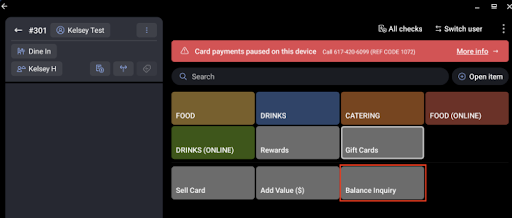
To check whether a gift card is new (and needs activation) or has been previously sold (and needs funds added):
- On the Toast POS, select Gift Cards, then select Balance Inquiry.
- Swipe or key in the card to check the balance.
- If the POS displays a balance, the card has been previously used — select Add Value to reload it.
- If the POS displays a Card Not Activated error, the card is new — select Sell Card to activate it.
To look up an imported gift card balance by its imported number, see Find Gift Card Balance Using the Imported Gift Card Number.
Can I Import Partner Loyalty Data Back Into Toast Loyalty?
Also asked as:
-
- "I have historical loyalty and marketing information from [partner] and would like to import that information into Toast Loyalty"
Yes — historical loyalty member data from a third-party partner can be imported into Toast Loyalty, but the import is initiated by Toast Customer Care and depends on the data fields your partner can export. To request a Toast Loyalty import:
- Export your loyalty member data from the partner in CSV format.
- Start a chat with Toast Customer Care and request a Toast Loyalty data import.
- Provide the exported CSV when prompted. Customer Care will route the request to the team that handles loyalty data imports.
The exact field mapping and the supported data types are confirmed during the request — they vary by partner.
Related Articles
- Set Up Toast Partner Integrations
- Add or Remove an Integration With Toast Partner Integrations
- Get Help With Third-Party Gift Card Transaction Errors
- Locate My Restaurant's GUID
- Outages and Disruptions: Toast Loyalty and Gift Cards