Use the Items Database to View and Manage Menus

Last updated: Jun 4, 2026, 8:43 AM

Learn how to view, archive, restore, and version menus using the items database.

In this Article:


Before You Begin

Applies to: Toast Web (single location and Multilocation Management)


Permissions needed:

  • 4.5 Edit Full Menu — required to access the items database and to archive, restore, or version menu entities
  • 6.4 Publishing — required to publish saved changes


What you'll accomplish: View all of your menu data in one place, archive or restore menus, groups, items, modifier groups, and modifier options, version menu entities for Multilocation Management, and check where an item or modifier is used across your menus.


Note: The items database is part of Toast Web's Bulk management tools. For settings like prep stations, taxes, descriptions, and sales categories, use the Advanced properties page instead. See Use Advanced Properties to Edit Your Menu in Bulk.


Back to top


Items Database Overview

The items database lets you see every menu, menu group, menu item, modifier group, and modifier option in your restaurant — including entities that have been archived. From the same page, you can archive entities you no longer use, restore (unarchive) entities you removed, version entities for specific locations, and download your full menu as a spreadsheet.


To open the items database, navigate to Toast Web > Menus > Bulk management > Items database.


Use the Show/hide columns button on the page to add or remove fields from the table. Use the download icon (down arrow) in the top right corner to export your entire database as a spreadsheet — useful when you want a copy of your menu data outside of Toast.


Note: Items in Toast can never be permanently deleted. Archiving is the only way to remove an entity from your menus. Archived entities stay in the items database and can be restored at any time.


The information in this article applies to Toast Retail as well. For an introduction to Toast Retail, see Get Started With Toast Retail.


Back to top


Archive Menus, Groups, Items, and Modifiers

Archive a menu, menu group, item, modifier group, or modifier option when you no longer want it to appear on the POS or any ordering channel. Archiving removes the entity from your active menus while keeping it available in the items database for restoration later.


To archive one or more entities:

  1. In Toast Web, navigate to Menus > Bulk management > Items database.
  2. Use the tabs at the top of the page (Menus, Groups, Items, Modifier Groups, Modifier Options) and the search bar to locate the entities you want to archive.
  3. Select the checkbox next to each entity you want to archive. You can select multiple entities to archive them in one action.
  4. Select Archive at the top of the page.


Expected outcome: The selected entities are removed from your active menus and the POS the next time the menu loads. They remain visible in the items database when Show Archived is selected.


Note: Archiving a parent entity does not archive its children. For example, archiving a menu group does not archive the items inside it. To archive those items, run a separate archive action — or use the Menu Cleanup tool to find and bulk-archive orphaned items. See Use the Menu Cleanup Tool.


Back to top


Restore (Unarchive) Menus, Groups, Items, and Modifiers

Restore an archived menu, menu group, item, modifier group, or modifier option to make it available in your menus again. This workflow is sometimes called "unarchive", "bring back", or "undo an archive" — the action and the result are the same.


In this example, the entire Drinks menu has been archived and needs to be restored:

  1. In Toast Web, navigate to Menus > Bulk management > Items database.
  2. Use the tabs at the top of the page (Menus, Groups, Items, Modifier Groups, Modifier Options) to choose the type of entity you want to restore.
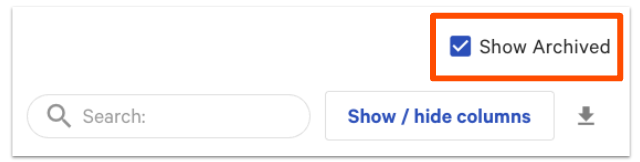
  3. Select the Show Archived checkbox at the top of the page. Archived entities appear in the list with red "archived" text next to the name.
  4. Use the search bar to find the archived entity you want to restore.
  5. Select the checkbox next to each entity you want to restore. You can select multiple entities to restore them in one action.
  6. Select Restore at the top of the page.


show archived button


Expected outcome: The selected entities are unarchived and return to your menus. To add a restored item or modifier back into a specific menu group, use the Add existing tool — see Reuse or Copy Menu Groups, Items, and Modifiers.


Note: To restore an entire menu group, the workflow uses the Advanced Properties page instead of the items database. Navigate to Menus > Bulk management > Advanced properties, select Show Archived Menus / Groups, select the menu group you want to restore, select Unarchive, and select Publish.


Note: If you do not see the Show Archived checkbox, clear your browser's cache and cookies and try again in an Incognito window. If the checkbox still does not appear, contact Toast Customer Care.


Back to top


Version Menus, Groups, Items, and Modifiers

Versioning is a Multilocation Management (MLM) feature that lets you share most of a menu across locations while keeping location-specific overrides. Use the items database to version multiple entities — menus, menu groups, items, modifier groups, or modifier options — in a single action.


Note: Versioning is only available to restaurants in a Multilocation Management group. For background on MLM and versioning, see Get Started With Multilocation Management and Create and Remove Menu Versions for MLM. For the difference between a version, a copy, and a deep copy, see What's the difference between a copy, a deep copy, and a version?


To version one or more entities from the items database:

  1. In Toast Web, navigate to Menus > Bulk management > Items database.
  2. Select the tab at the top of the page that matches the entity type you want to version (for example, Items).
  3. Use the search bar or scroll to find the entities you want to version.
  4. Select the checkbox next to each entity you want to version.
  5. Select + Version at the top of the page.
  6. In the pop-up, use the drop-down menus to select a Target for the new version. Toast assigns a matching Owner automatically based on the target.
  7. To use a different owner, select the Owner drop-down and choose the owner you want.
  8. Select Submit.


Expected outcome: A new version of each selected entity is created with the target and owner you set. The new versions are visible from the Advanced properties page (Menus > Bulk management > Advanced properties) and from each entity's details page.


Note: Archiving a version will actually delete the version it will not show up in the menu database in the archive setting. The version will need to be recreated if they would like to use it again.


Back to top


View Menu Data for Multiple Locations at Once

If your restaurant group has more than one location, you can view menu data for multiple locations in the same items database view.

  1. In Toast Web, navigate to Menus > Bulk management > Items database.
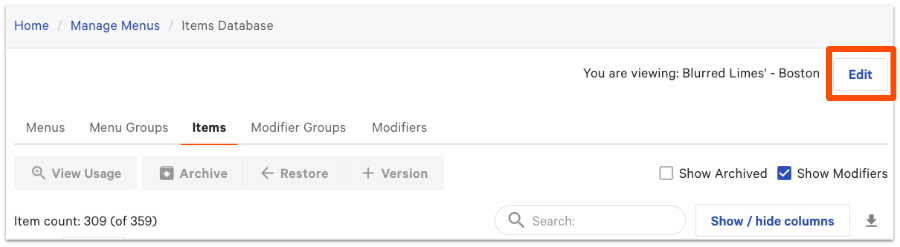
  2. Select Edit in the top right corner of the page.
  3. In the pop-up, select the restaurants or restaurant groups you want to include.
  4. Select Update.


Edit button in top right corner of items database


Expected outcome: The items database refreshes to show menu data from every location or group you selected.


Back to top


View Usage of Items, Modifier Groups, and Modifiers

Use this workflow to see where a menu item, modifier group, or modifier option is used across your menus. This is especially helpful when differentiating between similarly named entities or finding every place a single modifier appears before archiving it.


To view usage for a single entity:

  1. In Toast Web, navigate to Menus > Bulk management > Items database.
  2. Select the tab at the top of the page that matches the entity type you want to check.
  3. Use the search bar to find the entity.
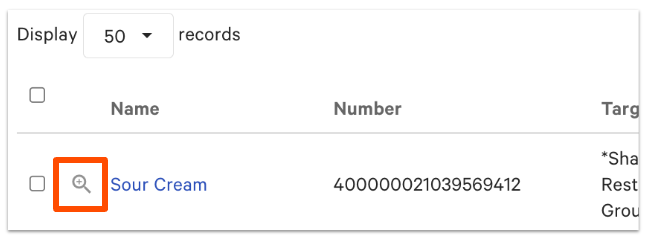
  4. Select the magnifying glass icon to the left of the entity name.


magnifying glass next to menu item


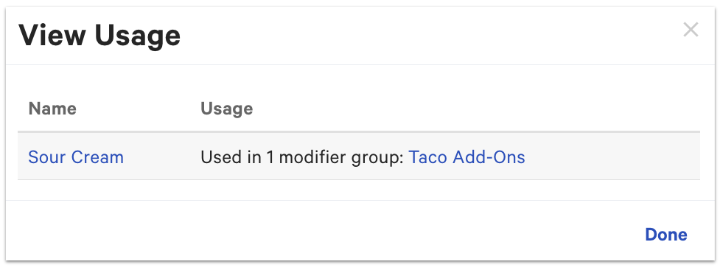
Expected outcome: A pop-up displays every menu, menu group, or modifier group the entity is used in.


View Usage pop-up


To view usage for multiple entities at once, select the checkbox next to each entity, then select View Usage at the top of the page.


Back to top


Frequently Asked Questions

How do I archive a menu, item, or modifier?

To archive a menu, item, or modifier, open the items database (Menus > Bulk management > Items database), use the tabs to find the entity, select the checkbox next to it, and select Archive at the top of the page. The entity is removed from your menus but stays in the items database for restoration later. Items in Toast can never be permanently deleted — only archived.


How do I restore or unarchive a menu item I archived by accident?

To restore or unarchive an item you archived by accident, open the items database (Menus > Bulk management > Items database), select the Show Archived checkbox, find the item, select the checkbox next to it, and select Restore. The item returns to the items database. To add the item back into a specific menu group, use the Add existing tool — see Reuse or Copy Menu Groups, Items, and Modifiers.


Why don't I see the Show Archived checkbox?

The Show Archived checkbox can be hidden by browser cache or cookies. Clear your browser's cache and cookies, then open Toast Web in an Incognito window. If the checkbox still does not appear, contact Toast Customer Care.


Why do I get "I do not have permission" when I try to unarchive a menu?

The "I do not have permission" error when unarchiving means your user account does not have the permissions required to use the items database. The items database requires the 4.5 Edit Full Menu permission, and publishing changes requires the 6.4 Publishing permission. Contact your account owner to confirm your permission set, or contact Toast Customer Care if you need help confirming the permissions on your account.


I see menu items on my POS that I can't find in the items database. How do I archive them?

If items appear on your POS but you cannot find them in the items database, they may be in a hidden menu, an archived parent menu, or no longer attached to any menu group. Use the Menu Cleanup tool to identify and archive orphaned menu elements that aren't visible in the standard items database view. See Use the Menu Cleanup Tool.


When I version a menu, do all the items inside it need a new version too?

When you version a menu, you do not have to create a new version of every item inside it — versioning a parent entity does not automatically version its children. If a child entity (a menu group, item, or modifier) needs location-specific settings, version that child entity separately from the items database or from its details page. For deeper conceptual background, see Create and Remove Menu Versions for MLM and What's the difference between a copy, a deep copy, and a version?


Does the items database work for Toast Retail?

The items database is available to Toast Retail merchants and follows the same archive, restore, and version workflows described in this article. For an introduction to Toast Retail, see Get Started With Toast Retail.


Back to top


Related Articles


Back to top