Get Started With the Offers Dashboard
Last updated: Aug 26, 2026, 1:17 PM
To start with Toast Offers, watch the following video or read the steps below.
Get an overview of how to create offers in Toast Web
Navigate the Offers Dashboard in Toast Web
Login to Toast Web select Marketing > Offers using the left-hand navigation, or search Offers from the home page.
Create a Recommended Offer
Recommended offer types are provided based on common performance goals. We use our most effective offer types to help you meet your goal with data-driven insights helping us make recommendations.
- Attract New Customers - Want to promote your restaurant to new customers in your area? Create an offer that is visible to users in the Toast Local app.
- Get larger orders - Want to encourage your customers to spend a little extra? The "Get Larger Orders" feature in your Toast Dashboard helps you do just that! You can set up tempting offers like "$X off when you spend $Y" or "Get a free item when you spend $X".
- Get more orders - Drive repeat business and boost overall sales with enticing discounts. Implement promotions like "$X off on specific days" to strategically target slower periods and increase order volume. Alternatively, offer a consistent discount like "X% off your entire order" to encourage frequent ordering and increase overall sales.
- Promote menu items - Increase sales for specific menu items with targeted promotions and strategic placement. Offer deals like "Buy 1, Get 1 Free" to entice customers with free or discounted items, or use "$X or X% off" discounts to attract price-conscious consumers. Additionally, leverage Guest Facing Displays to prominently feature these promotions and boost visibility, driving sales for your chosen items.
- Sell more gift cards - Run limited-time gift card promotions to boost sales, issue bonus vouchers, and manage campaigns across multiple locations.
Note: Offers can either be set to expire after 30 days or never expire. Results of Offers are not guaranteed.
Create a Custom Offer
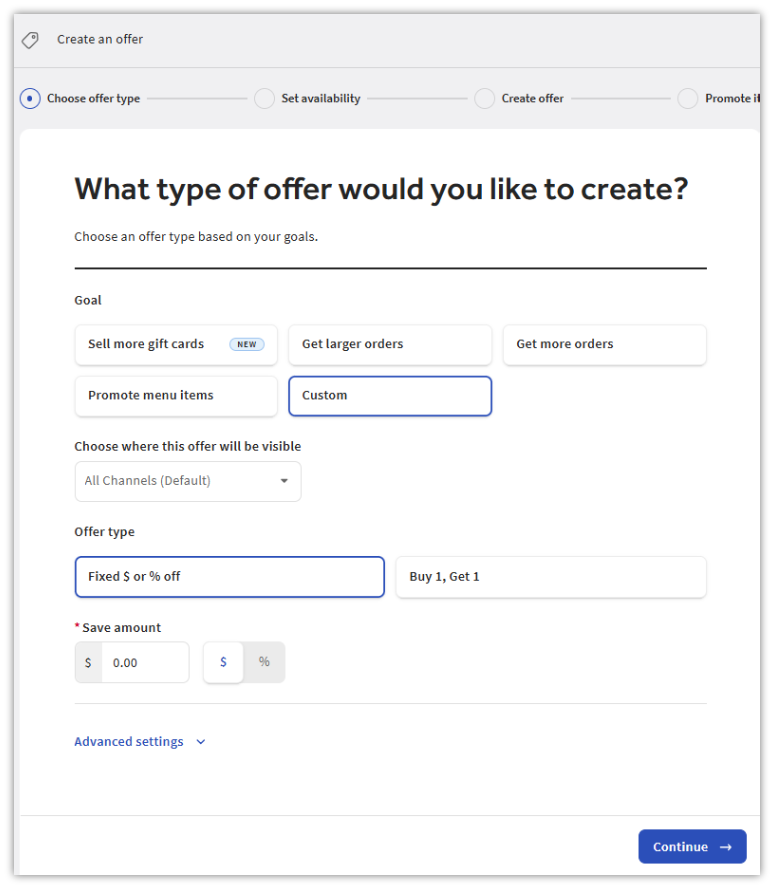
- From the Offers dashboard, select Create new offer.
- Next, select where your offer should be promoted from the following options:
- All Channels: Users will see this offer promoted on your online ordering website, the Toast Local app, and your branded app (if applicable)
- Toast Local only: This offer will only be promoted to users in the Toast Local App
- Branded App Only: This offer will only be promoted to users of your branded app (if applicable)
- Hidden (Promo Code Only): This offer will not be promoted on any of the above channels, but will generate a promo code for you to send out through other channels. That promo code will work on all checkout surfaces.
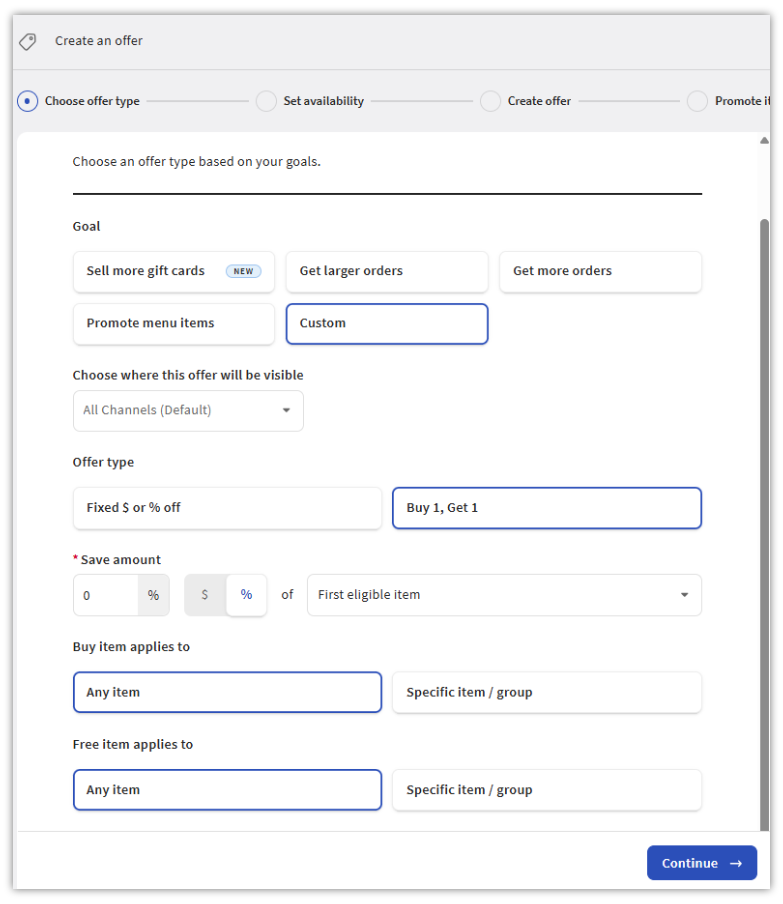
- Next, select your Offer type. Note: Toast recommends starting around your restaurant’s average order value.
- Fixed $ amount or % off
- Buy 1, Get 1
- Fixed $ amount or % off
- Once you have completed the fields for your chosen offer, select Continue.
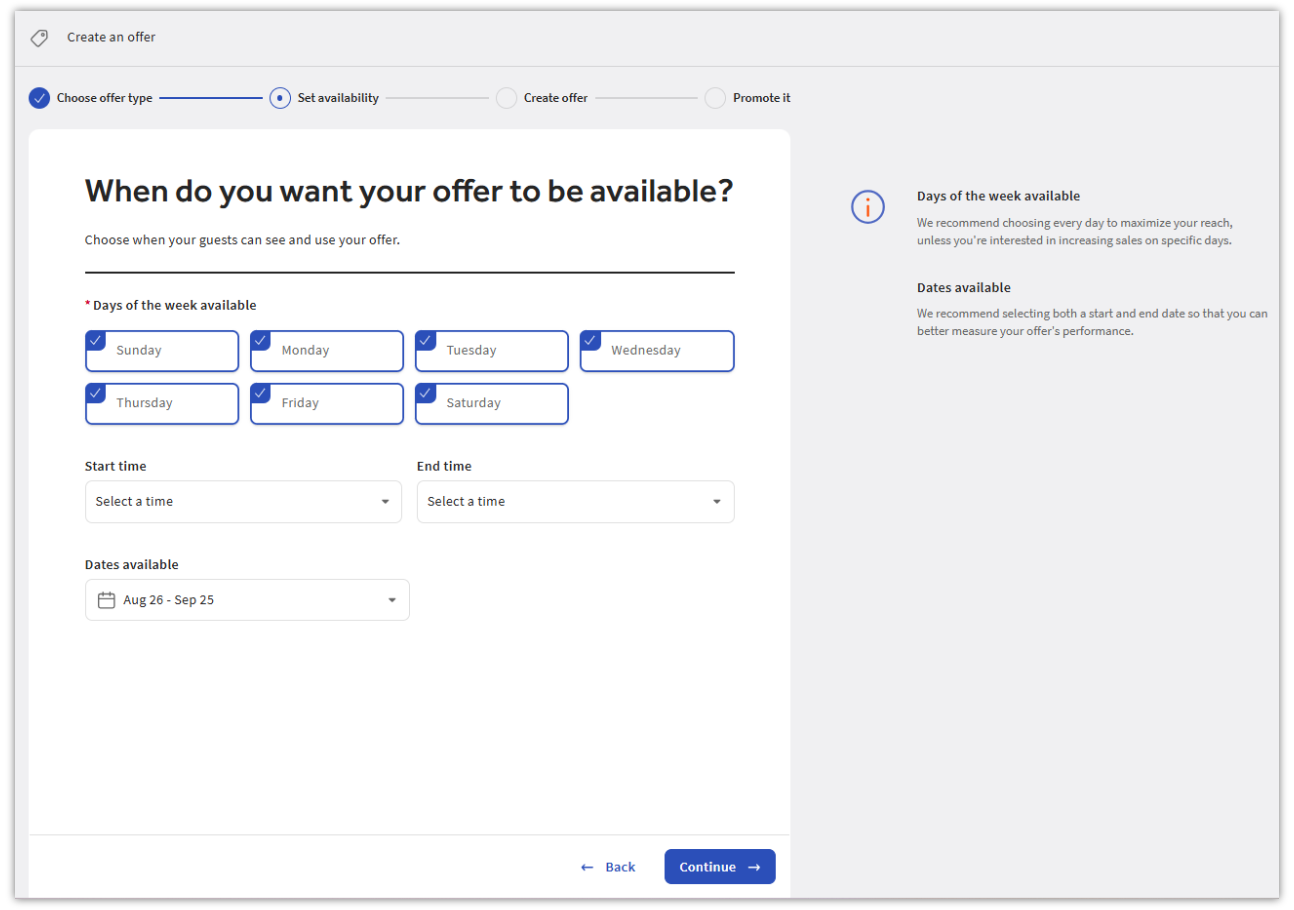
- In the next selection, choose when you would like your offer to be available. The offer's validity will be based on the start and end dates that you will select.
- Days of the week available
- Dates available
- Start date
- Start time/End time
- Select Continue.
- Next, choose your Offer name, Promo code, and whether your offer will be Single-use. To learn more about creating one-time-use discounts, check out this Support Center article: Use Single-Use Promotion Codes. Note: Guests can only use the provided code once if single-use is toggled On.
- Select Create offer.
- Lastly, select Publish all changes.
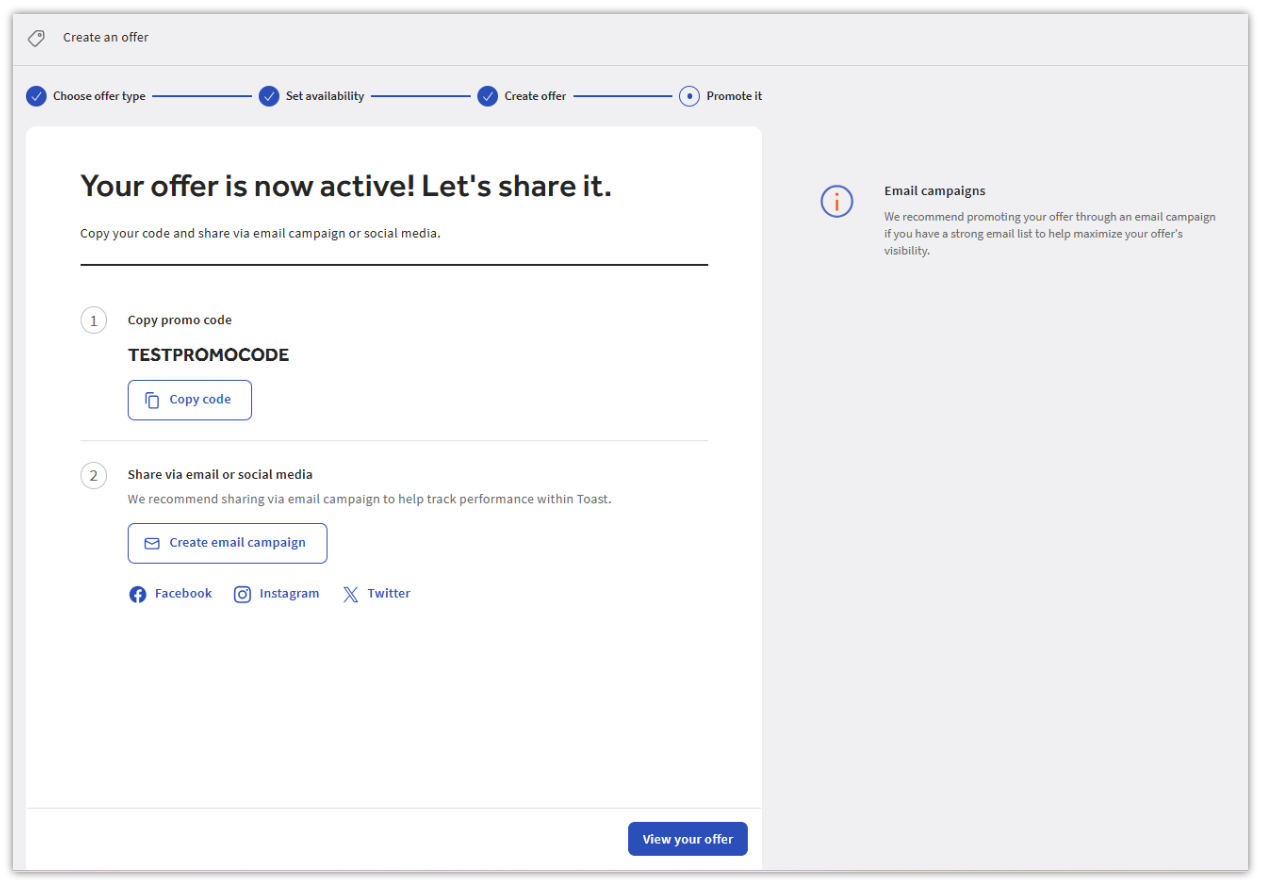
Your offer is now active! You can now share your newly created offer in a new email campaign or to your social media accounts.
Want to create an offer exclusively for first-time guests? See Create a Welcome Offer With Toast Offers instead of using Create new offer above — Welcome Offers use a separate builder shortcut with an extra audience-targeting step.
Track & Manage Offers
In this section, you can track and manage your offers. This tab contains reporting, both at an offer level and an aggregated level. To view a specific offer, select the three dots to the right of the offer on a new page where you can view the offer details, duplicate, or archive.
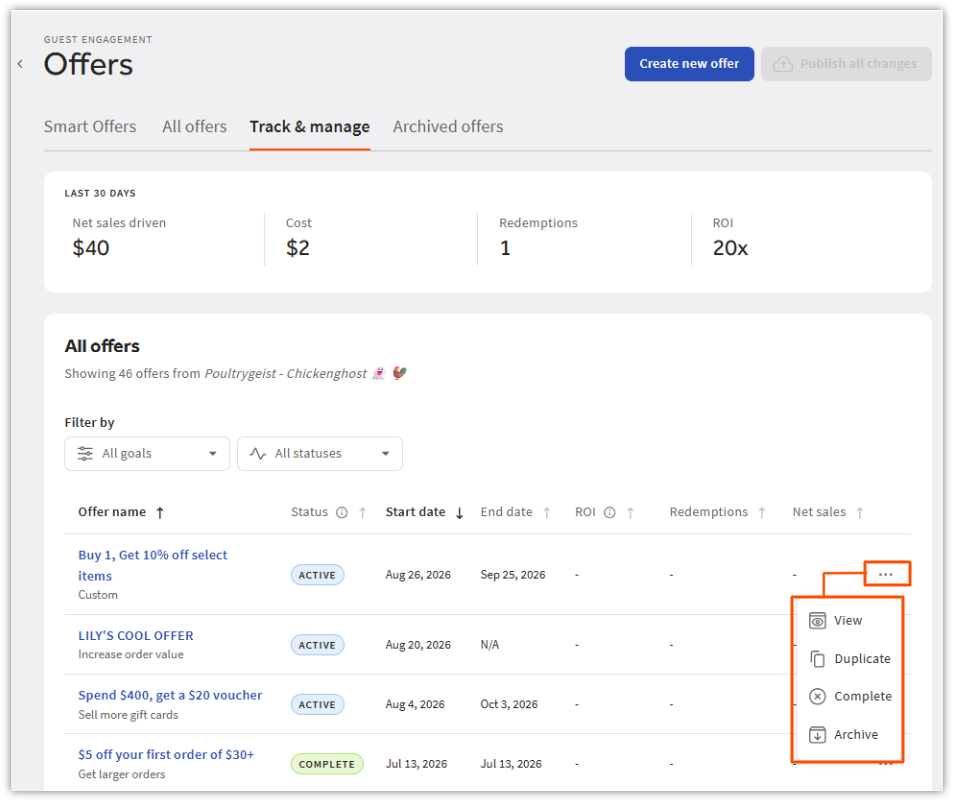
If you select View from the menu, the reporting includes:
- Net Sales Driven (sales on orders where an offer was used)
- Cost (cost of the promo)
- Redemptions (self-explanatory)
- ROI (sales divided by cost)
- Offer details
- Availability
- Name and display
- Promoting
Note: Live orders cannot be edited. They can only be duplicated or archived.
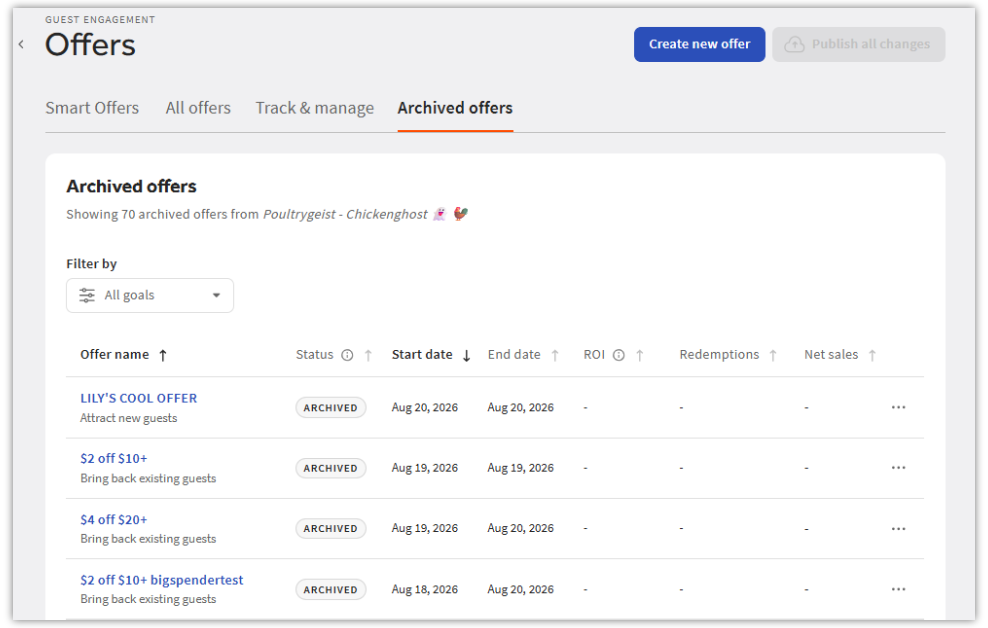
Archived Offers
This tab simply hosts all offers that have been archived. By selecting the three dots next to each offer, you can view the details of the completed offer or duplicate the offer to create a new one. You can't unarchive offers, but if you'd like to revive one, we recommend duplicating it to create a new one.