Set Up and Use a Scanner
Last updated: Sep 17, 2026, 11:02 AM
Learn how to set up and use a scanner for items with barcodes.
Use a Scanner With Toast
Scanners are especially useful for:
- A “grab n’ go” restaurant/cafeteria concept
- Displaying and selling additional items near your Toast Kiosk
- Delis or restaurants selling produce by the pound
- Restaurants selling merchandise
Additionally, a scanner can also be used to scan for Toast Loyalty accounts. Check out the Scanning for Loyalty section below for more information.
Note: To scan QR codes, a 2D scanner is required.
The following scanners are supported through Toast:
| Bluetooth Scanners | USB Scanners |
|
|
The steps to add any of the listed scanners to your Toast device(s) are the same.
Back to top
Set Up Your Scanner
- Prior to connecting your new scanner to your device, make sure you've set up your item SKUs first. Check out Use Barcodes with Toast for more information.
- Once that's done, using the USB cable that came with your scanner, connect one end to the USB port on either Toast printer, Toast hub, or your terminal (if you have an Elo Device, Toast Flex does not have a USB-A port). The other end of the cable should be connected to your new scanner. If you have a Toast Flex setup, the Scanner will need to be plugged into the Toast printer or Toast Hub.
- If you are connecting your scanner to a Toast printer, the printer must be connected to the terminal that will be using the scanner via a USB-C cable from the To Stand port on the printer (the terminal must be getting its power from the Toast printer, not from a separate source).
- Note: If you're connecting a wireless scanner, the base will still be connected to Toast using the USB port mentioned above.
- The scanner will confirm connectivity with a beep.
- Now, we'll need to enable the usage of SKUs on each device. To do so, navigate to Setup > Device Setup from the main menu of the Toast app on your device.
- Select Enable SKUs.
- Select Yes.
- If you have one of the Bluetooth scanners listed above, check out Pair a Bluetooth Scanner to a Toast Handheld. You will have already completed step 1 for any of the scanners in this article, so pick up on step 2 for the scanner you have.
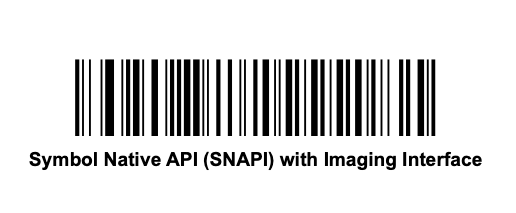
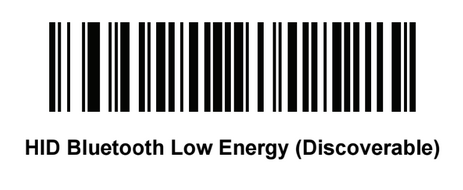
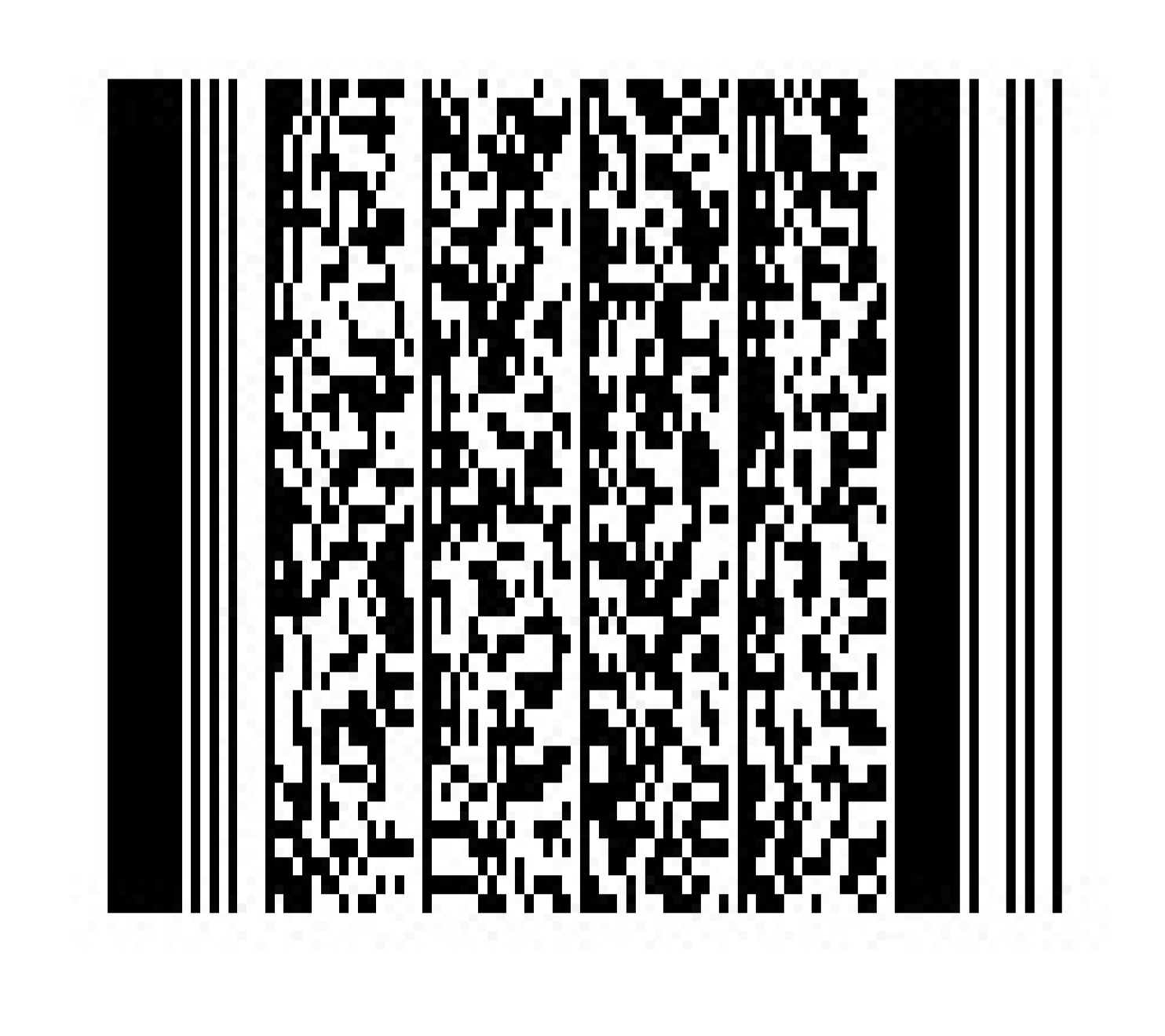
- If you are using a Zebra handheld scanner, you’ll need to scan one of the barcodes below to enable SNAPI (Symbol Native API) mode. The barcode you scan will depend on the Zebra model you’re using.
For Zebra DS 2208 (1D/2D) and DS 9308 models, scan this barcode:
For the Zebra DS 2278 model, scan this barcode:
For the Zebra MP7000 series scale, you'll enable SNAPI (Symbol Native API) with Imaging Interface mode by scanning this barcode:
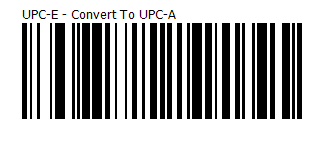
If you have UPC-E barcodes (8 digit, common on sodas), scan this barcode to convert them to UPC-A.
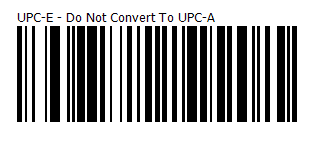
If you do not need to convert UPC-E barcodes, scan this barcode.
You're all set and ready to scan!
Scanner Workflow on Your Device
To add an item via the barcode scanner, simply scan the item’s barcode and it will be added to the cart. Entering duplicates requires scanning the same item multiple times, or selecting the item on the check and modifying the quantity.
Should you need to delete an item, select the item from the check and edit.
Scan for Loyalty
Each Toast rewards account has a live webpage for which the guest is given a link to visit via email. This page will update in real-time as transactions to the account occur and points are earned or redeemed.
This page also features a unique QR code that can be printed and scanned using your scanner at the point of purchase to tie the transaction to your guest's rewards account. The account can also be looked up by name, phone number, or email at the point of sale as well using the below workflow:
Note: There's not currently a functional scan option for loyalty/gift cards on Toast Self-Ordering Kiosks. The workaround is to print out a receipt to pay with the server.
- Select Lookup customer on the order screen.
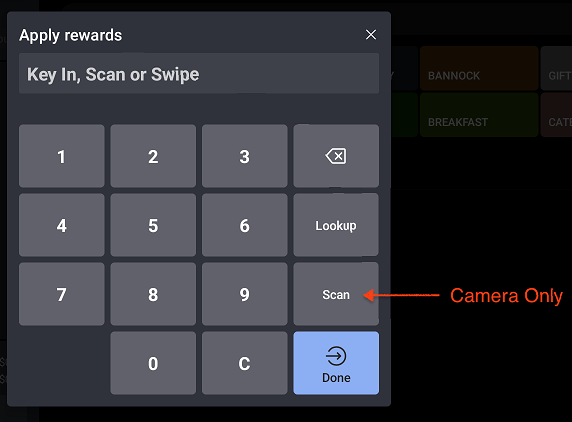
- Select Scan from the card number dialog.
- Use the hardware scanner to scan the QR code.
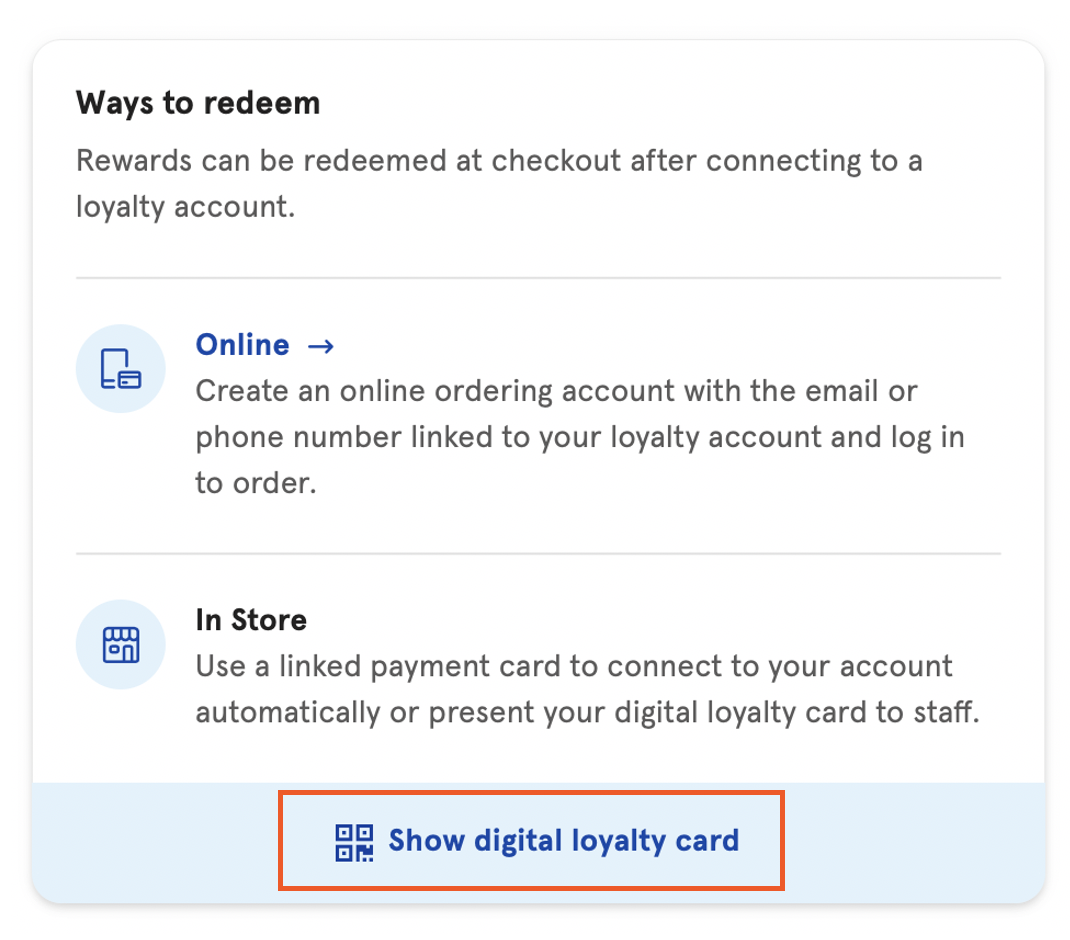
Note: The scan button in the Toast app (shown below) uses the POS device’s camera to scan. If you’re trying to use a barcode scanner, simply use your scanner (don’t press the Scan button).