Pair a Bluetooth Scanner to a Toast Handheld
Last updated: Sep 17, 2026, 8:53 AM
Question
How do I pair a bluetooth scanner to my Toast Go® handheld?
Answer
Before You Begin: Toast Handheld Configuration
Please note your device will need to be on mobile release 2.70 or higher to pair a Bluetooth scanner device with a Toast handheld. Toast Go® 3's do not need to connect to a scanner; they are equipped as barcode scanners. To learn more, see What scanners are compatible with Toast Go® Handheld?.
Before connecting your scanner, please follow the steps outlined here to configure your items and device to accept barcodes: Set up and Use a Scanner.
Zebra DS2278 Scanner
- Enable SKUs on your Toast device and ensure any barcodes added to your items in Toast are saved and published.
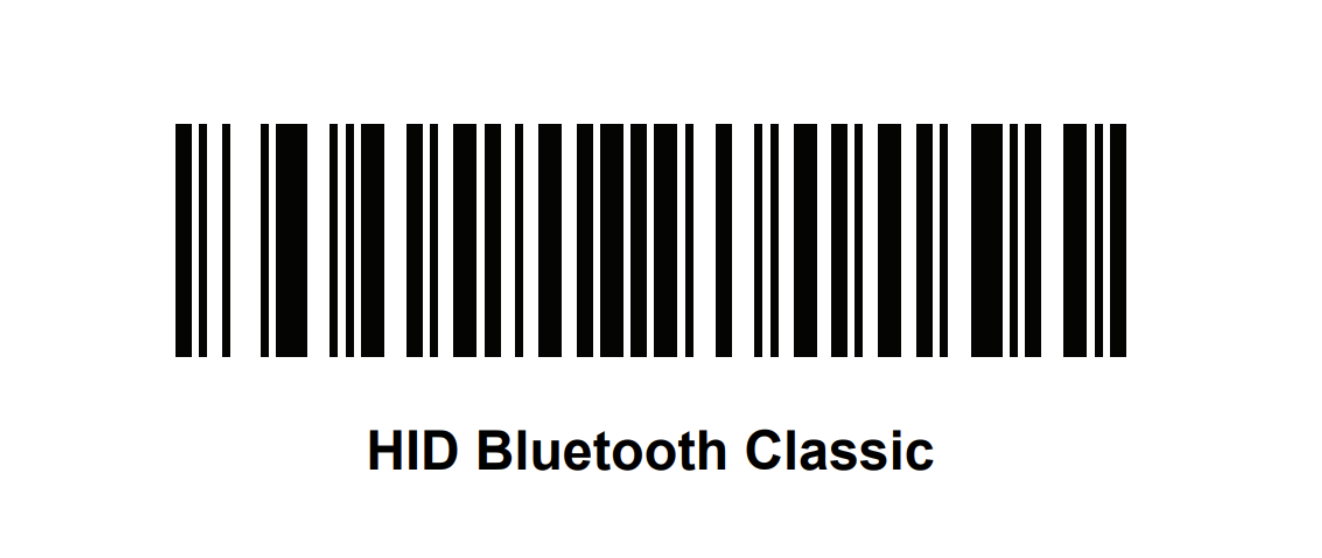
- Connect your scanner by scanning the "HID Bluetooth Classic" barcode below. (page 6-6, PDF page 103)
- Go to the Bluetooth settings on the Toast device you want it paired with and add as a new item. It will read as the scanner's model number.
- If needed, you can restore the scanner to its default settings by scanning the "Restore defaults" barcode below (page 5-5, PDF page 62)

The full user manual can be found here.
Honeywell Voyager 1602g Bluetooth Scanner
- Enable SKUs on your Toast device and ensure any barcodes added to your items in Toast are saved and published.
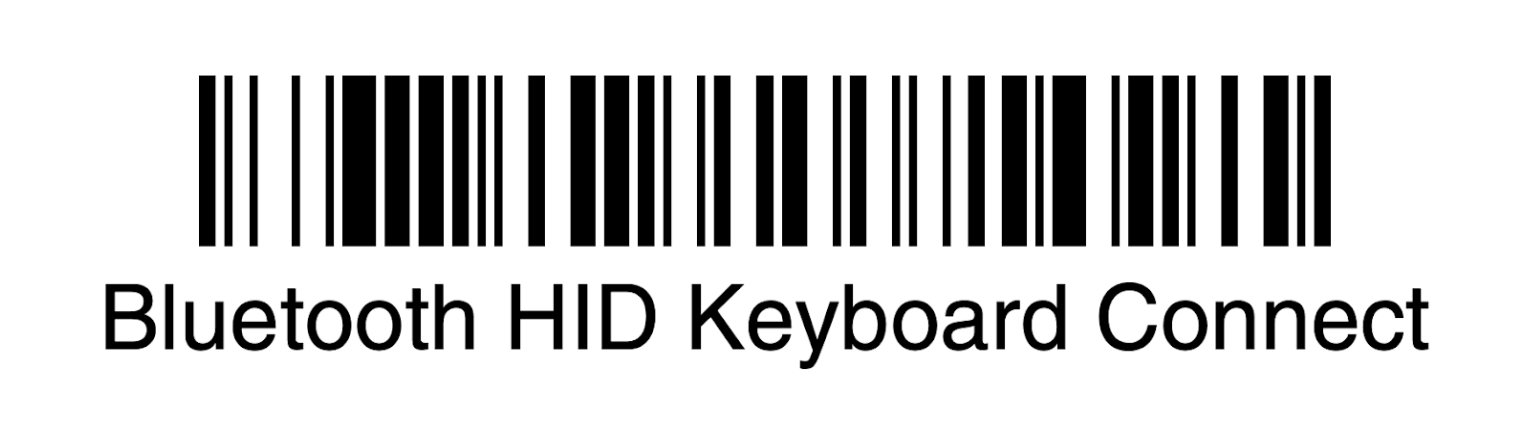
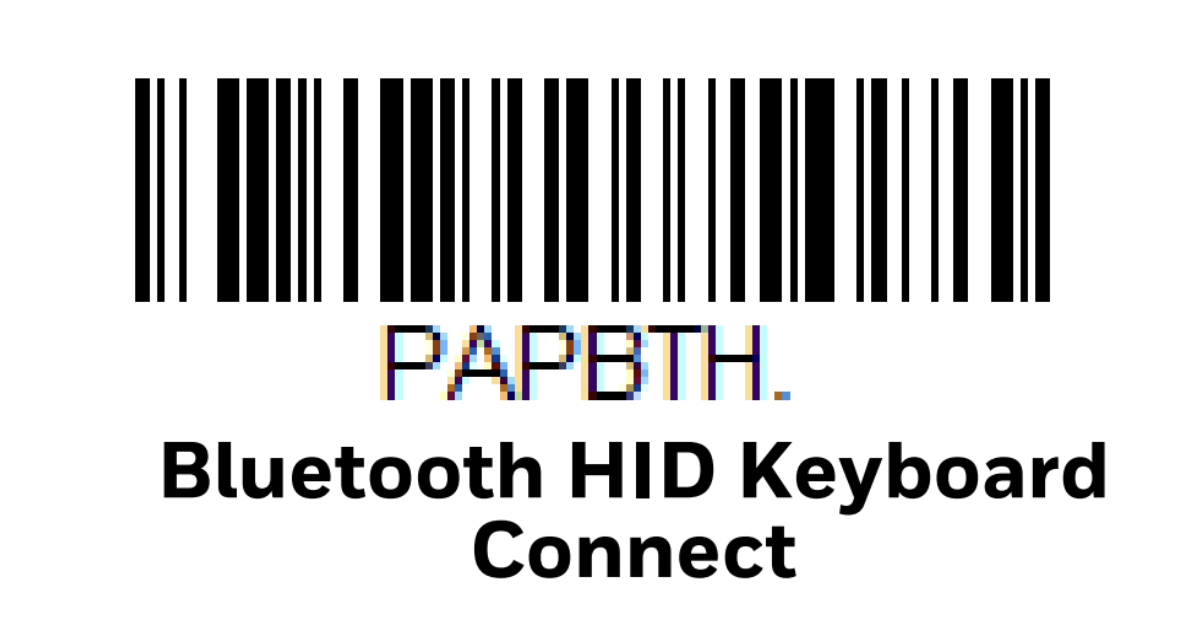
- Connect your scanner by scanning the "Bluetooth HID Keyboard Connect" code below. (PDF page 5)
- Go to the Bluetooth settings on the Toast device you want it paired with and add as a new item. It will read as the scanner's model number.
The full user manual can be found here.
Honeywell Voyager XP 1472g
- Enable SKUs on your Toast device and ensure any barcodes added to your items in Toast are saved and published.
- Ensure the scanner is linked to its base. If it is not linked:
- Plug in the base to the nearest power soure
- Scan the barcode on the bottom of the base
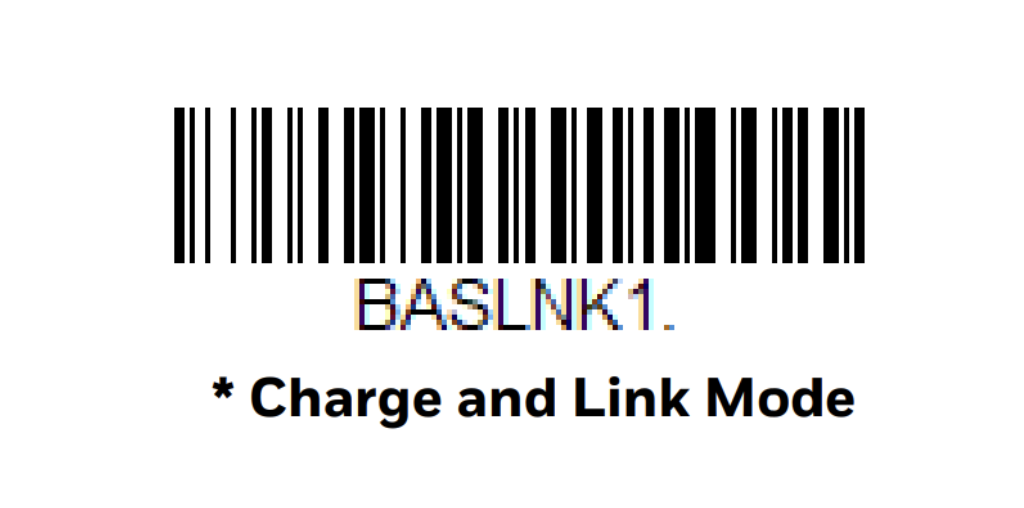
- Scan the "Charge and Link Mode" barcode below (PDF page 65)
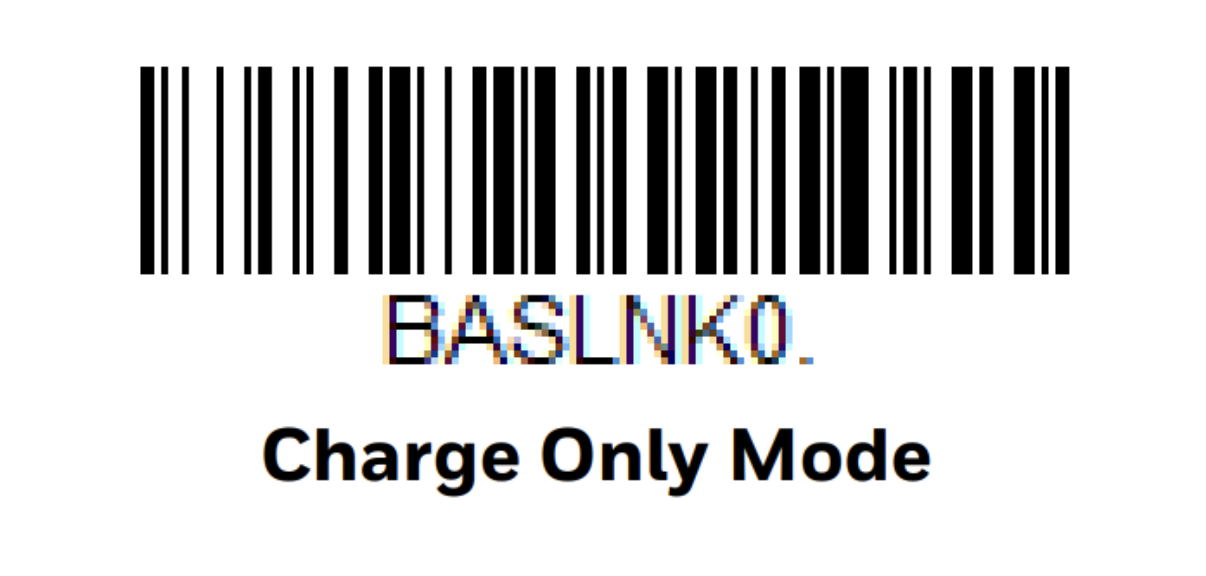
- Once linked, change the base to "Charge Only Mode" by scanning the barcode below (PDF page 65)
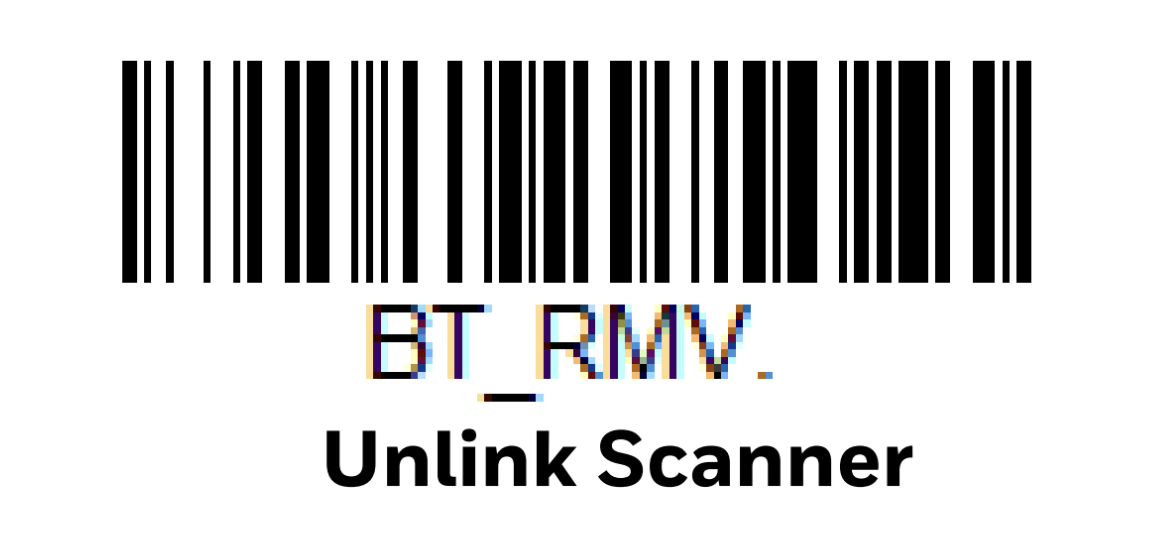
- Next, unlink the scanner by scanning the "Unlink Scanner" barcode below (PDF page 66)
- Now the scanner can be paired to your device via Bluetooth. Scan the "Bluetooth HID Keyboard Connect below (PDF page 80). Then go to the Bluetooth settings on the Toast device you want it paired with and add as a new item. It will read as the scanner's model number
The full user manual can be found here.