xtraCHEF: Inbound Orders (Central Kitchen)
Last updated: Apr 28, 2026, 4:20 PM
Create a Central Kitchen
If you run a multi-concept or multi-location hospitality group, you might have heard about (or might be already using) a central kitchen. Central kitchens provide a place for sauces, side dishes, or packaged goods to be created en masse before being distributed to other locations. Central kitchens cut costs, save time, and ensure consistency across locations.
To create a new central kitchen, email the team at support@xtrachef.com or reach out to your xtraCHEF account rep directly. You'll need to designate at least one location as your central kitchen, but you can have an unlimited number of central kitchens. Central kitchen locations are identified by (Central Kitchen) following the restaurant name.

Once you've created at least one central kitchen, you can begin sending orders to the central kitchen the same way you do to your vendors. In the next sections, you'll learn how to create, edit, and share ordering guides from a central kitchen, how to place an order to a central kitchen, and how central kitchens manage inbound orders.
Note: For central kitchens to work seamlessly with all other locations, it is recommended to have all locations under the same accounting system. This also includes sharing the same GL codes and vendors.
Internal Order Guides
Internal order guides are similar to the order guides you already use for vendors. However, internal order guides allow different locations to send orders right to your central kitchen location.
- To create a new internal order guide, select Order from the left-hand navigation menu.
- Next, select Order Guide in the upper-right corner.
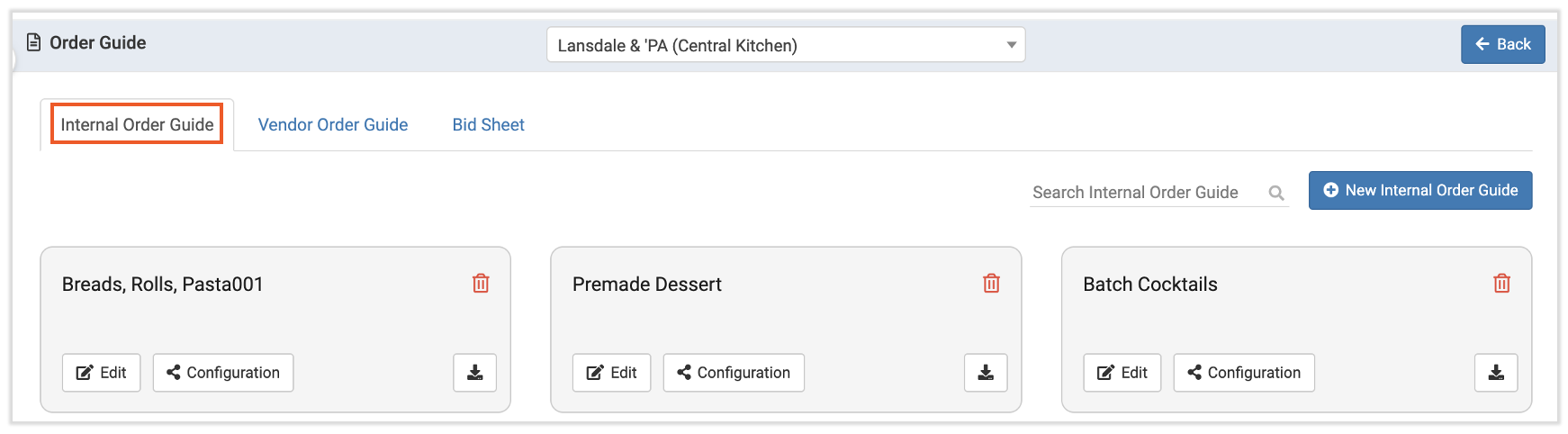
- On this page, all locations will see the Vendor Order Guide and Bid Sheet tabs. In locations that serve as a central kitchen, there is an additional tab for Internal Order Guide.
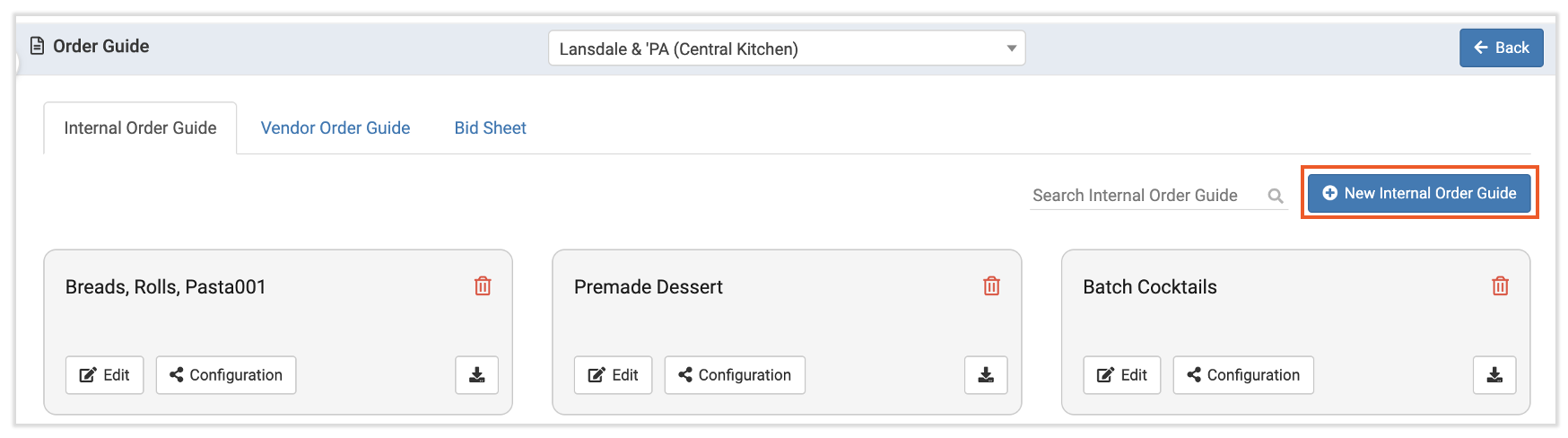
- You'll see any existing internal order guides you have listed here. To create a new order guide, select + New Internal Order Guide in the upper-right corner.
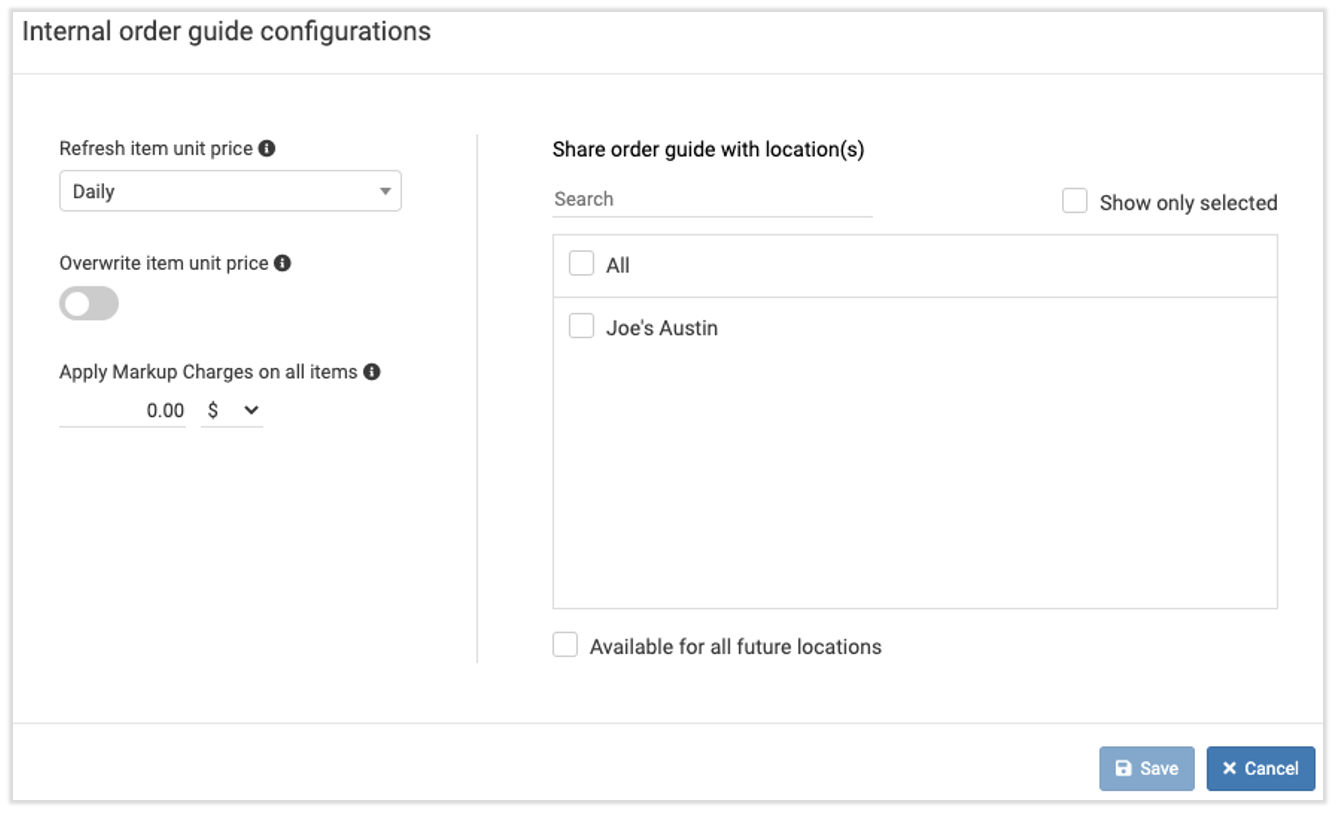
- Before you can begin creating your new internal order guide, you'll need to configure your guide settings. This will give you several options:
- Refresh item unit price: Choose a frequency to update your prices to reflect current costs - update daily, weekly, quarterly, or as they are updated by your vendor (Just in Time). Adding invoices as quickly and often as possible to the Central Kitchen location will help drive the prices to a more accurate amount.
- Overwrite item unit price: Toggle the icon to green to allow locations to manually change prices of the items in your order guide.
- Apply markup charges on all items: This allows you to automatically add either a flat fee (i.e. $5) or a percentage (i.e. 5%) to all inbound orders. A markup helps cover your costs related to delivery, labor, and more. Your locations will not see this fee reflected when they place an order.
- You'll also choose which locations should have access to your order guide. Select Available for all future locations to automatically populate this order guide in any new locations you add to xtraCHEF.
- Select Save when you've completed the configuration process and are ready to add invoice items to your order guide.
- On the following screen, you'll be able to build out the internal guide itself. Once you've named your guide, you're ready to start adding items. To add an invoice item to your order guide, choose a vendor, then select items from that vendor to add to the guide.
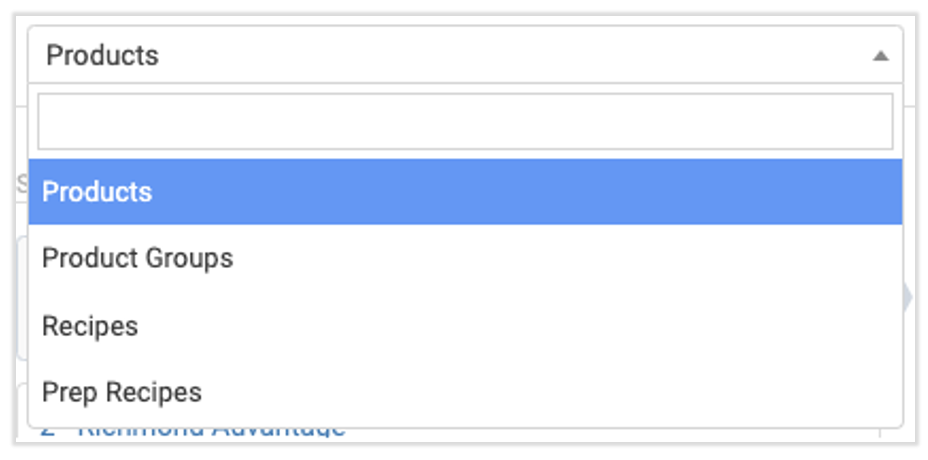
- You can also choose items from existing recipes, prep recipes, products, or individual invoice items.
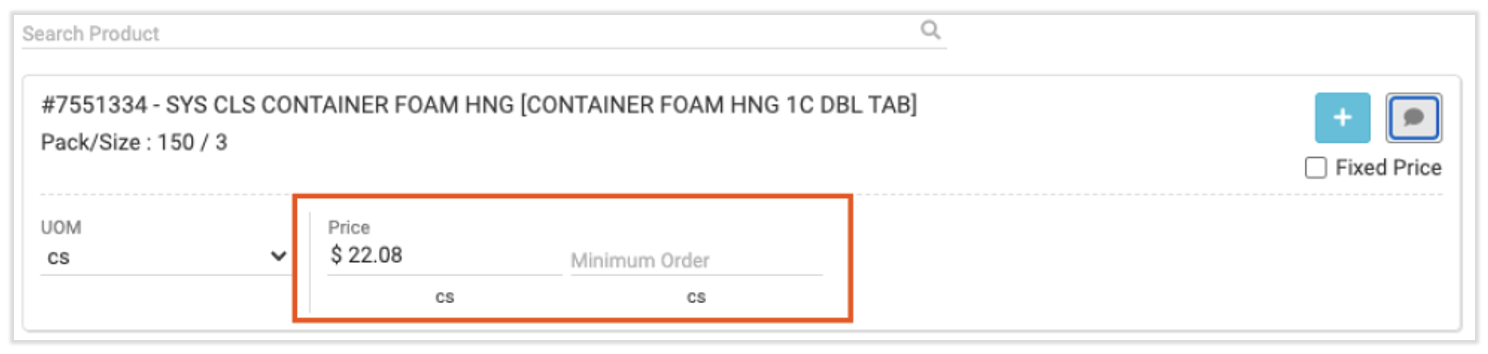
- Next, set your price and minimum order number. This needs to be at least 1.
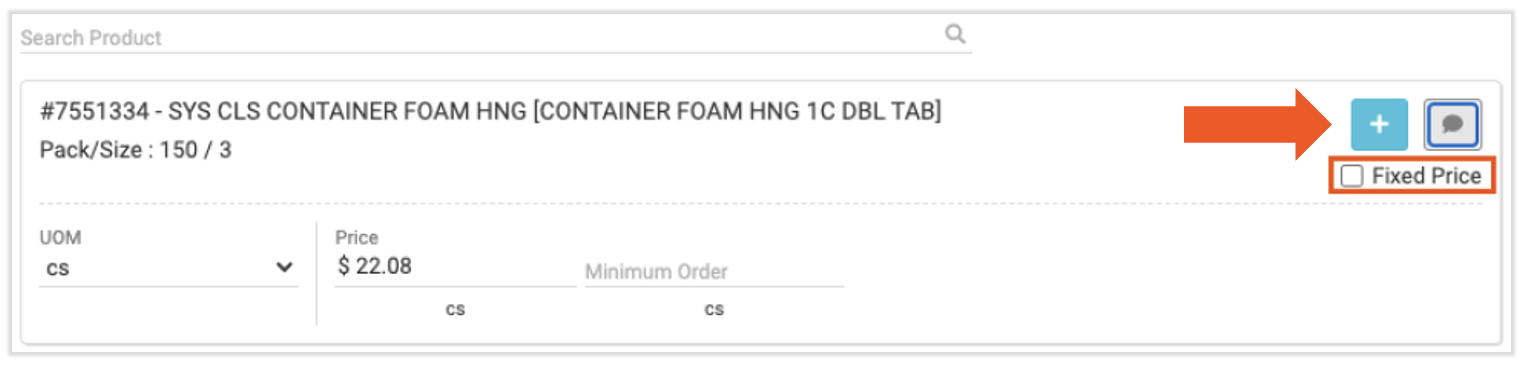
- If you don't want your price to update when invoices reflect price changes from your suppliers, check the box next to Fixed Price.
- When you're ready, click the blue + icon to add the invoice item to your order guide.
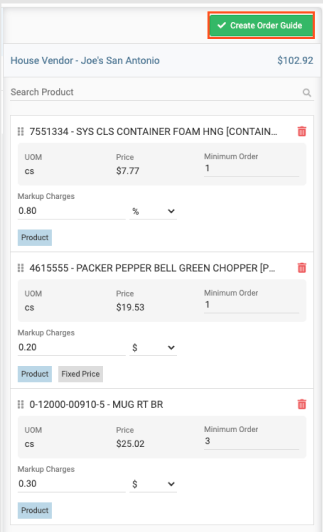
- Once you've added everything you need to the order guide, select Create Order Guide. The internal order guide will immediately be available for your selected location(s) to use.

Edit Internal Order Guides
Add and delete invoice items from your order guide, or change your order guide's configuration settings by navigating back to the Internal Order Guide tab (Order page > Order Guide button).
Here you'll find tiles representing all your active internal order guides.
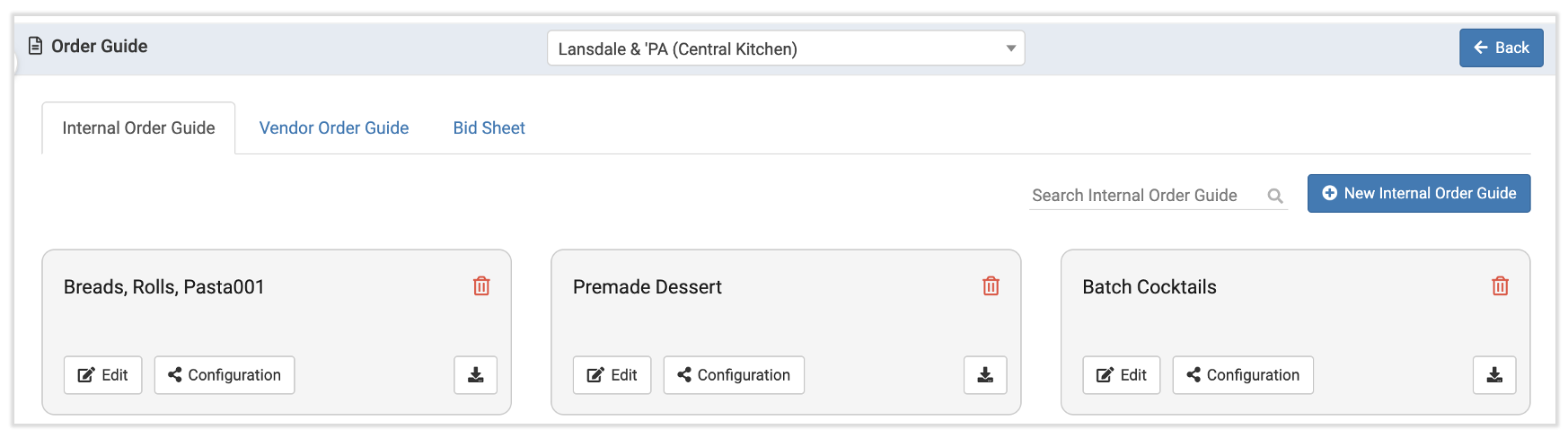
On each tile, you'll see a number of options. To add or remove individual items in the order guide or update your minimum order, select the Edit button. To update your guide's settings - including locations with access to the guide and your markup costs, select the Configuration button.
No longer need a particular order guide? Select the trashcan icon to delete it.
Back to top
Place an Internal Order
- Navigate to the Order page.
- Select the Order button.
- Double check you're on the right location page before you start your order.
- Select the Order Guide tab on the left column of the page.
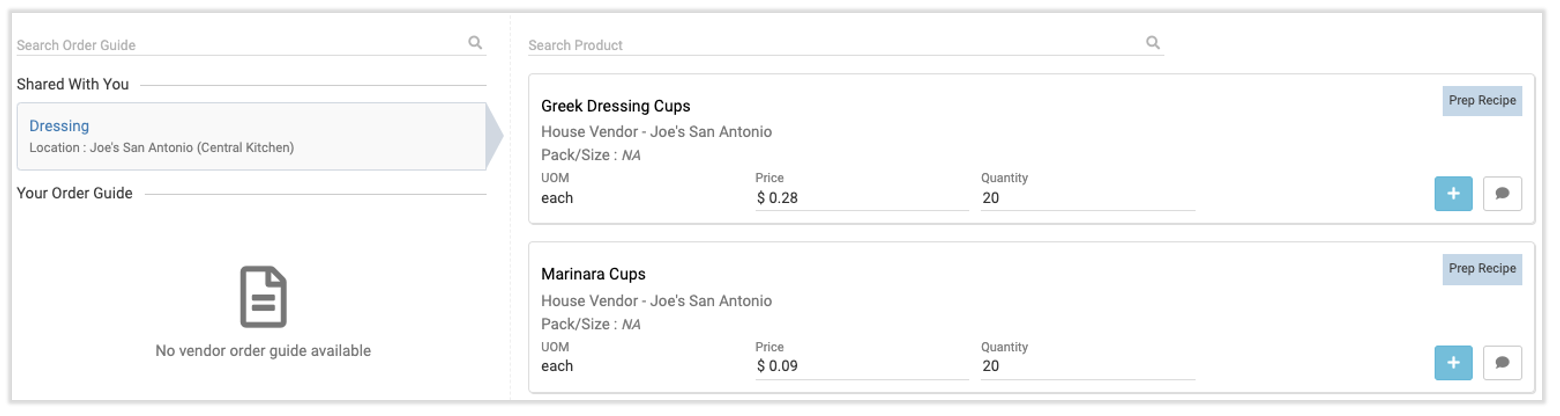
- Select the internal order guide you want to use under the Shared with You column.
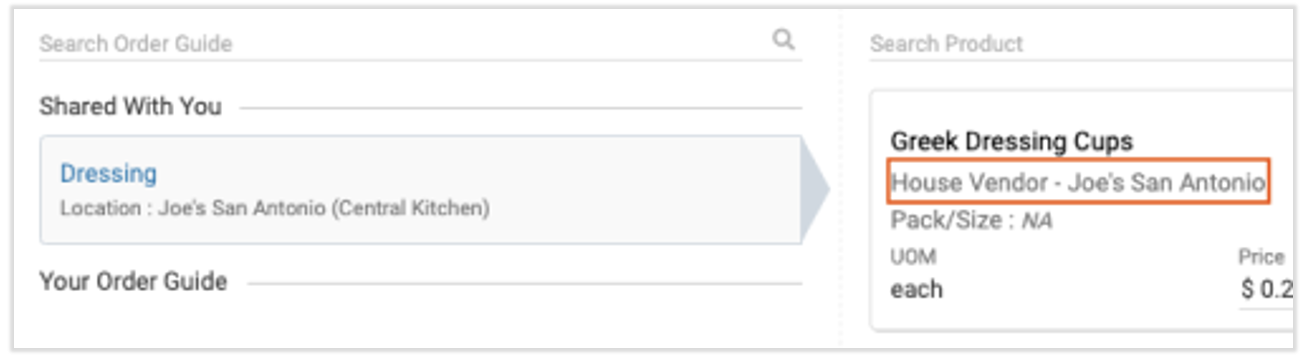
- Add as many of the invoice items from the order guide as you need to your internal order by clicking the blue + icon next to the item listing. Internal order guides for a central kitchen will have House Vendor - Location Name listed as the vendor name for each invoice item.
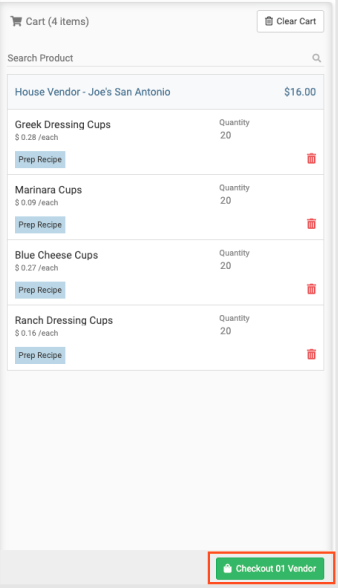
- When you've added everything you need from the central kitchen, select Checkout.
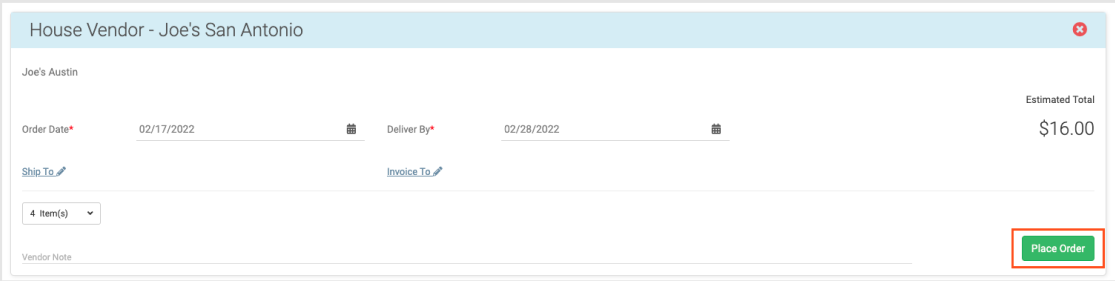
- Enter your delivery date and shipping details, then select Place Order. Your order will immediately be sent to the central kitchen's Inbound Orders queue for fulfillment.
- Once you've placed an order through an internal order guide, you won't be able to access that order guide again until your order is fulfilled.
View Inbound Orders
To view or fulfill an inbound order, navigate to the Order page and select your central kitchen location. In addition to the Outbound Orders tab all locations have, central kitchen locations also have an Inbound Orders tab. This is where all internal order requests for the central kitchen are located.
Select the tab to see a list of all your active inbound orders awaiting fulfillment. Your inbound orders will only display one week at a time, so be sure to make a habit of checking your inbound orders a few weeks to see what deadlines are on the way.
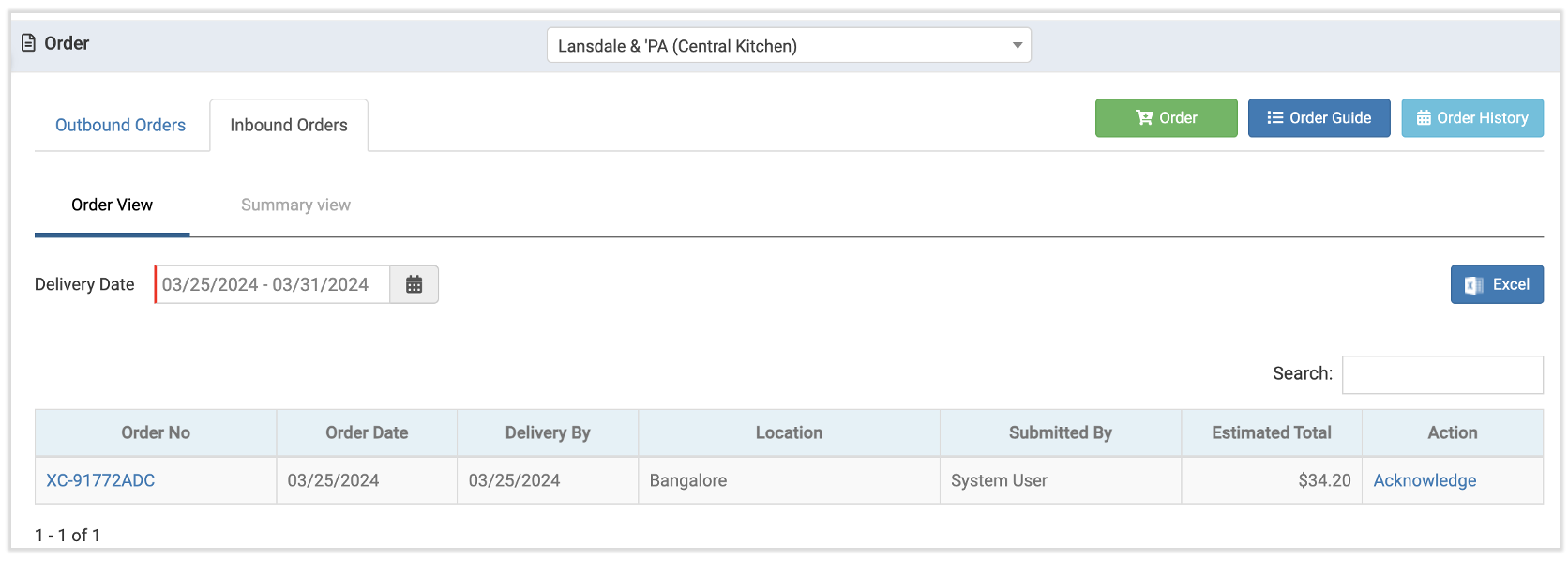
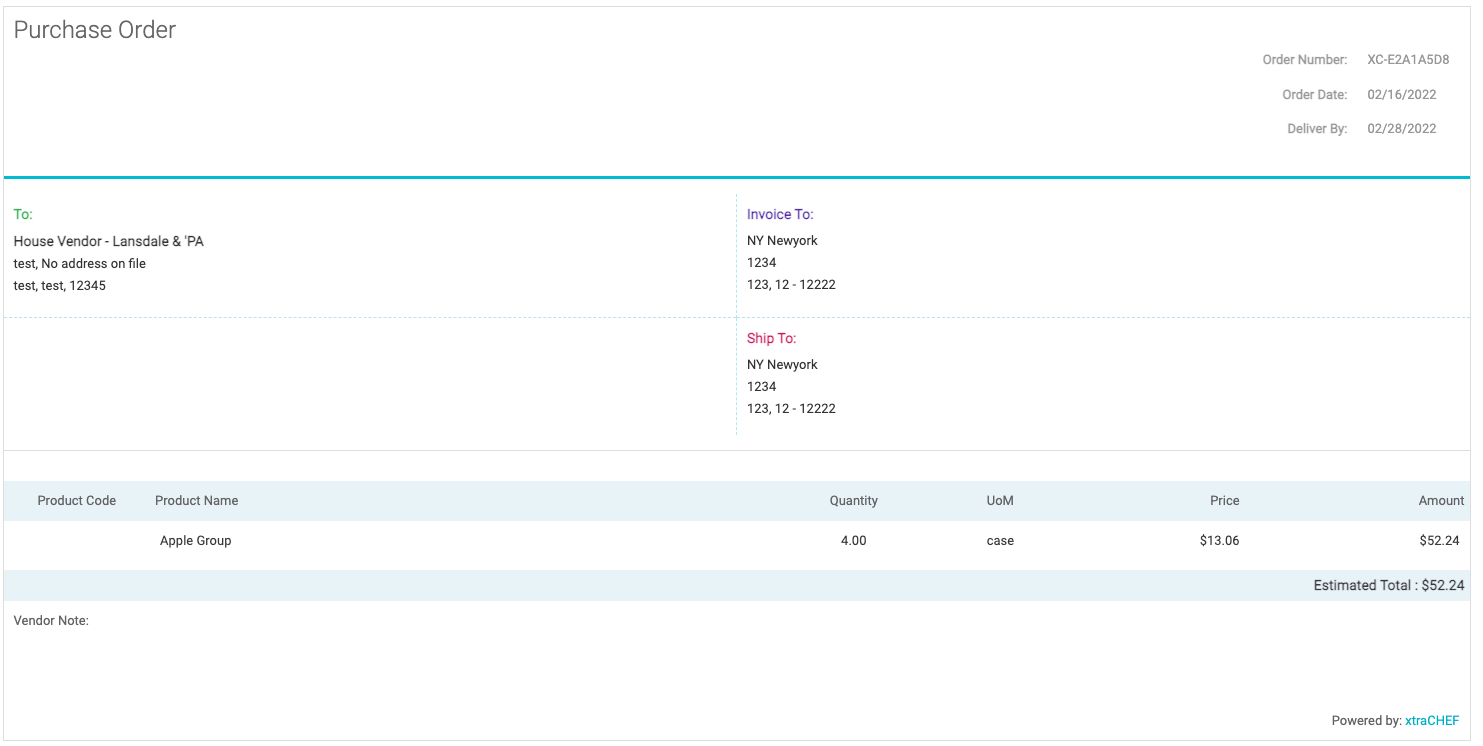
Select the Order Number to see the full purchase order details.
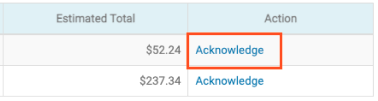
Select Acknowledge at the end of the request row to alert the sending location that you've gotten their request.
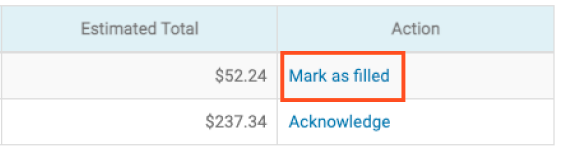
Once you've fulfilled your order and sent it off to your location, select Mark as filled to remove it from your pending list and let the location know their goods are waiting for them.
Note: Currently, fulfilling inbound orders does not push changes to your accounting system or deplete inventory. To ensure accuracy, consider updating your accounting manually and logging inventory depletion via your Manage Waste function.