xtraCHEF: Inventory Counts
Last updated: Oct 8, 2026, 11:05 AM
| Inventory counts are an end-of-day activity. Completed inventory counts, and their valuations, will be logged according to the day your count is scheduled for, no matter the time completed. |
In this Article:
Inventory Count Introduction
This video walks through counting inventory in xtraCHEF's desktop and mobile applications
Completing Inventory Counts in xtraCHEF simplifies Inventory Management by consolidating your physical counts into one system, automatically calculating inventory values, and creating advanced analytics designed to spotlight where changes can be made to drive profit for your restaurant.
Once you have set up your inventory areas and counts, you can begin taking physical inventory counts in xtraCHEF.
Complete Inventory Counts
| You can also complete your inventory counts via the xtraCHEF Mobile App. Check out xtraCHEF: Mobile Inventory. |
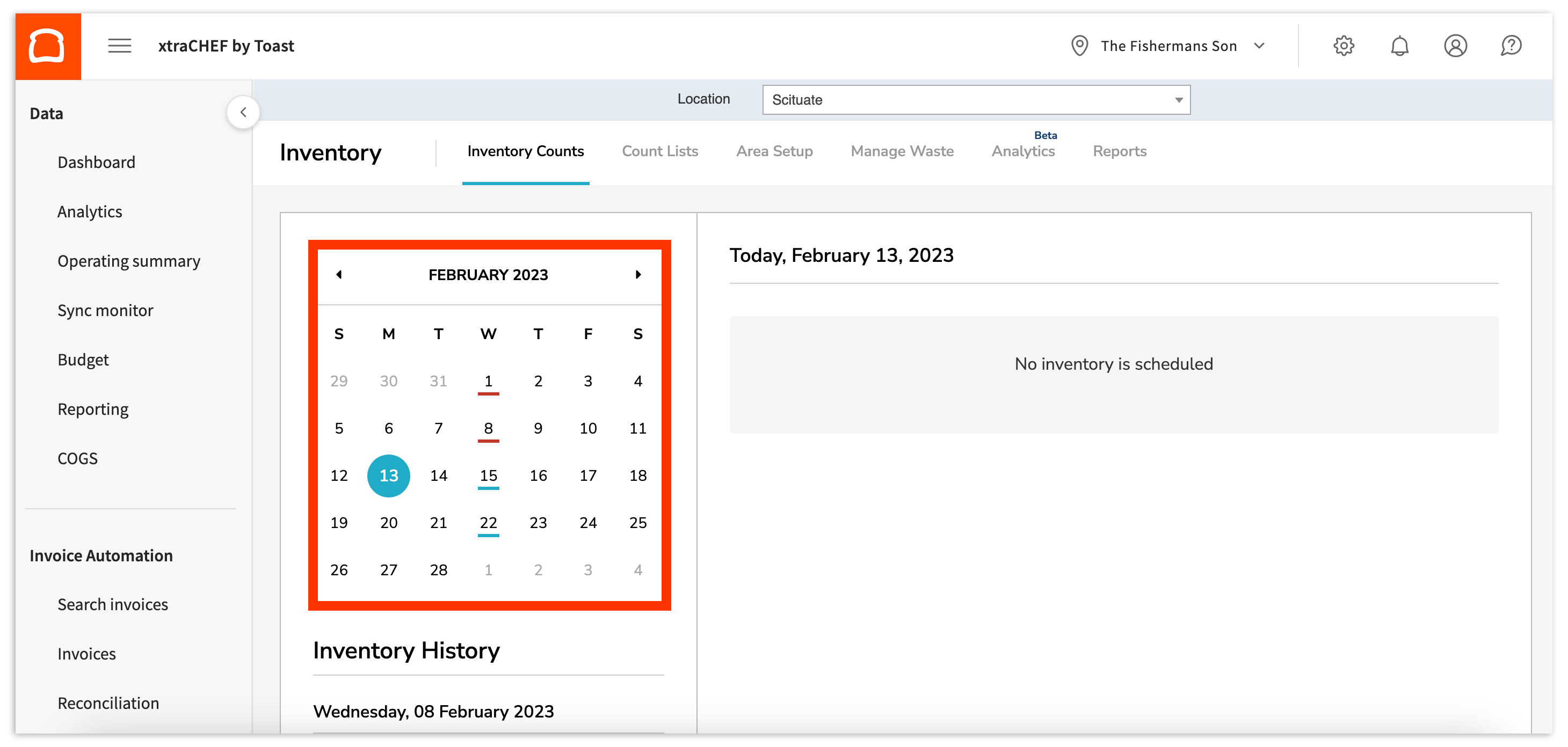
To complete a scheduled inventory count, navigate to your Inventory tab. By default, you will land on the Inventory Counts tab. Here, you will see a calendar on your left side showcasing the month's overdue and upcoming inventory counts. You will also see any inventory counts that are scheduled for today. If no Inventory Counts are scheduled, you will see a 'No inventory is scheduled' message. You can complete previous or preview future, inventory counts by selecting dates on the calendar.
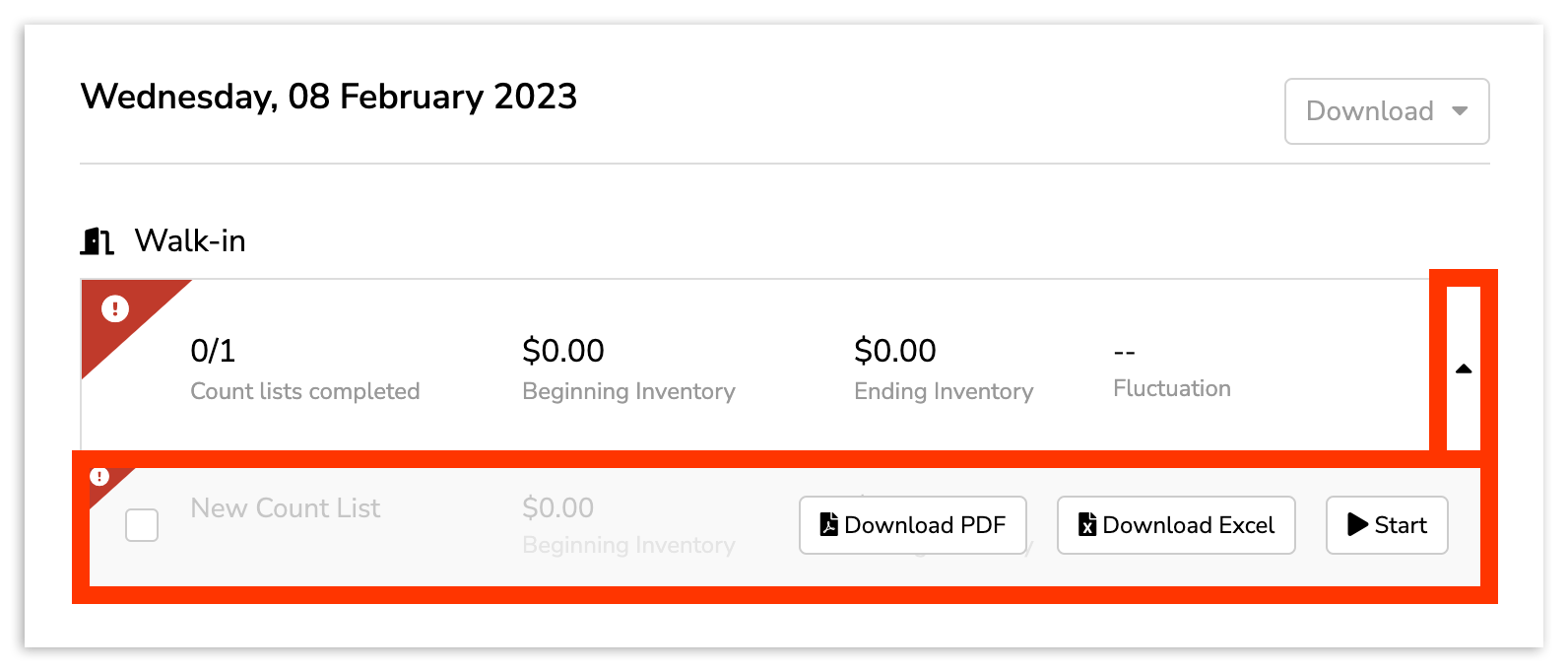
To start the inventory count, select the down arrow on the count you want to begin. Then select + Add New Inventory to open the inventory count. To begin entering inventory levels, select the down arrow. This time, select Start.
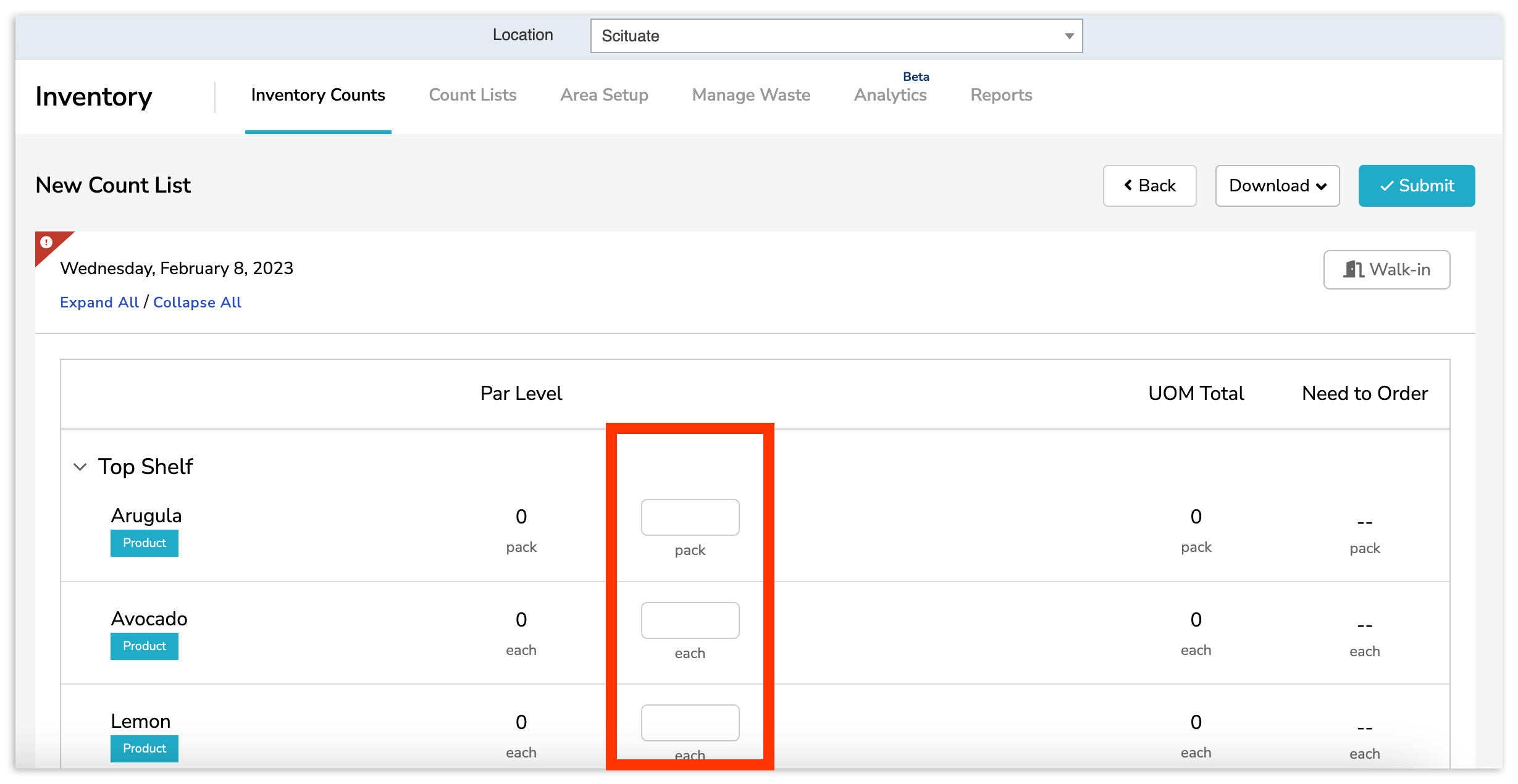
Upon selecting Start, you will be brought to the open count list, where you can begin marking your actual inventory levels.
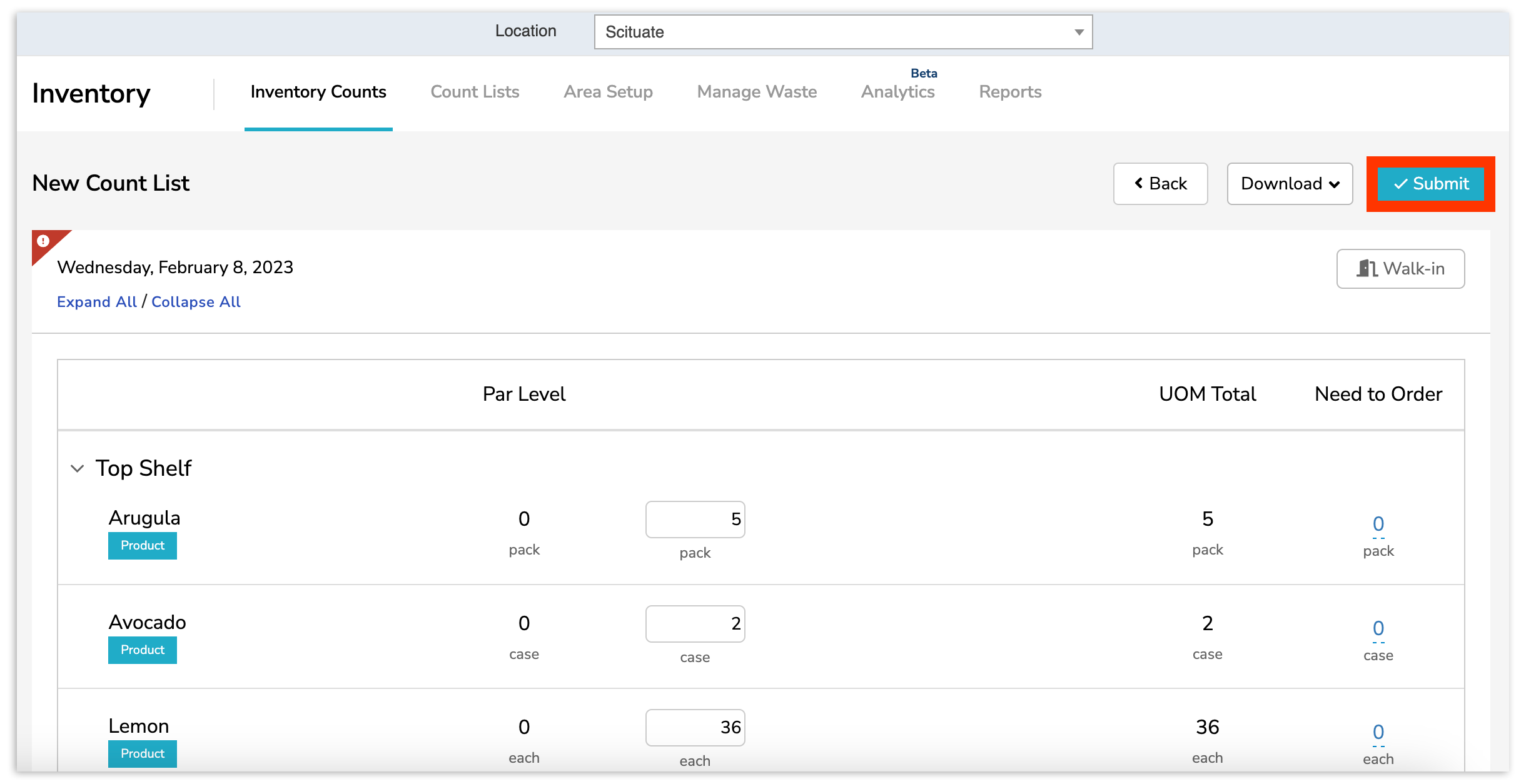
To complete your inventory on the xtraCHEF desktop experience, enter how many items you see of the product under the UOM column.
Need to order more? Update the amount to order under the Need to Order column to make a note of the needed supply. If you created par levels when creating your Count List, these amounts will automatically populate.
If you have more than one line item in the same product with varying packs or sizes, you can count those individually by selecting the drop-down arrow next to your product. This will ensure pinpoint accuracy in your inventory reports later on.
When you've completed your inventory count, select Submit near the top right corner.
Note: Currently, you cannot enter more than four numerical digits for a single item's count. Products counted across various sections of a count list appear as individual entries within Inventory Counts. They are not consolidated into a single total during the entry or modification process for a specific schedule.
Pro tip: Once you've completed your inventory, return to the Inventory Counts page, select a day, select the down arrow as you did to start this inventory, and select either Download PDF or Download Excel. This will give you a file that includes the Need to Order values you can use when ordering more inventory.
Edit Inventory Counts
Missed an item or two? No worries. You can always edit a previously completed Inventory Count. To do this, revisit the date this Inventory Count was completed. Then, select the arrow dropdown next to the count to reveal the Edit option, which allows you to adjust your inventory counts while reflecting pricing and values as they were on the day of the original count completion.
To proceed, select Edit.
- The Reopen button has been removed, but you can still perform this action by selecting Edit to change or update the counts of previously submitted inventory runs.
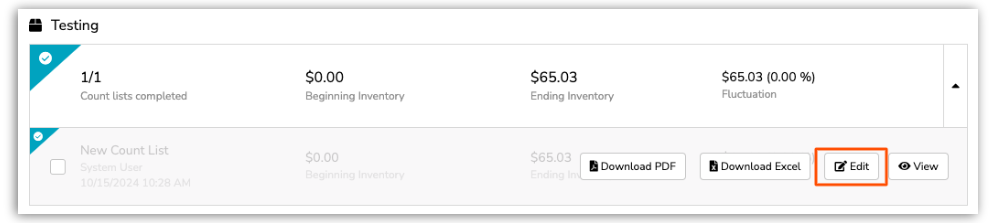
Similar to your original count, proceed by indicating the correct number of inventory items on hand at the time of the count. When finished, select Submit.
If you need to change the date on a completed inventory count in xtraCHEF, contact us at support@xtrachef.com for assistance.
Next Steps
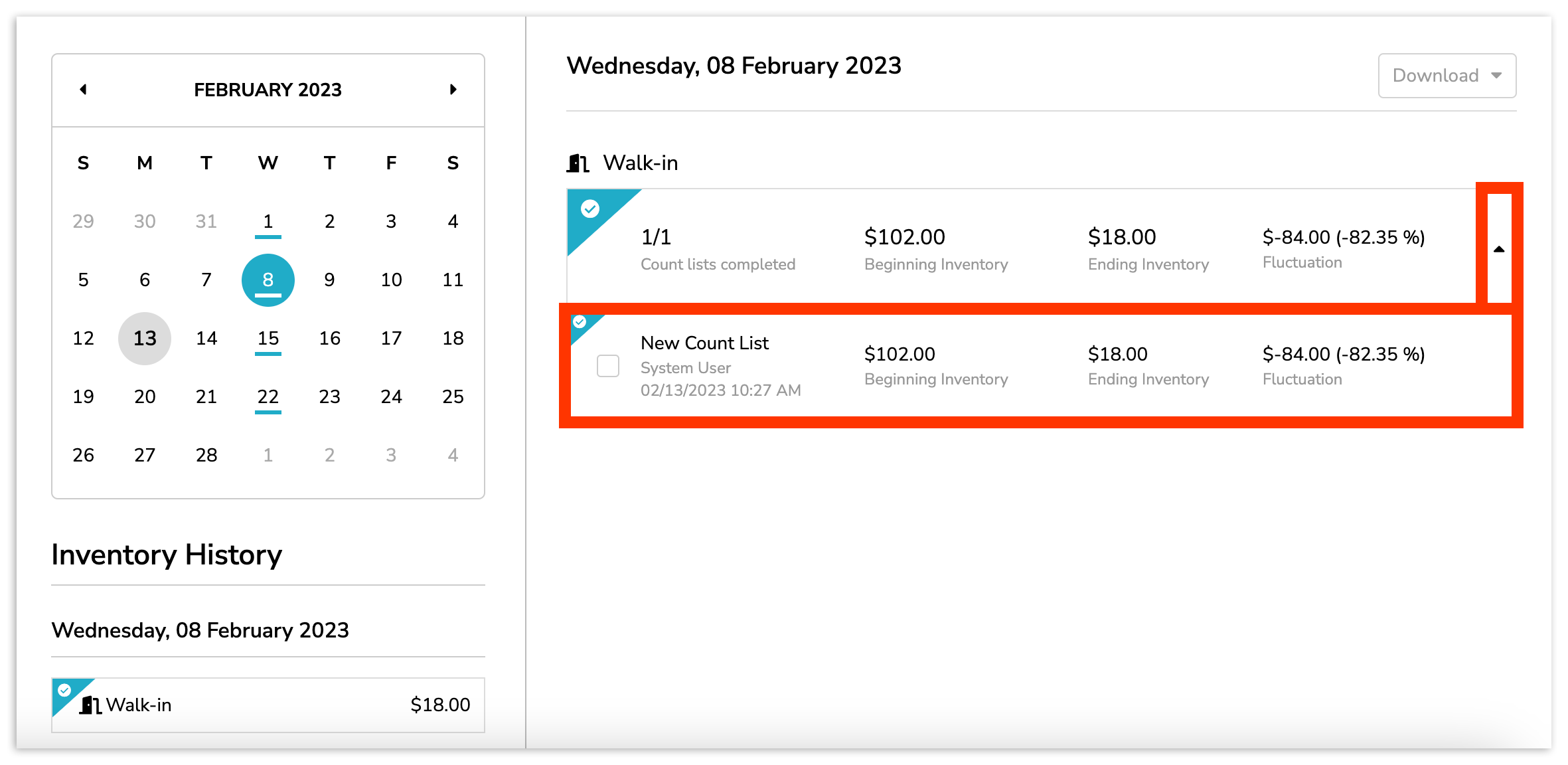
Upon completing inventory counts, you can begin to dive into inventory-related reporting via the Reporting page. You can also quickly view information relevant to your count by reviewing a completed inventory count on your Inventory Counts page. Once completed, xtraCHEF will summarize your Beginning Inventory value, Ending Inventory value, and Fluctuation between the two.
Inventory Reports
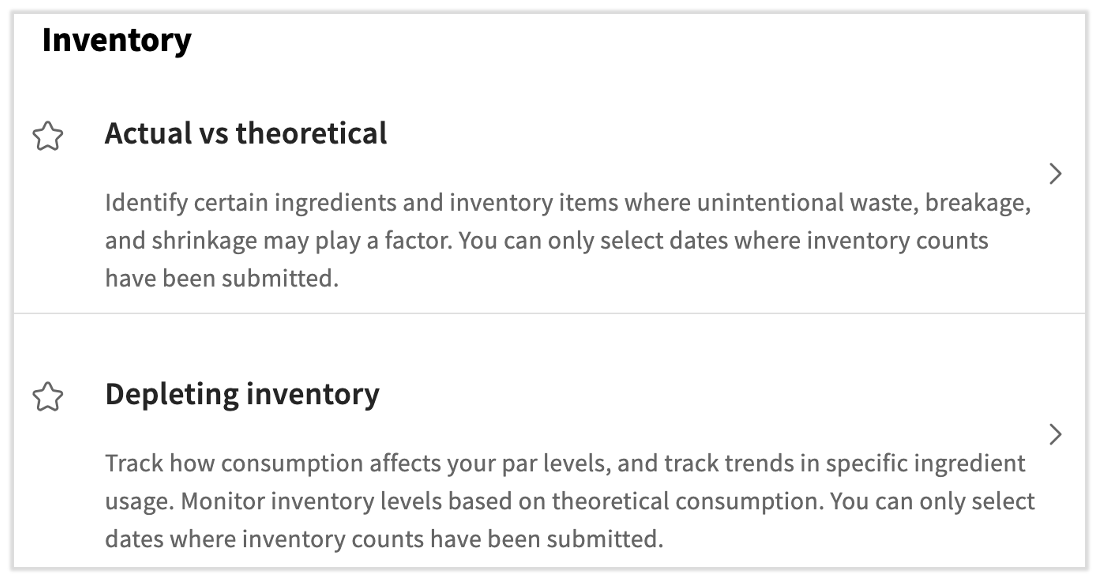
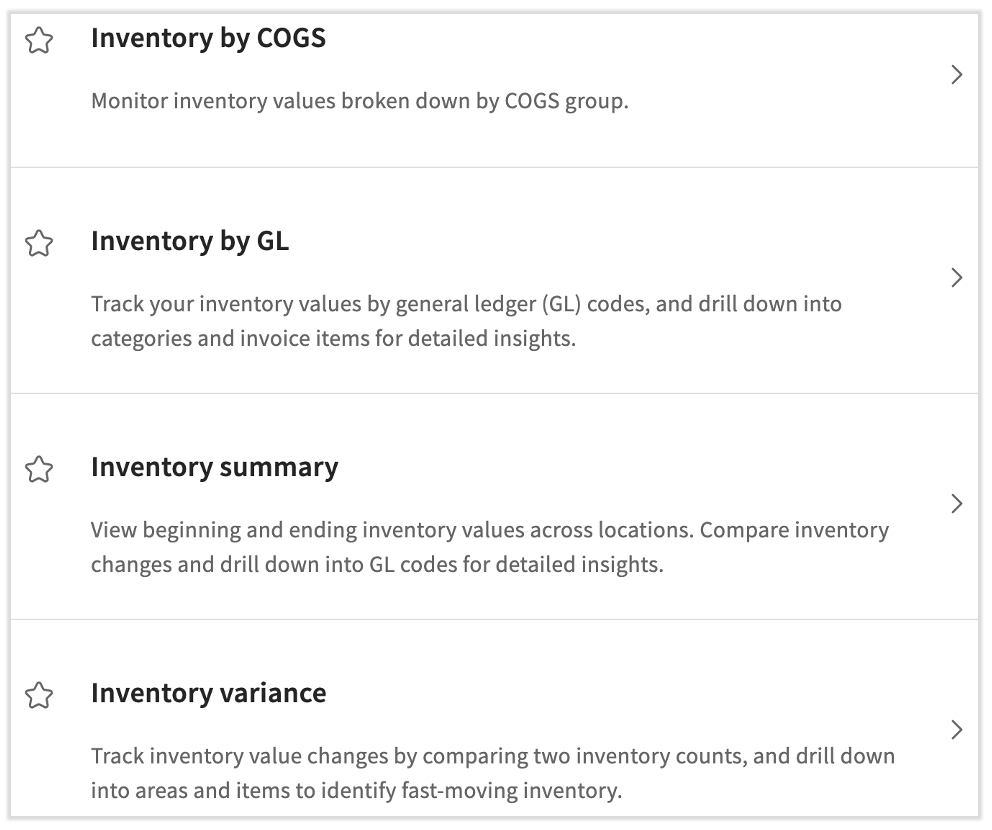
Dive even deeper into your inventory by selecting the Reporting tab. There you can view inventory specifics by COGS (cost of goods sold), GL (general ledger code), summary, or specifically highlight variance. Learn more by visiting xtraCHEF: Get Started With Inventory Reports.
Additionally, xtraCHEF has analytics which allow you to track and compare your actual vs. theoretical (AvT) inventory consumption, monitor inventory depletion, identify waste, and control your restaurant costs for maximum profitability. These reports are also accessed by selecting Reporting. For a deeper dive into the AvT and Depleting Inventory reports and how to leverage them, take a look at xtraCHEF: Inventory Analytics.