xtraCHEF: Action Needed Invoices
Last updated: Apr 8, 2026, 10:10 AM
- When Invoices are Missing Critical Data
- View Invoices With Missing Data
- Reasons That Pause Invoice Processing
- Other Actions Needed
- NEW! Resolve Action Needed Invoices on Mobile
When Invoices are Missing Critical Data
In order for invoice data to be available for cost insights, inventory count lists, or recipes, the invoice data must be complete. If data is missing, the invoice processing will pause and you will be asked to take action on the invoice to help resolve the missing data. The most common pieces of data that are often missing (or illegible) are the invoice amount, invoice date, or invoice number.
This 5-minute video below covers Action Needed invoices and the different reasons they were flagged.
View Invoices With Missing Data
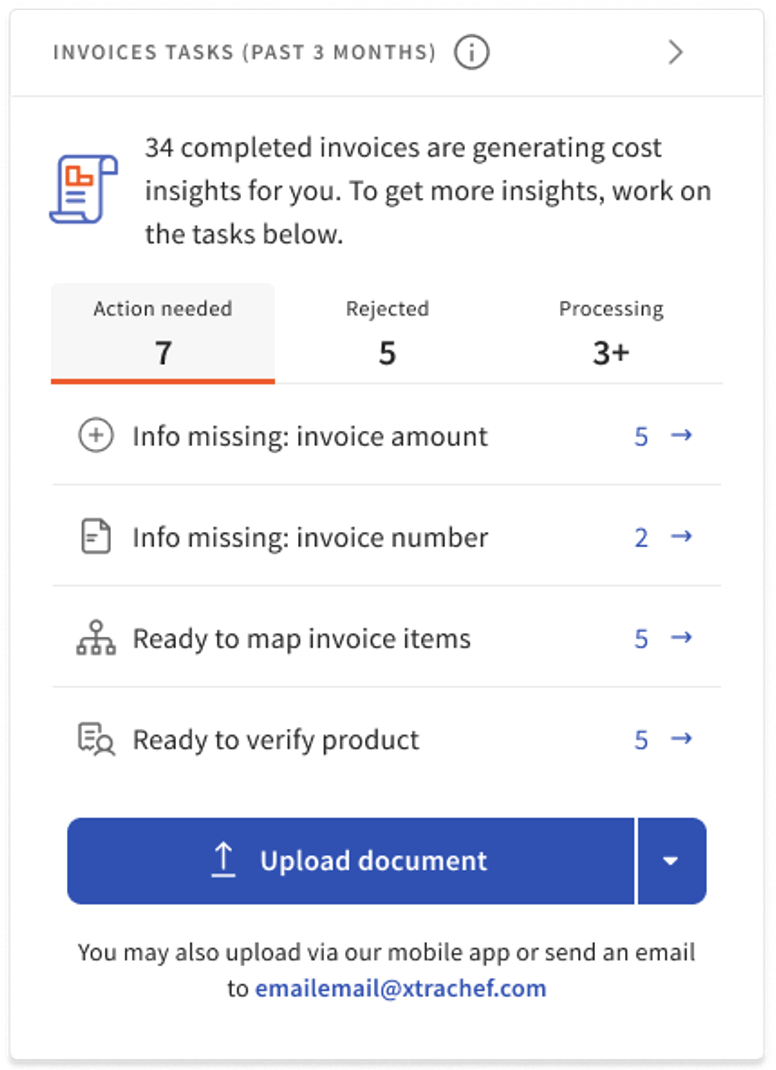
The first place you’ll see invoices that are missing critical data is on your dashboard in the Invoice tile. The Action Needed tab in the tile highlights all invoices that require your attention. Any actions that start with Info Missing represent invoices that have not been fully processed due to critical data missing. Select the item in the widget to be directed to those invoices that are stuck.
Alternatively, you can view all invoices that need your attention by navigating to Invoices and selecting Action Needed at the top of the page.
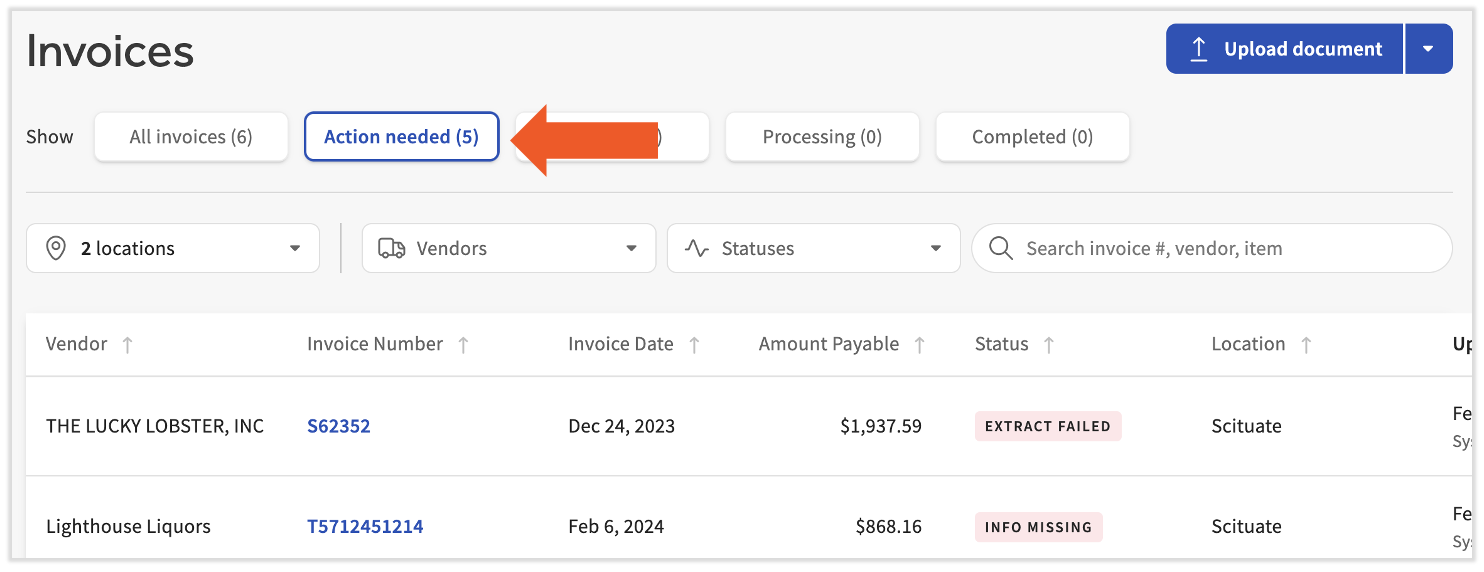
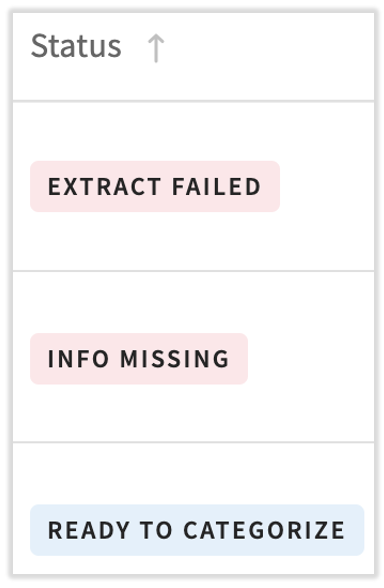
Here, you'll see a Status column indicating the reason an invoice was flagged here. Select a line item (not the Invoice Number) to open the Invoice Details page.
The Invoice Details page will allow you to dive deeper into individual invoice details and make adjustments to the data.
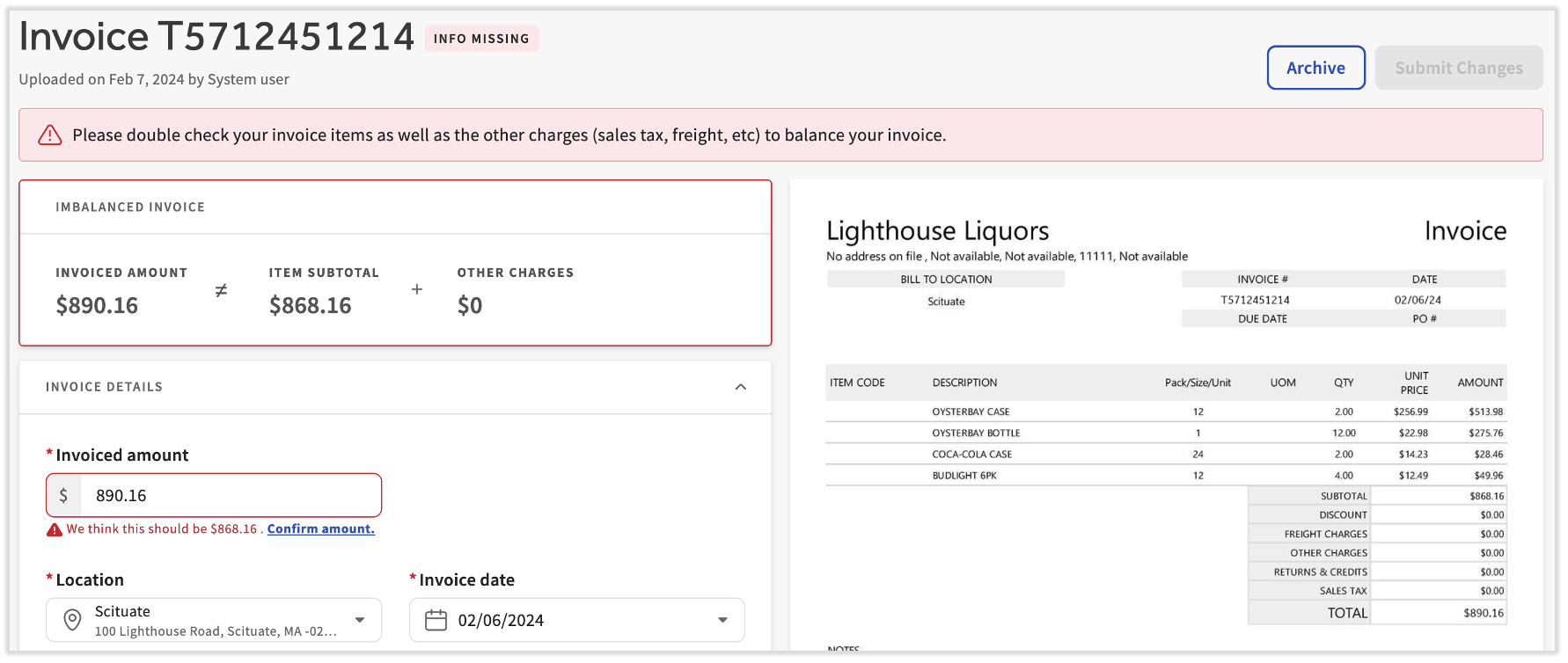
Read on to learn how to edit invoice details to resolve the most common invoice issues.
Back to top
Reasons That Pause Invoice Processing
When viewing the Invoices > Action Needed page, xtraCHEF will provide the specific reason why it was flagged and paused from processing. Those reasons can be found under the Status column.
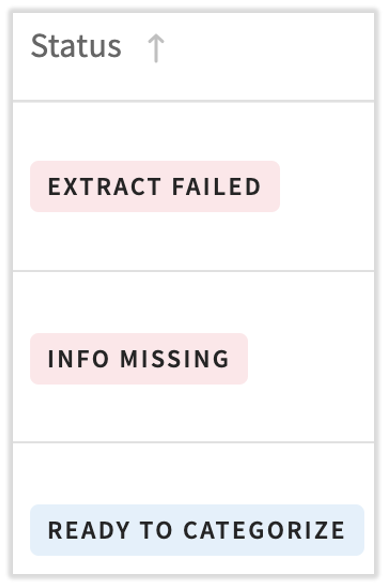
The following are specific statues for invoices on this page:
- Missing invoice date: If the invoice or receipt is missing a date, you will be required to provide it. When reports are generated, the date is a critical way we identify which pricing information to use.
- Missing invoice number: If the invoice is missing an invoice number, you will be required to provide it. Invoice numbers help to ensure that no duplicate invoices are read and processed.
- If the vendor doesn’t provide an invoice number or you want a receipt to be treated like an invoice, you can opt to Always auto-assign invoice numbers for this vendor. When this option is selected, xtraCHEF will automatically generate a unique invoice number for this vendor.
- Receipts do not require a number. If the document was actually a receipt, you can update the document type and the error will go away.
- Invoice total missing: If the invoice is missing a total, you will be asked to verify the total. xtraCHEF automatically compares the sum of your line items to the invoice total to ensure there were no issues processing the individual line items. Without this field, xtraCHEF will require you to verify that the invoice has been read correctly before processing.
- Invoice or line totals don’t match: When xtraCHEF detects an inconsistency between the sum of your line items and the invoice total captured from your uploaded invoice, you will be asked to review the information. To ensure your line items and invoice are processed with the correct dollar amount, xtraCHEF will require you to verify or edit the invoice before processing. If you forgot to upload a page, you will need to reject the invoice and reupload.
- Payment method mandatory: You’ll see this error if you have a QuickBooks Online extract enabled with "payment method processing" turned on. Payment method processing allows you to process receipts as expenses. To do this, you must indicate the payment method used at the time of purchase – and this payment method must be mapped properly to the corresponding payment method in your accounting system.
- Invoice from unregistered user: Invoices can only begin processing in xtraCHEF when the sender's email address is tied to a registered user in the system. If an action-needed invoice is tagged with this status, it must be verified before it can be processed. If you decide to verify and accept it, the email address will be registered as an Invoice Capture user so this status doesn't occur on future invoices from this email address.
Missing vendor code will no longer prevent your invoice from processing. If the vendor code is missing, you will see the Extract pending status for the invoice.
- Missing vendor code: If you have an accounting extract enabled and xtraCHEF does not have a corresponding vendor code for the vendor, then you will be asked to provide the vendor code in order for the invoice to finish processing. A vendor code is the company display name that you use for the vendor in your third-party accounting.
Other Actions Needed
Once an invoice has been processed, the information on the invoice may still need to be categorized before insights are available. You may see the following additional states under Action Needed:
- Ready to categorize: The first time a new item is processed by xtraCHEF, you must categorize it. If any items on an invoice have not yet been categorized, that invoice will be in this state.
- Ready to approve: If you have approvals set up, then new invoices that have not yet been approved will be in this state. Learn more about approvals by visiting xtraCHEF: Approvals.
- Extract pending or Extract failed: If there is data missing that prevents your invoice from being properly exported to your accounting system, the invoice will be in the Extract Pending or Extract Failed state. The most common reasons for this are the vendor code (which indicates how to map vendors from xtraCHEF to the accounting system) or a GL code mapping error. Learn more about extract related issues in the Extract Errors and Solutions section of xtraCHEF: Extract Monitor.
Resolve Action Needed Invoices on Mobile
We've heard lots of feedback about the ability to resolve invoices that are flagged as action needed or rejected. xtraCHEF users are now able to review, edit, and continue processing most of these invoices right from the xtraCHEF app.
From the home screen, you'll see a tile indicating you have Tasks. This now includes invoices which require an action, so tap that tile.
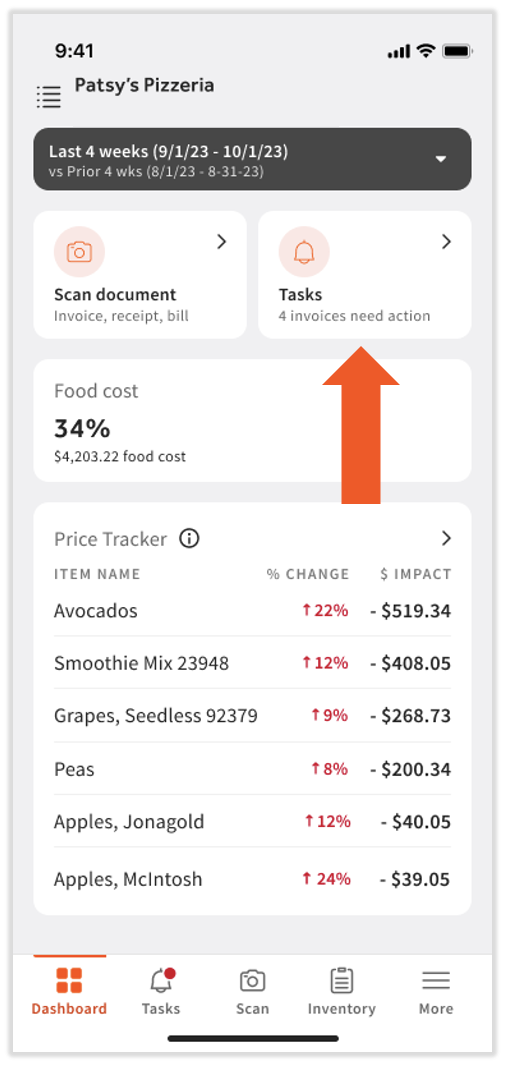
Tapping the Tasks tile lets you view your pending tasks. There are a few things to note on this screen:
- Many types of Action Needed and Rejected invoices can now be managed from the app.
- Some tasks will group similar invoices together so they can be managed all at once (in the image below, Extract pending: Map vendor to QuickBooks Online shows 4 affected invoices).
- Some tasks can only be managed from a desktop or laptop device (in the image below, Info missing: unbalanced invoice cannot be resolved on mobile).
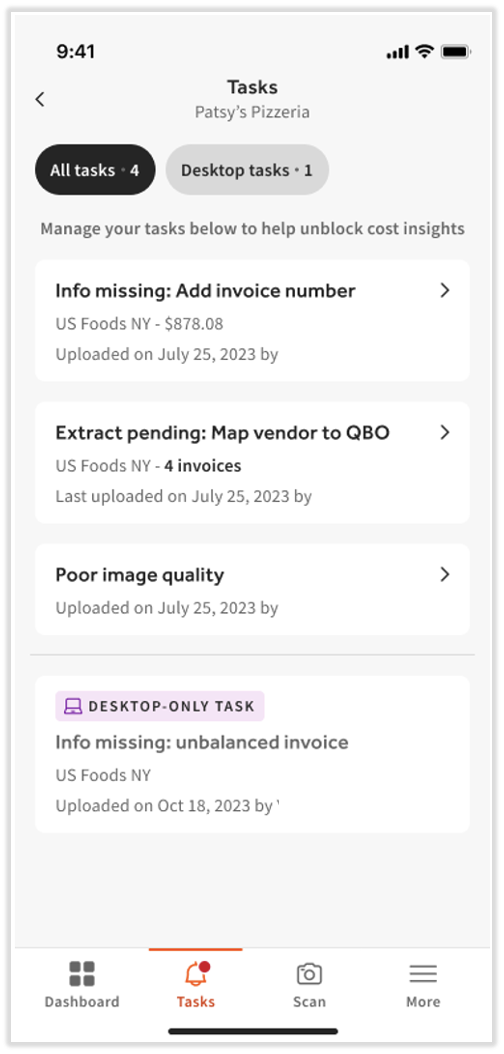
Select a task from the screen to open it. Depending on the action needed, you'll see a different screen. For instance, if the task involves a missing vendor code, xtraCHEF may be able to provide suggestions or it may ask if you want to create a new vendor name. In either case, you'll also be able to search a list of vendors:
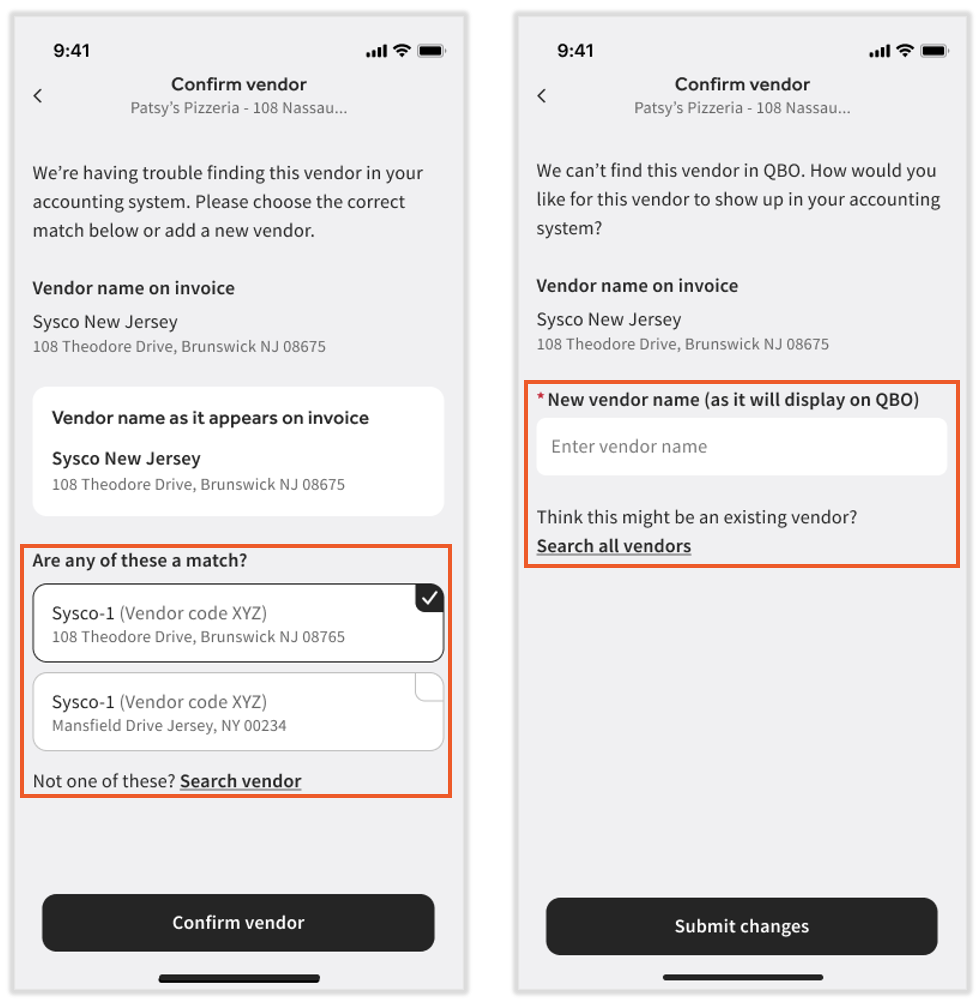
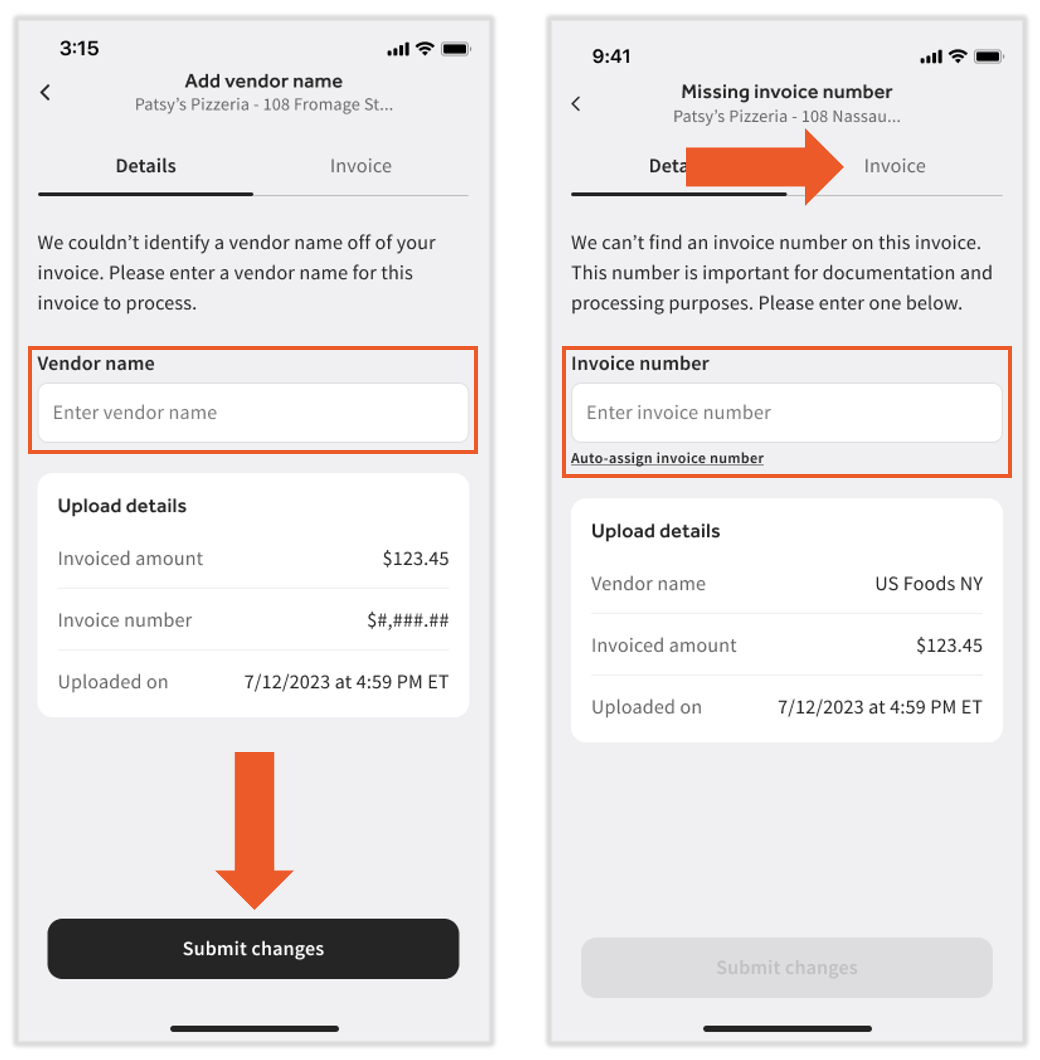
In other cases, you'll be able to enter a vendor name or an invoice number directly in the app. Select the Invoice tab to view the uploaded invoice. Once you've corrected the action needed reasons, select Submit changes to begin reprocessing this invoice.