xtraCHEF: Get Help With QuickBooks Extract Errors
Last updated: Jul 7, 2026, 12:57 PM
If you get an error message while extracting invoices from xtraCHEF to Quickbooks, learn how you can correct this error.
Determine if an Extract Was Successful
To determine if an extract was successfully imported into QuickBooks, review the Extract Monitor. For any Invoice Extract Status that is not green, select View Details for that specific file.
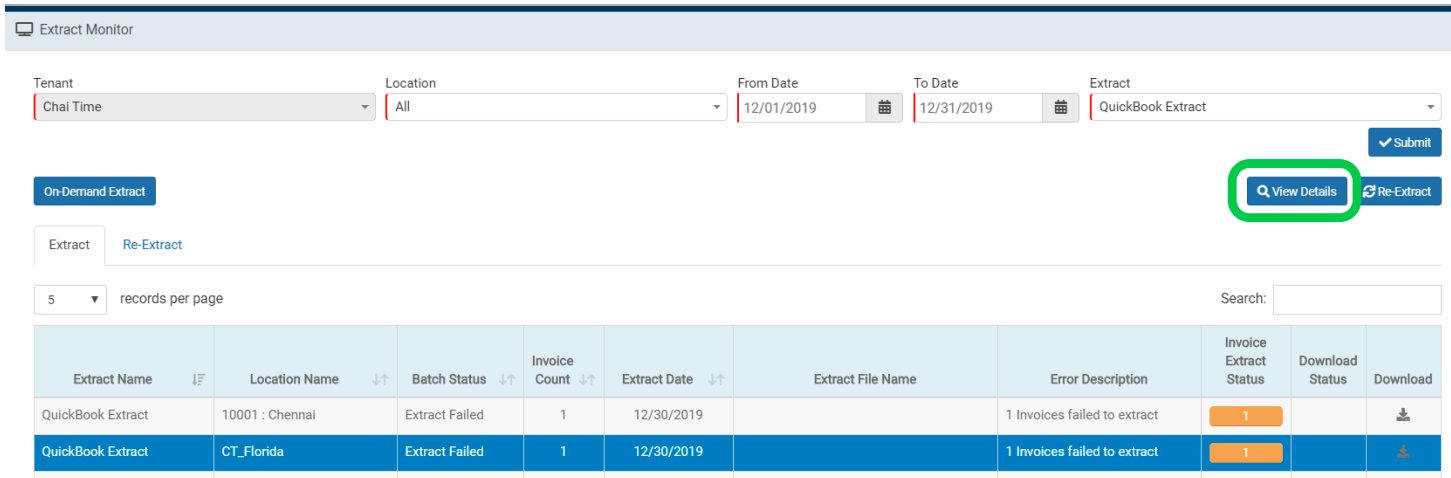
Based on what the error message states, use this guide to resolve the error.
QuickBooks Error Codes
The rest of this guide will reference QuickBooks extract error codes and how to fix them.
Invalid Reference to Vendor
“There is an invalid reference to QuickBooks Vendor 'Vendor Name' in the Bill. QuickBooks error message: Invalid argument.”
OR
“Vendor 'Vendor Name' does not exist in QuickBooks"
This type of error is due to the Vendor Code not matching with what is listed as the Vendor Name or "Display Name As" for the vendor listed in QuickBooks. The Vendor Code can be corrected with the following steps:
- Open the Vendors page on your left hand menu bar in xtraCHEF.
- Search for the specific vendor in question.
- Select the Tenant Vendor Code to update.
- Makes changes and select the check button.
- The Vendor Code in xtraCHEF should be a 1-to-1 match as how the Vendor appears in QuickBooks.
- QuickBooks Online: Vendor Code in xtraCHEF should match the "Display Name As" for the vendor.
- QuickBooks Desktop: Vendor Code in xtraCHEF should match the Vendor Name in Quickbooks.
- The Vendor Code in xtraCHEF should be a 1-to-1 match as how the Vendor appears in QuickBooks.
- Once the tenant vendor code is updated, you can then re-extract the failed file from the Extract Monitor

Invalid Reference to XCG-TAX
“There is an invalid reference to QuickBooks Account "XCG-TAX" in the Bill. QuickBooks error message: Invalid argument.”
This error is due to how your Header Level charges are being distributed. xtraCHEF has four header level charges that can be distributed to your preference.
- Sales Tax
- Freight/Distribution Charges
- Discounts
- Other Charges
There are 3 options to handle these header level charges. Pick one of the three:
- Distribute evenly among all GL Codes applied to the invoice.
- Apply only to the GL Code with the highest cost listed on the invoice.
- Apply to a specific GL Code within your QB system.
If no preference is listed, xtraCHEF will apply these to default GLs: XCG-FC, XCG-OC, XCG-DC, and XCG-TAX.
Account Does Not Exist in QuickBooks
“Account '1234' does not exist in QuickBooks”
OR
“There is an invalid reference to QuickBooks Account "1234" in the Bill. QuickBooks error message: Invalid argument. The specified record does not exist in the list.”
This error can appear when the GL Code listed for an invoice is not listed within your QuickBooks System. This error will appear on all invoices with the GL Code specified in the extract error message.
Option 1: If the GL is correct, but is listed differently in xtraCHEF than how it appears in QuickBooks, the GL code can be edited with the following steps:
- Select the gear icon > GL Codes in the top right hand corner of the xtraCHEF account. Only Tenant Admins will have this access.
- Select the specific GL code listed in the error message and select Edit GL Code.
- Then update the GL code to match how it is listed in QuickBooks. Select Save.
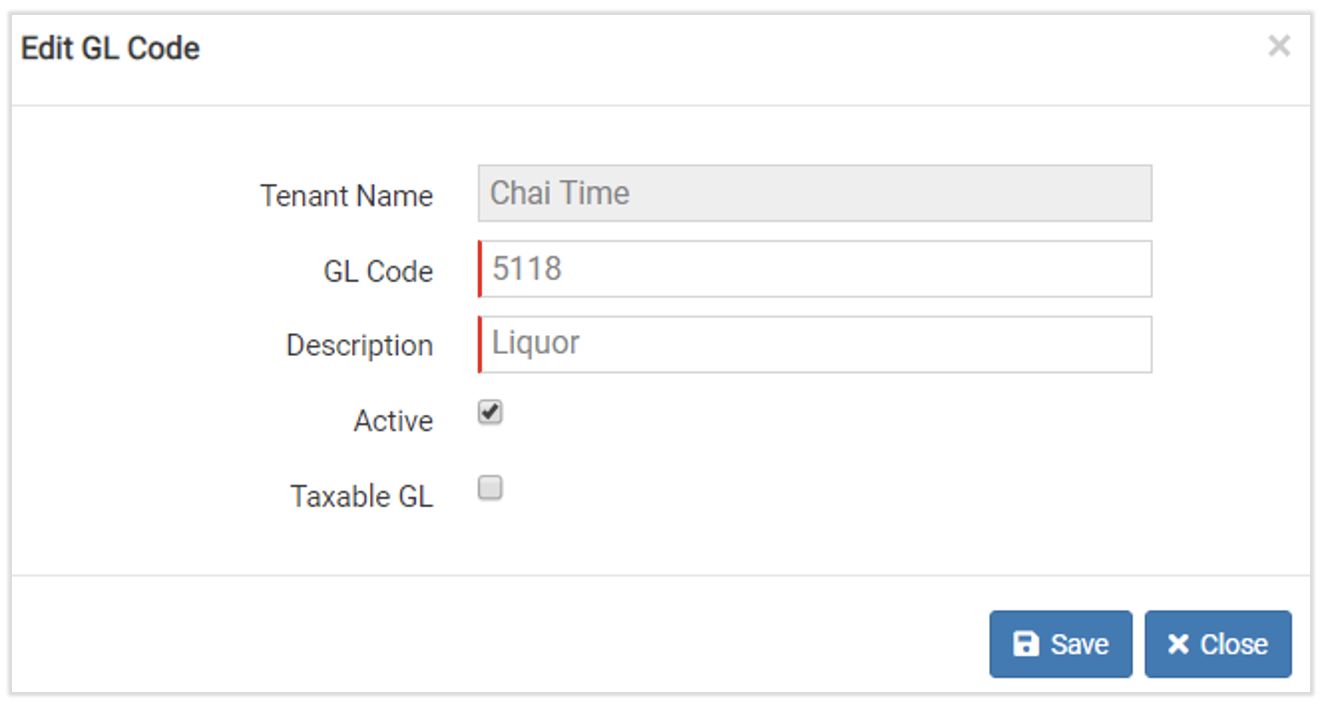
Option 2: If the incorrect GL code is being displayed in the error message, this would indicate the incorrect category was assigned to a product listed on the invoice. To correct this, update the category (GL code) from the Item Library using these steps:
- Navigate to the Item library in the left-hand navigation in xtraCHEF.
- Use the drop-down menu to filter to the specific vendor associated with the invoice and select the invoice item.
- At the bottom of the page, update the Category field and you'll see the GL code field update accordingly. Select Save Changes.
- Once the category is updated, attempt to re-extract the invoice.

Message=AuthenticationFailed
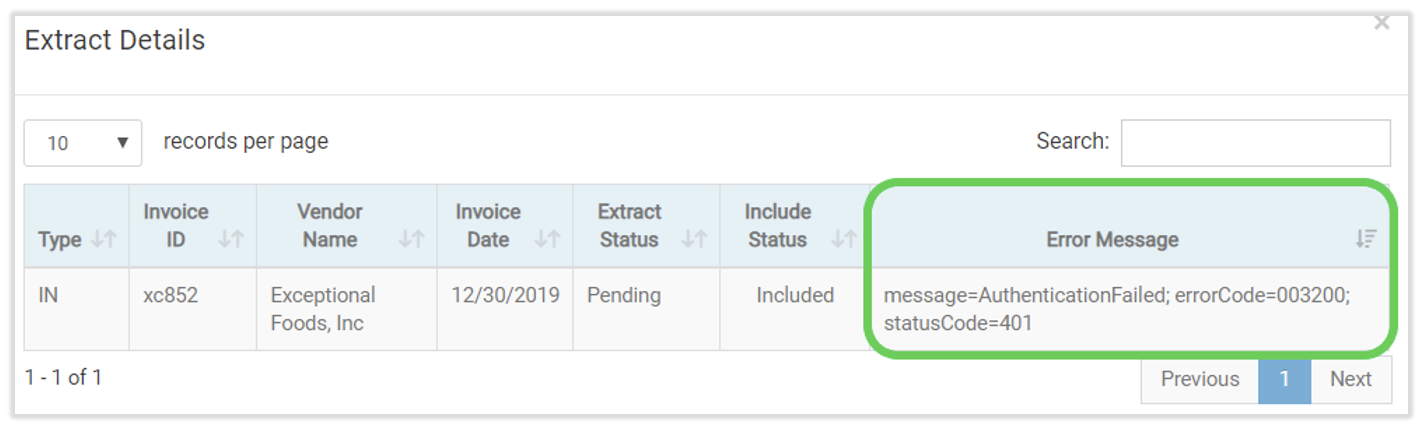
“message=AuthenticationFailed; errorCode=003200; statusCode=401”
This error is typically related to QuickBooks Online token expiring or it could just be a timing out error from QuickBooks. First, attempt to re-extract the extract file or specific invoice from either the Extract Monitor or Invoice Search. If the same error is received again, direct the customer to refresh the QuickBooks token.
To refresh the QuickBooks token, the customer will need to:
- Navigate to the gear icon > Account setup in the upper-right corner of xtraCHEF.
- Select the Integrations tab.
- Select Connect to QuickBooks.
This will prompt them to log into QuickBooks Online, and will need to be completed by someone with QuickBooks Admin access.
String Length
“String length is either shorter or longer than supported by specification”
The Invoice ID is too long. QBO has a limit of 21 characters for an invoice ID.
- Navigate to Search invoices in the left-hand navigation in xtraCHEF.
- Locate the invoice and select Edit Invoice.
- Correct the Invoice Number to be less than 21 characters.
- Submit the invoice.
- You should then be able to re-extract the invoice from Invoice Search.
Feature Not Supported
“Error Message: Feature Not Supported Error.”
This error indicates the version of QuickBooks is not supported for API integration. Self-Employed and Simple Start QuickBooks Online versions do not support integration with xtraCHEF. Below are the supported QuickBooks Online versions that support API integration:
- QuickBooks Online Essentials
- QuickBooks Online Plus
- QuickBooks Online Advanced
Location Account Number Not Assigned
“Warning: Location Account number is not assigned in XtraCHEF. Bill has been pushed to QBO without any class assignment.”
This is not an extract failure; invoices with this warning will still be extracted to QuickBooks. This is an extract warning from QuickBooks stating the account number for this location is not matching how that location name appears in QuickBooks. This error can be resolved by a Tenant Admin with the following steps:
- Select the gear icon > Locations from the upper-right corner of xtraCHEF.
- Select the specific location in question.
- Select Edit Location Details.
- Edit the account number as per the Class name entered in xtraCHEF.
- After resolving the error, re-extract the invoice.
- Navigate to the Extract Monitor.
- Select the file that failed to extract.
- Once the file is highlighted, select Re-Extract in the top right corner.
If the invoice in question has not extracted at all, you'll want to confirm the following:
- Confirm if all line items are mapped to GL codes on the invoices.
- Navigate to Search invoices, select the Invoice #, and it will list all GLs assigned to that invoice. If Unassigned is listed, then that item should be in your Map Invoice Items queue for that vendor.
- Confirm the invoice is in a processed state. If not, it may be within your Exception, Product Verification, or Approvals queue.
- Confirm there is a Vendor Code listed for the specific vendor in question. You can check this by searching for the vendor in your Vendor Hub. The Vendor Code should be a 1-to-1 match with:
- QuickBooks Online: Vendor Code should match the "Display Name As."
- QuickBooks Desktop: Vendor Code should match the Vendor Name.
After confirming that the steps listed above do not apply to the invoice but it has still not been extracted, run an On-Demand Extract. For QuickBooks Online, you can run an On-Demand Extract with these steps:
- Select the Extract Monitor on the left-hand menu in xtraCHEF.
- Select the On-Demand Extract button in the top left.
- A pop-up window will appear stating how many invoices are included in the On-Demand Extract.
If you're using QuickBooks Desktop, use the Web Connector by following the steps in this article to run a manual sync.
Failed to Refresh Token
QuickBooks uses Authentication Tokens for secure API authentication. These tokens expire over time and may need to be refreshed by reconnecting to your QuickBooks account.
- Log in to xtraCHEF as a Tenant Admin.
- Navigate top the Quickbooks Integration tab by selecting the Gear Icon, followed by Account Setup.
- Select the Disconnect from QuickBooks button.
- Select the Connect to QuickBooks button and log in to your QuickBooks account. This will reauthorize the integration.
- Run a manual sync to confirm the connection is working.
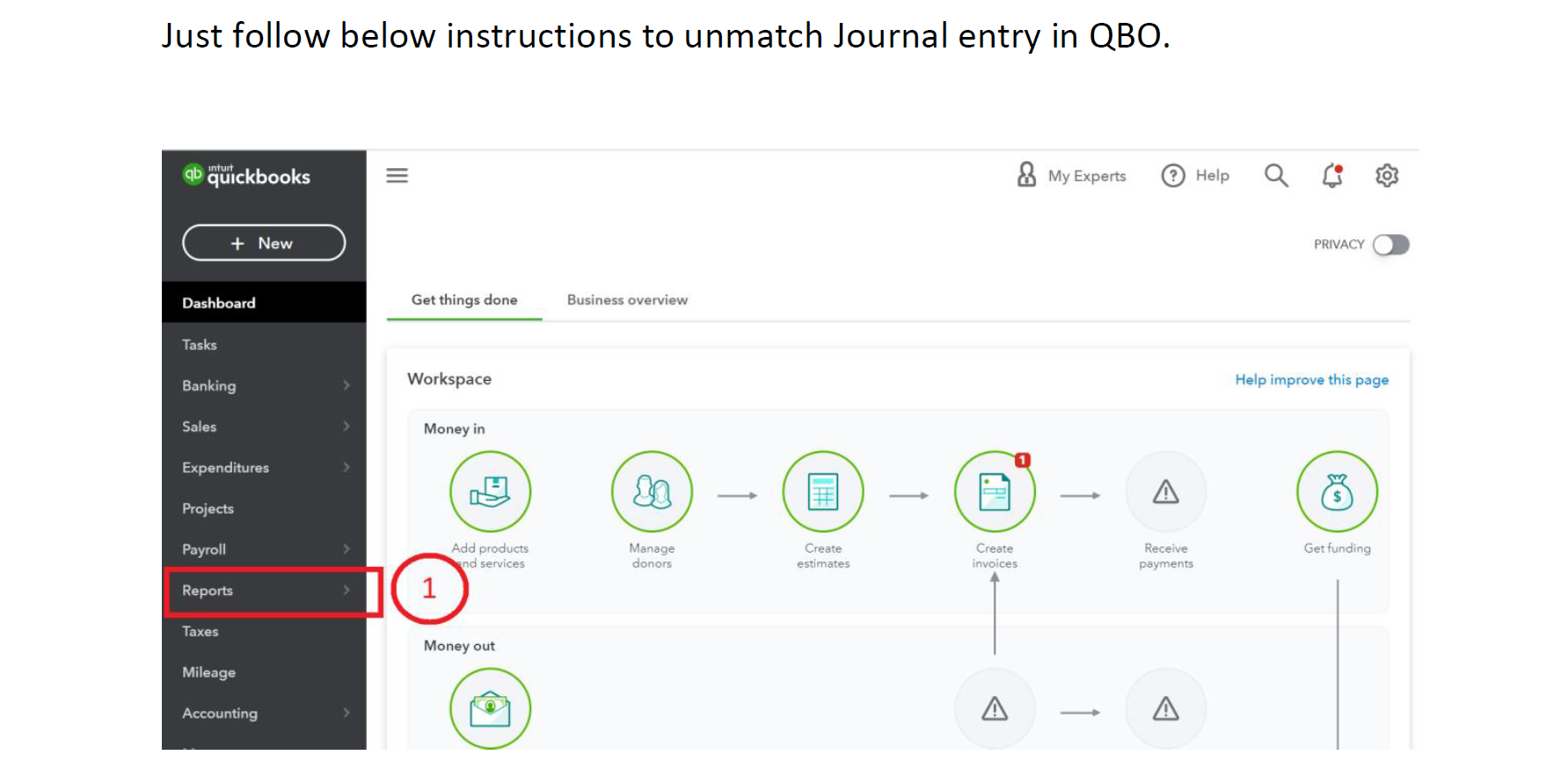
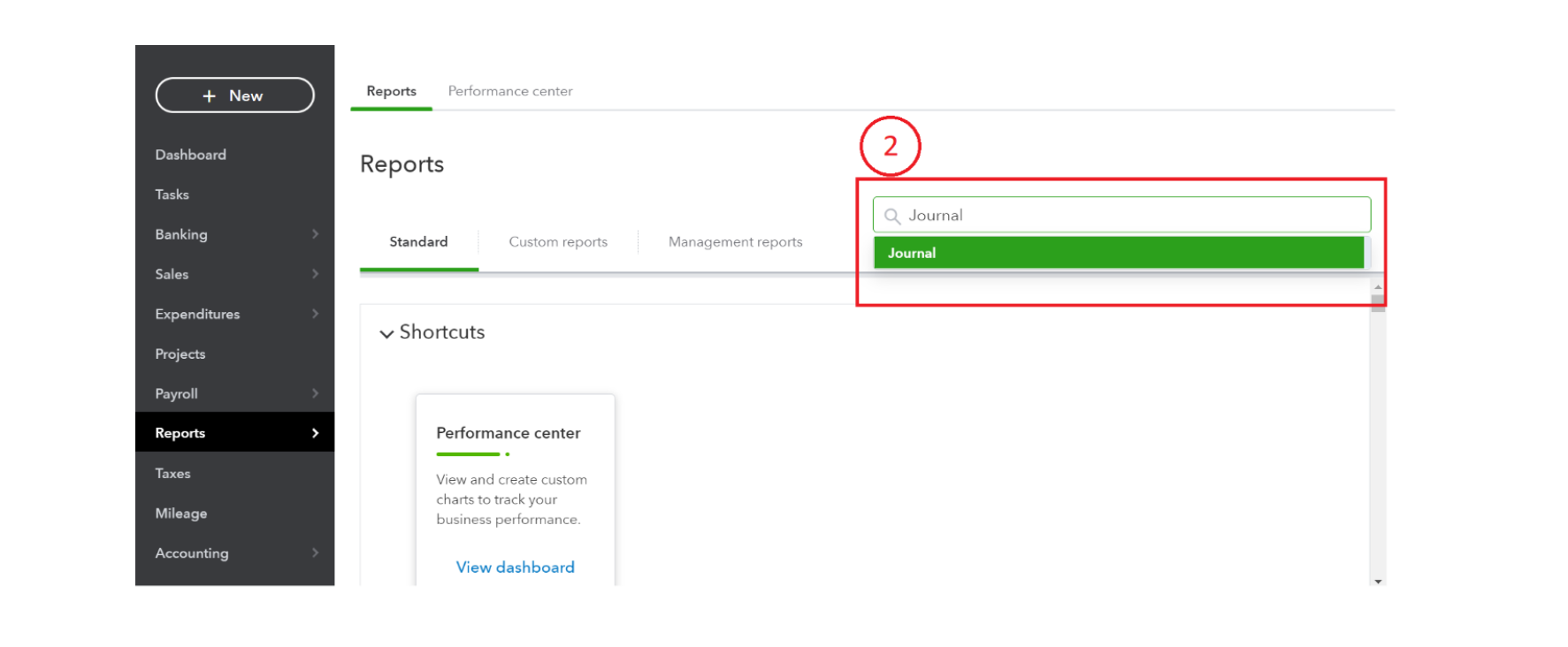
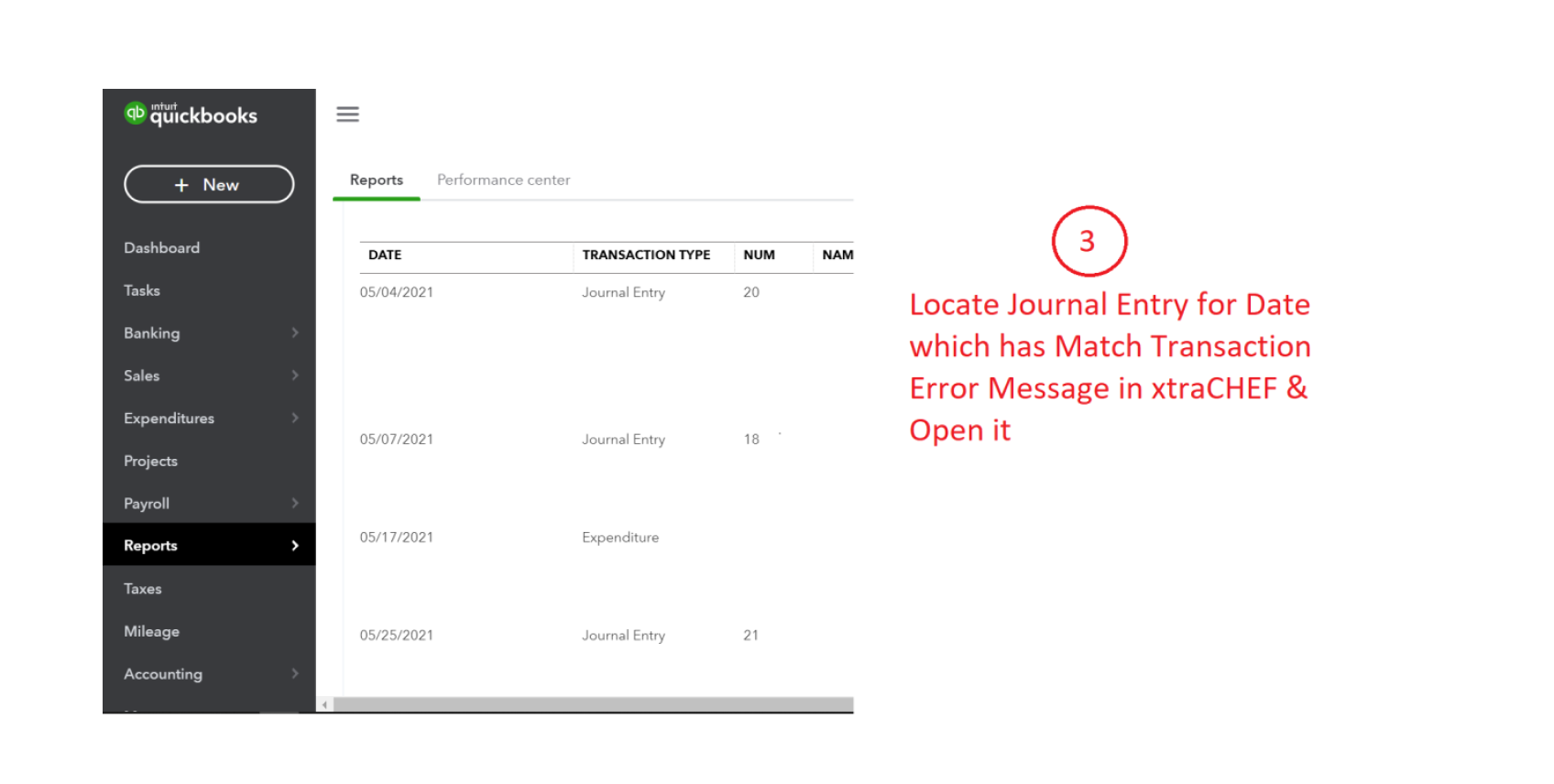
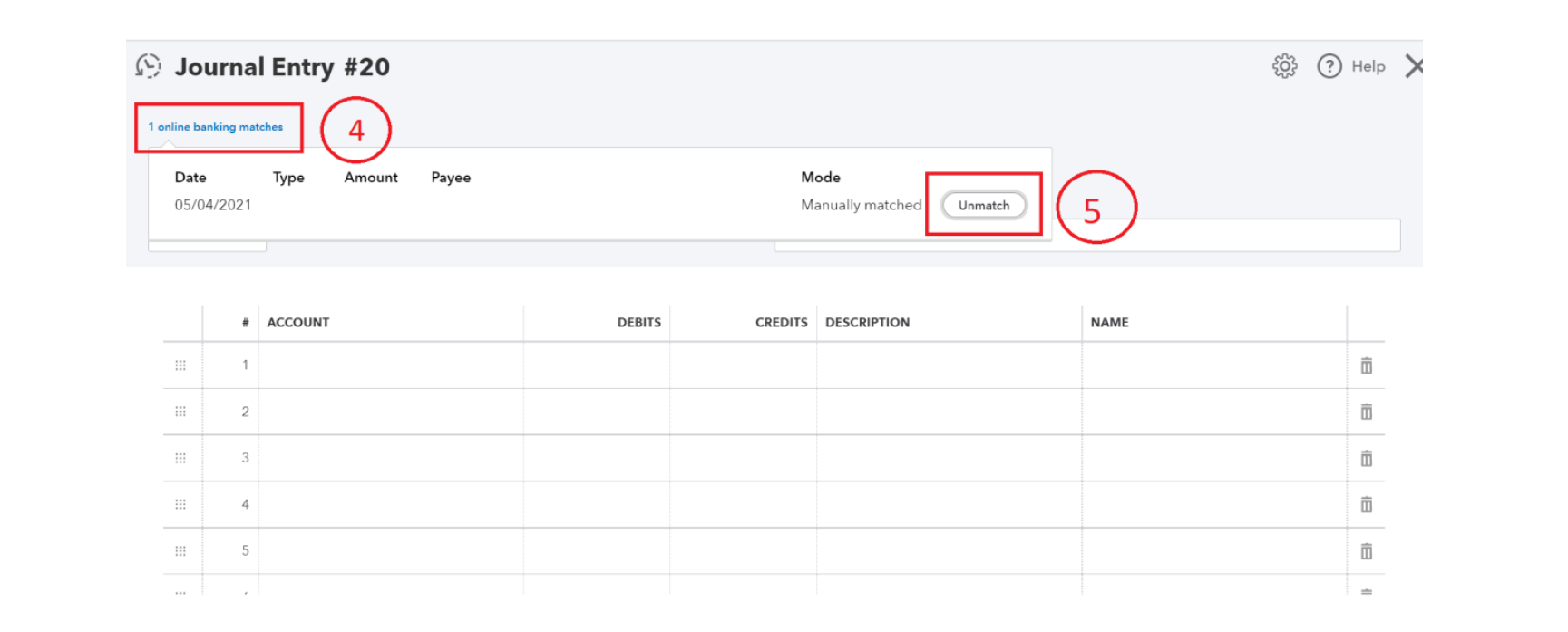
Matched Transaction Error
If you receive an error stating you can not delete a transaction because it is matched to a downloaded transaction in a different account, you can resolve this by doing the following:
- Locate the transaction in QuickBooks
- Review the transaction's match history and identify the associated bank feed transaction
- Un-match the transaction from the downloaded bank transaction, if appropriate.
- Once the match has been removed, retry the sync within the xtraCHEF sync monitor.
If the transaction remains matched for accounting purposes, you may need to adjust the transaction directly in QuickBooks rather than the xtraCHEF sync monitor.