xtraCHEF: Recipe - Product Mix Mapping
Last updated: Jul 7, 2026, 3:56 PM
Product Mix Mapping Overview
Product Mix Mapping allows you to connect your menu items (synced directly from your Toast POS) to corresponding Recipes (built in xtraCHEF) and your modifiers to specific Products or Prep Recipes.This mapping step unlocks advanced profit margin reporting that considers both your sales and food costs.
- Note: Your Product Mix Report, Actual vs. Theoretical Analysis, and Depleting Inventory reports will only populate once Product Mix Mapping has been completed.
Before beginning product mix mapping, you will need to have:
- Integrated your xtraCHEF and Toast POS. This will sync in your menu item and modifier data.
- Created Recipes and Prep Recipes that capture the ingredients and measurements behind your menu items and modifiers.
With those steps completed, you can begin Product Mix Mapping.
Back to top
Product Mix Mapping Guide
To begin Product Mix Mapping, select Recipe > Product Mix Mapping. You'll see two options, Menu Item Mapping and Modifiers Mapping.
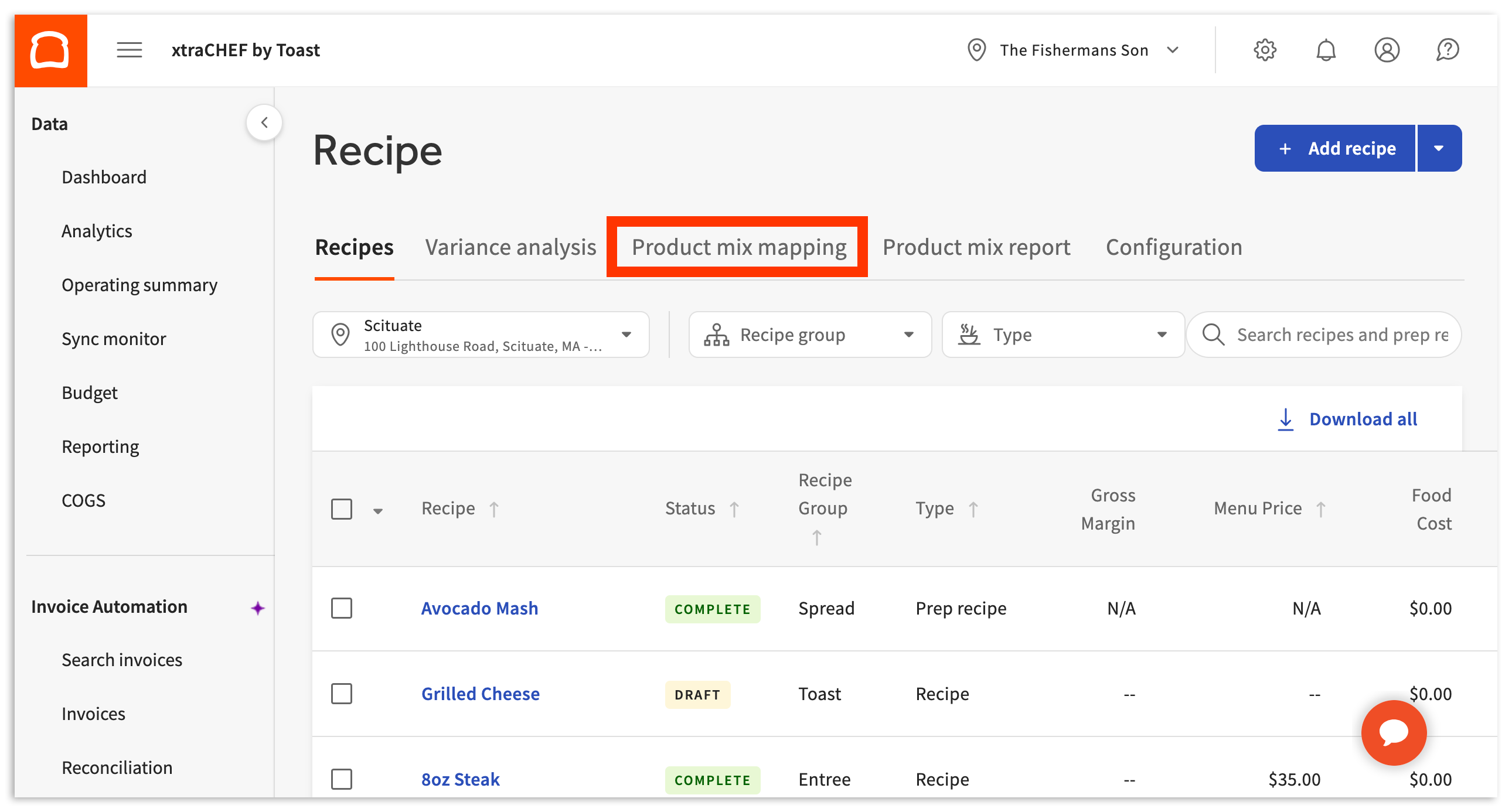
If you're missing a menu item or modifier from this list, this might occur for a couple reasons: not publishing the menu changes in Toast Web or the menu where the item is stored is not active. Additionally, any published and active menu changes in Toast Web can take up to 24 hours to sync with xtraCHEF. So how can you speed this up to map items/modifiers to recipes more quickly? We'll do this backwards. Navigate to the Recipes tab on this page and select the appropriate recipe. Within the Pair with Toast menu item drop-down, select Re-sync from POS to manually sync any Toast Web menu updates from the last 24 hours. Pairing the menu item to the recipe here is the same as using the instructions below. This feature is only available with Recipes, not Prep Recipes.
Menu Item Mapping
Menu Item Mapping is where you can connect your Toast POS Menu Items to xtraCHEF Recipes. Begin by selecting Menu Item Mapping. By default, all existing menu items will populate here.
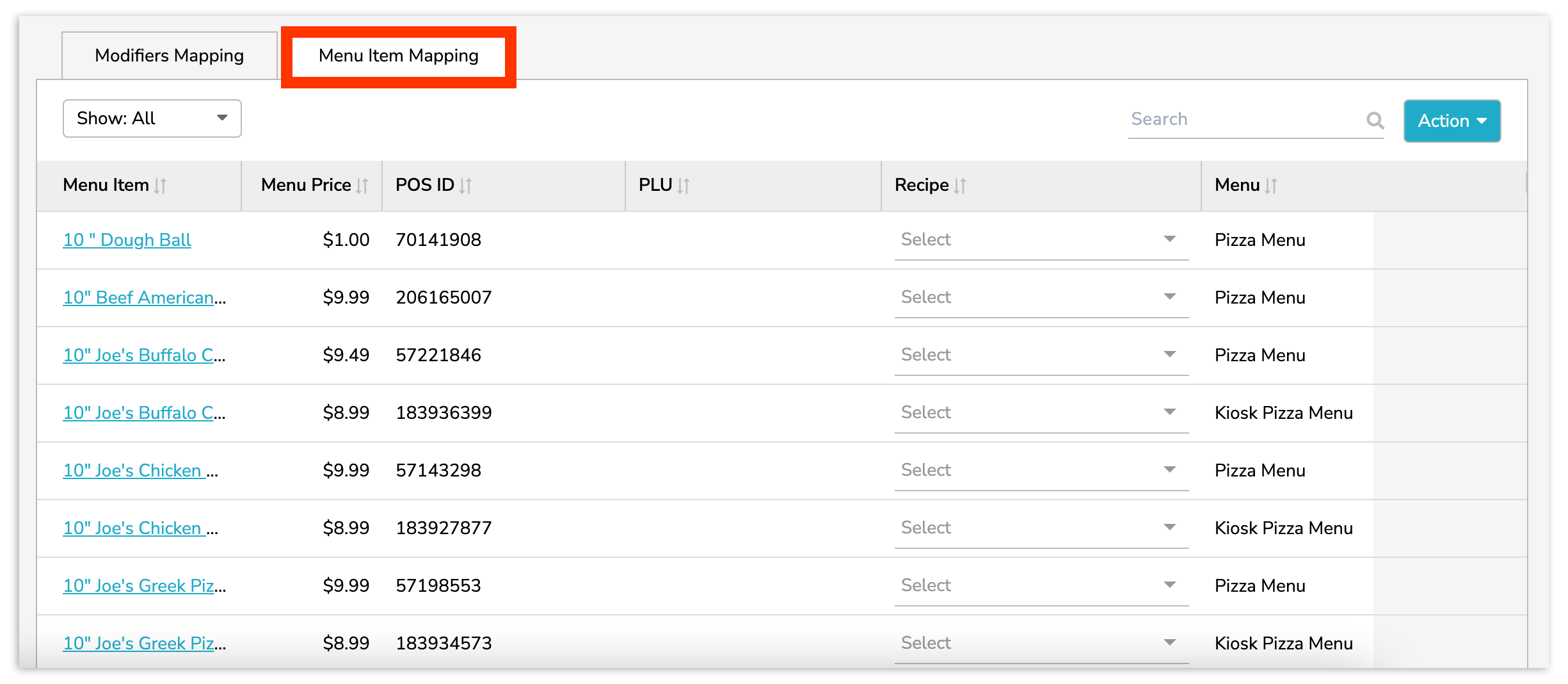
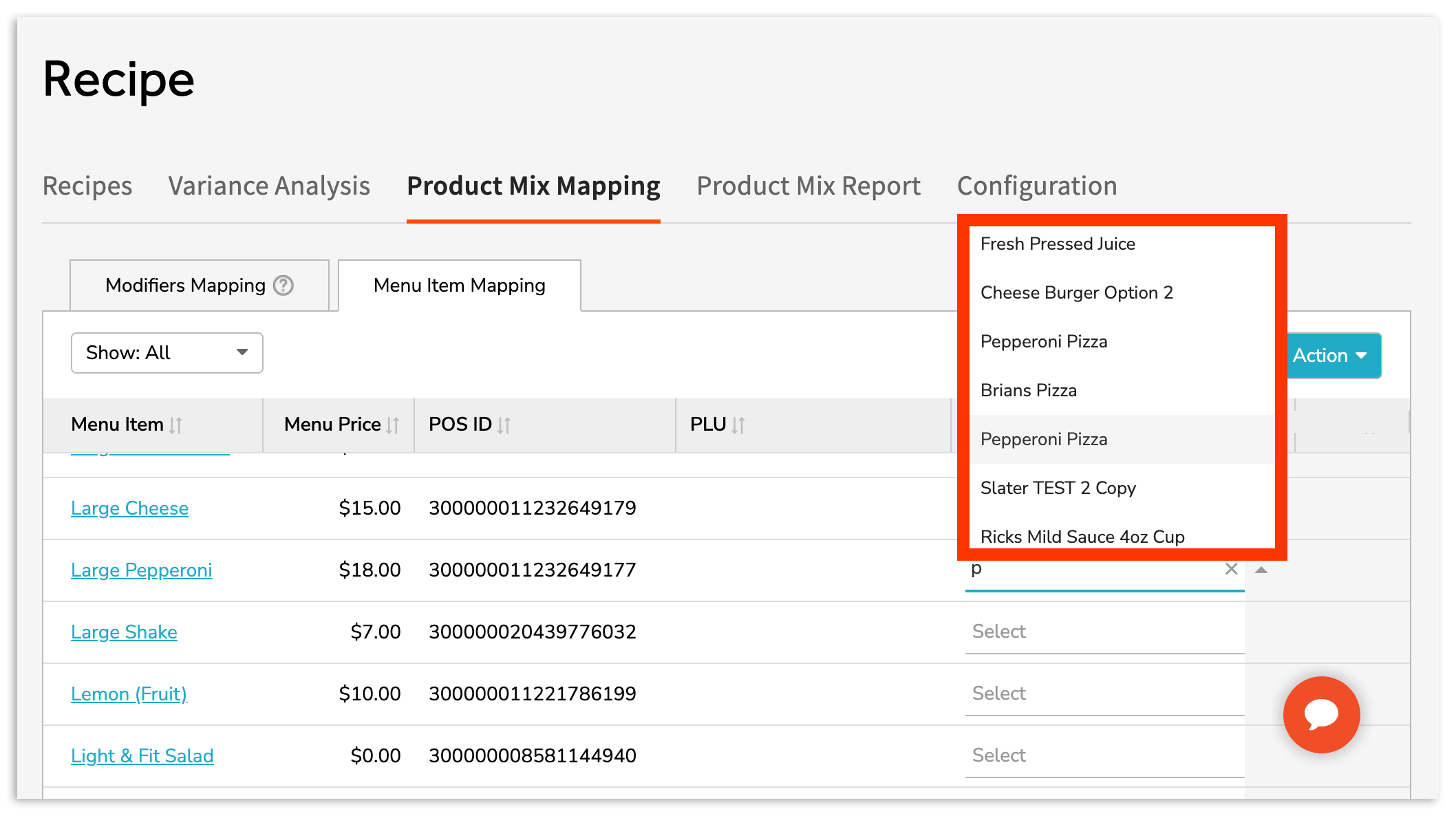
To map a menu item, select the Recipe field. Then, select a corresponding Recipe.
Once a corresponding Recipe is chosen, select the green checkmark icon to save your work. Depending on your browser size, you may need to scroll to the right to see and select this icon.
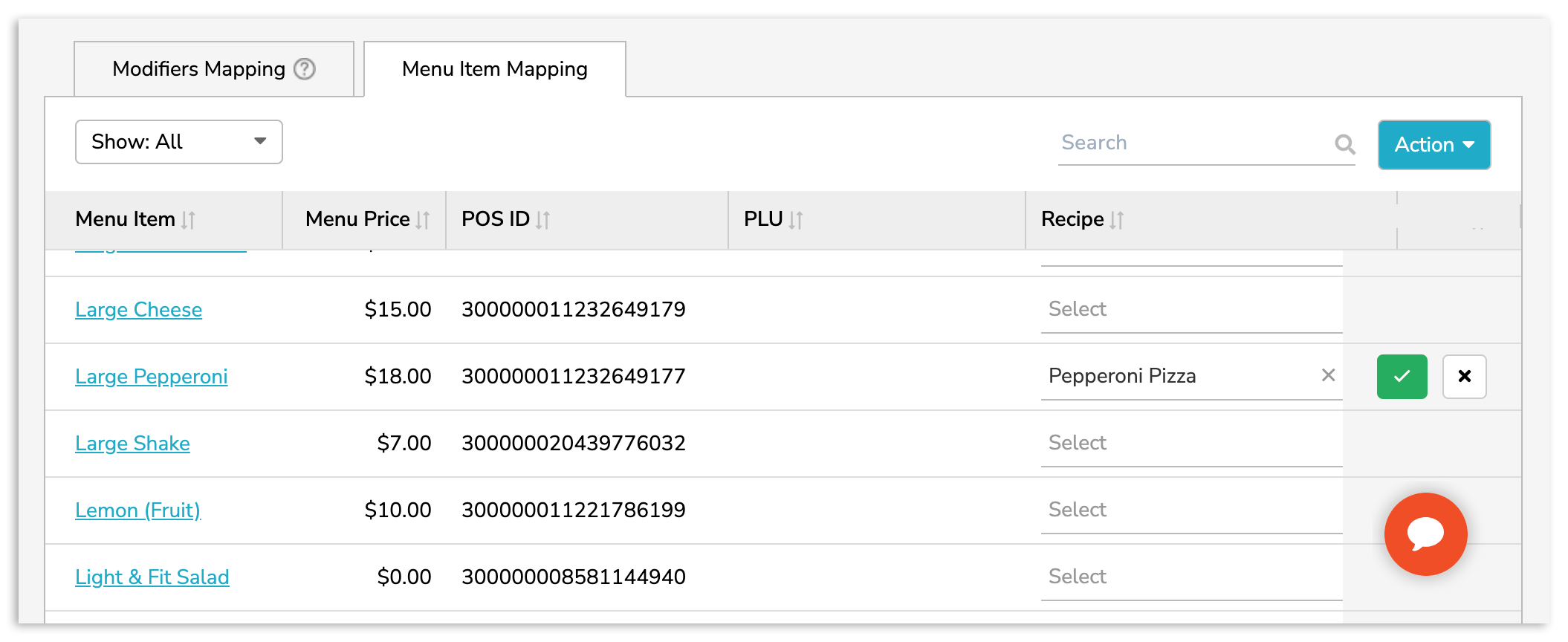
For accurate reporting, repeat this step until all active Menu Items are mapped.
Back to top
Modifier Mapping
NEW! Nested modifiers add extra customization options to the parent modifiers in your Toast menu and are available for use by xtraCHEF Pro customers. You can now connect nested modifiers with your xtraCHEF recipes and ingredients. They will also deplete accordingly for inventory and AvT reporting.
Modifier Mapping allows you to connect Products or Prep Recipes to the various add-on ingredients or sides you may have as represented as modifiers in your Toast POS. Begin by selecting Modifier Mapping.
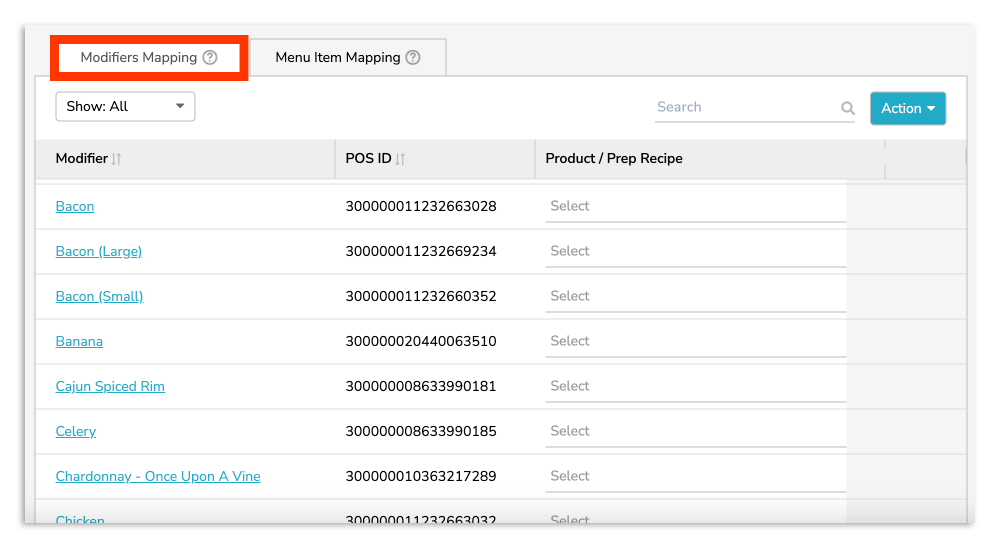
Here you will see a list of any existing modifiers in your Toast POS. To map a modifier, select the Product/Prep Recipe drop down. Then search for and select the corresponding Product or Prep Recipe.
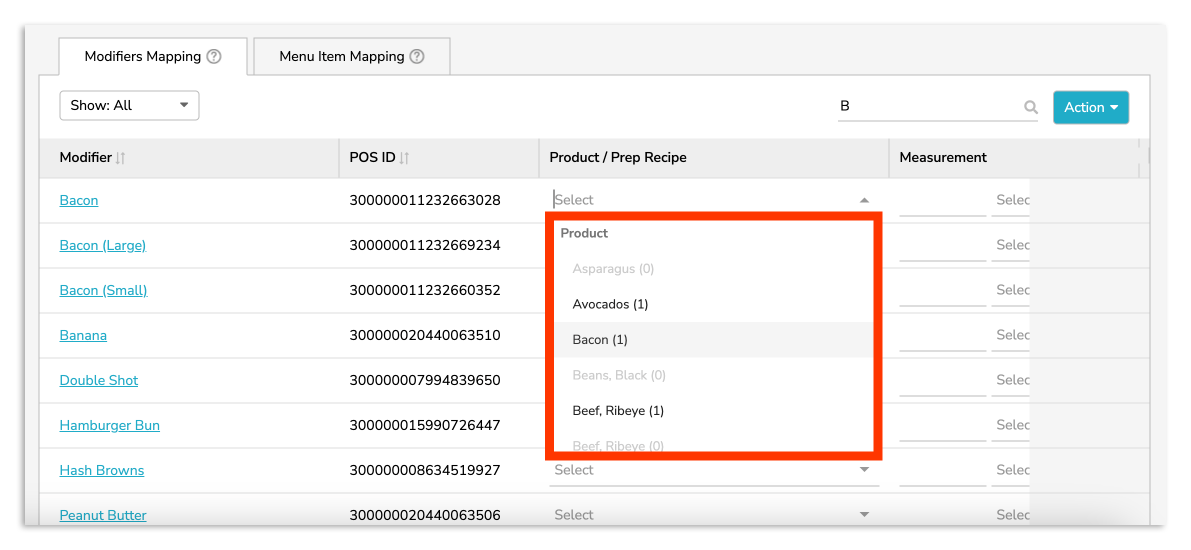
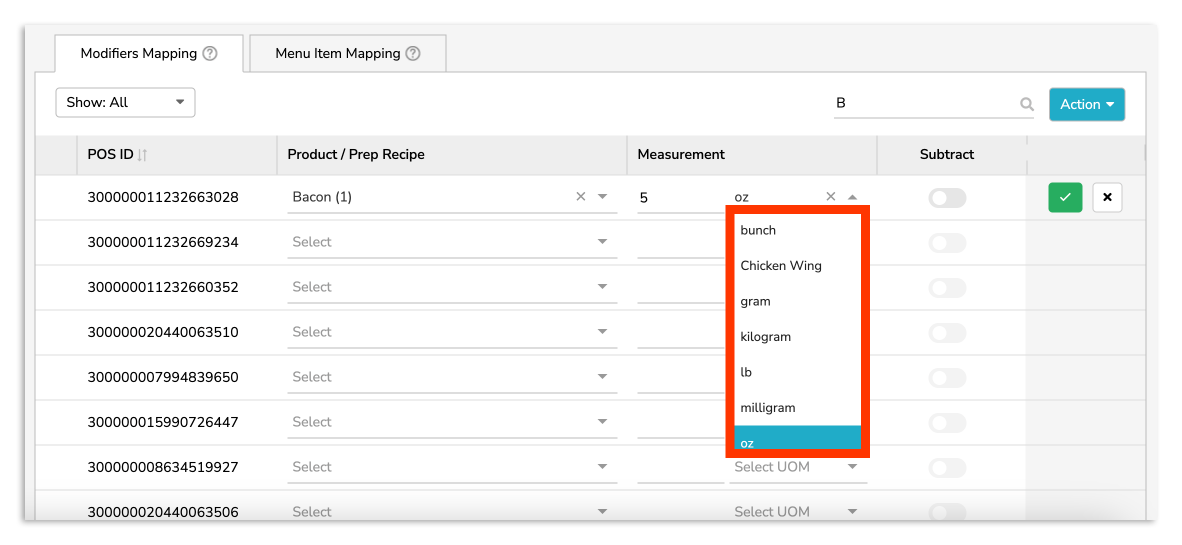
Next, select the Measurement field. Here you can indicate a number and UOM (Unit of Measure) for the portion being consumed by your modifier.
Tip: Select the Modifier name to view the Menu Items it applies to.
If the modifier you are editing removes an ingredient, you can scroll to the right and select the Subtract slider. Rather than adding the additional cost of this ingredient and measurement combination, it will now subtract that cost from your Recipe.
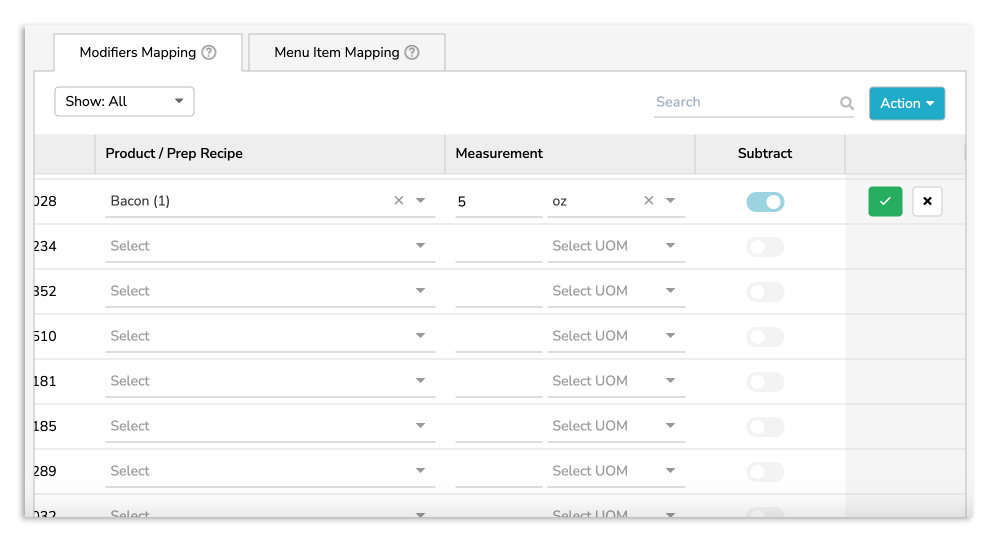
Select the green checkmark icon to save your work. Depending on your browser size, you may need to scroll to the right to see and select this icon.
If you have duplicate modifiers with the same name, xtraCHEF may ask you if you would like to copy this to all duplicate modifiers. Select No if measurements are not consistent across all the recipes your duplicate modifiers apply to. Correct measurements can be applied to other duplicate modifiers in modifier mapping or at the menu item specific level in Menu Item Mapping (explained in the section below).
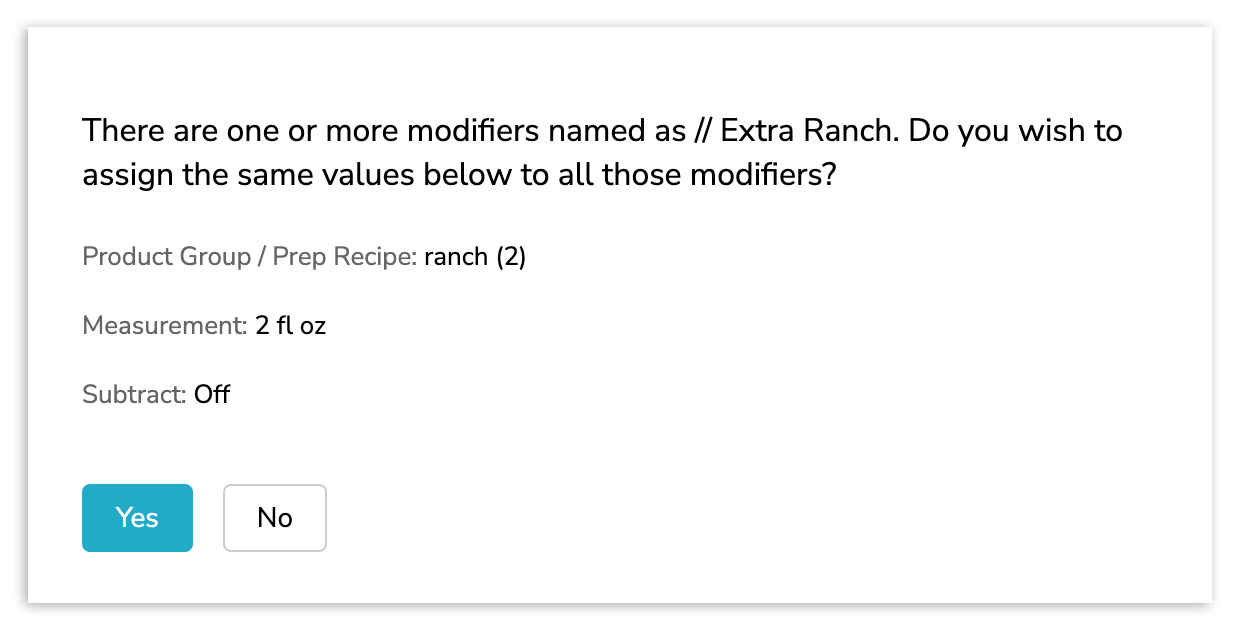
For accurate reporting, repeat this step until all active modifiers are mapped.
Back to top
Menu Item-Specific Modifier Mapping
Menu item-specific modifier mapping adds an additional layer of customization if:
- Your modifiers have different measurements depending on the menu item it is applied to.
- You utilize Size Modifiers.
To map modifiers at the menu item level, select Menu Item Mapping. Then, select the Menu Item row.
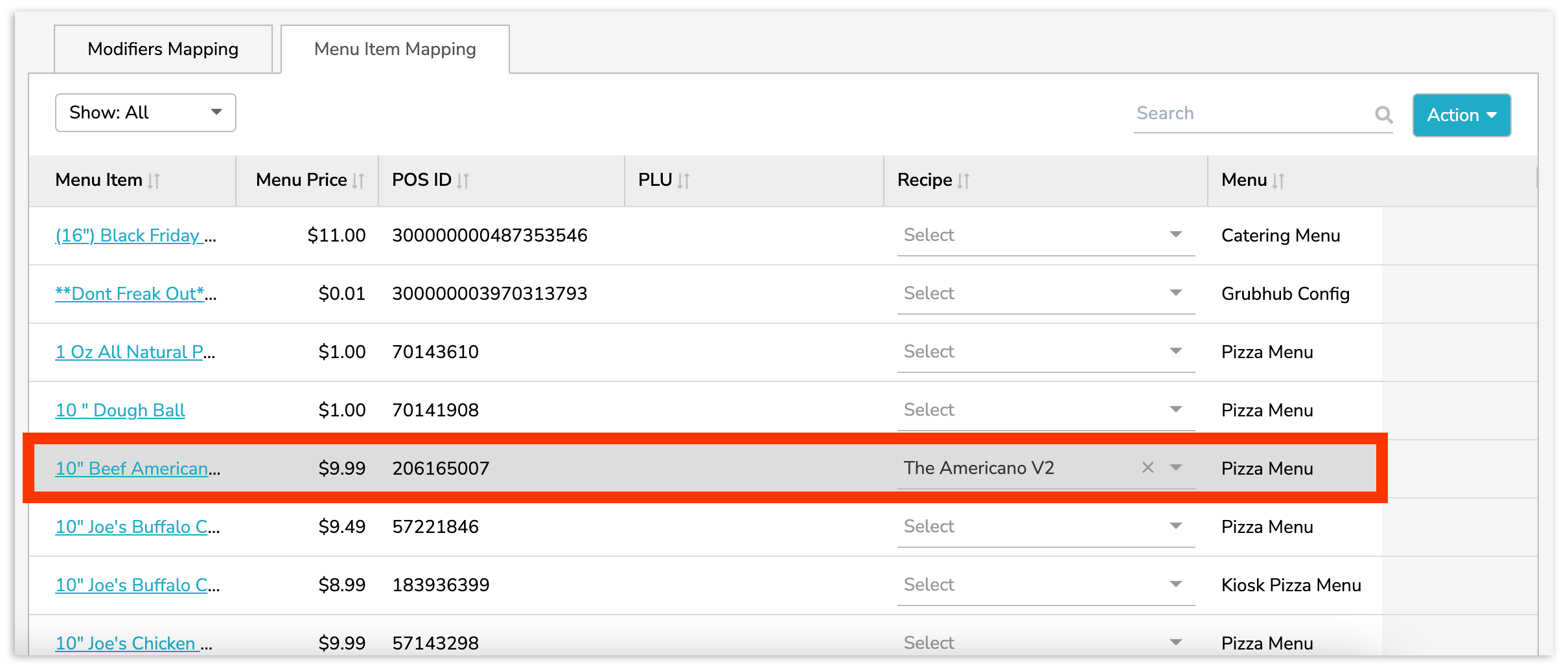
Note: A menu item must be mapped to a Recipe in order to view and edit menu item-specific modifiers.
This will populate all of the details currently associated with your menu items such as the ingredients and measurements indicated in the corresponding Recipe, its modifiers, and sizes.
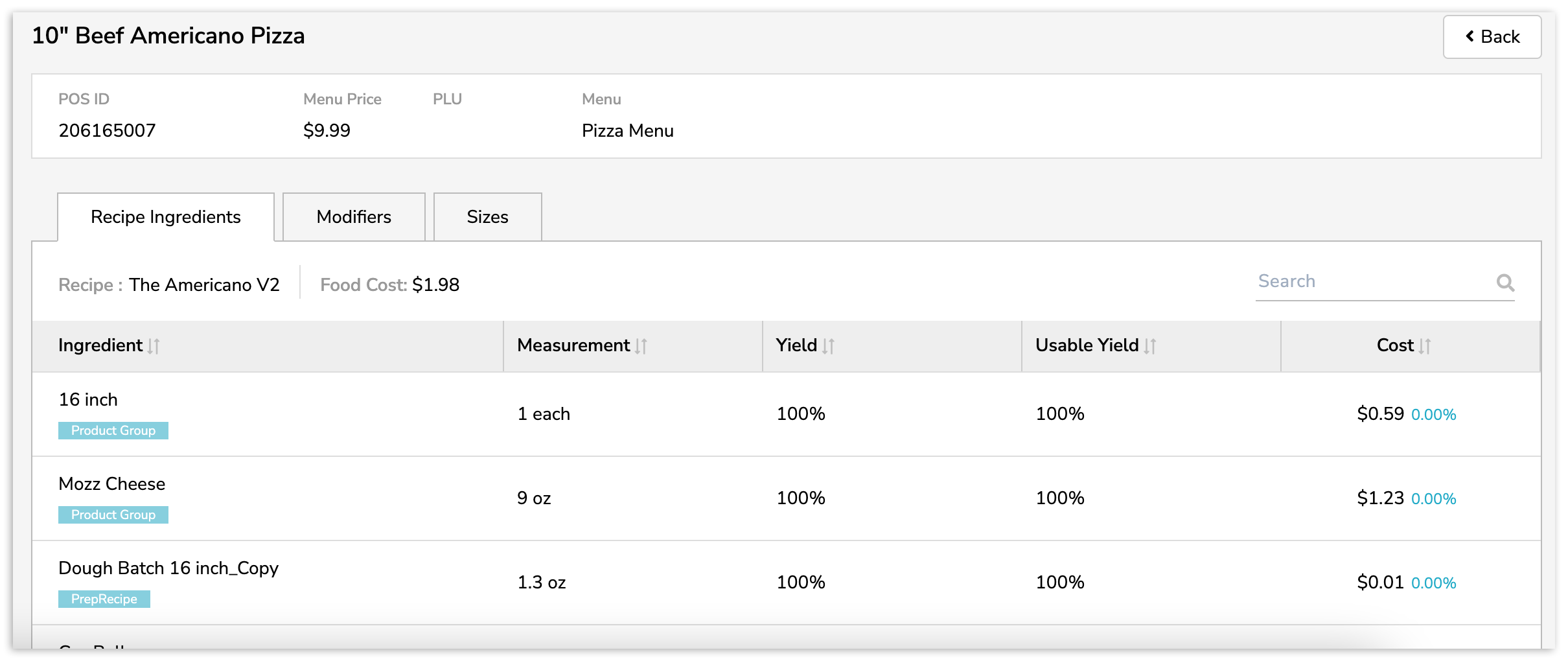
To edit modifiers as they pertain to your specific menu item, select the Modifiers tab. Then select the Product/Prep Recipe drop down.
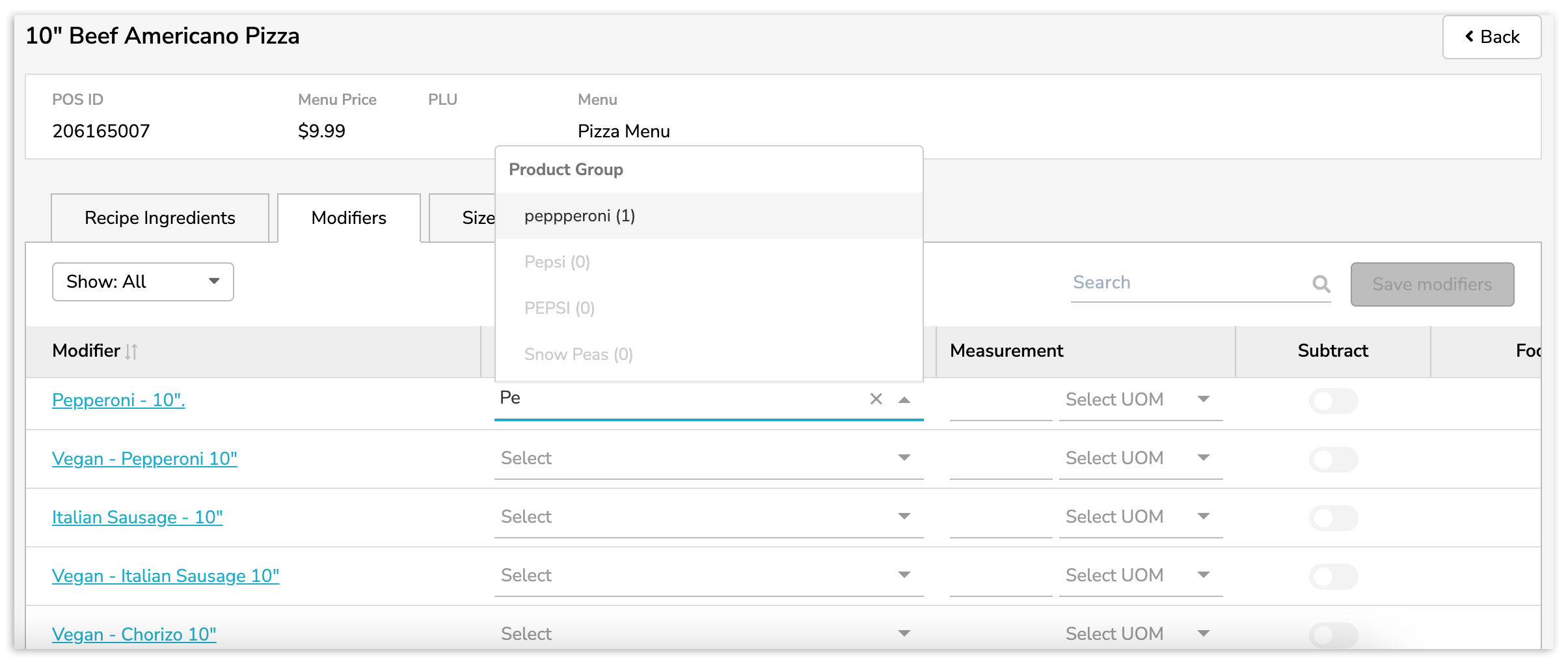
Search for and select the corresponding Product/Prep Recipe, then indicate the measurement.
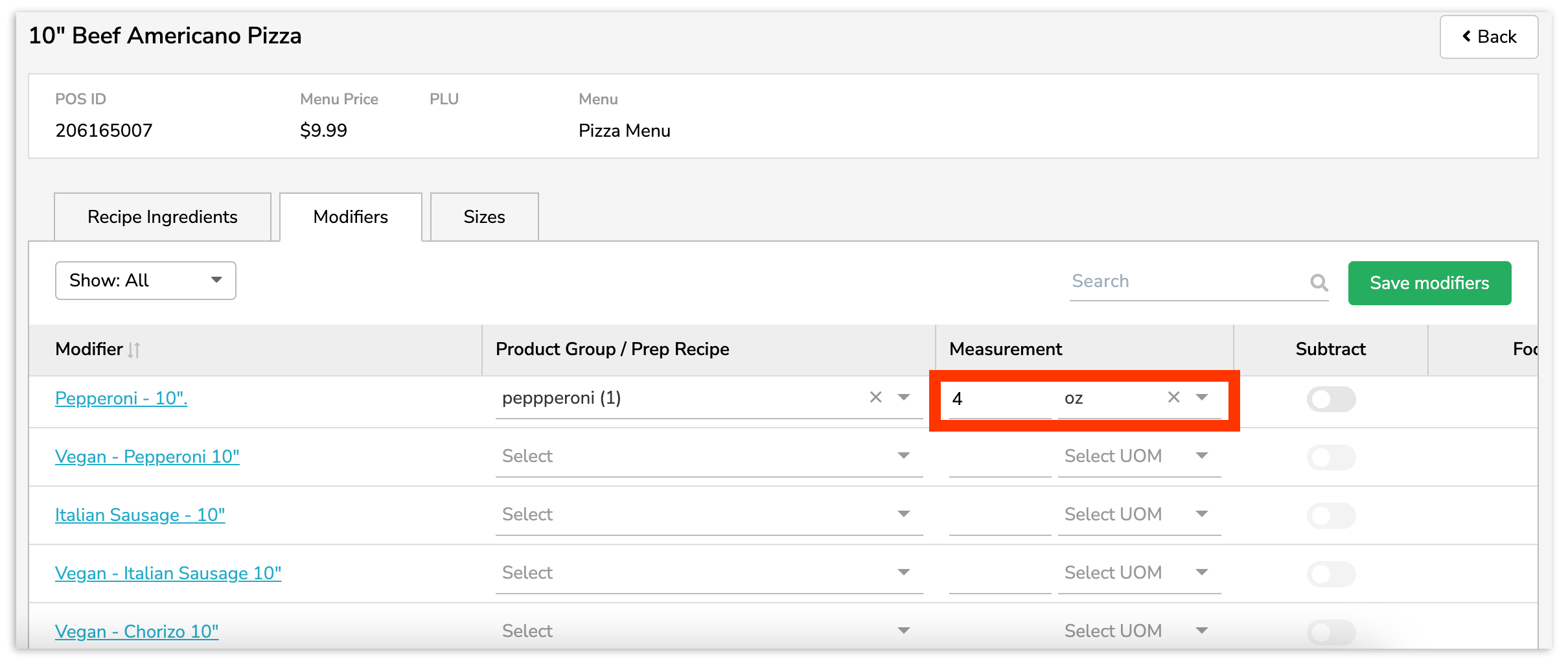
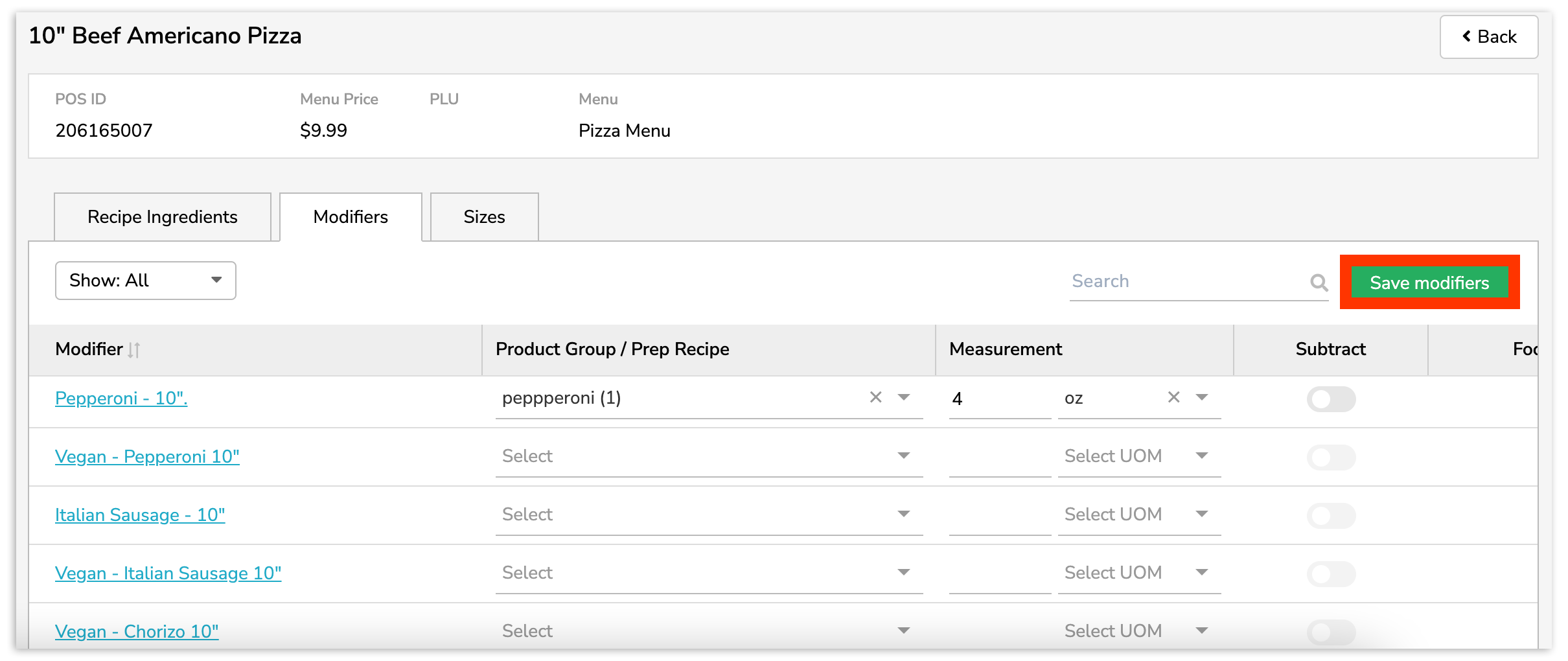
Once finished, select Save Modifiers to save your work.
Size Modifier Mapping
If you utilize Size Modifiers to scale your menu prices for an item, you can similarly scale your recipe portion size for a menu item through menu item-specific modifier mapping.
To do this, select the Menu Item title from Menu Item Mapping. Then select your Sizes tab. Here you will see the size names and a space to indicate the number of portion sizes to attribute.
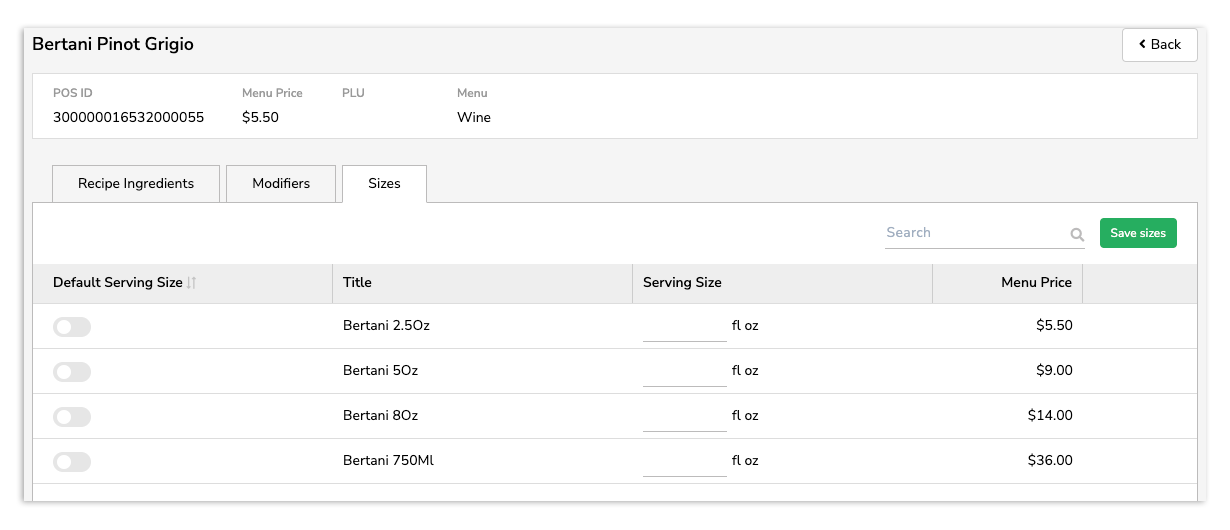
Note: Your Serving Size is indicated in a Recipe under the Details tab. The serving size is not set by default. If a serving size is not yet set in your Recipe, the size cannot be edited.
To begin, set one of the sizes as your default size by selecting the default serving size button.
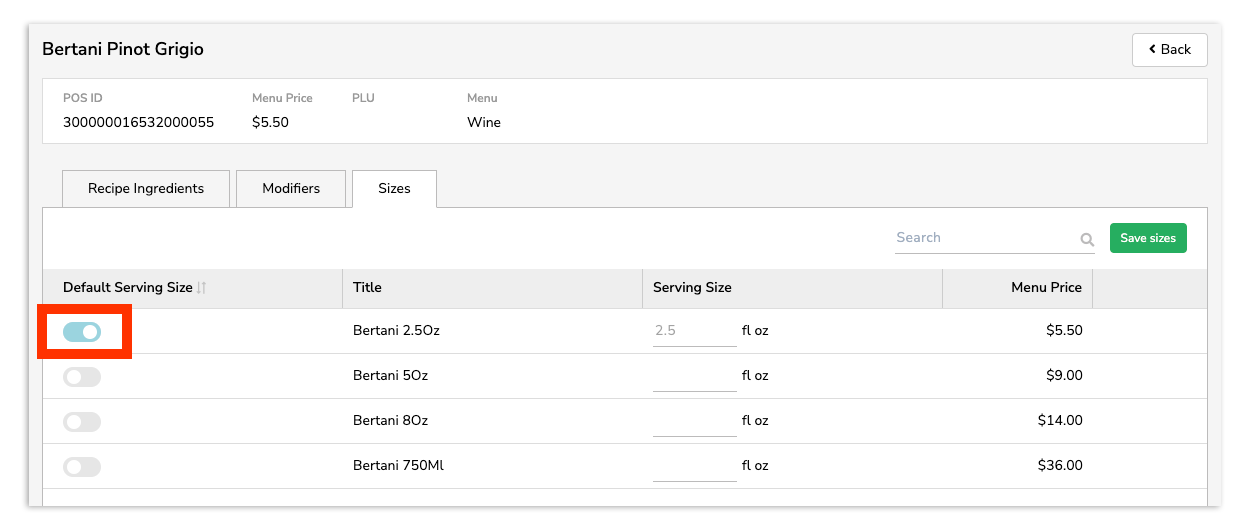
We recommend setting the default size to match the serving size, indicated in your menu item's Recipe under the Details tab (example below).
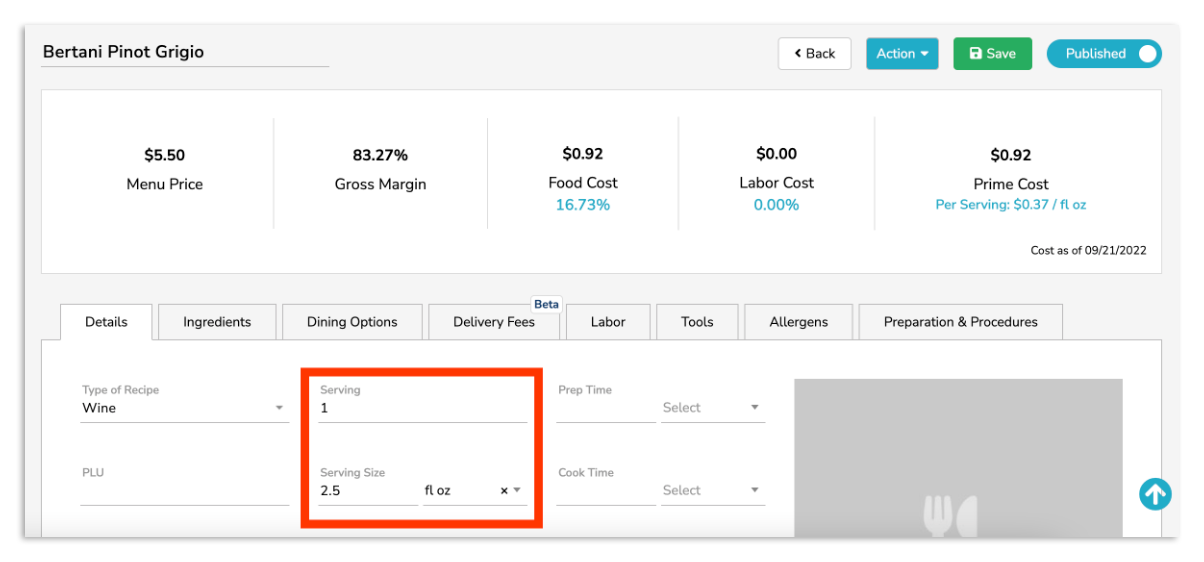
Next, indicate the measurements for the non-default Serving Size(s).
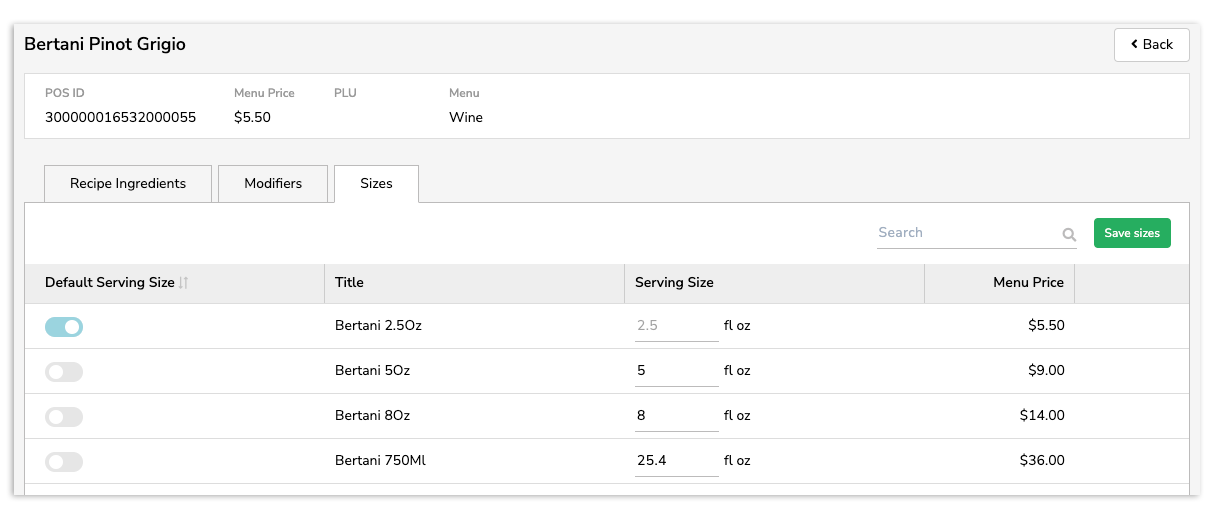
Finally, select Save Sizes.
Back to top