xtraCHEF: Rejected and Action Needed Invoices
Last updated: Apr 8, 2026, 10:11 AM
- Rejected and Action Needed Invoices Overview
- Why Are My Documents Rejected?
- Why Are My Documents Stopped in Action Needed?
- Next Steps
Rejected and Action Needed Invoices Overview
Once a document (invoice or receipt) has been uploaded to xtraCHEF, it begins its reconciliation journey. Over time, this process becomes streamlined due to machine learning and artificial intelligence, but when you're first getting started, it will require you to take action and keep your invoices moving through reconciliation.
Two steps that you expect to face at some point in xtraCHEF are Rejection and Action Needed. Attending to your invoices in either category ensures that documents are extracted to your accounting system (if applicable) and that xtraCHEF can process your purchases for insight and analytics.
Without taking action to resolve a rejection or action needed invoice, no data will be extracted from the document upload. Read on or watch the video below to learn more about rejections and action needed in xtraCHEF.
Why Are My Documents Rejected?
Rejections occur when xtraCHEF cannot process invoices. The following are the most typical causes:
| Rejection Reason | Explanation |
| Duplicate Invoice | An invoice with the same invoice ID and date has already been processed. This is the most common reason for invoice rejections in xtraCHEF. |
| Bad Image Quality | The document needs to be readable. This is most likely due to a blurry photo, cropped or missing information, or having taken a picture in a low-light setting. |
| Non-Invoice Image | The document was not an invoice or receipt. |
| Missing Invoice Data | The document lacked necessary information, such as line items or total amounts. |
| Missing Vendor Name | The document lacked a vendor's name. |
| Batch Contains Multiple Invoices | Multiple invoices were uploaded as a single invoice. |
| Zero Dollar Invoice | There was no cost associated with the uploaded document. |
In most cases, rejections can be avoided by ensuring your scan or photo is legible and including the vendor name, all line items and dollar amounts, and the final invoice total. So long as those conditions are met, xtraCHEF will typically process your invoices without rejections.
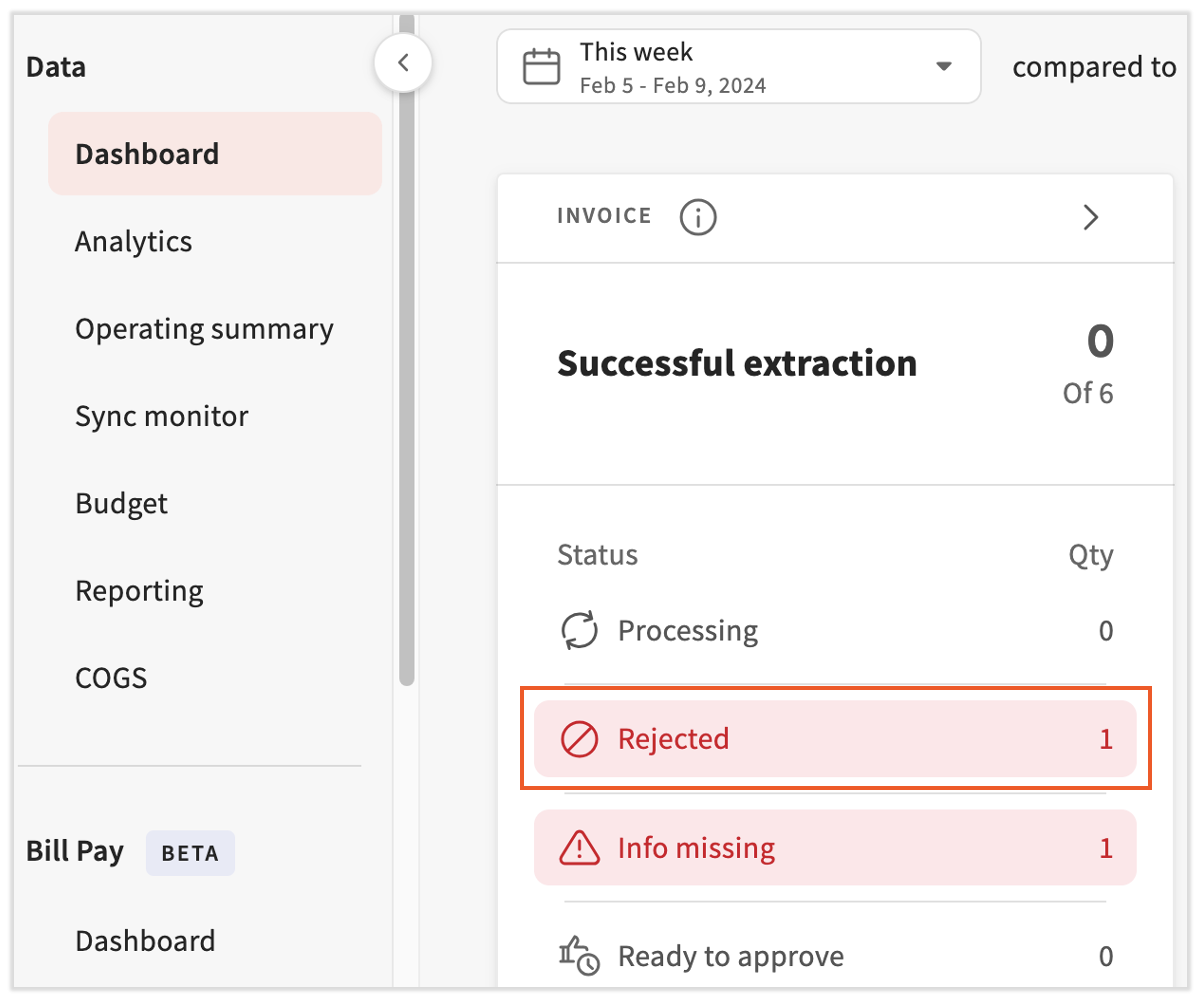
Rejections can be reviewed in two different ways: recent rejections will be highlighted on your dashboard under the invoices status breakdown. Make sure the correct dates are selected.
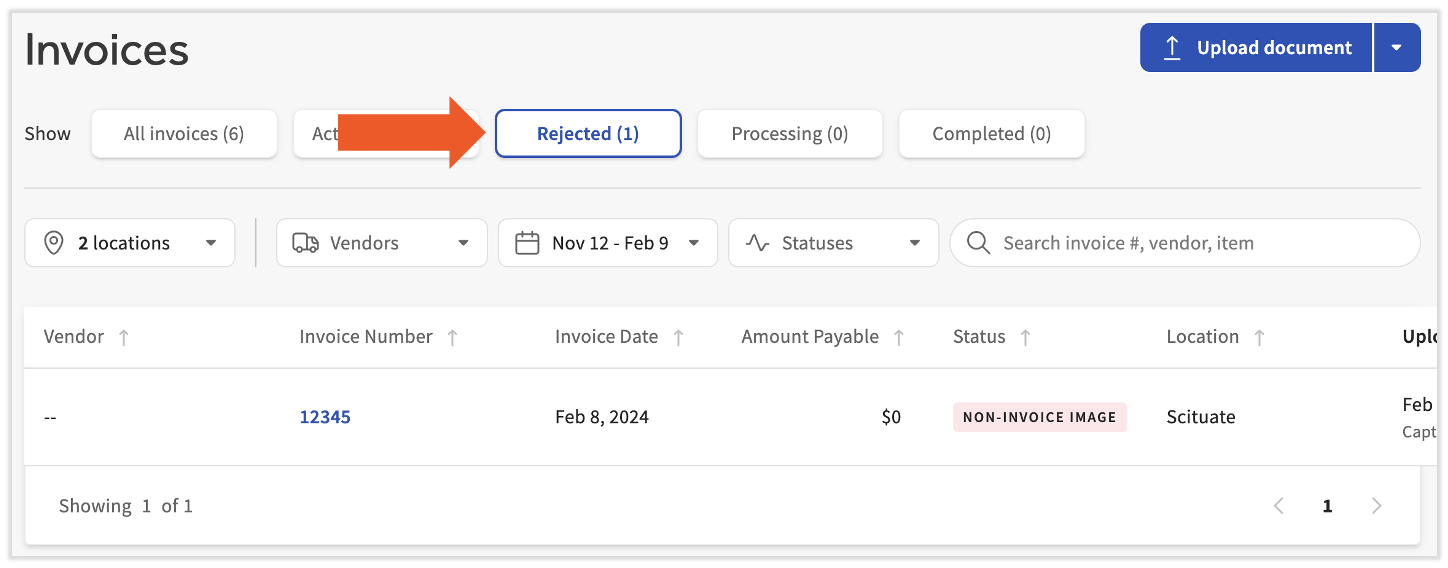
A detailed list of rejections (between a custom date range) can be found on your Invoices > Rejected page.
Solutions for Rejections
Rejections can not be salvaged. Instead, they must be re-uploaded with the underlying issue resolved. For more context, there are three main ways to handle rejections. Review the rejection status and:
- Do Nothing: If you decide an invoice should remain rejected, you don't need to do anything.
- Re-upload: If you decide an invoice should be processed, re-capture and re-upload the document. Visit xtraCHEF: Invoice Rejections to learn how to do this on desktop or mobile devices.
- Reprocess: If the invoice should not have been rejected, support can reprocess the invoice.
Why Are My Documents Stopped in Action Needed?
Action Needed means xtraCHEF needs additional information to continue processing the document. Typically, this occurs when an invoice is read from a new vendor or when an invoice's total amount, date, or number is missing or illegible. If an invoice is flagged as Action Needed, it is paused from processing until you verify the missing information.
The following are the most typical causes:
| Action Needed Reason | Explanation |
| Missing vendor code | This occurs if you have an accounting extract enabled and xtraCHEF does not have a corresponding vendor code for the vendor. Vendor Code is the company display name you use for the vendor in your third-party accounting. |
| Missing invoice date | This occurs if the invoice is missing an Invoice Date. xtraCHEF catalogs your invoices partially based on this field, so it is required to finish processing. |
| Missing invoice number | This occurs if the invoice is missing an Invoice Number. xtraCHEF catalogs your invoices partially based on this field, so it is required to finish processing. Invoice Number also ensures that no duplicate invoices are read and processed. |
| Review header and line detail | This occurs if the invoice is missing a total invoice number in the invoice header. xtraCHEF automatically compares the sum of your line items to this captured field to ensure invoices are processed with the correct dollar amount. Without this field, xtraCHEF will require you to verify that it has been read correctly before processing. |
| Invoice or line totals don't match | This occurs when xtraCHEF detects an inconsistency between the sum of your line items and the invoice total captured from your uploaded invoice. To ensure your line items and invoice are processed with the correct dollar amount, xtraCHEF will require you to verify or edit the invoice before processing. |
| Payment method mandatory | This occurs if you have a QuickBooks Online extract enabled with payment method processing turned on. To process receipts as expenses, users must indicate the payment method used at the time of purchase. |
| Invoice from unregistered user | Invoices can only begin processing in xtraCHEF when the sender's email address is tied to a registered user in the system. If an action-needed invoice is tagged with this status, it must be verified before it can be processed. If you decide to verify and accept it, the email address will be registered as an Invoice Capture user so this status doesn't occur on future invoices from this email address. |
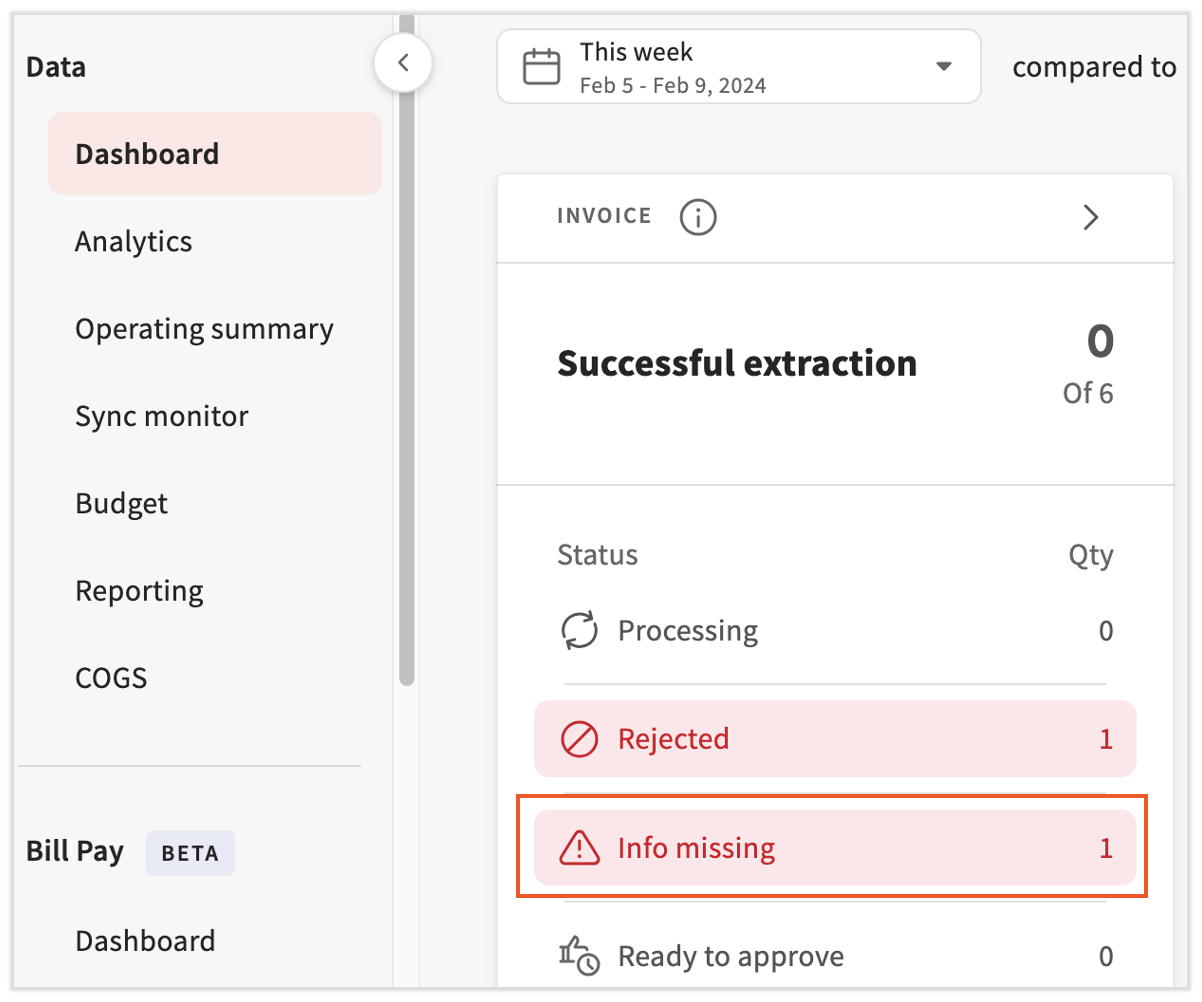
Action Needed invoices can be reviewed in two ways: recent invoices are highlighted on your dashboard in the Info missing tab of the invoices status breakdown. Make sure the correct dates are selected.
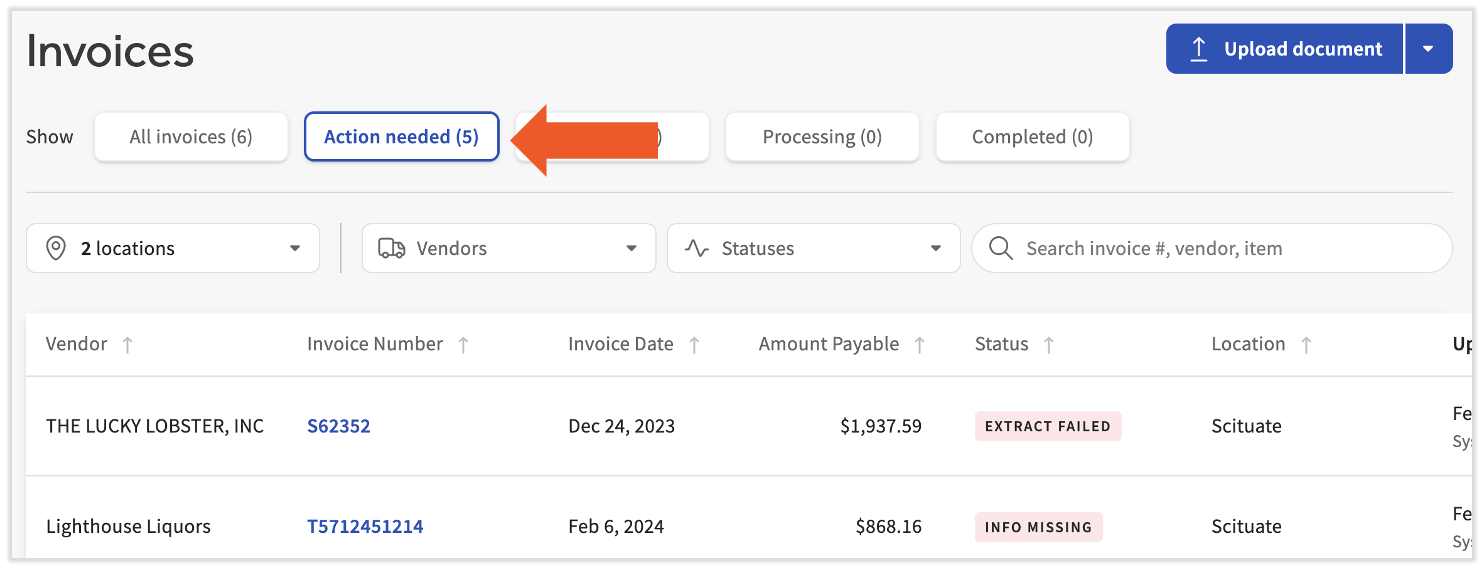
A detailed list of action needed invoices (between a custom date range) can be found on the Invoices > Action needed page.
Solutions for Action Needed
Unlike rejections, these items can be resolved. It's essential to remedy the underlying issue and push them forward in the reconciliation journey. In most cases, all that is required to resolve is missing information, such as invoice number, date, or a line item total.
For a detailed guide on how to resolve Action Needed reasons, visit xtraCHEF: Action Needed Invoices. You can now reprocess most action needed invoices on the xtraCHEF mobile app.
Next Steps
Once rejections are re-uploaded and action needed items are resolved, your documents will continue their reconciliation journey. That said, while machine learning is still being established, your documents will have an additional step to make before they can extract to your accounting system (if applicable) or create purchasing insight in Analytics and Reports.
That additional step is Map Invoice Items. Here, you can connect your purchases to general ledger (GL) code or category they should be associated with for accounting and reporting purposes. For more on Map Invoice Items, please visit our article xtraCHEF: How to Map Invoice Items.