Gestionar la configuración de pedidos de terceros de DoorDash
Última actualización: 17 sept 2026, 1:37 p.m.
Aprende a configurar menús y más directamente en Toast Web a través de la página de configuración de DoorDash.
En este artículo:
- Acceder a la página de configuración de DoorDash
- Configurar tu integración con DoorDash
- Revisar incompatibilidades del menú de DoorDash
- Preguntas frecuentes
Acceder a la página de configuración de DoorDash
Si estás configurando la integración de DoorDash por primera vez, consulta Comenzar con la integración de DoorDash.
Después de que tu integración esté en funcionamiento, es posible que debas realizar cambios ocasionales en tu configuración para actualizar la disponibilidad de tu menú o las horas de pedido de DoorDash. Para acceder a la página de configuración de DoorDash y realizar actualizaciones en tus menús y configuraciones disponibles, sigue estos pasos:
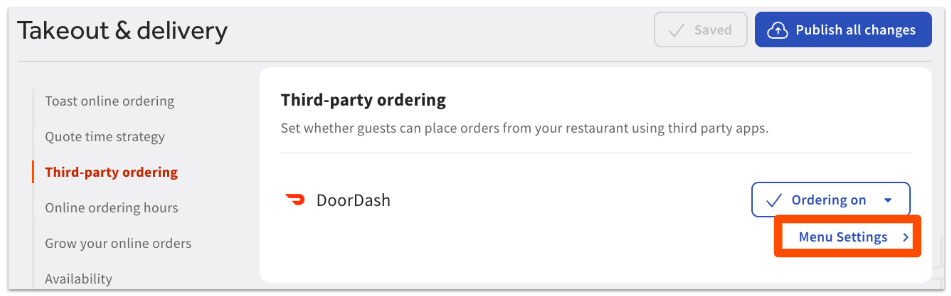
- En Toast Web, navega a Comida para llevar y envío> Pedidos de terceros.
- Selecciona Configuración del menú junto a la integración de DoorDash.
Nota: Sobre elbotón de configuración del menú, verás el interruptor de disponibilidad para DoorDash, que te permite activar, desactivar o posponer temporalmente este canal. Para más información sobre los interruptores, consulta Gestionar la disponibilidad de terceros a través de la función de posponer y la función de encendido/apagado. - Esto te llevará a la página de configuración de pedidos de terceros para DoorDash, donde podrás guardar y publicar cambios según sea necesario.
Configura tu integración de DoorDash
Para configurar DoorDash para tu ubicación seleccionada, sigue estos pasos:
- En la página de configuración de Pedidos de terceros, selecciona Editar junto a DoorDash para mostrar todas las configuraciones disponibles.
- La página se expandirá para mostrar lo siguiente:
- Nombre y Ubicación del restaurante al que se accede.
- Menús - La lista de menús actualmente seleccionados que los invitados pueden ver y ordenar en la plataforma de DoorDash. Puedes tener diferentes menús mostrados en cada socio seleccionándolos en la página de configuración individual de cada socio.
- Añadir menú - Una lista desplegable donde puedes añadir/seleccionar menús adicionales para mostrar a los invitados en DoorDash. Nota:Solo los menús con visibilidad configurada a Socios de pedidos en línea serán seleccionables en este desplegable.
- Aumentar precio del menú - Ajusta tus menús de DoorDash aumentando los precios, ya sea por una cantidad fija o un porcentaje, para compensar las tarifas. Verás el precio regular al editar tu menú, pero DoorDash mostrará el precio aumentado. Esto aplicará un aumento a todos los precios de los artículos del menú, excepto a los modificadores en tus menús de DoorDash.
- Horas - Las horas en las que los invitados pueden ordenar con DoorDash. Para más información sobre cómo establecer las horas de pedidos en línea, consulta este video.
- Guardar y publicar cualquier cambio que realices para aplicarlos a tu integración de DoorDash.
Revisar incompatibilidades del menú de DoorDash
Las incompatibilidades del menú pueden interferir con la visualización y funcionalidad adecuadas de tus menús en el sitio de DoorDash de tu ubicación. Si tienes alguna incompatibilidad de menú con la integración de DoorDash, se mostrarán en la página de configuración de Pedidos de terceros debajo del desplegable Añadir menú:
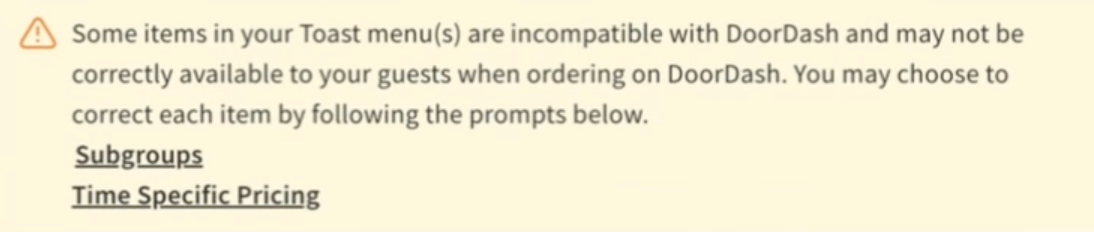
Cuando navegues a los enlaces relevantes, verás un pop-up con enlaces que te llevarán a las incompatibilidades de los artículos en cuestión si deseas verlas tú mismo.
Nota:Si aún estás en el proceso de incorporación, no se requiere ninguna acción de tu parte — estos avisos de incompatibilidad son simplemente informativos, y tu Consultor de Incorporación se encargará de solucionarlos por ti.
Preguntas Frecuentes Sobre la Página de Configuración de DoorDash
¿Cómo elimino un menú de DoorDash?
Para eliminar un menú de DoorDash, sigue estos pasos:
-
- En Toast Web, navega a Comida para llevar y envío> Pedidos de terceros.
- Selecciona Configuración del Menú junto a la integración de DoorDash.
- Selecciona Editar junto a DoorDash para mostrar todas las configuraciones disponibles.
- Selecciona el (-) botón a la derecha del menú que deseas eliminar de DoorDash.
- Selecciona Eliminar en la ventana emergente para confirmar tu elección.
- Guardar y publicar tus cambios.
Nota:Esto solo eliminará el menú de los pedidos de los invitados en DoorDash. La visibilidad del menú en el menú mismo seguirá configurada a Socios de pedidos en línea, lo que significa que el menú seguirá estando disponible en los otros socios de pedidos de terceros donde ha sido seleccionado.