Obtener ayuda: Solucionar mensajes de error de la Impresora
Última actualización: 16 sept 2026, 5:07 p.m.
Obtén información sobre cómo Solucionar Mensajes de Error de la Impresora que aparecen en tu POS de Toast.
- Antes de comenzar
- Pasos generales
- Corrección rápida
- Solucionar mensajes de error de conectividad
- Solucionar mensajes de error de hardware
- Solucionar mensajes de error adicionales de la Impresora
- Preguntas frecuentes
- Antes de contactar al servicio de atención al cliente
- Artículos relacionados
Antes de comenzar
Se aplica a: POS de Toast, Toast Web
Permisos necesarios:
- Acceso al dispositivo POS de Toast
- Acceso físico a los cables de alimentación y Ethernet de la Impresora
Lo que lograrás: Identifica el mensaje de error de la Impresora y aplica la corrección correspondiente, o recopila la información que el servicio de atención al cliente necesita si el error no se puede resolver en el lugar.
Pasos de resumen
La mayoría de los errores de la Impresora se dividen en uno de tres grupos: errores de conectividad, errores de hardware o errores específicos de la Impresora que tienen su propio ajuste corto. Haz lo siguiente:
- Confirma que el dispositivo POS de Toast y la Impresora estén encendidos, conectados y en la misma red.
- Prueba el restablecimiento de corrección rápida a continuación. De esta manera, se resuelve una gran cantidad de errores de la Impresora.
- Si el error continúa, busca tu mensaje de error específico en el árbol de decisiones y sigue la rama correspondiente.
- Si no ves un mensaje de error específico y la Impresora aún no funciona, consulta Obtener ayuda: Mi Impresora no funciona.
Para ver los errores de impresión en la nube en un dispositivo portátil Toast Go 3, consulta Obtener ayuda con Toast Go 3. Para problemas relacionados con la Impresora inalámbrica M30, consulta Configurar tu Impresora inalámbrica M30 (red gestionada por Toast) o Configurar tu nueva Impresora M30 en una red autogestionada.
Nota: Las impresoras de tu negocio suelen conectarse a un enrutador de red mediante un cable Ethernet. Esa red también puede tener una señal de Wi-Fi para uso en dispositivos portátiles. Para Imprimir recibos y tickets de cocina, el dispositivo que envía la tarea Imprimir debe estar en la misma red que la Impresora. Un dispositivo en una red diferente es la causa más común de mensajes de error de la Impresora.
Solución rápida
Prueba esto primero. Resuelve una gran parte de los errores de la Impresora antes de que necesites identificar el mensaje de error específico.
| Síntoma | Causa más común | Corrección rápida | ¿Autoservicio? |
| Cualquier mensaje de error Impresora en el POS, o Impresora no imprimiendo | Estado de energía atascado, o dispositivo e Impresora en diferentes redes | Desenchufa el cable de alimentación y el cable Ethernet de la Impresora. Espera 30 segundos. Vuelve a enchufar ambas y enciende la Impresora. Intenta imprimir nuevamente. Si la pantalla de error en el POS muestra redes para intentarlo, usa el botón de configuración de red en esa pantalla para conectarte a la red correcta. | Sí |
| Impresora encendida pero sin imprimir nada (Impresora con pitido o una luz parpadeante) | Impresora Toast Kitchen con un estado de error específico (error HP, error de cortador, papel cerca del final o cabezal de Imprimir sobrecalentado) | Identifica el patrón de pitidos y el patrón de luces. Consulta Obtener ayuda con tu Impresora Toast para encontrar la solución adecuada. | Sí |
| Impresora imprime algunas cosas, pero no otras (por ejemplo, tickets de bebidas, pero no recibos del cliente) | Configuración de Ruta Impresora o Estación Preparadora en la terminal | Este es un problema de configuración, no un mensaje de error. Consulta las preguntas frecuentes a continuación. | A veces, puede requerir atención al cliente |
| Impresora no se encenderá en absoluto (no hay luces) | Fuente de alimentación, tomacorriente o cable de alimentación | Prueba con otro tomacorriente. Si la Impresora es una Impresora Toast, sigue los pasos de suministro de energía en Obtener ayuda con tu Impresora Toast. Si al cambiar un cable de alimentación no se muestra la Impresora, consulta Antes de contactar al servicio de atención al cliente. | A veces, puede ser necesario reemplazar el equipo |
Resultado previsto: El error se borra y la Impresora imprime normalmente. O puedes hacer coincidir el comportamiento de la Impresora con una fila de arriba y continuar con la sección de coincidencias de abajo.
Nota: Cuando falla una tarea de Imprimir, la pantalla de error de impresión de Toast ofertas una lista de redes que debes probar y un botón que abre la configuración de red. Usa ese botón para confirmar que el dispositivo esté en la misma red que la Impresora.
Si la corrección rápida no resuelve el error, identifica tu mensaje de error específico y sigue la sección de coincidencias a continuación.
Solucionar mensajes de error de conectividad
Más de la mitad de los errores de la Impresora son causados por problemas de conectividad. Los clientes comúnmente describen que la Impresora "no se conecta", "está desconectada" o "está sin conexión".
Estos mensajes de error indican un problema de conectividad:
- No pudimos conectarnos a la Impresora.
- Reinicia Impresora.
- Impresora sin conexión.
- Se produjo un error irrecuperable en Impresora.
- Hubo un problema al imprimir.
- Impresora ocupada.
- No se pudo resolver la dirección IP.
- Impresora no puede establecer conexión con la caja de efectivo.
Prueba estos pasos primero
- Desenchufa el cable de alimentación y el cable Ethernet de la Impresora. Espera 30 segundos.
- Vuelve a enchufar ambos cables y enciende la Impresora.
- Intenta imprimir nuevamente.
- Consulta la página Estado del sistema de Toast para verificar que no haya una interrupción de Toast. Si hay una interrupción, consulta Salidas y suspensiones: Usa Toast durante una interrupción de la red local.
Resultado previsto: El error de conectividad se borra y la Impresora imprime normalmente. Si no lo hace, continúa con los siguientes pasos.
Si el error persiste
- Vuelve a conectar el cable. Vuelve a conectar el cable Ethernet a tu fuente de red: tu conmutador, enrutador o puerto de pared, según la configuración.
- Reemplaza el cable. Si la reconexión no lo soluciona, reemplaza un cable Ethernet que ya sea conocido. Si tienes dos impresoras en la cocina y una está funcionando, enchufa la Impresora que estás solucionando en los cables utilizados por la Impresora trabajando para confirmar si el cable está defectuoso.
- ¿Imprimir desde una terminal? Asegúrate de que el Wi-Fi esté desactivado. Normalmente, las terminales Imprimen mediante Ethernet.
- ¿Imprimir desde un dispositivo portátil? Asegúrate de que el dispositivo portátil esté en la red Wi-Fi correcta. Para obtener más información, consulta Configurar la red de Toast.
- Impresora conectada pero imprimiendo comprobantes en blanco? Confirma que estás utilizando el tipo de papel correcto y que el papel está instalado correctamente. Consulta Impresora Rollos y cintas de tinta.
Resultado previsto: Se borra el error, el dispositivo muestra la Impresora como en línea en “Configuración de la Impresora” y se realiza una Imprimir de prueba. Si el error persiste después de estos pasos, consulta Antes de contactar al servicio de atención al cliente.
Solucionar mensajes de error del equipo
Estos mensajes de error indican un problema relacionado con el hardware:
- Se produjo un error en el cortador de recibos de la Impresora.
- Hubo un problema al imprimir. Verifica que no haya atascos de papel, errores de alimentación y mal funcionamiento del cortador.
- Impresora no tiene papel / papel en Impresora.
Pasos para resolver
- Revisa la Impresora en busca de atascos de papel, errores de alimentación y mal funcionamiento del cortador.
- Confirma que estás utilizando el tipo y el tamaño de papel correctos, y que está instalado correctamente. Para obtener más información, consulta Impresora Rollos y cintas de tinta.
- Ciclo de energía de la Impresora usando el restablecimiento de corrección rápida anterior.
Resultado previsto: El problema de atasco de papel, alimentación incorrecta o cortadora se soluciona y se reanuda la impresión. El error se borra de la pantalla del POS.
Si verificaste que no hay atascos de papel, alimentación incorrecta o mal funcionamiento del cortador y el error persiste, sigue los pasos indicados en Solucionar mensajes de error de conectividad anteriores. Algunos errores de estilo hardware son inducidos por la red.
Si esos pasos aún no resuelven el error, consulta Antes de contactar al servicio de atención al cliente.
Solucionar mensajes de error adicionales de la Impresora
Impresora cubierta está abierta
Mensaje de error completo: Impresora cubierta está abierta. Cierra la tapa de la Impresora.
Confirma que la tapa de la Impresora esté cerrada de forma segura.
Resultado previsto: El error se borra y la Impresora imprime normalmente. Si la tapa está cerrada y sigues recibiendo este error, es posible que debas reemplazar la Impresora. Consulta Antes de Contactar al Atención al Cliente.
Impresora se eliminó
Mensaje de error completo: Impresora se eliminó. Confirma que la Impresora correcta esté seleccionada en Configuración del dispositivo o envíala a una Impresora alternativa.
- Ve a Configuración del dispositivo en tu POS de Toast.
- Confirma que se seleccione la Impresora correcta debajo del encabezado Impresora.
Resultado previsto: Se selecciona la Impresora correcta en Configuración del dispositivo y se realiza la siguiente tarea Imprimir.
Si la Impresora que necesitas no aparece en la lista, consulta Resumen de configuración o ponte en contacto con el servicio de atención al cliente.
Impresora no conectada. ¿Configurar nueva Impresora?
Mensaje de error [NOMBRE DE LA IMPRESORA] no está conectado. ¿Configurar nueva Impresora?
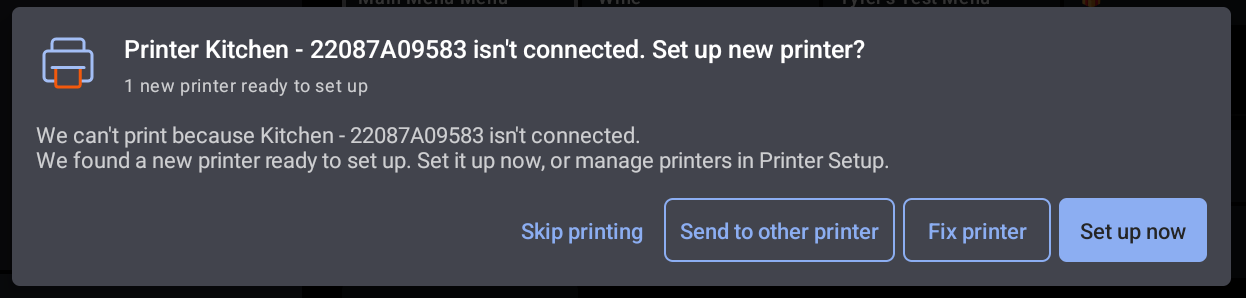
Este error aparece cuando se envía una tarea Imprimir a una Impresora que ya no está conectada y Toast detectó una Impresora nueva y no configurada en la red. Sucede comúnmente cuando una Impresora existente está desenchufada, una nueva Impresora se conecta a la red en su lugar y, luego, se envía un pedido a la Impresora que estaba desenchufada. El cuadro de diálogo confirma que la tarea de Imprimir falló y ofertas una nueva Impresora que puedes configurar.
Elige la opción en pantalla que coincida con lo que pensabas hacer:
- Preparar ahora. Abre el flujo de trabajo de configuración de la Impresora nueva para que puedas configurar la Impresora recién detectada. Usa esta opción si quieres reemplazar la Impresora desconectada con la nueva.
- Arregla Impresora. Usa esta opción si la Impresora original se desconectó por accidente. Vuelve a conectar los cables de alimentación y Ethernet y, luego, sigue los pasos que se indican arriba en Solucionar mensajes de error de conectividad.
- Enviar a otra Impresora. Dirige la tarea Imprimir actual a una Impresora diferente para que el servicio no se interrumpa mientras terminas la configuración.
- Omitir impresión. Cancela la tarea Imprimir actual sin imprimir. Usa esta opción solo si la tarea no necesita Imprimir.
También puedes configurar o gestionar la Impresora detectada en cualquier momento desde Configuración > Configuración Impresora. Para obtener más información, consulta Resumen de configuración de Impresora.
Resultado previsto: Se configura la nueva Impresora (o se vuelve a conectar la Impresora original) y se realiza correctamente la siguiente tarea Imprimir.
Si la nueva Impresora no aparece en el flujo de trabajo de configuración o el error persiste después de la configuración, consulta Antes de contactar al servicio de atención al cliente.
Impresora Botón de alimentación está presionado
Mensaje de error completo: Se presiona el botón de alimentación Impresora. Asegúrate de que el botón de alimentación esté liberado.
Confirma que nadie esté presionando el botón de alimentación de la Impresora.
Resultado previsto: Con el botón de alimentación liberado, el error se borra y la Impresora imprime normalmente. Si el problema persiste después de soltar el botón, consulta Antes de contactar al servicio de atención al cliente.
Error Impresora detectado
Mensaje de error completo: Se detectó un error Impresora.
Este error suele aparecer cuando:
- Las impresoras sufrieron una interrupción del suministro eléctrico y ahora tienen direcciones IP duplicadas, o
- Hay un error Imprimir no resuelto en la cola de la Impresora.
Si la causa es un conflicto de IP, el POS te solicita reiniciar la Impresora. Sigue esas indicaciones o sigue los pasos indicados en Solucionar mensajes de error de conectividad.
Si la causa es una tarea de Imprimir no resuelta, el POS te pide que revises la tarea en cola. Puedes eliminar la tarea en cola o resolver el error subyacente antes de volver a intentarlo.
Resultado previsto: El conflicto de IP se resuelve o se borra la tarea en cola, y la Impresora reanuda la impresión. Si el error persiste, consulta Antes de contactarte con atención al cliente.
Hubo un problema al imprimir el informe de caja de efectivo cerrada
Mensaje de error completo: Hubo un problema al imprimir el informe de caja de efectivo cerrada.
- Ve a Configuración del dispositivo en tu POS de Toast.
- Confirma que se seleccione la Impresora correcta debajo del encabezado Impresora.
- Intenta imprimir el informe nuevamente.
Resultado previsto: El Informe de caja de efectivo cerrada imprime correctamente desde la Impresora correcta de recibos.
Si la Impresora que necesitas no aparece en la lista, consulta Resumen de la configuración de Impresora. Si el informe aún no se Imprime, consulta Antes de contactar al servicio de atención al cliente.
No reconocemos esta Impresora
Mensaje de error completo: No reconocemos a esta Impresora. No podemos admitir impresoras de terceros.
Confirma que estás usando una Impresora de la marca Toast o compatible con Toast. Para verificarlo, consulta Impresoras compatibles con Toast.
Importante: Toast no puede admitir impresoras de terceros. Si tu Impresora es un modelo de terceros, también puede Imprimir los caracteres “ICICICICICIC” en los comprobantes. Cambia a una Impresora compatible con Toast para resolver el error.
Resultado previsto: Hay una Impresora compatible con Toast conectada y el error se borra.
Códigos de referencia de error Impresora
Algunos errores de la Impresora incluyen un código de referencia numérico en la pantalla (por ejemplo, el código de referencia 410).
Si ves un código de referencia en pantalla, captura el texto exacto del código y consulta Antes de contactarte con el servicio de atención al cliente. Estos códigos suelen requerir que el servicio de atención al cliente los investigue en el backend.
| Código de referencia | Qué significa y qué hacer |
| 409 | Se detectó un error Impresora (conflicto con la IP Impresora). Si las impresoras en conflicto son DHCP, deberán reiniciarse para obtener nuevas direcciones IP. Si las impresoras en conflicto son estáticas, deberás cambiar la dirección IP estática de tu Impresora manualmente o cambiar su configuración a DHCP. Después de realizar los cambios necesarios navega en la aplicación Toast hasta Configuración de la Impresora y selecciona el botón Comprobar estado para borrar el banner de error. Impresora encendida. |
| 410 | No se pudo contactar a la Impresora (OpenConnectionFallo o IP desconocida) |
| 511, 514 | Imprimir error |
| 512, 513 | Falla del sensor de puerta/papel o falla del cortador automático |
| 515 | Solución de problemas de interrupciones del suministro eléctrico y direcciones IP |
| 516, 517, 518 | Falla de Imprimir, Falla del cortador automático, Problema con la tinta |
| 519, 520, 521 | Falla en la fuente de alimentación, Imprimir, Conexión a la red |
| 550 | Imprimir error |
| 551 | Error de conexión a la red. Desenchufa el cable de alimentación y el cable Ethernet de la Impresora. Espera 30 segundos. Vuelve a enchufar ambas y enciende la Impresora. |
| 560 | Falla al Imprimir comprobante de prueba |
Preguntas frecuentes
¿Por qué mi Impresora tiene luz verde pero no imprime?
Una luz de encendido verde significa que la Impresora tiene energía eléctrica, pero no confirma que la Impresora esté conectada a la red o que pueda Imprimir tareas. Ejecuta los pasos indicados en Solucionar mensajes de error de conectividad para confirmar que la Impresora esté disponible en la red. Si la Impresora es una Impresora Epson para cocina (TM-M30, TM-T20 o TM-U220B), consulta Obtener ayuda con impresoras Epson para cocina para obtener orientación específica del modelo. Si la Impresora es una Impresora Toast, consulta Obtener ayuda con tu Impresora Toast.
¿Por qué mi Impresora imprime comprobantes en blanco?
Los resguardos en blanco suelen deberse a que el tipo de papel es incorrecto o a que se carga papel incorrectamente.
-
- Confirma que estás usando el papel correcto para el modelo de tu Impresora. Las impresoras térmicas utilizan papel térmico (recubrimiento brillante, marcas si se rayan con una uña). Las impresoras de impacto utilizan papel estándar.
- Confirma que el rollo de papel esté cargado correctamente y que no esté atascado. El papel debe alimentarse desde la parte inferior del rollo.
- En el caso de las impresoras de impacto (el modelo TM-U220B que utiliza cinta), verifica que el cartucho de cinta de la Impresora esté firmemente colocado. Presiona hacia abajo suavemente. Deberías escuchar un clic mientras se acomoda en su lugar. Si la cinta es vieja o está desgastada, es posible que debas reemplazarla.
Para obtener más información, consulta Impresora rollos y cintas de tinta y obtén ayuda con impresoras Epson.
¿Por qué mi POS no encuentra la Impresora durante la configuración?
Tu POS detecta impresoras escaneando la red a la que está conectado el dispositivo. Si la Impresora está en una red diferente o en una subred diferente, tu dispositivo no la detectará en la pantalla de configuración.
-
- Confirma que la Impresora y el POS estén en la misma red y en la misma subred.
- Imprime una página de prueba desde la Impresora y compara su información de red con la información de red de tu dispositivo. Para encontrar la información de red de tu dispositivo, en tu POS selecciona los tres puntos en la esquina superior derecha de la pantalla para ver la página Estado del dispositivo.
- Si la Impresora está en una subred diferente, está conectada a una red diferente o hay un enrutador adicional conectado a tu red. Rastrea el cable y corrige los problemas antes de volver a intentarlo.
Resultado previsto: La Impresora aparece en la pantalla de configuración y se puede agregar al dispositivo.
¿Por qué mi Impresora hace un clic y no imprime?
Un sonido de clic suele apuntar a un problema de hardware específico del modelo de Impresora. Identifica el modelo a partir de la etiqueta en la Impresora y sigue la guía de coincidencias:
-
- Impresoras de cocina Epson (TM-M30, TM-T20, TM-U220B): consulta Obtener ayuda con impresoras de cocina Epson.
- Impresora Toast: consulta Obtener ayuda con tu Impresora Toast.
- Impresora TP200 de recibos Toast: consulta Obtener ayuda con la Impresora TP200 de recibos Toast.
Si la guía específica del modelo no resuelve el problema, consulta Antes de contactar al servicio de atención al cliente.
¿Por qué mi Impresora imprime el mismo Ticket dos veces?
La impresión doble suele ser un problema de configuración de Asignación de Impresora, no un error de hardware. Para resolverlo, consulta Solucionar problemas de impresión doble.
¿Por qué mi Impresora Imprime algunas cosas pero no otras?
Una impresora que imprime algunos resultados, pero no otros, casi siempre es un problema de enrutamiento de la impresora o de configuración de la estación de preparación, no un error de hardware. La Impresora está funcionando; la terminal solo le está enviando algunas tareas.
-
- En la terminal que no imprime la salida faltante, ve a Configuración del dispositivo.
- En Impresora, confirma que se haya seleccionado la Impresora correcta.
- En Estaciones de preparación sin impresión, confirma que la Impresora no esté configurada como Estación de preparación sin impresión (esto evita que los recibos se impriman en esa Impresora).
- Confirma que la Impresora esté asignada a la Estación de preparación correcta para el tipo de tarea que deseas que Imprima.
Resultado previsto: La terminal envía a la Impresora tanto los tipos de Ticket como los recibos de los clientes.
Si confirmaste todo lo anterior y la Impresora aún imprime parte de la salida, consulta Antes de contactar al servicio de atención al cliente. Es posible que un agente de atención al cliente deba ajustar la configuración del backend.
¿Dónde puedo ver el estado de mi Impresora?
En el POS de Toast, ve a Configuración > Configuración Impresora. Verás el estado general de cada Impresora, incluidas las que se muestran sin conexión. Selecciona Verificar estado para actualizar la página. Selecciona una Impresora específica para ver su configuración, Imprimir un Ticket de prueba o Imprimir un recibo de prueba. Para obtener más información, consulta Resumen de configuración de Impresora.
¿Qué sucede si mi Impresora no funciona, pero no veo un mensaje de error específico?
Si no ves un mensaje de error específico en la pantalla del POS, el restablecimiento de corrección rápida anterior es el primer paso correcto. Si eso no lo resuelve, el artículo correcto depende de lo que esté haciendo la Impresora:
-
- La Impresora no tiene luces en absoluto y no se encenderá → problema de fuente de alimentación. Consulta Obtener ayuda: Mi Impresora no funciona o el problema de alimentación en Obtén ayuda con tu Impresora Toast.
- La Impresora está encendida (las luces están encendidas), pero no se imprime nada, sin errores en el POS → comienza con Solucionar problemas de conectividad. La mayoría de los casos de “Impresora no conectada” o “Impresora desconectada” se encuentran aquí.
- La Impresora imprime algunos resultados, pero no otros. Consulta las preguntas frecuentes de Mi Impresora imprime algunas cosas, pero no otras.
- La Impresora sigue apareciendo como sin conexión en Configuración de Impresora → consulta Solucionar mensajes de error de conectividad arriba y, luego, Obtén ayuda con las impresoras que se quedan sin conexión si se presentan problemas recurrentes.
- La Impresora emite un pitido o tiene un patrón de luz parpadeante. Por lo general, se trata de una Impresora Toast Kitchen con un estado de error específico. Consulta Obtener ayuda con tu Impresora Toast para ver la mesa con el patrón de pitidos y luces.
Antes de contactar al servicio de atención al cliente
Si los pasos anteriores no resuelven el error, reúne lo siguiente antes de ponerte en contacto con el servicio de atención al cliente para acelerar tu interacción:
- El texto exacto que se muestra en la pantalla del POS (lo mejor es una foto o una captura de pantalla).
- Cualquier código de referencia que se muestre en pantalla, capturado exactamente como está escrito.
- La Impresora: por ejemplo, TP200, TM-M30, TM-T20, TM-U220B o T88V. El modelo aparece en la etiqueta de la Impresora.
- El número de serie de la Impresora. Se encuentra en la página Configuración de la Impresora del POS o en la etiqueta de la parte inferior de la Impresora.
- Si la Impresora está conectada (Ethernet) o es inalámbrica (Wi-Fi).
- Desde qué dispositivo Toast estás imprimiendo: terminal, portátil o KDS.
- Los pasos que ya intentaste.
- Si otras impresoras en la misma ubicación funcionan normalmente.
Para contactar al servicio de atención al cliente, consulta Contactar al servicio.
Artículos relacionados
- Obtener ayuda: Mi Impresora no funciona
- Obtener ayuda con tu Impresora Toast
- Obtener ayuda con las impresoras que se desconectan
- Resumen de la configuración Impresora
- Solucionar problemas de impresión doble