Instale su terminal Toast Flex de reemplazo
Última actualización: 16 oct 2026, 11:32 a.m.
| ¡Felicidades, su nueva terminal Flex acaba de llegar! |
Siga los pasos a continuación para instalar y configurar su Toast Flex de reemplazo y asegúrese de que su terminal esté lista para aceptar pagos.
- Paso n.º 1: Registre la configuración actual de su dispositivo
- Paso n.º 2: Desconecte y desinstale su hardware actual
- Paso n.º 3: Instale su nuevo Toast Flex y otros dispositivos
- Paso n.º 4: Configure su nuevo Toast Flex
- Paso n.º 5: Devuelva su terminal Flex antiguo
Paso n.º 1: Registre la configuración actual de su dispositivo
La herramienta de configuración del dispositivo está disponible en cada dispositivo que ejecuta Toast. La configuración es específica del dispositivo y solo se puede editar desde el propio dispositivo.
Es importante que su nuevo Toast Flex esté configurado de forma idéntica a su dispositivo actual. Antes de desenchufar nada, verifique la configuración de su dispositivo actual para tener un registro de referencia al configurar el nuevo:
- La forma más rápida es verificar la pestaña Configuración de su dispositivo en Device Hub en Toast Web; no es necesario acercarse al dispositivo ni anotar nada.
- También puede tomar una foto de la configuración de su dispositivo, o descargar y completar este formulario de Configuración actual del dispositivo.
Para acceder a la pantalla de Configuración del dispositivo en su dispositivo, navegue al menú principal de la aplicación Toast, desplácese hacia abajo y seleccione Configuración del dispositivo debajo del encabezado Configuración.
Paso n.º 2: Desenchufe y desinstale su hardware actual
A continuación, proceda a desinstalar su Toast Flex actual siguiendo estos pasos:
- Primero, apague su terminal Flex y desconecte el adaptador de corriente del tomacorriente de pared. Si su Flex está enchufado a una Impresora/Hub de Toast, asegúrese de desconectar el adaptador de corriente de la Impresora de Toast del tomacorriente de pared.
- Retire el enchufe de alimentación (naranja) de la parte inferior de la terminal y asegúrese de desenroscar el tornillo de mariposa y retirar el cable.
- Si tiene un cable Ethernet (amarillo), desconéctelo de la terminal. (Nota: Mantenga todos los cables de alimentación y Ethernet a mano para su nueva terminal.)
- Si está utilizando su lector de tarjetas existente, desconéctelo y desenrósquelo de la terminal. Si su lector de tarjetas está conectado a su Impresora/Hub de Toast, no es necesario desenchufarlo.
- Si tiene un Flex for Guest con una pantalla orientada al cliente tipo cuña (sobre el mostrador), proceda a desconectar la pantalla orientada al cliente del Flex.
Paso n.º 3: Instale su nuevo Toast Flex y otros dispositivos
Siga los pasos a continuación para instalar su nuevo Flex según su combinación actual de dispositivos en su restaurante.
Conecte la alimentación (naranja) y Ethernet (amarillo)
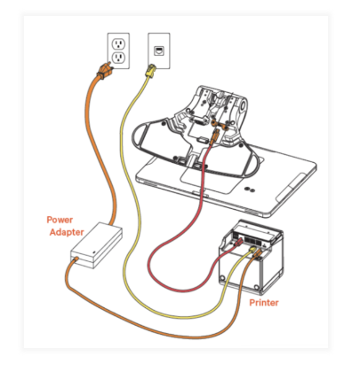
- Usando su adaptador de corriente existente o el cable de alimentación de su Impresora/Hub Toast, enchufe el cable de alimentación en el puerto naranja en la base del soporte del terminal Toast Flex (etiquetado en naranja como Power In).
- Use el tornillo de mariposa para asegurarlo.
- Si usa un cable Ethernet, proceda a enchufarlo en la parte inferior del terminal.
- Enchufe el adaptador de corriente en el tomacorriente de pared.
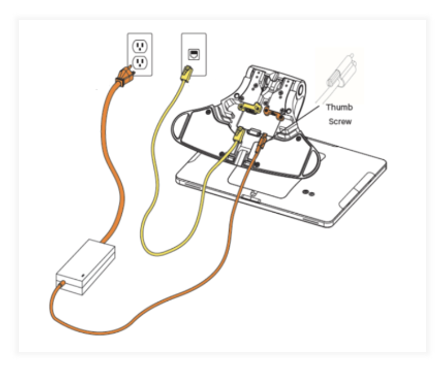
Con Impresora Toast:
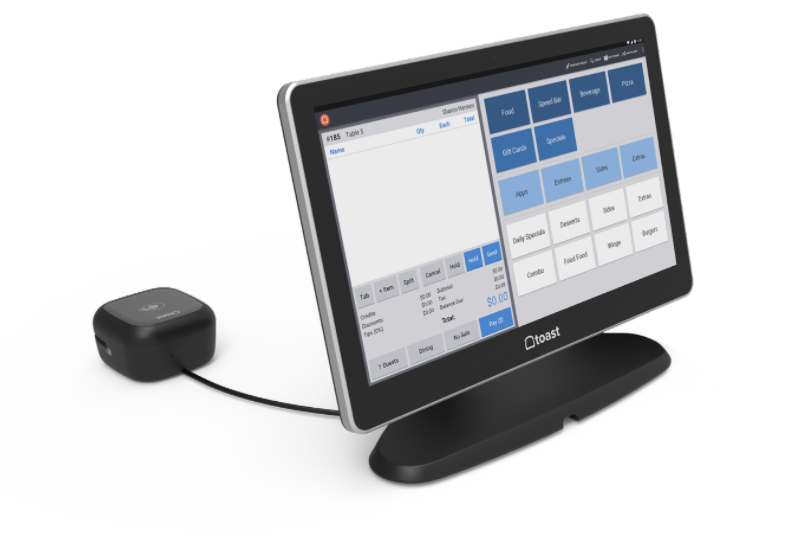
Conecte su lector de tarjetas Toast Tap™
Si va a conectar su Toast Tap™(sobre el mostrador) al terminal Toast Flex:
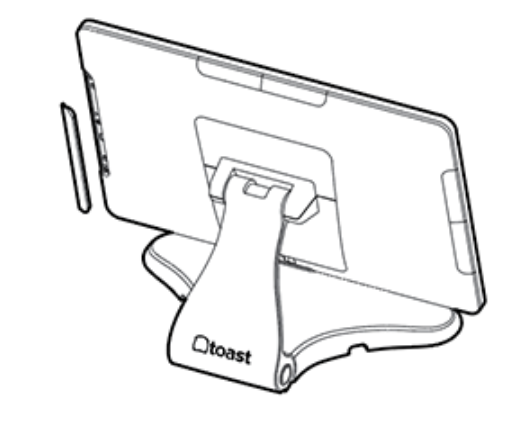
- Retire la placa que cubre la alimentación en el lateral de su terminal. Cualquiera de los 3 puertos (izquierdo, derecho o superior) funcionará.
- Conecte el extremo del cable Micro-USB que tiene la placa adjunta. Luego, atornille la placa al terminal.
- Si el soporte de su terminal tiene un cuello para ocultar el cable, páselo a través de él para obtener una apariencia más limpia.
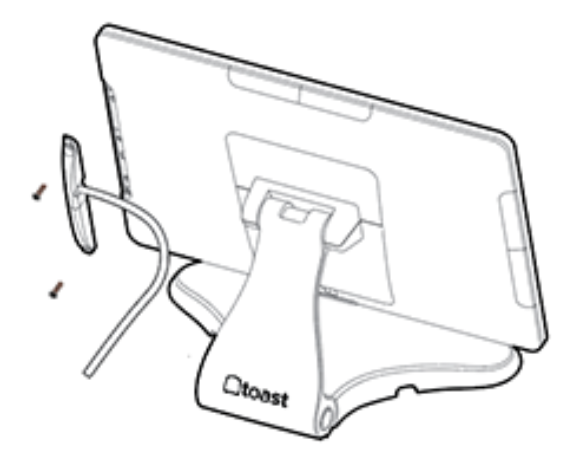
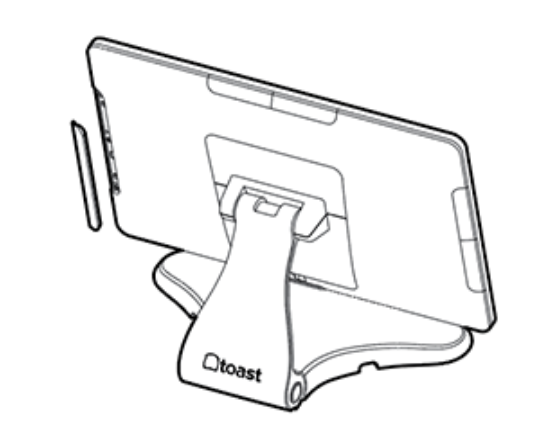
Si está conectando su Toast Tap™(Direct Attach) a la terminal Toast Flex:
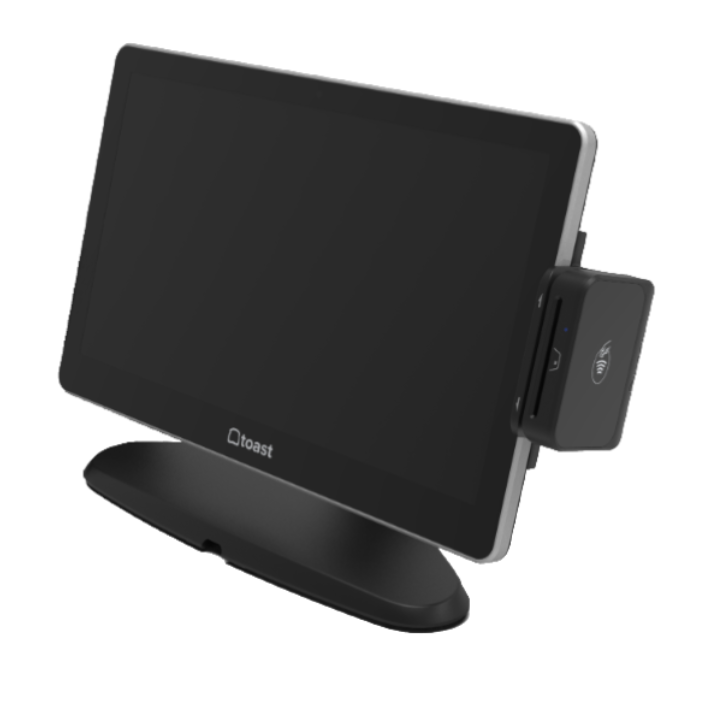
- Retire la placa que cubre cualquiera de los 3 puertos en los lados (izquierdo, derecho o superior) de su terminal.
- Conecte su lector Toast Tap™(Direct Attach) enchufándolo en el puerto abierto que ahora está expuesto. Nota:Guarde la placa en un lugar seguro en caso de que desee cambiar la posición del lector en una fecha posterior.
- Luego, utilice los tres tornillos proporcionados para fijar el lector. Estos se insertarán desde abajo hacia arriba.
Conecte su Toast Flex for Guest (Wedge)
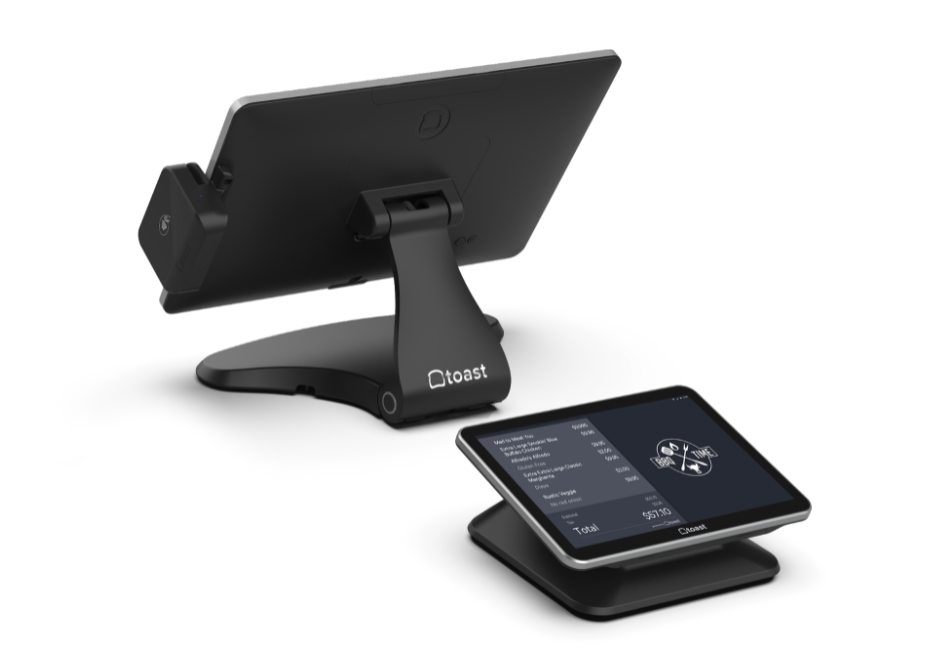
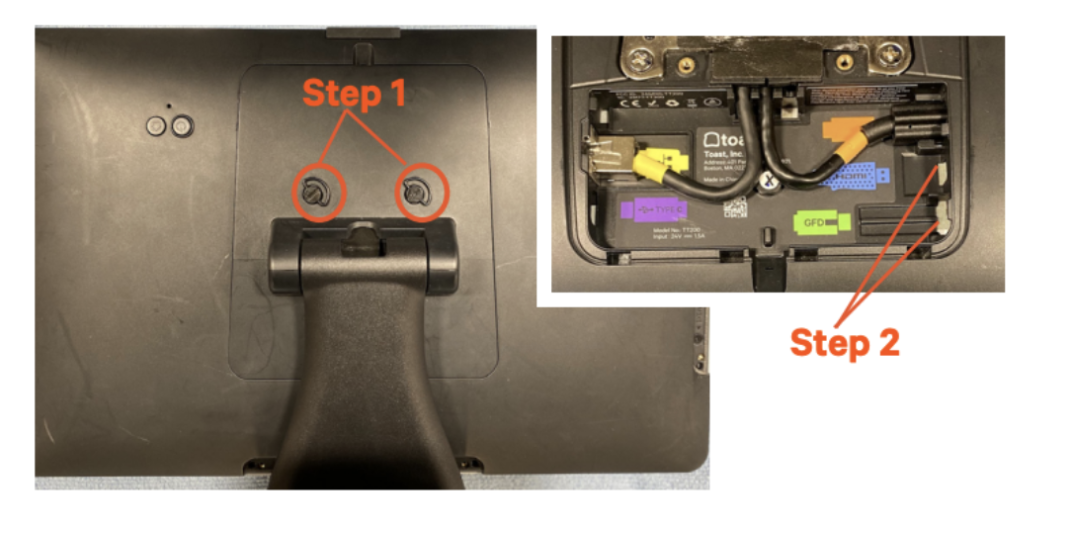
- Gire y coloque suavemente su terminal Flex de modo que la pantalla quede hacia abajo y pueda acceder a los tornillos de mariposa en la parte posterior. Afloje (no es necesario que los retire por completo) los dos tornillos de mariposa, luego tire de la placa posterior directamente hacia usted, seguido de un ligero tirón hacia abajo, para retirarla.Nota:La placa posterior no se levanta directamente hacia arriba; si siente que está atascada, intente el movimiento hacia atrás y luego hacia abajo.
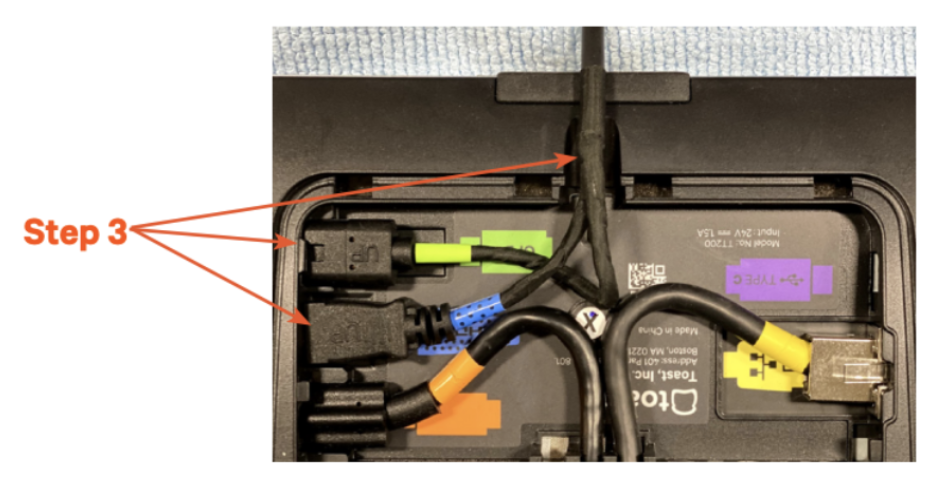
- Desconecte los cables verde (GFD) (pantalla orientada al cliente) y azul (HDMI) (interfaz multimedia de alta definición) y retire este cable de la terminal guiándolo de regreso a través del soporte o dejándolo. Tenga en cuenta que es posible que no haya cables conectados. Si no hay nada conectado a los puertos verde y azul, pase al paso 3.
- Tome los extremos libres del cable de extensión de 5 pies y conecte los cables verde (GFD) y azul (HDMI) a la terminal Flex. Asegúrese de que el texto 'UP' quede hacia arriba al conectarlo. Pase el cable a través de una ranura en la parte superior de la terminal para que sea más fácil colocar la placa posterior.
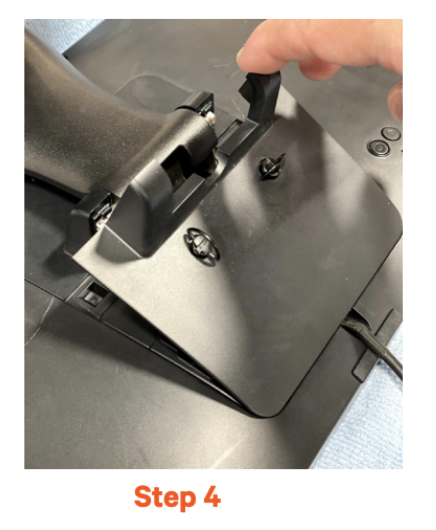
- Vuelva a colocar la placa posterior en la terminal Flex. Colóquela en ángulo y presione hacia abajo; atornille los dos tornillos de mariposa.
- Voltee la terminal Flex hacia arriba y coloque su terminal y Toast Flex for Guest en la ubicación deseada.
- Encienda el Toast Flex.
- Inicie sesión en su restaurante en la aplicación Toast y reinicie el dispositivo. Presione el botón de encendido en la parte inferior de su dispositivo durante 10-15 segundos.
- Seleccione Apagar, luego seleccione Aceptar cuando se le solicite. Luego, presione el botón de encendido nuevamente para volver a encender el dispositivo.
- Inicie sesión en su restaurante en la aplicación Toast y complete la configuración básica. Complete la configuración básica de su dispositivo y sus accesorios en la pantalla en el Paso n.º 4 a continuación.
Conecte su Toast Flex for Guest (modelo de conexión inferior heredado)
Si su restaurante aún tiene una pantalla Toast Flex for Guest más antigua que se conecta en la parte inferior de la terminal (REF 501) en lugar de a través del panel posterior descrito anteriormente, no siga los pasos de la cuña anteriores, comuníquese con el Centro de soporte para confirmar el proceso de conexión correcto y las piezas de repuesto para su versión de hardware específica antes de realizar la instalación.
Paso n.º 4: Configure su nuevo Toast Flex
Ahora que tiene todo conectado e instalado, querremos configurar su nuevo Toast Flex.
Siga los pasos o vea el video en este artículo del Centro de soporte, Descripción general de la configuración del dispositivo.
Paso n.º 5: Devuelva su terminal Flex anterior
Ahora que todo está en su lugar y configurado correctamente, devuelva su Toast Flex anterior utilizando el material de embalaje enviado y la etiqueta de envío incluida en la caja dentro de un plazo de 30 días para evitar cargos.