Usar la herramienta Editor de precios
Última actualización: 30 sept 2026, 3:15 p.m.
El Editor de precios te permite cambiar los precios de los artículos del menú en bloque desde una sola página en Toast Web, sin abrir cada artículo de uno en uno. Úsalo para establecer un precio, aumentar o reducir los precios en una cantidad de dólares, o cambiarlos en un porcentaje en muchos artículos a la vez. Este artículo cubre cómo cambiar un solo precio, cómo cambiar precios en bloque y cómo corregir las razones más comunes por las que los cambios de precio no se guardan o no aparecen.
- Antes de comenzar
- Abrir el editor de precios
- Cambiar el precio de un solo artículo
- Cambiar precios en bloque
- Aumento y redondeo avanzados del porcentaje de precios
- ¿Por qué los cambios de precio no se guardan ni se aplican?
- Preguntas frecuentes
- ¿Puedo cambiar los precios de los modificadores con el editor de precios?
- ¿Por qué cambiar el precio de un artículo también cambia el de otro artículo?
- ¿Por qué no se guardarán los cambios de precio en el editor de precios?
- ¿Puedo reducir los precios en bloque?
- ¿Puedo actualizar precios por hora o tamaño con el Editor de precios?
- ¿Debo guardar mis precios antes de que aumente el porcentaje en bloque?
- ¿Puedo redondear mis precios después de un aumento porcentual en bloque?
- Artículos relacionados
Antes de comenzar
Se aplica a: Toast Web
Permisos necesarios: Permisos de edición de menús en Toast Web. Los restaurantes en gestión de ubicaciones múltiples (MLM) necesitan permisos a nivel de grupo para editar menús dirigidos al nivel de grupo.
Lo que lograrás: Actualiza en bloque los precios de uno o varios artículos del menú y publica esos cambios en tus canales de pedidos.
Nota: El Editor de precios actualiza solo los precios de los artículos del menú. No puede actualizar los precios de los modificadores, grupos de modificadores o modificadores anidados. Para cambiar el precio de un modificador, abre directamente la página de detalles de ese grupo de modificadores.
Abrir el editor de precios
El Editor de precios se encuentra en la pestaña Administración en bloque en Toast Web.
En Toast Web, ve a Menús > Gestión en bloque > Editor de precios. La página lista la jerarquía completa del menú (menús, grupos y artículos) en una sola vista ampliable.
Si no ves Menús > Gestión en bloque en tu navegación, lo más probable es que tu cuenta de usuario no tenga permisos de edición del menú. Ponte en contacto con el propietario de tu cuenta o con el servicio de atención al cliente de Toast para confirmar tu conjunto de permisos.
Cambiar el precio de un solo artículo
- Usa los íconos de flecha para expandir el menú y los grupos hasta que los artículos del menú estén visibles.
- Selecciona la casilla de verificación junto al artículo que deseas actualizar y, luego, cambia el valor en el campo Precio de ese artículo.
- Selecciona Guardar y, luego, Publicar para aplicar los cambios. Tus actualizaciones no se aplicarán hasta que se seleccionen ambos botones.
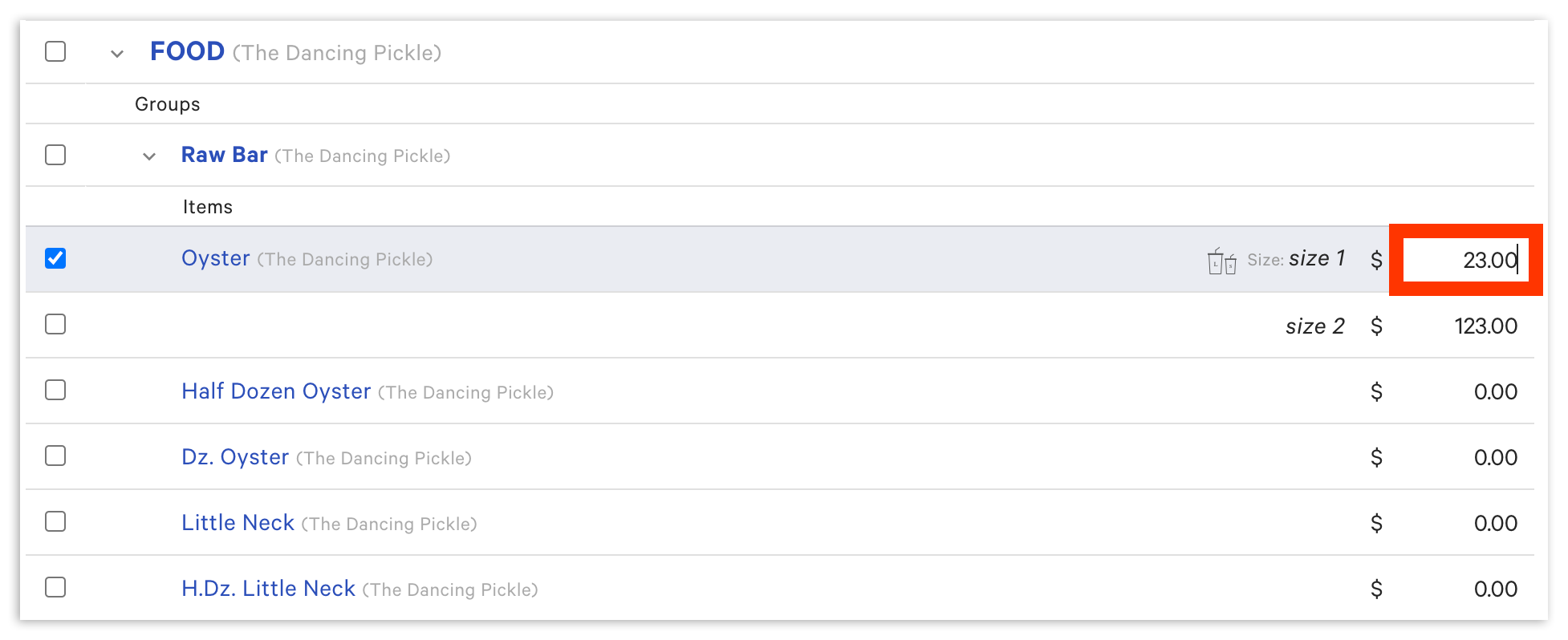
Nota: Al seleccionar un menú completo, no se seleccionan automáticamente los grupos y artículos dentro de él. Si no se guarda un cambio de precio, expande cada menú con los íconos de flecha y selecciona los grupos o artículos específicos cuyos precios deseas actualizar.
Cambiar precios en bloque
Para cambiar muchos precios a la vez, selecciona primero tus artículos y, luego, elige cómo quieres cambiarlos en el menú desplegable Actualizar.
- Selecciona la casilla de verificación junto a cada menú, grupo de menús o artículo del menú que desees actualizar.
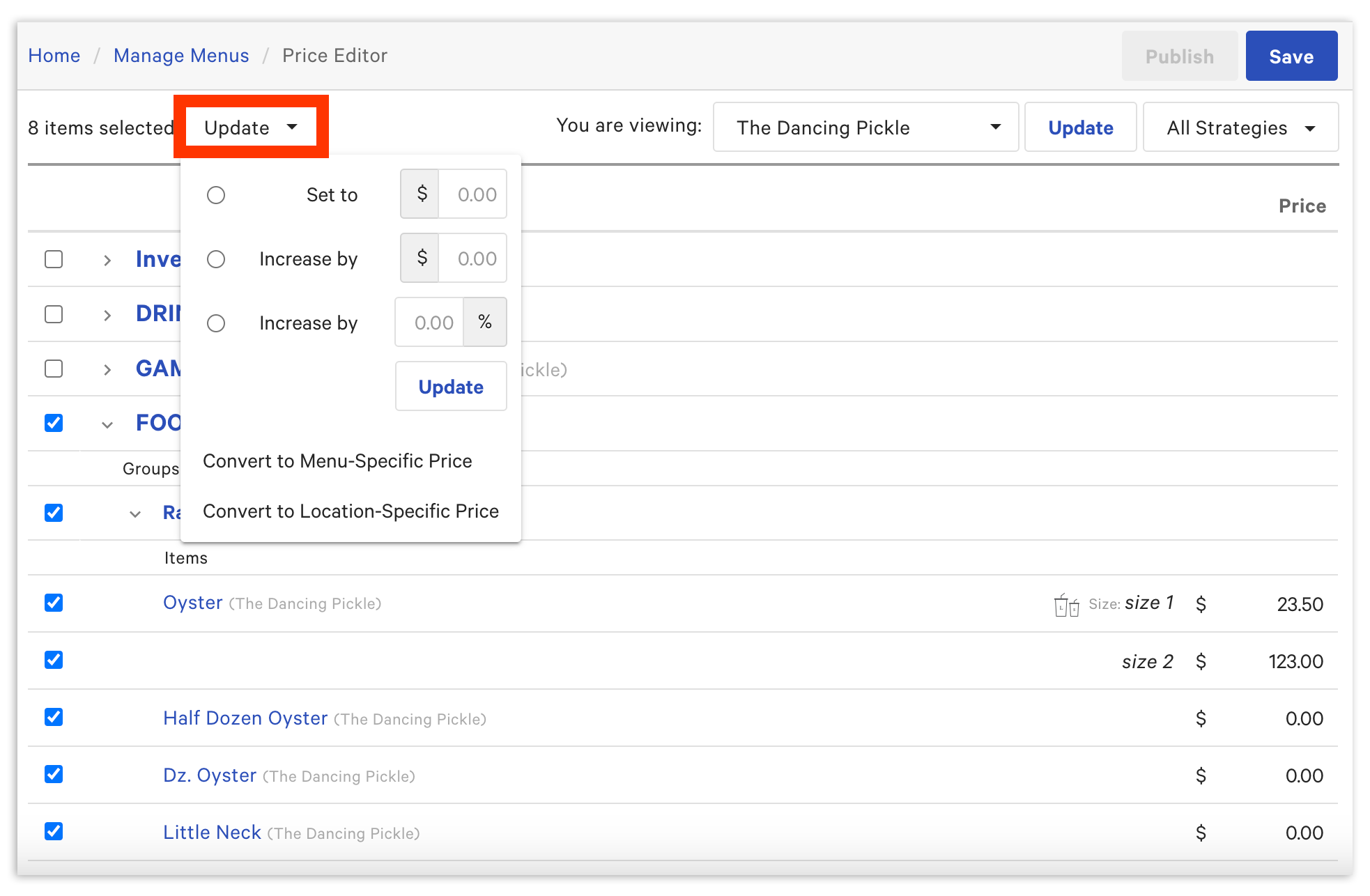
- Selecciona el menú desplegable Actualizar y elige un tipo de cambio de precio:
- Configurar en monto en dólares: Configura los artículos o grupos seleccionados en un precio específico. Por ejemplo, configura todos los aperitivos en USD 10.00.
- Aumentar por monto: Sube un monto determinado los artículos o grupos seleccionados. Por ejemplo, aumenta en USD 0,50 todas las bebidas sin alcohol.
- Aumentar por porcentaje: Sube un porcentaje los artículos o grupos seleccionados. Por ejemplo, aumenta un 5 % todas las botellas de vino.
- Disminución por monto o porcentaje en dólares: Ingresa un signo menos ( - ) delante del número en el campo de monto o porcentaje en dólares.
- Ingresa el monto o porcentaje en dólares correspondiente y, luego, selecciona el botón Actualizar.
- Confirma que los nuevos precios aparezcan en la pantalla Editor de precios y, luego, selecciona Guardar y Publicar para aplicar los cambios.
Nota: No puedes actualizar en bloque el precio de los modificadores con el editor de precios. El menú desplegable Actualizar se aplica solo a los artículos del menú.
Aumento y redondeo avanzados del porcentaje de precios
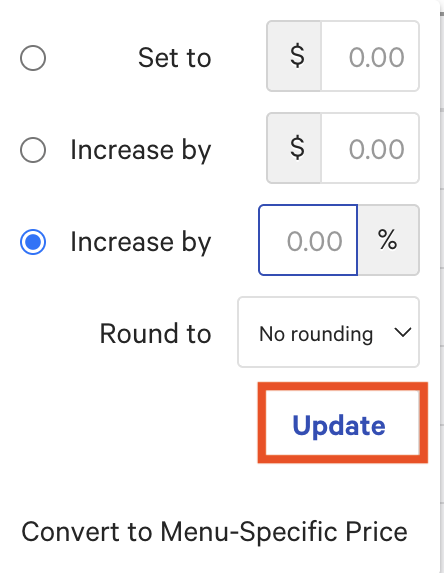
El redondeo no redondea automáticamente hacia arriba un precio dado. Puedes elegir redondear los precios de grupos, subgrupos o artículos después de elegir un aumento porcentual. El redondeo se produce después del aumento porcentual y hay tres opciones de alto nivel:
- Más cercano 0,00/,25/,50: Esto redondeará el precio a la más cercana de estas tres opciones. Por ejemplo, si se aplica un aumento del 10 % a un artículo que cotiza en USD 9,50, el artículo aumentará a USD 10,45 y luego se redondeará a USD 10,50, ya que el incremento más cercano es de USD 0,50.
- 0,95 más cercano: Esto redondeará el precio al dólar más cercano y, luego, restará 5 centavos para llegar al incremento de 0,95. Por ejemplo, si se aplica un aumento del 10 % a un artículo que cotiza en USD 9,50, el artículo aumentará a USD 10,45, pero luego se redondeará hacia abajo a USD 10,00 y se restarán 5 centavos para finalizar el precio de cotización como USD 9,95.
- 0,99 más cercano: Esto redondeará el precio al dólar más cercano y, luego, restará 1 centavo al incremento de 0,99. Del mismo modo, en ese ejemplo, el aumento del 10 % se aplicaría a un artículo que cotiza en USD 9,50, por lo que el artículo volverá a aumentar a USD 10,45, pero luego se redondeará hacia abajo a USD 10,00 y se restará el 1 centavo para finalizar el precio de cotización como USD 9,99.
Para implementar el redondeo:
- Navega desde Toast Web hasta Menús.
- Selecciona Gestión en bloque.
- Selecciona Editor de precios.
- Selecciona el grupo, subgrupo o artículo en el que deseas ajustar los precios.
- Selecciona el menú desplegable Actualizar.
- Elige tu aumento por porcentaje (no puedes elegir ninguno).
- Selecciona el menú desplegable Redondear a para elegir tu opción de redondeo.
- Selecciona Actualizar.
Se aplicó el redondeo. Asegúrate de guardar y publicar los cambios cuando hayas terminado.
¿Por qué los cambios de precio no se guardan ni se aplican?
Si realizas un cambio en el editor de precios, pero no se guarda, no se aplica o afecta a artículos incorrectos, sigue las causas que se indican a continuación.
Se seleccionó todo el menú en lugar de los artículos. Al seleccionar la casilla de verificación de un menú, no se seleccionan los grupos y artículos dentro de él. Expande cada menú y grupo con los íconos de flecha y selecciona los artículos específicos que deseas cambiar, luego Guardar y Publicar.
No guardaste ni publicaste. Los cambios permanecerán en borrador hasta que se seleccionen ambos. Después de editar los precios, selecciona Guardar y, luego, Publicar para enviar la actualización al POS y tus canales de pedidos.
Un cambio de precio afecta a más de un artículo. Si al editar el precio de un artículo también cambia otro, lo más probable es que los dos artículos compartan un grupo de modificadores o una estrategia de precios de grupo, por lo que se basan en el mismo precio. Para fijar los precios por separado, define cada artículo como su propio precio básico o usa una estrategia de precios específica del menú para que el mismo artículo pueda tener un precio diferente en cada menú. Consulta Configurar tu estrategia de precios del menú en la sección Artículos relacionados.
Estás intentando cambiar un precio que utiliza otra estrategia de precios. La función de cambio masivo del editor de precios funciona con artículos configurados en el precio base. Si un artículo utiliza precios por tamaño, precios abiertos, precios por tiempo específico o precios por ubicación específica, es posible que no se aplique el cambio en bloque. Confirma primero la estrategia de precios del artículo. Para convertir artículos a precios específicos del menú, todos los artículos deben configurarse en el precio básico antes de la conversión. Consulta Configurar tu estrategia de precios del menú en la sección Artículos relacionados.
Estás intentando cambiar el precio de un modificador. El Editor de precios actualiza solo los precios de los artículos del menú. Para cambiar el precio de un modificador, grupo de modificadores o modificador anidado, abre directamente la página de detalles de ese grupo de modificadores.
No se terminó de aplicar una actualización grande o programada. Un conjunto muy grande de cambios, o una publicación programada, puede tardar en llegar a todas las ubicaciones. Si algunas ubicaciones no se actualizaron, actualizar un artículo individualmente en el Editor de precios se aplica más rápido que esperar una publicación programada grande.
Si los precios se guardan y publican, pero aún no aparecen en el POS, consulta Actualizaciones de Toast Web no aparecen en POS en la sección Artículos relacionados. Si el problema continúa después de solucionar estas causas, ponte en contacto con el servicio de atención al cliente de Toast.
Preguntas frecuentes
¿Puedo cambiar los precios de los modificadores con el editor de precios?
No puedes cambiar los precios de los modificadores con el editor de precios. La herramienta actualiza solo los precios de los artículos del menú. Para cambiar el precio de un modificador, grupo de modificadores o modificador anidado, abre directamente la página de detalles de ese grupo de modificadores.
¿Por qué cambiar el precio de un artículo también cambia el de otro artículo?
Cambiar el precio de un artículo también cambia otro artículo cuando los dos artículos comparten un grupo de modificadores o una estrategia de precios de grupo, por lo que obtienen del mismo precio. Para fijar los precios de los artículos por separado, establece cada uno en su propio precio básico o usa una estrategia de precios específica del menú para dar al mismo artículo un precio diferente en cada menú. Consulta Configurar tu estrategia de precios del menú en la sección Artículos relacionados.
¿Por qué no se guardarán los cambios de precio en el editor de precios?
Los cambios de precio a menudo no se guardan porque el menú se seleccionó sin seleccionar los artículos dentro de él, o porque no se seleccionaron Guardar y Publicar. Usa los íconos de flecha para expandir cada menú y grupo, seleccionar los artículos específicos que deseas cambiar y, luego, Guardar y Publicar.
¿Puedo reducir los precios en bloque?
Puedes reducir los precios en bloque ingresando un signo de menos ( - ) delante del número en el campo Monto en dólares o Porcentaje del menú desplegable Actualizar. Esto funciona tanto para una disminución en el monto en dólares como para una disminución en el porcentaje.
¿Puedo actualizar precios por hora o tamaño con el Editor de precios?
Puedes actualizar precios con horarios específicos con el Editor de precios solo después de que los artículos ya se hayan configurado para usar el modelo de precios con horarios específicos. Para configurar precios por tamaño, precios por tiempo específico y otras estrategias, consulta Configurar tu estrategia de precios del menú en la sección Artículos relacionados.
¿Debo guardar mis precios antes de que aumente el porcentaje en bloque?
Recomendamos tomar una captura de pantalla de tus precios antes de aumentar el porcentaje en bloque. Si aumentas los precios en un porcentaje y luego intentas reducirlos en el mismo porcentaje, los precios no coincidirán con tu punto de partida original, porque la disminución se aplica al nuevo total en lugar del precio original. Una captura de pantalla te permite ajustar tus precios de vuelta al punto de partida original, que se debe hacer manualmente.
¿Puedo redondear mis precios después de un aumento porcentual en bloque?
Sí. El redondeo es opcional y se aplica después de un aumento del porcentaje. Puedes redondear los precios de grupos, subgrupos o artículos en el menú desplegable Redondear hacia abajo y elegir el incremento de .00/.25/.50 más cercano o una de las dos opciones de “precio impar”, el .95 más cercano o el .99 más cercano.
Artículos relacionados
- Configura tu estrategia de precios del menú
- Usar propiedades avanzadas para editar tu menú en bloque
- Configurar una estrategia de precios específica del menú