Toast Payroll: Configurar proveedores
Última actualización: 9 oct 2026, 4:47 p.m.
Un proveedor es una organización que acepta pagos en nombre de un cliente, generalmente para embargos, pero también para HSA y algunas opciones de jubilación.
Toast Payroll: Conceptos básicos sobre proveedores
Un proveedor es una empresa u organización que acepta pagos en nombre de un cliente. En Toast Payroll, los proveedores son organizaciones a las que se envía el pago desde la nómina mediante cheque físico o depósito directo. Los proveedores se utilizan con mayor frecuencia junto con embargos, ya que las órdenes de embargo pueden indicar que los fondos se envíen a una agencia.
Si su empresa recibe una nueva orden de embargo, el Servicio de Atención al Cliente de Toast Payroll puede agregar los detalles de la cuenta de depósito directo o la dirección postal del cheque para gestionar los pagos cuando se procesen en la nómina. Si se retiene una deducción de embargo o HSA (Cuenta de Ahorros para la Salud) en la nómina con un proveedor incluido, el monto se transferirá directamente al proveedor.
Ejemplos comunes de proveedores incluyen agencias de manutención infantil, tribunales, abogados, agencias federales, algunos programas de jubilación y organizaciones de HSA. Sin embargo:
- Toast Payroll no envía pagos médicos a proveedores en nombre de nuestros clientes.
- Los proveedores de 401(k) o los programas estatales (como el Plan de Jubilación Obligatorio del Estado CalSavers) no pueden configurarse como proveedores a través de Toast Payroll.
Toast Payroll: Configurar un proveedor
| Si ha recibido una orden de embargo de manutención infantil para un empleado activo en su negocio, le recomendamos que envíe la orden de embargo completa a nuestro equipo de Atención al Cliente para que podamos configurarla en su nombre. Envíenos la orden completa a través del botón de chat azul en la esquina inferior derecha de cualquier página de Toast Payroll. |
- Para configurar un proveedor, inicie sesión en Toast Payroll y navegue a Configuración > Nómina > Proveedores.
- Si no ve Configuración en el lado izquierdo de la pantalla, seleccione Nómina en la barra de navegación de Toast Web a la izquierda para que aparezca la barra de navegación de Toast Payroll.
- Seleccione Agregar+.
- En la página de configuración, agregue los siguientes campos para el proveedor:
- Nombre: Nombre de la agencia que recibirá los fondos.
- Dirección: Solo es necesario en caso de que se imprima un cheque para la agencia. Si los fondos se envían mediante depósito directo, deje el campo de dirección en blanco.
- N.º de ruta bancaria/N.º de cuenta bancaria: Necesario si los fondos se envían mediante depósito directo. Si se envía un cheque para los fondos, estos campos quedarán en blanco.
- N.º de cuenta: Si corresponde un número de cuenta, ingréselo aquí.
- Pagar: Este es un campo importante y debe reflejar la información que se ingresó para el proveedor.
- Ninguno: Si los fondos no deben enviarse y, en su lugar, se retendrán.
- Por cheque: Si se ingresó una dirección para el proveedor y se debe imprimir y enviar un cheque físico a la agencia.
- Por depósito directo: Si se agregó un número de ruta y de cuenta arriba, se debe realizar esta selección para asegurar que los fondos fluyan a través de ACH (depósito directo).
- Tipo de cuenta: Esto generalmente se mantiene en el valor predeterminado de Cheques
- Está activo: Esta marca solo debe elegirse después de que se haya configurado el proveedor.
- ¿Es este un proveedor de manutención infantil?: Esto debe marcarse como Sí si se debe incluir un número de caso con el cheque o cuando un cheque debe enviarse automáticamente por correo a un proveedor. Esta marca asegurará que el número incluido en el número de caso se imprima en cualquier cheque enviado a la agencia. No es exclusivo solo para proveedores de manutención infantil.
- Código FIPS: Este es un código de 5 dígitos utilizado para identificar correctamente los pagos de manutención infantil. Si aparece un código FIPS (Estándar Federal de Procesamiento de Información) en la orden de manutención infantil, ingréselo aquí.
- Cargar archivo adjunto: Por lo general, se deja así, ya que varias retenciones pueden usar el mismo proveedor.
- Una vez que se hayan agregado los campos, seleccione Guardar en la parte inferior de la página.
Toast Payroll: Vincular una deducción a un proveedor
Una vez que se configura y activa un proveedor, se puede agregar dentro de un código de deducción (y vincularse a ese código de deducción) para que los fondos embargados se envíen directamente a una agencia o ubicación especificada. Si una deducción de empleado está vinculada a un proveedor, una vez que se procese la nómina, los fondos se enviarán a la agencia.
Nota: Si una deducción no está vinculada a un proveedor, pero se realiza una deducción a través de la nómina, no se generará un cheque/pago al proveedor. En su lugar, usted será responsable de enviar el pago a la(s) agencia(s). Las deducciones que no están vinculadas a un proveedor indican que los fondos se han deducido del empleado, pero no se han deducido de su cuenta hacia un proveedor. Por lo tanto, Toast Payroll no puede facilitar el envío de pagos a un proveedor. Es importante seguir los pasos a continuación para vincular un proveedor a la deducción.
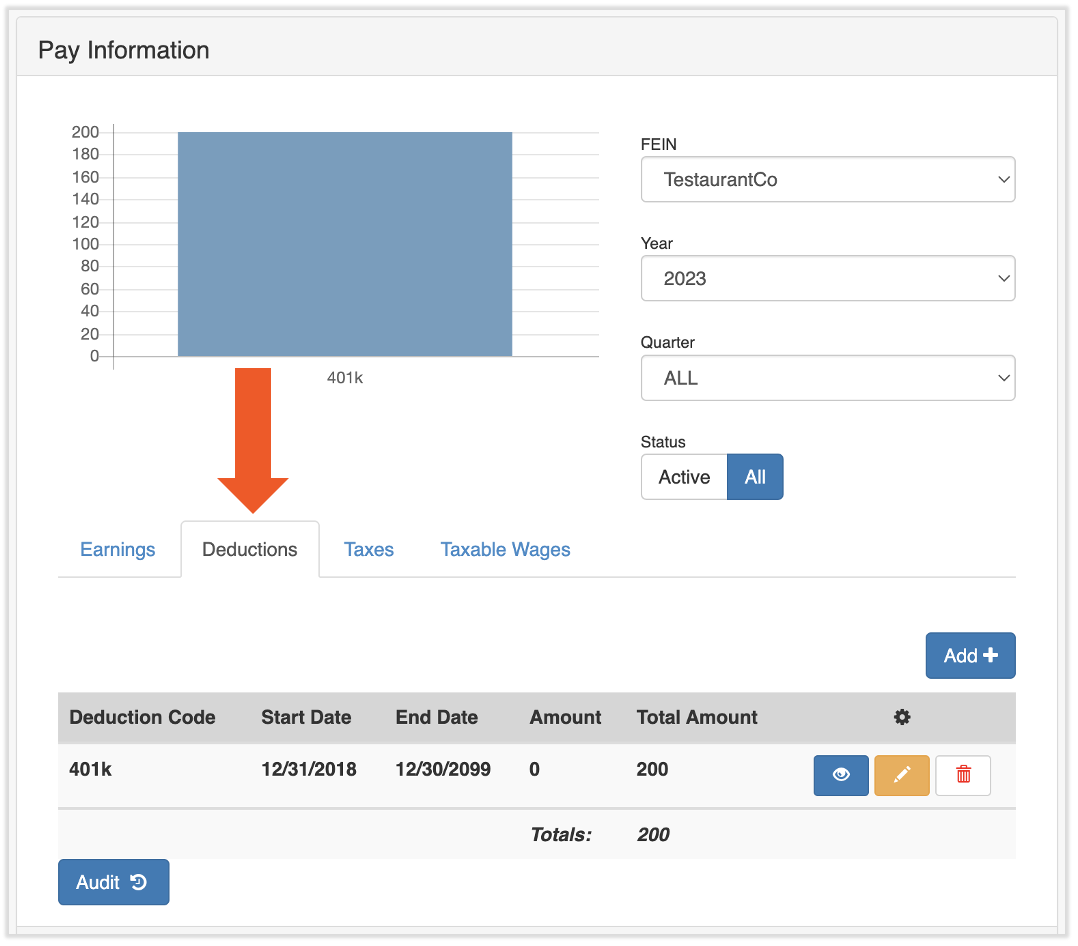
- Navegue al perfil del empleado y seleccione Recurrente > Deducciones.
- Aprenda cómo funciona la nueva navegación de Toast Payroll visitando Navegar por Toast Payroll dentro de Toast Web.
- Aprenda cómo funciona la nueva navegación de Toast Payroll visitando Navegar por Toast Payroll dentro de Toast Web.
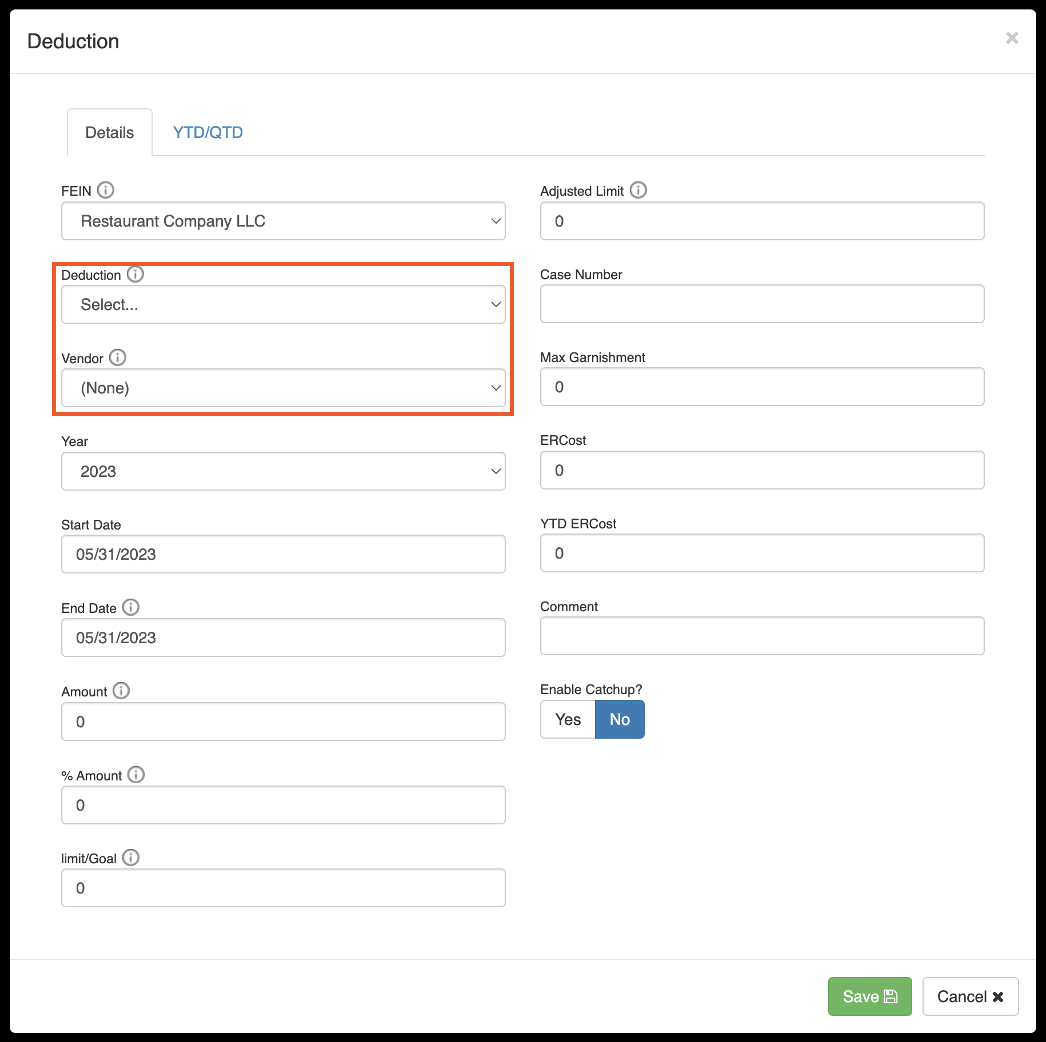
- Seleccione Agregar+ y seleccione el código de deducción del menú desplegable de deducciones.
- En el menú desplegable Proveedor, seleccione el proveedor correspondiente al que se deben enviar los fondos para esta deducción. El proveedor también aparecerá en el informe de proveedores una vez que se haya procesado la nómina.
- Agregue cualquier otra información aplicable (por ejemplo, monto, límite ajustado, número de caso, etc.). Utilice los botones de información junto a los diferentes campos para obtener más información. Si tiene preguntas adicionales, contáctenos a través del punto de chat azul en la esquina inferior derecha de cualquier página de Toast Payroll.
- Seleccione Guardar para finalizar.
- La deducción se incluirá en la nómina y, una vez procesada, Toast Payroll enviará automáticamente los fondos al proveedor mediante cheque o depósito directo, según el tipo de pago.
Este contenido es para fines informativos y no pretende ser asesoramiento legal, fiscal, de recursos humanos ni de ningún otro tipo profesional. Comuníquese con un abogado u otro profesional para obtener asesoramiento.