Primeros pasos con el panel de ofertas
Última actualización: 26 ago 2026, 1:17 p.m.
Para comenzar con Ofertas Toast, mira el siguiente video o lee los pasos que se indican a continuación.
Obtén una descripción general de cómo crear ofertas en Toast Web
Navegar por el panel de ofertas en Toast Web
Inicia sesión en Toast Web y selecciona Marketing > Ofertas en la navegación de la izquierda, o busca ofertas desde la página de inicio.
Crear una oferta recomendada
Los tipos de oferta recomendados se proporcionan en función de objetivos de rendimiento comunes. Usamos nuestros tipos de oferta más eficaces para ayudarte a alcanzar tu objetivo con estadísticas basadas en datos que nos ayudan a hacer recomendaciones.
- Atrae nuevos clientes: ¿Quieres promocionar tu restaurante entre nuevos clientes en tu área? Crea una oferta que sea visible para los usuarios en la aplicación Toast Local.
- Obtén pedidos más grandes: ¿quieres animar a tus clientes a gastar un poco más? La función “Obtener pedidos más grandes” en tu panel de Toast te ayuda a hacerlo. Puedes configurar ofertas tentadoras, como “USD X de descuento cuando gastes USD Y” o “Obtén un artículo gratis cuando gastes USD X”.
- Obtén más pedidos: impulsa la reincidencia y aumenta las ventas generales con descuentos atractivos. Implementa promociones como “USD X de descuento en días específicos” para segmentar estratégicamente los períodos más lentos y aumentar el volumen de pedidos. Como alternativa, ofrece un descuento constante, como “X % de descuento en todo tu pedido”, para fomentar los pedidos frecuentes y aumentar las ventas generales.
- Promocionar artículos del menú: Aumenta las ventas de artículos específicos del menú con promociones específicas y una ubicación estratégica. Ofrece ofertas como “Compra 1 y obtén 1 gratis” para atraer a los clientes con artículos gratis o con descuento, o usa descuentos de “USD X o X % de descuento” para atraer a consumidores conscientes de los precios. Además, aprovecha las pantallas visibles para los clientes para destacar estas promociones y aumentar la visibilidad, lo que impulsará las ventas de los artículos elegidos.
- Vender más tarjetas de regalo: Publica promociones de tarjetas de regalo por tiempo limitado para impulsar las ventas, emitir vouchers de bonificación y gestionar campañas en varias ubicaciones.
Nota: Las ofertas pueden caducar después de 30 días o no caducar nunca. No se garantizan los resultados de ofertas.
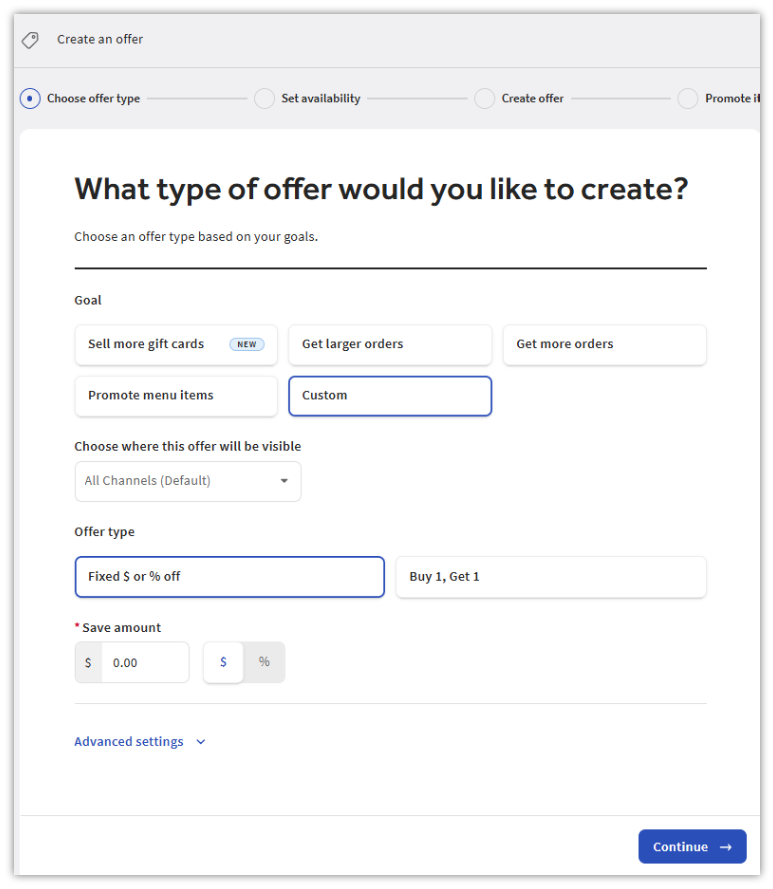
Crear una oferta personalizada
- Desde el panel Ofertas, selecciona Crear nueva oferta.
- A continuación, selecciona dónde se debe promocionar tu oferta entre las siguientes opciones:
- Todos los canales: Los usuarios verán esta oferta promocionada en tu sitio web de pedidos digitales, la aplicación Toast Local y la aplicación de tu marca (si corresponde)
- Solo Toast Local: Esta oferta solo se promocionará entre los usuarios en la aplicación Toast Local
- Aplicación de marca únicamente: Esta oferta solo se promocionará entre los usuarios de la aplicación de tu marca (si corresponde)
- Oculto (código promocional únicamente): Esta oferta no se promocionará en ninguno de los canales anteriores, pero generará un código promocional que podrás enviar a través de otros canales. Ese código promocional funcionará en todas las superficies de pago.
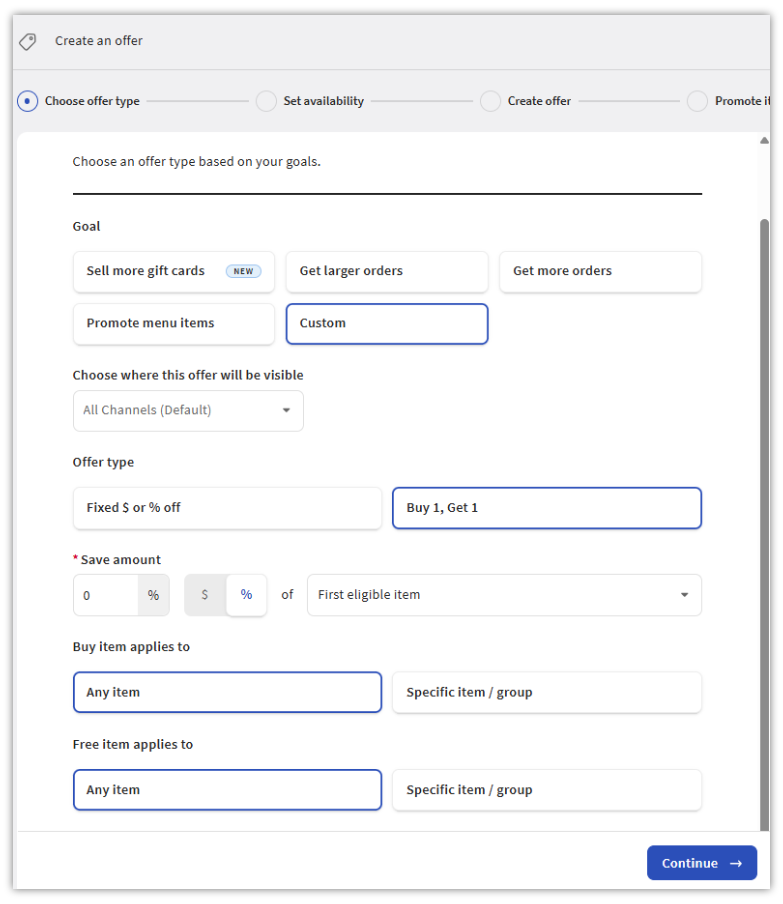
- A continuación, selecciona el tipo de oferta. Nota:Toast recomienda empezar con el valor de pedido promedio de tu restaurante.
- Monto fijo de USD o % de descuento
- Compra 1 y obtén 1
- Monto fijo de USD o % de descuento
- Una vez que hayas completado los campos de la oferta elegida, selecciona Continuar.
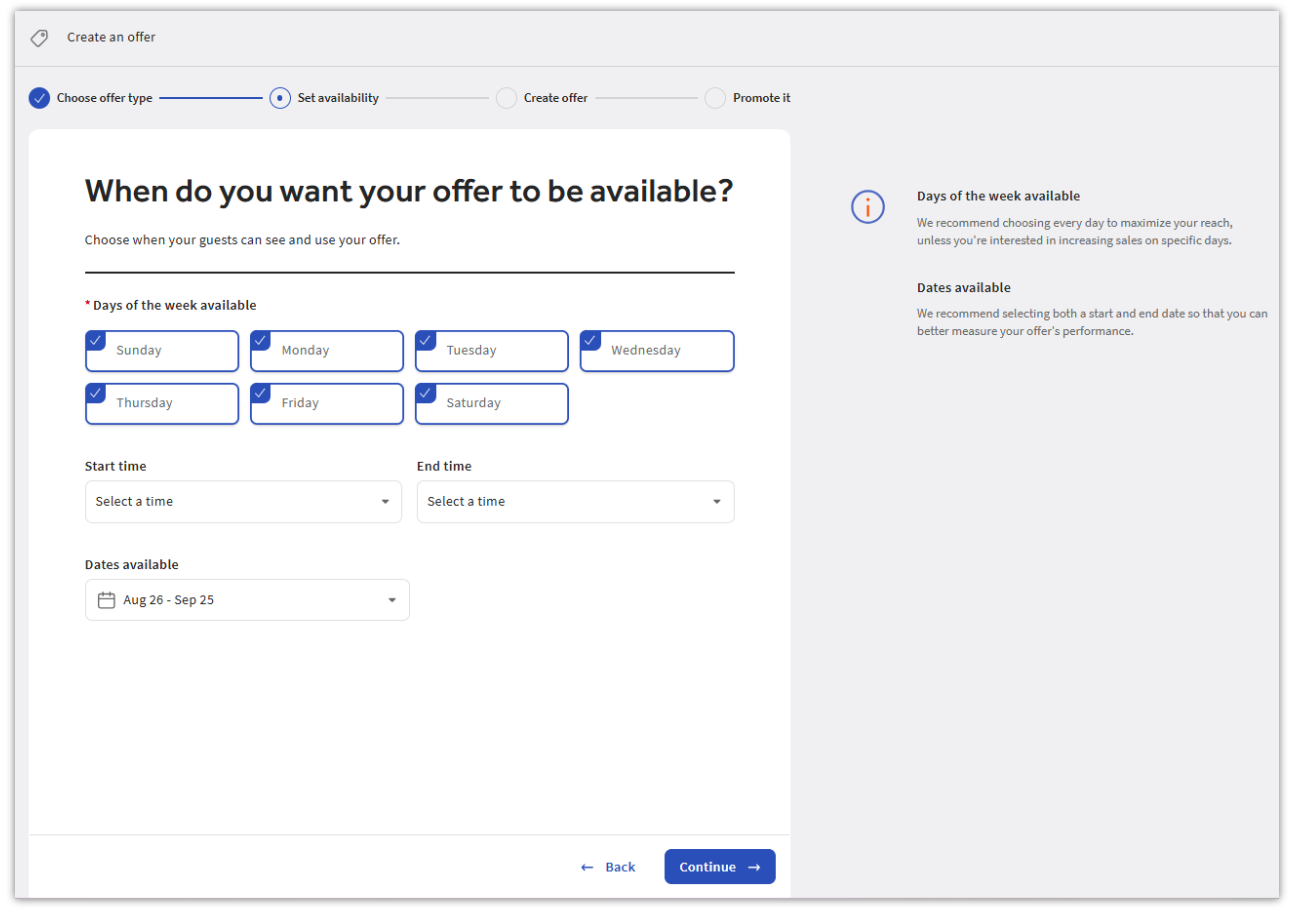
- En la próxima selección, elige cuándo quieres que esté disponible tu oferta. La validez de la oferta dependerá de las fechas de inicio y finalización que selecciones.
- Días de la semana disponibles
- Fechas disponibles
- Fecha de inicio
- Hora de inicio/hora de finalización
- Selecciona Continuar.
- A continuación, elige el nombre de la oferta, el código promocional y si será de un solo uso. Para obtener más información sobre cómo crear descuentos de un solo uso, consulta este artículo del Centro de asistencia: Usar códigos promocionales de un solo uso. Nota: Los clientes solo pueden usar el código proporcionado una vez si la opción de uso único está activada.
- Selecciona Crear oferta.
- Por último, selecciona Publicar todos los cambios.
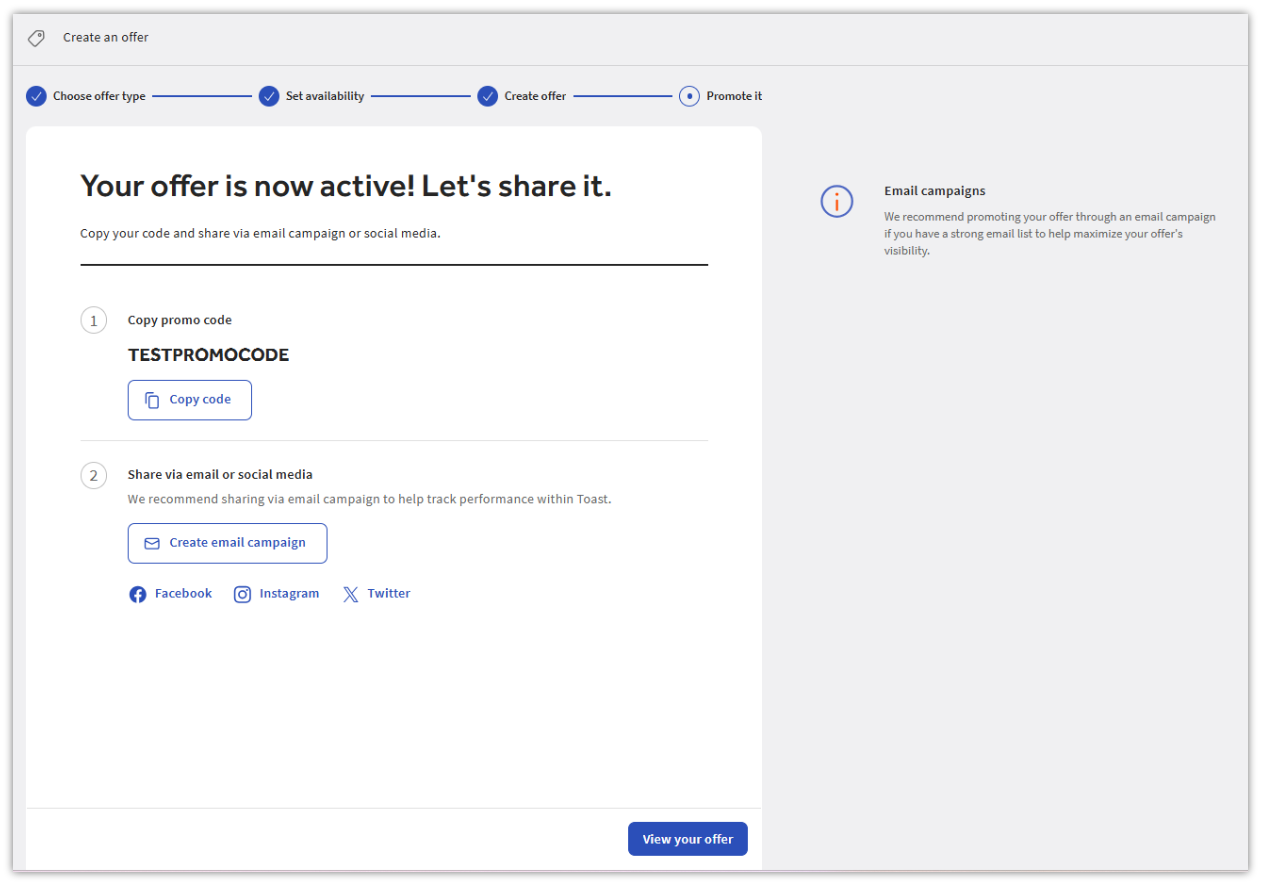
¡Tu oferta ya está activa! Ahora puedes compartir tu oferta recién creada en una nueva campaña por correo electrónico o en tus cuentas de redes sociales.
¿Quieres crear una oferta exclusiva para clientes nuevos? Consulta Crear una oferta de bienvenida con ofertas Toast en lugar de usar Crear nueva oferta más arriba. Las ofertas de bienvenida usan un atajo de generador separado con un paso adicional dirigido al público.
Seguimiento y gestión ofertas
En esta sección, puedes hacer un seguimiento y gestionar tus ofertas. Esta pestaña contiene informes, tanto a nivel de oferta como a nivel agregado. Para ver una oferta específica, selecciona los tres puntos a la derecha de la oferta en una nueva página donde puedes ver los detalles de la oferta, duplicarlos o archivarlos.
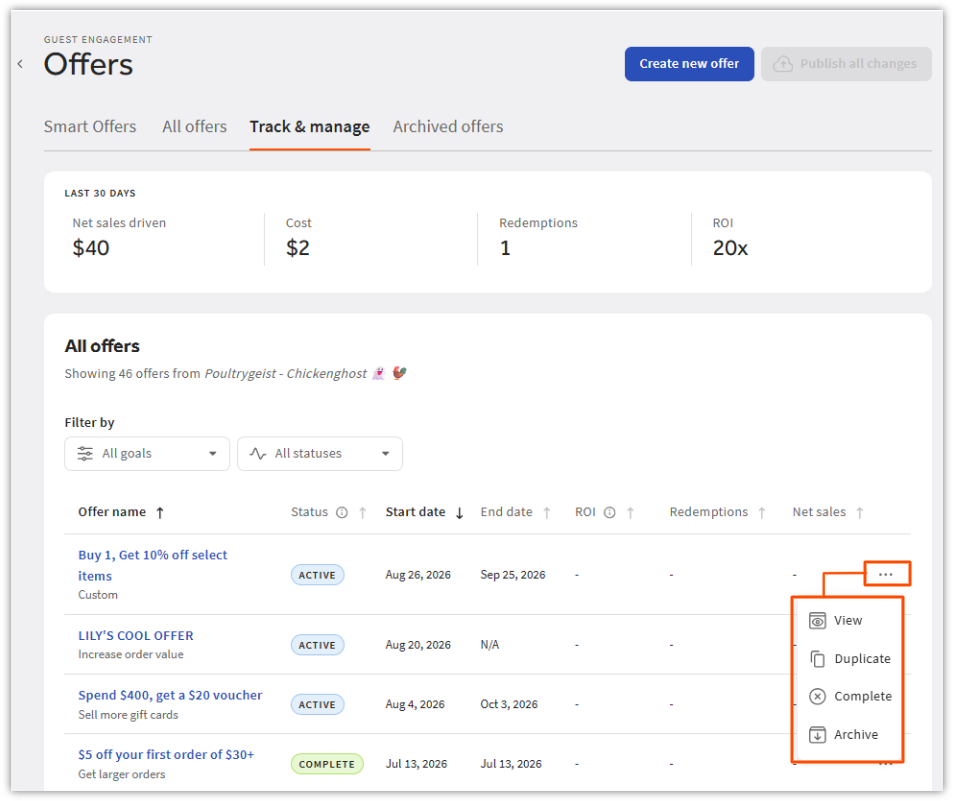
Si seleccionas Ver en el menú, el informe incluye lo siguiente:
- Impulsadas por las ventas netas (ventas de pedidos en los que se utilizó una oferta)
- Costo (costo de la promoción)
- Canjes (autoexplicativos)
- Retorno de la inversión (ventas divididas por costo)
- Detalles de la oferta
- Disponibilidad
- Nombre y visualización
- Promoción
Nota: Los pedidos en vivo no se pueden editar. Solo se pueden duplicar o archivar.
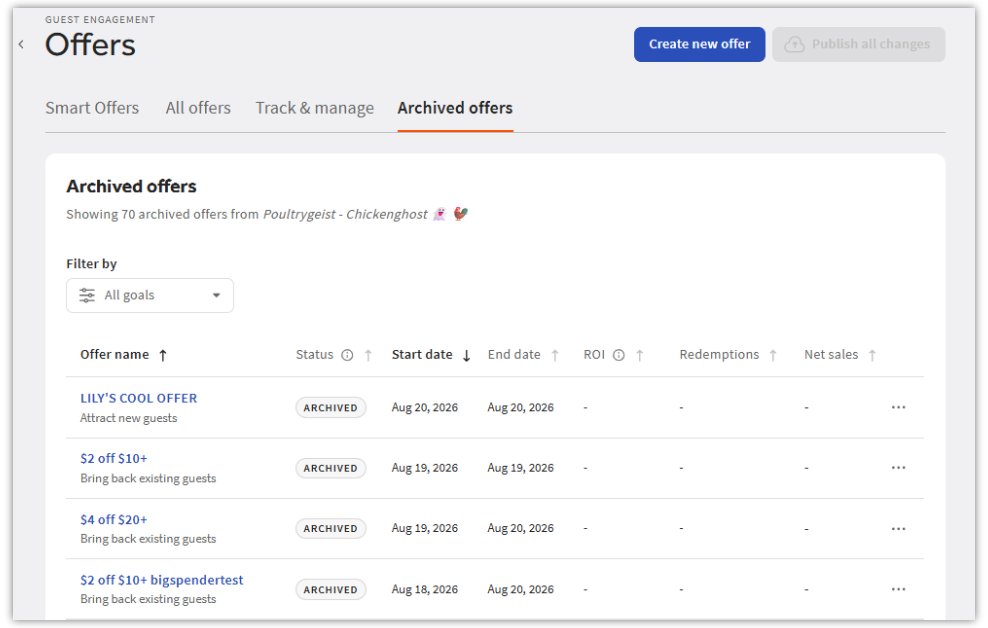
Ofertas archivadas
Esta pestaña simplemente aloja todas las ofertas que se archivaron. Al seleccionar los tres puntos junto a cada oferta, puedes ver los detalles de la oferta completa o duplicar la oferta para crear una nueva. No puedes desarchivar ofertas, pero si quieres revivir una, te recomendamos duplicarla para crear una nueva.