xtraCHEF: Agregar y editar grupos de COGS
Última actualización: 28 abr 2026, 4:19 p.m.
- Descripción general de los grupos de COGS
- Editar grupos de COGS
- Agregar nuevo grupo de COGS
- Próximos pasos
Descripción general del grupo de COGS
“COGS” significa costo de los bienes vendidos. En contabilidad, esto es la suma de todos los gastos que comprenden las ventas de los artículos de su menú (por ejemplo, compras de alimentos, compras de bebidas, suministros para llevar, etc.). En xtraCHEF, sus grupos de COGS se utilizan para cerrar la brecha y conectar una categoría de ventas y una(s) categoría(s) de compras.
El marco para los informes relacionados con el costo de los bienes giró en torno a los grupos de COGS y la asignación de categorías a ellos (más sobre eso en nuestro artículo titulado Asignación de COGS). Sin embargo, dado que la operación de su restaurante es única, no hay un tamaño único para los grupos de COGS.
En este artículo, aprenderemos cómo encontrar, editar y agregar a sus grupos de COGS predeterminados y adaptar los informes de costo de bienes a su operación.
Editar grupos de COGS
Para hacer cambios en sus grupos de COGS, seleccione el icono de engranaje > grupos de COGS en la esquina superior derecha de su cuenta de xtraCHEF.
Una vez que esté en la página del grupo de COGS, encontrará una lista de todos sus grupos de COGS existentes. Por defecto, ya existirán algunas opciones, como Cerveza, Comida, Bebida NA, y más. Puede cambiar estos seleccionando primero un grupo de COGS y luego seleccionando el botón Editar grupo de COGS. No podrá seleccionar los botones Ver o Editar hasta que haya seleccionado una fila de grupo de COGS.
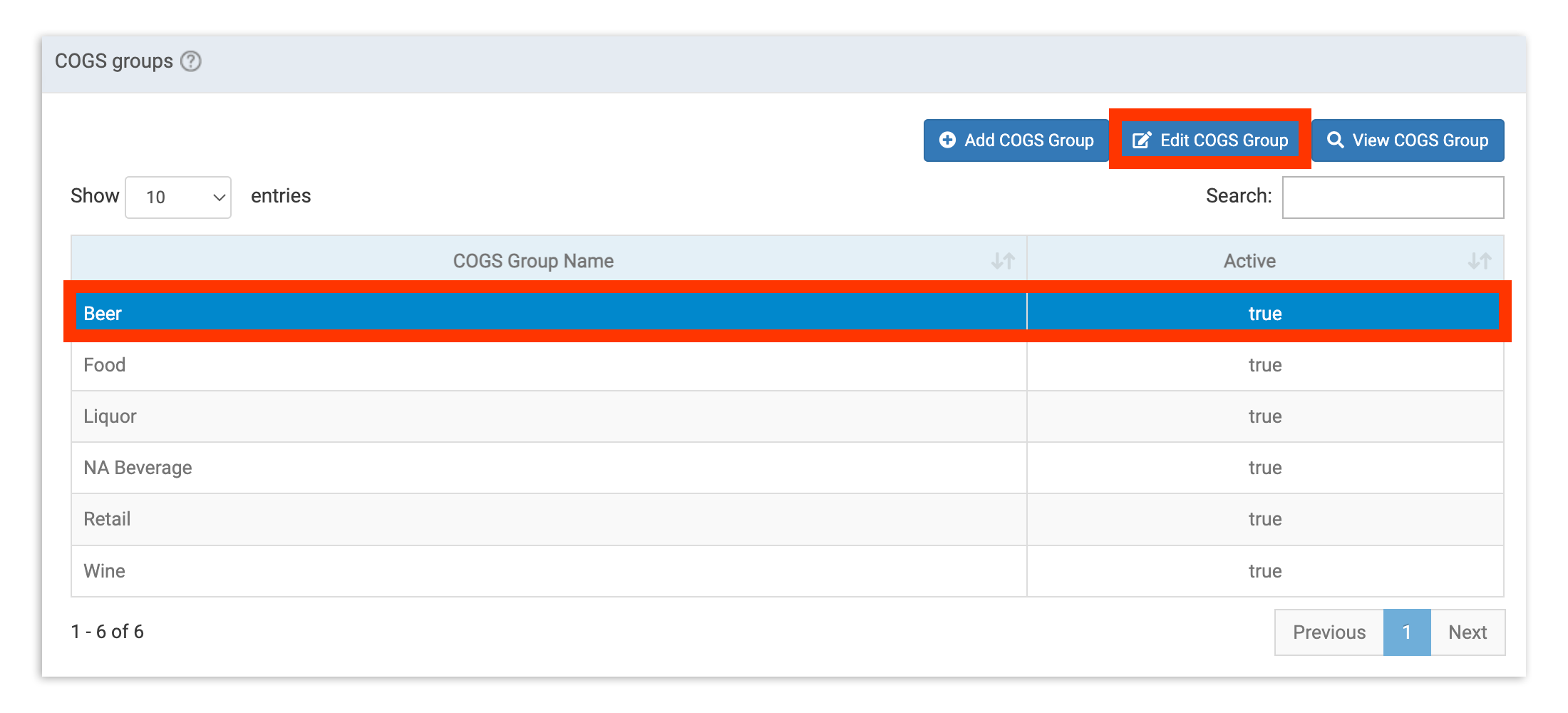
Esto abrirá una ventana emergente con la opción de cambiar el nombre del grupo, marcarlo como activo o inactivo, o indicar que el grupo de COGS no contendrá ventas para informes.
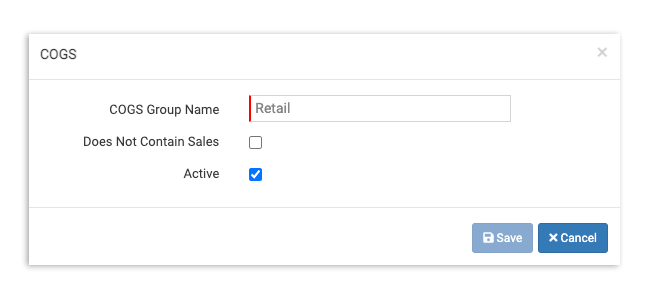
Si realizas algún cambio, no olvides seleccionar Guardar. Tus cambios entrarán en vigor de inmediato.
Agregar nuevo grupo de COGS
Si necesitas crear un grupo de COGS completamente nuevo, selecciona Agregar grupo de COGS en la parte superior derecha de la página de grupos de COGS.
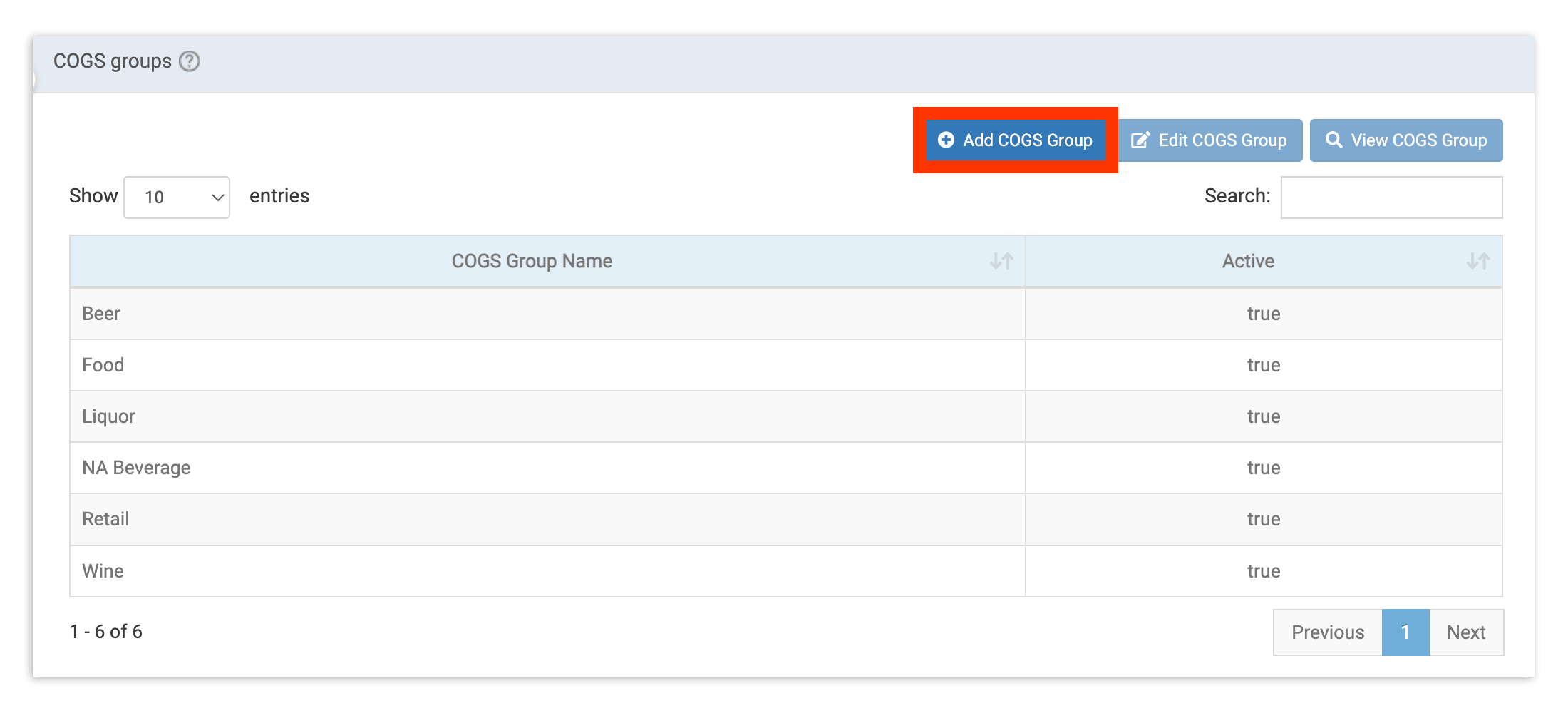
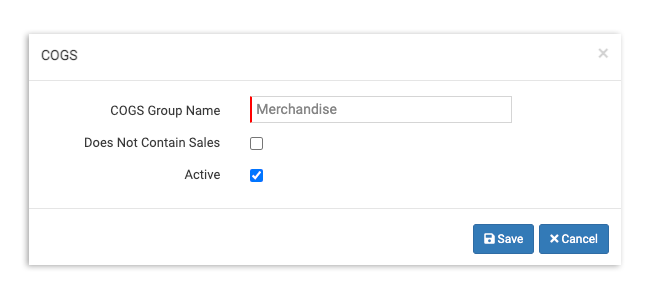
Esto abrirá la misma ventana emergente que encontramos al editar grupos de COGS, pero con todos los campos en blanco. Completa los campos y selecciona Guardar para asegurar tu trabajo.
Próximos pasos
Si aún no lo has hecho, Mapeo de COGS comenzará a conectar los puntos entre tus categorías de ventas (sincronizadas desde Toast Web) y categorías de compra (creadas en xtraCHEF o sincronizadas desde tu contabilidad). El resultado es información en forma de informes de COGS, ratios de costo de alimentos y más.