xtraCHEF: Gestionar residuos
Última actualización: 28 abr 2026, 4:20 p.m.
Resumen de gestión de residuos
A pesar de las mejores intenciones de un restaurante, no todo lo que se compra puede venderse, incluso si se monitorea cuidadosamente el inventario. Los accidentes ocurren, y eventos únicos como comida quemada o barriles explotando pueden acumularse y afectar tus resultados.
La función de gestión de residuos de xtraCHEF te da el impacto real en dólares de estos eventos, para que puedas pivotar según sea necesario y mantener las cosas en camino, y asegura que tu Análisis real vs teórico refleje una verdadera variación incluso durante meses en los que nada parece salir bien.
Volver al inicio
Gestionando residuos
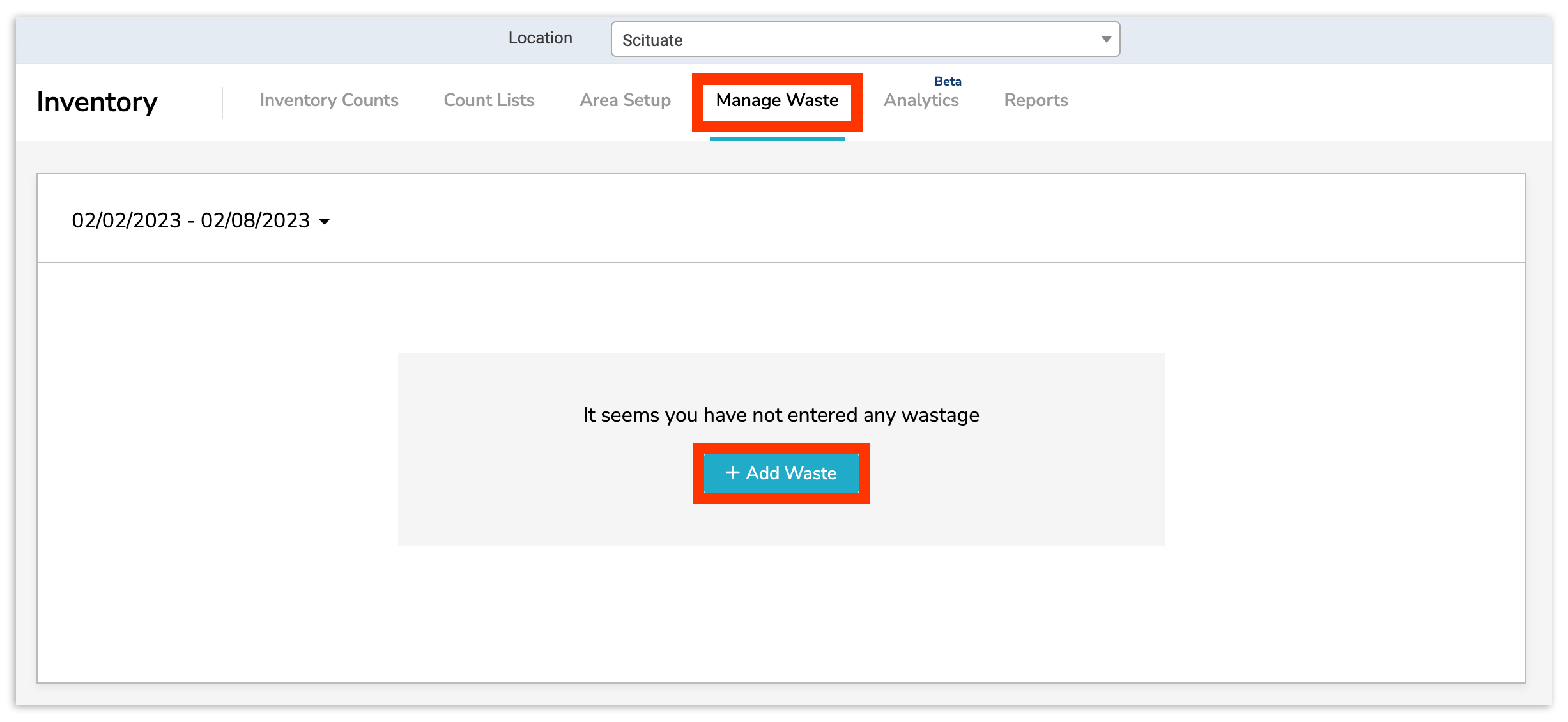
Para acceder a la Gestión de residuosfunción, selecciona Inventario> Gestionar residuos.Selecciona+ Agregar residuos para comenzar a registrar una nueva entrada de residuos.
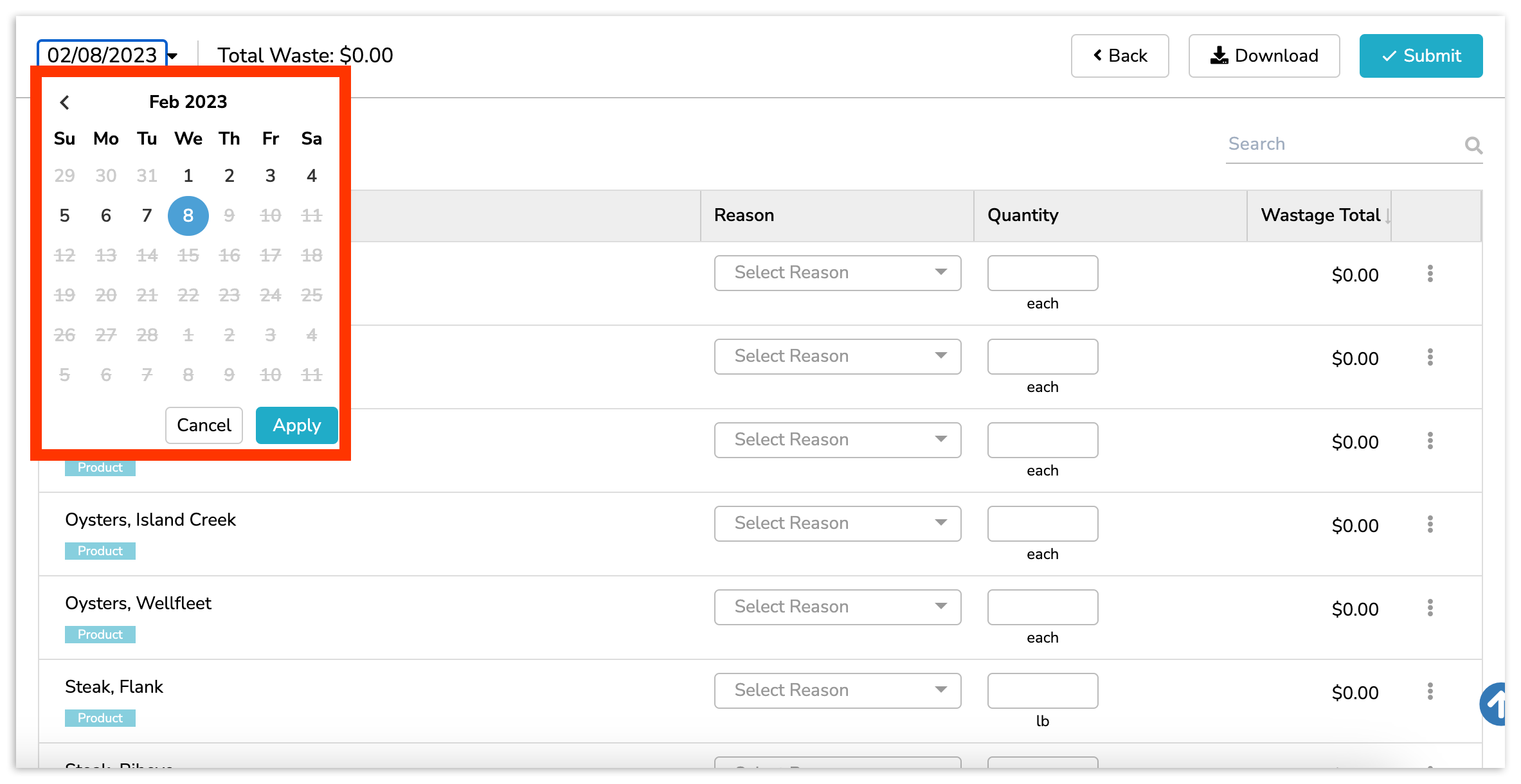
Si estás registrando residuos de una fecha anterior, selecciona una fechadel menú desplegable del calendario.
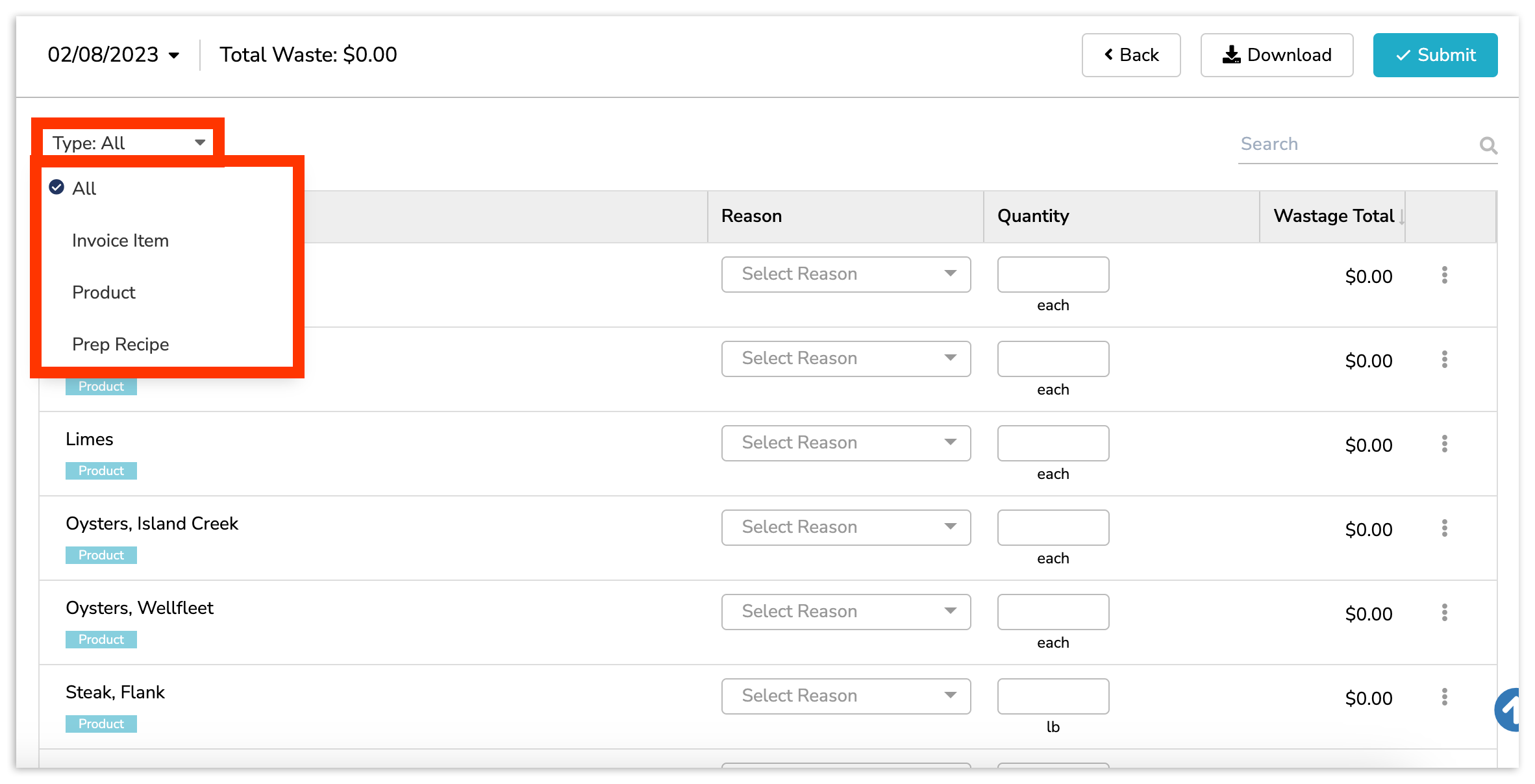
Con tu fecha elegida, encuentra y selecciona el artículo de inventario o ingrediente que ha sido desperdiciado. Para reducir la búsqueda de un ingrediente en particular, puedes Buscar o seleccionar un Tipo. Las mejores prácticas indican registrar residuos por Producto. Hacerlo asegurará la precisión en el análisis de inventario. Para más información sobre productos, visita Qué es xtraCHEF: Comienza con productos.
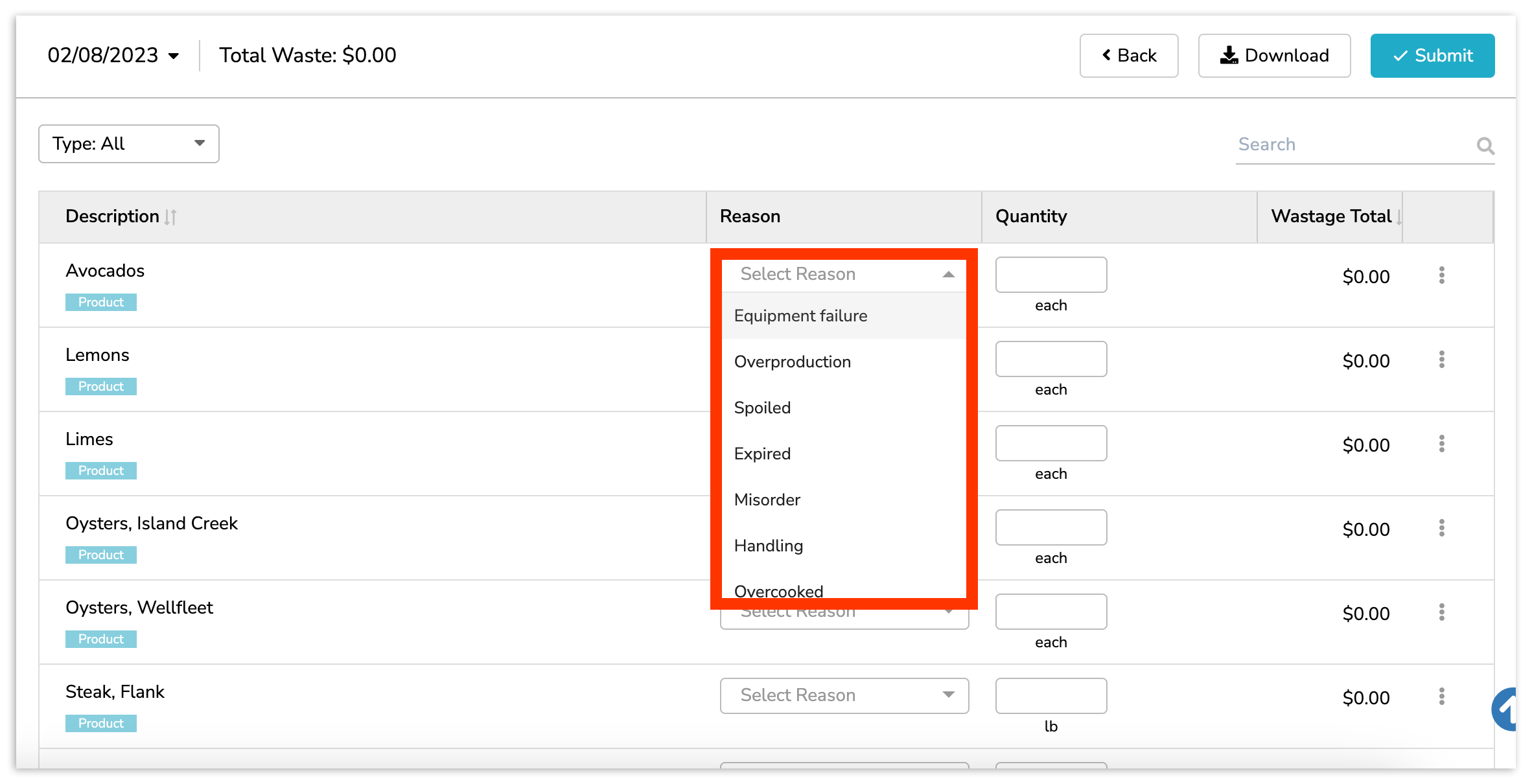
Luego selecciona un Motivo para indicar el tipo de desecho que se está registrando e inserta una cantidad.
También puedes querer compartir notas o una imagen para tus registros. Sin embargo, este es un paso opcional. Para hacerlo, selecciona los tres puntos junto a Total de Desperdicio.
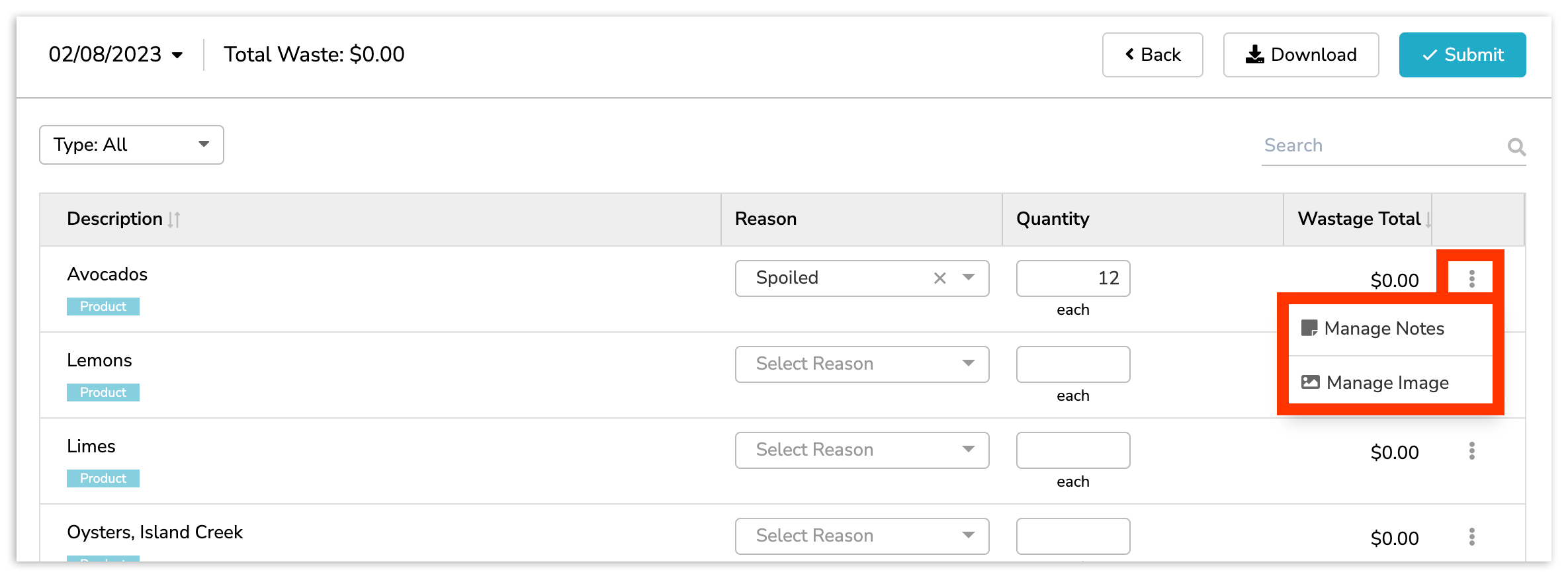
Puedes indicar motivos y cantidades para múltiples artículos de inventario a la vez. Luego, cuando termines, selecciona Enviarcerca de la parte superior derecha de tu página. Inmediatamente después de seleccionar Enviar, se te presentará el registro de desechos completado para el día.
Volver al inicio