xtraCHEF: Rechazos de Facturas
Última actualización: 8 abr 2026, 10:10 a.m.
- Introducción a los Rechazos de Facturas
- Ver Rechazos
- Razones de Rechazo de Facturas
- Próximos Pasos en Caso de Rechazo
- Evitar Rechazos en el Futuro
- Resolver Facturas Rechazadas en Móvil
Introducción a los Rechazos de Facturas
xtraCHEF rechazará facturas si el sistema no puede procesarlas. Generalmente, los rechazos ocurren cuando una factura es ilegible, se carga dos veces o falta información importante. Si una factura es rechazada, se elimina del sistema.
Revisa cómo localizar facturas rechazadas y los pasos que tomarás para proceder.
Ver Rechazos
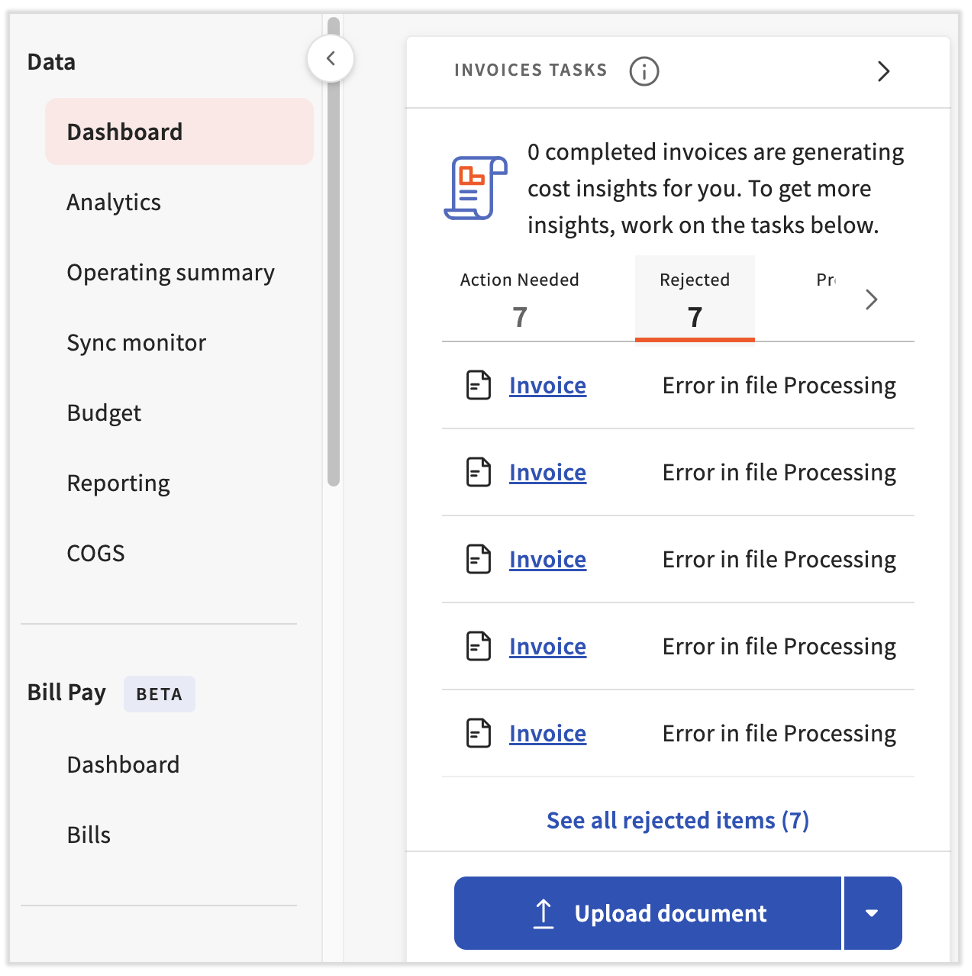
Los rechazos se pueden ver en tres lugares. El primero está en la sección Rechazados del tile Tarea de Facturas en tu panel de control. Se te alertará si alguna factura recientemente cargada ha sido rechazada por xtraCHEF.
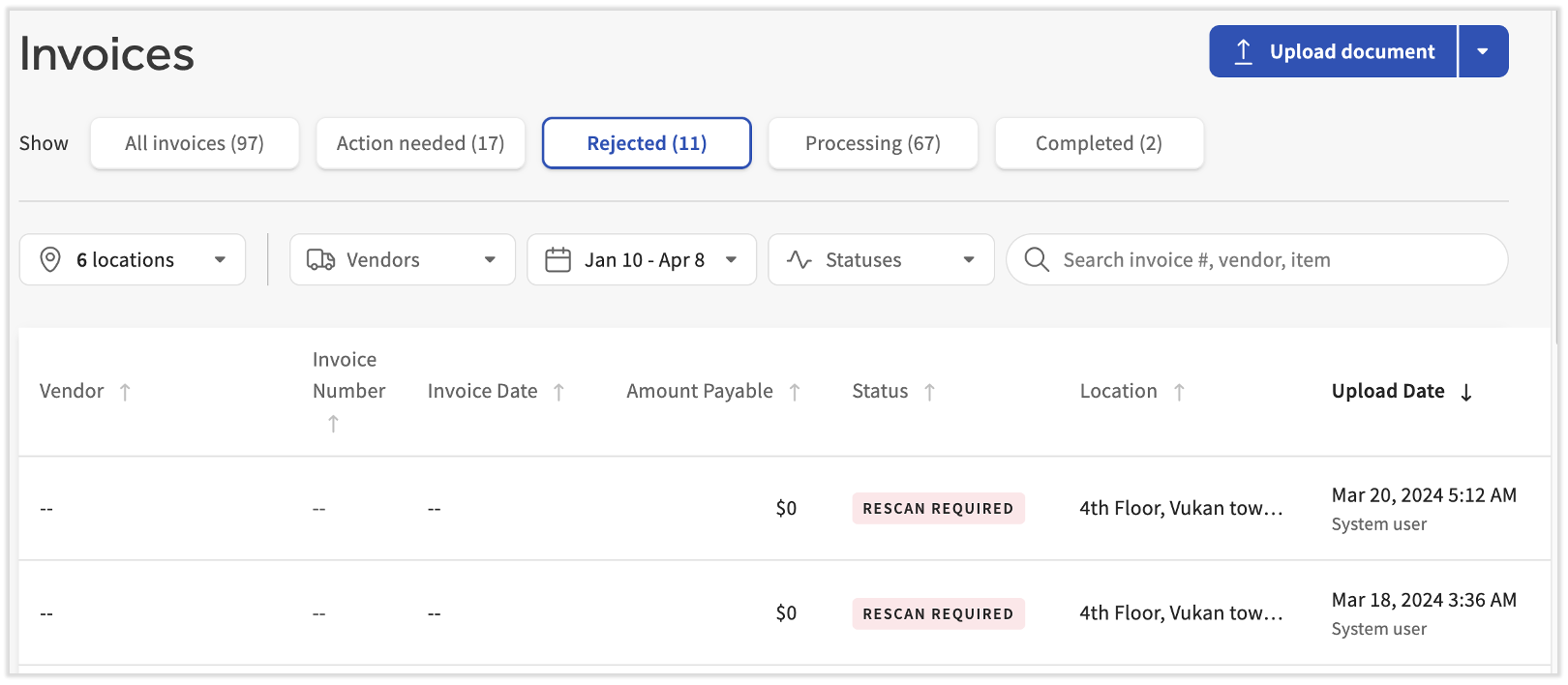
El segundo es navegando a Facturas > Rechazados. Los usuarios pueden revisar los detalles de la factura, incluyendo la razón del rechazo en la columna Estado.
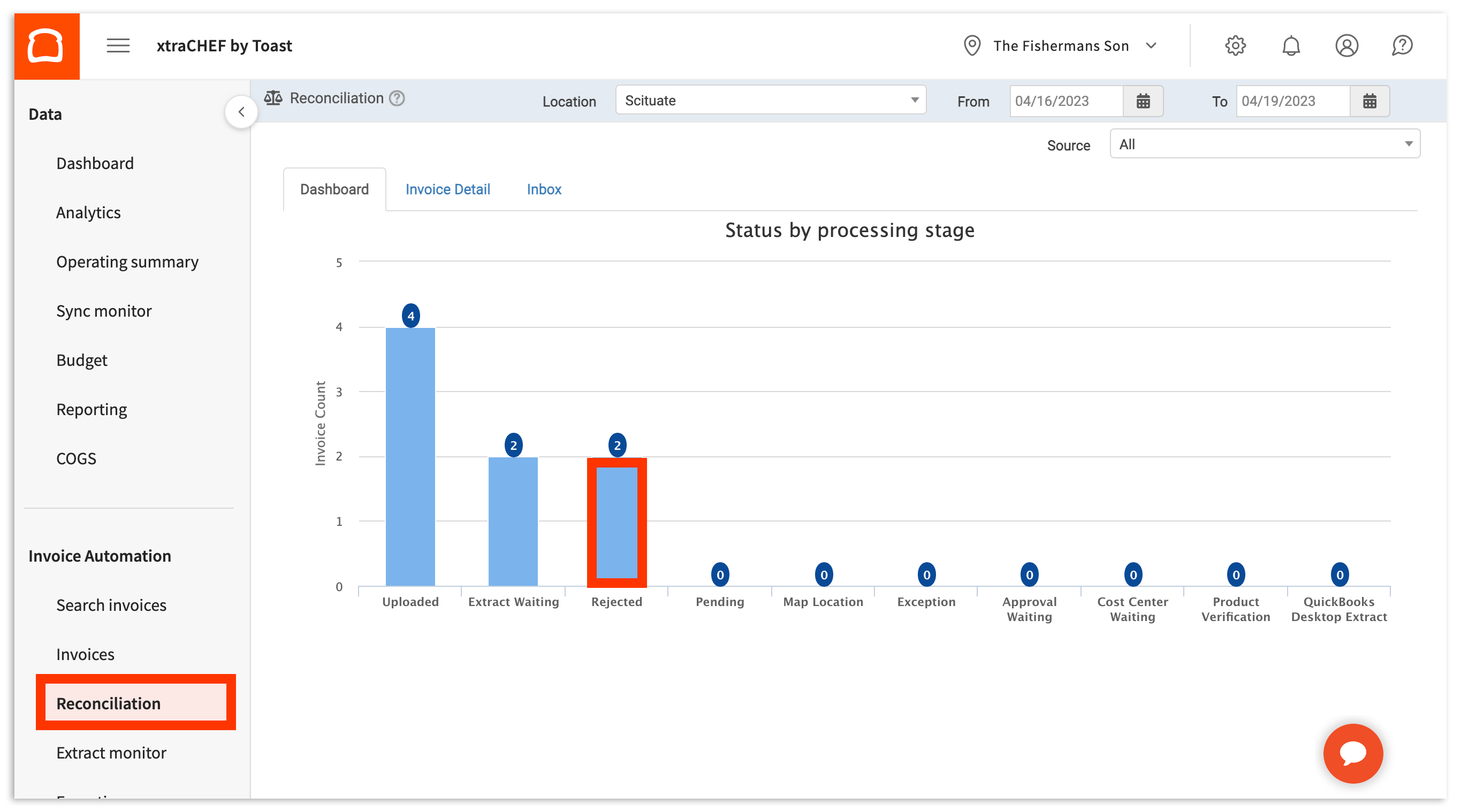
La tercera es revisando las cargas debajo de su columna Rechazos en la página de Conciliación.
Razones de Rechazo de Factura
Los rechazos ocurren cuando xtraCHEF no puede procesar facturas. Las siguientes son las causas más típicas:
- Factura Duplicada: Una factura con el mismo ID de factura y fecha ya ha sido procesada. Esta es la razón más común para los rechazos de facturas en xtraCHEF.
- Calidad de Imagen Deficiente: El documento no es legible.
- Imagen No de Factura: El documento no era una factura o recibo.
- Falta de Datos de Factura: El documento carecía de información necesaria como artículos o montos totales.
- Falta de Nombre de Proveedor: El documento no incluía información del proveedor.
- Lote Contiene Múltiples Facturas: Se subieron múltiples facturas como una sola factura.
- Factura de Cero Dólares: No hubo costo asociado con el documento subido.
- Solicitud de servidor incorrecta: Este error significa que hubo una interrupción del servidor o de internet durante el procesamiento. Recomendamos volver a subir las facturas que reciban este error. Si el error persiste, comunícate con el servicio de asistencia.
Próximos pasos en caso de rechazo
Hay tres formas principales de manejar los rechazos:
- Nada: Después de revisar la razón del rechazo, si decides que una factura debe permanecer rechazada, no es necesario tomar ninguna acción. Te recomendamos archivar el rechazo para que el conteo de facturas rechazadas en tu panel esté actualizado.
- Volver a subir: Después de revisar la razón del rechazo, si decides que una factura debe ser procesada, simplemente recaptura y vuelve a subir el documento. Te recomendamos archivar el rechazo para que el conteo de facturas rechazadas en tu panel esté actualizado.
- Reprocesar: Después de revisar la razón del rechazo, si la factura no debió ser rechazada, necesitará ser vuelta a subir. Te recomendamos archivar el rechazo para que el conteo de facturas rechazadas en tu panel esté actualizado.
En la mayoría de los casos, los rechazos se pueden evitar asegurando que tu escaneo o foto sea legible e incluya el nombre del proveedor, todos los artículos y montos en dólares, y el total final de la factura. Siempre que se cumplan esas condiciones, xtraCHEF típicamente procesará tus facturas sin rechazos.
Resolver facturas rechazadas en móvil
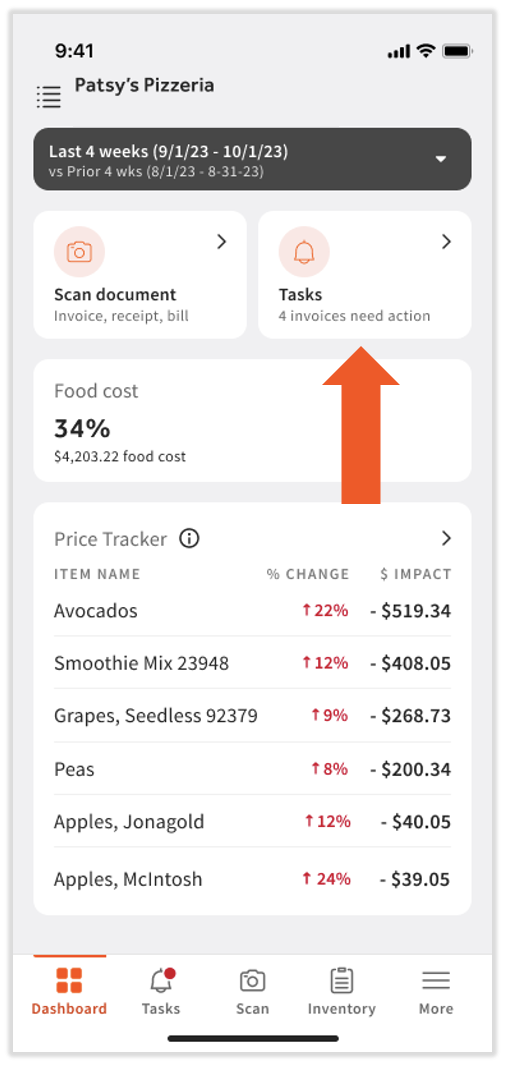
Hay algunas cosas a tener en cuenta en esta pantalla:
- Ahora se pueden gestionar muchos tipos de Acción Necesariay facturas Rechazadas desde la app.
- Algunas tareas agruparán facturas similares para que se puedan gestionar todas a la vez (en la imagen a continuación, Extraer pendientes: Mapear proveedor a QBO muestra 4 facturas afectadas).
- Algunas tareas solo se pueden gestionar desde un dispositivo de escritorio o portátil (en la imagen a continuación, Información faltante: factura desequilibrada no se puede resolver en móvil).
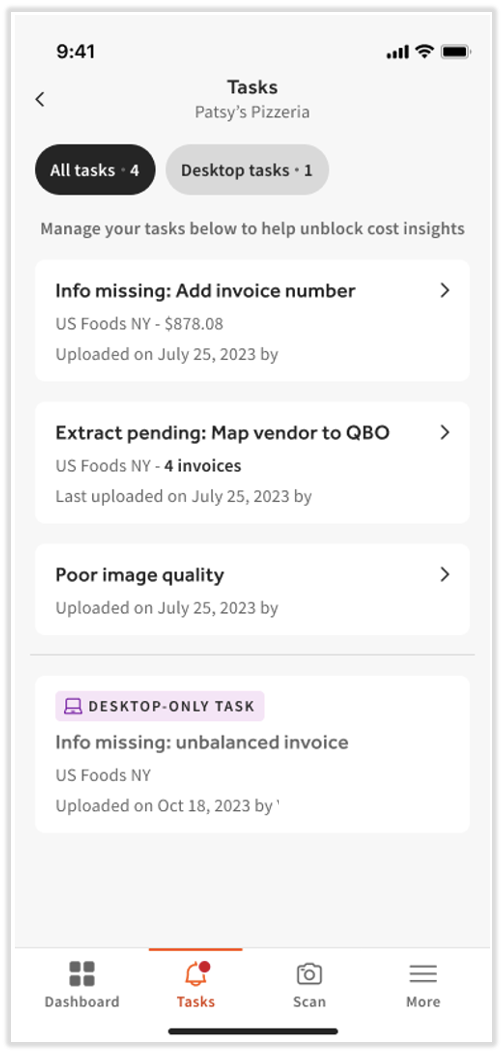
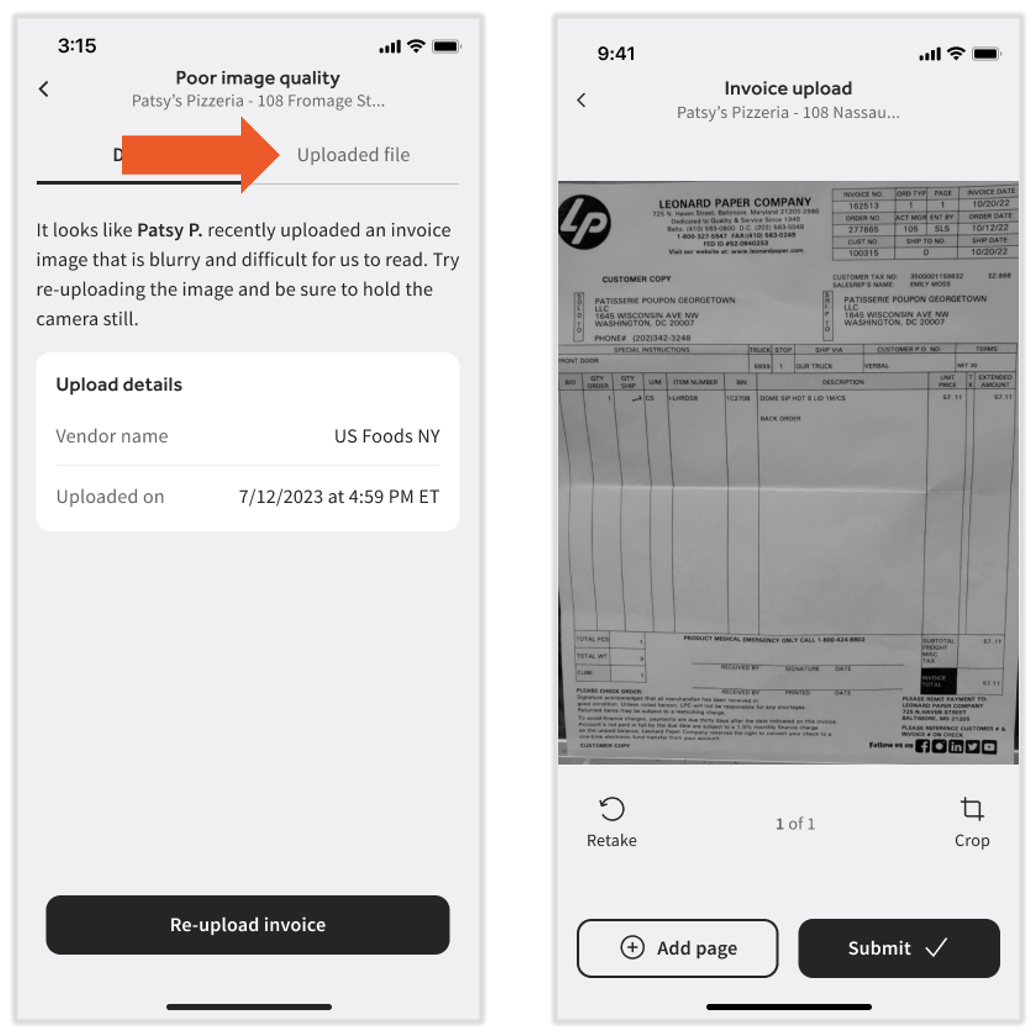
Calidad de imagen deficiente es una factura rechazada, así que toquemos eso para abrirla. Selecciona la pestaña Archivo subido si deseas ver la factura en cuestión. Toca el botón Re-subir factura para abrir la app de la cámara y volver a tomar la foto de la factura. Recuerda mantener tu dispositivo estable y tratar de hacer que la factura sea lo más clara y grande posible dentro del lente. Selecciona + Agregar página si tu factura tiene múltiples hojas. Una vez que hayas tomado una(s) foto(s) clara(s), selecciona Enviar para reprocesar esta factura.