xtraCHEF: Conciliar datos de Nómina Toast
Última actualización: 13 abr 2026, 11:15 a.m.
Resumen de conciliación de nómina
¿Quieres comparar los montos de nómina capturados por xtraCHEF con los que se muestran en Nómina Toast? Los pasos que se indican a continuación te explicarán cómo comparar estos dos recursos y garantizar la coherencia en los informes de nómina y la contabilidad.
Ver nómina
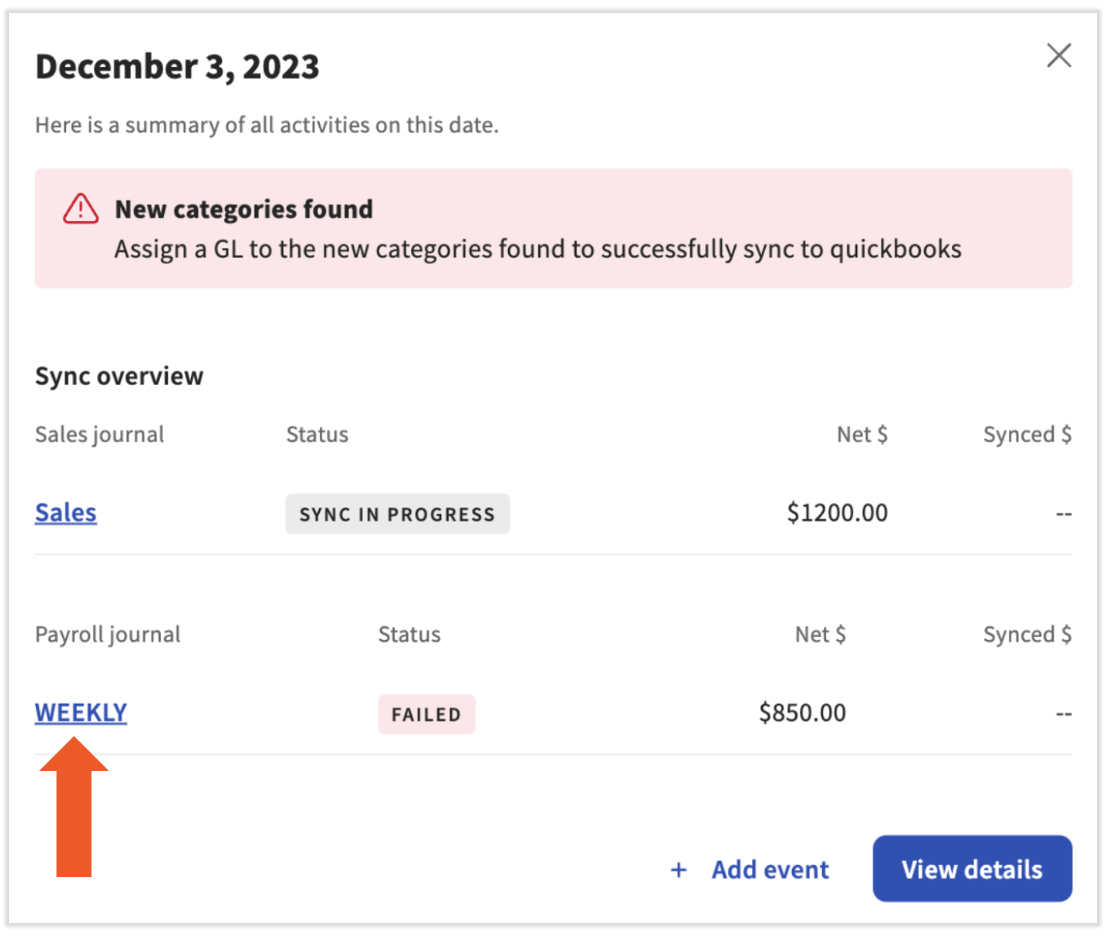
Para ver los detalles de la nómina en xtraCHEF, selecciona la pestaña Sincronizar monitoreo en la navegación de la parte izquierda. Si ves Nómina fallida en un día calendario, selecciona el día calendario para ver el motivo de la sincronización fallida. En la captura de pantalla que se muestra a continuación, a un rubro de la nómina le falta un código de LM, así que seleccionaremos el enlace del libro diario SEMANAL para ver el libro diario de la nómina donde podemos corregir el error.
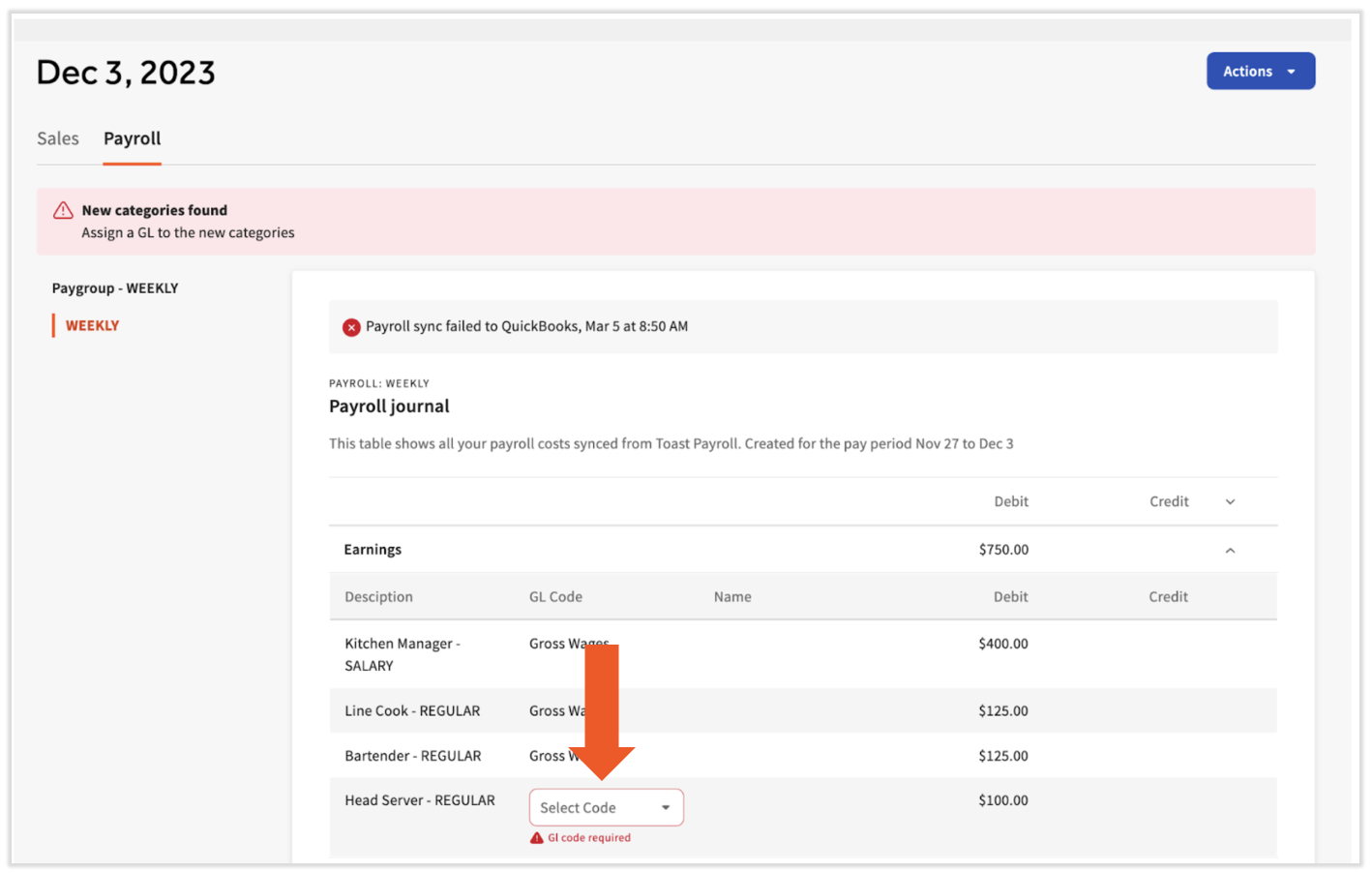
En el libro diario de la nómina, los rubros que deben resolverse aparecerán resaltados en rojo.
Conciliar nómina
Puedes empezar a conciliar los detalles de la nómina de xtraCHEF con los de Nómina Toast en varios niveles diferentes:
Monto total
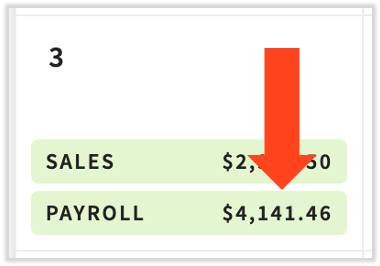
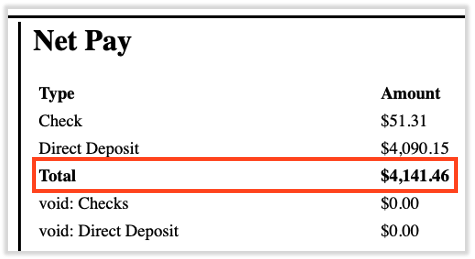
Para coincidir con los totales generales en Nómina Toast y xtraCHEF, compara tu informe de resumen de Nómina Toast con el total de pagos de tu nómina en xtraCHEF.
Ganancias
Para que coincidan con los totales de ganancias, compara los detalles de ganancias de la nómina de xtraCHEF con tu informe de distribución de mano de obra por puesto en Nómina Toast.
En xtraCHEF, comienza consultando los detalles de la nómina en el monitor de sincronización. Ve a Sincronizar monitor y selecciona una fecha con una entrada de nómina sincronizada (verde). Selecciona el hipervínculo de nómina para abrir tu diario de nómina. A continuación, usa el ícono de circunflejo para expandir la sección Ganancias y ver los detalles de tus ganancias.
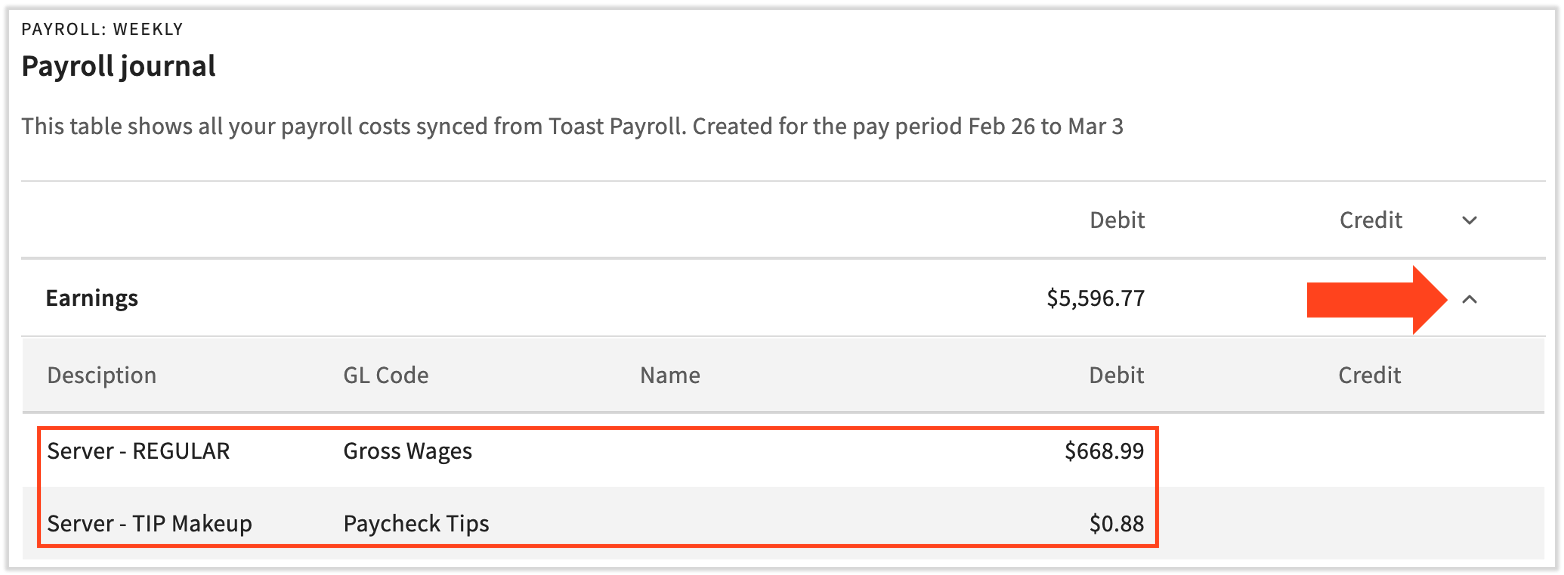
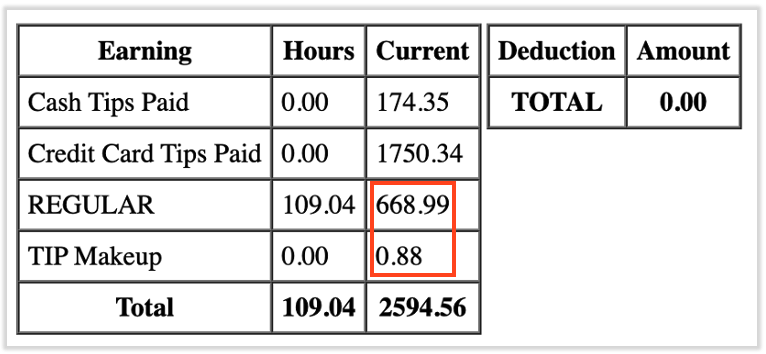
En la sección Ganancias de arriba, observamos los montos Mesero - REGULAR y Mesero - Maquillaje de propinas. Comparar este y otros montos por puesto se puede comparar con tu informe de distribución de mano de obra por puesto en Nómina Toast. Para localizarlo, ve a Nómina > Nóminas anteriores > Ver. El informe de distribución de mano de obra por tarea se encuentra cerca de la parte inferior de la página.
Deducciones, impuestos de empleados, impuestos de empleadores, tarifas y pagos
Para garantizar la precisión de todos estos detalles, compara los datos correspondientes de los detalles de nómina con los de tu informe resumido.