翻译仅供参考。您与 Toast 签署的任何法律协议(包括但不限于《商户协议》和《终端用户许可协议》),其订立语言可能不同于以上页面所使用的语言,无论是否提供本页面其他语言的译文,均应以您所签署的协议条款为准
xtraCHEF:发票拒绝
上次更新时间:2026年4月8日 10:10
拒绝的发票是 xtraCHEF 无法处理的发票。了解更多关于发票被拒绝的原因以及该如何处理。
发票拒绝介绍
如果系统无法处理,xtraCHEF将拒绝发票。通常,拒绝发生在发票无法辨认、重复上传或缺少重要信息时。如果发票被拒绝,它将从系统中删除。
查看如何定位被拒绝的发票以及您将采取的步骤。
查看拒绝
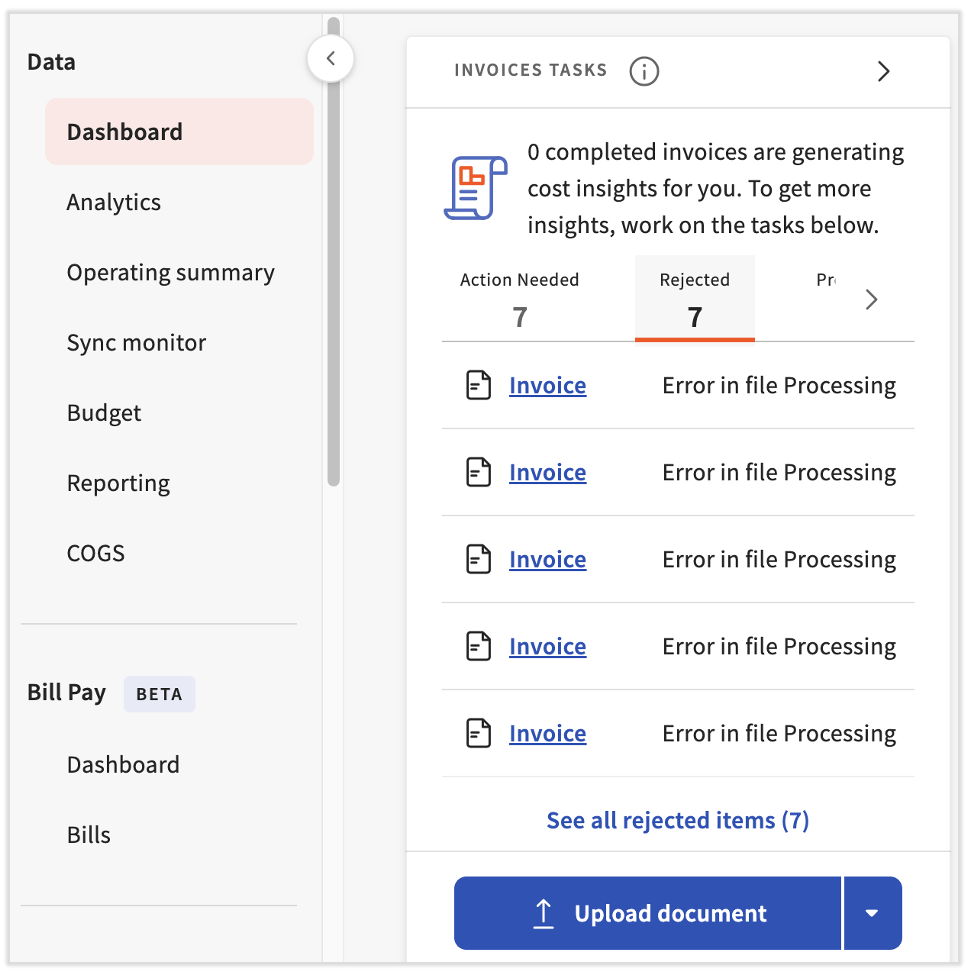
拒绝可以在三个地方查看。第一个是在仪表板的被拒绝部分的发票任务模块中。如果最近上传的发票被xtraCHEF拒绝,您将收到通知。
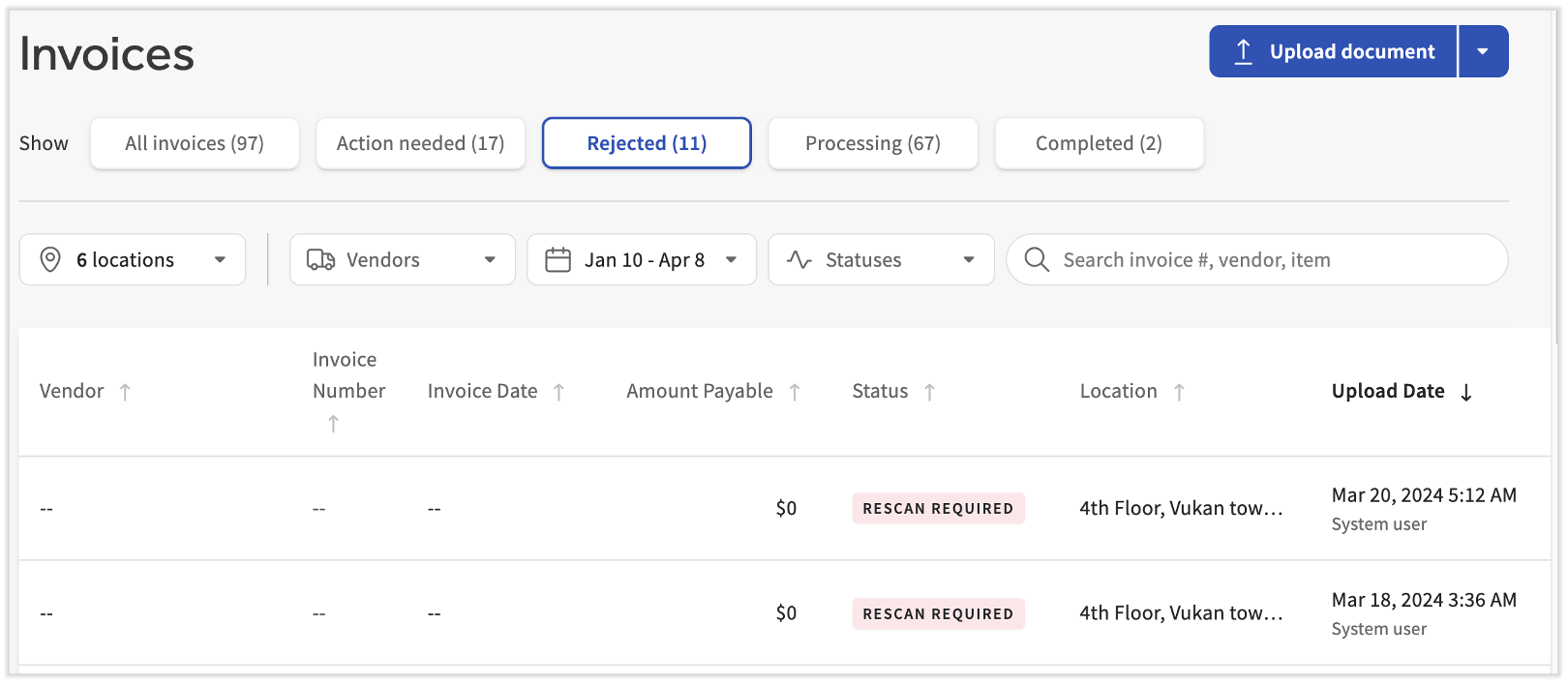
第二个是通过导航到发票 > 被拒绝。用户可以查看发票的详细信息,包括拒绝原因列中的拒绝原因。
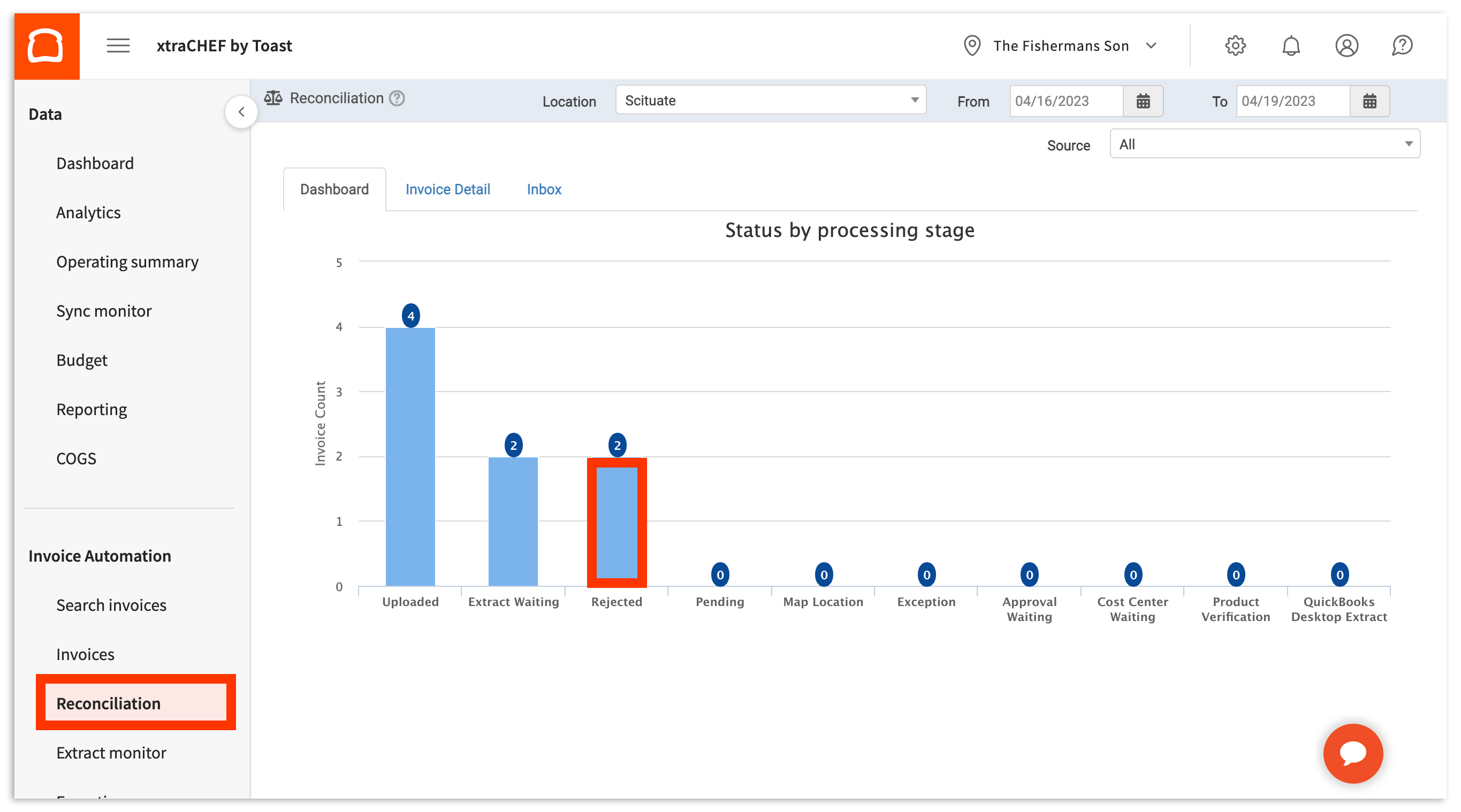
第三种方法是查看您在拒绝列下的上传内容,位于对账页面上。
发票拒绝原因
拒绝发生在xtraCHEF无法处理发票时。以下是最典型的原因:
- 重复发票:一张具有相同发票ID和日期的发票已经被处理。这是xtraCHEF中发票被拒绝的最常见原因。
- 图像质量差:文档无法读取。
- 非发票图像:文档不是发票或收据。
- 缺失发票数据:文档缺少必要的信息,例如行项目或总金额。
- 缺失供应商名称:文档未包含供应商信息。
- 批次包含多个发票:多个发票作为一张发票上传。
- 零美元发票:上传的文档没有相关费用。
- 错误的服务器请求:此错误表示在处理时发生了服务器或互联网中断。我们建议重新上传收到此错误的发票。如果错误仍然存在,请联系支持团队。
拒绝后的步骤
处理拒绝的主要方式有三种:
- 无:在审查拒绝原因后,如果您决定发票应保持拒绝状态,则无需采取任何行动。我们建议您归档拒绝,以便仪表板上的拒绝发票数量保持最新。
- 重新上传:在审查拒绝原因后,如果您决定发票应被处理,只需重新捕获并重新上传文档。我们建议您归档拒绝,以便仪表板上的拒绝发票数量保持最新。
- 重新处理:在审查拒绝原因后,如果发票不应被拒绝,则需要重新上传。 我们建议您归档拒绝,以便仪表板上的拒绝发票数量保持最新。
在大多数情况下,通过确保您的扫描件或照片清晰可读,并包含供应商名称、所有项目和金额以及最终发票总额,可以避免拒绝。只要满足这些条件,xtraCHEF通常会处理您的发票而不发生拒绝。
在移动设备上解决拒绝的发票
xtraCHEF用户还可以直接在xtraCHEF应用程序中查看、编辑并继续处理大多数这些发票。 在主屏幕上,您会看到一个图块,指示您有任务。这包括被拒绝的发票,因此请点击该图块。
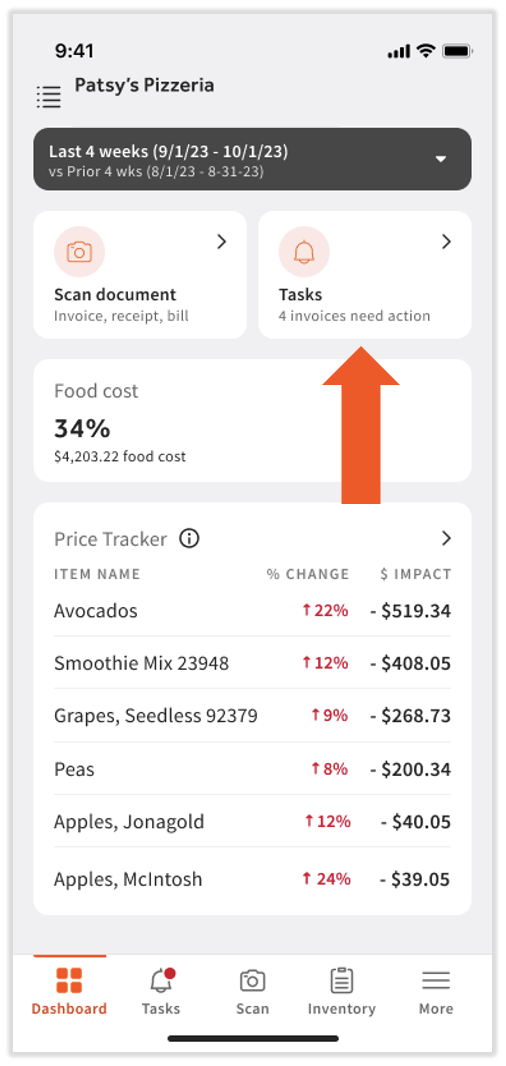
在此屏幕上有几点需要注意:
- 现在可以通过应用程序管理多种类型的 需要操作 和 被拒绝的发票。
- 某些任务会将类似的发票分组,以便一次性管理(在下图中,提取待处理:将供应商映射到 QBO 显示 4 个受影响的发票)。
- 某些任务只能在桌面或笔记本设备上管理(在下图中,信息缺失:不平衡的发票 无法在移动设备上解决)。
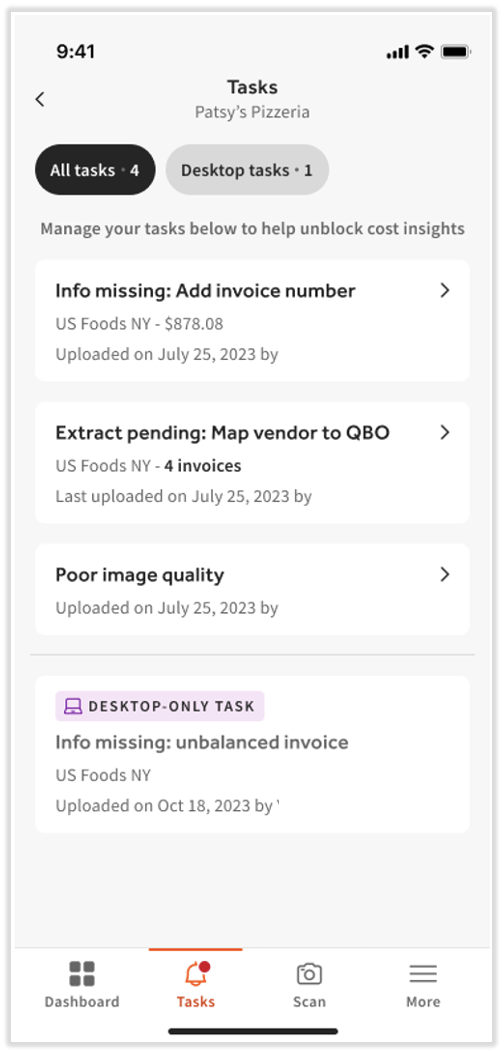
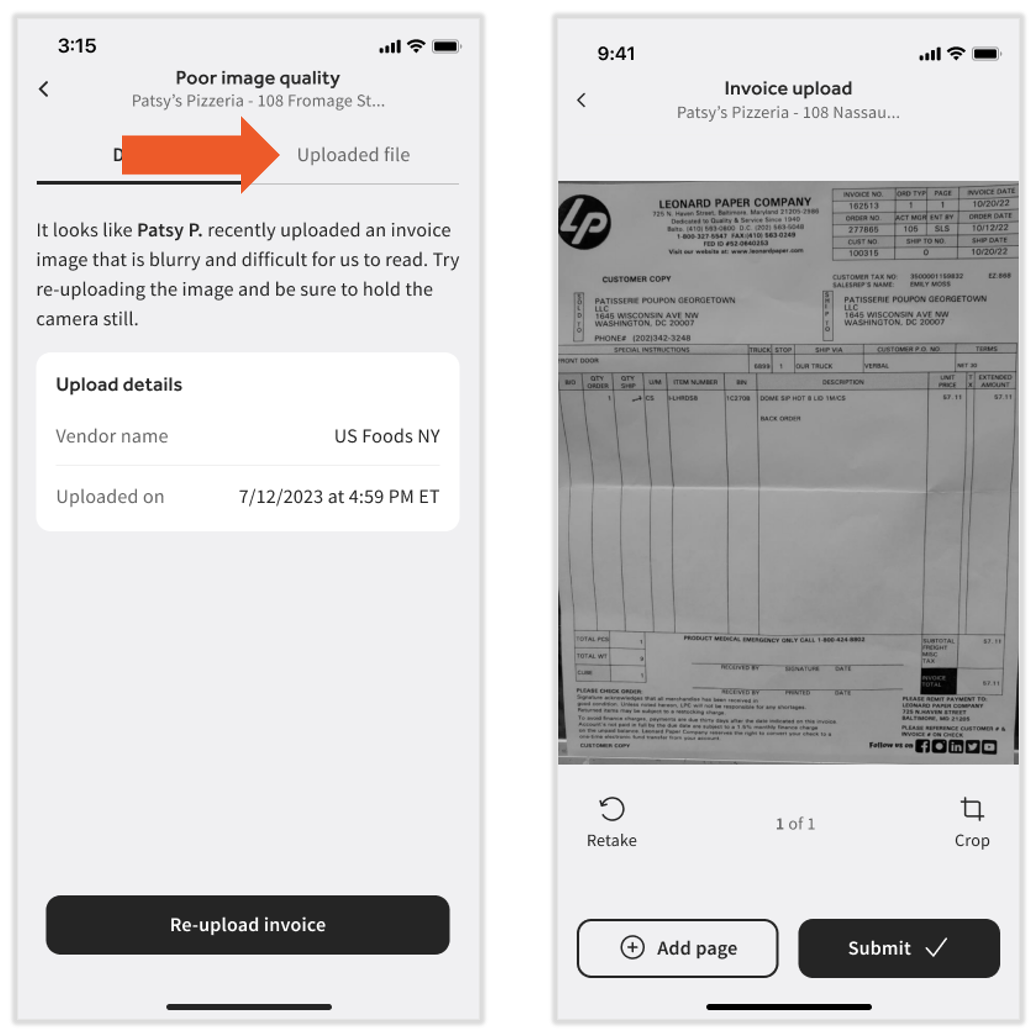
图像质量差 是一张被拒绝的发票,所以我们点击它以打开。如果您希望查看相关发票,请选择 上传的文件 选项卡。点击 重新上传发票 按钮以打开您的相机应用程序并重新拍摄发票照片。请记住保持设备稳定,并尽量使发票在镜头中尽可能清晰和大。如果您的发票有多张纸,请选择 + 添加页面。拍摄清晰的照片后,选择 提交 以重新处理此发票。