Gift Card Reports Overview
Last updated: Mar 25, 2026, 1:53 PM
Learn how to use and get the most out of your gift card reporting.
- Gift Card Reports Introduction
- Navigate to Gift Card Reports
- Breakdown of Gift Card Reports
- Additional Resources
Gift Card Reports Introduction
The gift card reports that are available on Toast Web will give you all of the information you need about active and inactive gift cards, gift card transactions, and more.
| Available Reports | Description |
| Guests, Gift Cards, And Loyalty Summary | This report shows key gift card summary metrics:
Note: To find your gift card liability at a specific point in time (e.g., December 31, 2024), use the custom date range and set both the start and end dates to that day. |
| Gift Card Balances | This report provides a real-time summary of all active gift cards and balance information. Note: This report provides real-time data ONLY and thus ignores any date range filters. If you would like to search by date range, see the Gift Card Transactions Report. |
| Gift Card Transactions | This report shows detailed gift card transaction information and card balance updates for a selected time period using the date range filters. Note: Any tip adjustments associated with gift cards will be listed as a void redemption in this report. |
| Gift Card Liabilities (Liability Pooling Report for Multi-Location Customers) | This report will track a transaction that occurs in relation to the store that owns the card's liability vs. the store that redeemed the amount. This is especially useful for multi-location restaurant groups. |
| Inactive Gift Cards | This report provides a real-time summary of inactive gift card numbers. |
| Failed e-Gift Card Deliveries | This report provides a real-time summary of all failed eGift card deliveries and allows you to update the recipient's email address and resend the eGift card as needed. |
Note: If a gift card report isn't populating, your account is likely in Test Mode, as active gift cards cannot be seen in Test Mode. Learn how to disable Test Mode here: Test Mode Overview.
Navigate to Gift Card Reports
In Toast Web, navigate to Reports > Payments. From the left-hand report navigation menu, select the gift card report you'd like to view. Tip: Type the report name (e.g. Gift Card Balances, Gift Card Transactions) into the Toast Web search bar. From there, use the horizontal menu to quickly access all Gift Card reports.
You must have the 4.4 Gift/Rewards Cards Reports user access permission in order to view the gift card reports. Learn more here: Permissions Reference Guide.
Breakdown of Gift Card Reports
Guests, Gift Cards, and Loyalty Summary
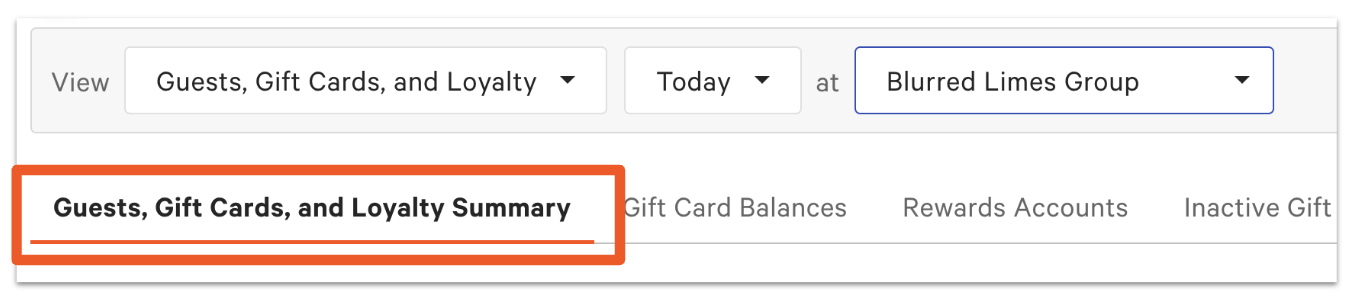
Card Counts: a real-time summary of all active and inactive gift cards.
- Classic Gift Cards: Count of all active physical gift cards ordered through Toast’s printing partner, eCard Systems.
- eGift Cards: Count of all active digital eGift Cards
- Imported Gift Cards: Count of all active imported cards
- Inactive Cards: Physical cards that have been ordered, but not yet loaded with value (e.g. a box of blank physical cards waiting to be used)
Note: Key definitions when counting gift cards:
- Gift Cards = All cards with at least one transaction (e.g. sale, balance adjustment, or import). Even if the balance is $0, they’re still counted.
- Inactive Cards = See bullet #4 above for definition. It is important to note that Inactive gift cards do NOT = De-activated gift cards
Gift Card Transactions: shows total gift card sales and redemptions over a selected date range, along with starting and ending liability for that period.
- Total Sales
- Added Value: Transactions where value was added to gift cards (includes new card sales and reloading existing cards).
- Voided Add Value: Transactions where added value was canceled or voided.
- Adjust Balance: Manual adjustments to card balances (outside of a sale or redemption)
- Total Redemptions
- Redemptions: Amount guests used from gift cards to pay for orders.
- Voided Redemptions: Redemptions that were later canceled or voided.
- Net Liability Change: Change in total gift card liability during the selected period. Calculated as: Total Sales - Total Redemptions.
- Starting Liability: Outstanding gift card balance at the beginning of the selected date range.
- Ending Liability: Outstanding gift card balance at the end of the selected date range.
Note: To find your gift card liability at a specific point in time (e.g. Dec 31, 2024), use the custom date range and set both the start and end dates to that day.
For multi-location customers, make sure your location dropdown selections are accurate.
Gift Card Balances Report
The Gift Card Balances report lists all active gift card accounts and their current balances. Use this report to locate a gift card account and adjust its balance. By using the drop-down menus at the top of the report, you can filter the data by date and/or the location(s) where the gift card was first generated or imported. When you're done changing the options, select Update.
You can further customize your Gift Card Balances report by selecting the Show/hide columns button and choosing which features you'd like to view.
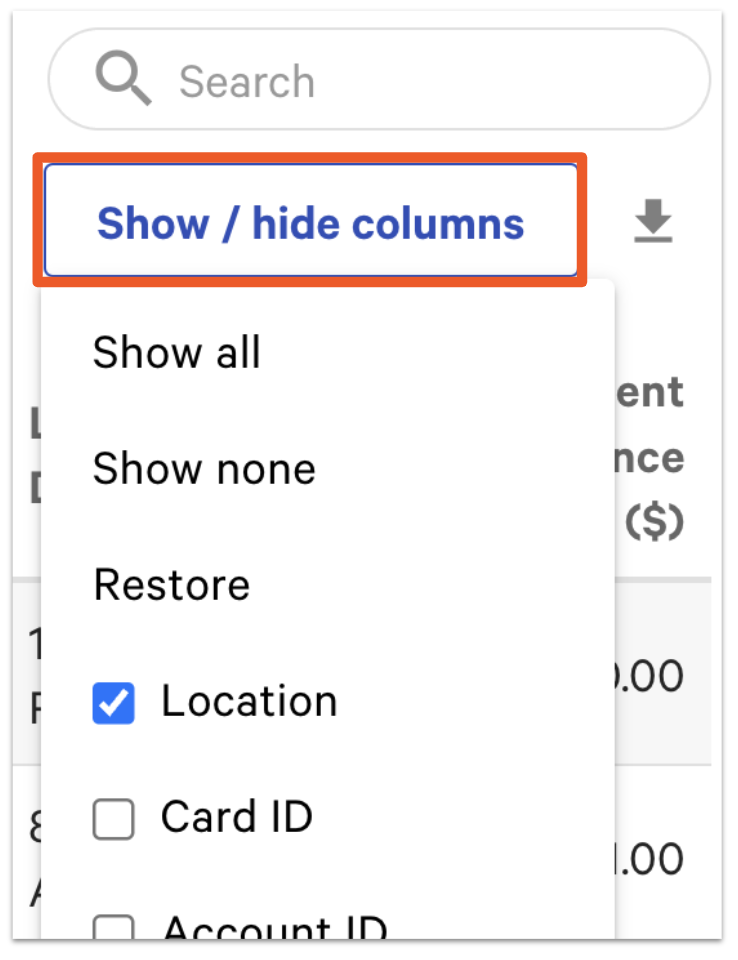
- Location: The location where the gift card was first generated or imported.
- An eGift card is generated at the time of sale in the restaurant in which the card is sold.
- A Toast-ordered/printed physical card is generated in the restaurant in which the order is placed, which can be different from where it is sold.
- A non-Toast ordered/printed card must be imported to Toast. This will be linked to the location in which it is imported (either as an inactive or active card).
- Card ID: A secondary identifier used to represent the gift card, which could be useful in the unlikely instance that two gift cards share the same card number.
- Account ID: This refers to the ID of the stored value. This is most often unique to each card, but can and will be the same for any two or more gift cards that are merged together. For example, if gift card 1234 and gift card 4567 are merged, they begin to share the same account ID.
- Classic Card?: If this field is true, then the gift card is a physical card. If this field is false the gift card is an eGift card.
- De-activated?: If this field is true, then the gift card has been deactivated. If this field is false the gift card is still active.
- Note: It's possible to re-activate a previously deactivated gift card. If you click on a gift card line item, the Card Details window will appear. In Card Details, the blue Edit button in the upper left-hand corner will open a drop-down to deactivate (or re-activate) a gift card.
- Imported Number: The card number of a gift card assigned to it before being imported to Toast. This is for gift cards that are created/generated outside of Toast and imported to Toast later on.
- Card Number: All gift cards have a Toast-assigned card number, regardless of being imported. If the card is imported, then an imported number will appear. If the card is Toast-native (generated directly on Toast rather than being imported) then it will only have a "Card number". Toast-assigned card numbers always begin with 862.
- First Trans. Date: The date of the first transaction on the gift card.
- Initial Amount ($): The initial amount associated with that gift card.
- Last Trans. Date: The date of the last transaction on the gift card.
- Current Balance ($): The current balance associated with that gift card.
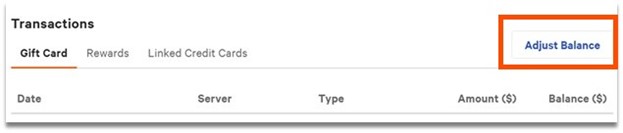
You can use the Gift Card Balances report to change the balance amount on a specific gift card by following these steps:
- Select which gift card you would like to change.
- On the Card Details pop-up, in the Transaction section, select Adjust Balance.
- Enter the value you wish to add to the gift card in the Amount ($) field. To subtract value, enter a negative value.
- Select Save.
You can select the download icon (down arrow) to download a .csv file of the report's data.
Gift Card Transactions Report
The Gift Card Transactions report provides a real-time overview of all gift cards and their current balances. You can use this report to match imported card numbers with Toast gift card numbers and monitor insights into gift card transactions, current balances, as well as redemptions and purchases.
You can customize your Gift card transactions report by selecting the Show/hide columns button and choosing what features you would like to view. See more details about these additional fields in the previous section of this article.
Gift Card Liabilities Report
This report is essential for multi-location restaurant groups that want to keep track of who is selling and redeeming gift cards. Essentially, the Gift Card Liabilities report will track the transaction that occurs in relation to the store that owns the card's liability vs. the store that redeemed the amount. This report allows restaurants to periodically audit how much each store owes the others based on liability amount vs. redeemed amount.
You can customize your Gift Card Liabilities report by selecting the Show/hide columns button and choosing what features you'd like to view.
- Affected Store: Allows you to sort by location to see how much outstanding liability there is at a given time for that particular store.
- Transaction ID: # for the transaction
- Original Account ID/Current Account ID: # of the gift card in question
- Card Number(s): All gift cards have a Toast-assigned card number, regardless of being imported. If the card is imported, then an imported number will appear. If the card is Toast-native (generated directly on Toast rather than being imported) then it will only have a "Card number". Toast-assigned card numbers always begin with 862.
- Imported Card Number(s): If the card is imported, then an imported number will appear under this column.
- Date: Transaction date. There can, and often will be, several dates for each Account ID.
- Original Purchase/Add Value Store: This is the store in the restaurant group that originally accepted payment for the card. This would be the store that owes the redemption location.
- Debit($): This is the amount that is owed by the affected store. You will see a debit when the affected store is the same as the redemption store.
- Credit($): This is the amount that is owed to the affected store. You will see a credit when the affected store is the same as the redemption store.
- Redemption Store: The store where the gift card value was actually redeemed to purchase an item.
Note: The Redemption Store is always owed the amount for accepting the Original Store's gift card and honoring that liability.
Since this report presents a list of transactions, you may prefer to export the data and aggregate it. The easiest way to get the data in summary form is to use a pivot table.
- Select the Email Export button to receive an email of this report as an Excel file.
- Next, enter the email address or addresses of anybody you'd like to receive the Excel file (accountant, bookkeeper, owner, etc.).
- Select Submit to send the report.
If you’re a single-location restaurant, you can easily view your gift card liabilities by navigating to the Guests, Gift Cards, and Loyalty Summary report. To find this report, navigate to Reports > Marketing > Guest Summary. This report provides a count of all active and inactive gift cards broken down by physical and e-gift cards, net liability change, starting liability, and ending liability, as well as information on any rewards accounts.
Back to top
Inactive Gift Cards Report
The Inactive Gift Cards report includes all unsold gift card numbers. In this report, you can view/edit details about each card, manually activate an inactive gift card, and see the number of available gift cards you have left to evaluate if you need to purchase more.
You can customize your Inactive Gift Card report by selecting the Show/hide columns button and choosing what features you'd like to view. See more details about these additional fields in a previous section of this article.
You can select the download icon (down arrow) to download a .csv file of the report's data.
Failed eGift Card Deliveries
The Failed eGift Card Deliveries report provides a breakdown of any failed eGift cards that were sent to an errant email address. You can use this report to monitor any failed eGift card deliveries and locate/resend an eGift card. In order to view this report, navigate to Reports > Payments > Failed e-gift card delivery in Toast Web.
By using the drop-down menus, you can filter this report by date, time, and/or the associated store location(s) where the gift card failed. When you're done changing the options, select Update.
You can also customize your Failed eGift Card Deliveries report by selecting the Show/hide columns button and choosing what features you'd like to view.
- Location: The location where the gift card was first generated or imported. An eGift card is generated at the time of sale in the restaurant in which the card is sold.
- Email: The gift card purchaser's email.
- Purchaser Contact Info: The contact information the purchaser provided.
- Card Amount: The original amount on the gift card.
- Delivery Attempted: The date and time when the electronic delivery of the gift card was attempted.
- "To" Name: The gift card recipient.
- "From" Name: The gift card sender.
- Failure Reason: The reason why the gift card was not sent (e.g. invalid email address).
Back to top