Set Up and Use Modifier Multi-Select
Last updated: Mar 25, 2026, 1:50 PM
Learn how to set up your modifier groups so that guests can select multiple choices, such as sauces or toppings.
Configure Modifier Multi-Select
 | The following steps will walk you through setting up this feature in your back-end with the legacy menu feature. For step-by-step instructions on how to set it up using the Menu Builder, check out this Support Center article: Manage Menus With the Menu Builder. |
- Create a modifier group or open an existing modifier group for which you'd like guests to be able to select multiple modifiers. For detailed instructions on creating modifier groups, see this Support Center article: Create and Manage Modifier Groups and Modifier Options. As an example for this article, we'll create a modifier group for sauces for our Wings menu item. You could also easily use these instructions to create a modifier group that applies to all items within a menu group instead of just for one specific item.
- Enter a Name for your modifier group and use the Required? drop-down to select whether the modifier behavior should be set to required, optional - force show, or optional. Learn more in this Support Center article: Configure Modifier Behavior.
- Select the checkbox for the Multi-select? setting. This is what will allow more than one modifier to be chosen from this group.
- Save your changes, and then select the modifier group you just created to open the modifier group details page.
- Scroll down to the Properties section, where you'll see that Multi-select? is automatically enabled because you selected the checkbox on the previous page. Now, you can use the Min # selections and Max # selections drop-down menus to indicate how many selections you'd like to allow.
- If you'd like to allow guests to choose the same modifier multiple times, make sure to select By default, the same modifier can be added more than once in this group for the Duplicate Modifiers setting. Learn more about duplicate modifiers in this Support Center article, Set Up and Use Duplicate Modifier Selections.
- Scroll down to the Modifier Pricing Method section and select where pricing is set for this modifier group. The options are:
No additional charge: The modifiers in this group do not have an additional charge to them.
Additional charge - price set by modifier group: The price for the modifiers is set at the group level. Thus, all modifiers within this group will have the same additional charge.
Additional charge - price set on individual modifiers: The price for modifiers is set individually for each modifier.
- Scroll down to the Modifiers section and add each modifier individually by selecting the +Add button. Set the prices based on the selection you made in the previous step. If the modifiers used in this group already exist somewhere else in your menu, it's recommended to use Add Existing Modifiers from the drop-down menu next to the + Add button.
- Save and publish your changes.
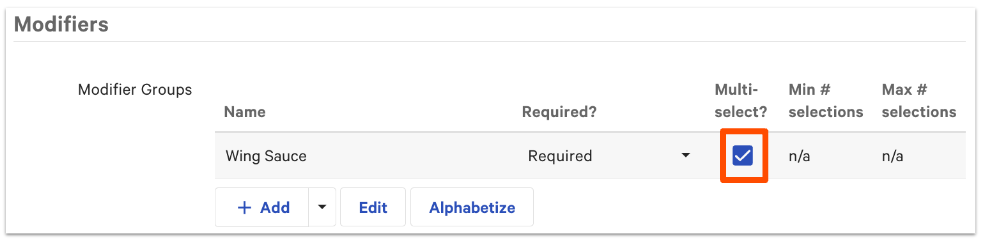
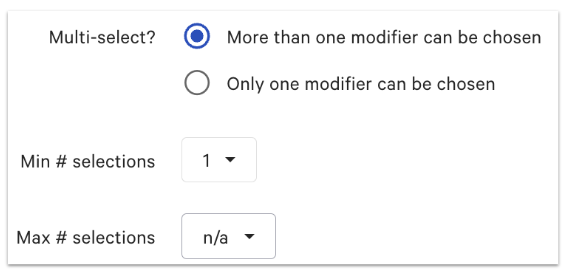
You've successfully created a multi-select modifier group! Check out the images in the next section to see how these will appear for your servers and guests.
How Modifier Multi-Select Appears
On Your POS
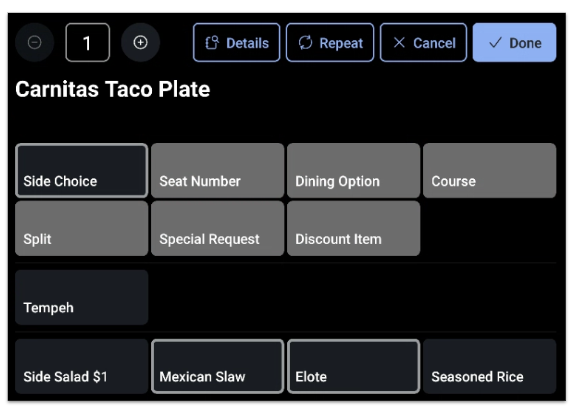
In this example, the Side Choice modifier group has multi-select enabled, and the server chose both the Mexican Slaw and the Elote.
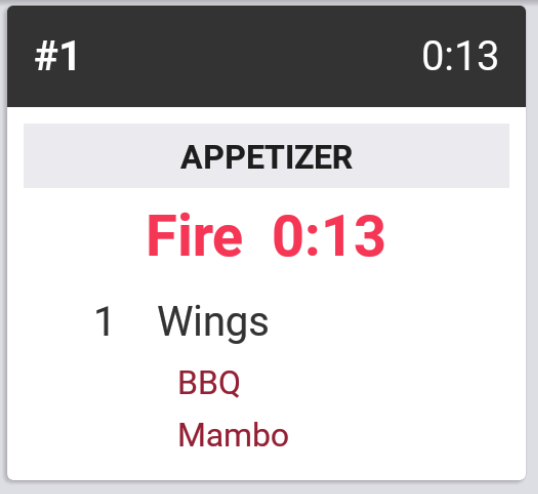
On Your KDS
Online Ordering
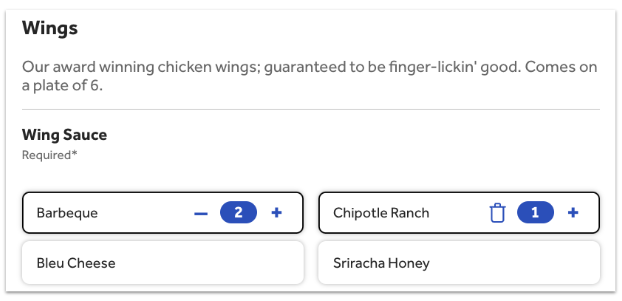
In this example, duplicate modifiers are also enabled (so guests can pick more than one of the same modifier).