Toast Payroll: Manage Security Roles
Last updated: Jun 16, 2026, 2:15 PM
Learn what each Toast Payroll security role can do, how to change a user's role, and how to request a custom role.
- About Security Roles
- What This Applies To
- Standard Security Roles
- What Each Security Role Can Do
- Inactive Standard Security Roles
- Change a User's Security Role
- Security Role Access for Pay Changes
- Custom Security Roles
- Frequently Asked Questions
- Related Articles
About Security Roles
A security role in Toast Payroll controls what pages and information a user can view and what actions they can take, such as approving timesheets or running payroll. Security roles work much like permissions (also called security access or clearance) in Toast Web. A user's security role can also give them access to other employees' information, which is why managers and HR personnel are usually assigned higher-access roles.
Each user gets one security role at a time. If a person holds multiple positions, Toast Payroll grants access based on the security role of their primary position only.
What This Applies To
This article applies to Toast Payroll. Viewing or changing a user's security role is typically done by an HR+ user. Custom security roles require Toast Payroll Pro.
Standard Security Roles
Toast Payroll includes four standard security roles. Standard security roles cannot be edited. If you need access levels that do not match a standard role, you can request a custom security role, which requires Toast Payroll Pro.
- HR+: Gives a user the highest level of access in the system. HR+ users can adjust security roles for all other users, including their own.
- Manager: A user who can access only employees set up to report directly to them. Managers cannot run payroll. To set who an employee reports to, see Toast Payroll: Update Positions.
- Employee: Gives a user access to their own personal information only and lets them update their own details as needed.
- Payroll: Provides access to limited employee data and full access to run payroll. As of January 2024, Toast Payroll no longer supports or updates this security role. If you currently use the Payroll role and need similar access, request a custom security role.
Note: A Manager's access is driven by the reporting structure, not by the role alone. A Manager can see an employee only if that employee reports to them. To view who an employee reports to, open their profile and scroll to the Reports To tile.
What Each Security Role Can Do
Use this table to confirm which security role can perform a given action in Toast Payroll.
| Task | Employee | Manager | HR+ |
| Hire new employees / add team members | ❌ | ✅ Can hire into the Employee role only | ✅ |
| Update employee email addresses | ✅ Self only | ❌ | ✅ Only when the email address is unverified |
| View an employee's pay | ✅ Self only | ✅ Reporting structure only* | ✅ |
| Assign and edit a job's pay | ❌ | ✅ Reporting structure only* | ✅ |
| View an employee's payment method | ✅ Self only | ✅ Reporting structure only* | ✅ |
| Set or update own direct deposit with Plaid | ✅ Self only | ✅ Self only | ✅ Self only |
| Set or update another user's direct deposit manually | ❌ | ❌ | ✅ Any profile but their own |
| Set a paper check payment method | ✅ Self only | ✅ Reporting structure only* | ✅ |
| Add recurring earnings and deductions | ❌ | ❌ | ✅ |
| Run payroll | ❌ | ❌ | ✅ |
| View and edit personal profiles | ✅ Self only | ✅ Reporting structure only* | ✅ |
| Fill out Section 1 of Form I-9 | ✅ Self only | ❌ | ✅ |
| Fill out Section 2 of Form I-9 | ❌ | ✅ Reporting structure only* | ✅ |
| Quick Calcs | ❌ | ❌ | ✅ |
| View reports | ❌ | ✅ Limited reports, reporting structure only* | ✅ |
| Approve timesheets (if applicable) | ❌ | ✅ Reporting structure only* | ✅ |
*Reporting structure only means the employee must be a direct report of the Manager for the Manager to perform that action. To set who an employee reports to, see Toast Payroll: Update Positions.
For step-by-step instructions on each linked task, see the related guides:
- Toast Payroll: New Hire Employees (Employer Guide)
- Toast Payroll: Make a Pay Change
- Toast Payroll: Set a Payment Method
- Toast Payroll: Get Help With Direct Deposit Amounts
- Toast Payroll: Add or Edit Earnings & Deductions
- Toast Payroll: Run Your Payroll
- Toast Payroll: Update Employee Profile Information
- Toast Payroll: Complete Form I-9
- Toast Payroll: Issue Manual Checks (Quick Calcs)
- Toast Payroll: Optimize the Report Library
- Toast Payroll: Manage Timesheets
Inactive Standard Security Roles
Two standard security roles are inactive and assigned by the system automatically.
- Applicant: For users who applied for a job through the Toast Payroll Recruitment module but do not yet have an active employee record. These users have an active record only once they are hired. To learn more, see Toast Payroll: Get Started With Recruitment.
- Termed: Assigned automatically as soon as a termination is processed. It gives the user limited access to the My Profile tab and nothing else. In many cases, a termed user can still view their Form W-2 from Myself > Documents & Forms > Year End Documents. To learn more, see Toast Payroll: Manage the Form W-2 Experience.
Change a User's Security Role
This task is typically performed by an HR+ user. Use it to change a user's security role, for example from Employee to Manager, or to give a user HR+ access.
- In Toast Payroll, navigate to the employee's profile > Position.
- Select the yellow Edit button.
- Update the Reason field (for example, Position or Administrative Update), then change the Security Role field to the role you want.
- Select Submit at the bottom of the page to apply your change.
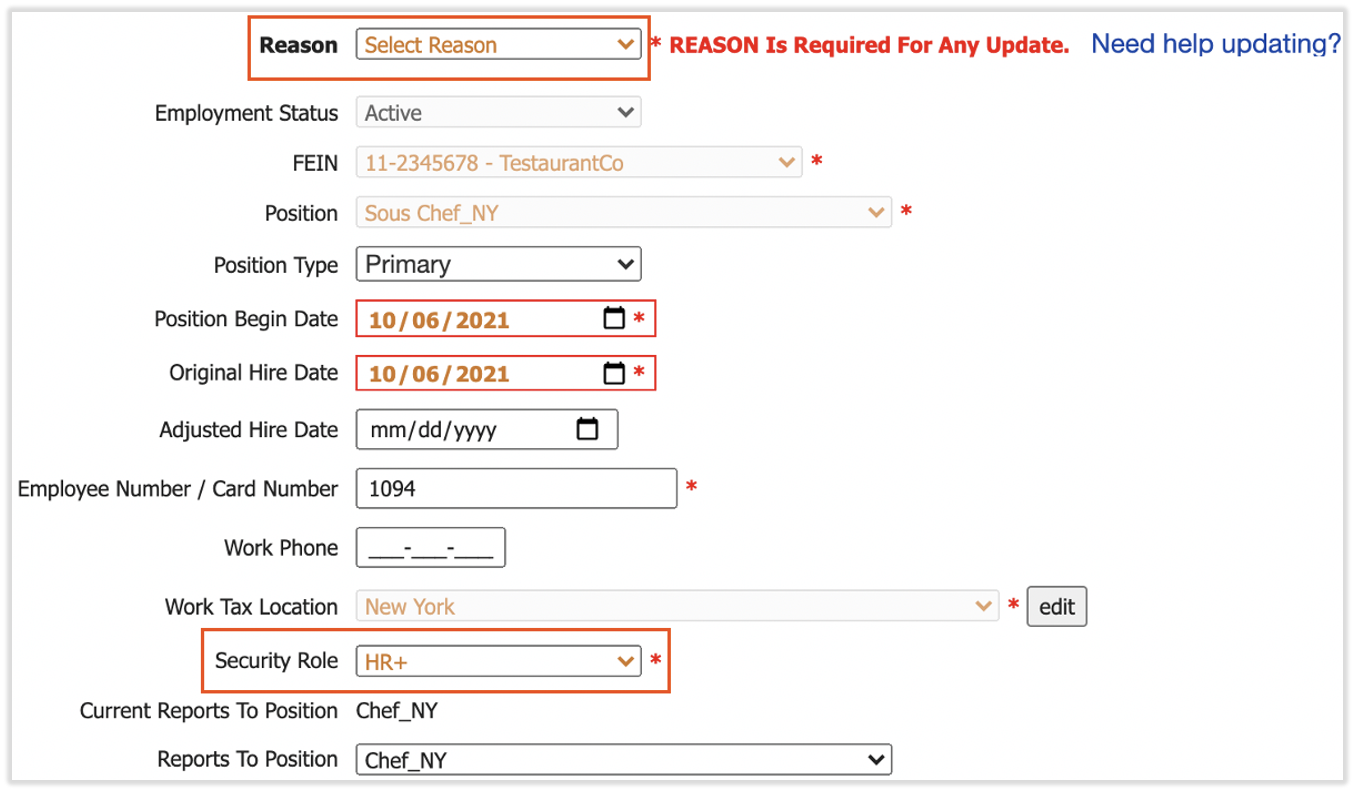
Expected outcome: The user's security role is updated, and their access changes to match the new role the next time they sign in.
Note: If a user holds multiple positions, the system grants access based on the security role of their primary position only. It does not use the security role set on secondary positions. If you change a role and the user's access does not update, confirm you changed the role on their primary position.
Security Role Access for Pay Changes
HR+ and Manager security roles can view and edit pay for both primary and secondary positions. Managers can view and edit pay changes only for employees who report to them. To set who an employee reports to, see Toast Payroll: Update Positions.
Custom Security Roles
Custom security roles are available only for Toast Payroll Pro accounts. A custom security role lets you set access that does not match any standard role.
To request a custom security role, complete the Custom Security Role form and send it through the blue chat button in the lower-right corner of any Toast Payroll page. Toast Customer Care will work with you to add and assign the new security role to your company.
If you are not yet on Toast Payroll Pro and want to create custom roles, use the same blue chat button to ask about upgrading.
Frequently Asked Questions
What are the different security roles in Toast Payroll?
The different security roles in Toast Payroll are HR+, Manager, and Employee, plus two inactive system roles, Applicant and Termed. HR+ has the highest level of access and can run payroll and change other users' roles. Managers can access only their direct reports and cannot run payroll. Employees can see and update their own information only. The Payroll role is no longer supported as of January 2024.
Also asked as:
- What security roles are available in Toast Payroll?
- How can I see what security roles we have set up?
- What access does each role have?
How do I change a user's security role?
To change a user's security role, in Toast Payroll navigate to the employee's profile > Position, select the yellow Edit button, update the Reason field, change the Security Role field, and select Submit. This is typically done by an HR+ user. If the user holds multiple positions, change the role on their primary position, because the system grants access based on the primary position only.
Also asked as:
- How do I change a security role from Employee to Manager?
- How do I give my general manager HR+ access?
- How do I switch a manager back to employee?
Which security role can run payroll?
The HR+ security role can run payroll. Managers and Employees cannot run payroll. If a Manager needs to run payroll, an HR+ user must either change that person's role to HR+ or request a custom security role with payroll access. For step-by-step payroll instructions, see Toast Payroll: Run Your Payroll.
Also asked as:
- Why can't my manager process payroll?
- What role do I need to run payroll?
- My manager can't run payroll, how do I fix it?
Which security role can approve timesheets?
The HR+ and Manager security roles can approve timesheets, if timesheet approval applies to your account. A Manager can approve timesheets only for employees who report to them. For step-by-step instructions, see Toast Payroll: Manage Timesheets.
Also asked as:
- What do I need to turn on for a manager to approve timesheets?
- Can managers approve timesheets?
- Who can approve timesheets?
Why can't a manager edit or assign roles for other employees?
A Manager often cannot edit or assign security roles for other employees because that action requires HR+ access. Standard Manager access is limited to a Manager's own direct reports and does not include changing other users' security roles. To give a user that ability, an HR+ user can change their role to HR+, or you can request a custom security role.
Also asked as:
- How do I let my general manager change user roles?
- How can I add permissions for my manager to add job roles?
- Why can't my manager adjust security roles?
How do I know which security roles can see a specific page?
To see which security roles can access a specific page, an HR+ user can navigate to that page in Toast Payroll and select Page Properties at the bottom of the page. For full instructions, including how to check access on pages with tabs, see Toast Payroll: Security Role Page Access.
Also asked as:
- How do I check which role can see a page?
- Which roles can view this screen?
- How do I see page access by role?
Can I add an outside bookkeeper or accountant without affecting payroll?
Yes, you can give an outside bookkeeper, accountant, or other financial professional access to Toast Payroll without affecting your payroll counts. For step-by-step instructions, see Toast Payroll: Give Access to a Non-Employee.
Also asked as:
- How do I add an accountant to Toast Payroll?
- Can I give my bookkeeper access?
- How do I add a non-employee user?
Related Articles
- Toast Payroll: Security Role Page Access
- Toast Payroll: Security Access Permissions and Audit
- Toast Payroll: Give Access to a Non-Employee
- Toast Payroll: Update Positions
- Toast Payroll: Run Your Payroll
This content is for informational purposes and is not intended as legal, tax, HR, or any other professional advice. Please contact an attorney or other professional for advice.