Toast Payroll: Get Started With Deduction Codes
Last updated: Apr 8, 2026, 12:04 PM
- Deduction Code Basics
- Key Items Regarding Deduction Codes
- Set Up a New Deduction Code
- Deduction Codes on Employee Profiles
- Additional Resources
Deduction Code Basics
Deductions are specific codes that employers use to identify funds on paystubs withheld from employee pay outside of tax withholding. Each code encompasses several attributes that determine how and where it is used. Deduction codes are set up in the Toast Payroll database and can be assigned to employees during implementation or new hire onboarding.
Common examples of deduction codes include medical, dental, other health deductions, 401(k) deductions, meals, uniform reimbursement, and garnishments.
Note: Benefit deductions will apply on the first check of the year, even if the hours worked for that check are from the previous year. For example, a check date of 01/01/25 will have 2025 deductions even if the pay period is from December of the previous year.
Key Items Regarding Deduction Codes
- Pre-Tax: These are deductions that are withheld from your pay before taxes are calculated. These commonly include HSA, 401(k), and medical premiums.
- Post-Tax: These are deductions that are withheld after taxes have been withheld. Common post tax deductions include garnishment deductions, meal deductions, and uniform deductions.
- Amount: These deductions that pull through based on amount (the same amount pulls through every pay period).
- A deduction will either have an amount or a percentage, but never both.
- Percent: Pull through based on a percentage each pay period. The percentage may vary based on the gross earnings that the employee is paid each pay period. This is typically associated with 401(k).
- A deduction will either have an amount or a percentage, but never both.
- Arrears: When an employee's pay is insufficient to support all the scheduled deductions. When the employee does not have enough to pay the deduction, it is classified as being in arrears.
- Limits: Deductions can be set up with a limit, depending on the benefit type (e.g. federal limit for 401(k) is capped. See the most recent contribution limits here). These can be set up on the employee's individual deduction and on the deduction code to automatically populate in the deduction. When a deduction is withheld from an employee's payment, the Adjusted Limit value will decrease. When the Adjusted Limit reaches zero, the deduction will stop being withheld on payroll.
Set Up a New Deduction Code
| Whether you use the deductions-only method, the legacy Toast Benefits module, or you're using SimplyInsured to manage benefit coverage, you can use this method to add new deductions to Toast Payroll. However, if you use SimplyInsured, this method of adding new deductions only applies to deductions that they do not support, so we encourage you to email toastsuppport@simplyinsured.com for more details. |
In order to generate a new deduction code, begin by navigating to Benefits > Add new deduction. It will bring up this form. If you have questions about how to fill out this form, refer to the section above or include your questions in your chat with Customer Care. Once the form is complete, you can chat with Care and send the form to us by selecting the blue dot in the lower-right corner of any Toast Payroll page. You may begin using the new deduction code immediately after receiving the confirmation email from the Care team.
If you think a deduction code is inaccurate, was set up incorrectly, or is not withholding properly, it's best practice to create a new deduction code rather than adjusting the existing one (to avoid tax complexities). To investigate how to correct the inaccurate deduction, inactivate the old code, and create a new deduction code, chat with us by selecting the blue chat button in the lower-right corner of any Toast Payroll page.
Deduction Codes on Employee Profiles
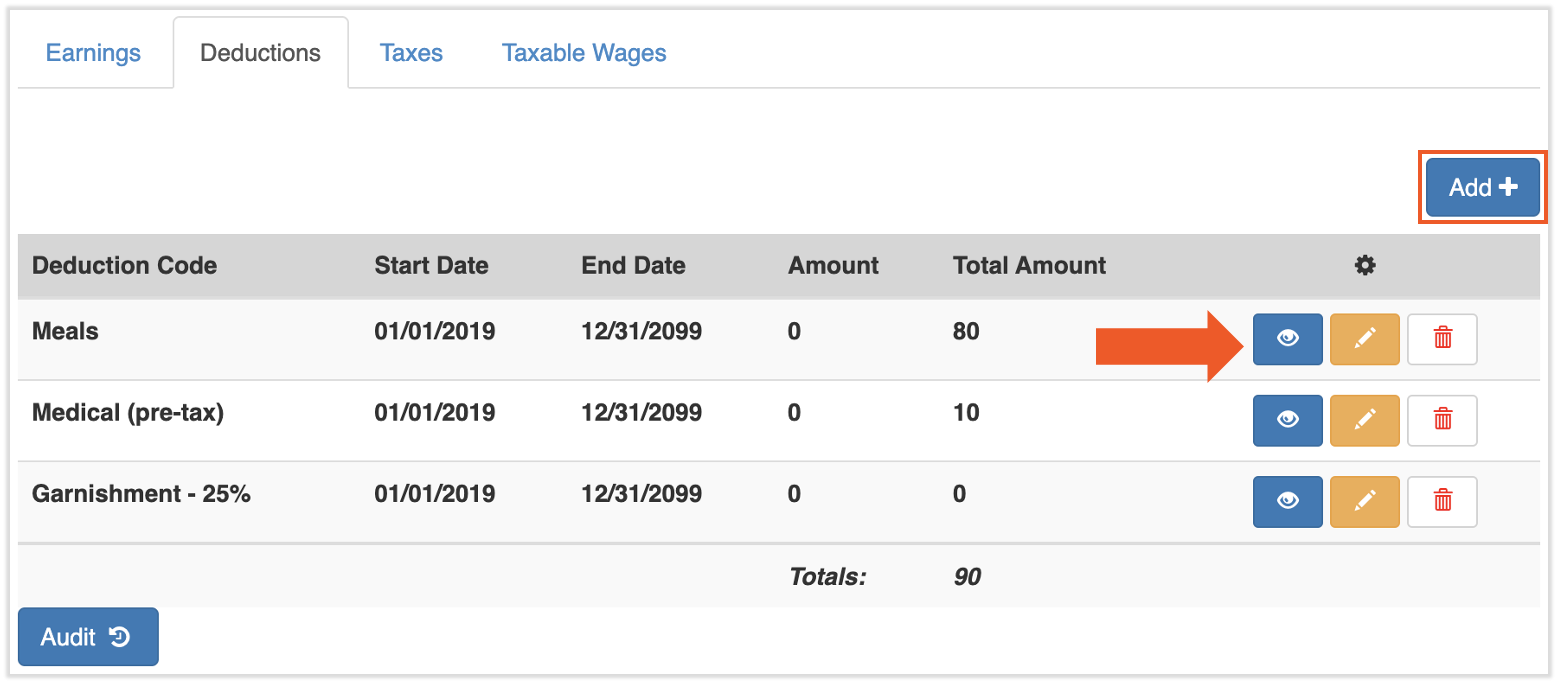
- Locate the recurring deductions an employee has assigned to them by navigating to an employees profile and selecting Employment > Recurring > Deductions.
- Note the End Date field. Deductions will stop pulling from employee earnings if they are end dated before a pay period takes place.
- To add a new recurring deduction, select the Add+ button and follow the steps in the Recurring Deductions section of Toast Payroll: Add or Edit Earnings & Deductions.
Additional Resources
This content is for informational purposes and is not intended as legal, tax, HR, or any other professional advice. Please contact an attorney or other professional for advice.