Get Help With User Permissions for Toast POS
Last updated: Mar 25, 2026, 1:50 PM
Note: If your employee is having issues logging in to the Toast app on your terminal or handheld, and you've confirmed they're using the correct access code, it may be due to a POS permissions issue. Be sure that they've been granted 1. POS Access.
- Permissions Overview
- Issue: I'm having difficulty assigning permissions to an employee as a super admin.
- Issue: I need owner permissions for my Toast Web account.
- Issue: 403 Error Message - Sorry, you can't edit permissions you don't have.
- Issue: Forbidden Error
- Issue: Employee sees "Someone needs to unlock this for you" when logging in to Toast Web
- Frequently Asked Questions
- Why am I having trouble accessing a specific restaurant location within a multilocation group?
- What do I do if I don't have the permissions I need?
- How do I give employees permission to bump up prep time for online orders?
- I've added permissions to my employee, but they still don't have access.
- Can I mirror another employee's access when I'm making a new user account?
- What's the difference between "inheriting" and "overriding" permissions?
- I have all the necessary permissions, but when I try to assign jobs and permissions it says I need administrator access to make this change. What should I do to resolve this?
Toast Web Permissions Overview
Each access permission that is available for the Toast POS system grants access to a system feature, such as an option on a Toast POS device, a type of report to run, or a configuration change to make. Check out our Permissions Reference Guide for an overview of all the available permissions.
Typically, you don't assign access permissions to individual employees. Instead, permissions are assigned to a Job. When you assign an employee to a job, they inherit the permissions associated with that job. Learn more in this Support Center article, Creating and Editing Job Roles for Toast POS.
Note that in order to assign or edit permissions of another user, you must have all the permissions of that user as well as the 8.2 User Permissions permissions. The person at a restaurant who has all permissions enabled might be referred to as a "super admin". If you're unable to make the changes you expect to be able to make, work with the super admin at your restaurant to confirm your own permissions are correct. If the super admin user at your restaurant has changed or isn't available, contact Customer Care to verify your identity and resolve any permission issues.
One tip that can be helpful for troubleshooting permissions: if a certain permission is already inherited, do not override it to enable the permission. Inherited permissions are automatically applied. Permissions inherited from job roles are automatically applied unless they are specifically overridden.
Issue: I'm having difficulty assigning permissions to an employee as a super admin.
If you're an admin at your restaurant but you're unable to provide permissions to other employees, there are a few things you should check. If you're using an internet browser like Safari or Microsoft Edge, try switching to Google Chrome and attempting the action again. If the issue persists, follow the steps below:
Step 1: Verify that you have the 8.2 User Permissions access permission enabled for yourself.
- To do this, log in to Toast Web and navigate to Employees > Employee management > Employees.
- Access your employee profile and select the pencil icon to edit.
- On the Jobs and Permissions tab, you can see which roles have been assigned to you. At the bottom of the page, select Edit Jobs to go to the Jobs page.
- Select the job assigned to you, and in the Default User Permissions section, verify that the 8.2 User Permissions permission is enabled. If it is not, someone at your restaurant with higher user permissions (such as a GM or Owner) will need to give you that permission in the system.
- Make sure to Save any changes!
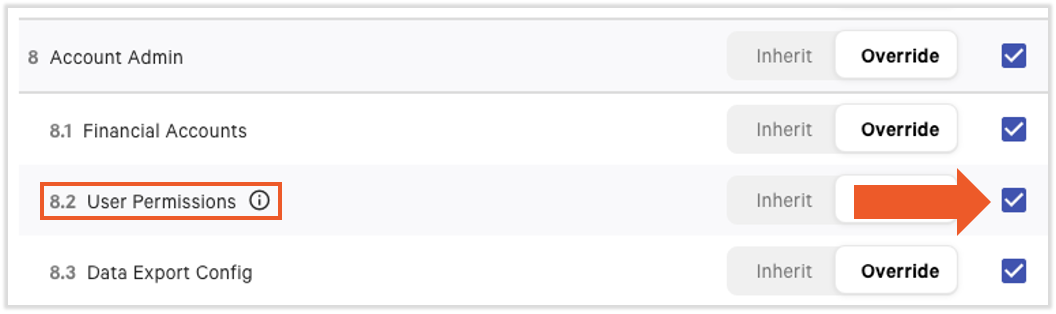
Step 2: In order to edit permissions, you must have all of the permissions of that user, plus the 8.2 User Permissions permission (see step 1). To view if you have the necessary permissions, you'll need to compare your permissions to the permissions of the employee whom you would like to edit. Follow these steps:
- In Toast Web, navigate to Employees > Employee management > Employees.
- Select your own profile to view permissions. Do this by going to your profile and selecting the edit pencil icon.
- Next, open a new browser tab to access toasttab.com and go back to the Employees page.
- In a side-by-side view, look at your permissions against the permissions of the employee you would like to edit. If there are permissions the employee has that you do not, you won't be able to edit that employee's permissions.
Issue: I need owner permissions for my Toast Web account.
If you need owner permissions for your Toast Web account, you will need to have another user at your restaurant who already has those permissions to log in to Toast Web and edit the permissions on your user account.
Back to top
Issue: "Sorry, you can't edit permissions you don't have."
If you encounter the error message "Sorry, you can't edit permissions you don't have", it means the user account that is signed in to Toast Web does not have the proper permissions to make changes for other jobs or employees. In order to make a change to permission, you must have that permission yourself. If you see this message, reach out to your restaurant admin/manager who has the required permissions to make updates for other jobs or employees.
Additionally, the said error message appears when a user has full permissions at more than one location and is trying to edit permissions for employees who have access to the same multiple locations. In order to proceed, user must have group-level permissions, on top of the required permission at each location.
Issue: Forbidden Error
If you try to save the permission changes you made to an employee's profile, you might encounter a Forbidden error if you do not have the correct permissions yourself. This case typically presents itself when you're editing group-level permissions that you do not have yourself. These cannot be granted by a Care agent; you'll want to contact the owner, operator, or finance contact for your restaurant to proceed.
Issue: Employee sees "Someone needs to unlock this for you" when logging in to Toast Web
First, confirm the employee has the accurate permissions. If you've confirmed that the employee has the correct permissions, but they're seeing an error message when they try to log in to Toast Web, they may be experiencing a temporary connection issue. In this case, advise them to clear their cache or use a different browser to access Toast Web (see Troubleshoot Web Browsers for Accessing Toast).
Back to top
Frequently Asked Questions
Why am I having trouble accessing a specific restaurant location within a multilocation group?
If you are having trouble accessing a specific restaurant within a multilocation group, this might be due to your location-specific permissions not being correctly set up on your user profile. Contact your restaurant's administrator or owner to review and update your permissions.
What do I do if I don't have the permissions I need?
How do I give employees permission to bump up prep time for online orders?
Bumping up prep time for online orders is part of the 3.29 Throttle Online Orders permission. You must have 8.2 User Permissions and 3.29 Throttle Online Orders permission yourself in order to update this for an employee. You can do this at the job level or the employee level, depending on your needs. Check out one of these Support Center articles for more information:
I've added permissions to my employees, but they still don't have access.
Secondly, the user could have an Expired status. If you see a red expired tag next to their profile, select that and then select Resend invitation. The employee must accept this invitation before they are allowed to log into Toast Web or clock-in to Toast POS. Once they have taken action on the invitation and they have a status of Active, remove the permissions you tried to add, Save, re-add them, and Save again. This will ensure they are accounted for.
Can I mirror another employee's access when I'm making a new user account?
It's not possible to clone or mirror an employee profile automatically. If you want a new employee to have the same access as an existing employee, make sure to assign the same jobs at the same locations (if applicable). Using job-based permissions (rather than individual permissions) makes this process a lot easier.
What's the difference between "inheriting" and "overriding" permissions?
Permissions inherited from job roles will appear as selected but greyed out in the system (gray checkboxes). This visual cue indicates that the permissions are linked to the employee's role and cannot be altered unless overridden. Permissions should be inherited when:
-
- The employee's role fully aligns with the predefined permissions of their job title.
- You want to maintain consistency and efficiency by applying uniform permissions across all employees in a certain role.
On the other hand, when you override an employee's permission, it means that you're granting that employee additional access rights to be able to perform tasks that are not included in their job role or default permissions. When permissions are overridden, the corresponding selections will appear as blue checkboxes, signifying they are manually set and differ from the inherited permissions. Permissions should be overridden when:
-
- An employee needs additional access or restrictions beyond their job role’s default permissions.
- Specific tasks or features require unique access settings not provided by the inherited permissions.
For example, if the default job role does not include access to discounts, you can override and manually select the required permissions.
I have all the necessary permissions, but when I try to assign jobs and permissions it says I need administrator access to make this change. What should I do to resolve this?
To resolve this, please clear your browser's cookies and cache. Then, log back in again to your account to assign jobs and permissions.
-
- Google Chrome: Clear cache and cookies (external link)
- Firefox: Clear cache and clear cookies (external links)
- Microsoft Edge: Clear cache and cookies (external link)
If you need further assistance, please contact Customer Care.