Primeros pasos con integraciones de tarjetas de regalo y socios de fidelidad
Última actualización: 19 may 2026, 10:16 a.m.
Cómo funcionan las integraciones de terceros con tarjetas de regalo y socios de fidelidad (recompensas) en Toast: configuración, cambio de proveedor, desactivar, volver a activar y solucionar problemas.
Nota: Si quieres la propia tarjeta de regalo o programa de fidelidad de Toast (no un socio externo), consulta Primeros pasos con Tarjetas de regalo Toast o Primeros pasos con Fidelidad con Toast.
- TL;DR Acerca de las integraciones de tarjetas de regalo y socios de fidelidad
- Quién puede usar integraciones de tarjetas de regalo y socios de fidelidad
- Módulos, permisos y equipos necesarios
- Cómo funciona
- Limitaciones conocidas
- Preguntas frecuentes
- Tu tarjeta de regalo o botón de fidelidad no está en el POS
- ¿Puedo ejecutar dos proveedores de tarjetas de regalo a la vez?
- ¿Cómo es el flujo de trabajo del POS para el programa de fidelidad?
- Las tarjetas de regalo pueden ingresarse manualmente pero no deslizarse correctamente
- El programa de fidelidad mantiene la desactivación aleatoria
- ¿Cómo puedo determinar si una tarjeta de regalo se ha utilizado antes?
- ¿Puedo importar datos de Fidelidad con socios nuevamente a Fidelidad con Toast?
- Artículos relacionados
TL;DR Acerca de las integraciones de tarjetas de regalo y socios de fidelidad
Toast se asocia con varios proveedores externos de tarjetas de regalo y fidelidad (recompensas) —Paytronix, Punchh, Como, Hang, Curate, Tacit, Peoplevine, Voucher Connect, Fishbowl, Incentivio y otros— que puedes gestionar a través de Toast en lugar de (o junto con) los programas propios de Toast. Cada grupo de restaurantes puede tener un proveedor de tarjetas de regalo activo y un proveedor de fidelidad activo a la vez. Tú inicias la configuración con tu socio, quien luego se pone en contacto con el servicio de asistencia de Integraciones de Toast para completar la configuración del backend. Después de que se configura la integración, los botones Tarjeta de regalo y Recompensas aparecen en el POS de Toast.
Quién puede usar integraciones de tarjetas de regalo y socios de fidelidad
Las integraciones de tarjetas de regalo y fidelidad de socios de Toast están disponibles para restaurantes que:
- Tener una cuenta activa con una tarjeta de regalo externa o un socio de fidelidad (recompensas)
- Haz que Integraciones de socios de Toast acceda a todas las ubicaciones que utilizarán la integración (incluidas las suites Essentials y Pro de Gestión de restaurantes)
- Tener los permisos de usuario adecuados en Toast Web para activar o desactivar la configuración de tarjetas de regalo y fidelidad (ver más abajo)
Módulos, permisos y equipos necesarios
Se aplica a: Toast Web, POS de Toast
Módulos obligatorios:
- Acceso a integraciones de socios de Toast para todas las ubicaciones que utilizarán la integración. Se incluye con la suite Essentials de Gestión de restaurantes o Pro de Gestión de restaurantes. Consulta Configurar integraciones de socios Toast para obtener detalles.
Permisos necesarios:
- Permiso de configuración a nivel de grupo de regalos o recompensas, necesario para activar o desactivar la integración de una tarjeta de regalo
- Permiso de información de marketing a nivel de grupo de regalos o recompensas, necesario para activar o desactivar una integración de fidelidad
Para obtener más información sobre los permisos de Toast, consulta Guía de referencia.
Cómo funciona
Una tarjeta de regalo de socio o integración de fidelidad en Toast tiene cuatro momentos por los que los clientes preguntan: configuración inicial, cambio a o desde un socio, desactivar o volver a activar la integración en Toast y solución de problemas cuando algo no funciona. Las siguientes subsecciones cubren cada una.
Configurar una tarjeta de regalo de socio o integración de fidelidad
Lo que lograrás: Conecta tu restaurante Toast con una tarjeta de regalo externa o un socio de fidelidad (recompensas) para que los botones Tarjeta de regalo y Recompensas aparezcan en el POS de Toast.
Hay tres pasos de alto nivel. Los pasos 1 y 2 son entre tú y el socio. El paso 3 es entre el socio y Toast.
Paso 1: Confirma los requisitos previos mencionados en Quién puede usar integraciones de tarjetas de regalo y socios de fidelidad.
Paso 2: Conéctate con tu tarjeta de regalo o socio de fidelidad y comparte los GUID de Toast Restaurant.
Proporciona el GUID del restaurante Toast para cada ubicación que desees habilitar. El socio utiliza el GUID para asignar tu restaurante en su sistema.
Nota: Para encontrar el GUID de tu restaurante Toast, consulta Ubicar el GUID de mi restaurante. Como alternativa, puedes descargar el informe GUID completo del restaurante si abres esta URL en tu navegador: https://www.toasttab.com/restaurants/admin/export/restaurantidmapping.
Paso 3: El socio se pone en contacto con el servicio de asistencia de Integraciones de Toast para completar la configuración.
Después de recibir tu GUID, el socio finaliza su incorporación (asigna tu GUID en su sistema) y, luego, se pone en contacto directamente con el servicio de asistencia de Integraciones de Toast para habilitar la integración en el backend de Toast.
| Importante: La configuración del backend en el paso 3 la realiza Toast, no el restaurante y no solo el socio. Después de que Toast complete la configuración, la integración aparecerá en tu portal de integraciones de socios de Toast en Toast Web > Integraciones > Gestión de integraciones > Examinar y comprar integraciones, y los botones Tarjeta de regalo y/o Recompensas estarán disponibles en el POS de Toast. |
Resultado previsto: Después de publicar los cambios, los botones Tarjeta de regalo y Recompensas aparecen en el POS de Toast en todas las ubicaciones de tu grupo de regalos o recompensas. Si no aparecen, consulta Tu tarjeta de regalo o botón de fidelidad no está en el POS.
Cambiar entre proveedores de tarjetas de regalo o de fidelidad
Los restaurantes suelen alternar entre proveedores en una de cuatro direcciones. Encuentra tu escenario a continuación.
Si vas a cambiar de Tarjetas de regalo Toast o Fidelidad con Toast a un socio externo:
Antes de realizar cambios en Toast Web, exporta los datos existentes para que el socio pueda importarlos en su sistema. Después de que el socio haya importado los datos, se pone en contacto con el servicio de asistencia de Integraciones de Toast para activar su integración (que desactiva automáticamente Tarjetas de regalo Toast o Fidelidad con Toast para ese grupo).
| Importante: Descarga tus datos antes de cambiar la configuración de tu tarjeta de regalo o fidelidad de Toast. Después de que se activa la integración del socio, los informes de tarjetas de regalo y fidelidad de Toast ya no están accesibles. Si el cambio ya se realizó y aún necesitas los archivos, ponte en contacto con el servicio de atención al cliente de Toast para volver temporalmente al módulo de Toast a fin de descargarlos. |
Para el procedimiento de exportación completo:
- Para tarjetas de regalo, consulta Exportar Tarjetas de regalo Toast Datos para uso de terceros.
- Para fidelidad, consulta Exportar datos Fidelidad con Toast para uso de terceros.
Si cambias de un proveedor socio a otro proveedor socio:
- Comunícate tanto con tu pareja actual como con tu nueva pareja para que puedan entregarle los datos que tu nueva pareja necesitará (saldos de miembros de fidelidad, saldos de tarjetas de regalo, etc.). Toast no realiza esta transferencia de datos.
- Desactivar la integración de socio actual en Toast mediante los pasos Desactivar o Reactivar integración de socio en Toast.
- Comienza la nueva configuración del socio siguiendo los pasos de Configurar una tarjeta de regalo para socios o Integración de fidelidad. Comparte el GUID de tu restaurante Toast con el nuevo socio.
- El nuevo socio se pone en contacto con el servicio de asistencia de Integraciones de Toast para completar la configuración del backend.
Resultado previsto: La integración del socio anterior se elimina de tu portal de integraciones de socios de Toast, aparece el socio nuevo y los botones Tarjeta de regalo y/o Recompensas en el POS reflejan al socio nuevo. Espera a que ambos eventos se propaguen por todas las ubicaciones.
Si vuelves a cambiar de socio externo a Tarjetas de regalo Toast o Fidelidad con Toast:
Ponte en contacto con el servicio de atención al cliente de Toast para solicitar la reversión. Se debe desactivar la integración de socios para que se puedan volver a activar Tarjetas de regalo Toast o Fidelidad con Toast a nivel de grupo. Después de que se complete el cambio, consulta Primero pasos con Tarjetas de regalo Toast o Primero pasos con Fidelidad con Toast para la configuración propia.
Si vas a extender una integración de socio existente a Pedidos digitales Toast Pro:
Después de que la integración esté activa en el POS, extiéndela a Pedidos digitales Toast Pro:
- Para fidelidad, sigue Pedidos digitales Toast Pro: Activar Fidelidad con terceros.
- Para tarjetas de regalo, sigue Configurar tarjetas de regalo de terceros para Pedidos digitales Pro. Las tarjetas de regalo de terceros en Pedidos digitales Pro solo son compatibles con Valutec, Paytronix, eCard Systems y socios Giftrocker.
Desactivar o reactivar la integración de un socio en Toast
Puedes desactivar una tarjeta de regalo de socio o la integración de fidelidad en Toast en cualquier momento. Desactivar es un cambio a nivel de grupo de regalos y recompensas: desactiva la integración para todas las ubicaciones del grupo.
| Importante: Asegúrate de guardar y publicar los cambios en todas las ubicaciones del grupo de regalos o recompensas tan pronto como cambies la configuración. Usa Publicar configuración para publicar en todas las ubicaciones a la vez. Hasta que publiques, el cambio no se aplicará y el botón Tarjeta de regalo o Recompensas no se eliminará del POS (ni se agregará a él) en ubicaciones no publicadas. |
Para desactivar o volver a activar la integración de una tarjeta de regalo:
- En Toast Web, ve a Finanzas > Pagos > Tarjetas de regalo > Configuración de tarjetas.
- Configura la opción Activada en No para desactivar o Sí para volver a activar.
- Selecciona Guardar y, luego, Publica los cambios. Usa Publicar configuración para publicar en todas las ubicaciones del grupo de regalos o recompensas.
Resultado previsto: Después de publicar en cada ubicación, el botón Tarjeta de regalo se elimina del POS (o se restaura en él), y la transmisión de datos a tu socio de tarjeta de regalo se detiene o se reanuda.
Para desactivar o volver a activar una integración de fidelidad:
- En Toast Web, ve a Toast Web > Marketing > Fidelidad > Configuración de fidelidad.
- Cambia la configuración Activar fidelidad a No para desactivar o Sí para volver a activar.
- Si estás reactivando una integración de fidelidad y tu restaurante utiliza códigos de libro mayor, asigna el descuento de artículos de integración de fidelidad y el descuento de cuenta de integración de fidelidad a códigos de LM en la misma página. Consulta Creación y asignación de códigos de libro mayor. Si no utilizas códigos de LM, omite este paso.
- Selecciona Guardar y, luego, Publica los cambios.

Resultado previsto: Después de publicar en cada ubicación, el botón “Recompensas” se elimina del POS (o se restaura en él), y la transmisión de datos a tu socio de fidelidad se detiene o se reanuda.
Nota: Desactivar una tarjeta de regalo de socio o la integración de fidelidad es un cambio a nivel de grupo, ya que no elimina la integración de tu portal de integraciones de socios de Toast. Para eliminar la integración por completo (el mosaico en sí), consulta Agregar o eliminar una integración con integraciones de socios de Toast.
Cuando algo no funciona
Si una tarjeta de regalo de socio o una integración de fidelidad presentan un mal comportamiento, decide primero con quién debes ponerte en contacto.
| Importante: Toast puede solucionar la conexión entre tu cuenta de Toast y tu proveedor de terceros. Toast no tiene acceso a solucionar problemas específicos de tu cuenta de terceros (saldos de tarjetas, registros de miembros de fidelidad, configuración del lado del socio, etc.). Para ello, ponte en contacto directamente con tu proveedor de terceros. |
Escenarios comunes y dónde empezar:
- Sospecha de interrupción del servicio de Toast o de que un pago con tarjeta de socio falla de forma intermitente. Verifica si Toast o el dispositivo están en modo sin conexión. Consulta Salidas y suspensiones: Fidelidad con Toast y tarjetas de regalo.
- Errores de transacción específicos en una tarjeta de regalo de terceros. Consulta Obtener ayuda con errores de transacciones con tarjetas de regalo de terceros. La ventana de error-detalles en el POS muestra los últimos 4 de la tarjeta, el GUID de la transacción y el texto de error del socio. Proporciona todo eso a tu socio.
- La integración está configurada en tu lista de integraciones de socios de Toast, pero falta el botón del POS. Consulta que tu tarjeta de regalo o botón de fidelidad no esté en el POS.
- Sospechas que otro usuario desactivó la integración en el programa de fidelidad compartida entre ubicaciones múltiples. Inicia un chat con el servicio de atención al cliente de Toast para resolver el problema. Consulta El programa Fidelidad se desactiva aleatoriamente.
- El socio dice que la integración debería estar activa, pero no la ves en tu lista de integraciones de socios de Toast. Confirma con el socio que se puso en contacto con el servicio de asistencia de Integraciones de Toast para completar el paso 3 de Configurar una tarjeta de regalo de socio o integración de fidelidad. Si confirman, inicia un chat con el servicio de atención al cliente de Toast.
Limitaciones conocidas
- Un proveedor por grupo de restaurantes. Solo puede haber una tarjeta de regalo y un grupo de fidelidad por grupo de restaurantes, y solo pueden activarse un proveedor de tarjetas de regalo y un proveedor de fidelidad a la vez. No puedes ejecutar dos proveedores de tarjetas de regalo (por ejemplo, Valutec y Paytronix) simultáneamente.
- Una configuración de Toast vs. informes de socios. Una vez que cambias a un proveedor de tarjetas de regalo de socio, todos los informes de tarjetas de regalo están disponibles solo en el lado del socio. Toast no muestra esos informes.
- La configuración del backend es solo de Toast. La configuración del backend del paso 3 (activar una integración de socio en el lado de Toast) la realiza el servicio de asistencia de Integraciones de Toast. Los restaurantes no pueden completar este paso por su cuenta.
- La migración de datos entre Toast y un socio no es automática. Los saldos de fidelidad, los saldos de tarjetas de regalo y otros datos deben exportarse desde un lado e importarse manualmente en el otro.
- Las tarjetas de regalo de terceros Pedidos digitales Pro solo son compatibles con Valutec, Paytronix, eCard Systems y los socios Giftrocker.
Preguntas frecuentes
Tu tarjeta de regalo o botón de fidelidad no está en el POS
También se pregunta como:
-
- "Estoy configurado para tarjetas de regalo en mi integración con Paytronix, pero no veo un botón de tarjeta de regalo en mi POS"
- "Estoy intentando vincular mis tarjetas de regalo de socio con mi tienda de Toast"
- "Mis integraciones con [socio] no están funcionando en mi nueva ubicación"
Falta tu tarjeta de regalo o botón de fidelidad en el POS con más frecuencia porque el cambio de configuración aún no se ha publicado en esa ubicación o porque la aplicación del POS no se ha actualizado desde que se habilitó la integración. Para solucionarlo:
- Confirma que el socio completó el paso 3 de Configurar una tarjeta de regalo para socios o integración de fidelidad poniéndose en contacto con el servicio de asistencia de Integraciones de Toast.
- En Toast Web, ve a Finanzas > Pagos > Tarjetas de regalo > Configuración de tarjetas (o Toast Web > Marketing > Fidelidad > Configuración de fidelidad para fidelidad) y confirma que la configuración Activada es Sí.
- Selecciona Guardar y, luego, Publicar, y ejecuta Publicar configuración para publicar en todas las ubicaciones del grupo de regalos o recompensas. En el POS de Toast en la ubicación afectada, cierra sesión y vuelve a iniciar sesión para actualizar el diseño de mosaicos del dispositivo.
- Si el botón aún no aparece, inicia un chat con el servicio de atención al cliente de Toast.
Resultado previsto: El botón Tarjeta de regalo o Recompensas aparece en la pantalla de pago del POS en cada ubicación publicada.
¿Puedo ejecutar dos proveedores de tarjetas de regalo a la vez?
También se pregunta como:
-
- "¿Es posible ejecutar tarjetas de regalo Valuetec Y Paytronix simultáneamente con TOAST?"
No, puedes gestionar solo un proveedor de tarjetas de regalo y un proveedor de fidelidad por grupo de restaurantes. Solo puede existir una tarjeta de regalo y un grupo de fidelidad, y la configuración Activada en Configuración de tarjetas de regalo o Configuración de fidelidad se excluye mutuamente entre los proveedores a nivel de grupo. Si necesitas cambiar de proveedor, consulta Cambiar de proveedor de tarjetas de regalo o de fidelidad.
¿Cómo es el flujo de trabajo del POS para el programa de fidelidad?
El flujo de trabajo de la interfaz de usuario para las transacciones de fidelidad en la aplicación POS de Toast está documentado en el flujo de trabajo.
Las tarjetas de regalo pueden ingresarse manualmente pero no deslizarse correctamente
Las tarjetas de regalo que funcionan ingresadas manualmente pero fallan al deslizarlas suelen indicar un problema con el lector de tarjetas, no con la integración. Ponte en contacto con el servicio de atención al cliente de Toast para solucionar problemas con el lector de tarjetas.
El programa de fidelidad mantiene la desactivación aleatoria
También se pregunta como:
-
- "El programa de fidelidad se sigue apagando aleatoriamente"
El programa de fidelidad se sigue desactivando aleatoriamente con mayor frecuencia porque otro usuario con permiso de información de marketing está cambiando la configuración Activar fidelidad en un grupo de fidelidad compartido de ubicaciones múltiples, o porque una ubicación cerrada está haciendo que la configuración cambie. Inicia un chat con el servicio de atención al cliente de Toast para investigar y restringir los permisos si es necesario.
¿Cómo puedo determinar si una tarjeta de regalo se ha utilizado antes?
Para verificar si una tarjeta de regalo es nueva (y necesita activación), si se vendió previamente (y necesita fondos):
- En el POS de Toast, selecciona Tarjetas de regalo y, luego, Consulta de saldo.
- Desliza la tarjeta o ingresa la clave para verificar el saldo.
- Si el POS muestra un saldo, la tarjeta ya se utilizó anteriormente. Selecciona Agregar valor para recargarla.
- Si el POS muestra un error de tarjeta no activada, la tarjeta es nueva. Selecciona Vender tarjeta para activarla.
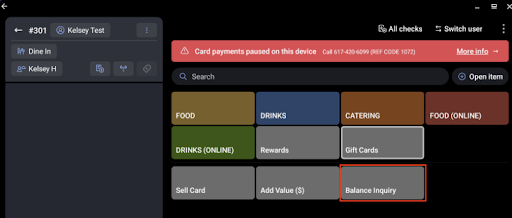
Para buscar el saldo de una tarjeta de regalo importada por su número importado, consulta Buscar saldo de tarjeta de regalo usando el número de tarjeta de regalo importada.
¿Puedo importar datos de Fidelidad con socios nuevamente a Fidelidad con Toast?
También se pregunta como:
-
- "Tengo información histórica de fidelidad y marketing de [socio] y me gustaría importar esa información a Fidelidad con Toast"
Sí, los datos históricos de un miembro de fidelidad de un socio externo se pueden importar en Fidelidad con Toast, pero el servicio de atención al cliente de Toast inicia la importación y depende de los campos de datos que tu socio pueda exportar. Para solicitar una importación de Fidelidad con Toast:
- Exporta los datos de tus miembros de fidelidad del socio en formato CSV.
- Inicia un chat con el servicio de atención al cliente de Toast y solicita la importación de datos de Fidelidad con Toast.
- Proporciona el archivo CSV exportado cuando se te solicite. El servicio de atención al cliente dirigirá la solicitud al equipo que maneje las importaciones de datos de fidelidad.
La asignación exacta del campo y los tipos de datos admitidos se confirman durante la solicitud (varían según el socio).
Artículos relacionados
- Configurar integraciones de socios de Toast
- Agregar o eliminar una integración con integraciones de socios de Toast
- Obtener ayuda con errores de transacciones con tarjetas de regalo de terceros
- Localizar el GUID de mi restaurante
- Salidas y suspensiones: Fidelidad con Toast y tarjetas de regalo