xtraCHEF: Create Products
Última actualización: 8 abr 2026, 10:10 a.m.
You can create products manually one by one or you can bulk upload/import into your Item Library.
What Are Products?
In xtraCHEF, Products refer to your ingredients and inventory items. As you’re getting started, your list of products will form the foundation for your restaurant to begin using Recipe and Inventory functions. After creating your products, you can immediately begin building your recipes and inventory counts.
| Before continuing with this page and the instructions below, we highly recommend reviewing xtraCHEF: Get Started with Products for examples and best practices that will make the process easier. |
Create Products
- To create products, select Item library from your xtraCHEF navigation bar.
- Select View products from the top of the screen. Then select + Add products.
- Here, you'll have the option to either create products manually or in bulk.
Bulk Create via Import
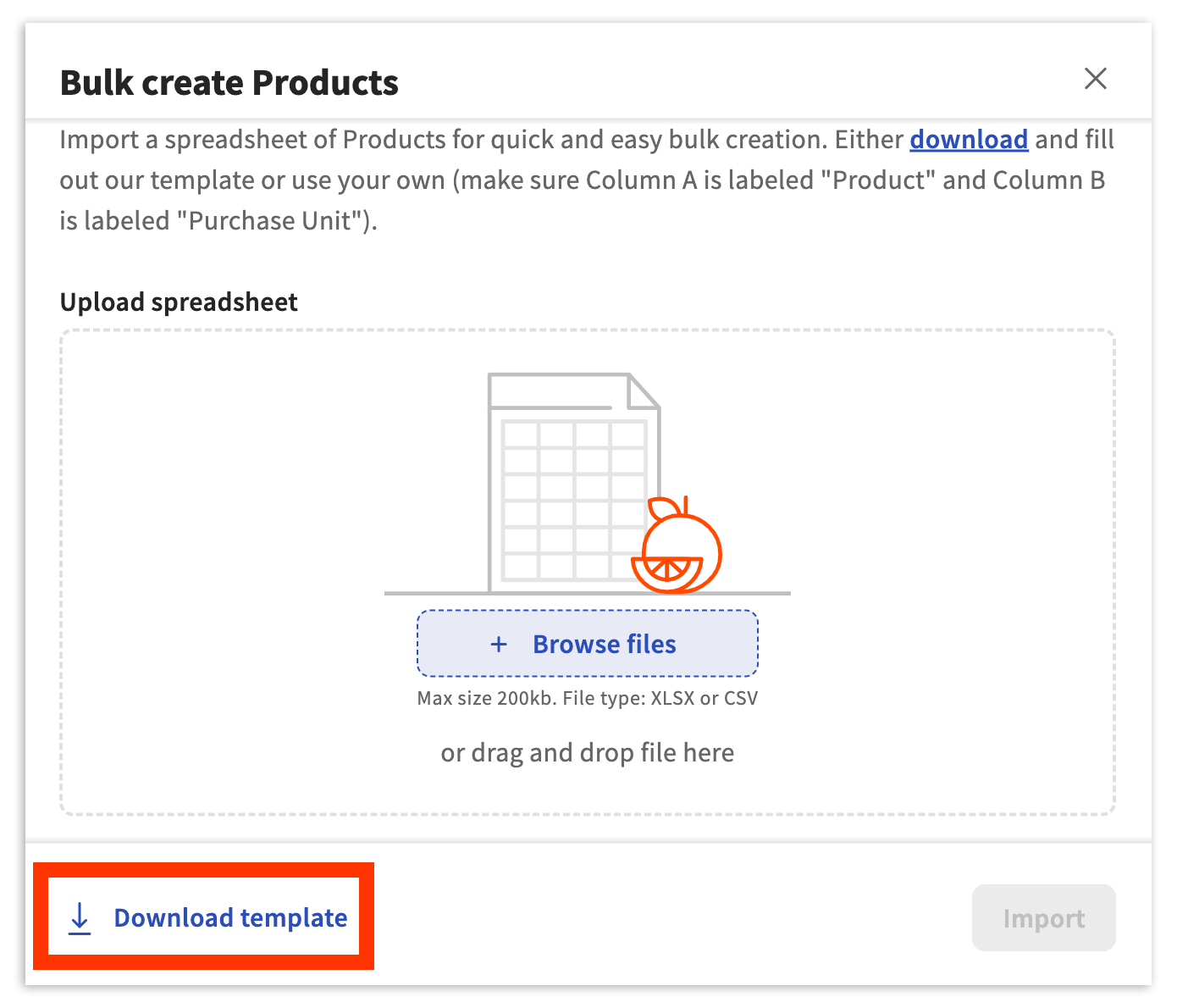
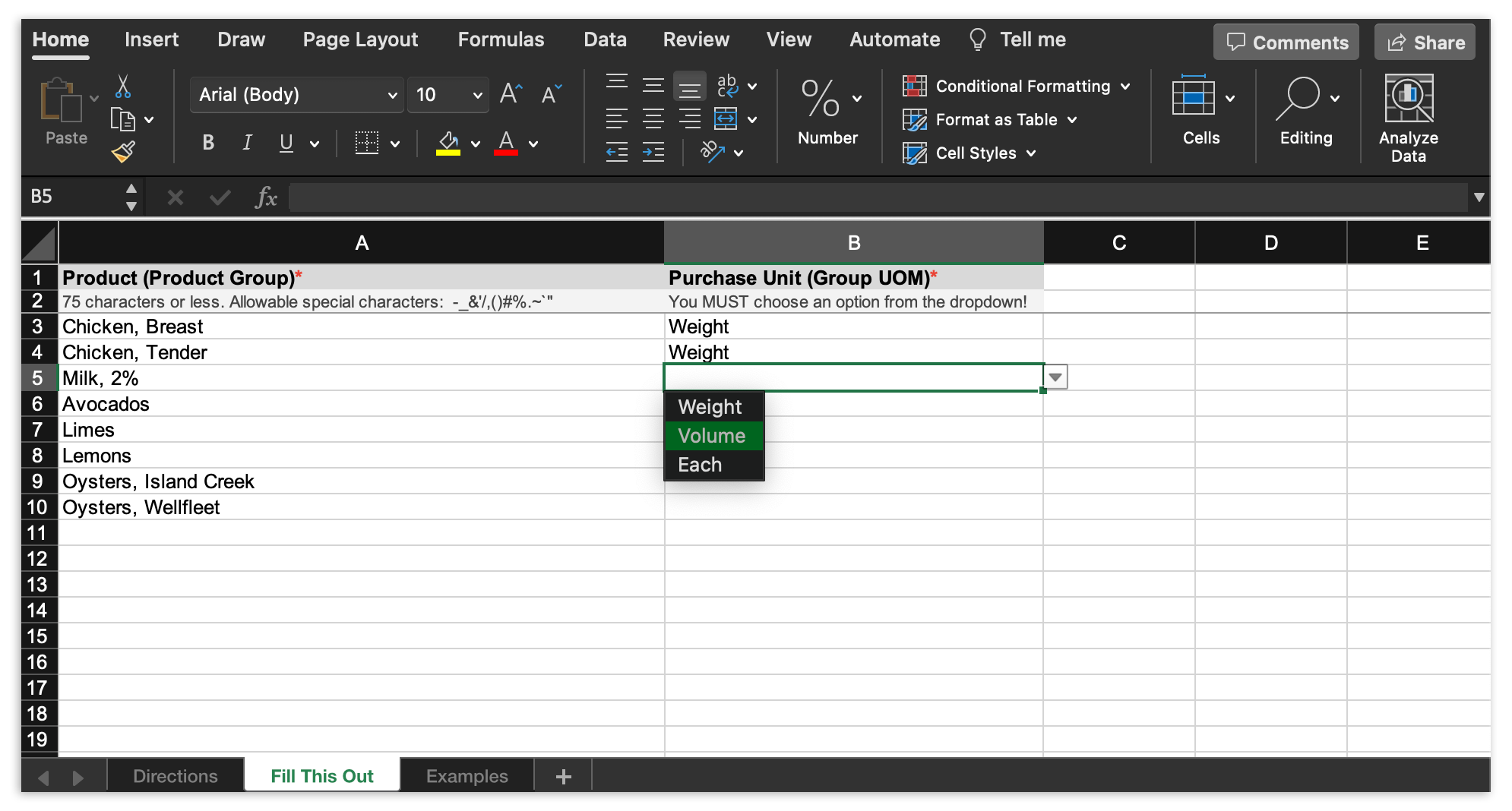
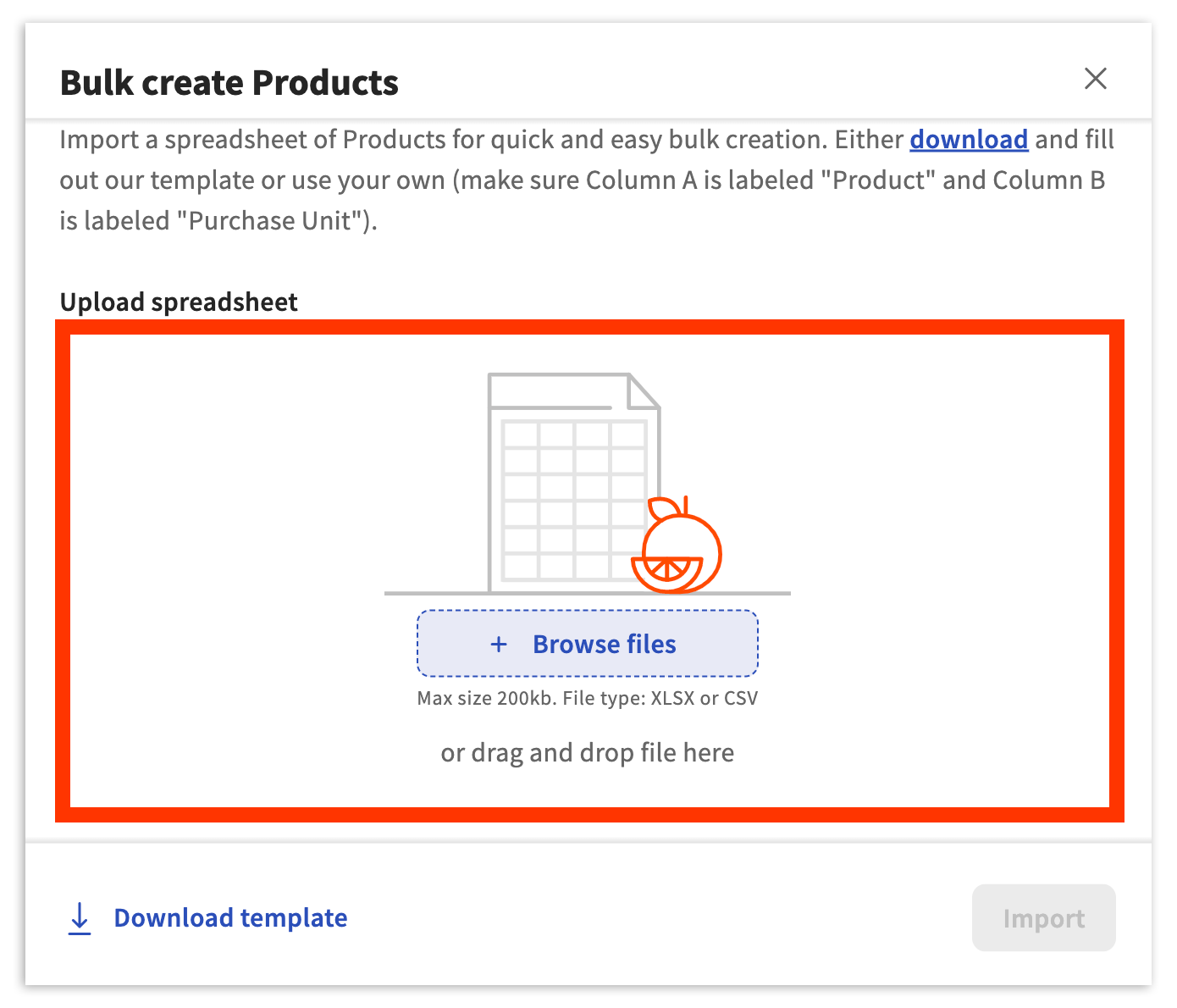
By selecting Import file on the Add Products page, xtraCHEF will prompt you to download our bulk upload template or create your own .xlsx or .csv document as long as it’s in a consistent format and mirrors the columns shown below.
- To use our bulk upload template for products, navigate to Item library > View products > + Add products > Import file and select Download template in the lower-left corner of the pop-up window.
- Next, open the downloaded template. To begin creating your list of products, select the tab titled Fill This Out from the bottom of the spreadsheet. Then start adding your product names in the Product column. Your product list should reflect the ingredients and inventory items you use in your restaurant. Select a corresponding Purchase Unit (Weight, Volume, or Each) for each product you add.
- Once finished, save your file to your computer in a .xlsx or .csv format. In xtraCHEF, choose the file from your computer by selecting + Browse Files or drag and drop the file into the template submission space.
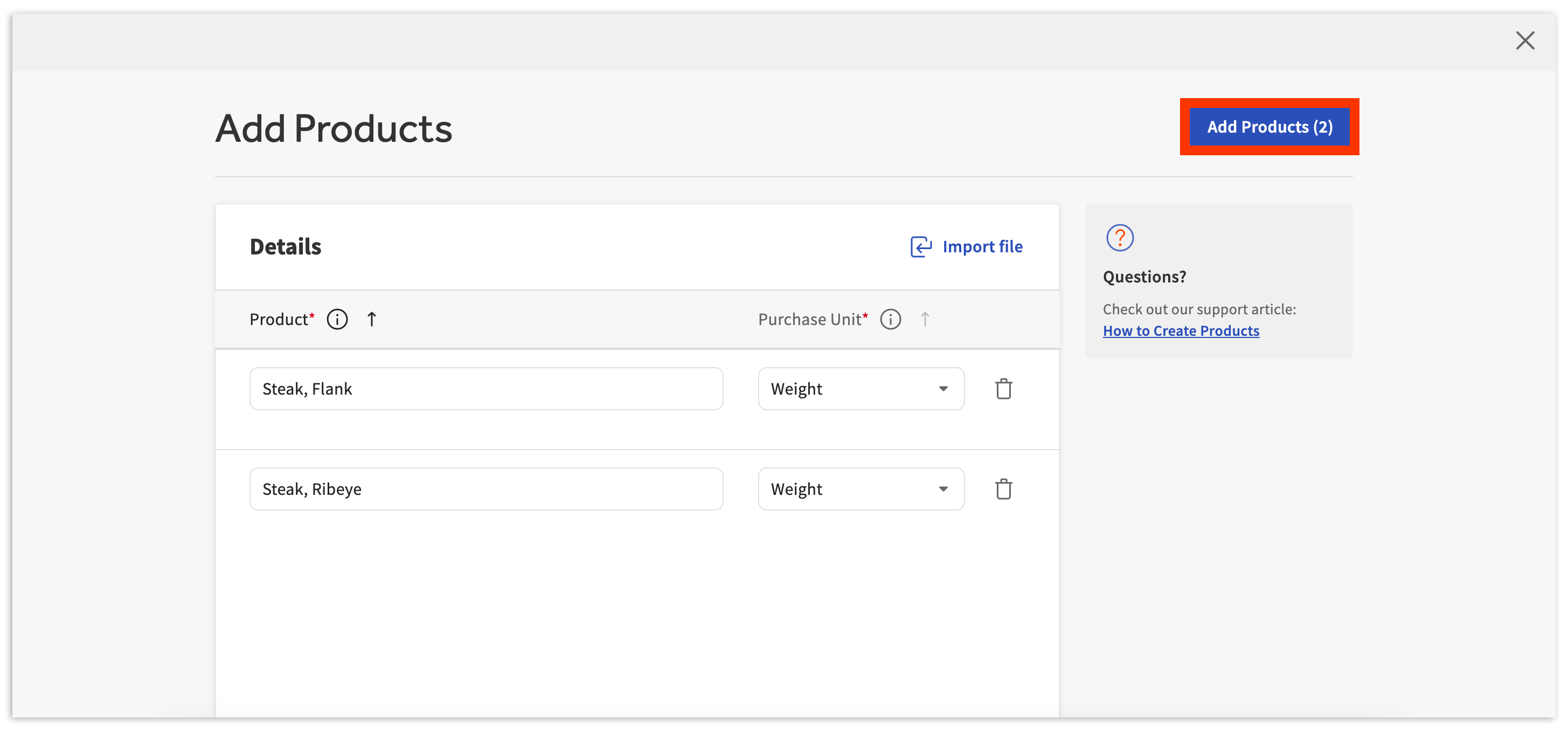
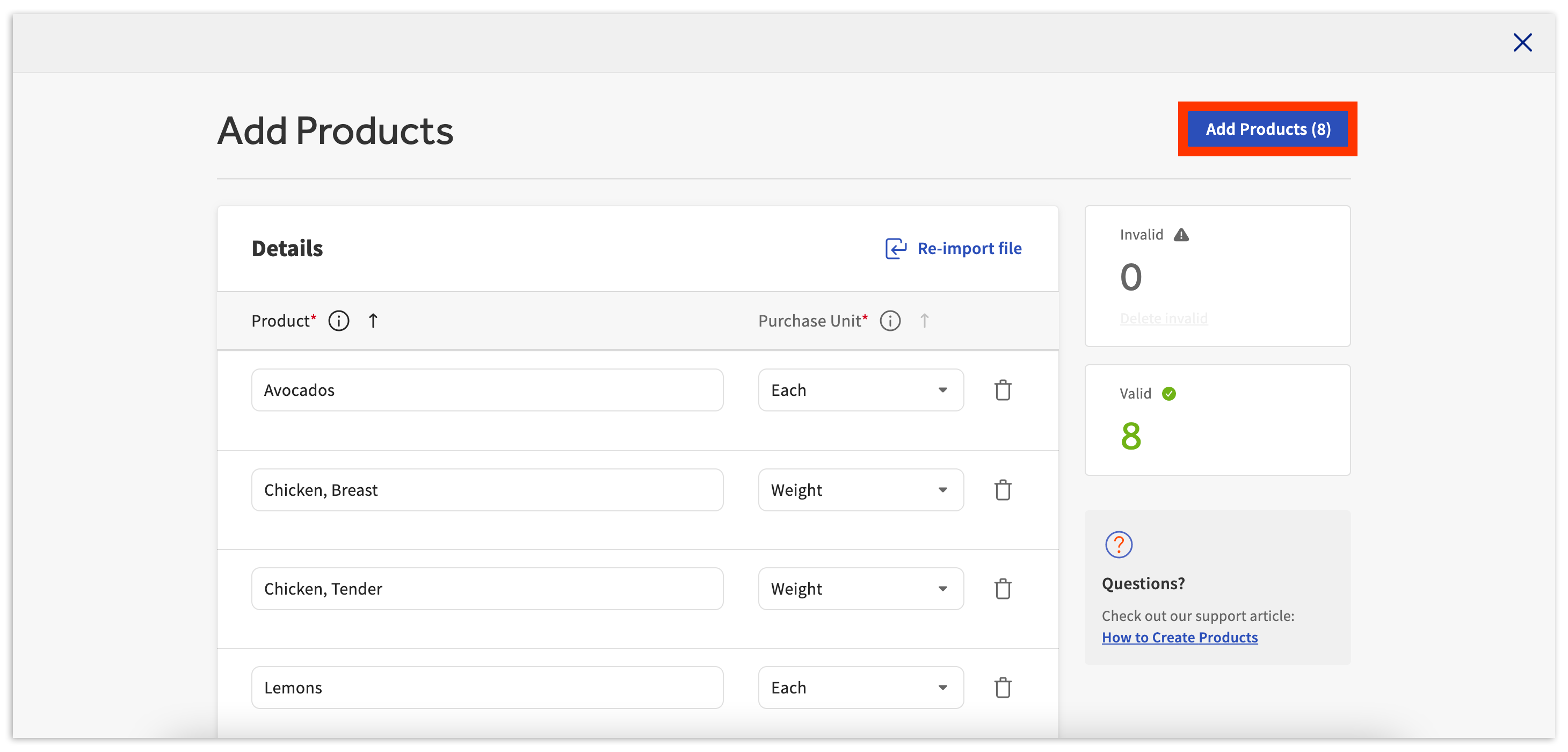
- Now select Import. It may take a moment for this upload to complete. Once complete, your products will appear here. To save these and complete your bulk upload, select Add Products.
- If you receive errors on your import, scroll down to step 6
- If you receive errors on your import, scroll down to step 6
- Finally, confirm this selection by selecting Yes, save. You will then see a confirmation noting the number of Products added to your account. Selecting Undo on the confirmation message at the bottom of your page will delete your new products and undo your bulk upload.
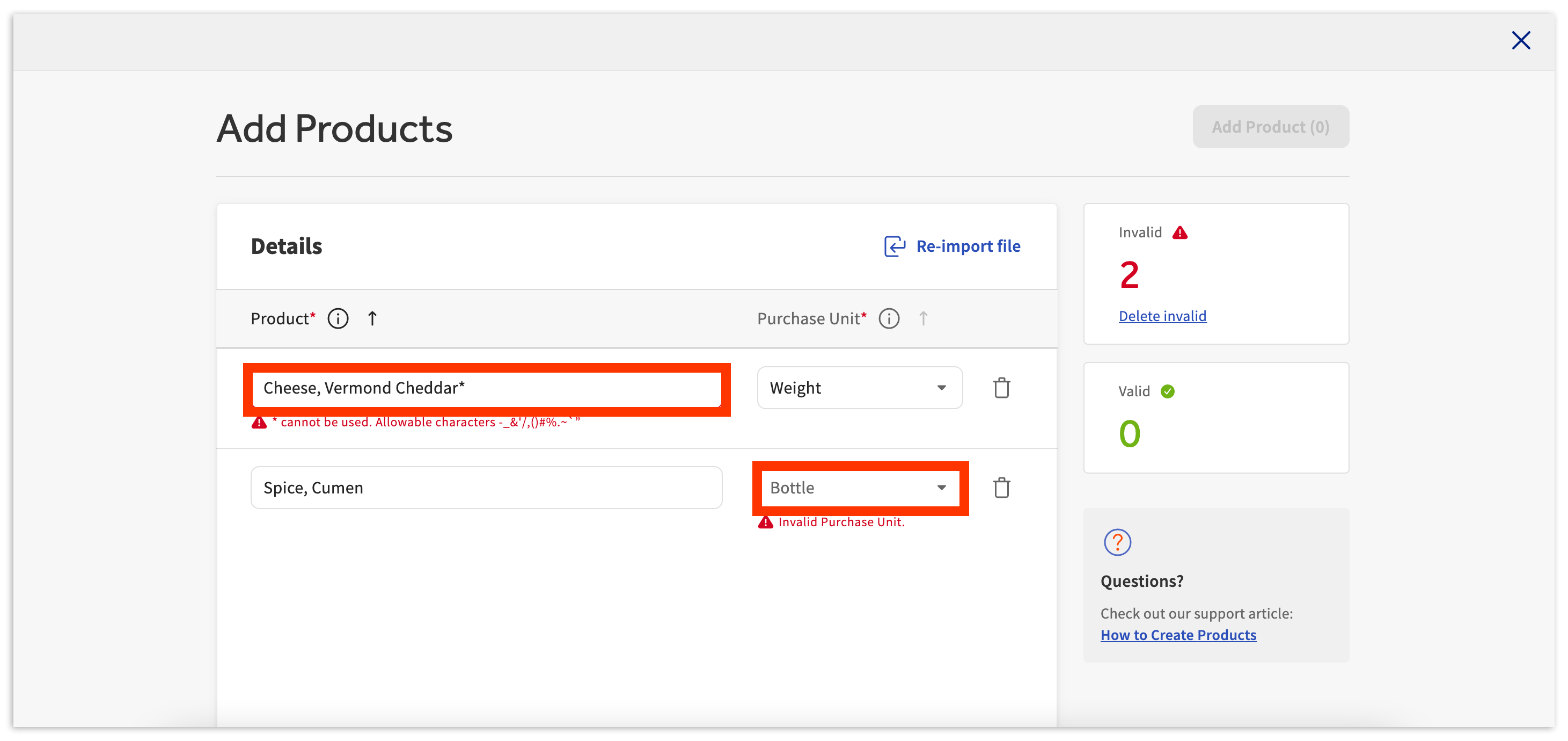
- Should you receive any import errors during your bulk upload, you will be notified of any unaccepted product names or purchase units via the Invalid section in the upper-right corner. This can happen when the uploaded template includes invalid special characters in the Products column or if you use a Purchase Unit outside of Weight, Volume, or Each.
- To proceed and successfully import these products, you will need to correct the error(s). This can be done by simply editing the product name or purchase unit directly on this page. You can also correct issues in your spreadsheet and re-upload it by using the Re-import file button.
Add Manually
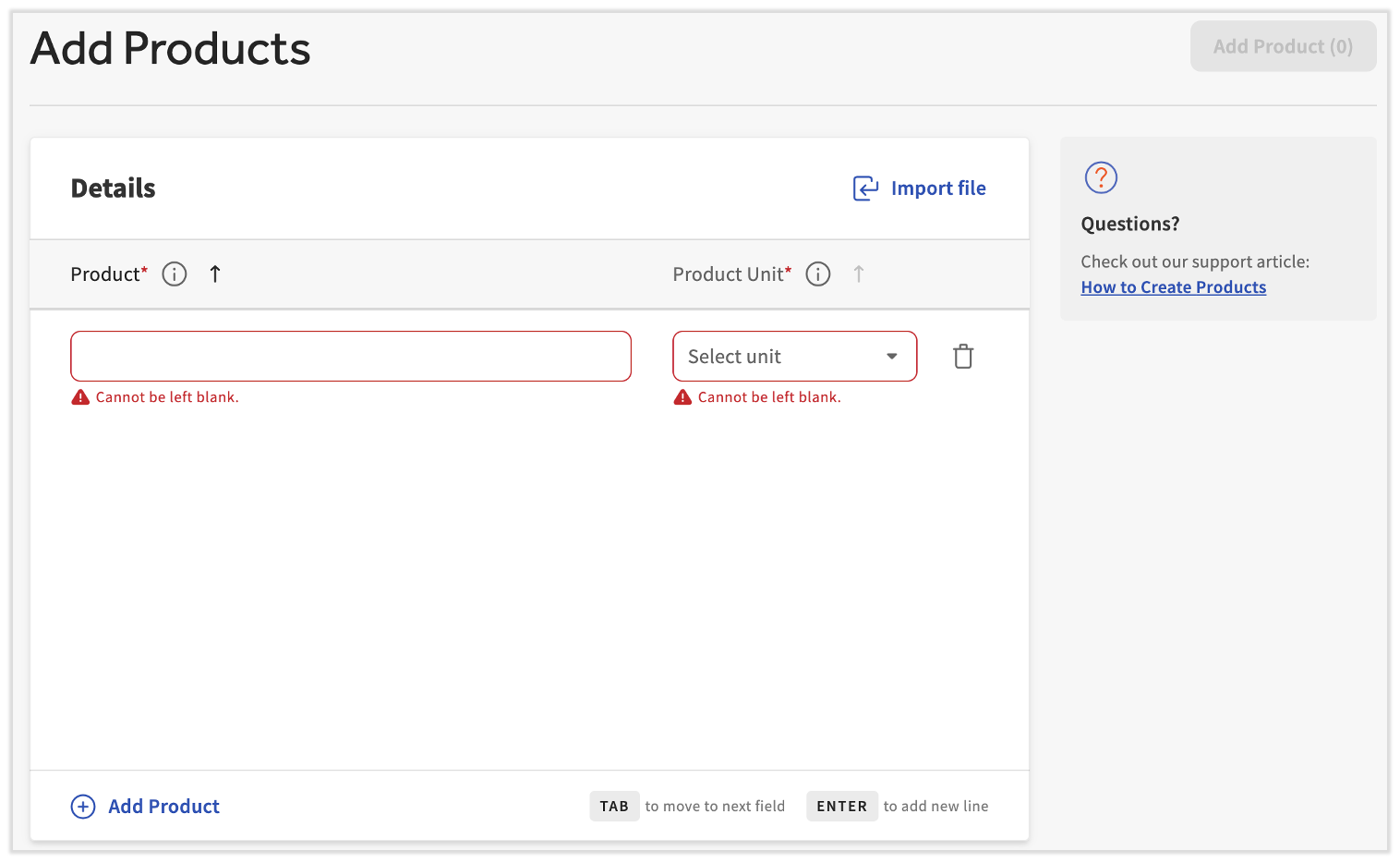
Did you miss a product or two in your original bulk import or you just have a couple to add? Navigate to Item library > View products > + Add Products.
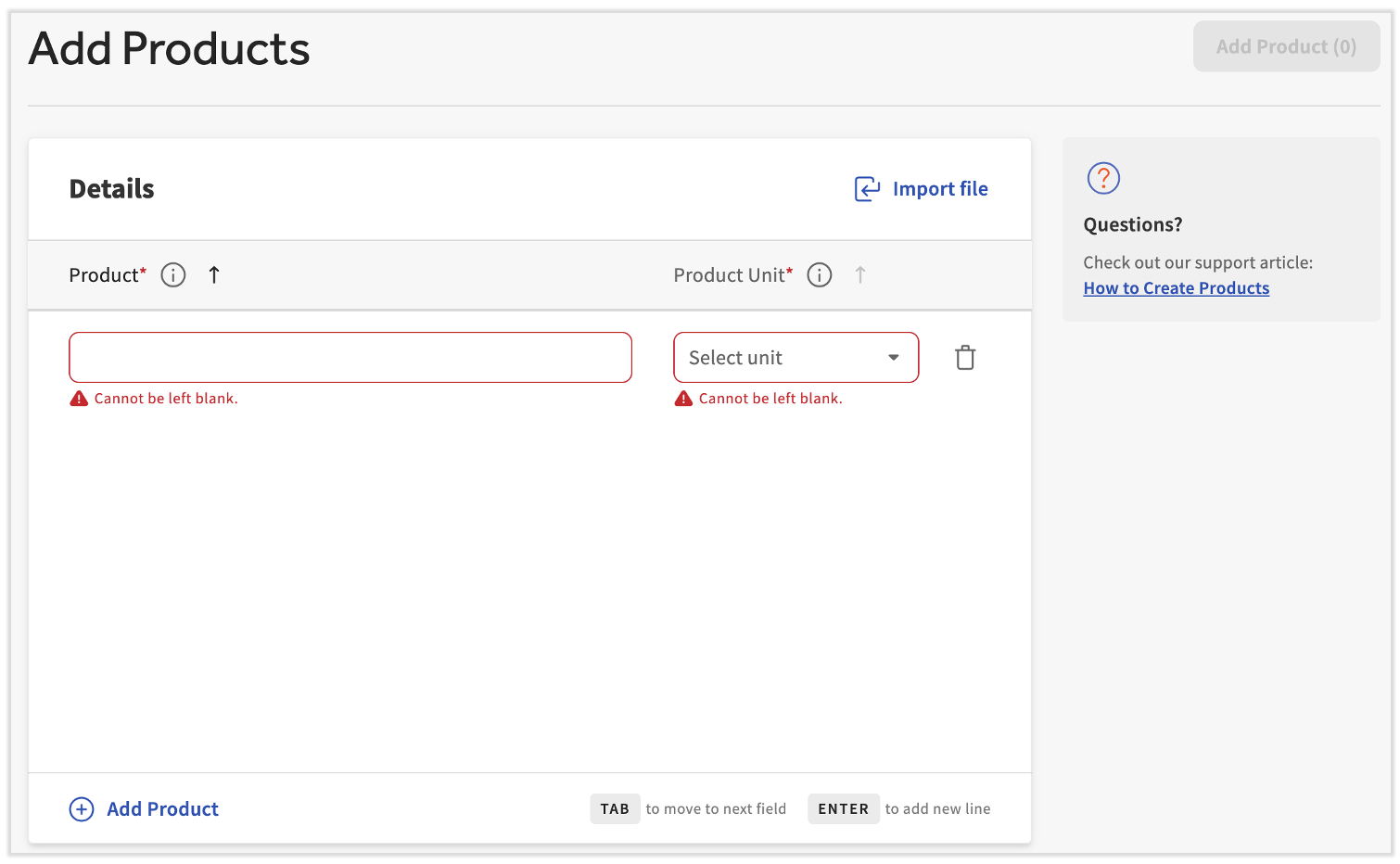
Next, name the product and select its purchase unit. Your product list should reflect the ingredients and inventory items you use in your restaurant. You can repeat this process as needed by selecting + Add Product at the bottom of the page.
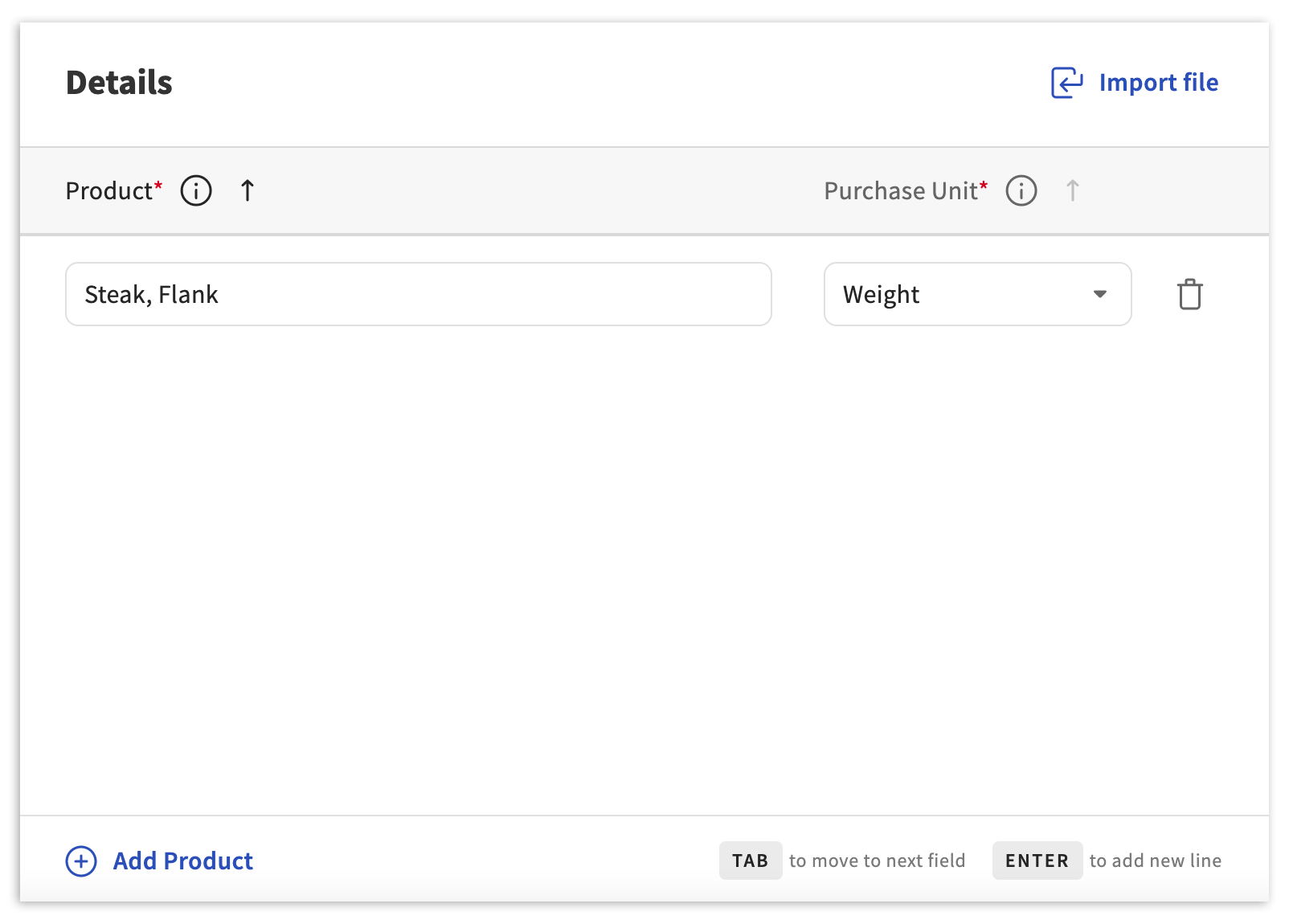
Once you're ready, select Add Products in the upper-right corner to add these products to the xtraCHEF system.