xtraCHEF: Mobile Inventory
Last updated: Apr 8, 2026, 10:06 AM
Mobile Inventory Overview
So, you've set up your inventory in xtraCHEF and are looking for ways to make your physical inventory counts a breeze. With the xtraCHEF mobile app, you can take your phone with you from inventory area to inventory area and perform counts directly on your mobile device.
Note: You first need to set up Inventory Areas and Inventory Counts to take inventory counts on your mobile device or desktop. Learn how to do that in xtraCHEF: Get Started With Inventory Area Setup and Count Lists.
Mobile Inventory
Video Tutorial
This 1-minute video walks through taking Inventory Counts via your xtraCHEF mobile app.
Complete Counts
To get started, select Inventory from the bottom navigation bar.
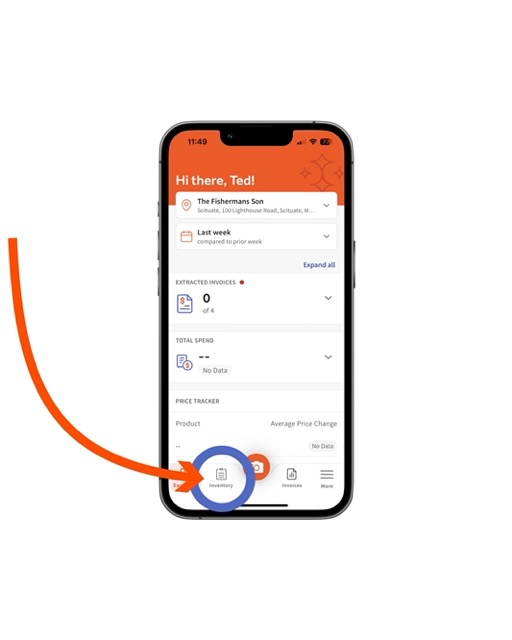
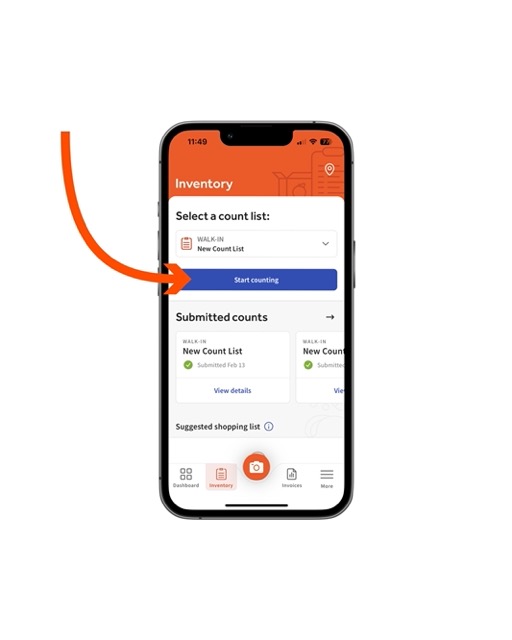
Then, select Start counting on a due count list. If you don't see the count list, a Tenant Admin may need to unlock it by opening the web browser and selecting + Add Inventory on the count list.
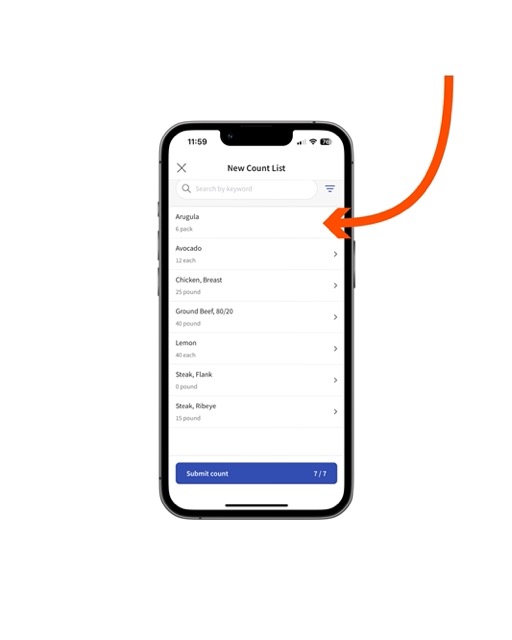
This will pull up a list of products. To begin counting, select a Product.
Next, enter the product quantity that you have on hand. This can be done by selecting the blank space located under the items UOM (Unit of Measurement). UOMs are determined by the individual invoice items grouped with your product via Item Review.
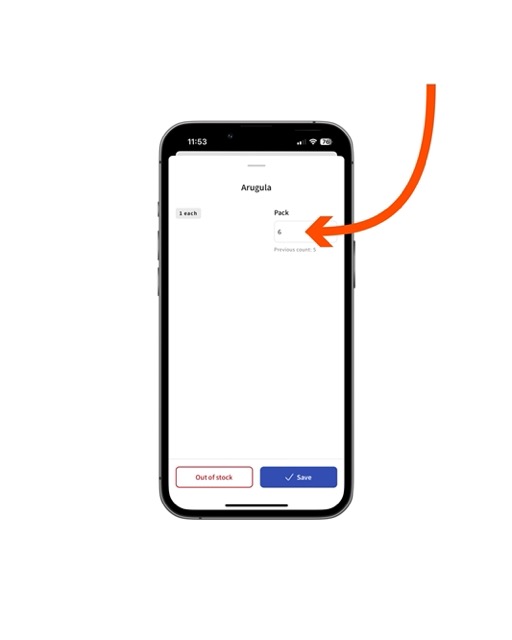
Pro tip: Don't have anything left of this particular product? Select Out of stock to automatically apply zero to your stock level.
Once your quantity has been typed in, select Save.
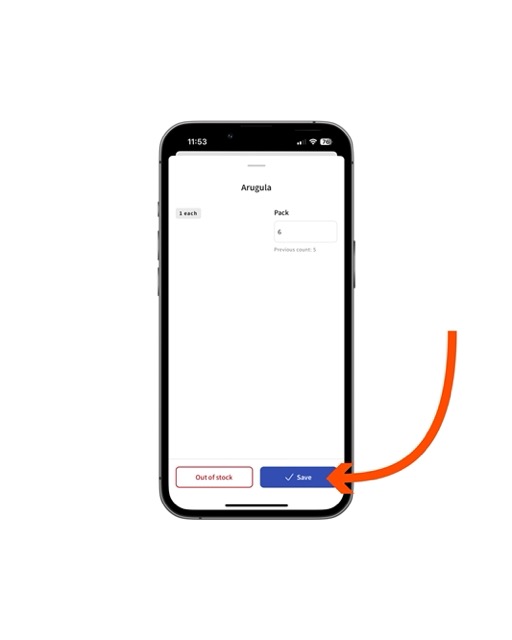
Repeat these steps as needed until every item in your count list has a corresponding quantity. Once you've finished, select Submit count.
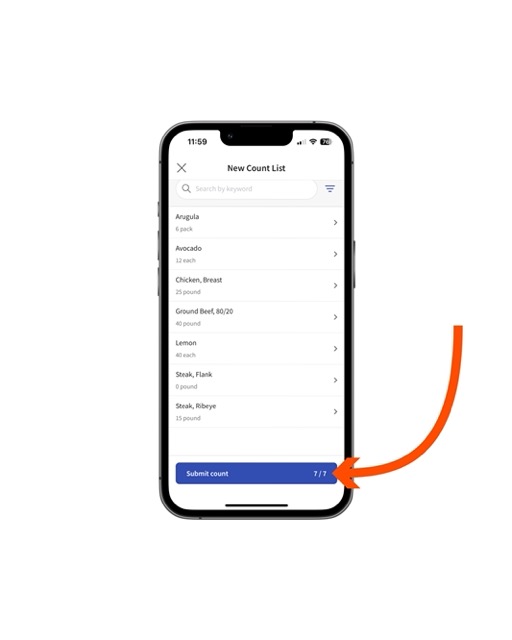
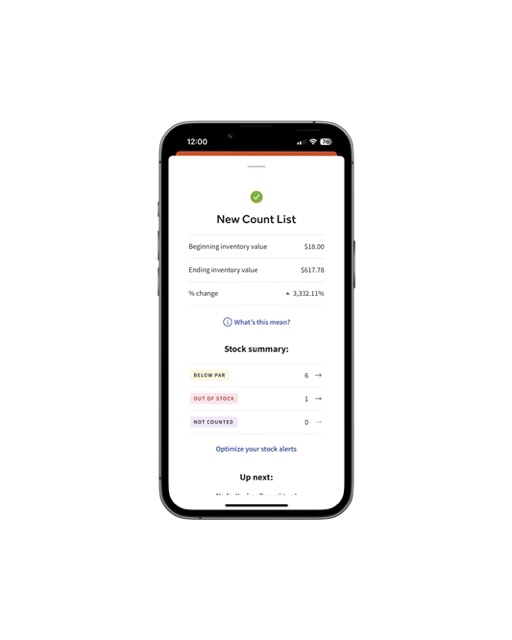
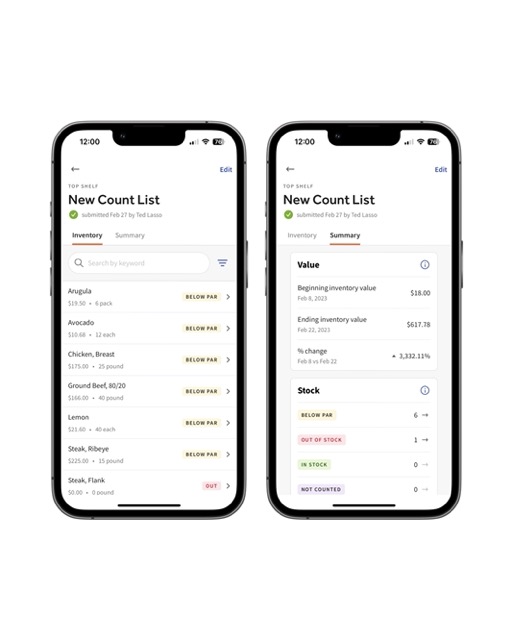
You'll then be taken to the Summary screen, which gives a breakdown of the inventory data you've entered. This data will be available on both the desktop and mobile versions of xtraCHEF.
Review Counts
To review information for submitted counts, select View details from your Inventory page.
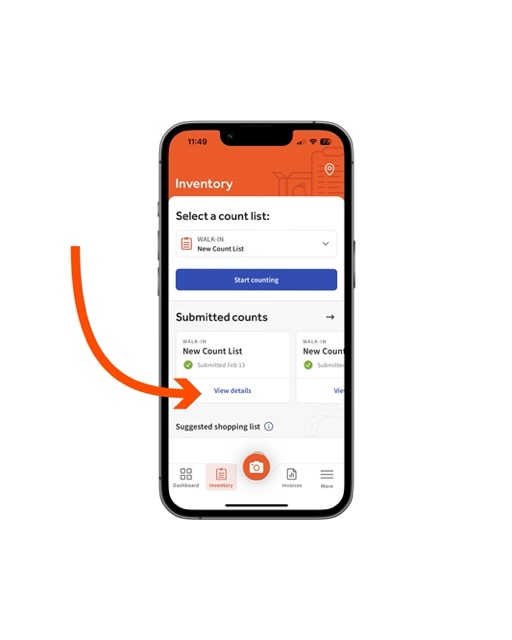
Here, you can review your submitted counts inventory details or a summary. The summary, in particular, highlights Beginning and Ending inventory values, % change, and categorizes your Stock levels as Below Par, Out of Stock, In Stock, or Not counted, depending on your selections.
Add Inventory Items to Counts on Mobile
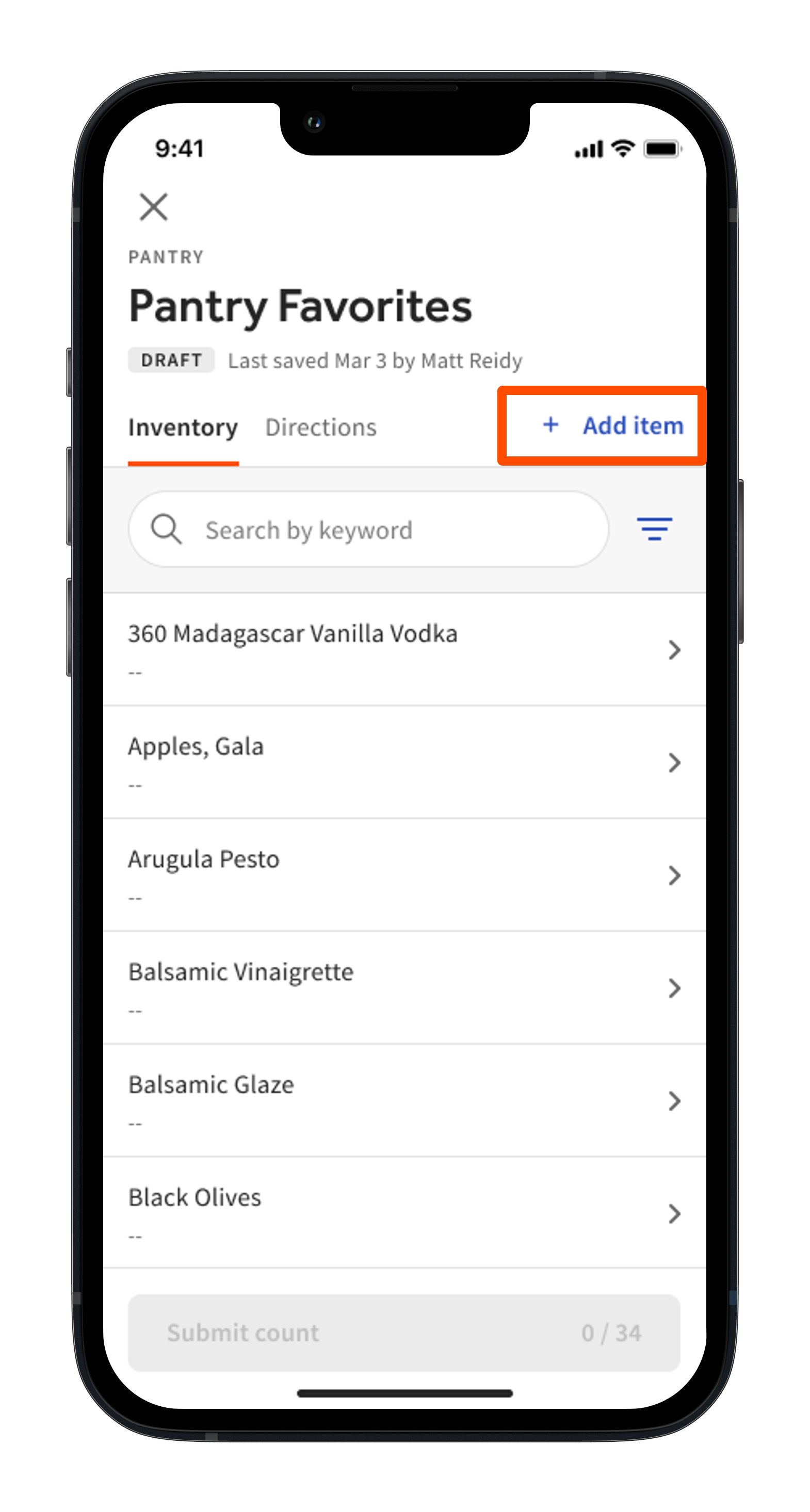
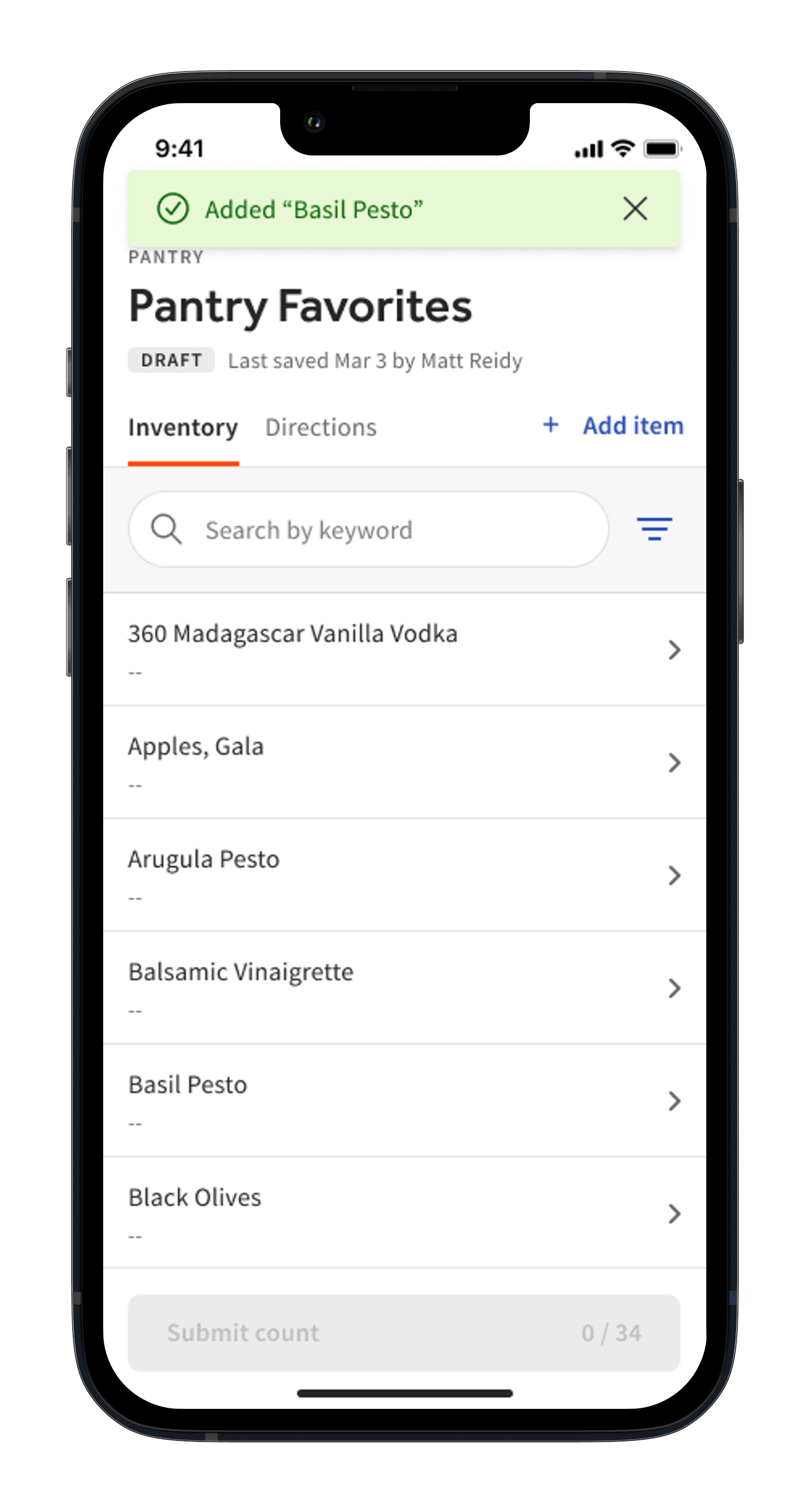
Need to add an inventory item to your inventory count on the fly? You can do so via your xtraCHEF Mobile App. To begin, select Add item on your open inventory count.
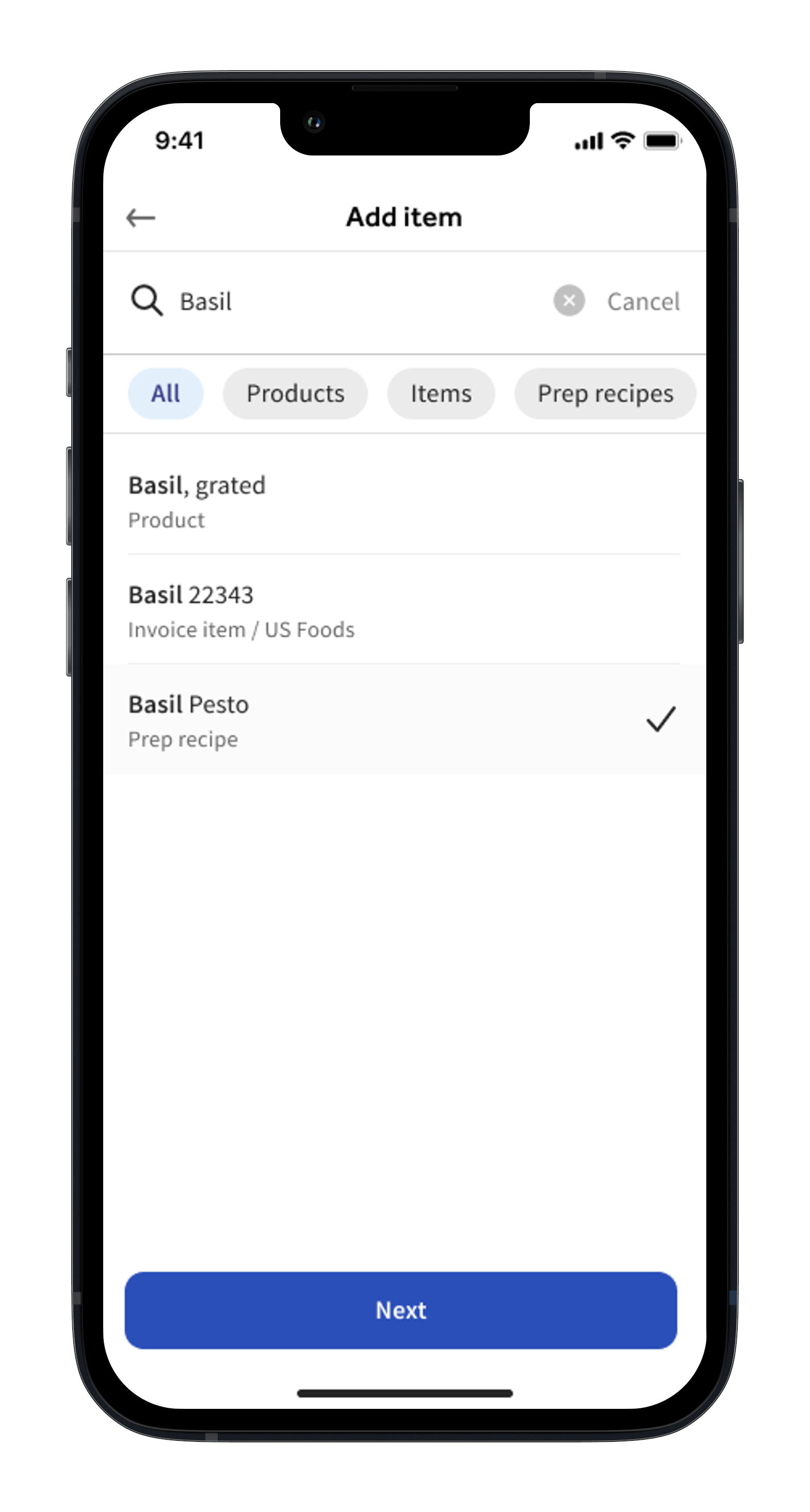
You will then be able to search for and select an inventory item. To proceed, select your item. Then, select Next.
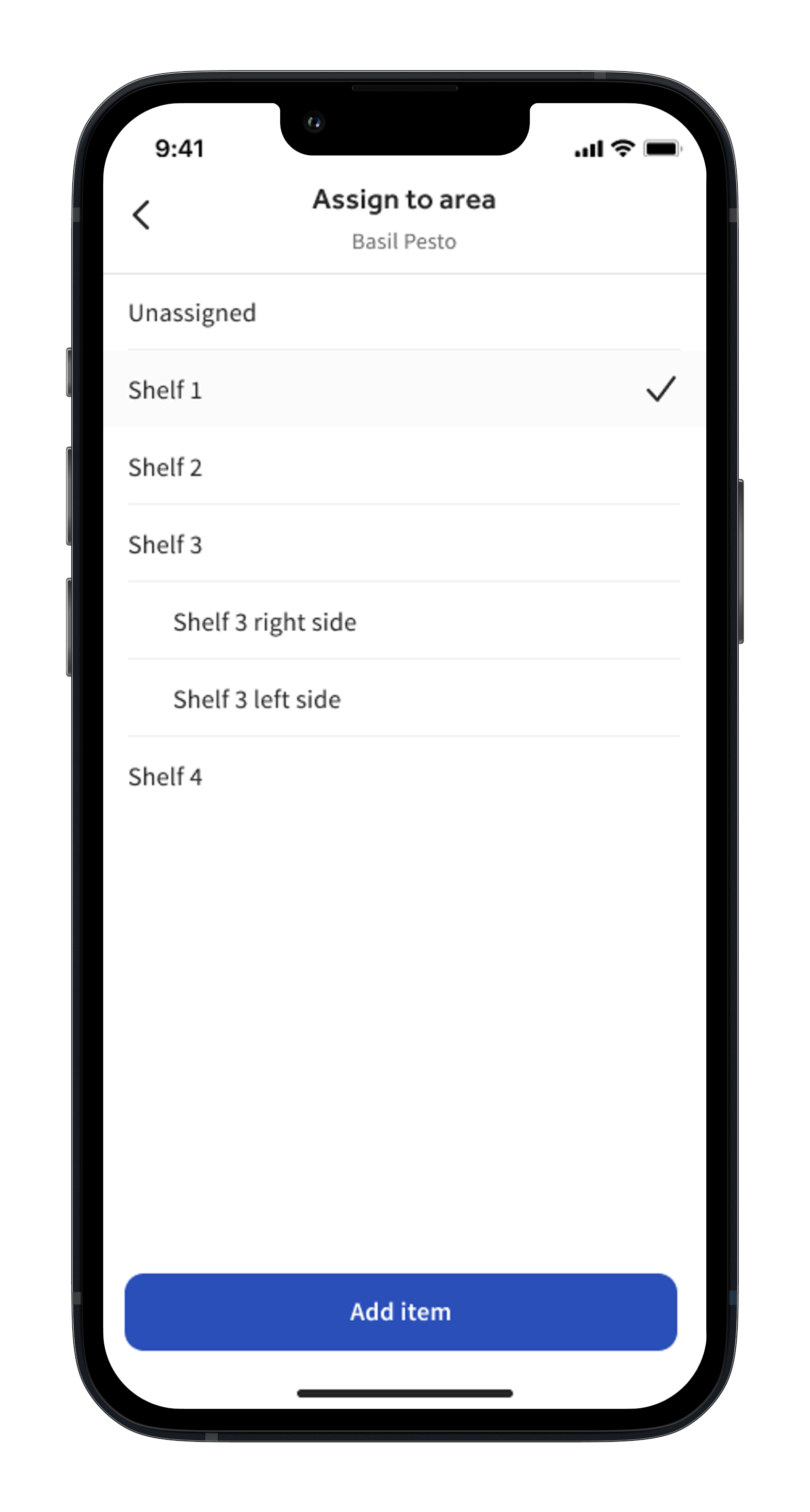
If you created sub areas for your inventory area during area setup, you will then be prompted to select the sub area this item should be nested under. To proceed, select an area (or select Unassigned). Next, select Add item.
A green confirmation message will display once this action is complete.
Next Steps
Upon completing inventory counts, you're unlocking powerful data for COGS reporting, Inventory Reports, and Inventory Analytics. Explore these reports and how to leverage them by reading our articles titled, xtraCHEF: Inventory Analytics and xtraCHEF: COGS Report.