Assign Employees to Multiple Locations
Last updated: Sep 30, 2026, 1:35 PM
Give an existing or new employee access to additional Toast locations, set their permissions per location, and resolve common location-access issues like an employee getting kicked out of a store. Covers Multilocation Management (MLM) and non-MLM multi-location setups.
- Before You Begin
- Choose the Right Path for Your Setup
- Path A: Assign Access in an MLM Restaurant Group
- Path B: Assign Access Across Separate Management Sets
- Set Location-Level Permissions for an Employee
- Switch Between Locations in Toast Web
- Quick Fix: Employee Kicked Out of a Location
- Before You Contact Customer Care
- Frequently Asked Questions
- Related Articles
Before You Begin
Applies to: Toast Web (Multilocation Management groups and non-MLM multi-location setups) | Permissions needed: 6.5 Restaurant Groups Setup, 8.2.1 View all permissions and 8.2.3 Edit custom permissions at every location where you are adjusting permissions
You must already hold any permission you are granting to another employee. Toast blocks the change if you do not—even if you are an account owner.
What you'll accomplish: Give an employee access to multiple Toast locations and configure their permissions at each location.
Note: If you have Toast Payroll, employee must be added in Toast Payroll rather than Toast Web. For information on adding employees to different locations in Payroll, see Toast Payroll: Assign or Change Employee Jobs or Locations article.
Choose the Right Path for Your Setup
Before you start, identify how your locations are managed in Toast. The setup steps differ based on whether your locations are part of one MLM restaurant group or are owned as separate management sets.
| Your Setup | Use This Path |
|---|---|
| All locations are part of one Toast Multilocation Management (MLM) restaurant group | Path A |
| Locations are owned separately and are not grouped under a single MLM management set | Path B |
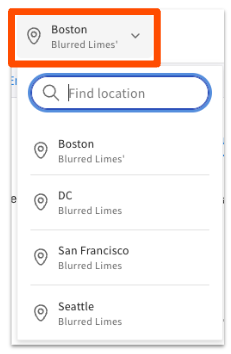
If you are not sure which applies, check the location dropdown in the top-left corner of Toast Web. If you can switch between locations from a single login, you are in an MLM group (Path A). If you log in separately for each location, you are working with separate management sets (Path B).
Path A: Assign Access in an MLM Restaurant Group
Use this path when all your locations are part of one MLM restaurant group. You grant access from a single employee profile—you do not need to add the employee at each location separately.
- In Toast Web, navigate to Team > Employees.
- Find the employee in the list and select the edit pencil.
- Navigate to the Location access tab.
- Use the drop-down menu to first select the restaurant groups or locations the employee should have access to.
- To customize permissions for a specific location, navigate to Edit custom permissions and select that location from the drop-down menu. Any permissions that are not already Enabled can be set to Custom for this employee for this location and Always enabled.
- Select Save.
Expected outcome: The employee now has access to the locations you selected. They can use their existing POS access code at each one. If they are currently logged in on a POS device, they may need to log out and log back in for changes to take effect.
Path B: Assign Access Across Separate Management Sets
Use this path when your locations are not grouped under a single MLM management set. The same person needs an employee profile at each location, all tied to the same email address.
- In Toast Web, log in to the first location and navigate to Team > Employees.
- Select + Add New Employee.
- If the employee is not already in Toast Payroll, toggle the top bar to No and fill in the following:
- First name
- Last name
- Email address (note: each employee is tied to the system by their email address—make sure each employee uses a valid email address and double-check spelling before proceeding; if the email address is invalid, the employee will not be added to the desired location)
- POS access code
- Use the Jobs dropdown to select the employee's first job at this location, then select Add.
- To add additional jobs at this location, navigate back to the Employees page, select the edit pencil for the employee, and select the checkboxes for each applicable job.
- Save your work.
- Switch to the next location using the location dropdown in the upper-left corner of Toast Web.
- Repeat steps 2 through 6 at the new location, using the same email address as before. The employee may use the same POS access code across all locations.
Expected outcome: The employee has a profile at each location, all linked by their email address. They can use the same POS access code at every location they have been added to.
Set Location-Level Permissions for an Employee
After an employee has access to multiple locations, you can fine-tune their permissions at each location individually. Use this when an employee has different responsibilities at different stores—for example, a manager at one location and a server at another.
- In Toast Web, navigate to Team > Employees.
- Find the employee and select the edit pencil.
- Navigate to the Edit custom permissions tab.
- Use the drop-down menu to select the location whose permissions you want to adjust.
- Set the relevant permissions to Customize for this employe at this location (instead of Default...) to make changes, then select Always enabled or Always disabled each permission as needed.
- Repeat steps 4 and 5 if you need to make changes at more than one location
- Select Save.
Expected outcome: The employee's permissions are updated for that specific location. Their permissions at other locations are unchanged.
For more detail on overriding individual permissions and the rules that govern who can adjust permissions across MLM locations, see Manage User Jobs & Permissions With MLM.
Switch Between Locations in Toast Web
To switch between locations you have access to, select the location name in the top-left corner of any Toast Web page, then select the location you want to view from the dropdown.
Quick Fix: Employee Kicked Out of a Location
If an employee cannot log in to one of their assigned locations, or keeps getting kicked back to the clock-in screen at one store but not others, work through this table from top to bottom. The fix at the top resolves the most common cases.
| Symptom | Most Common Cause | Quick Fix | Self-Service? |
|---|---|---|---|
| Employee gets kicked back to the clock-in screen at one location | Stale location access setting | In Toast Web, toggle the employee's access to that location off, then back on. Repeat for any other location with the same issue. | Yes |
| Employee can log in at some locations but not others | Different permission sets at different locations | Verify the employee has the correct permissions set at every location they need — permission sets are configured per location. Full steps: see Set Location-Level Permissions for an Employee below. | Yes |
| Employee's email shows as invalid or does not match across locations | Email mismatch between location profiles | Confirm the same email address is used on every location's employee profile. | Yes |
| Permissions look correct but the employee still cannot access | Duplicate Toast Web profiles | If permissions look correct but access still fails, the employee may have two unlinked profiles — one per location. Full steps: see Consolidate Toast Web Login Credentials below. | Partial—may need Customer Care |
| Employee has been kicked out at the same time every day (e.g., 4 a.m.) | Scheduled access reset or background sync conflict | Verify the employee's access is enabled at every location, then have them log out and back in after the affected time. If the pattern repeats, contact Customer Care. | Partial |
If the toggle reset does not work, see Get Help With MLM Employee Access & Permissions for symptom-by-symptom troubleshooting covering cross-location admin permission failures, invalid POS access codes, and profile sync issues.
Before You Contact Customer Care
You will need Customer Care to resolve the issue if any of the following are true at your restaurant group:
- No employee at the group has full 8.2 User Permissions at every location, and you need to grant or restore that access. Toast blocks you from granting permissions you do not already hold yourself, so without an existing super user, no one inside the restaurant can complete the change.
- The owner or sole MLM admin has been archived or no longer works at the company, and there is no active employee with full group-level permissions remaining.
- Employee profiles need to be merged across locations and the standard self-service path in Consolidate Toast Web Login Credentials has not worked.
When you contact Customer Care, have the affected employee's name, email, the locations involved, and any related case numbers ready.
Frequently Asked Questions
I'm the Owner—Why Can't I Add an Employee to All My Locations?
If you are the owner and you cannot add an employee to all your locations, it is almost always because you are missing 8.2.1 View all permissions and possibly 8.2.2 Edit job permissions or 8.2.3 Edit custom permissions (depending on the action you're trying to take) at one or more locations, or you do not hold a permission you are trying to assign.
Toast blocks every permission change—even from owners—when the editor does not already hold the permission they are granting at the location they are granting it at. To fix this, another employee at the group with 8.2.1 View all permissions (and possibly 8.2.2 Edit job permissions or 8.2.3 Edit custom permissions) at every location can grant you the missing access. If no such employee exists, contact Customer Care (see Before You Contact Customer Care).
Can an Employee Use the Same POS Access Code at All Locations?
Yes—as long as a POS code is not already being used at a particular location, an employee can use the same POS access code at every location they have been added to. When you add the employee at a new location (Path B) or grant them access through the Restaurant Access field (Path A), the same POS access code on their profile works across all of them.
To update the same POS access code for all locations, locate the employee's profile by opening Toast Web and navigating to Team > Employees. Select their last name hyperlink edit pencil. Select the checkbox for "Update POS access code for all locations."
An Employee Has Different Permissions at Different Locations—Is That Expected?
Yes, this is expected when permissions have been overridden at the location level, or when the employee is assigned to different jobs at different locations. Different jobs come with different inherited permissions, so the same person can be a manager at one store and a server at another.
To make permissions consistent across all locations, see Set Location-Level Permissions for an Employee, or Manage User Jobs & Permissions With MLM for the full procedure on permission inheritance and overrides.
How Do I Give an Employee Admin Access at Every Location at Once?
To give an employee admin access at every location at once, use Path A and select the entire restaurant group in the Location access dropdown. This grants access to all current locations in the group. After that, assign them to a job that has admin-level permissions, and confirm those permissions apply at every location by checking the Edit custom permissions section for each one.
Related Articles
- Get Help With MLM Employee Access & Permissions
- Multi-Location Management Permissions Guide
- Manage User Jobs & Permissions With MLM
- Unable to Access Certain Locations or Groups
- Consolidate Toast Web Login Credentials