Update or Add a New Bank Account in Toast Web
Last updated: Sep 21, 2026, 4:30 PM
| The financial contact listed on the account will receive an email whenever billing preferences are changed. This includes changes to the bank account designated to receive credit card deposits or to pay Toast fees.
|
- Manage Your Business Bank Account for Toast Web
- Add a New Bank Account
- Assign an Account Use
- Troubleshoot Common Scenarios
- Assistance With Making Bank Account Changes
- Archive a Bank Account
Manage Your Business Bank Account for Toast Web
Users with the 8.1 Financial Accounts permission can make changes to the bank account used for deposits and fees.
If you need to connect a new bank account, start with the instructions in the Add a New Bank Account section. If you already have your bank account(s) connected and you want to change the account in use for deposits or fees, see the instructions in Assign an Account Use.
Note: To change the bank account that your American Express Direct deposits go into, you will need to call American Express directly at 800-528-5200.
Add a New Bank Account
To add new bank account information, follow these steps:
- In Toast Web, navigate to Toast account > Billing > Bank accounts.
- At the bottom of the All accounts, select Add a bank account.
- Note: If you don't have a verified phone number on your account, you'll be asked to verify this number before proceeding. Visit Set Up One Time Password Verification to learn more. Once your phone number has been verified, select Continue.
- Add your banking information (routing number, bank name, account number) to the form fields.
- Select Add account once more when you are finished. Ensure the information entered includes the routing number, bank name, and account number, as these are mandatory.
After successfully linking the account to Toast, the bank accounts page will show a green banner that says "Your new account was added". Once an account is added, you'll need to Assign an Account Use to start using that account for deposits or fees.
See how automated bank account connections work with Plaid in the Connect Your Bank Account section of Complete Your Toast Business Setup Tasks.
Manual Verification Requirements
If Toast is not able to automatically validate your bank account information, you'll be asked to provide some additional information to verify your business bank account.
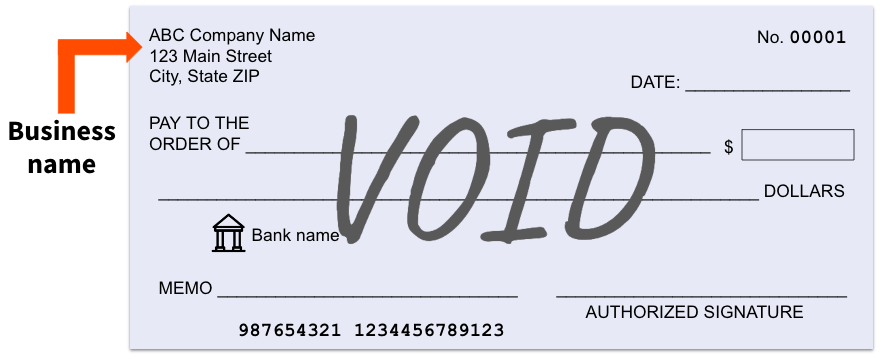
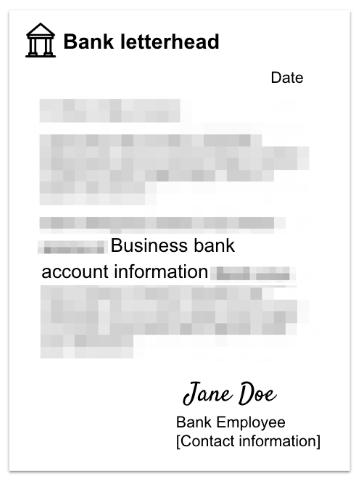
You can either upload a clear image of a voided check or a copy of a bank letter.
If you submit an image of a voided check, it must include:
- Business legal name
- Bank name
- Account number
- Routing number
If you submit an image of a bank letter, it must:
- Be printed on bank letterhead
- Be signed and dated by a bank employee
- Include the contact information of the bank employee
To ensure your verification documentation is accepted, make sure you're uploading a clear, high-quality image with information that matches what you entered in Toast Web.
Once your documentation is submitted, the system will automatically analyze your document to verify the account you're attempting to add is valid, and verified for use. You'll know that your bank account is verified when you see a VERIFIED tag next to your account info on the "Your account has been linked!" page. The financial contact for your business will be notified via email of any status changes. If you still see a Pending verification tag after 5 full business days have passed, please reach out to Customer Support so we can help investigate the cause and move along your verification.
Toast may send additional instructions to the email registered with your account. Be sure to check your email inbox (and junk folder, if needed) for any required next steps. If there are any, follow the instructions to complete the activation process.
If Toast is unable to accept the documents provided, we will contact you via email and you can resubmit the documents in Toast Web.
Assign an Account Use
Once a new bank account has been verified in Toast Web, you'll have the ability to update what that account is used for.
This is located on the same page you added your new bank account (Toast account > Billing > Bank account). In the Accounts in use section, use the drop-down menus for Deposits and Fees to select which bank account you want to use for each purpose. You can change how your verified bank accounts are used at any time. Additionally, if you no longer use an old account, you can archive it by selecting the three dots next to the account details and selecting Archive. This helps maintain a clean and updated record of active accounts.
- Deposits are your daily credit card settlements. This includes taxes and tips paid by your customers.
- Fees are your Toast hardware and software fees.
Don't forget to save your changes!
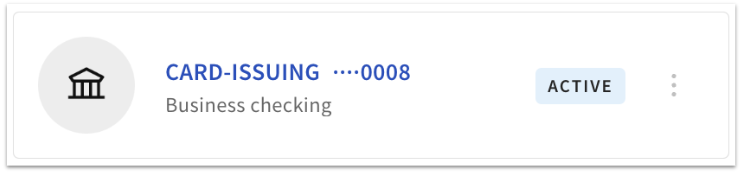
Bank accounts in use will be marked by a blue badge that says Active.
Troubleshoot Common Scenarios
Verification Email Not Received
Check:
- That the email address on file with Toast is correct.
- Your inbox, Junk, and Spam folders for an email from onboarding@toasttab.com. If the email is still missing, request that Toast resend it or provide you with an alternate contact method.
Verification Link Doesn't Work
You can request a new verification link from Toast by contacting the Toast support team.
Verification Failure
Mismatched Legal Names
Bank documents must display the exact legal business name as registered with Toast. Verification fails when:
- The name on the uploaded voided check or bank letter does not match Toast's records.
- Documents showing only a DBA (Doing Business As) name instead of the full legal entity name are rejected.
- Handwritten checks or starter checks without pre-printed names are not accepted.
You can ensure the business name on your bank document matches exactly with what's listed in your Toast account by navigating in Toast Web to Toast account > Business and Location Management > Business Information.
You may encounter a few different scenarios with mismatched legal names:
Scenario 1: Legal Name Does Not Need to Be Updated
- Check your current business legal entity information in Toast by navigating to Toast Account > Business and location management > Business Information.
- Upload new documentation that matches the legal entity name in Toast.
- Alternatively, add a new bank account aligned with the legal name on file.
Scenario 2: Legal Entity Update Required
- If the legal name in Toast needs to be updated, initiate the Change of Legal Entity process directly from your account settings.
- This includes answering questions regarding the entity change and completing an electronic agreement. Once the update is finalized, you can proceed to add your bank account information.
Scenario 3: Multiple Entities with Differing Names
- For businesses operating under multiple entities, you'll need to provide an operational agreement or ownership documentation proving shared management between linked entities.
- Submit these records to Toast for review. Approval of account changes in such cases depends on compliance verification by the Toast Risk team. If not approved, consider updating Toast's legal name details to align with your bank records.
Incorrect Account or Routing Numbers
Verification can fail if:
- Account and routing numbers entered in Toast do not match those on submitted documents.
- Routing numbers are missing on the voided check.
Non-Compliant Documentation
Verification may be unsuccessful when uploaded documents do not meet requirements. For example:
- Savings accounts cannot be added for verification. Only checking accounts are allowed.
- Submitted checks are not physically voided or lack official bank formatting.
- Missing required details in the bank letter (e.g., account/routing numbers, date, bank representative's signature).
Incomplete Toast Account Status
Bank verification cannot proceed if your Toast account is not live. Complete onboarding to enable verification.
Handle Errors With ID Uploads
- If the verification program cannot read your documents due to blurriness or poor quality, retake a clear, high-resolution photo and resubmit it.
- If the problem persists, contact Toast to resend the verification link.
Document Upload Errors
If you see any of the following errors while uploading your voided check or bank letter for manual verification, here's how to resolve them:
- "Document type not supported": Try uploading a voided check or bank letter again.
- "Something went wrong": Try uploading a voided check or bank letter again.
- "Couldn't find few details": Try uploading a voided check or bank letter again, including the missing field noted in the error.
- "Document doesn't match our records": No action needed—your documentation will be sent for manual review.
Errors With Plaid
Toast offers Plaid as an option for authenticating your bank account directly in the workflow. Here are some errors you may see, and how to resolve:
Authorization Failed
If you see an "Incorrect credentials" error upon trying to log directly in to your bank, try again with different credentials, or reset your bank login info.
Plaid: Couldn't Verify Account
If you see an error stating, "The name on this bank account doesn't match your business name. Try entering the account details manually. You may be asked to upload a voided check.", follow the prompt to Manually enter account and routing numbers just below the "recommended" option.
Plaid Verification Failed
If you see an error stating, "This isn't a business checking account. Connect a business checking account to continue.", try using the aforementioned Manually enter account and routing numbers option.
Bank Website Won't Load
If the bank website simply won't load, clear your browser's cache and cookies, and then retry loading the bank website.
Other Technical Troubleshooting
- Use a cellphone to capture and upload ID images, as this often provides better results.
- For misspelled names found during verification, confirm the correct details with Toast support and update them as necessary.
Assistance With Making Bank Account Changes
If you don't have the feature above available in Toast Web, follow the steps below to update your banking information.
- To initiate this change, please submit a ticket to our Customer Care team by signing in to Support Center and using this portal.
- Providing the information below will help to correctly route your request to the relevant team.
- Topic: Account Services
- Subject: Bank Account Update
- Shortly after this request is reviewed by our team, you'll receive a DocuSign requesting the information required to validate your banking accounts.
You may also start a live chat here with our Customer Support team. Chat is available in Toast Web and Payroll Web (blue support button in bottom right of every page) and the Support tab in the Toast Now app.
For more information on how to contact support, view "How to Contact Customer Support" or go to support.toasttab.com.
Back to top
Archive a Bank Account
If you have permission 8.1 Financial Accounts, you can use admin tools in Toast Web to archive a bank account as needed. If you need to unarchive a bank account, you'll need to contact Customer Support as outlined in Assistance With Making Bank Account Changes.
Note: If you archive a bank account in Toast Web that is tied to a Toast Payroll pay group, it will also detach this account from the Toast Payroll pay group. There will be no indication of this until your company attempts to run a payroll in that pay group. Users with the Payroll security role can run payroll, but they will need an HR+ user to re-add a bank account to the pay group. If needed, an HR+ user can read Toast Payroll: Change Company Bank Account On File to attach a new bank account to a pay group.