Set Up Catering & Pre-Ordering
Last updated: Apr 8, 2026, 10:14 AM
- Toast Catering & Events
- Send an Invoice to Your Guests
- Set Up Scheduled Orders
- Use an Open Menu Item
- Enable Strict Mode
- Report and Organize Catering Data
Toast Catering & Events
Save time and increase efficiency with Toast Catering & Events. We've made it easy for you to plan and execute events using the same tools you already use today.
Send an Invoice to Your Guests
With Toast's new product, you can now create and send an invoice to your guests for large catering orders. Learn more about it here: Send an Invoice to Your Guests.
Back to top
Set Up Scheduled Orders
Streamline your catering operations and allow your guests to schedule orders and select future dates with Pick up mode, Auto-send, Online Ordering future order setup, and minimum lead times.
Pick up Mode
- Customize your future order set-up, log in to Toast Web, and navigate to Takeout & delivery > Availability > Takeout/delivery.
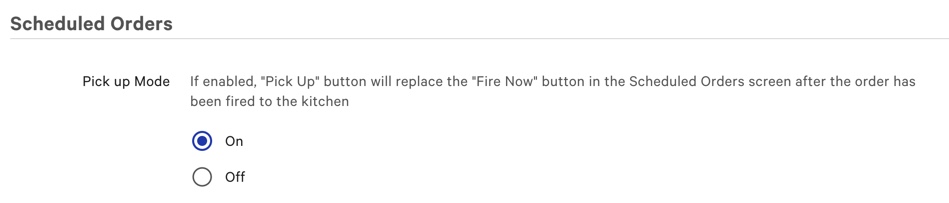
- Scroll down to the Scheduled Orders section. Toggle Pick up Mode to On. The Pick up Mode setting will allow you to mark scheduled orders in the Future Checks tab as picked up.
- By turning on Pick up Mode, a Pick Up button will replace the Fire Now button on the Future Checks tab after the order has been fired to the kitchen.
Keep in mind that the Pick Up button will only appear on eligible orders after the order meets the following criteria:- Order is paid in full
- Order is scheduled for the current day
- Order has been sent to the kitchen in one of four ways:
- Automatically sent via Auto-send Future Orders functionality (see Get Started with Future Order Setup: Pickup Mode and Auto Send for more information)
- Manually sent via Bulk Print Kitchen Ticket functionality (see Get Started with Future Order Setup: Pickup Mode and Auto Send for more information)
- Auto-fired based on existing prep time set-up
- Manually fired using Fire Now button
Auto-Send Future Orders
The auto-send functionality allows scheduled orders to be sent to the kitchen as soon as they are created. This is helpful for any catering-style restaurant that serves items with a longer prep time, like dough or baked goods.
- Log in to Toast Web and navigate to Takeout & delivery > Availability > Takeout/delivery.
- Scroll down to the Scheduled Orders section and choose one of the three options under Send scheduled orders to the kitchen when created.

If Send scheduled orders to the kitchen when created is set to:
- Send to the kitchen as soon as they are created. Orders will not print again - Scheduled orders will be sent to the kitchen immediately upon order creation, regardless of when they are created.
- Send to the kitchen as soon as they are created, within a period of time. This will not affect orders created and due outside of this time - Scheduled orders will be sent to the kitchen immediately upon order creation only if the creation time falls within the configured threshold
- Once this option is selected, you are able to choose how many hours in advance to send scheduled orders to the kitchen. If the threshold is set to 0, all scheduled orders will be sent immediately; otherwise, the order will only be sent according to the kitchen threshold range.
-
- Do not send as soon as they are created - Scheduled orders will not be sent to the kitchen when created and will instead fire based on the configured prep time.
Online Ordering Future Order Setup
This feature will allow your guests to schedule their online orders for a future date or time.
- To enable Online Ordering Future Order Setup, log in to Toast Web and navigate to Takeout & delivery > Availability > Takeout/delivery
- Choose Yes, guests may schedule orders under the Enable Scheduling section.
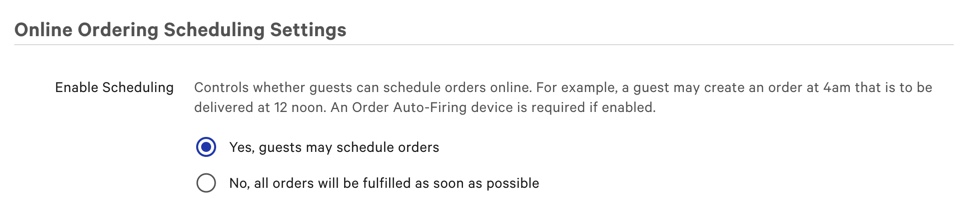
Once you select Yes, guests may schedule orders. More options will be available to customize your online ordering schedule.
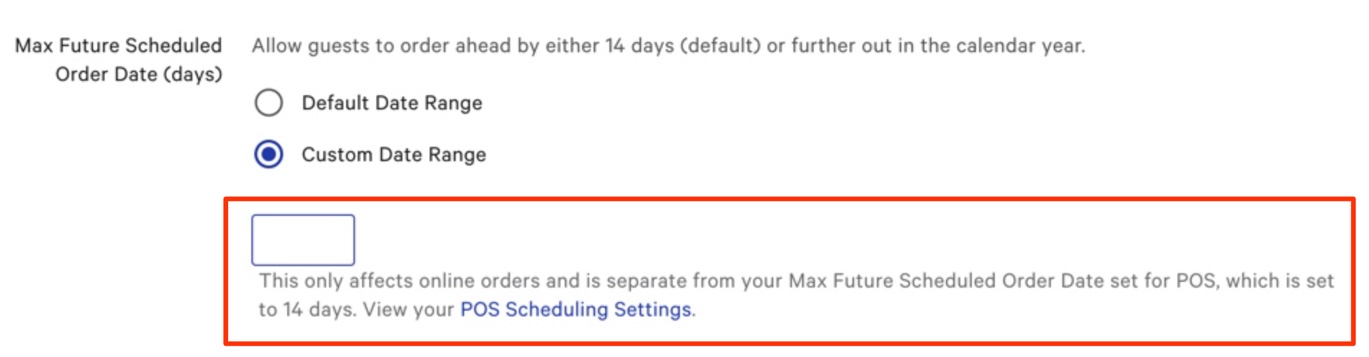
A customized limit can be set in Max Future Scheduled Order Data (days) by selecting custom Date Range and entering the number of days out you'd like your guests to be able to schedule orders (again, up to 12 days in advance).
Configure Minimum Lead Times
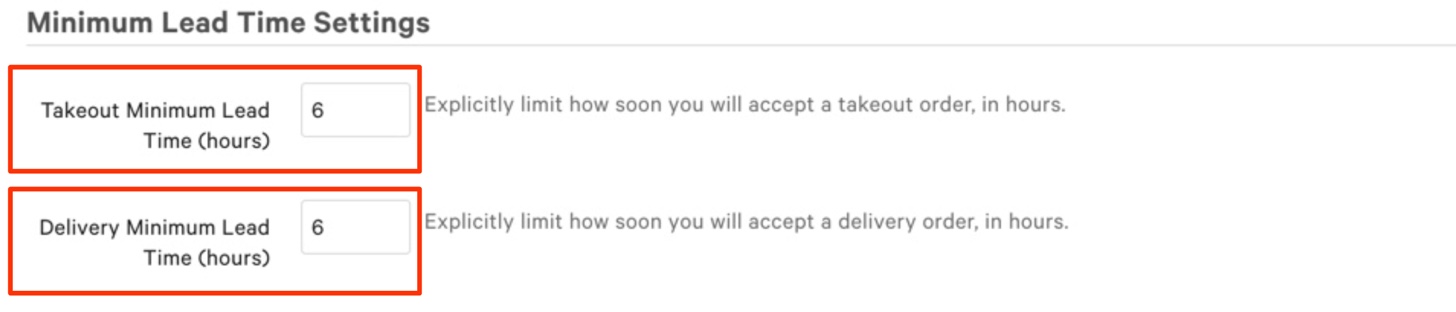
Using the Minimum Lead Times setting will allow guests to schedule their online order up to 12 days in advance. This feature will only appear once you select Custom Date Range under the Max Future Scheduled Order Date (days).
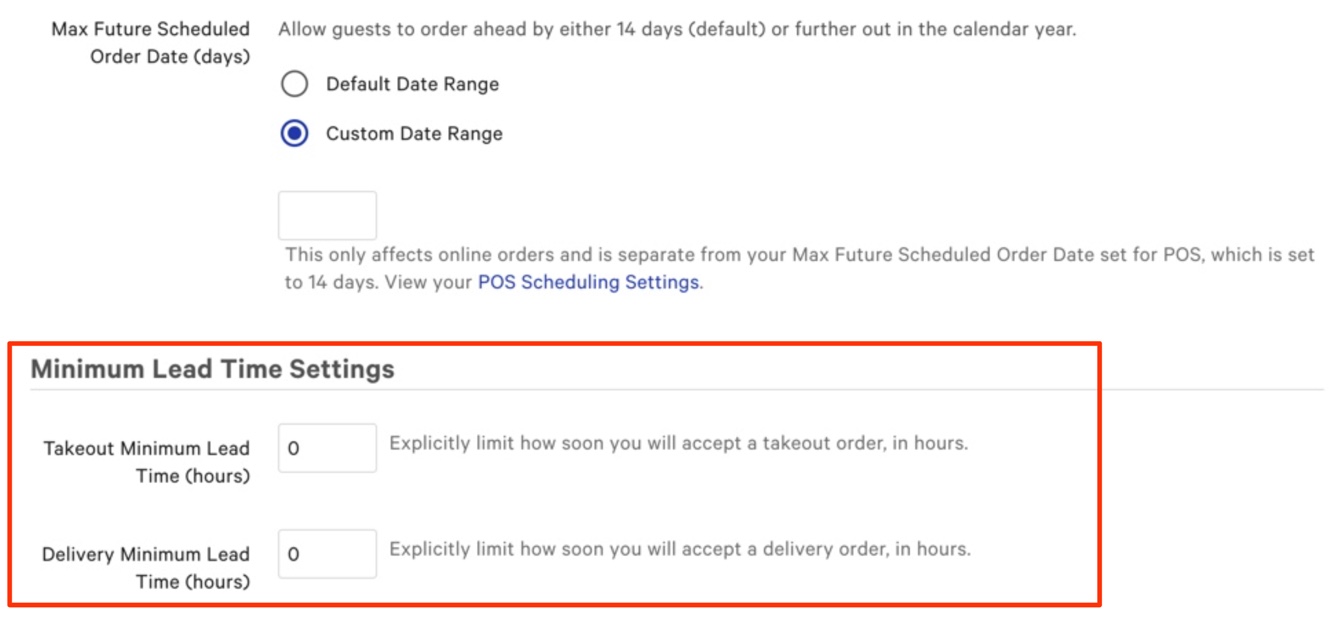
Let's say your restaurant sets the Delivery Minimum Lead Time to 6 hours. If a guest wants a delivery order at 4:00 pm, the earliest they can place that order is 10:00 am.
You can enter your desired lead time settings for online takeout orders in the text field for Takeout Minimum Lead Time (hours) and enter your desired lead time hours for online delivery in the text field for Delivery Minimum Lead Times (hours).
Use an Open Menu Item
An open item can be used to ring up items or services that are not included in your restaurant's menu. To add a new open menu item within Catering and Events:
- Navigate to Toast Web > Catering & Events.
- Select Create order.
- Fill in order details, and when you reach the Order Details section, select +Add item.
- In the next window, select Menus.
- Select Open Items.
- Select Open Food or Open Drink.
- Fill in item details such as name, quantity, price, and any necessary special instructions.
- Select Add to order.
Enable Strict Mode
Strict Mode is a preventative measure to prevent ASAP orders and future orders from having their date changed after being fired/sent to the kitchen. This allows sales and accounting reports to reflect the correct sale amount for the appropriate date, which can significantly improve your restaurant's catering operations.
When Strict Mode is enabled, the scheduled date of an order that contains fired items cannot be changed, and orders cannot be retroactively placed into strict mode. To ensure that an existing order's scheduled date does not change, we suggest that you void it, enable Strict Mode, and then recreate the order for the appropriate date.
- To enable Strict Mode, log into Toast Web and navigate to Front of house > Order screen setup > UI options.
- Scroll to the Order Management section. Under the Strict Mode section, select Enabled.

You can use some of Toast's functions to organize your catering sales data better.
Sales Categories are used to break down your Sales based on menu categories. Common examples are Food, Alcohol, Retail, etc. However, you can add a category called 'Catering' to filter sales and view data specifically from your restaurant's catering services. For more information on creating sales categories, check out Configure Sales Categories.
You can also add your catering services to your sales reports in Toast's back-end to view detailed breakdowns of your catering services. For more information on sales reports, check out our Sales Report Overview!