Get Help With S1 Handheld
Last updated: Sep 17, 2026, 9:36 AM
Troubleshoot common issues with your S1 Handheld POS including the Toast app, card reader, network, firmware, charging, and device settings.
- Before You Begin
- Quick Fix
- Toast App Issues
- Network and Connectivity
- Card Reader and Payment Issues
- Firmware Issues
- Battery and Charging
- Display, Sound, and Font Settings
- Tipping Settings on the S1 Handheld
- Physical Damage
- Before You Contact Customer Care
- Upgrade to Toast Go® 3
- Related Articles
Before You Begin
Applies to: Toast S1 Handheld POS (Canada, Ireland, and the United Kingdom)
Permissions needed:
- 7.1 – 7.3 Device Setup (for setup-related troubleshooting)
What you'll accomplish: Resolve common S1 Handheld issues without contacting Customer Care.
Note: The S1 Handheld cannot be factory reset. If you are looking for a current-generation device, Toast is running an active upgrade program — see Upgrade to Toast Go® 3 at the end of this article.
Quick Fix
Find your symptom in the table below and try the quick fix first. If the quick fix does not resolve the issue, select the linked section for detailed steps.
| Symptom | Most Common Cause | Quick Fix | Self-Service? |
| Toast app not on the device | App did not auto-download after setup | Navigate to Settings > Apps > 8678 to trigger the download | Yes |
| Card reader not showing as connected | Device needs a restart after setup | Restart the device, then reopen Device Setup > Card Reader Setup | Yes |
| Device will not connect to the _TOAST network | Configuration drift | Navigate to Settings > Configuration > 8678 > Reset | Yes |
| Payment screen shows "Adyen isn't responding" | Default app not set | Select Close App, select Adyen, then select Always | Yes |
| Firmware will not download | Download stalled | Restart the device | Yes |
| Firmware shows "Unable to Update" | Update interrupted | Navigate to Settings > Configuration > 8678 > Reset, then re-board the device | Yes |
| "SE Connect Fail" error on screen | Battery state hung | Remove the battery for 10 seconds, reinsert it, and restart the device | Yes |
| Firmware loading screen visible | Normal upgrade in progress (can take up to 40 minutes) | Wait—do not interrupt the device | Yes |
| Device will not charge | Adapter or dock connection issue | Verify the USB-C adapter is inserted, the dock has power, and try another port | Yes |
| Brightness, sound, or notifications need adjusting | Toast app device settings | Navigate to Setup > Open Device Settings | Yes |
| Font size or display size needs adjusting | Toast app display settings | See Adjust Font Size in the Toast App | Yes |
| Tipping settings need adjusting | Configured in Toast Web and on the device | See Tipping Settings on the S1 Handheld | Yes (via linked articles) |
| Battery dead on arrival | DOA hardware | Charge for 30 or more minutes; if the device still does not power on, contact Customer Care | Partial |
| Cracked screen or device unresponsive after a drop | Physical damage | Contact Customer Care for hardware replacement | No |
| "Device registered to another location" error | Card reader paired to the original Toast location | Contact Customer Care to re-pair the card reader to the new location | No |
Toast App Issues
Toast App Not Appearing on the Device
If the Toast app does not appear on your S1 Handheld after setup, the app may not have auto-downloaded. Try the manual trigger steps in the next section first. If the manual trigger does not work, contact Customer Care—the app may need to be pushed from the backend.
Manually Trigger the Toast App Download
If the Toast app did not download automatically, trigger the download manually on the device:
- On the device, navigate to Settings > Apps > 8678. Entering this page triggers the app to begin downloading.
- Wait for the Toast app to begin downloading. The download can take up to one hour in the background.
- If the Toast app does not begin downloading after the steps above, navigate to Settings > Configuration > 8678. The app should begin downloading.
Expected outcome: The Toast app appears on the device home screen and is ready to launch.
If the app still does not download after both paths, see Before You Contact Customer Care.
Network and Connectivity
Device Will Not Connect to the _TOAST Network
If your restaurant uses a Toast-managed Network, your S1 Handheld needs to connect to the network named _TOAST. The device should connect automatically. If it does not, first restart the device and check connectivity. If it still does not connect, reset the network configuration:
- Go to the home screen of the device.
- Select Settings.
- Select Configuration. If you are prompted for a passcode, enter 8678.
- Select Reset.
Expected outcome: The device redownloads its configuration and reconnects to the _TOAST network.
General Connectivity Issues
If your S1 Handheld has connectivity issues that are not resolved by restarting the device or resetting the network configuration, contact Customer Care. See Before You Contact Customer Care for the information to have ready.
Card Reader and Payment Issues
Card Reader Not Connecting
If the card reader on your S1 Handheld is not showing as connected:
- Navigate to Device Setup.
- Scroll down to Card Reader Setup.
- If the card reader still does not show as connected, restart the device.
Expected outcome: After restarting, the card reader appears as connected in Card Reader Setup.
If the card reader still does not connect after the restart, contact Customer Care—the reader may need to be re-paired at the account level.
Payment App Fails to Launch
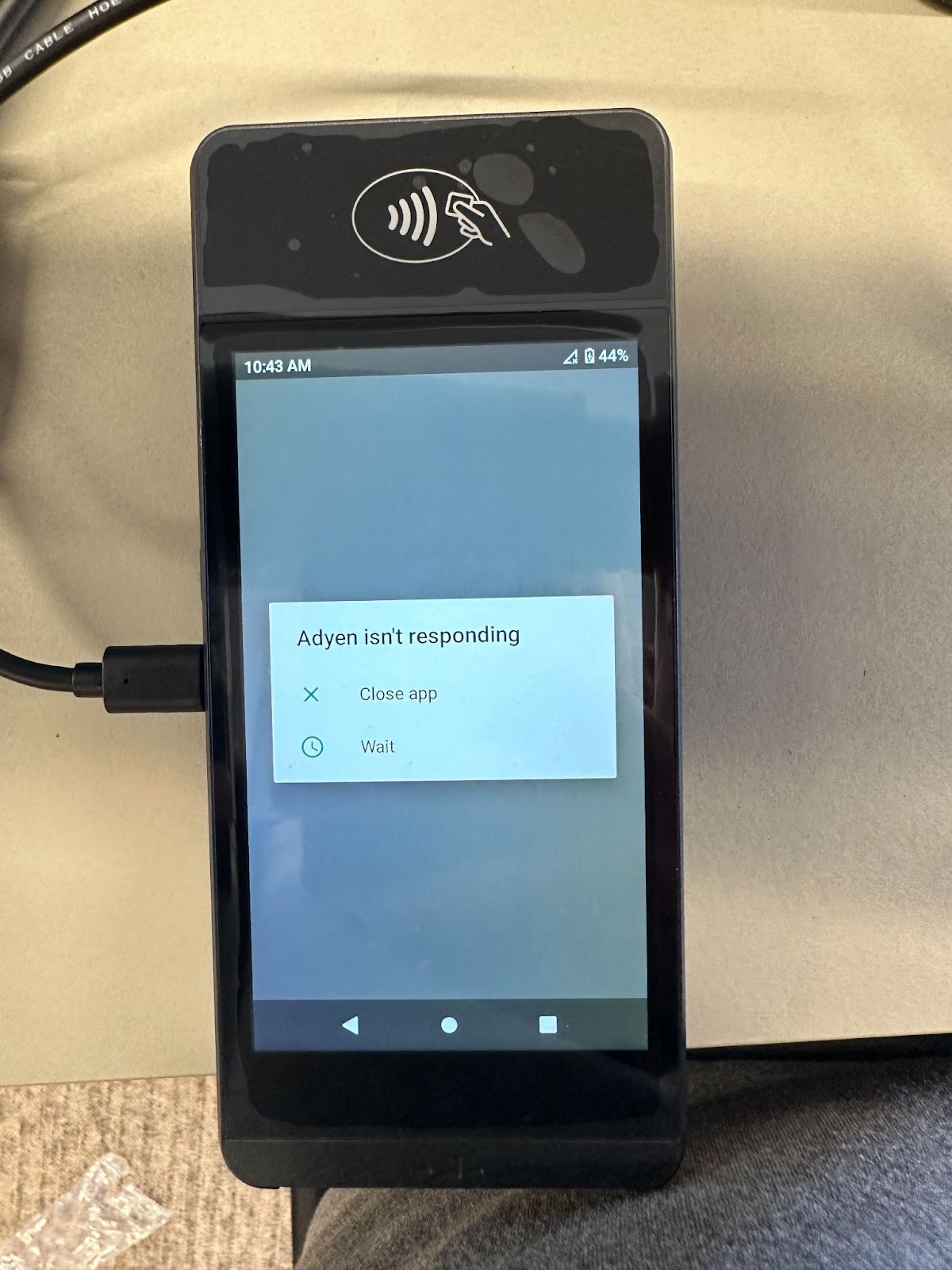
If the payment app fails to launch, you will see the message "Adyen isn't responding." To resolve this:
- Select Close App.
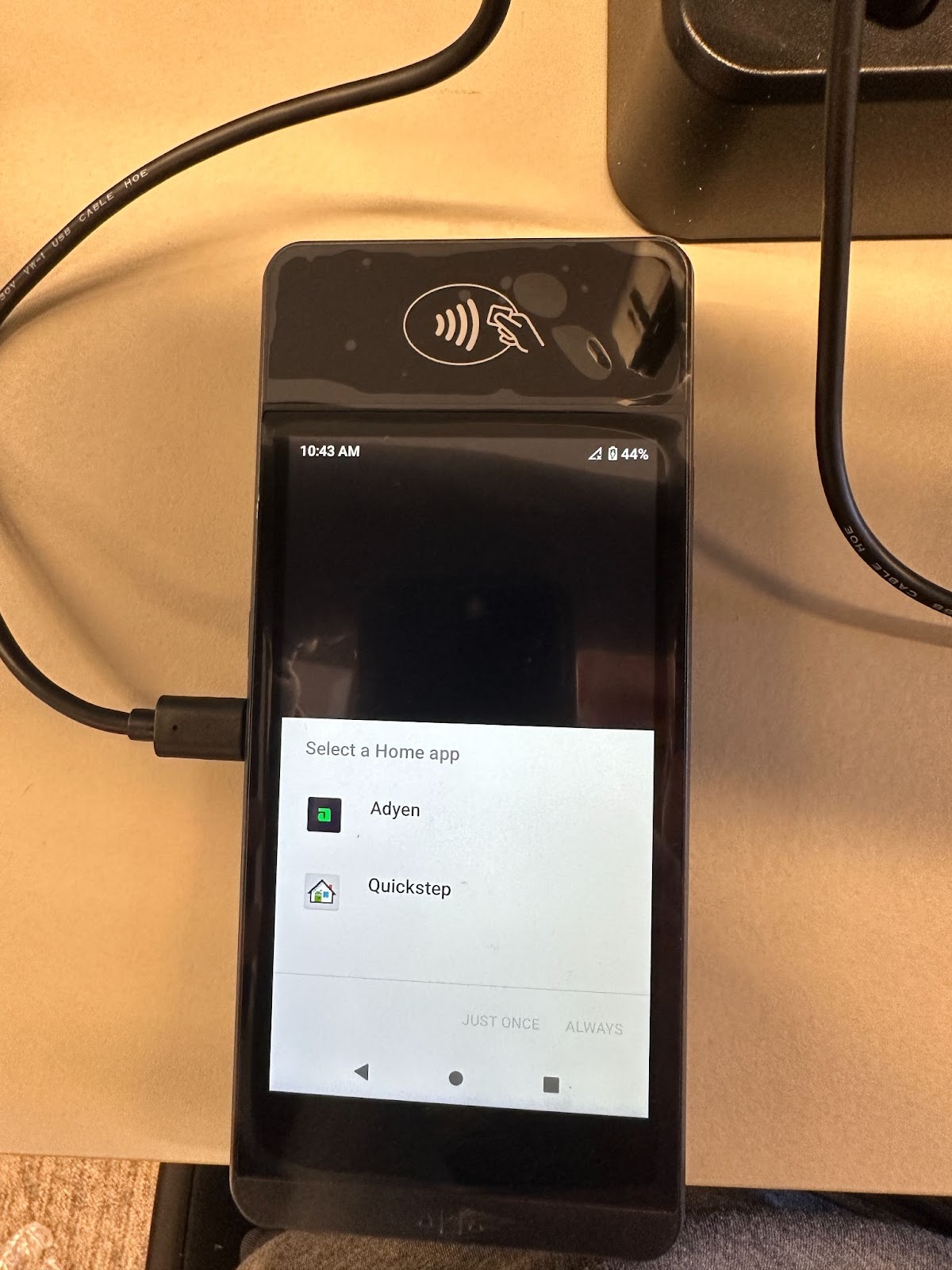
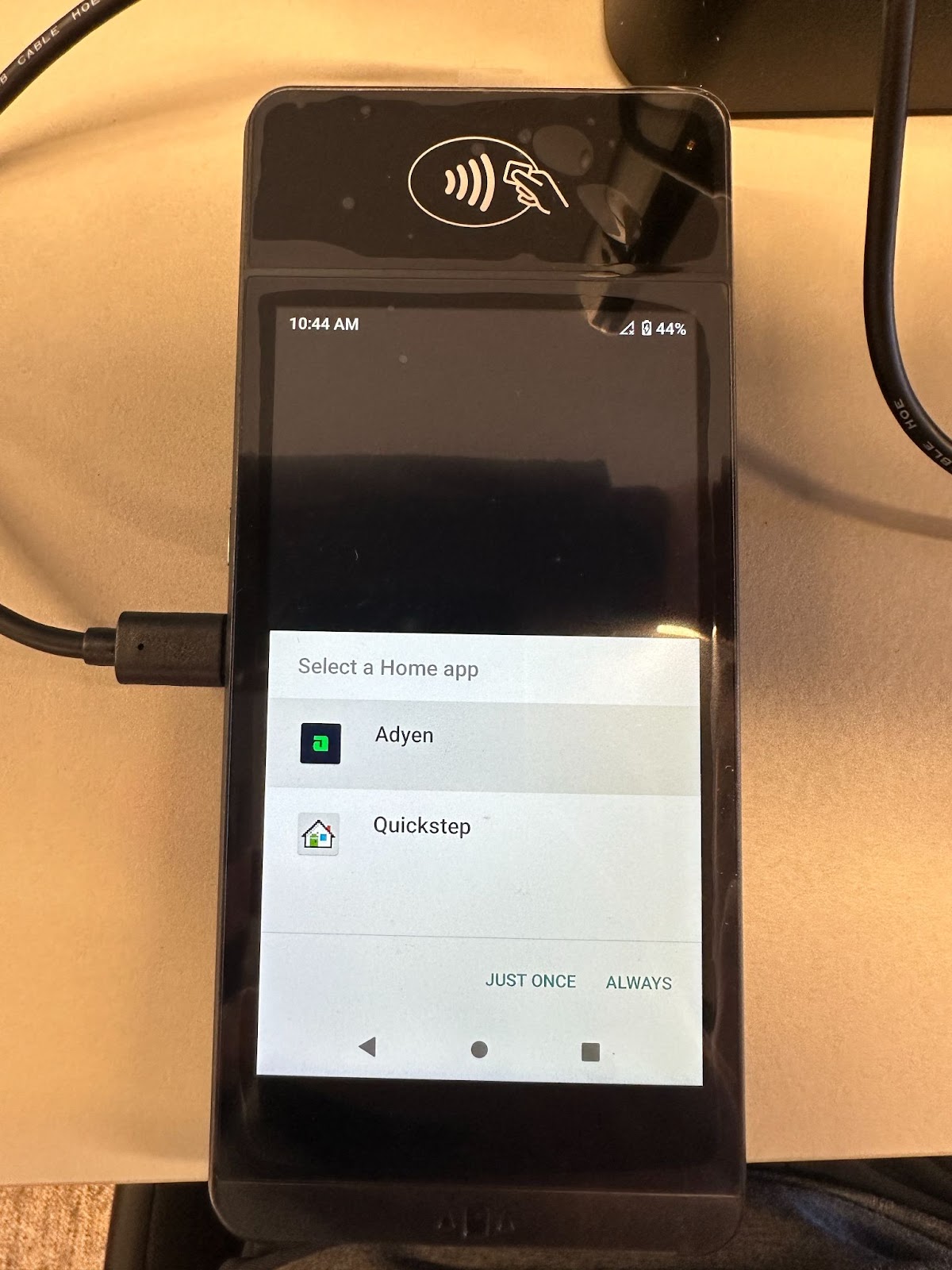
- Select Adyen.
- Select Always.
Expected outcome: The Adyen payment app is set as the default and launches correctly on future payments.
Device Registered to Another Location
If you use your S1 Handheld to take a payment in a different Toast location than the one it was originally registered to, you may see one of these errors:
- "The card reader isn't set up for this location. Pair it correctly or contact Toast"
- "Device registered to another location"
To use the S1 Handheld in a different Toast location, contact Customer Care. Customer Care can re-pair the card reader to the new Toast location. This step is not self-service. See Before You Contact Customer Care for what to have ready.
Firmware Issues
Firmware Does Not Download
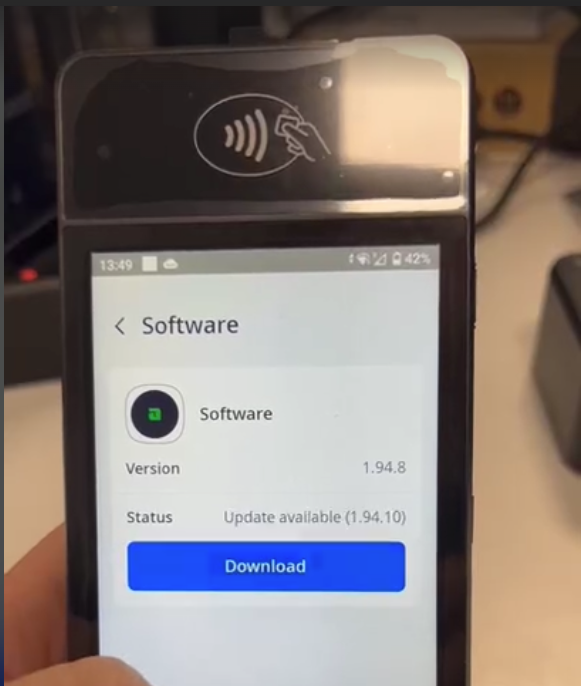
If you select Download to start a firmware update and the download does not begin:
- Restart the device.
- The firmware download should begin automatically after the restart.
Expected outcome: The firmware download begins and progresses through the update process.
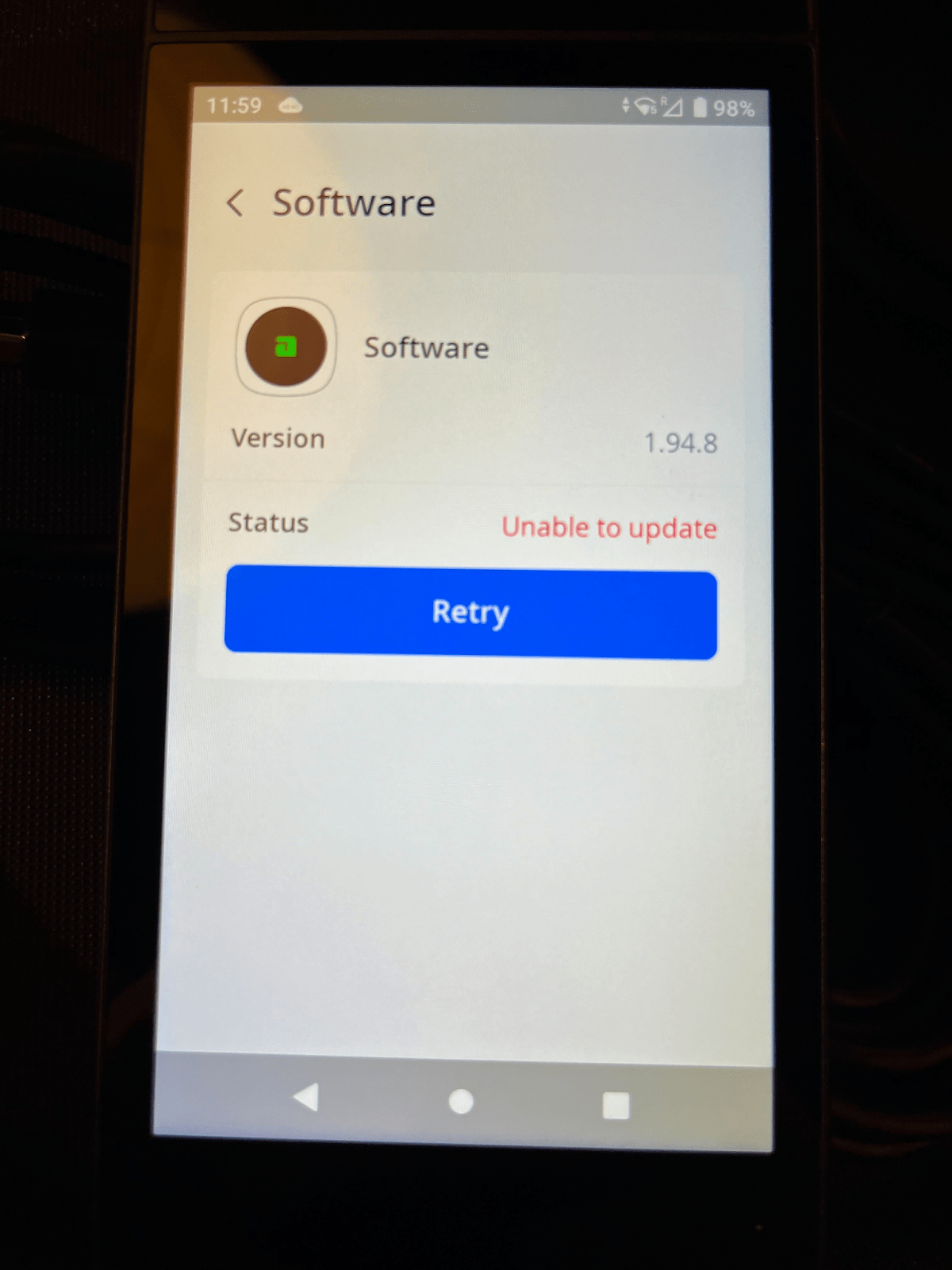
Firmware "Unable to Update"
Firmware upgrades occasionally fail to complete and display "Unable to Update." When this happens:
- Navigate to Settings > Configuration > 8678 > Reset.
- Re-board the device to your store location.
- Wait for the device to start.
- Restart or power cycle the device.
Expected outcome: The firmware update completes and the device returns to normal operation.
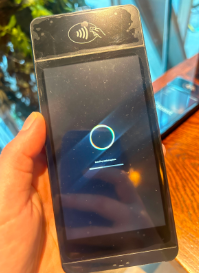
Firmware Loading Screen
The firmware loading screen is a normal part of the firmware upgrade process. The upgrade can take up to 40 minutes to complete. Do not interrupt the device while the firmware loading screen is visible.
Expected outcome: After the firmware finishes loading, the device returns to the home screen automatically.
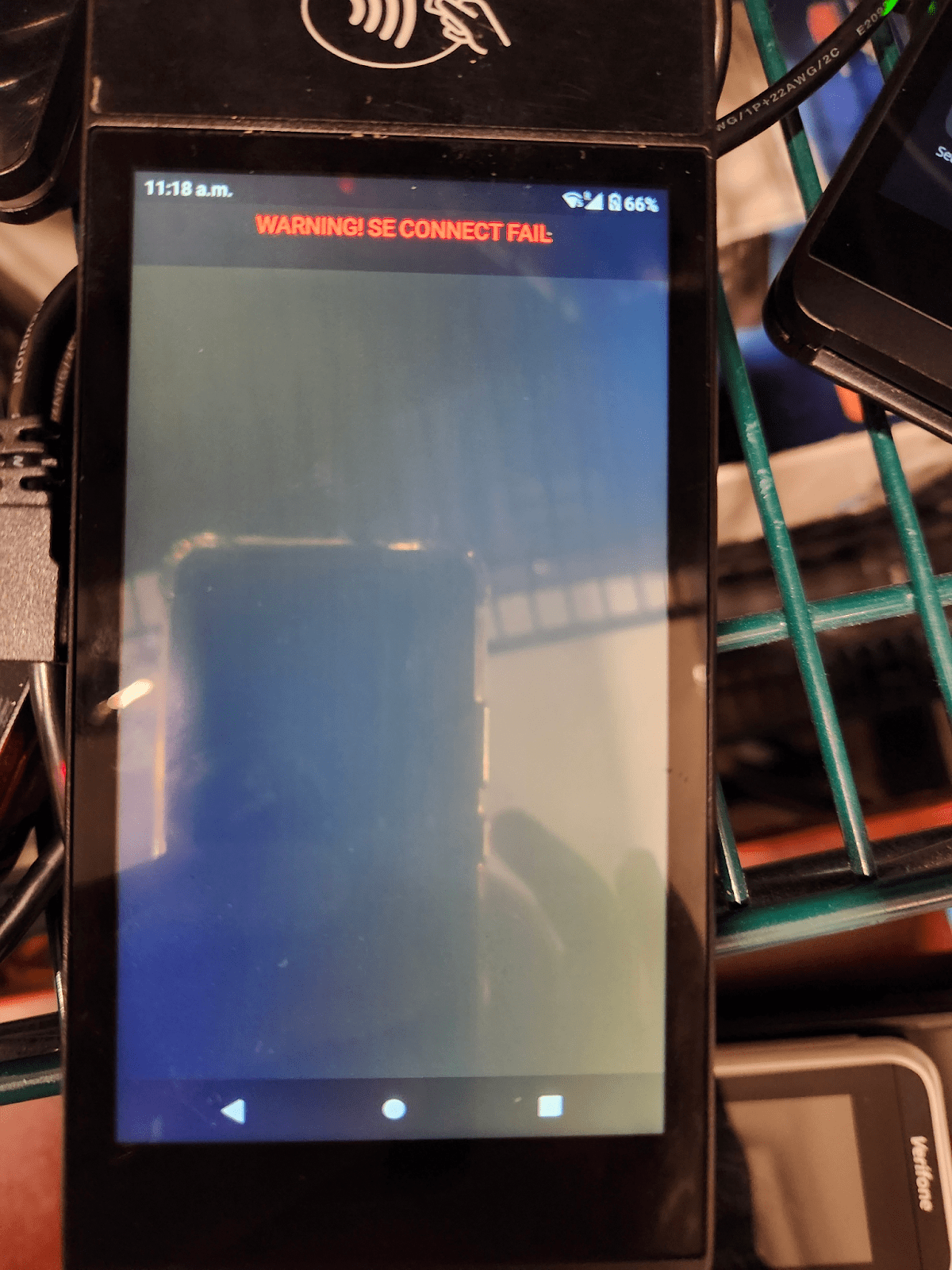
SE Connect Fail Error
The S1 Handheld POS can fall into an "SE Connect Fail" error state. To get the device operational again:
- Remove the battery and wait 10 seconds before reinserting it.
- Restart the device.
Expected outcome: The device powers on and no longer displays "SE Connect Fail."
If the error persists after the battery removal and restart, see Before You Contact Customer Care.
Battery and Charging
Device Not Charging
Always charge your S1 Handheld POS with the designated charging cable that came in the box with your device, or with the S1 Handheld POS 4-bay charging dock sold by Toast. Toast does not recommend third-party charging equipment that has not been tested with this device.
If you are using the S1 Handheld POS 4-bay charging dock and the device will not charge:
- Check the connection. Ensure the USB-C adapter is correctly inserted into the S1 device and is making contact with the dock port connector.
- Verify the power supply. Confirm the charging dock is receiving power. Check the power outlet and the dock's power cable.
- Try a different port. Test the S1 device with another charging port on the dock to rule out a problem with the original port.
Note: The dock is compatible with or without a protective case. However, the individual USB-C adapter for each device must be inserted before attaching the case.
Expected outcome: The device begins charging when placed on the dock.
If the device still does not charge after these steps, see Before You Contact Customer Care.
Battery Dead on Arrival
If your S1 Handheld arrived with a dead battery:
- Charge the device for at least 30 minutes using the included charging equipment.
- After 30 or more minutes of charging, attempt to power on the device.
Expected outcome: The device powers on and is ready for setup.
If the device still does not power on after 30 or more minutes of charging, see Before You Contact Customer Care. Customer Care can confirm whether the device qualifies for a warranty replacement under Replace Faulty Hardware (RMA).
Display, Sound, and Font Settings
Adjust Notification, Sound, and Display Settings
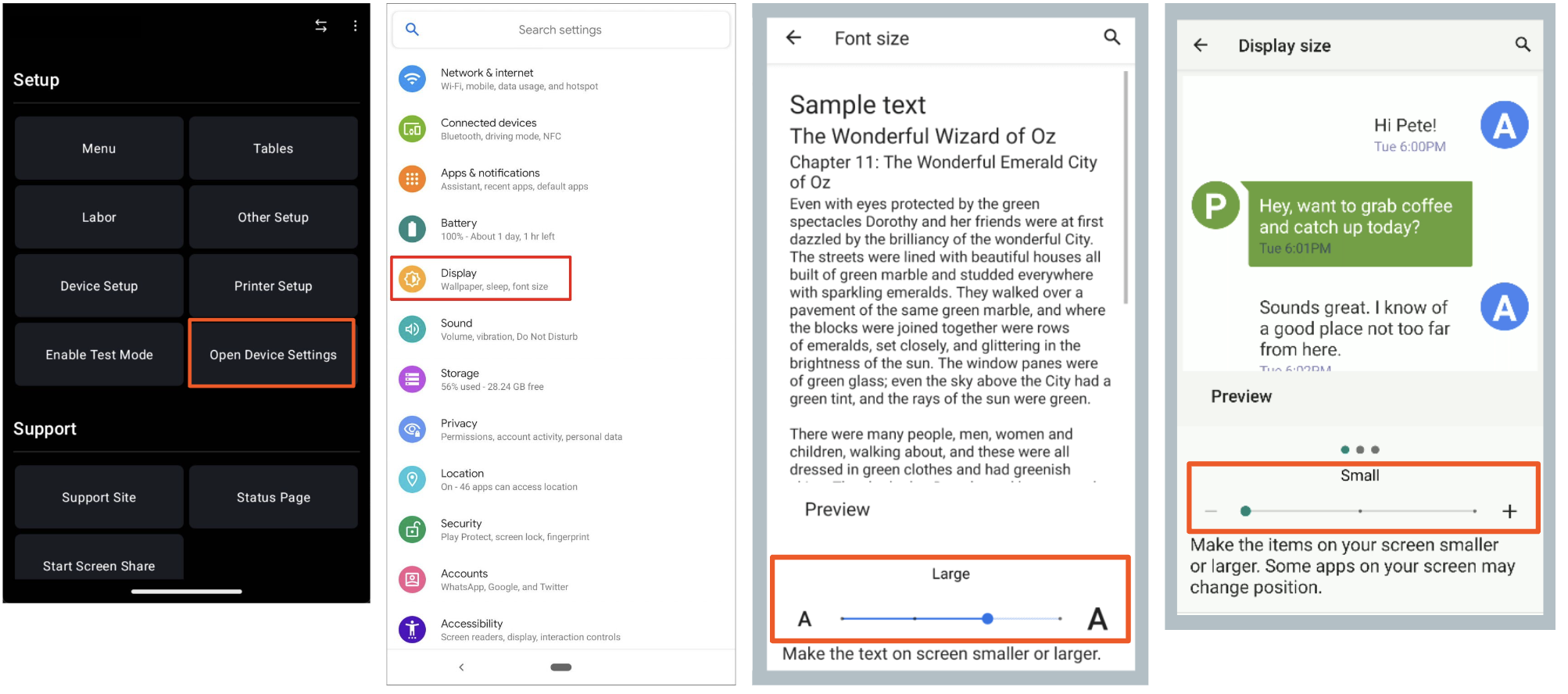
To adjust the device's notification, sound, and display settings from within the Toast app:
- Open the Toast app and navigate to Setup.
- Select Open Device Settings.
- Select Display to change brightness, screen timeout, font size, display size, and more.
- Select Sound to change the volume for media, notifications, alarms, and ringtones.
Expected outcome: The selected setting is applied to the device.
If you cannot access or adjust the device settings, see Before You Contact Customer Care.
Adjust Font Size in the Toast App
To adjust the font size and display size on the S1 Handheld POS:
- Open the Toast app and navigate to Setup.
- Select Open Device Settings.
- Navigate to Display > Advanced > Font size.
- Move the slider to the right to select Large or Largest.
- After increasing the font size, adjust the display size to Small. This ensures that screen text, icons, and buttons fit properly without being cropped.
- Return to Advanced display settings.
- Select Display size.
- Move the slider to the left to change the display size to Small.
Note: If the applied changes do not display immediately, close the Toast app and reopen it.
Expected outcome: Text appears at the new font size, and on-screen elements fit correctly within the screen boundaries.
Tipping Settings on the S1 Handheld
Tipping is configured in two places: the tipping options for your restaurant (in Toast Web) and the on-device tipping toggle (in the Toast app on the S1 Handheld).
To enable or disable tipping on a single S1 Handheld device:
- Open the Toast app and navigate to Setup.
- Select Device Setup.
- Go to the Order Screen section.
- Select Disable Tipping and choose from the options presented.
Expected outcome: Tipping is enabled or disabled on the device based on the selection.
Note: To change the tip percentages or set up tip options for your restaurant, see the linked articles below. Tip percentages are not configured on the device itself.
- To set up suggested tip percentages, see Set Up Tip Options.
- To disable tips at the restaurant level or on specific devices, see Disable Tips at Your Restaurant.
Physical Damage
If your S1 Handheld is dropped, the screen cracks, or the device does not respond after a power cycle, contact Customer Care for a hardware replacement. Physical damage is not self-service. See Before You Contact Customer Care for what to have ready.
Before You Contact Customer Care
The following S1 Handheld issues cannot be resolved on the device alone and require Customer Care to take action at the account or hardware level:
- Card reader will not connect after a device restart
- Device registered to another Toast location
- Physical damage (cracked screen, dropped device, unresponsive after a power cycle)
- Battery dead on arrival after 30 or more minutes of charging
- Connectivity issues that persist after a network configuration reset
- Hardware that cannot be repaired by following the steps in this article
Before contacting Customer Care, have the following ready:
- The serial number of the affected S1 Handheld
- The Toast location the device is registered to
- A description of the issue and the troubleshooting steps you have already tried
To contact Customer Care:
- In Toast Web, the Support Center, or the Toast Now app, start a chat with Customer Care.
- Reach Customer Care by phone:
- United Kingdom: +44 204 571 3302
- Ireland: +353 1 913 1083
- Canada: +1 343 451 6295
- You can also access Customer Care via the Support Center > Customer Care page.
Upgrade to Toast Go® 3
The S1 Handheld is a previous-generation device for Toast customers in Australia, Canada, Ireland, and the United Kingdom. Toast is running an active upgrade program that offers a discount on the Toast Go® 3 handheld for existing S1 customers.
The Toast Go® 3 is built for hospitality use, with improved durability, a larger screen, longer battery life, and optional cellular connectivity. For program details, eligibility, and how to opt in:
- See Toast Go® 3 Handheld Upgrade Programme FAQ.
- For setup of a new Toast Go® 3, see Set Up Your Toast Go® 3 Handheld.
Related Articles
- Set Up Your S1 Handheld POS
- S1 Batteries Dead On Arrival
- Toast Go® 3 Handheld Upgrade Programme FAQ
- Set Up Your Toast Go® 3 Handheld
- Replace Faulty Hardware (RMA)