Get Started With the Team Overview
Last updated: Oct 8, 2026, 4:04 PM
The Team Overview page is a new way to manage your staff. Check out sales, clocked-in teammates, your labor percent, and more by using this page.
- Team Overview Page Basics
- Sales vs Labor Tile
- Team Performance Tile
- Shifts Tile
- Additional Resources
Team Overview Page Basics
Toast has a page for you to quickly track important and relevant details for the current shift, day, and week. This is very similar to the quick information you can gather from the Toast Now app, but now on your computer. We recommend checking out this page throughout each day and as part of your closing checklist.
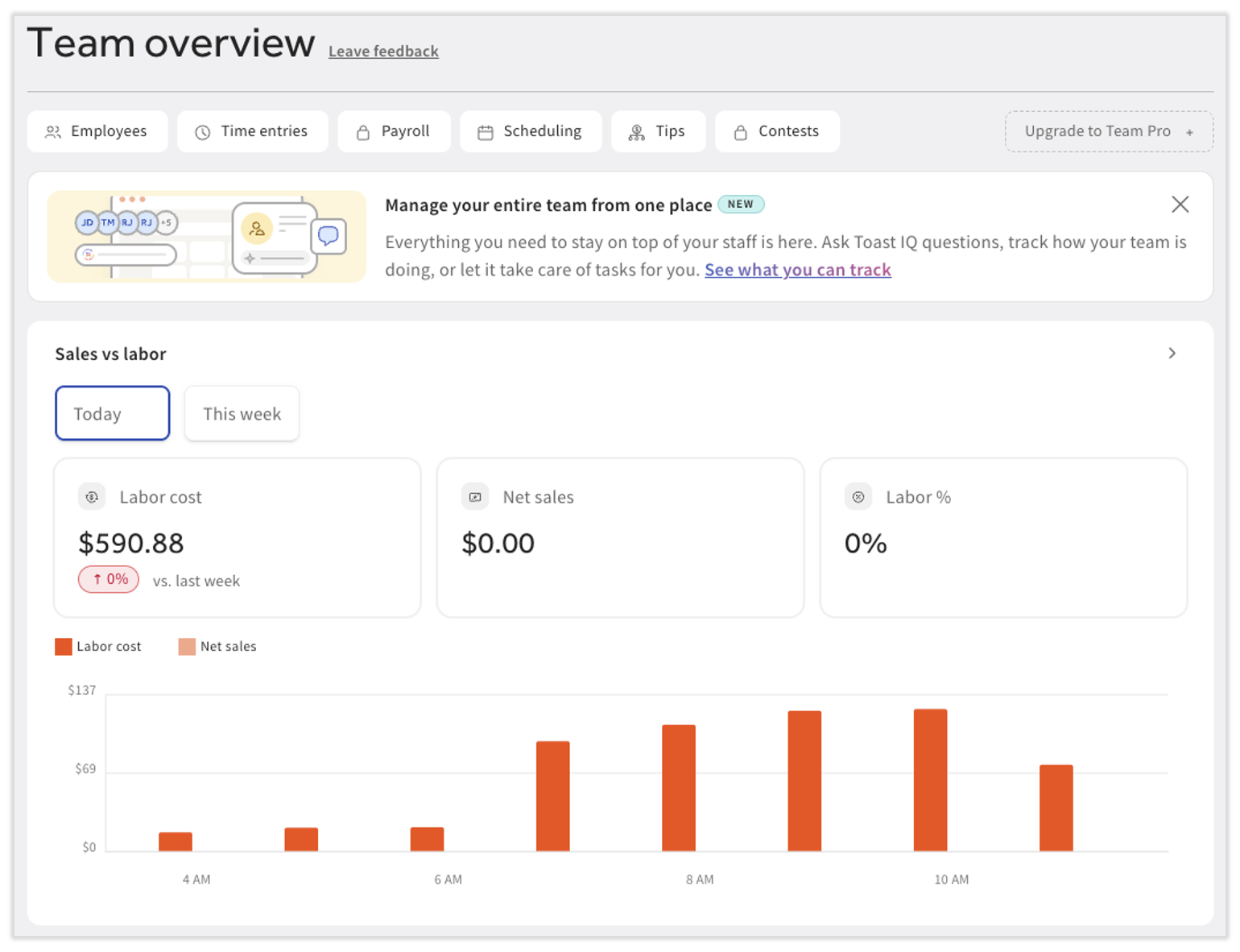
On this read-only page, you can see your sales, labor cost, and labor percentage while comparing them to your currently clocked-in staff. You can also check if employees haven't clocked out from the day before and visualize the jobs that are affecting your labor cost the most. Each tile also has a > caret icon in the upper-right corner. Select this icon to be taken to another page related to the tile.
To view the Team Overview in Toast Web, select Team from the left-hand navigation rail. You must have permissions 4.9 Employee Info and 4.10 Employee Jobs & Wages in order to see data on the Team Overview page.
Sales vs Labor Tile on Team Overview
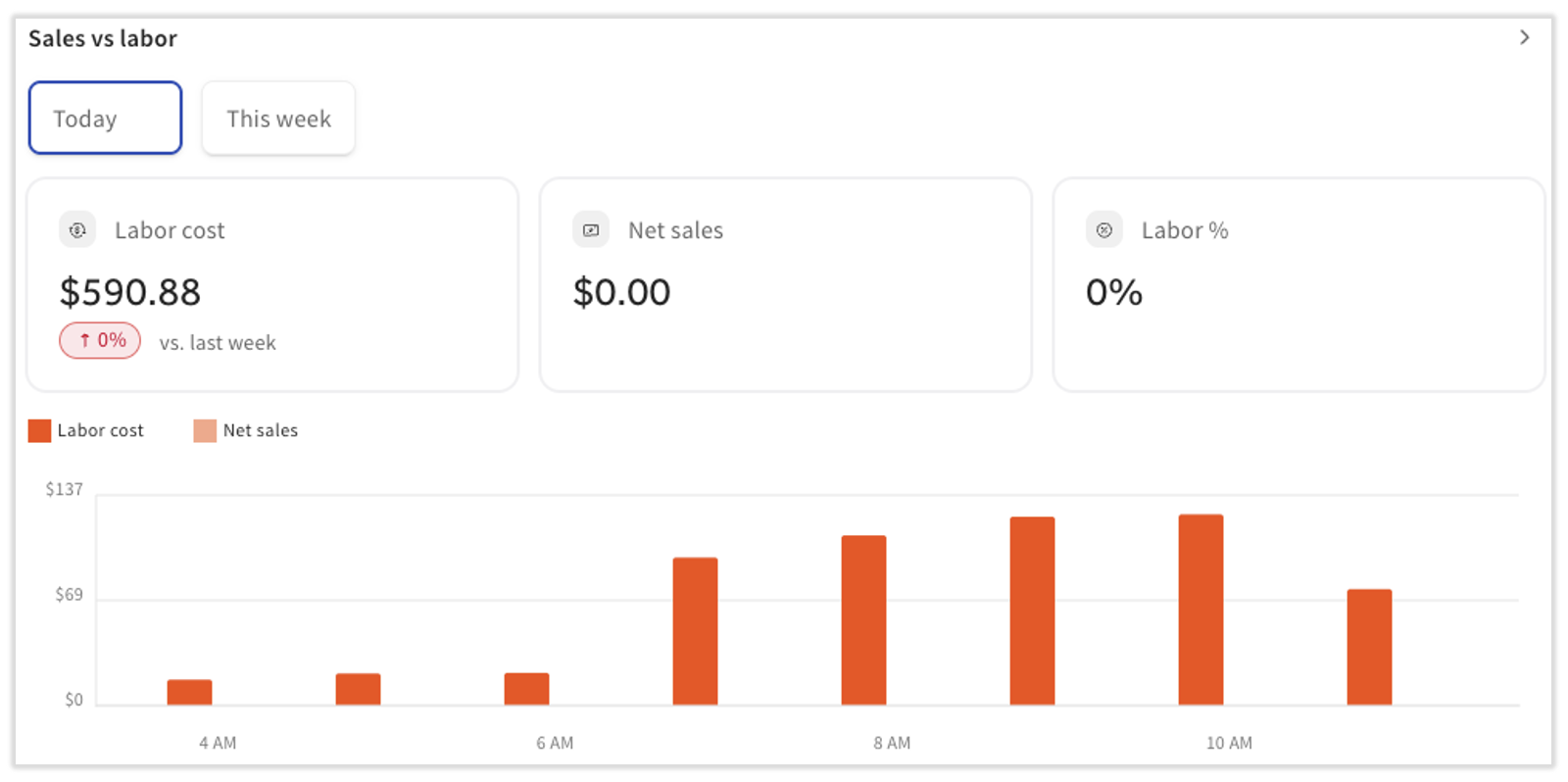
The Sales vs labor tile allows you to quickly find your labor cost over the course of the day or week. Navigate between the Today and This week buttons at the top of the tile. Select the > caret icon to be taken to the Labor Cost Breakdown report.
Visit this Toast Blog for our insight into labor costs and percentages in the restaurant industry.
Team Performance Tile on Team Overview
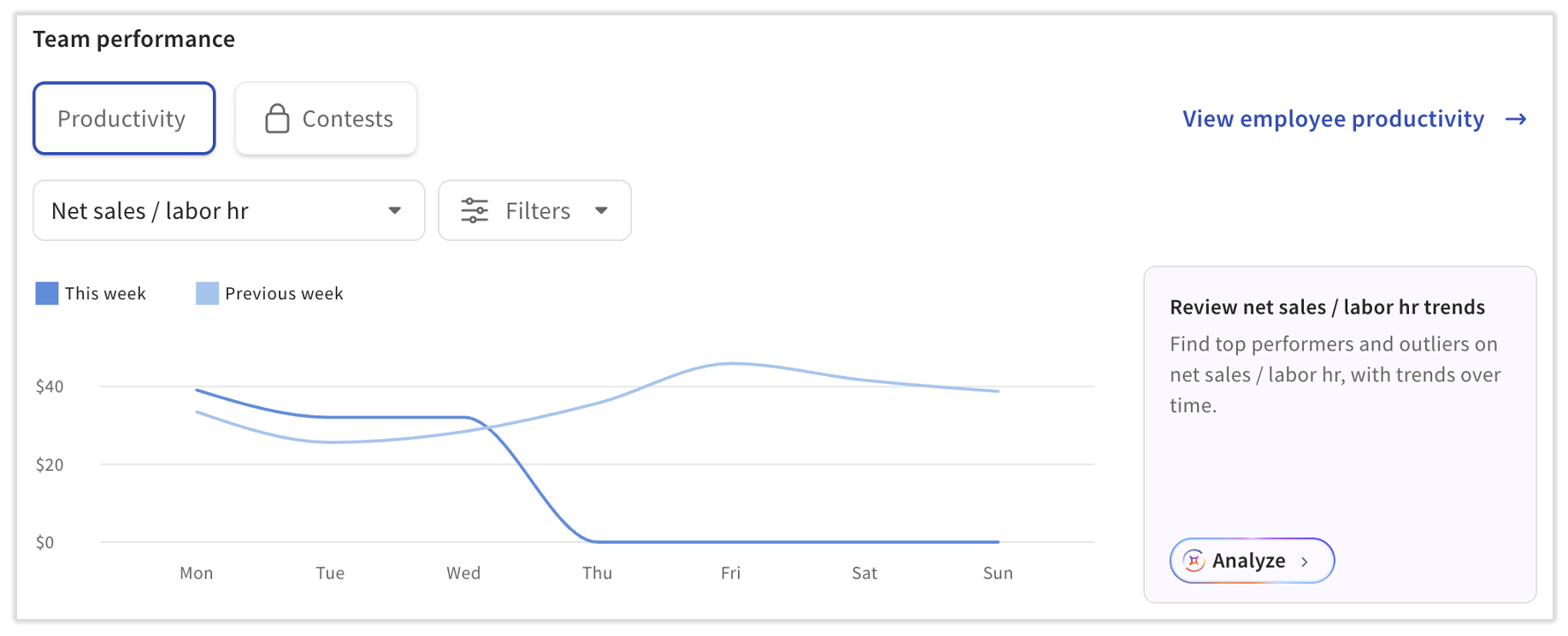
Use the data in the Team performance table to make decisions about your labor and scheduling in real-time. For example, you may notice that your servers are incurring a higher labor cost than usual or your busser labor is adding up. As a result, you may decide to cut early or not schedule as many employees for the next shift.
There are two drop-down menus that can display different information. Try out the different chart types with the first drop-down menu and then select the Filters drop-down menu to get even more granular. Select View employee productivity to visit the Employee productivity report.
The different chart types in the first drop-down menu include:
- Net sales
- Discount amt (amount)
- Discounts
- Orders
- Checks
- Guests
- Avg (average) order value
- Avg check value
- Avg turn time
- Avg net sales / guest
- Void amt
- Net sales / labor hr (hour)
- Gross sales / labor hr
- Labor % of net sales
- Non-cash tip %
- Avg ticket fulfillment time
Contests Button on Team Overview
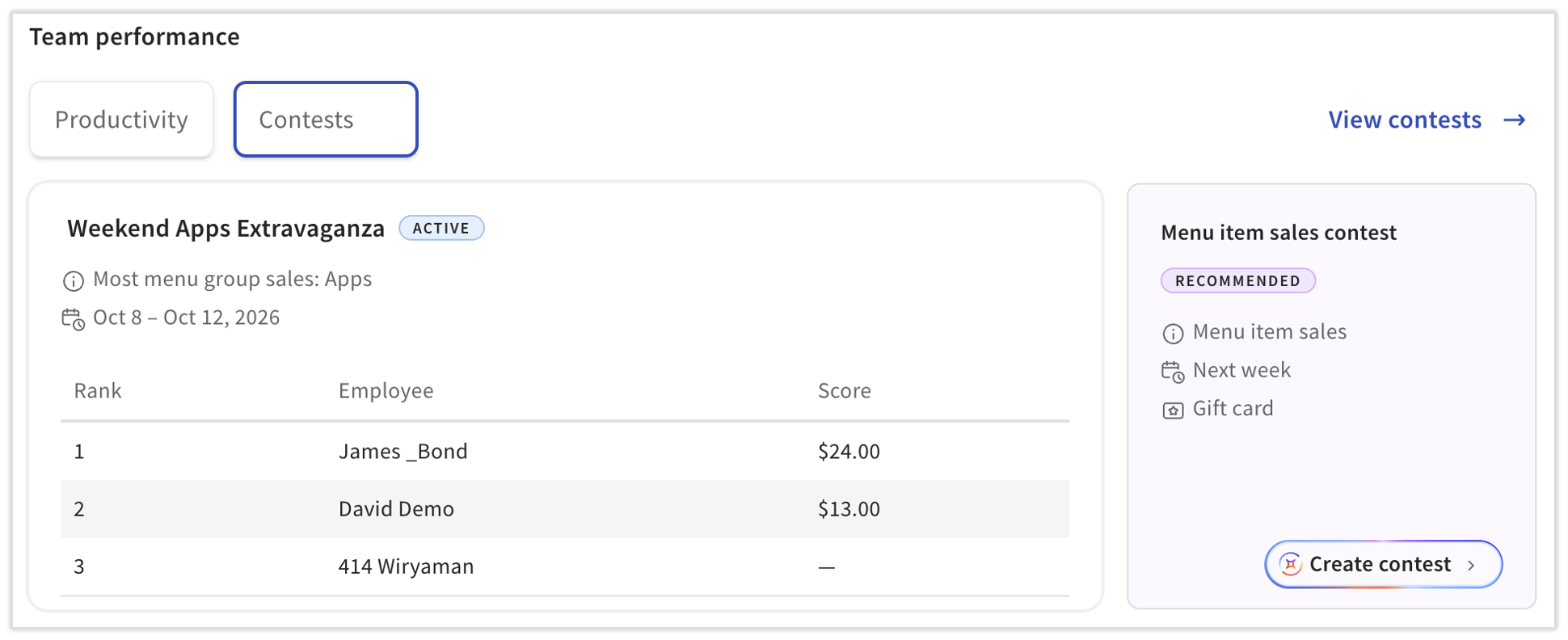
You can select the Contests button to get a quick summary of your current contests or, if none are active, you can select Create new to start a new contest. You can always select View contests to move to the full contests page and review past contest data. Additionally, you can select Create contest and you'll work with Toast IQ to come up with an idea based on recommended stats from this location.
Shifts Tile on Team Overview
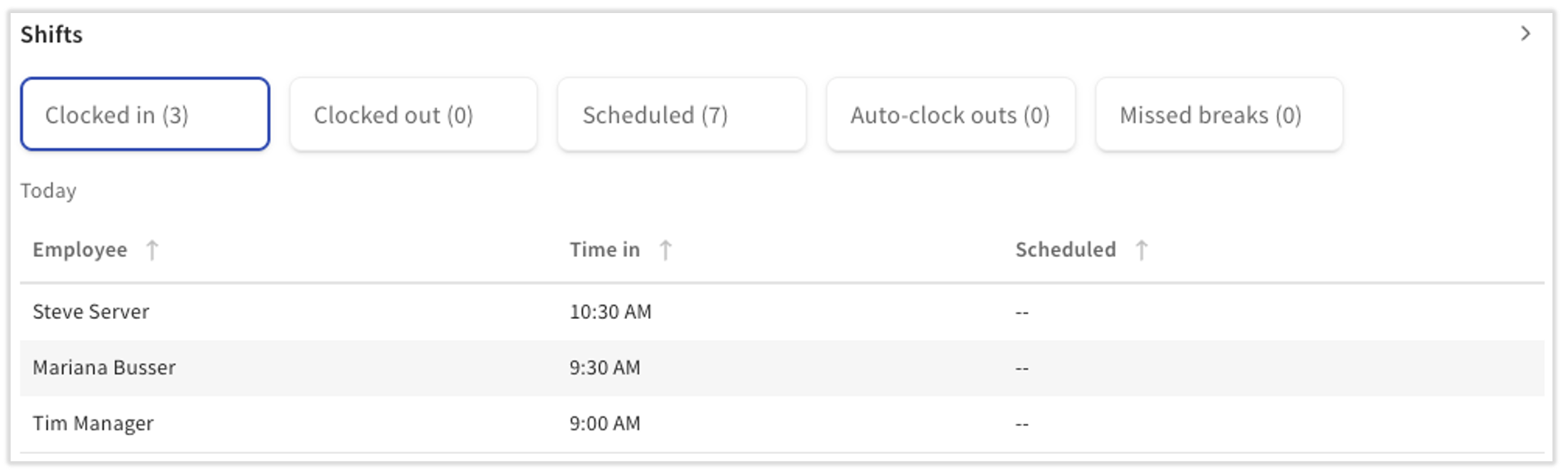
The Shifts tile gives you an idea of the employees who are currently clocked in at your restaurant alongside their scheduled times (if you use Sling by Toast). Use the buttons at the top of the tile to see other employees in each category. Don't forget the > caret icon in the upper-right corner; it will lead to the Time Entry Management report.
Auto-Clock Outs Button on Team Overview
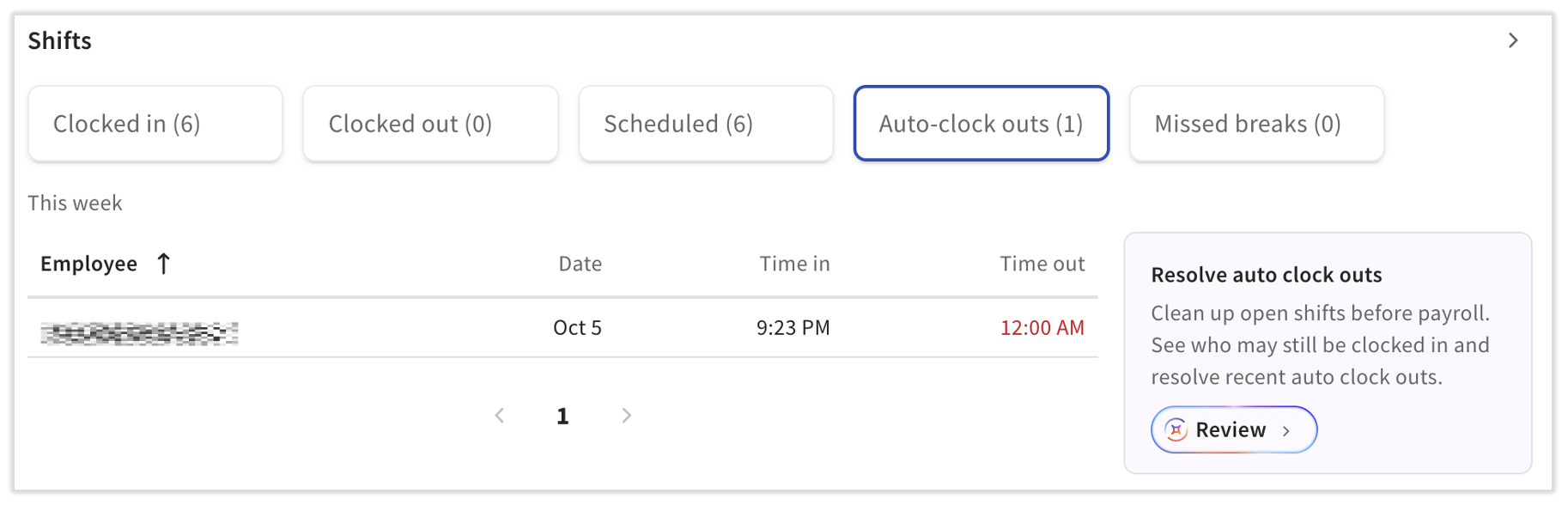
The Auto-clock outs button is filtered to include employees who didn't clock out yesterday. In other words, Toast will automatically clock out employees if they don't clock out on their own (usually at 4:00 a.m., but you can change this time by contacting Care), so use this tile to track those instances. If applicable, select the arrows at the bottom to view other employees who didn't clock out.
In order to fix these time entries, you can select Review and Toast IQ will assist you. Otherwise, select the > caret icon in the upper-right corner of the tile to visit the Time Entry Management report. When you navigate to the previous day, you'll be able to update the clock-out time for these employees. If you can't determine the exact time an employee should have clocked out, you can use the Sch. Time out column to estimate this. Taking action on these alerts helps avoid labor reporting errors and overpayments on payroll.
Additional Resources for Labor and Employee Data