Get Started With Toast’s Generative AI-Powered Marketing Assistant
Last updated: Sep 23, 2026, 3:49 PM
- Toast's Generative AI-Powered Marketing Assistant Overview
- Create an Email Campaign Using Toast’s Generative AI-Powered Marketing Assistant
- Create a Personalized Campaign Plan Using Toast's Generative AI-Powered Marketing Assistant
- Toast’s Generative AI-Powered Marketing Assistant Email Campaign Performance
Toast’s Generative AI-Powered Marketing Assistant Overview
Toast’s Generative AI-Powered Marketing Assistant allows you to provide inputs, which (in combination with information we know about your Restaurant on the backend) will generate prompts that automatically output email marketing subject lines and content. You can then apply any additional edits and send the email campaign to your customers. Please review our article on Responsible Usage of Generative AI so Customers better understand the risks and benefits of this tool.
Before using Toast's Generative AI-Powered Marketing Assistant, please review the terms and conditions:
Create an Email Campaign Using Toast’s Generative AI-Powered Marketing Assistant
- Log in to Toast Web and select Marketing > Assistant > Campaigns.
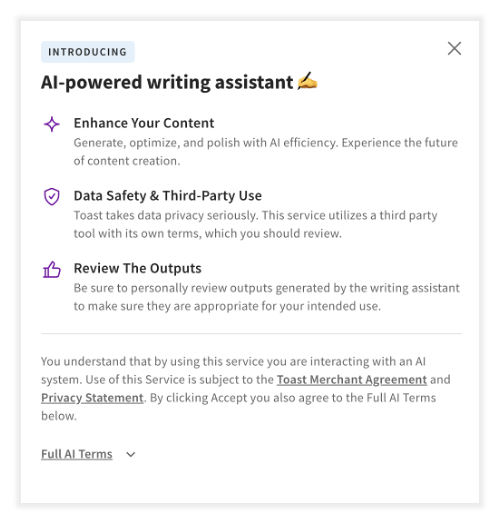
- Enter a prompt for your campaign. For this example, we'll use Trivia Night.
Note: An existing or new audience list can be used via Manage Subscribers in the Marketing Tools section. For more information on managing subscribers, see Manage Your Toast Email Marketing Audience.
- The Subject, Title, Body, and Call-to-Action buttons will auto-populate based on the prompt entered. If you would like to make edits to these fields, select the pencil icon in each field for AI-generated suggestions or manually update by typing in the field. An automated email based on your chosen criteria will populate in the middle of the page.
You should always review the email content carefully for bias, harmful or offensive content, illegal content, or inaccuracies. You are responsible for the use of all outputs, which are not reviewed or managed by Toast. - When you are pleased with your selections, select one of the following:
- Schedule email: the email will be sent to guests based on the date on the email
- Three-dot overflow menu: here, you can select Send now or Advanced send settings. Advanced send settings allows you to set a custom date and time.
- Once complete, select Schedule email to send your email. If you would like to edit more details on your email select Create a custom email.
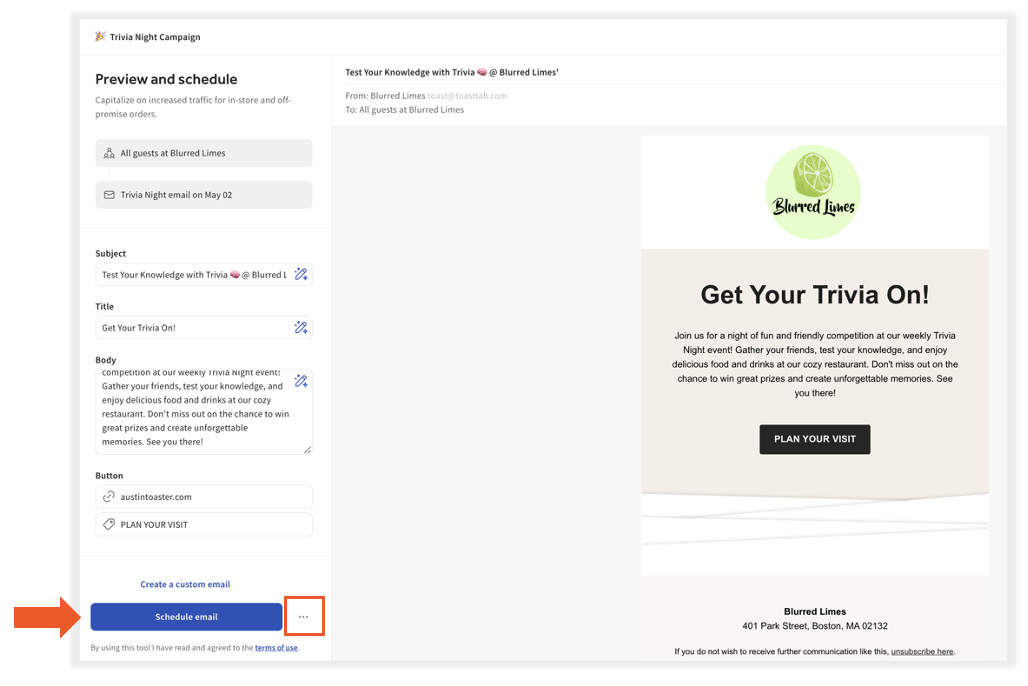
Note: Remember that Toast utilizes a third party to power this tool, so do not input any personal, confidential, or sensitive information.
Create a Personalized Campaign Plan Using Toast's Generative AI-Powered Marketing Assistant
The AI-Powered Marketing Assistant utilizes restaurant information, sales data, relevant holidays, and previous campaign data alongside Generative AI to help you quickly and proactively create a personalized calendar of marketing campaigns across your Toast marketing platforms (Email, SMS, Facebook, and Instagram).
Note: Instagram campaigns are included in your generated plan only if your Meta business account is connected to Toast. To connect it, navigate to Marketing > Brand Hub > Public Profiles > Social media and select Connect Meta Business Account. For the full connection steps, see Promote Your Restaurant through Social Media and Email Marketing.
When your plan includes an Instagram campaign, the Assistant drafts the post copy and proposes an image for the post. Select Edit in the dark gray bar underneath the campaign preview to open the Campaign Builder, where you can review or replace both before scheduling.
To review your first marketing plan:
- Navigate to Marketing > Assistant.
- Within the marketing hub, locate the purple banner. Select the purple Review marketing plan button.
- On the next screen, review the information in the pop-up window, and when ready, select Review marketing plan again.
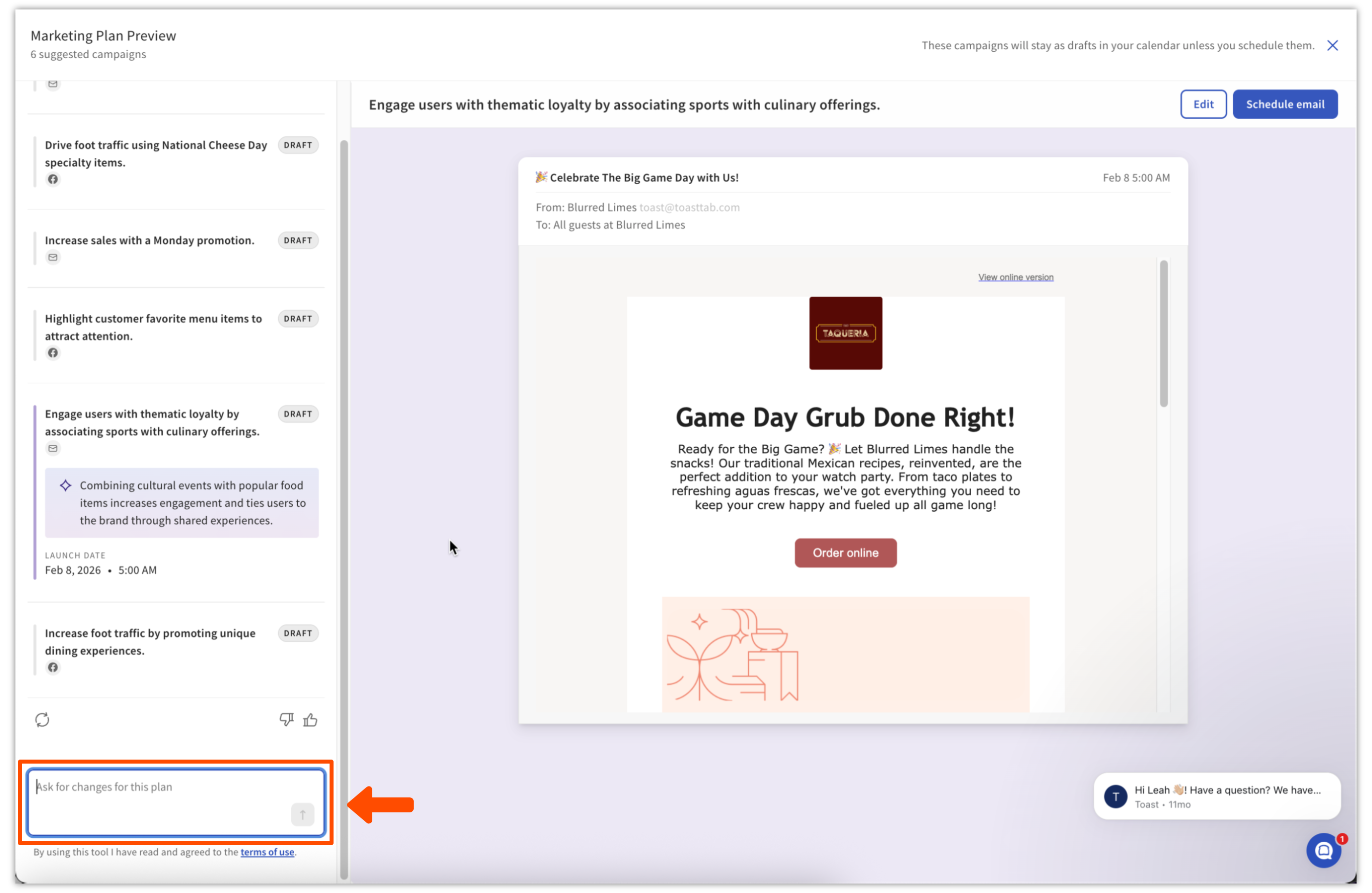
- Your plan will begin generating, and when ready, you will be able to view the Marketing Plan Preview page. On this page, you will see your AI-generated campaigns on the left, a calendar view towards the bottom of the screen, and a preview of your first campaign.
- If you would like to edit your campaign, in the preview screen, navigate to the dark gray bar underneath the campaign itself and select Edit. This will open the Campaign Builder.
- To refine your plan, you can share written feedback directly with the Assistant. For example, type "add more SMS campaigns" in the feedback field, and the plan will regenerate based on your input. You can continue submitting feedback to generate updated versions of your plan.
- In the Campaign Builder, you can make any edits you need and schedule your campaign.
- To navigate back to your list of additional AI-generated campaigns in your plan, select Back to your marketing plan.
Note: In order to send an AI-generated campaign, the user who generated the campaign must be the user who selects Schedule in order to ensure campaigns are only shared with your consent.
Marketing Hub Calendar View
You can now view all of your campaigns in a calendar view by navigating to Marketing > Campaigns. Here you will find all of your past campaigns, upcoming campaigns, holidays, and in purple, any scheduled campaigns created with your AI-Powered Marketing Assistant.
Directly above the calendar in the top right corner, you can switch between a calendar view and a listed table view by selecting the toggle. You will also be able to create a new AI-Powered Marketing Assistant-generated plan from the calendar view by selecting Generate New Campaign Ideas.
Toast’s Generative AI-Powered Marketing Assistant Email Campaign Performance
You can track the performance of your AI-powered campaign from your Toast Web dashboard: