Launch Your Toast Email Marketing Campaign
Last updated: Oct 2, 2026, 11:04 AM
Now that you have subscribed to Toast Email Marketing, you can create and send your first campaign. This article walks you through building a one-time or automated campaign, designing your email layout, sending the campaign, and measuring its success. If you have not subscribed to email marketing yet, see Get Started With Toast Email Marketing for your first steps.
- Before you begin
- Choose your campaign type
- Set up a one-time campaign
- Set up an automated campaign
- Configure automations
- Design your email layout
- Send your campaign
- Measure success
- Frequently asked questions
- Related articles
Before You Begin
Before launching your first campaign, complete the basic setup so your emails send correctly and reflect your brand.
Activate email marketing by opening the Marketing Hub and selecting Complete Profile to enter basic information such as your reply-to email and restaurant website. Then confirm your audience is in place. Toast automatically collects guest email addresses through Online Ordering, Loyalty, Online Gift Card and eGift Card purchases, Digital Receipts, the Local by Toast app, and Toast Tables. If you do not yet have contacts, activate one of these tools to begin collecting emails, or upload an existing list. For full instructions on uploading and segmenting contacts, see Manage Your Email Marketing Audience.
Note: Restaurants set up in the same management group appear in Toast Email Marketing together. To separate a restaurant from the management group so it no longer appears alongside others, contact Toast Customer Care.
Choose Your Campaign Type
Toast Email Marketing offers two campaign types. Choose the one that fits your goal.
A one-time campaign is ideal for existing restaurants with a marketing database. Use it for holidays, specials, unique menu items, and promotions, or to contact a specific guest list.
An automated campaign is ideal for new and existing restaurants that want to build a loyal guest base. These campaigns are not time-sensitive and run in the background to promote gift cards, online ordering, loyalty, reservations, and more.
NEW! When creating a new email campaign, you can now browse a Template Gallery to choose from professionally designed, restaurant-branded templates. Select a template that fits your campaign goals, then customize the content, images, and branding as needed. Templates are available for both one-time and automated campaigns.
Set Up a One-Time Campaign
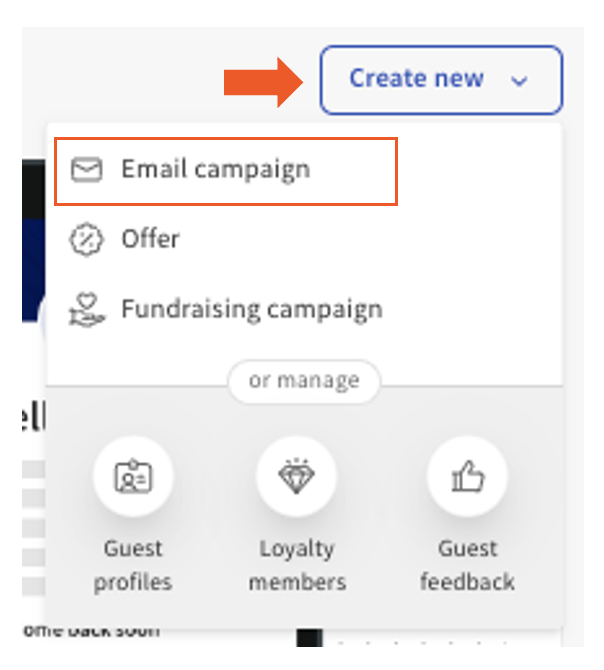
- In Toast Web, navigate to Marketing > Email marketing > Campaigns, or select Create new > Email campaign from your Marketing Hub.
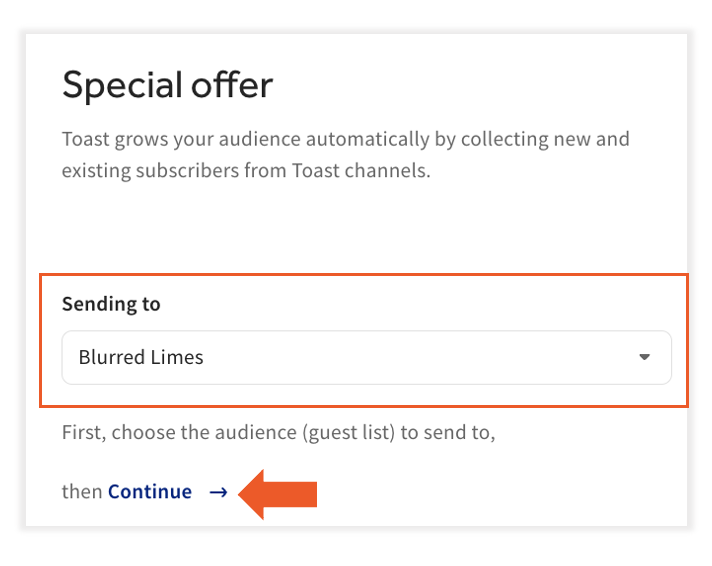
- Select One-time from the top of the page and choose a layout from the Template Gallery, such as Special offer.
- Select your audience from the Sending to drop-down menu, then select Continue.
- Enter the following campaign details:
- Reference campaign name - an internal name not visible to guests, used to identify the campaign on your Marketing Dashboard.
- Email subject - the subject line guests see in their inbox.
- Promotion (optional) - promotions must be created before adding them to a campaign. For more information, see Get Started With the Offers Dashboard.
- Select Edit Content to customize the email template for your restaurant, then follow the steps in Design your email layout below.
Set Up an Automated Campaign
Automated campaigns use the guest data already in Toast POS to send the right message at the right time. These "set it and forget it" campaigns can increase revenue by encouraging repeat visits from existing guests and winning back lapsed guests.
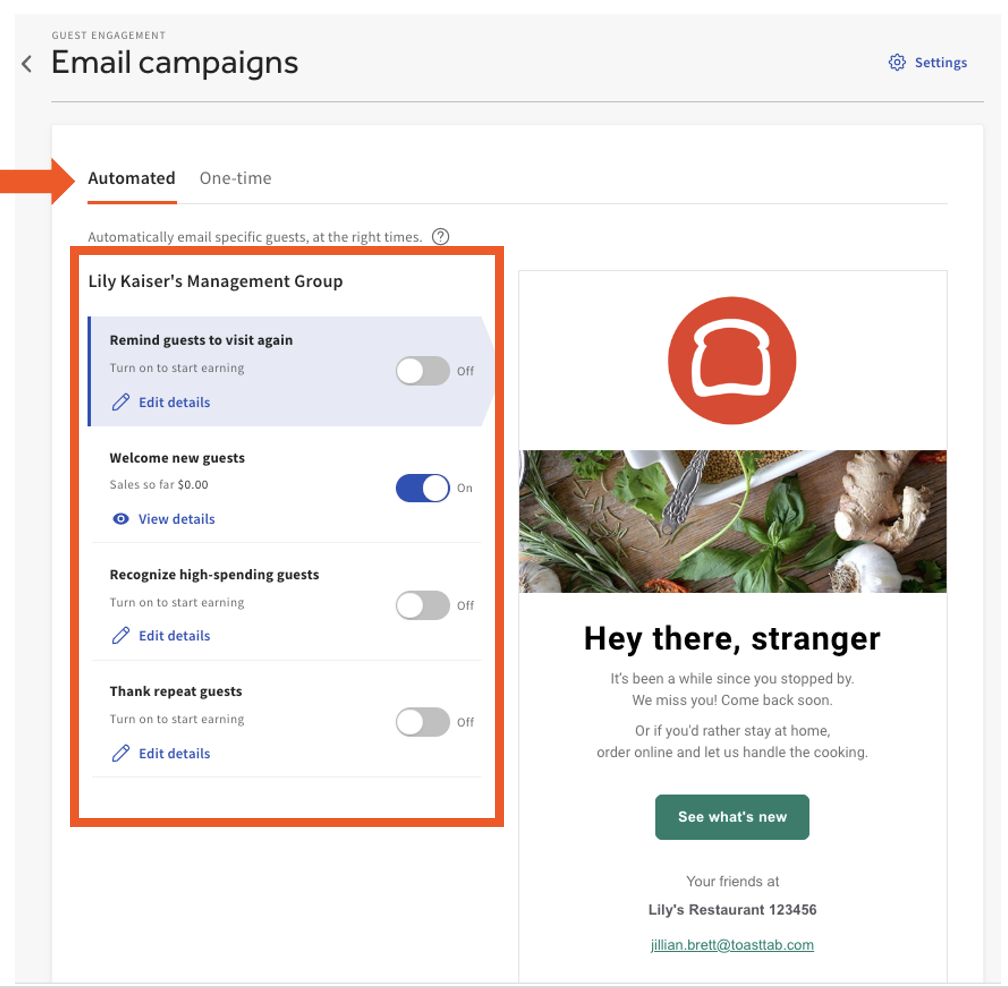
Choose a template under Automated. Options include:
- Remind guests to visit again - email guests who have not visited in a while to encourage a return visit.
- Welcome new guests - email guests who share their email for the first time. This is a good place to include links to your website, online ordering page, or social media.
- Recognize high-spending guests - let your high-spending guests know you appreciate them.
- Thank repeat guests - thank and reward guests who visit regularly, often with a promo.
Review your audience. Toast automatically collects guest email addresses through the listed tools and adds them to your marketing audience. To include additional addresses from a previous system, select Upload Subscribers. For more information, see Manage Your Email Marketing Audience. Select Continue.
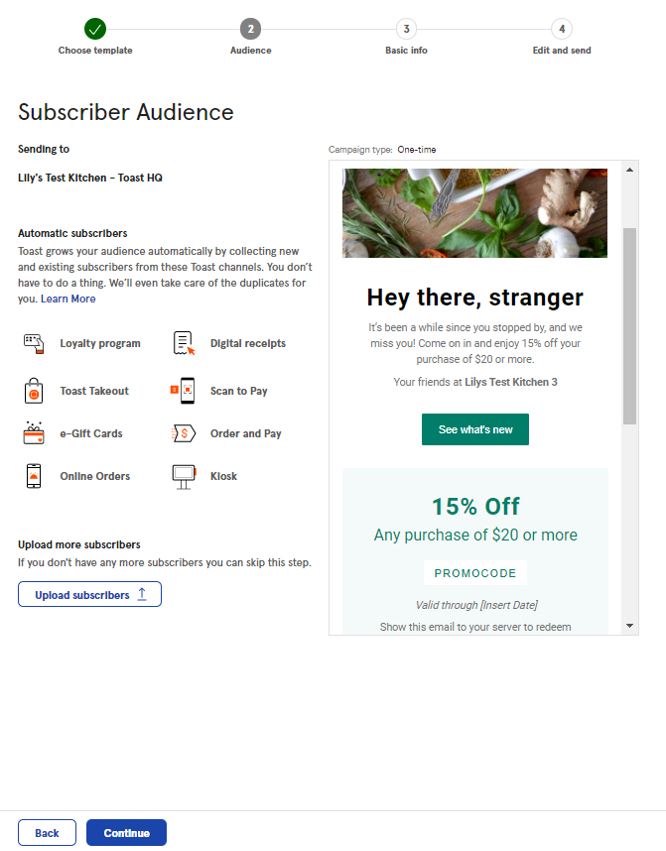
Select Edit Content to customize the email template for your restaurant.
Follow the steps in Design your email layout below.
Configure Automations
Activate, edit, and view the performance of pre-built automated campaigns from the Automations section in the Marketing Hub.
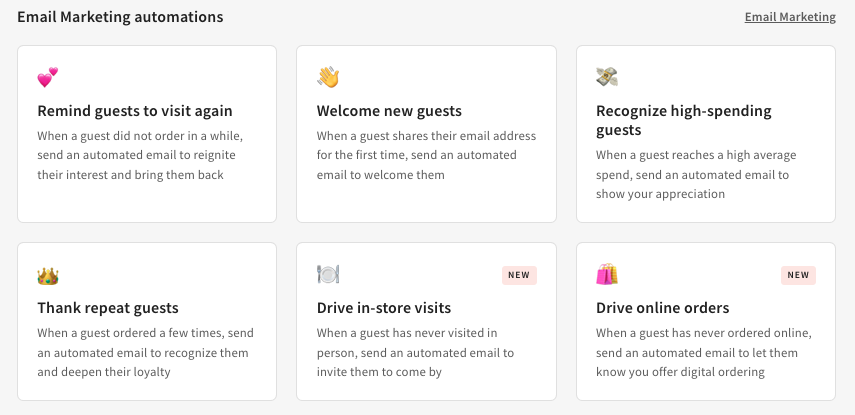
The available automated campaign types are:
| Campaign type | Description |
| Remind guests to visit again | Guest emails are collected through the Toast platform. New emails send daily. |
| Welcome new guests | When a guest shares their email address for the first time, an automated email welcomes them. |
| Recognize high spending guests | When a guest reaches a high average spend, an automated email shows your appreciation. |
| Thank repeat guests | When a guest has ordered a few times, an automated email recognizes them and deepens their loyalty. |
| Drive in-store visits | When a guest has never visited in person, an automated email invites them to come by. |
| Drive online orders | When a guest has never ordered online, an automated email lets them know you offer digital ordering. |
| Follow up with your guests | Thank guests for their business and encourage them to return. |
| Drive loyalty enrollment | Encourage guests to join your loyalty program and reap the benefits. |
| Thank guests for positive feedback | When a guest leaves positive feedback, send an automated email to thank them and encourage a public review |
To activate an automation:
- Log in to Toast Web and navigate to Marketing > Automations.
- Select a campaign and enter the trigger information.
- Select Save, then Publish to apply your changes.
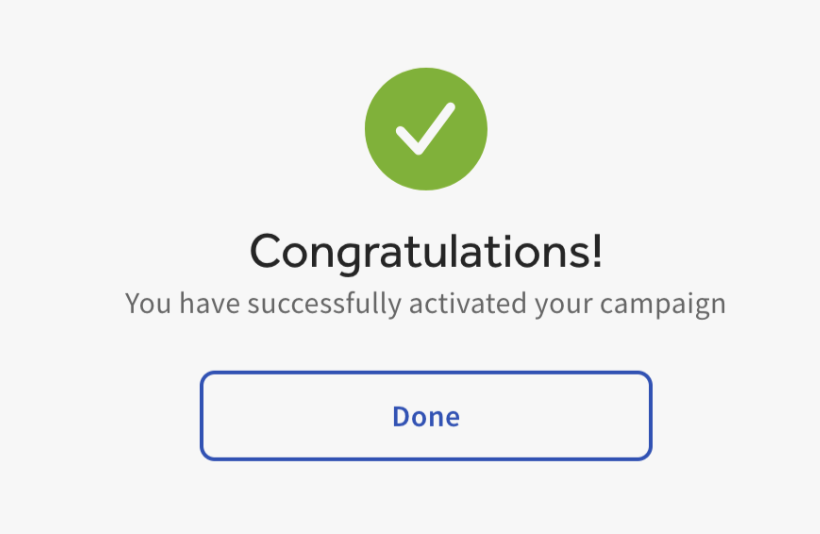
- Once complete, you receive an activation confirmation.
To check performance, select an active campaign under Active automations on the Automations homepage. You can view Sales so far, Sent to, Campaign type, and Status.
To edit an active automation, select Stop campaign > Edit Email Content, then select Save and Publish. Note: The campaign must be stopped before you can make any edits.
Design Your Email Layout
The email builder provides template blocks where you can enter text, upload content, or change background images. You can customize each section and drag and drop additional content into your layout.
Customize Individual Sections
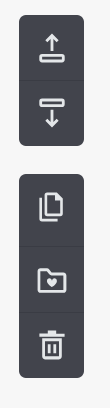
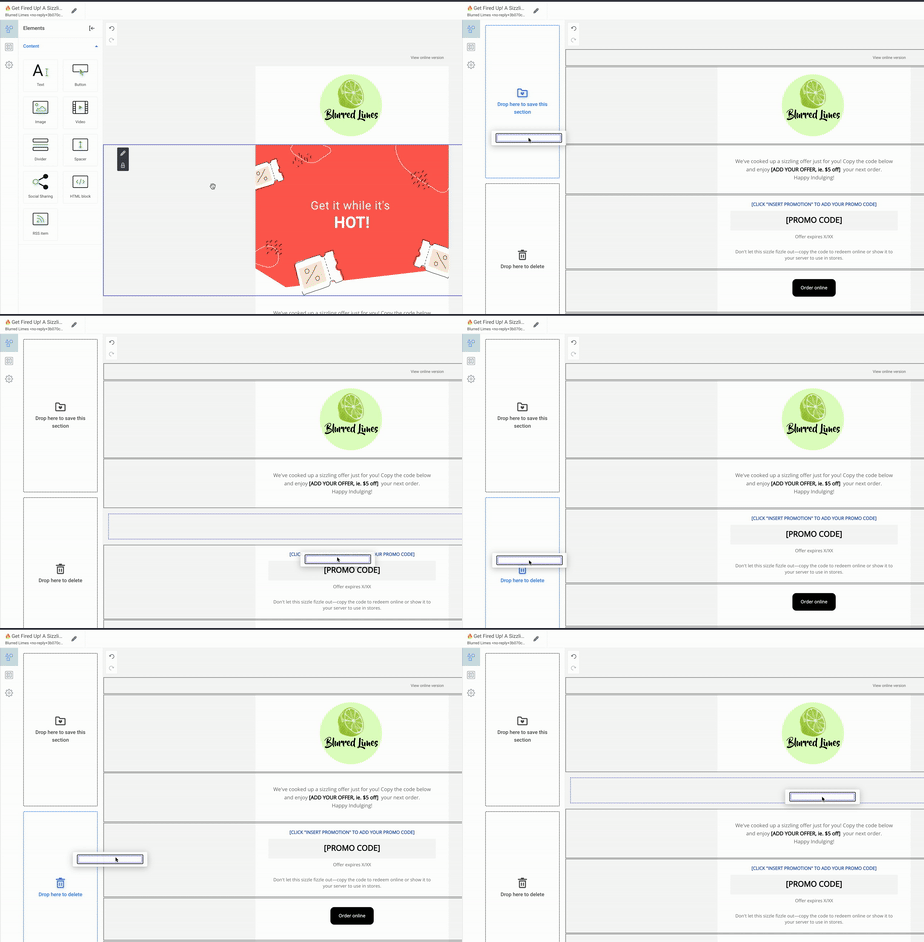
To remove a section, drag and drop it to save it for later, or select the trash can icon to delete it. The folder icon saves a section for later use.
To duplicate a section, select the dual-document icon. To move a section, use the up and down arrow icons on the right side of the block, or select and hold the section to drag it.
To replace an image, select the image, then select the document icon in the top-left of the block.
Choose your image and select Save to finalize the change.
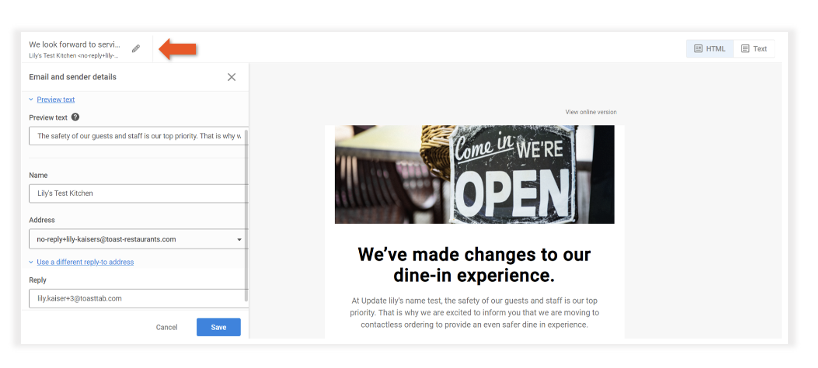
To edit your Preview text, select the Edit icon, select the Preview text field, and enter a new message. This is the text that appears after your subject line in the guest's inbox. Use it to summarize the email and draw attention to your campaign, especially on mobile.
To edit a content block, select the edit icon (pencil) on the left side of the block.
Note: To edit the Sender name, preview text, or Reply-To email address, select the pencil icon in the top-left corner of the screen, then select Save.
Add New Sections and Call-to-Actions
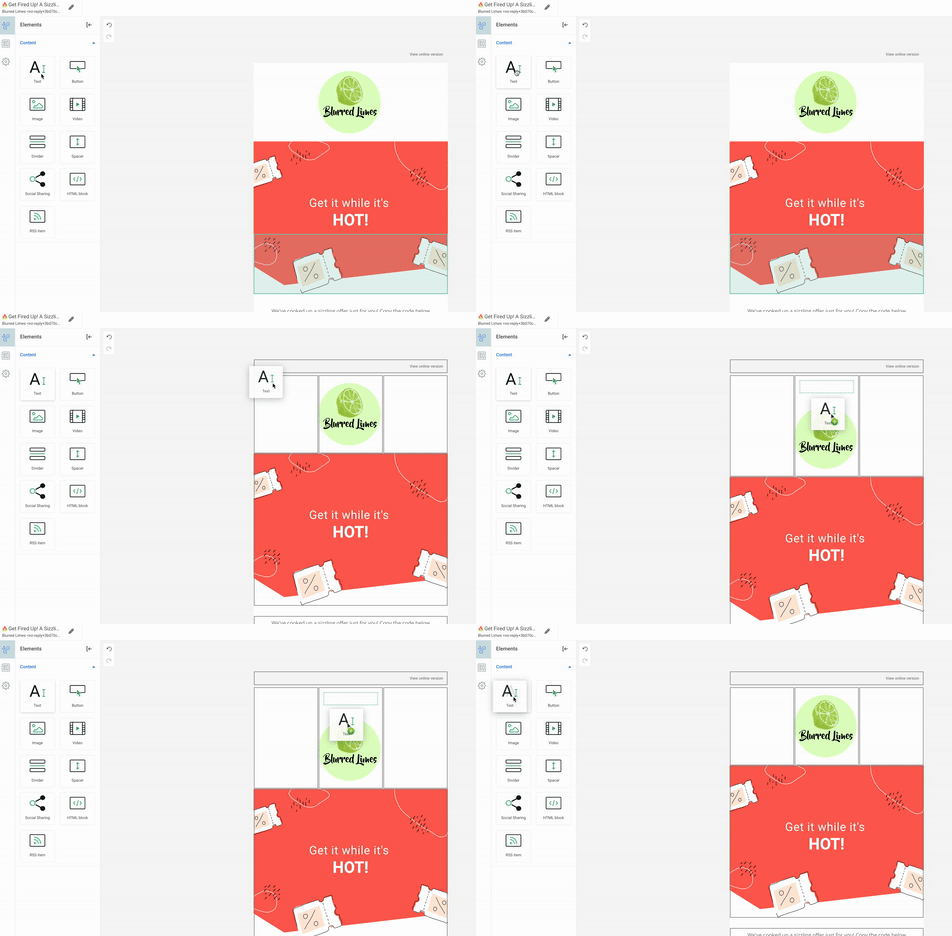
- Drag and drop a column selection into the body of your email.
- Drag and drop any desired content blocks into your new section.
- Follow the prompts to upload or insert content.
- To add a call-to-action button, drag and drop a button from the content panel into the desired section, then enter the button text, such as "Order Now!" or "Reserve a Table!"
- Paste the URL for the page you want guests directed to, such as your online ordering address or reward card look-up link.
- To change the color, border, and padding of the button, select the pencil icon and choose from the dropdown menu.
Saved Call-to-Action Buttons
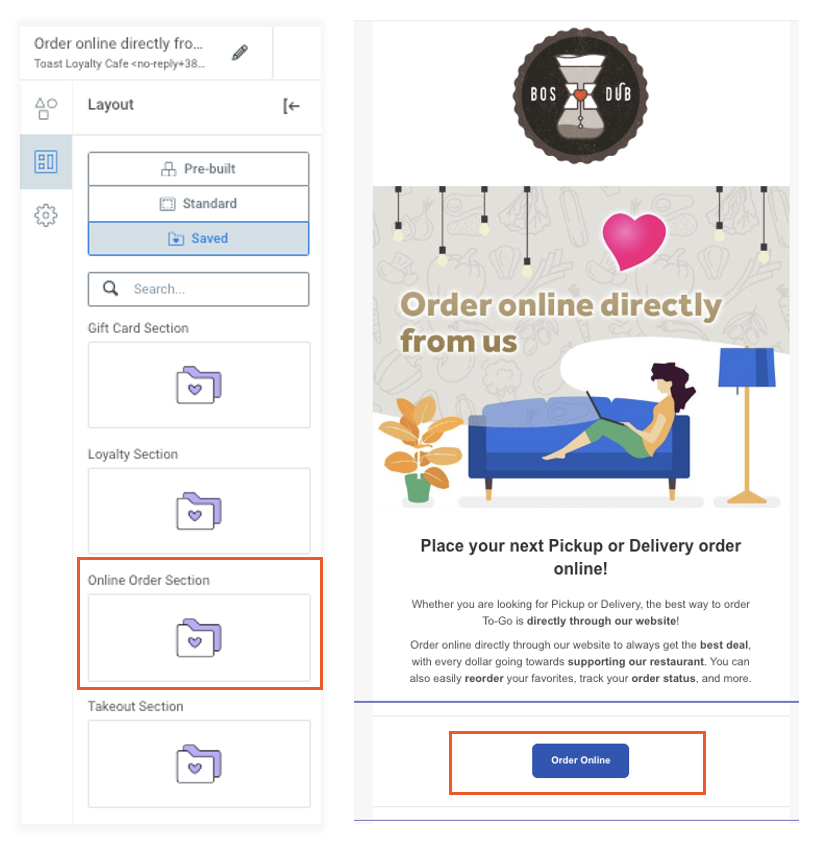
Within the email editor, you can use saved call-to-action buttons by selecting Layout > Saved. The options are Gift Card Section, Loyalty Section, Online Order Section, and Takeout Section.
Note: These links are pre-populated and specific to your restaurant.
Finalize Your Email Design
Select Preview & Test to view a proof of the email or send yourself a test email. When finished, select Save, then Continue to save your changes to the template.
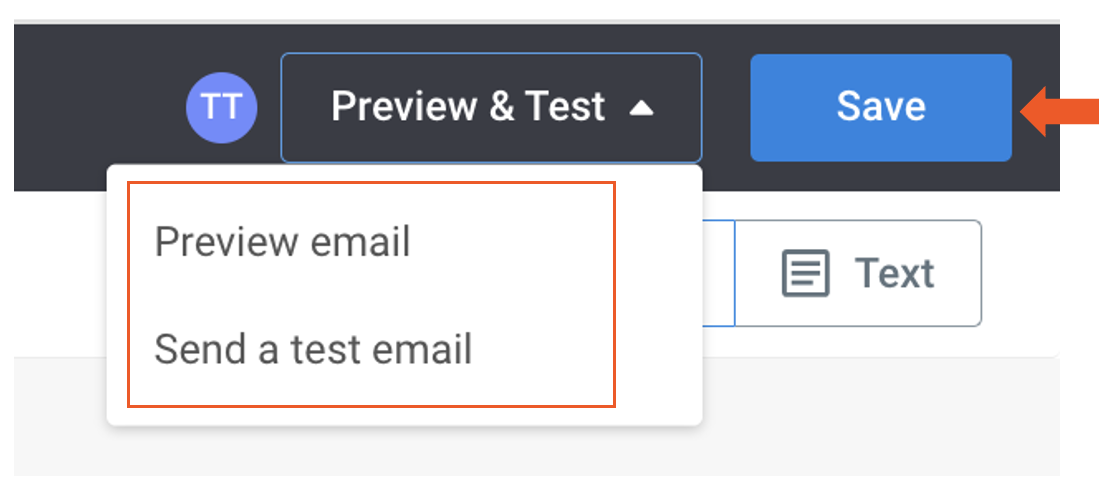
Note: If you select Preview email, you can view your email in both mobile and desktop form.
Send Your Campaign
Once your design is ready, review the campaign details and send or schedule your email.
- From within the email builder, select Continue to finalize your changes. Note: Continue returns you to the campaign information screen. The Continue button is only enabled after you save the email template.
- Select one of the following send options at the bottom of the page:
- Send Test - enter your email address to send yourself an example before sharing with guests, then select Send.
- Schedule - select a date and time for your campaign to be sent, then select Schedule.
- Send Now - send your campaign to eligible guests immediately.
Note: Campaigns with a high volume of subscribers may take longer to send. A scheduled campaign for a large audience can take roughly 30 minutes or more to begin sending after its scheduled time. Avoid creating duplicate campaigns while you wait, as duplicates can add to the delay.
Measure Success
The Email Marketing dashboard gives you a full overview of your campaigns from the last 30 days. You can filter by Automated or One-time campaigns and by sending status, and see a breakdown of active, scheduled, and completed campaigns.
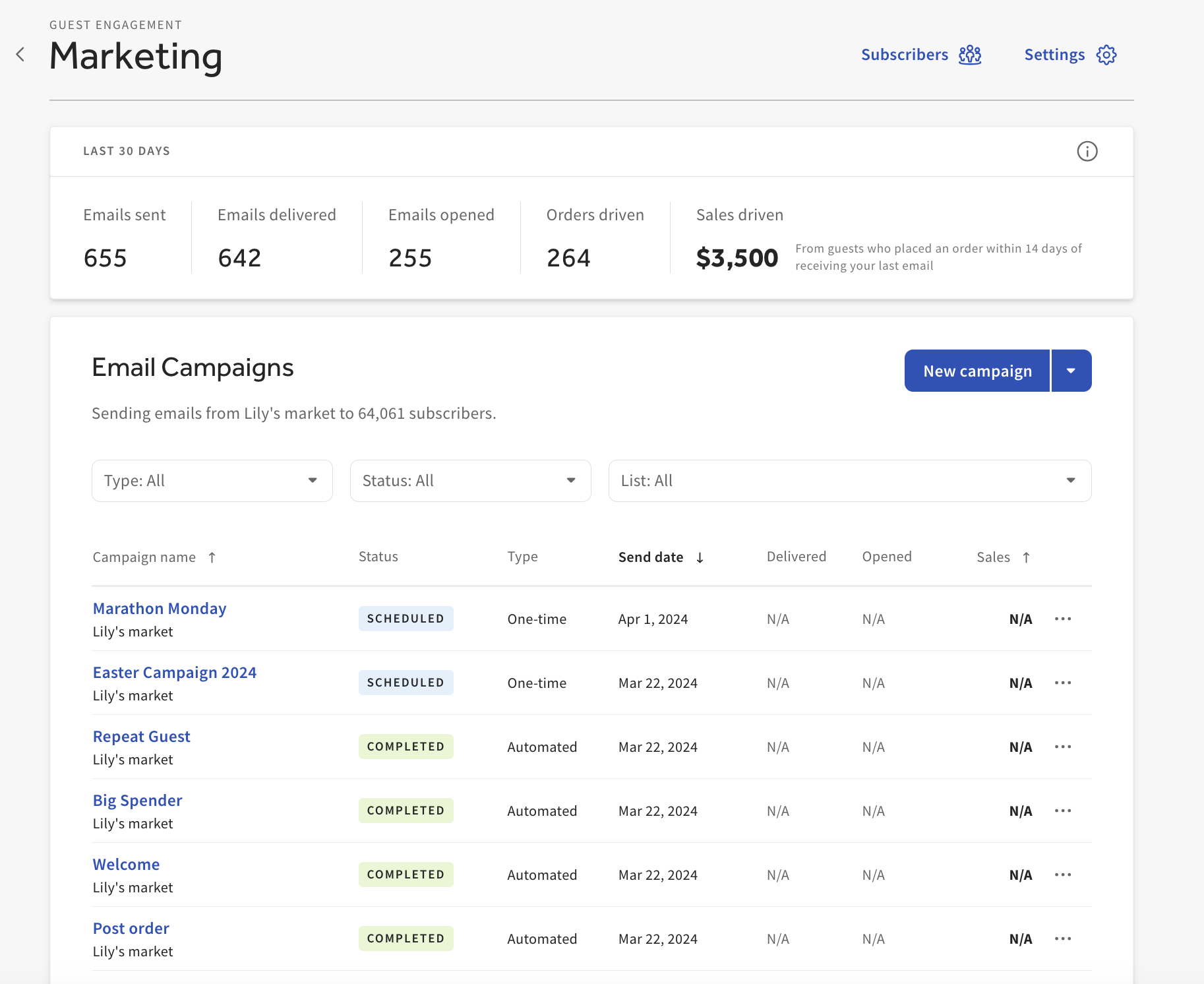
The dashboard displays the following for each campaign:
| Status | Definition |
| Delivered | The total number of emails the recipient servers successfully accepted. This number should closely match the guests targeted in your contact list. |
| Opened | The number of unique opens based on total emails delivered. A good indicator of how many people read your email. |
| Sales | The estimated sales associated with the campaign. For details, see View Sales From Email Marketing Campaigns. |
To see more detail, select the three-dot icon to the right of any campaign, then select Details. The campaign detail view includes:
| Status | Overview |
| Blocked | Recipients preemptively blocked in anticipation of a delivery error, to protect your sender reputation. |
| Soft Bounced | A temporary delivery issue, such as a full inbox or connection timeout. Toast automatically retries. If the email is not delivered after three days, it is marked as a bounce. |
| Hard Bounced | A permanent delivery error caused by an invalid email address. Hard bounces hurt your sender reputation and are automatically blocked for ninety days. |
| Retrying | Includes soft-bounced emails being re-attempted. |
| Opened | The percentage of unique opens based on total emails delivered. |
| Clicked | Successfully delivered emails with at least one click, excluding clicks where an unsubscribe occurs. |
| Unsubscribed | The number of people who opted out using the unsubscribe link, relative to delivered emails. |
| Marked as Spam | The percentage of delivered emails recipients reported as spam. This can harm your reputation. Transactional emails with a clear call-to-action are less likely to be marked as spam. |
Frequently Asked Questions
Why does my number of emails sent not match the number delivered?
Your number of emails sent will not always match the number delivered. The Delivered count reflects only the emails that recipient servers successfully accepted. Emails can be blocked, soft bounced, or hard bounced before delivery, which is why delivered is often lower than sent. Select the three-dot icon next to a campaign, then Details, to see the breakdown by status.
Why is my scheduled campaign stuck in "Scheduled" and not sending?
A campaign can stay in "Scheduled" status past its send time when it has a large subscriber list. Campaigns with many subscribers can take roughly 30 minutes or more to begin sending, and occasional delivery delays can extend this. Wait before taking further action, and avoid creating duplicate copies of the campaign, as duplicates add to the delay. If the campaign remains stuck well beyond its scheduled time, contact Toast Customer Care.
Where do I find a campaign draft I saved?
Your saved campaign drafts are listed with your other campaigns. In Toast Web, navigate to Marketing > Email marketing > Campaigns to find and open a draft.
Can I edit a one-time campaign after it's sent?
No, you can't edit a one-time campaign after it's sent. To reuse its content, make an editable copy. Navigate to Marketing > Email marketing > Campaigns, select the three-dot menu next to the campaign, then select Duplicate. For more information, see Email Marketing FAQ.
Why won't my campaign send without a promo code?
Your campaign won't send without a promo code when its template includes a promotion section. Some templates, such as Special offer, include this section by default. To send without a promotion, delete the entire promotion section from your email layout. Removing only the code field is not enough. To delete a section, select the trash can icon on that section. For more information, see Design your email layout above.
How do I cancel or delete a scheduled campaign?
To stop a campaign before it sends, open the campaign and select Stop campaign. If a scheduled campaign does not offer a delete option in the three-dot menu and you need it canceled, contact Toast Customer Care.
Why did my email go to the guest's spam folder, or why is my open rate low?
Emails can land in spam and lower your open rate for several reasons. To reduce this, trim the number of images and links in your campaign, send to engaged guests first, and ask recipients to mark your messages as "not spam" so their mail provider learns to deliver them to the inbox. For more tips, see Best Practices for Toast Email Marketing. If a sudden drop in open rate continues across a full campaign, contact Toast Customer Care.
Can I exclude certain guests, such as employees, from a campaign?
Yes, you can control who receives a campaign. Automated campaigns send to preset segments based on guest visit history. For more control, create a custom list or segment that excludes specific guests, or remove those guests from the subscriber list. For instructions, see Manage Your Email Marketing Audience.
How often do guests receive automated campaigns?
Guests receive a limited number of automated campaigns. If a guest has received an automated marketing campaign from you in the past 28 days, they will not receive another automated one during that window. One-time campaigns are not subject to this rule. For more detail, see Email Marketing FAQ.
I haven't received my test email. Where is it?
If you sent a test email under Preview & Test but have not received it, check your spam filter and, if you use Gmail, your Promotions folder.
Related Articles
- Get Started With Toast Email Marketing
- Manage Your Email Marketing Audience
- Best Practices for Toast Email Marketing
- View Sales From Email Marketing Campaigns
- Email Marketing FAQ
- Troubleshoot Email Marketing Subscriber Actions