Manage Toast Gift Card Sales
Last updated: Mar 25, 2026, 1:47 PM
Just getting started with Toast Gift Cards? Check out Get Started With Toast Gift Cards to set up your module, and then use this article to learn more about how to sell gift cards on the POS, how to check and adjust balances, and how to use gift cards as payment.
- Sell Physical Gift Cards on the POS
- Sell eGift Cards on the POS
- Sell eGift Cards Online
- Add Value or Check Gift Card Balance
- Add Internal Gift Card Notes
- Additional Resources
Sell Toast Physical Gift Cards on the POS
Gift cards allow guests to support your restaurant and drive cash flow. Physical and digital (eGift) gift cards are easy to sell, track, and use.
Note:
- Gift Cards will not activate if a guest uses Scan to Pay to complete the transactions. Servers should use alternate payment options to complete the transaction.
- Physical gift cards are also known as "classic gift cards".
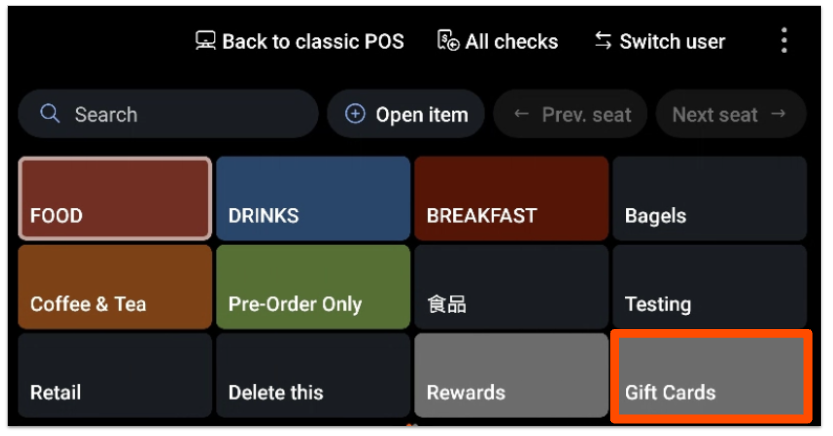
- From the Order screen on your POS, scroll to the right of your menus until you find the Gift Cards button.
- Select Sell Card.
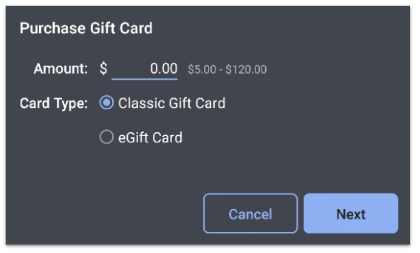
- Enter the Amount you wish to add to the card.
Note: If your restaurant offers both physical and eGift cards, you'll see the option above to select the type of gift card the guest would like to purchase. Select Classic Gift Card if you'll be handing the guest a physical card.
- Select Next.
- Now, you have the option to either swipe, scan, or key in the gift card number. The number and barcode can be found on the back of the gift card.
- Select Done to add the gift card to the guest's check and proceed with completing the guest's order and payment.
Sell Toast eGift Cards on the POS
If you're selling an eGift card on the POS, complete the steps outlined above and select eGift Card, then follow the additional prompts:
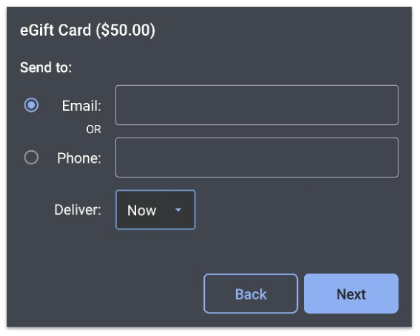
- When you sell an eGift card, you'll receive a prompt to enter the guest's email address or cell phone number. You can also designate if the message will be sent now or schedule it for future delivery (usually if the card is being given as a gift). Enter the desired recipient information, then select Next to continue.
Note: SMS text messaging capabilities are only available in the U.S. and Canada at this time.
- On the next screen, your guests can choose to include their email or phone number and receive a notification when the eGift card is opened. Enter the information if desired, then select Next to continue.
- Finally, you'll see the option to edit details before sending the eGift card to the intended recipient. Enter the Recipient's name, purchaser's name, and Message, if desired.
- Select Done to add the eGift card to the guest's check and proceed with completing the guest's order and payment.
Sell Toast eGift Cards Online
Once configured, you can sell eGift cards online by sharing your eGift card ordering site on your restaurant website or social media account.
To find your eGift card ordering link, navigate to Takeout & delivery in Toast Web, and select Restaurant info from the Toast Online Ordering section. On the right side of the page, you'll see a Buy E-Gift Cards link that you can share directly with your guests. This link will also be added to your Toast Online Ordering page.
At this time, it's not possible to customize the appearance of the eGift card ordering page.
Your guests will follow the following steps to buy an eGift card online:
- Your guests will navigate to your eGift card ordering site.
- They will be prompted to enter an Amount, personalize the message to the recipient, and choose a delivery time. They'll have to either enter a phone number or an email address to send the eGift card to the intended recipient. A preview of the gift card will appear on the page.
- At the bottom of the page, they can choose to Add Another eGift Card, or Check Out and submit their payment details.
Note: By default, the gift card purchase limit is set to $500 per transaction for eGift cards to help protect your restaurant from incurring increased chargebacks and fraud. Each physical card purchased in-store has a $2000 value limit.
Back to top
Add Value or Check a Toast Gift Card Balance
You can check the balance of physical gift cards on the POS or in Toast Web:
- To learn how to do this on the POS, check out this Support Center article: Check or Adjust a Gift Card Balance.
- In Toast Web, you can navigate to Reports > Payments > Gift card balances to view a real-time table with gift card numbers, first and last transaction date, initial amount, and current balance. You can select your desired gift card to open the Card Details window, where you can select Adjust Balance to make changes if needed. If you want to print the gift card balance to show to your guest, you can take a screenshot of the Card Details window.
To add value to a gift card, you can use the steps described here: Check or Adjust a Gift Card Balance.
If your guest would like to check the balance of their gift card or add value themselves, they can do so directly in your eGift card shop. To find this URL to share with your guests:
- Navigate to Takeout & delivery in Toast Web.
- Select Restaurant info from the Toast Online Ordering section.
- On the right side of the page, you'll see a Buy E-Gift Cards link that you can share directly with your guests.
- From here, guests can select Check Balance in the top right corner, and enter their card number, their PIN number, and then check their balance or add money to their gift card.
The PIN number is located in the original email or text message the guest received when their card was sent, but if a guest contacts the restaurant looking for this number, it can be found by navigating to Reports > Payments > Gift Card Balances OR Gift Card Transactions. Once on the Gift Card Balances or Gift Card Transactions page, navigate to the applicable card by searching for the card number, and select the card to see Card Details. If the card has a PIN number associated with it, it will be listed here.
You can share this link on your restaurant's website or social media pages so guests can check the balance of their eGift card or add value to their eGift card online.
Note: The PIN number is not needed for Local by Toast or branded app usage.
Add Internal Gift Card Notes
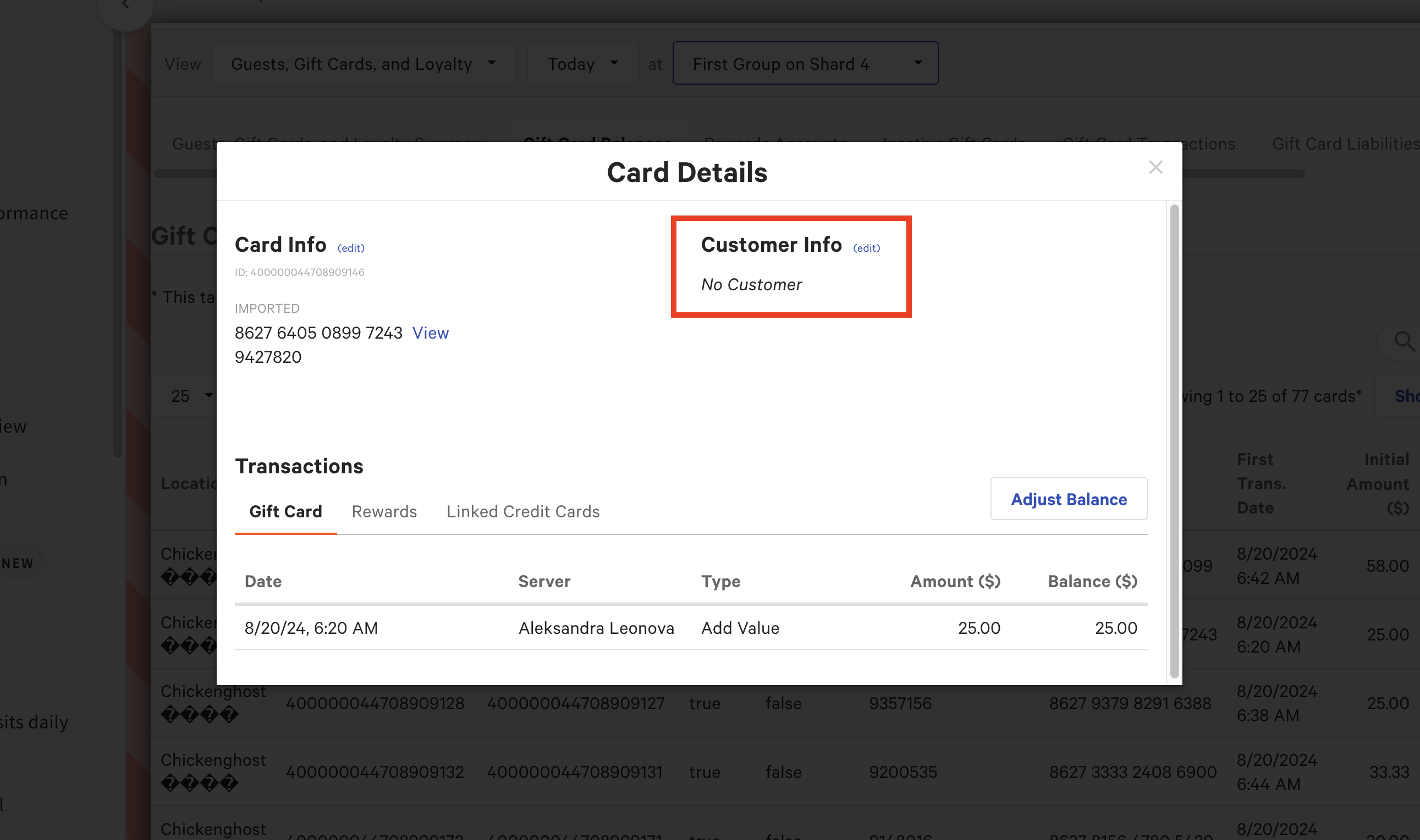
We don’t currently support adding categories to gift cards for reporting. However, you can add internal notes by going to Gift Card Balances → selecting any gift card to open the Card Details modal → clicking Edit next to Customer Info → and entering details in any available field, including the Notes field.
- Get Started With Toast Gift Cards
- Gift Card Reports Overview
- Gift Card FAQ
- Discount eGift Card Sales
- Discount Gift Card Purchases In-Store
For more information about gift cards, watch the following video (Note: Some of the POS visuals in the video may be outdated).