Rush an Order on KDS
Last updated: Sep 17, 2026, 5:38 PM
Ticket Rush Overview
The rush feature allows the expediter to move the ticket to the far left of the KDS (Kitchen Display Screen), signaling to the kitchen that this is the next ticket to work on. There are several reasons that you may want to rush an order:
- Missing items
- Impatient guests
- Server error
- VIP guests
Rush a Ticket
You can rush tickets from an expediter KDS device. If you have two-level fulfillment configured, you can rush from both the first-level and second-level expediter KDS devices. For more information about expediter KDS devices, see Setting up an Expeditor. For more information about two-level fulfillment, see Set Up KDS Two-Level Fulfillment.
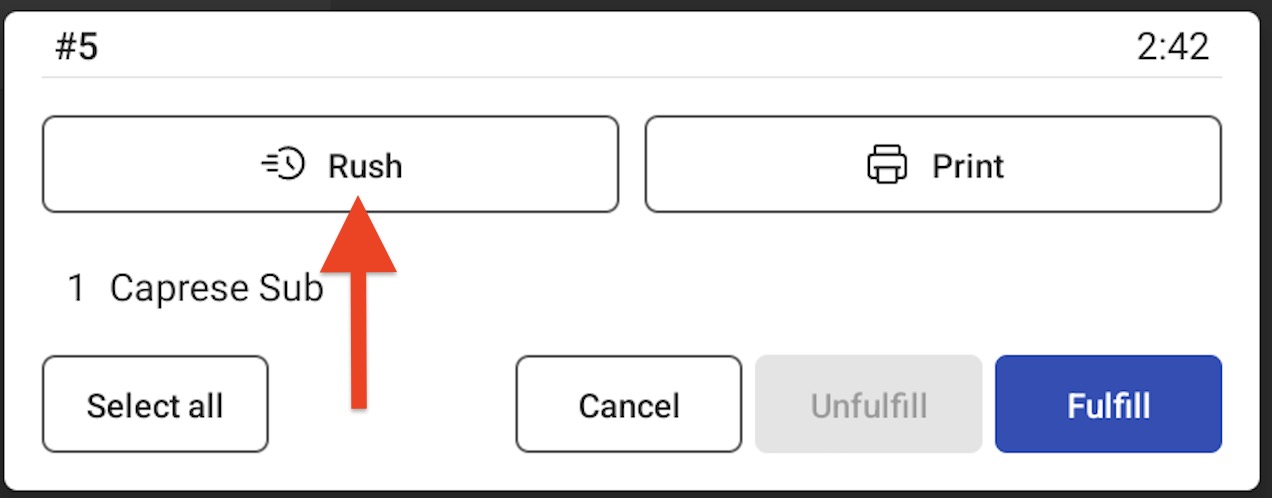
To rush a ticket, tap on the ticket to open the ticket details dialog. Select Rush to rush the ticket.
If individual item fulfillment is enabled, you can select individual items before selecting Rush. The individual items will become a new rushed ticket. For more information about individual item fulfillment, see Individual Item Fulfillment.
Ticket Display
When a ticket is rushed, it becomes the left-most unfulfilled item on the KDS device (not just the device that marked it as a Rush). When an expediter rushes an order, the order will flash briefly and play a chime at all prep stations where the order is. A rushed ticket will also display the text RUSH at the top of the ticket.
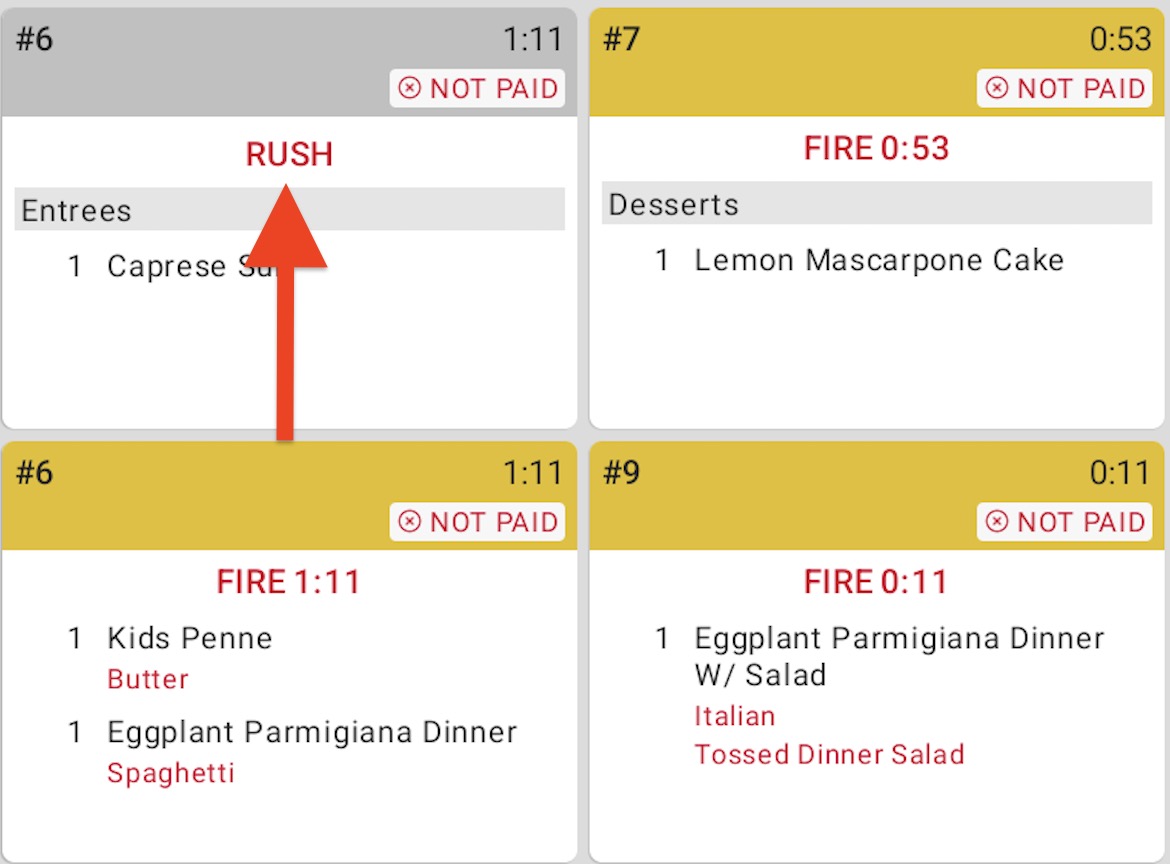
Note: When an expediter rushes an unfired ticket, that ticket will be fired. Also, in some instances, a rushed ticket will re-print. This is due to your selection on the Print Ticket Changes setting. To learn more, see Configure Order Changes and Voids to Auto Print to Kitchen.
For a full overview of item and order fulfillment on KDS, visit this Support Center article: Item and Order Fulfillment on KDS.