Integrate Shopify With Toast Retail
Last updated: Sep 28, 2026, 1:18 PM
- Shopify/Toast Retail Integration Overview
- Link Items in Toast to Shopify
- How Stock is Updated Across Toast & Shopify
- Frequently Asked Questions
- I can’t find the “Link to Shopify” button - where is it?
- Do I need to create new items in both Toast and Shopify?
- Why aren’t my item quantities syncing between Toast and Shopify?
- Why is my item in Toast showing a negative quantity?
- How do I disconnect the integration once it’s active?
- Does the Shopify/Toast Retail integration sync loyalty points across POS and ecomm orders?
- How do I need to set up my menu for Shopify linking?
- How do I make changes to my Shopify connection to Toast Retail?
- Can my guests use Toast gift cards on Shopify?
- Do my items need a barcode to be linked to Shopify?
- Additional Resources
Shopify/Toast Retail Integration Overview
Through key features such as high SKU volume management, retail inventory management, barcode generation, and more, Toast Retail brings the benefits of the Toast platform to the hybrid retail segment.
Now, by integrating Shopify with Toast Retail, you can manage inventory movement for physical stores and online. As orders are placed, inventory is adjusted in both Toast and Shopify systems, preventing overselling and stockouts. Inventory information is the only information passed between Shopify and Toast - no sales or order data is included with this integration at this time.
In order to set up this integration, you’ll need the Manage apps & sales channels permission for your Shopify account (external link) as well as the 4.5 Edit Full Menu permission for your Toast Web account.
Note that you do need to have an active Shopify account first in order to set up this integration with Toast Retail. Get started here (external link).
- In Toast Web, navigate to Retail using the link on the left-hand navigation menu, then navigate to Settings > select Shopify connect.
- Select Connect to Shopify. You’ll be redirected to Shopify, where you can select Install to log in to Shopify and continue with the integration.
- In Toast Web, confirm the Shopify location you’d like to connect to Toast.
- You'll be redirected to a login page. Enter your login details to proceed.
- Then, an authentication code will be sent to your phone number.
- Enter the six-digit authentication code to proceed.
- Next, select the Shopify location you'd like to connect to Toast.
- At this time, Toast will only support one (1) Toast location mapped to one (1) Shopify store. The same Shopify account cannot be used currently for multiple Toast locations.
- Then, in the installation page, select the Install button.
- Next, you'll be redirected to Toast Web. Confirm the Shopify location that you wish to connect by selecting Continue.
- Lastly, you'll be prompted to select the Shopify location that you wish to connect to Toast.
Link Items in Toast to Shopify
Linking your items in Toast to the items in your Shopify store is an important step in maintaining accurate inventory counts across all sales channels. You can do this item-by-item using the steps below, or take advantage of bulk actions to link several items at a time.
A few things to consider before you begin linking items:
- Items must exist in both Toast and Shopify before linking.
- This means you must either complete the Toast Retail import template process or build your item catalog another way. For all of the options for setting up your item catalog in Toast Retail, see Get Started With Toast Retail.
- Inventory stock counts with decimal point values are not supported at this time (e.g., weighed items that would result in decimal inventory counts).
- For shared inventory items (e.g., wine glass, bottle, or case) - ensure these are either built as separate items in Toast (and only link the versions you sell on Shopify), or built as variations within the Toast Retail module.
- In your Shopify store, ensure the items you wish to sync with Toast have the Track Quantity setting (external link) enabled.
- In Toast Web, navigate to your retail item catalog by selecting Retail from the left-hand navigation menu, and then navigating to Item management > Item Catalog.
- Use the search bar at the top of the page to find a specific item and select the item name from the library to open the item details page.
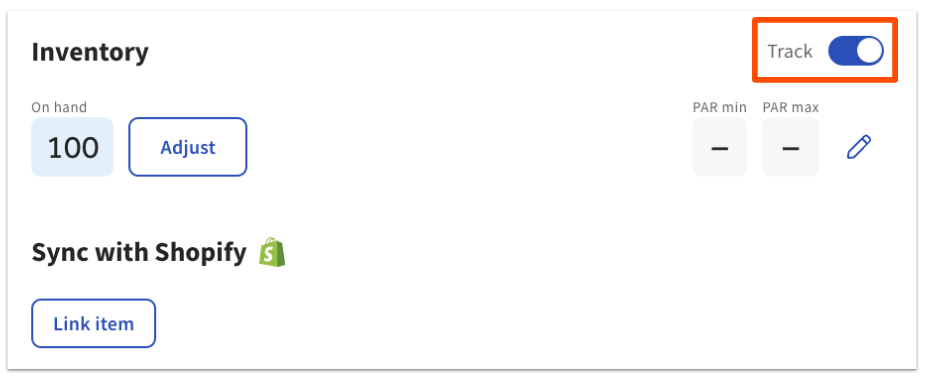
- Select the Inventory tab and ensure that the Track toggle is set to the On (blue) position.
- Select Link item under the Sync with Shopify section (pictured above).
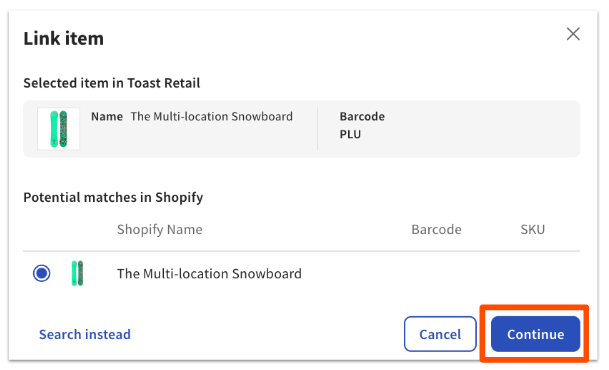
- Suggested matches from your Shopify store will be shown (populated using SKU number, barcode, then item name), or you can select Search instead to find items from your Shopify store. If the item’s barcode details aren’t entered, or if what is typed in the search bar doesn’t match anything in your Shopify store, the search will populate a message stating “No results found.” If you don’t find an item you’re expecting to see, search for the item on your Shopify product page and copy/paste it in the search bar in Toast.
- Select the item from your Shopify store that you wish to link to this retail item, and then select Continue.
- Note: If your item has differing quantities showing in Toast Retail and Shopify, you’ll be asked to select which quantity you want to use for the linked items.
- Note: If your item has differing quantities showing in Toast Retail and Shopify, you’ll be asked to select which quantity you want to use for the linked items.
- Select Link item on the following pop-up to confirm your choice. The Shopify product name, barcode, and PLU number (if applicable) will appear under the Sync with Shopify section once you’ve successfully completed a link.
- Save your changes on the item details page.
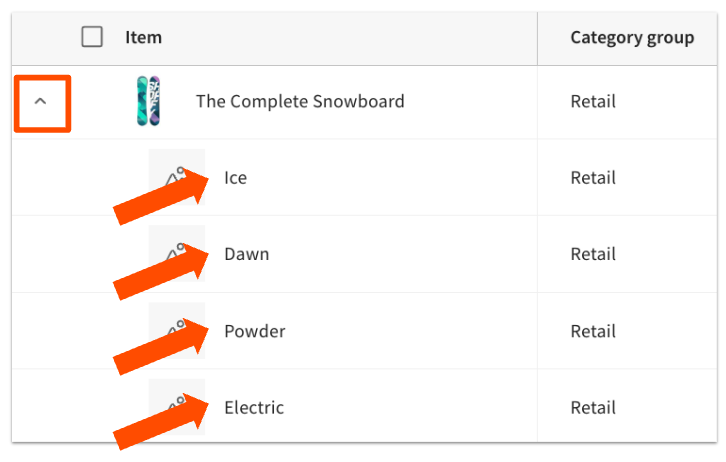
If your item has multiple variations, you’ll need to expand the variation group within the item catalog, select each item variation, and link each item variation to Shopify.
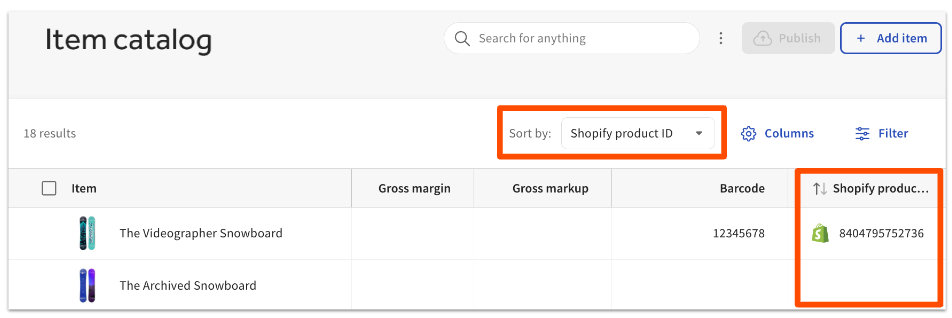
Once you’ve finished linking all of your retail items to your Shopify, you can easily identify them in your item catalog by sorting your items by Shopify product ID. All items with a Shopify ID will appear at the top of the table.
Link Multiple Items Using Bulk Actions
To link more than one item to Shopify at the same time, follow these steps:
- From the item catalog in Toast Retail, filter to the items you’d like to connect (see Optimize Toast Retail to learn more).
- Select the checkboxes next to the name of each item you’d like to link.
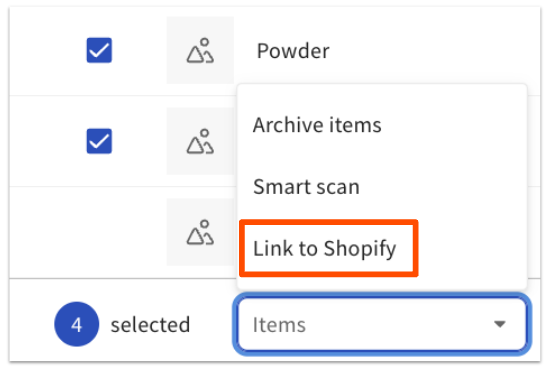
- At the bottom of the page, open the Items drop-down menu and select Link to Shopify.
- Follow the prompts to match all selected items to your Shopify items.
How Stock is Updated Across Toast & Shopify
Once items in Toast Retail are linked to Shopify, the inventory counts of those items will be synced. Any time one of the following sales activities occurs, the item’s inventory will be updated on both Toast and Shopify platforms:
- Item purchases on Toast POS, Toast Online Ordering, or third-party integrated online ordering with Toast
- Voided items or checks on Toast POS
- Item purchases from the active sales channel in Shopify
- Item returns processed in Shopify
- Canceled orders in Shopify
Note: If the overselling setting in Shopify is enabled, you can continue to sell an item into a negative inventory count on Toast. If this is not preferred, you can adjust this setting from within Shopify.
Back to top
Frequently Asked Questions
I can’t find the “Link to Shopify” button - where is it?
In order to see the Link to Shopify button, ensure that the Track toggle under the Inventory section of the Retail item details page is toggled on. The Link to Shopify button will then appear below the toggle.
Do I need to create new items in both Toast and Shopify?
Yes. The Shopify/Toast Retail integration syncs inventory counts only — it does not create items for you or publish new items from Toast to Shopify (or vice versa). Any time you add a new item, create it in both Toast and Shopify, then link it following the steps in Link Items in Toast to Shopify (or Link Multiple Items Using Bulk Actions if you're adding several at once)
Why aren’t my item quantities syncing between Toast and Shopify?
If your item quantities aren’t syncing, try these troubleshooting steps:
- Ensure the Track toggle is set to on for the item in question (see this section of this article for more instructions).
- Ensure the item is properly linked to Shopify - you can see this on the item details page, or by the presence of a Shopify product ID in the item catalog.
- Ensure the item is set to “Active” status in Shopify.
Why is my item in Toast showing a negative quantity?
A setting in Shopify can allow your retail items to be oversold. On the item page in Shopify, confirm if the Continue selling when out of stock setting is enabled.
How do I disconnect the integration once it’s active?
If you decide to disconnect the integration, you can do so within Shopify:
- From your Shopify admin page, select the arrow next to Apps.
- Select App and sales channel settings.
- Select Uninstall next to the Toast app.
- When prompted, enter a reason for uninstalling (optional), and then select Uninstall.
The Shopify Connect page in Toast Web will return to its original, uninstalled state.
If multiple Toast locations and Shopify locations are connected, please note that uninstalling the Toast app will sever the connection for all Toast locations within the management group.
Does the Shopify/Toast Retail integration sync loyalty points across POS and ecomm orders?
How do I need to set up my menu for Shopify linking?
Modifiers can not link to Shopify at this time, so you'll need to be careful when setting up your menu. In order to link modifiers, you'll need to convert any modifiers (size, color, etc.) to variations in Toast Retail before you can proceed with Shopify linking.
How do I make changes to my Shopify connection to Toast Retail?
To make changes to your Shopify connection, navigate to Retail > Settings > Shopify connect, and select View connection. This allows you to see the location that is connected to Toast. If you have multiple Shopify locations and you need to change the location that is connected to Toast, you'll need to do that in the Shopify platform.
Do my items need a Barcode to be linked to Shopify?
Items do not need barcodes to sync with Shopify - items sync by name, barcodes are optional and only used for scan-based lookup.