Manage Duplicate Barcodes
Last updated: Sep 17, 2026, 4:20 PM
In this Article:
Duplicate Barcodes Overview
If an item with a barcode appears on more than one menu group or if multiple items share a barcode, your Toast device will show a dialog to prompt you to choose the desired item for that barcode.
In some cases, you may want this to happen! For example, a brewery may sell the same can of beer on a food menu and a retail menu for to-go purchases. If local tax codes require that retail beer is taxed differently from beer consumed in-house, then one way to prepare the menus is to put the beer on two different menu groups with each menu taxed differently. When you scan the barcode, you’ll see this dialog on your Toast device and you must select the appropriate option.
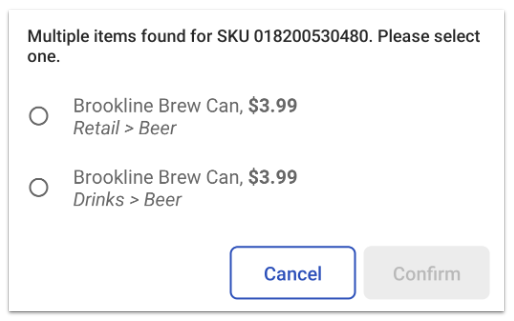
If you want one of the menu groups to be the preferred group for barcode scans, you can configure that in Toast Web using the instructions in the next section of this article.
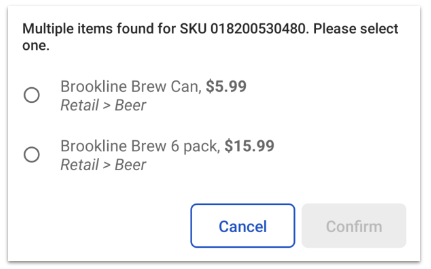
Another example of the duplicate barcode dialog being useful for your restaurant would be if two items share a barcode (such as a single can and a six-pack of the same beer). In that case, the dialog that pops up will allow you to control which item is added to the order based on which item you scanned.
Configure a Preferred Menu Group for Barcode Items
If an item is part of multiple menu groups and you’d like the scanned product to always be associated with a specific menu group, you can follow these steps to set that menu group as the scanned parent group.
- In Toast Web, navigate to Menus > Bulk management > Advanced properties and select your desired menu group.
- In the Barcode Scanner Configuration section, for the Serves as parent for scanned items? setting, select Yes, this group will be selected as the parent when items it contains are scanned.
- Save and publish your changes.
You shouldn’t enable this setting for more than one menu group containing the same item. If you do, Toast will again prompt you to choose which menu group to select when scanning the item. You’ll see a warning on your configuration page if you accidentally have an item that has multiple menu groups set as the scanned parent.
Back to top
Additional Resources for Barcodes
Back to top